Photo evidence for you and your client
Take photos against a job or any task on it. Send them to your client with the invoice, and keep a full record of the job to refer to if anything is questioned later.
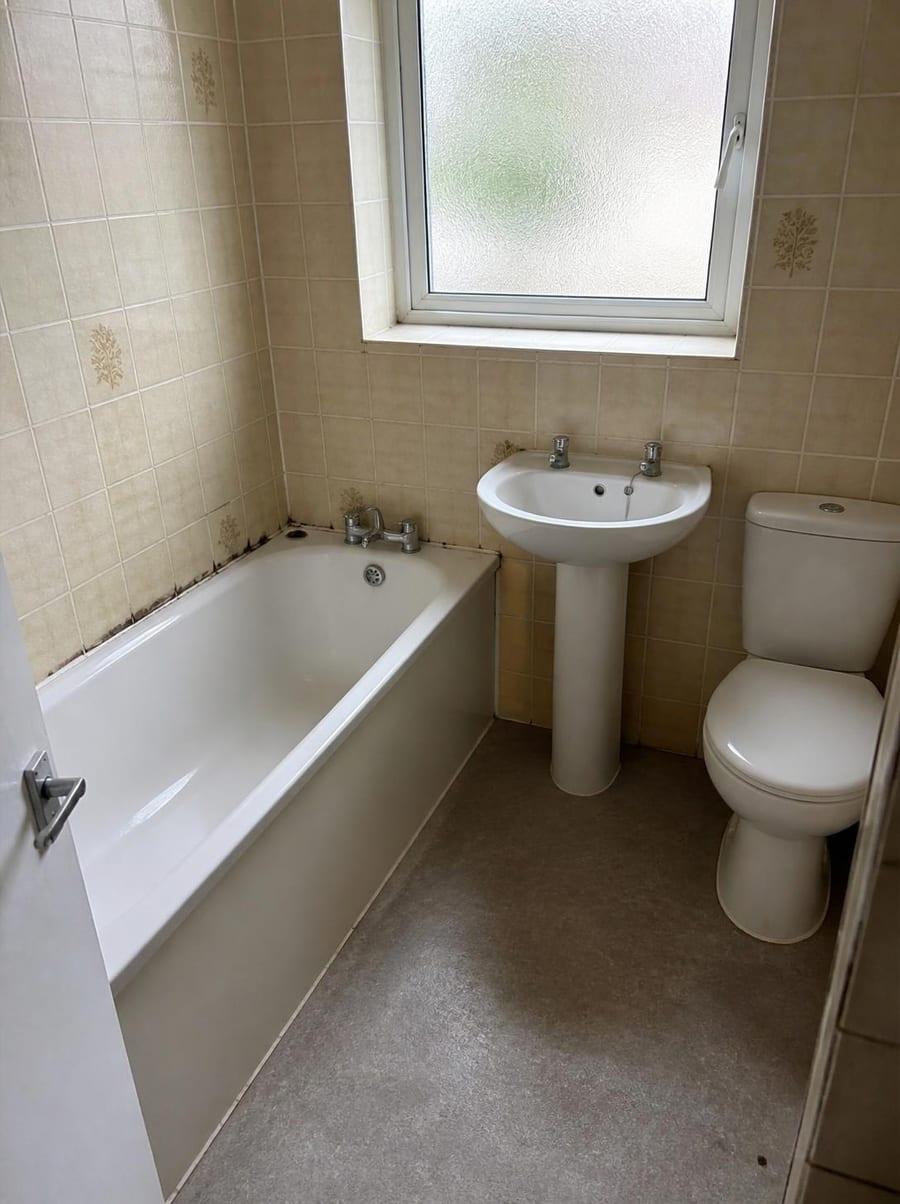
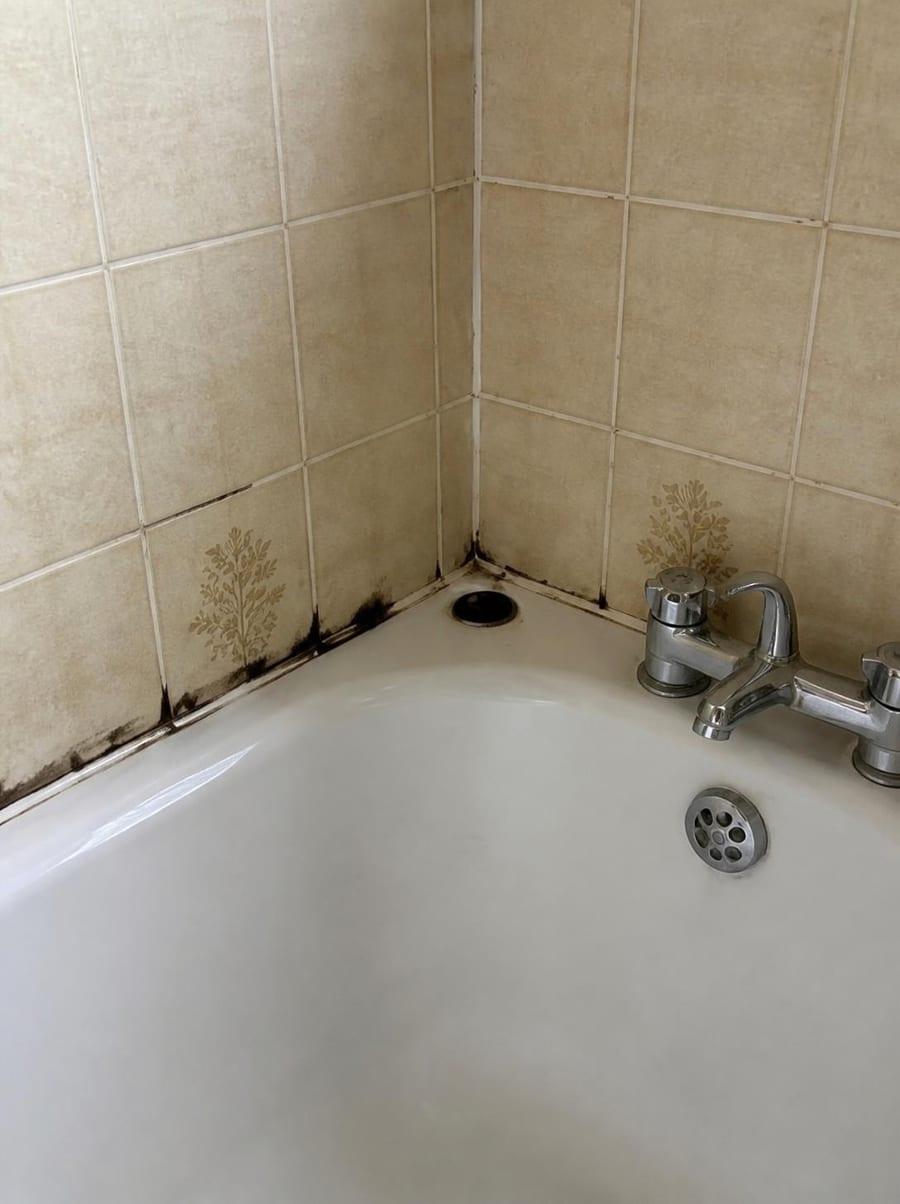
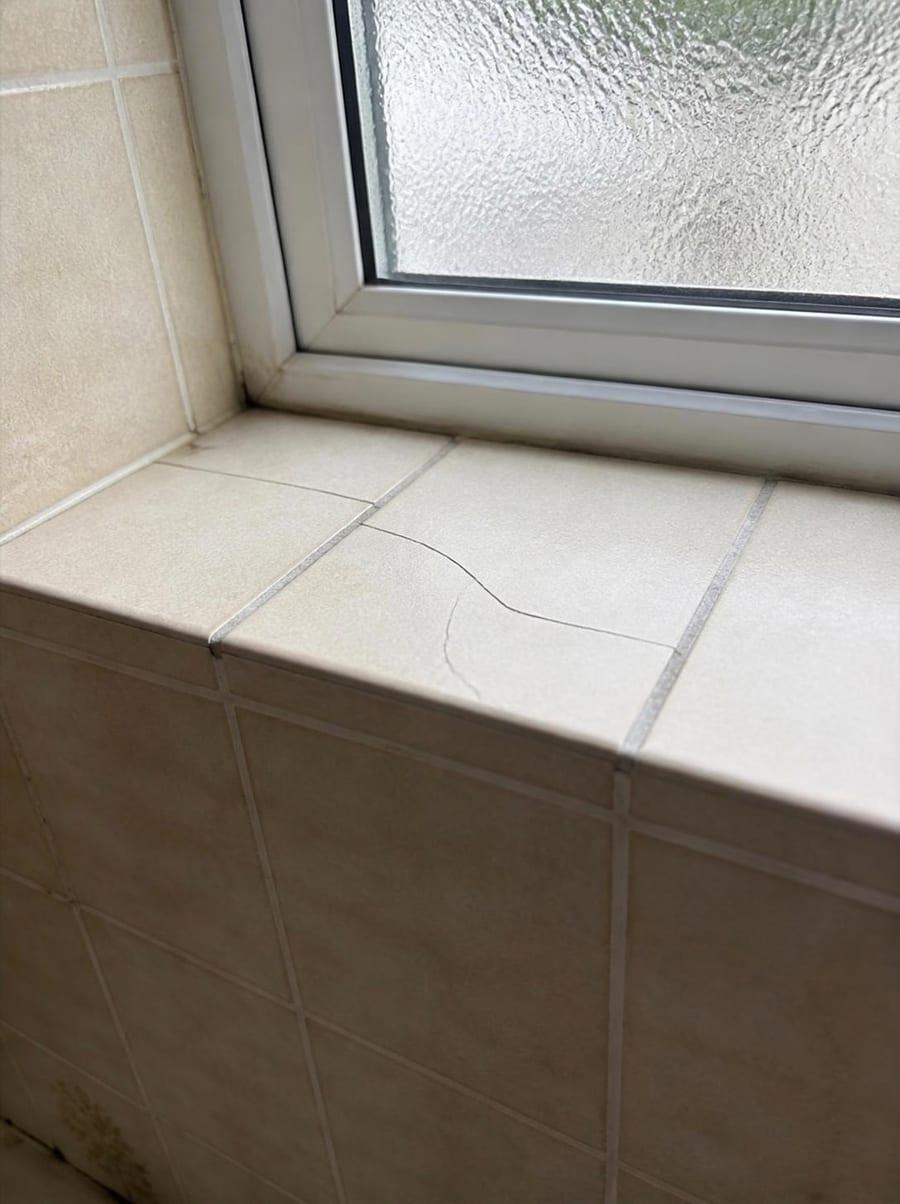
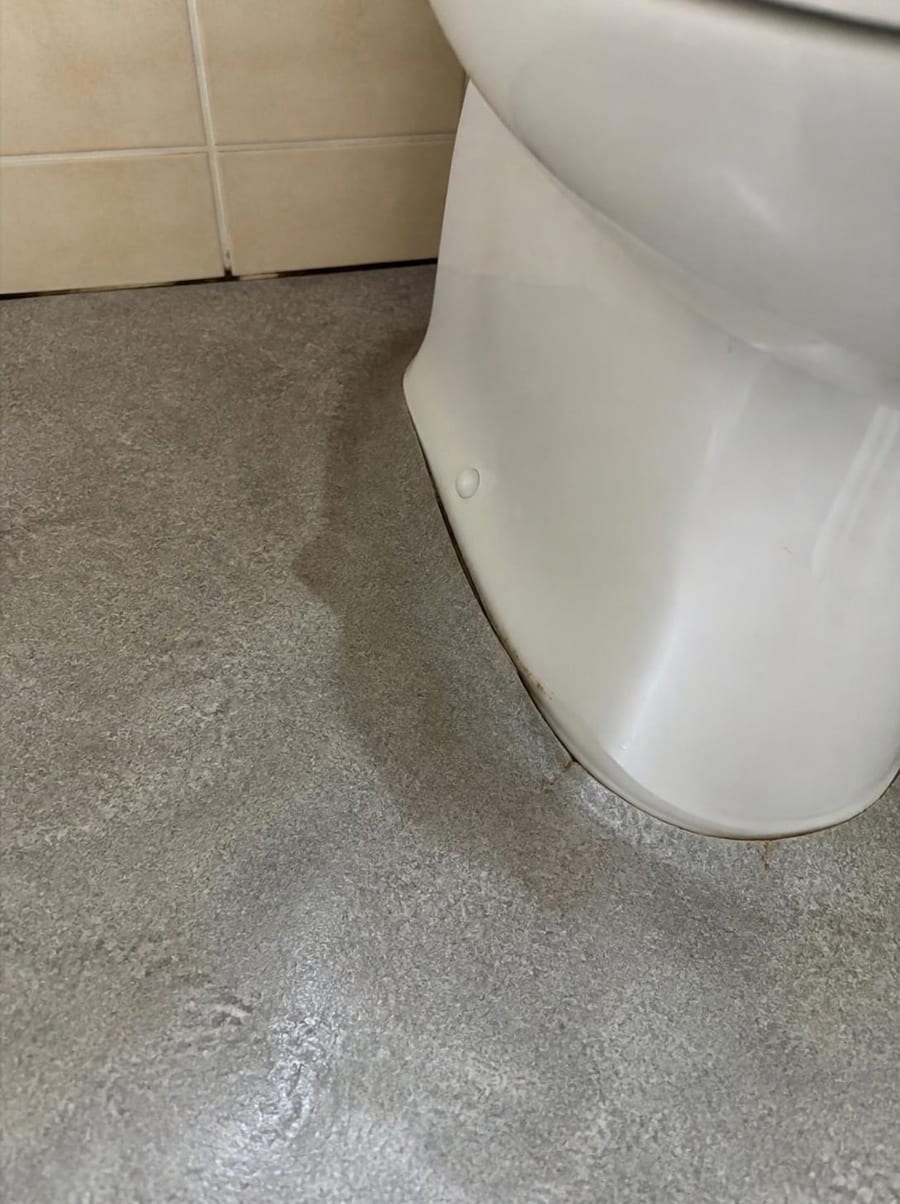
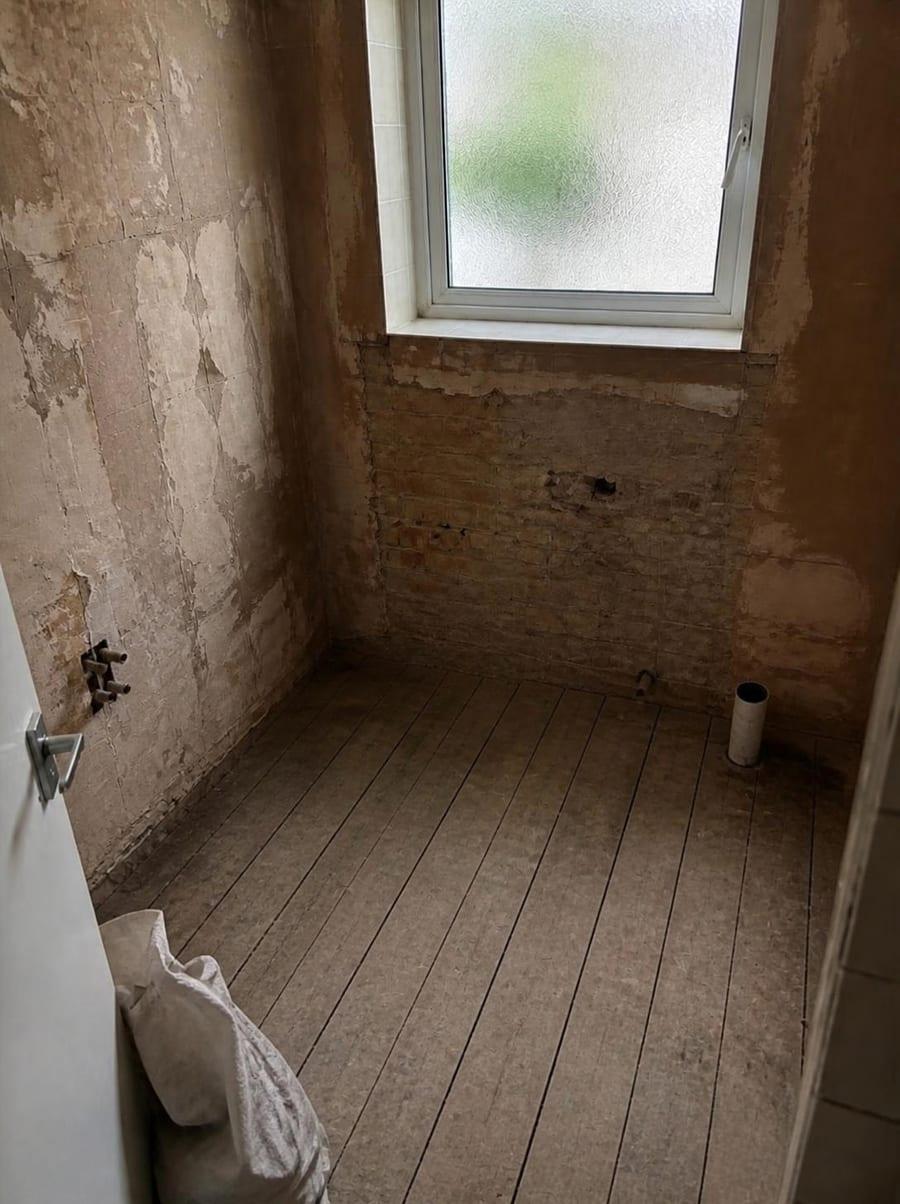
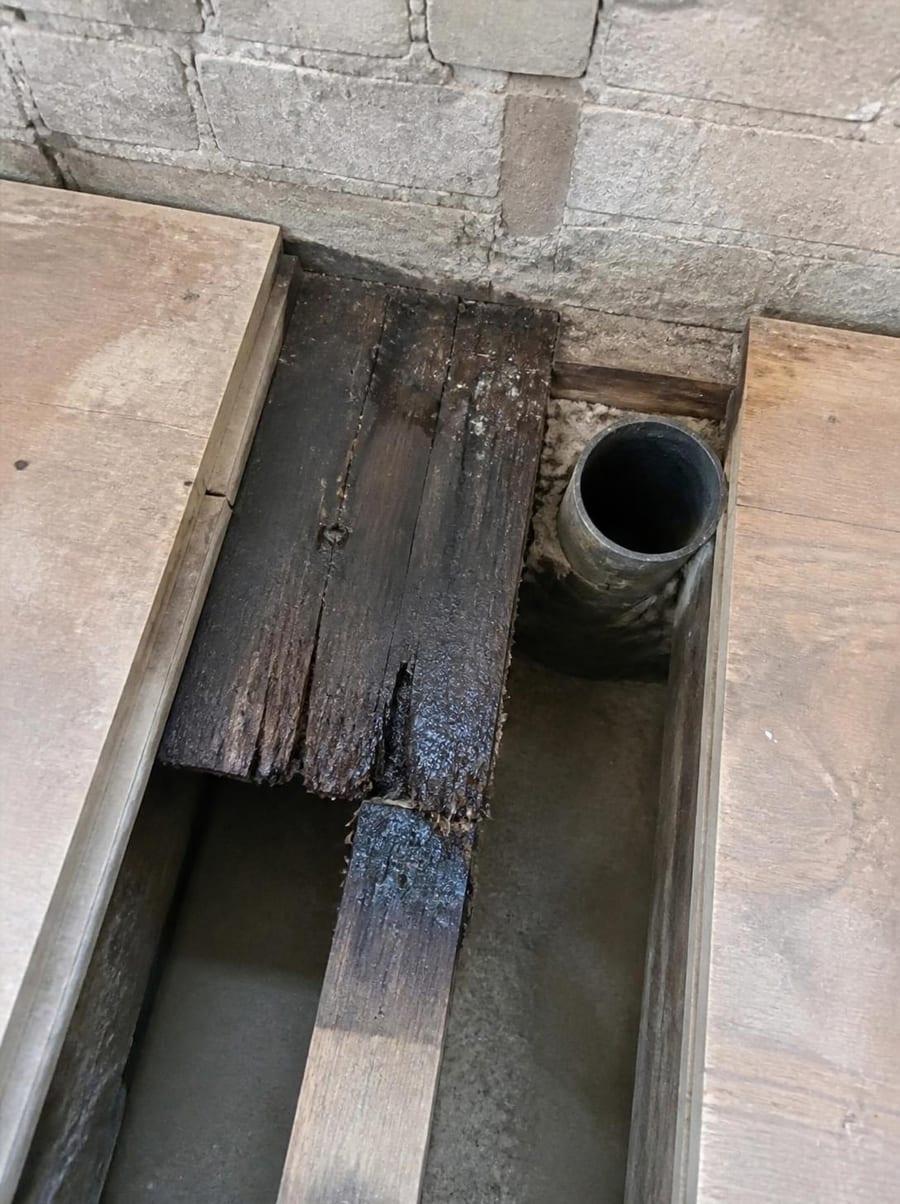
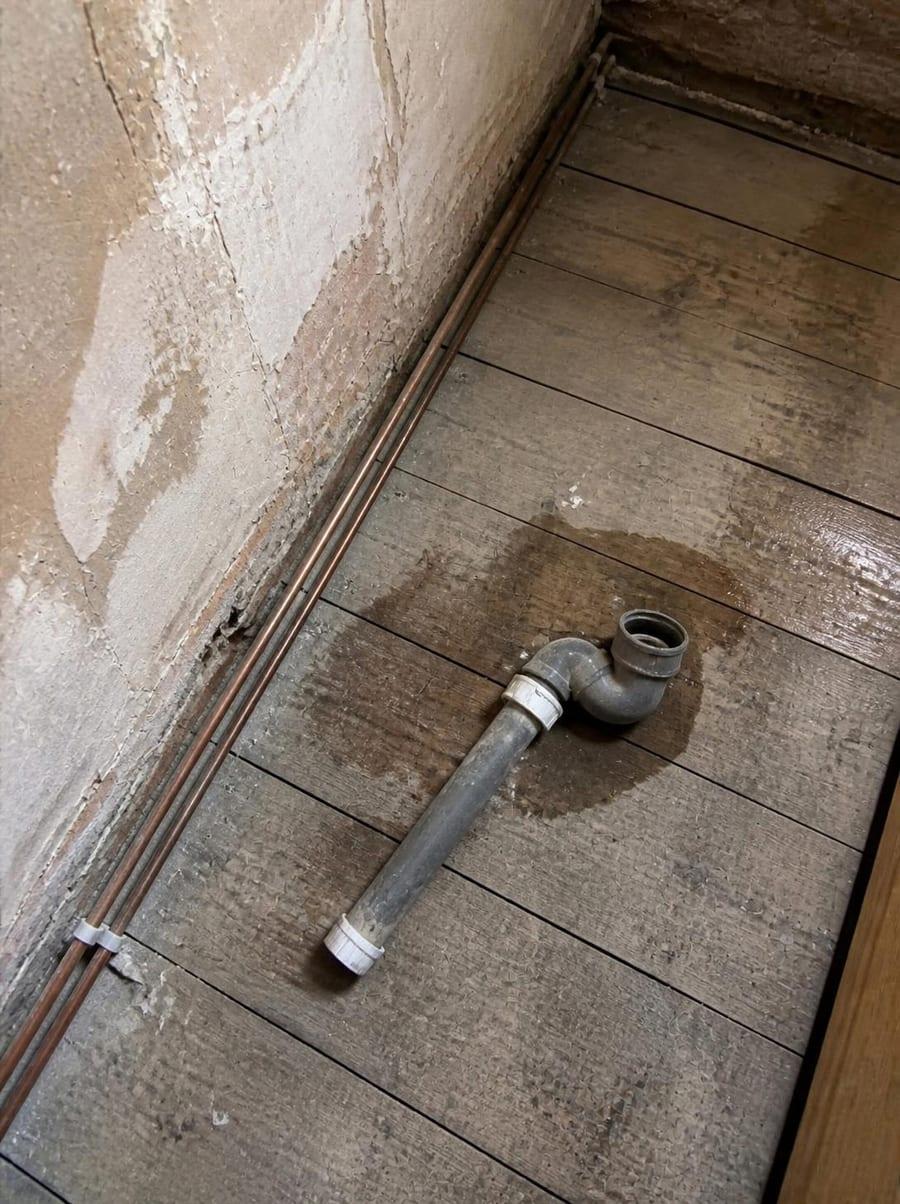
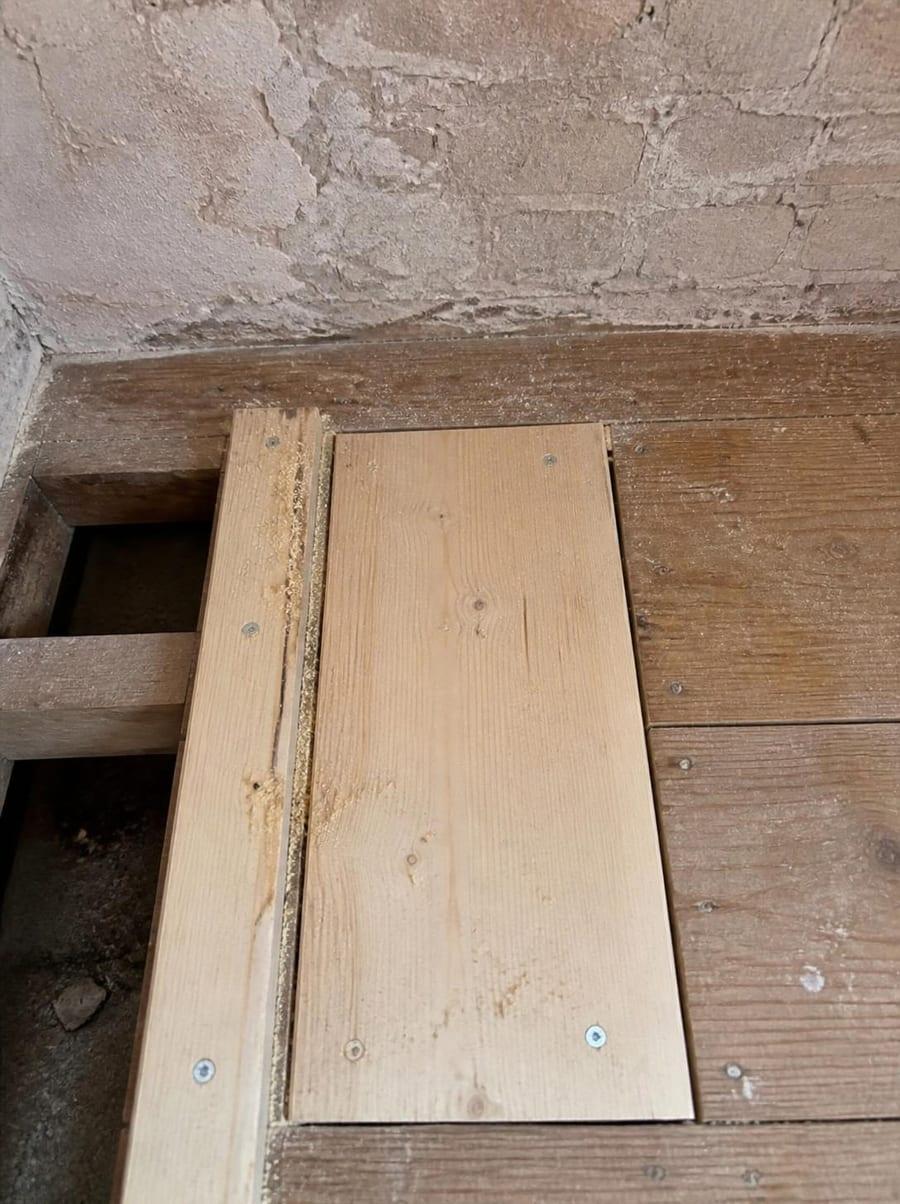
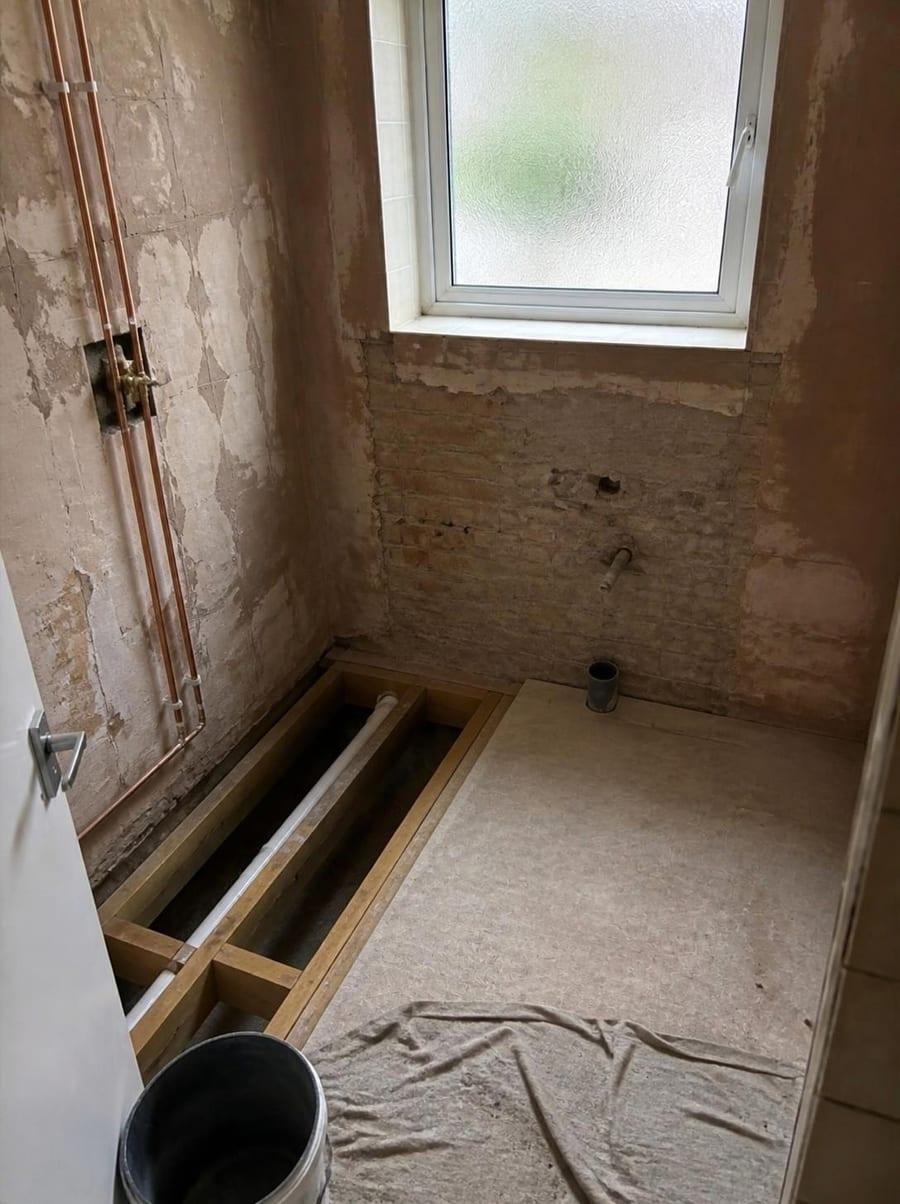
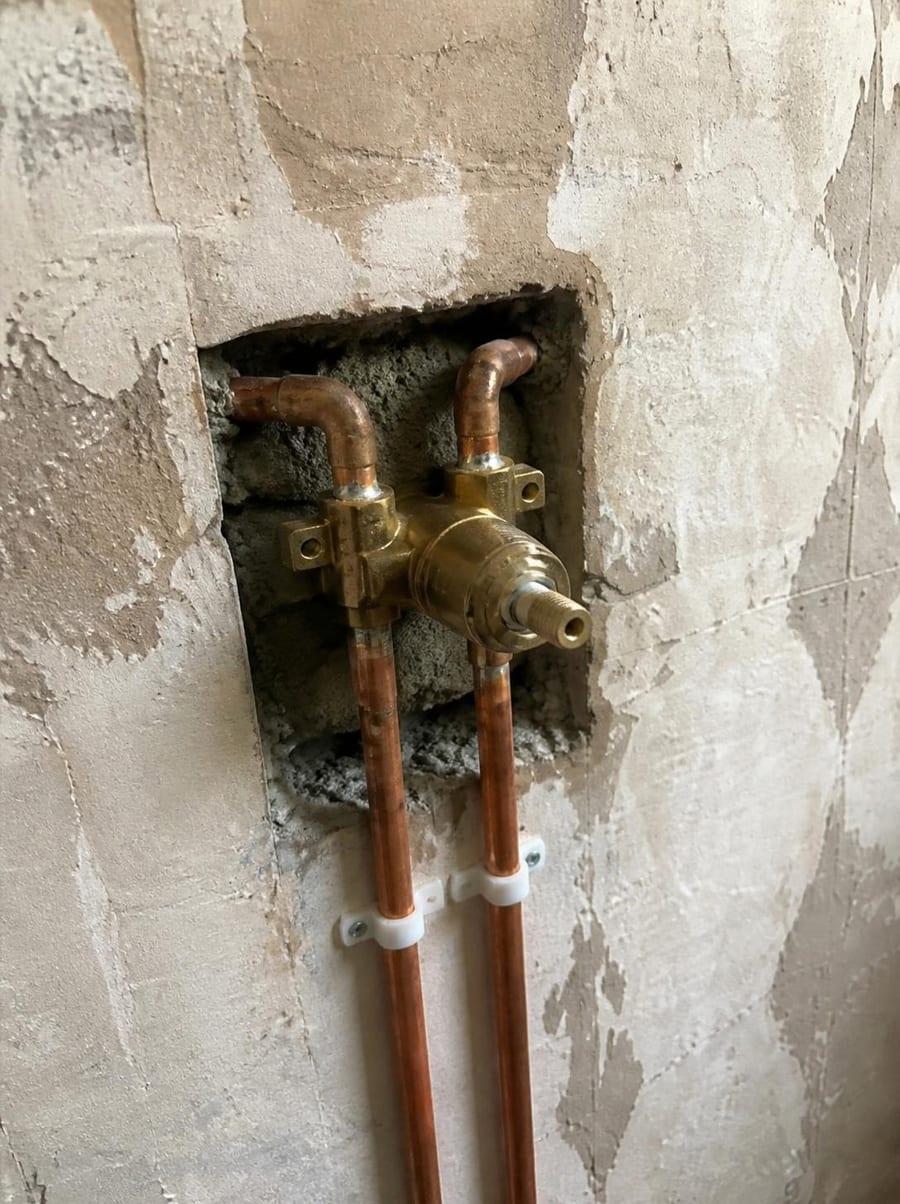
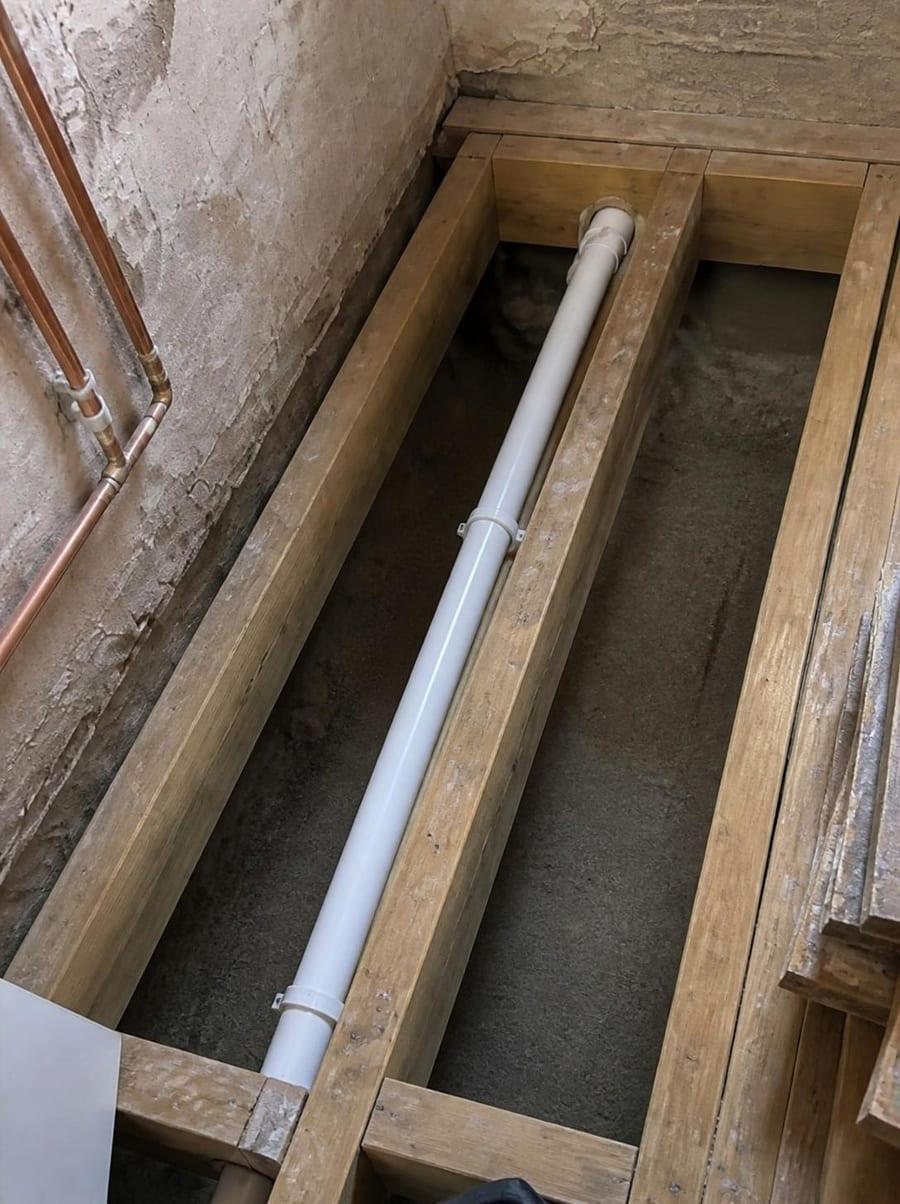
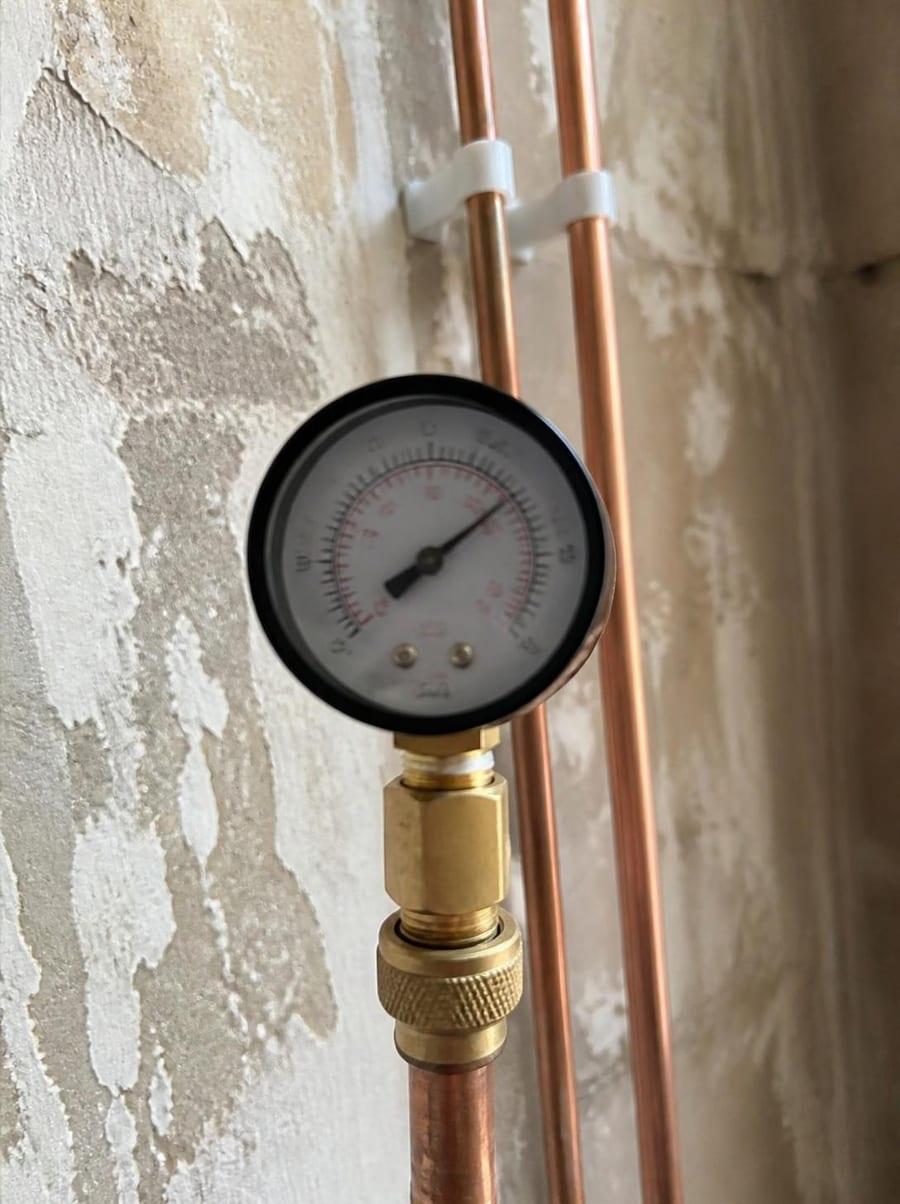
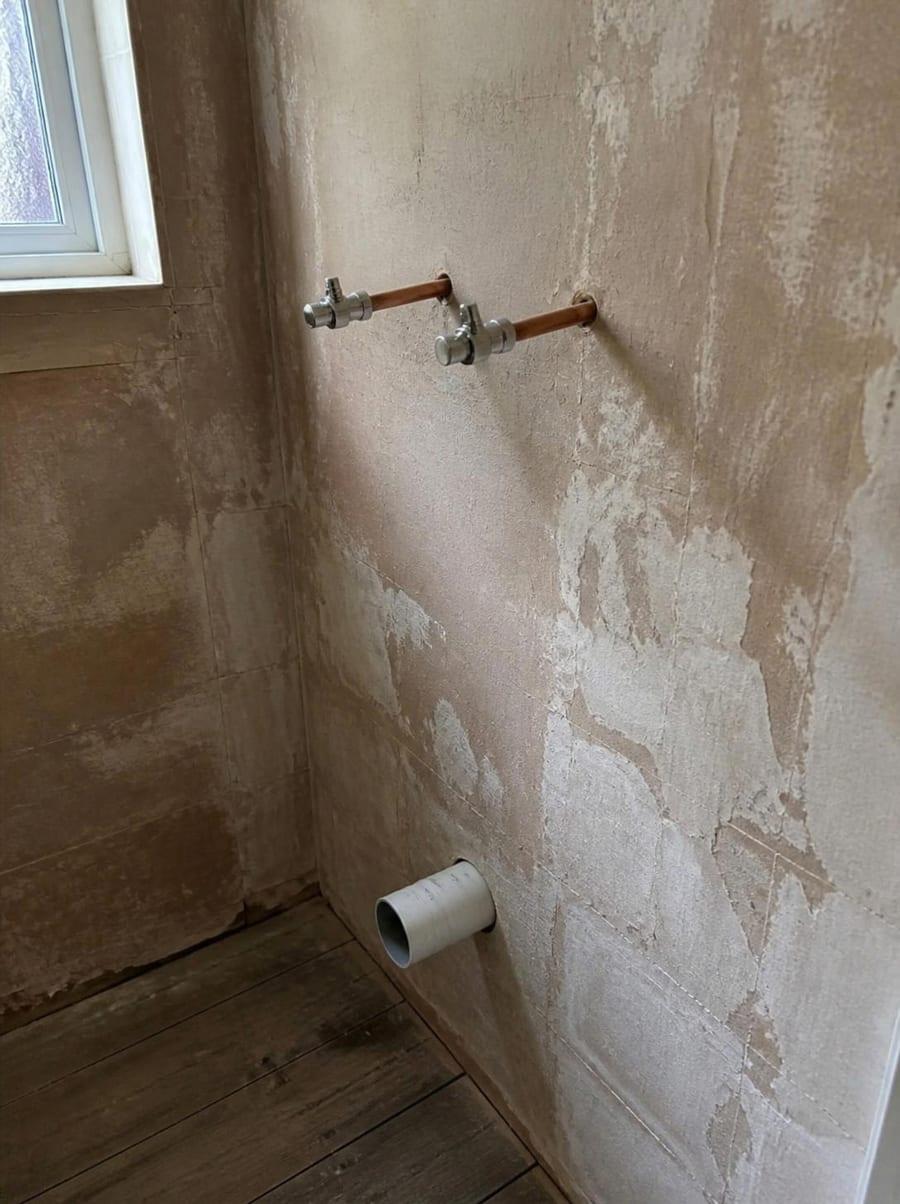
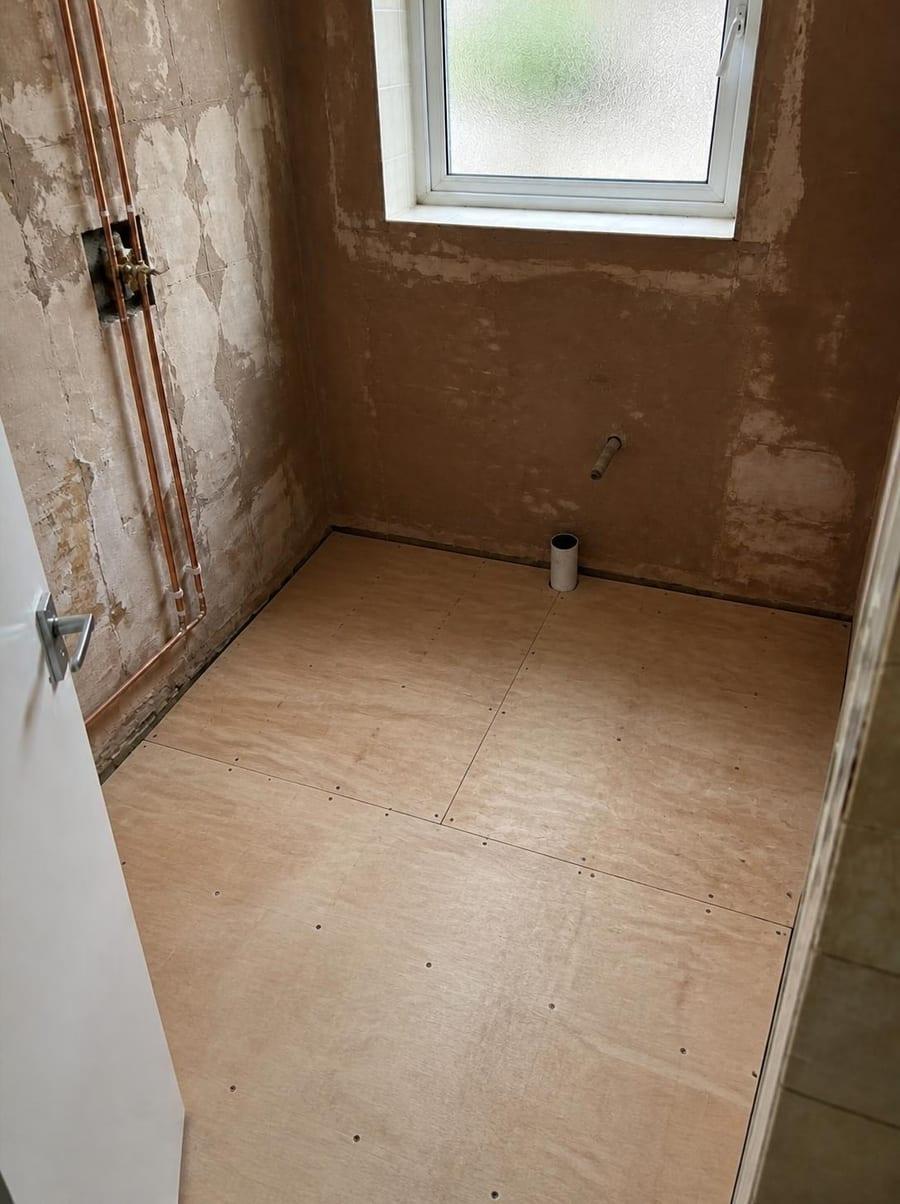
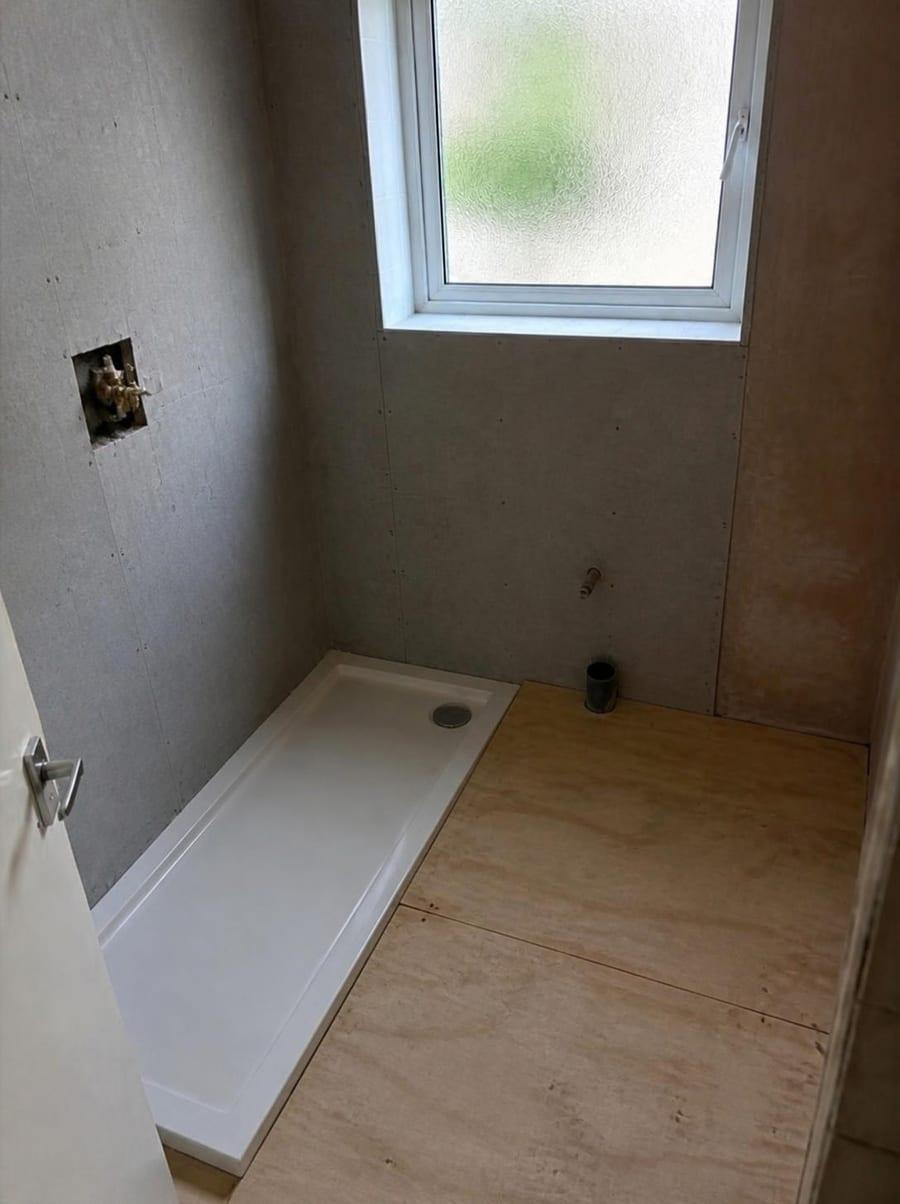
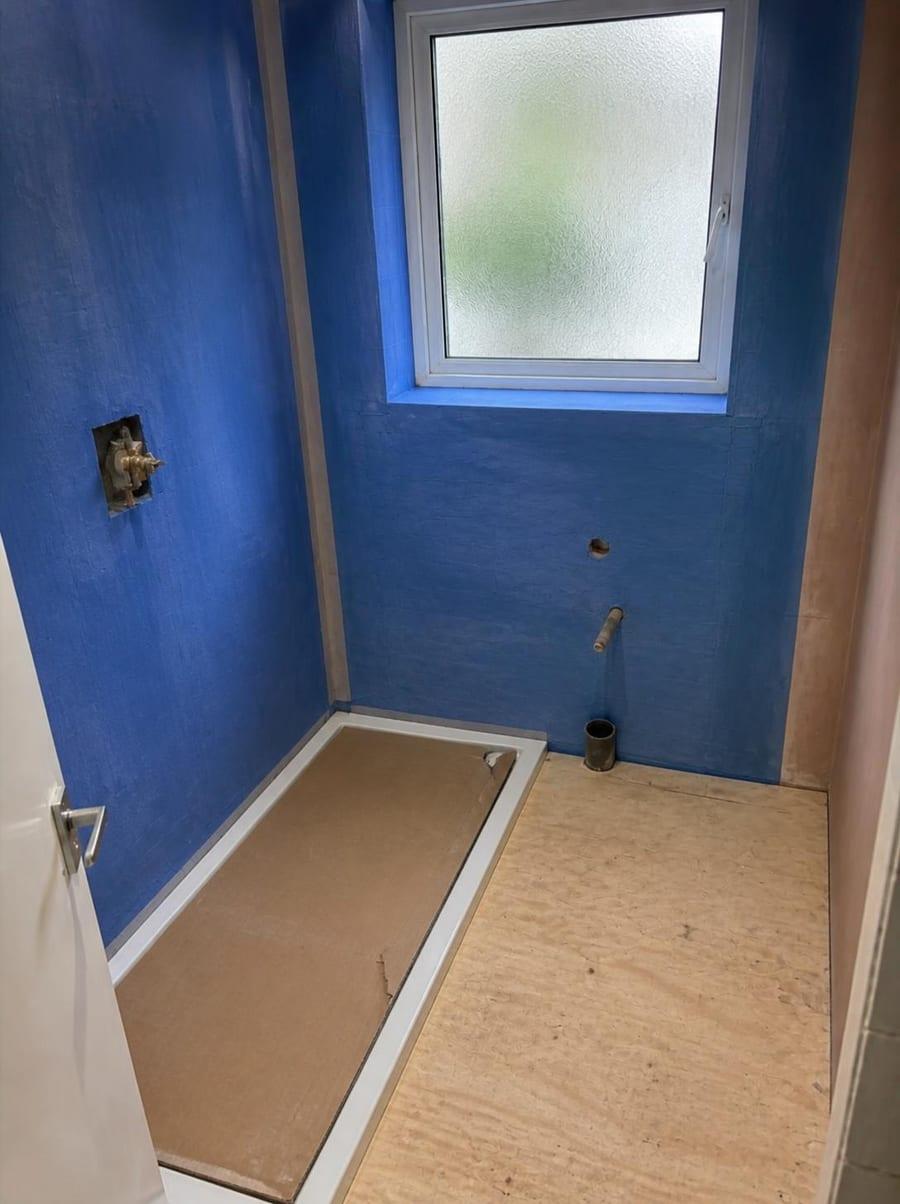
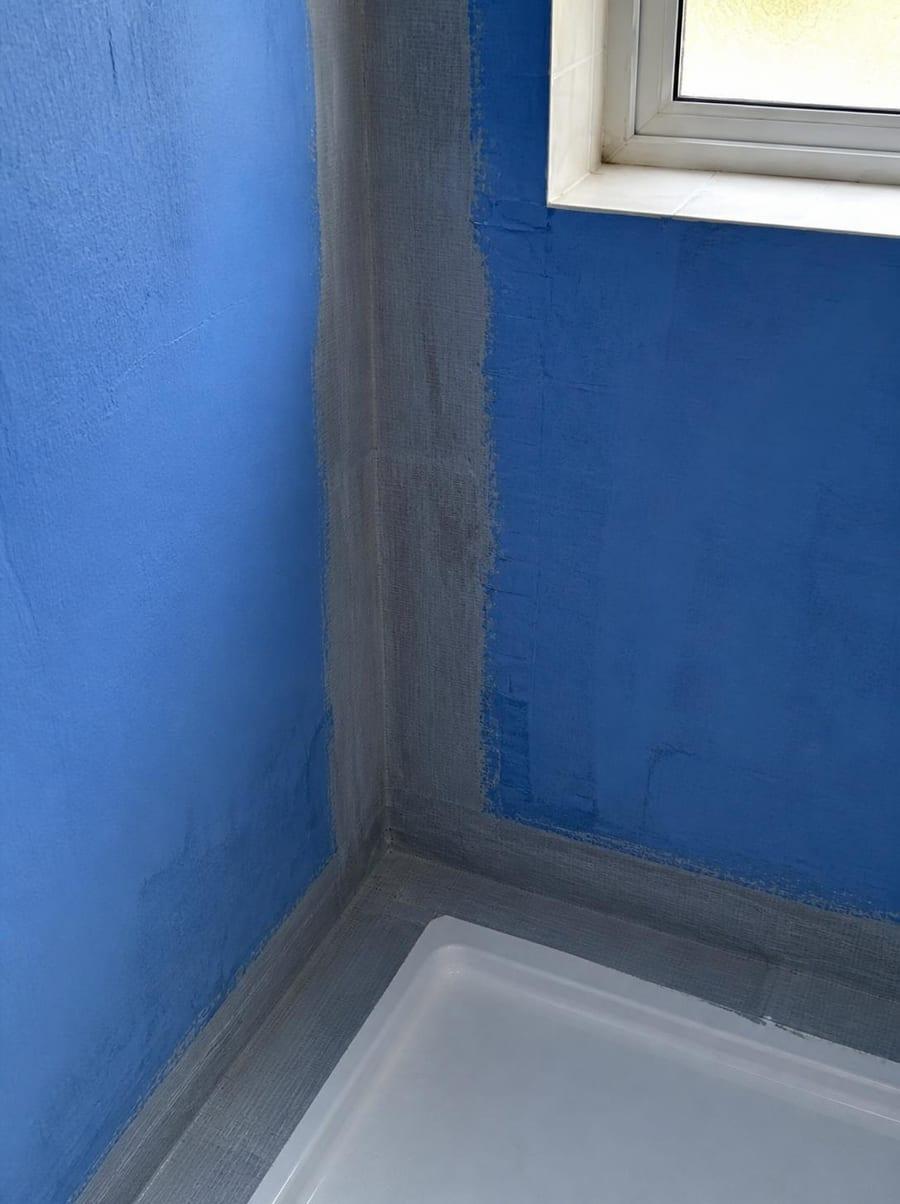
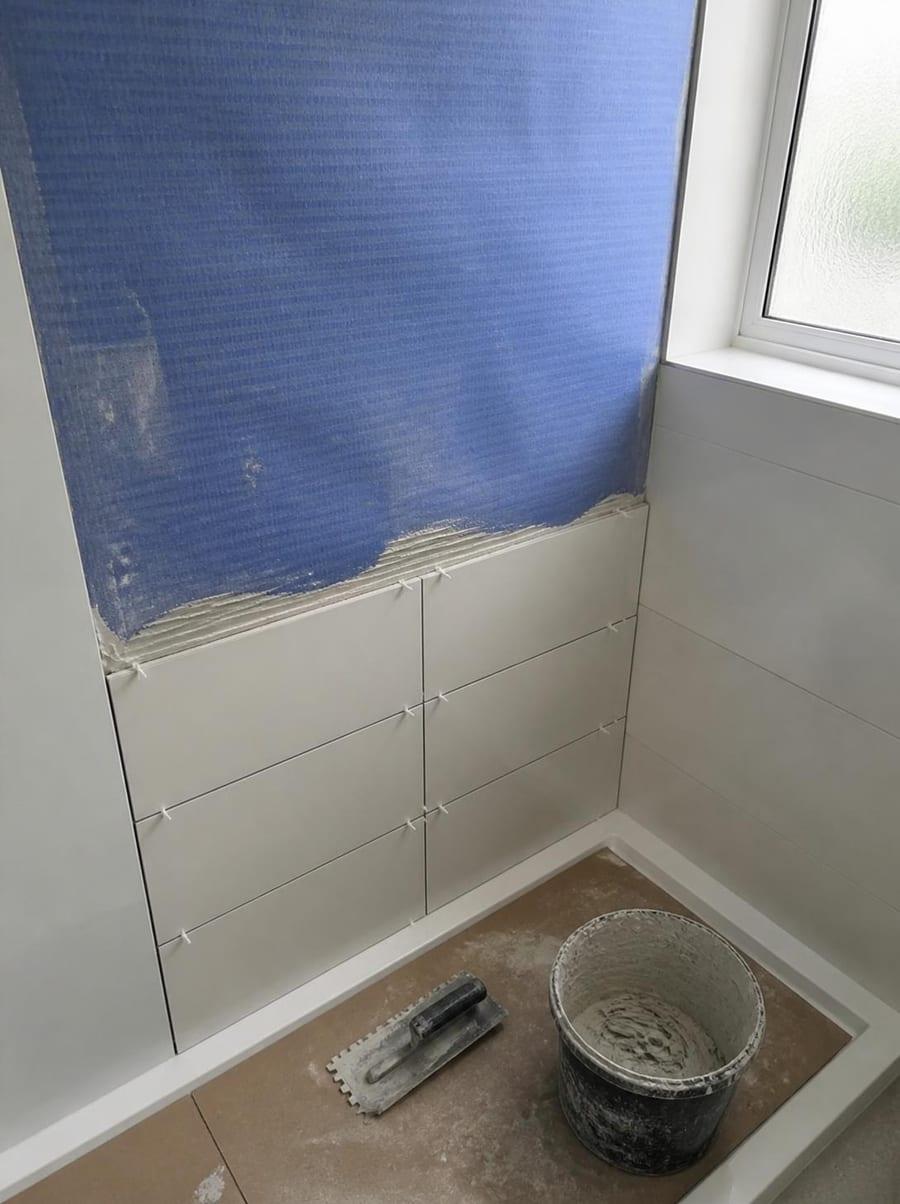
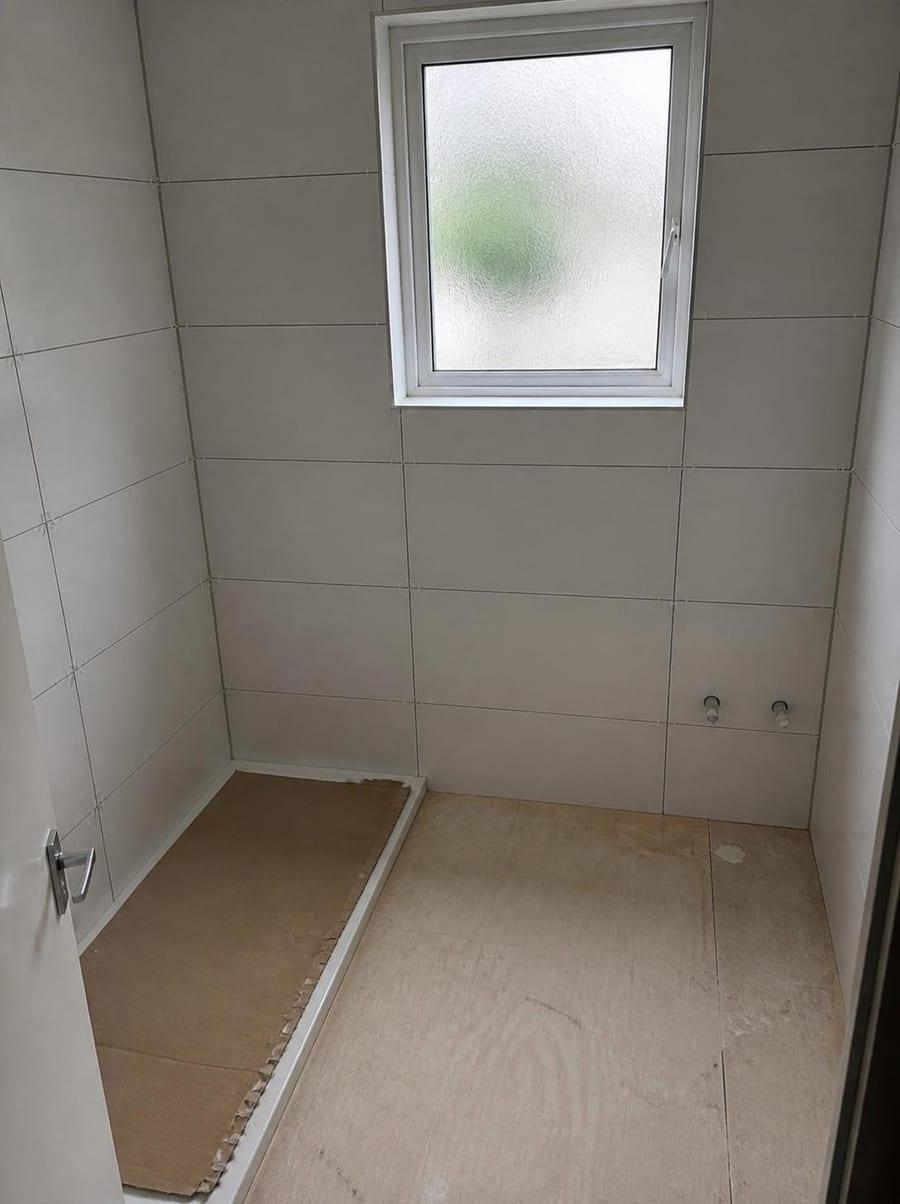
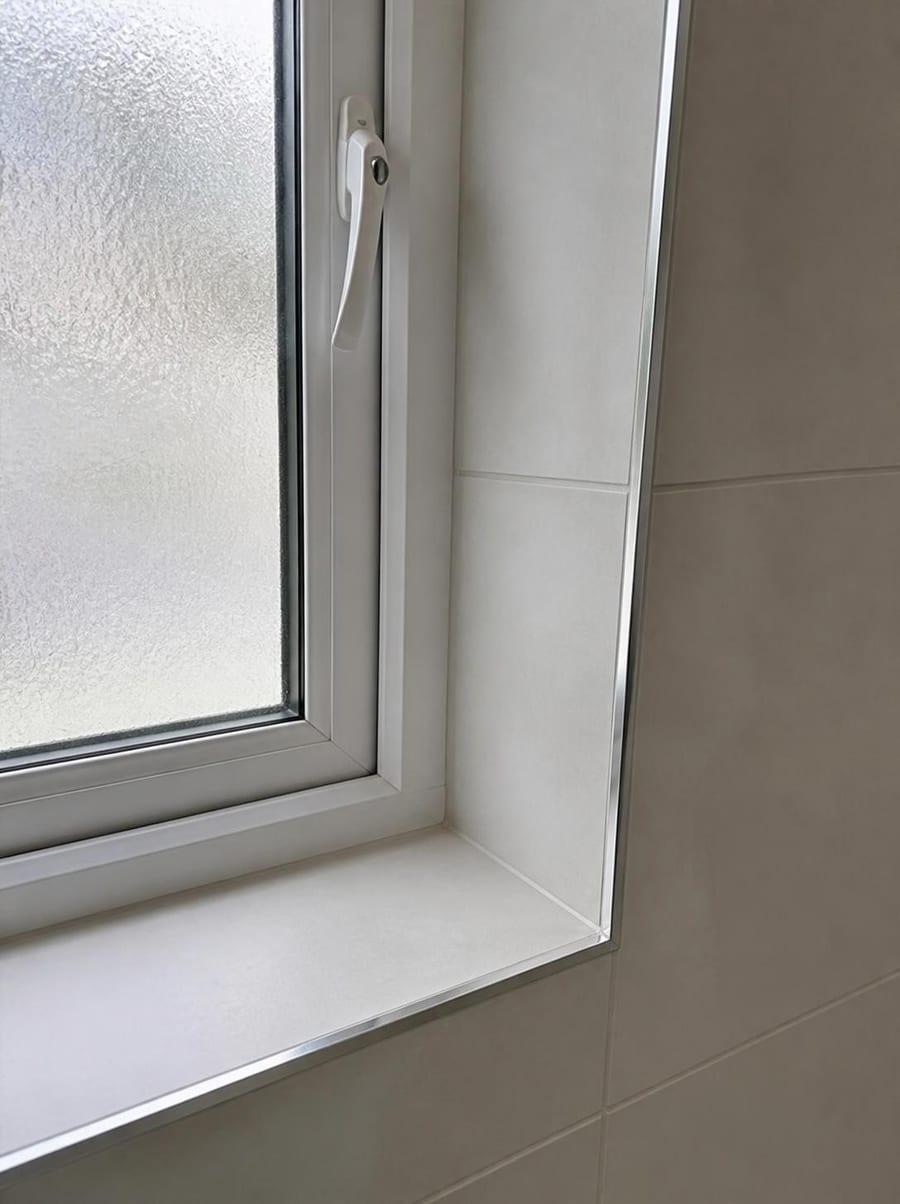
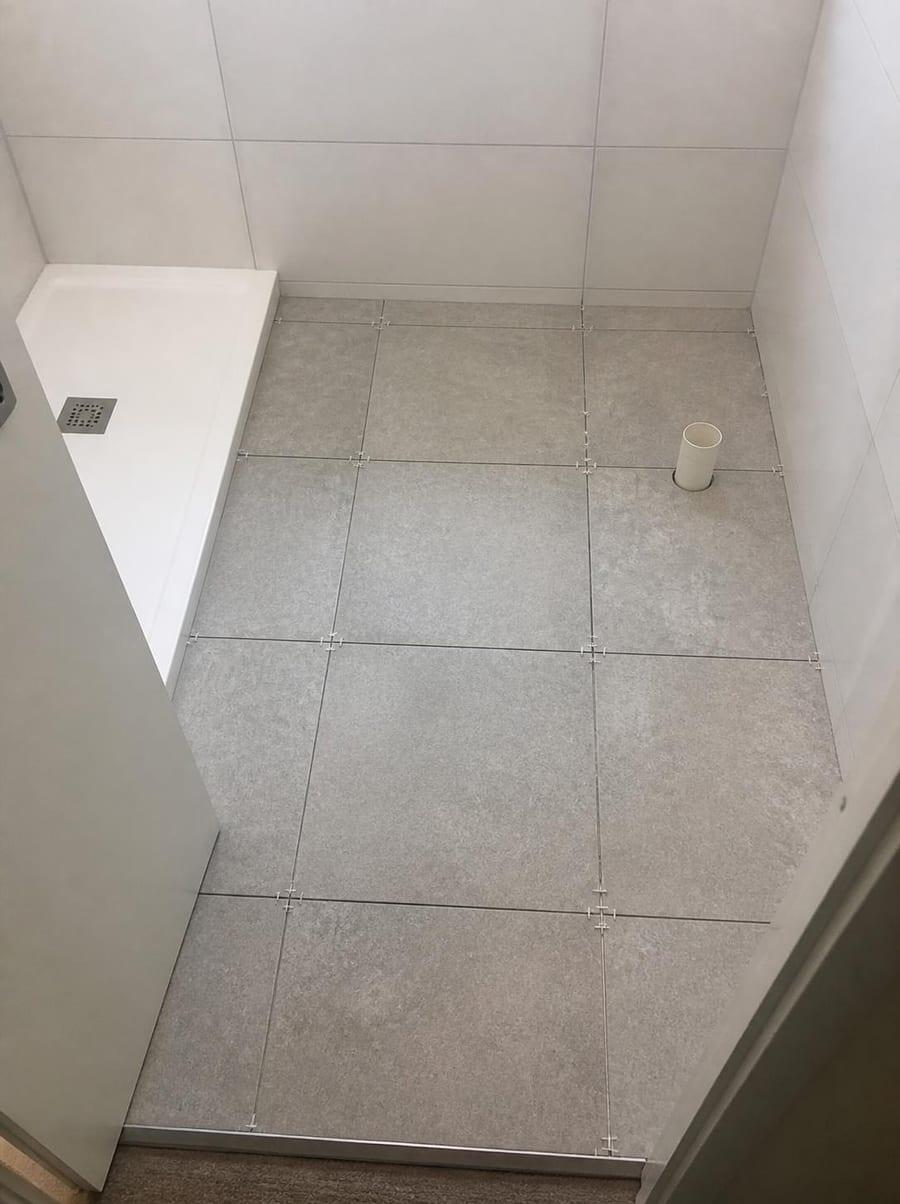
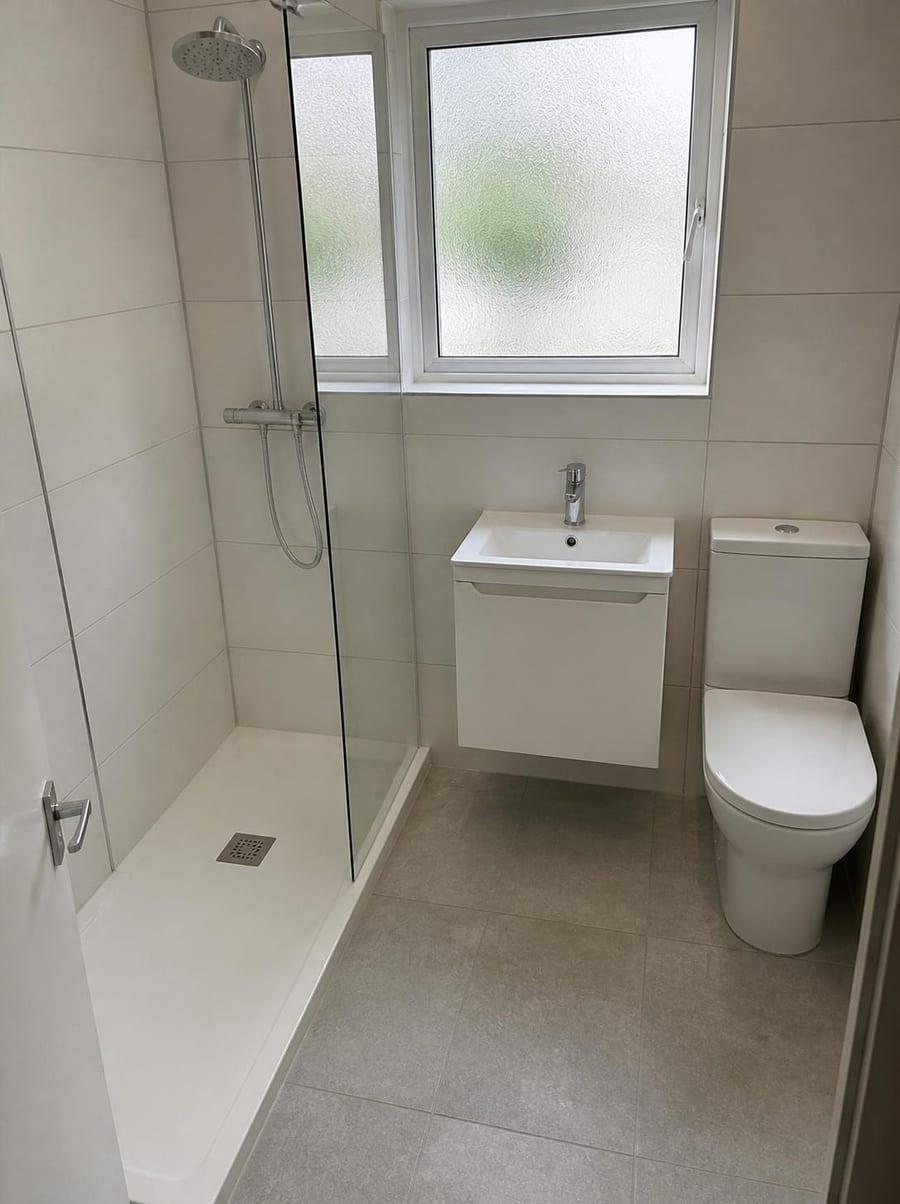
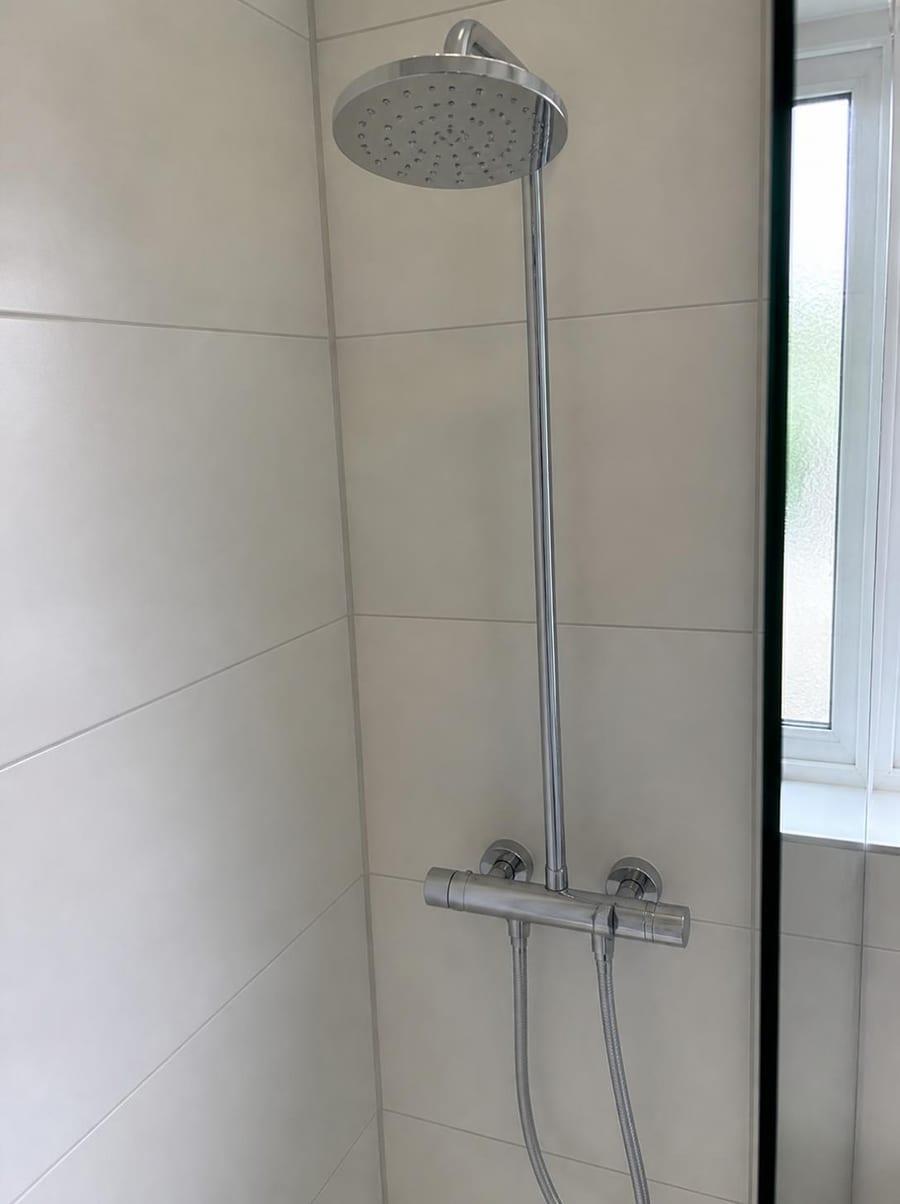
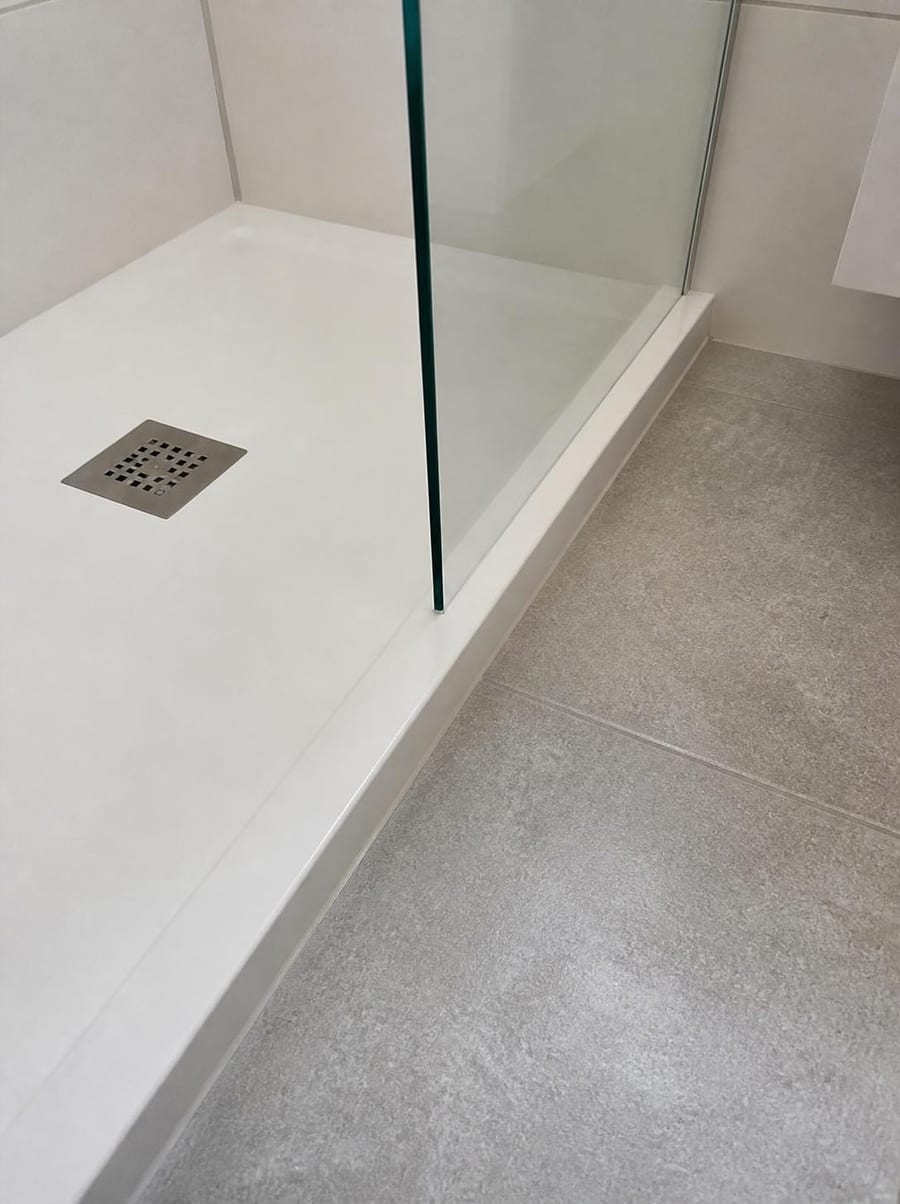
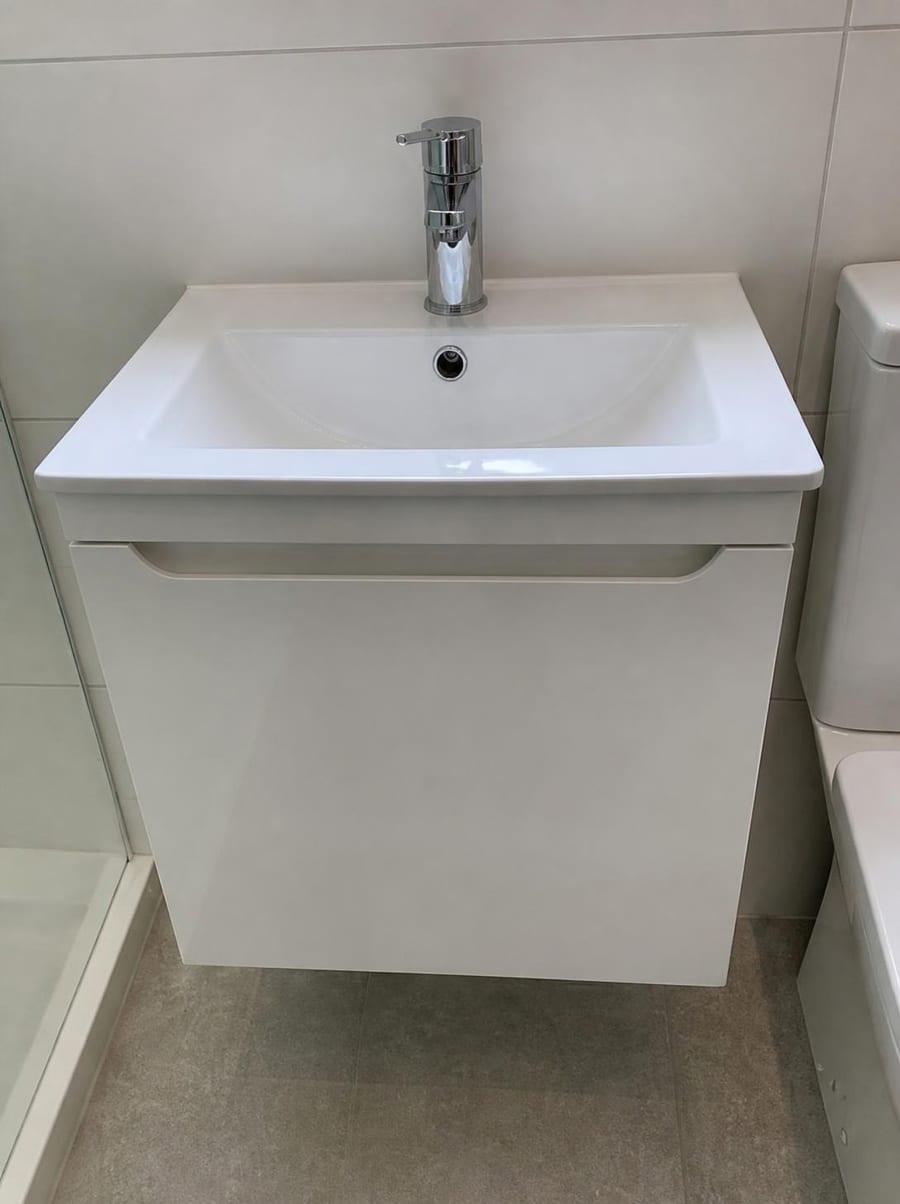
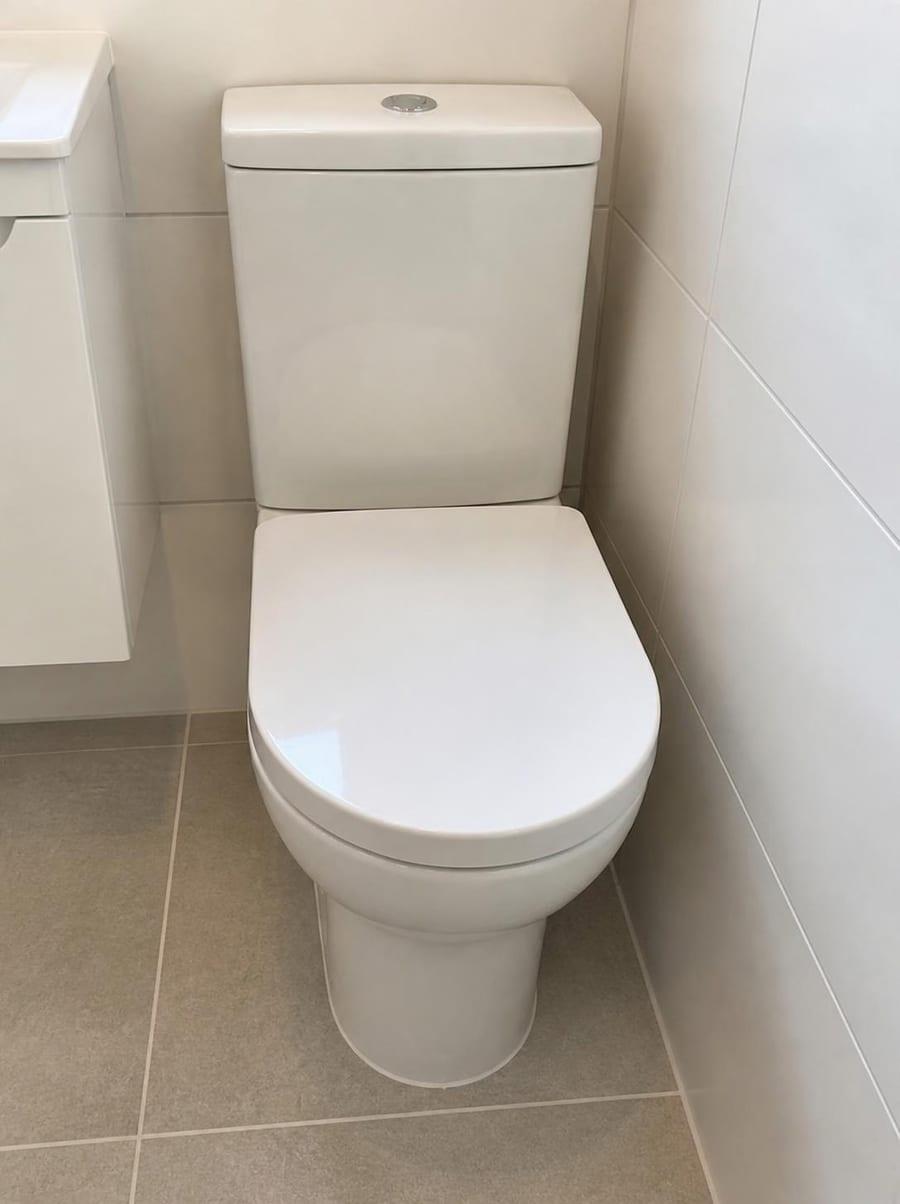
Each task keeps its own photos
Each task on a job sheet holds its own photos. The fitter adds them from the phone as the work is done, as many as the task needs. No task waits for a photo.
Every photo records when it was added and by whom. Photos can be added from the web app as well.
Take several photos, then mark them up
The app’s camera takes one photo after another and keeps count. Before they are saved, Review shows each one: ring the rot under the old bath with the pen, undo or erase, then save. The untouched original is kept as well.
Photos taken with the app’s camera can record where they were taken when location access is allowed, and managers see them on a map on the job in the phone app.
The same photos in the web app
Photos taken on the phones are on the job in the web app as they upload: counted on each task, and together in the job’s Gallery. Download all saves every photo on the job as one zip file.
Each task on the job sheet shows how many photos it holds.
Download the job as a PDF report
The job report lists every task with its description, who completed it and when, its notes and its photos, then the job’s snags. Open it from the job’s Files tab in the web app and download it as a PDF.

Send the photos with the invoice
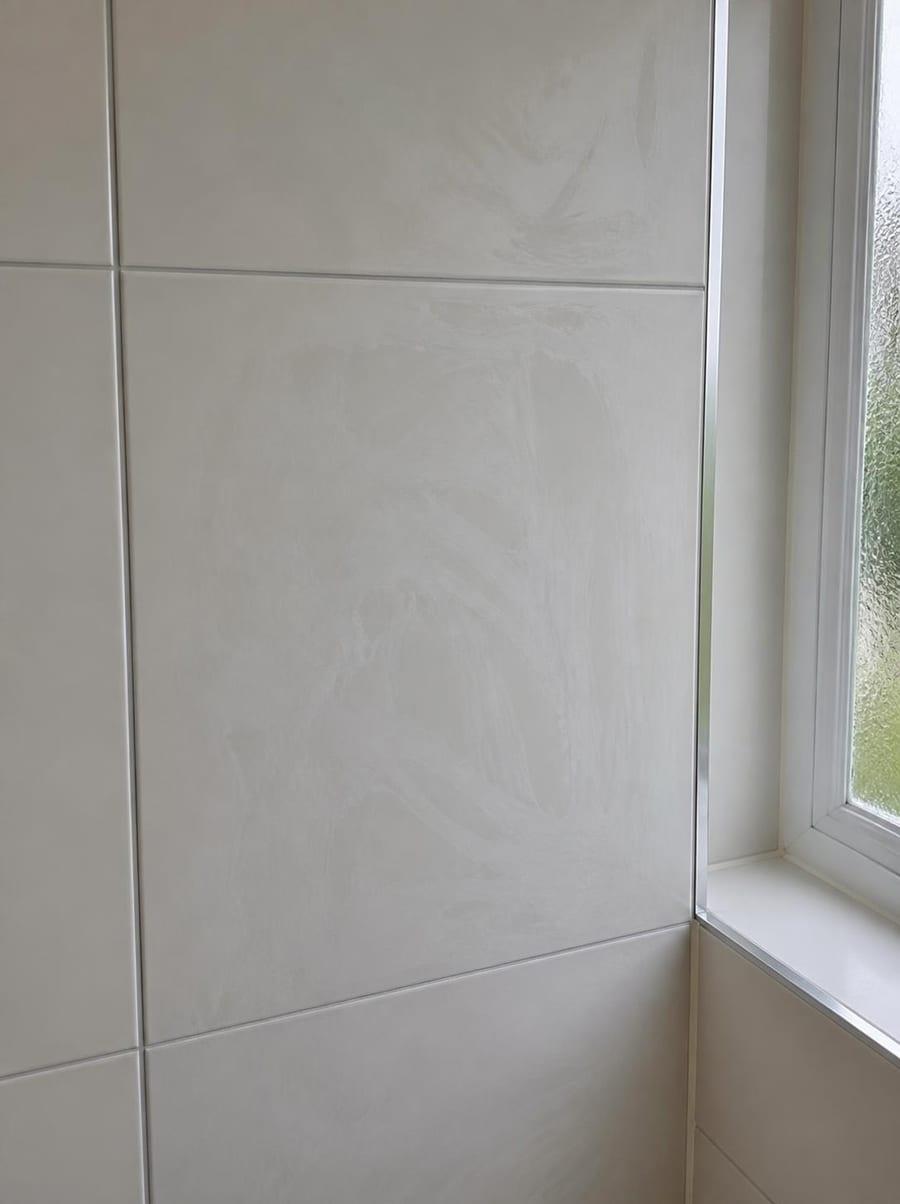
Tick “Include photo evidence” when the invoice is sent from the web app. The customer’s online invoice gains a link to a page of the work, task by task, and the same record is attached to the email as a PDF.
Mrs Hartley sees the room before, the pipework that is now behind the tiles, and the finished shower, without anyone sending photos by text.
More about photos
The job sheet and the camera work with no signal. Photos upload when the phone is back in coverage.
Mobile appThe first photo added to a job that has not started moves it to In progress and records its actual start date.
ScheduleA snag carries its own photos, from the day it is raised to the day it is verified.
Site managementPhotos that belong to no task go on the job as Additional photos, with their own section in the report.
Job sheetsA fire door job prints its photos in the installation record for each door in place of the job report.
Fire door installationFrom a photo on the phone, share it, save it to the phone’s own photo library, or jump to the task it belongs to.
Mobile appTry Jobivo free for 14 days.
No card required. Set up in minutes.
Photos kept with the work they show
Every task on a job sheet holds its own photos. Your team adds as many as the work needs and decides what to capture. No task is held back waiting for one.
Each photo records when it was added and who added it, and is stored against the job and the task it belongs to. When a customer or main contractor asks what was done, it is already in order.
Photo storage that stays organised
Photos are stored against the company, the job and the task, not left in a camera roll or a message thread. Review them task by task in the web app, or download every photo on a job as one zip file.
A record for snags, warranty claims and payment queries
The job report puts every task, note, photo and snag into one PDF. An invoice can be sent with the same photos on a page the customer opens online.
Photos taken with the app’s camera can record where they were taken when location access is allowed.
Common questions
How does photo evidence work on a job?
The team adds photos to each task from their phone, as many as the task needs. Every photo records when it was added and who added it, and is stored against the job and that task.
Is there a limit on photos per task?
No. The team can add as many photos as each task needs, and no task is held back waiting for a photo.
Do photos record where they were taken?
Photos taken with the app's camera record their location when the phone allows it, and managers can see them on a map on the job in the phone app. Photos added from the web app do not carry a location.
Can I draw on a photo?
Yes, before it is saved. Review shows each photo with a pen, a marker and an eraser, and the untouched original is kept alongside the marked copy.
Can the customer see the photos?
Yes. Send the invoice from the web app with photo evidence included and the customer gets a link to a page of the work, task by task, with a PDF of the same record attached to the email.
Last updated