Upload the drawing
Upload a PDF or an image. Each page of a PDF becomes a separate sheet, which you can name, for example First floor.
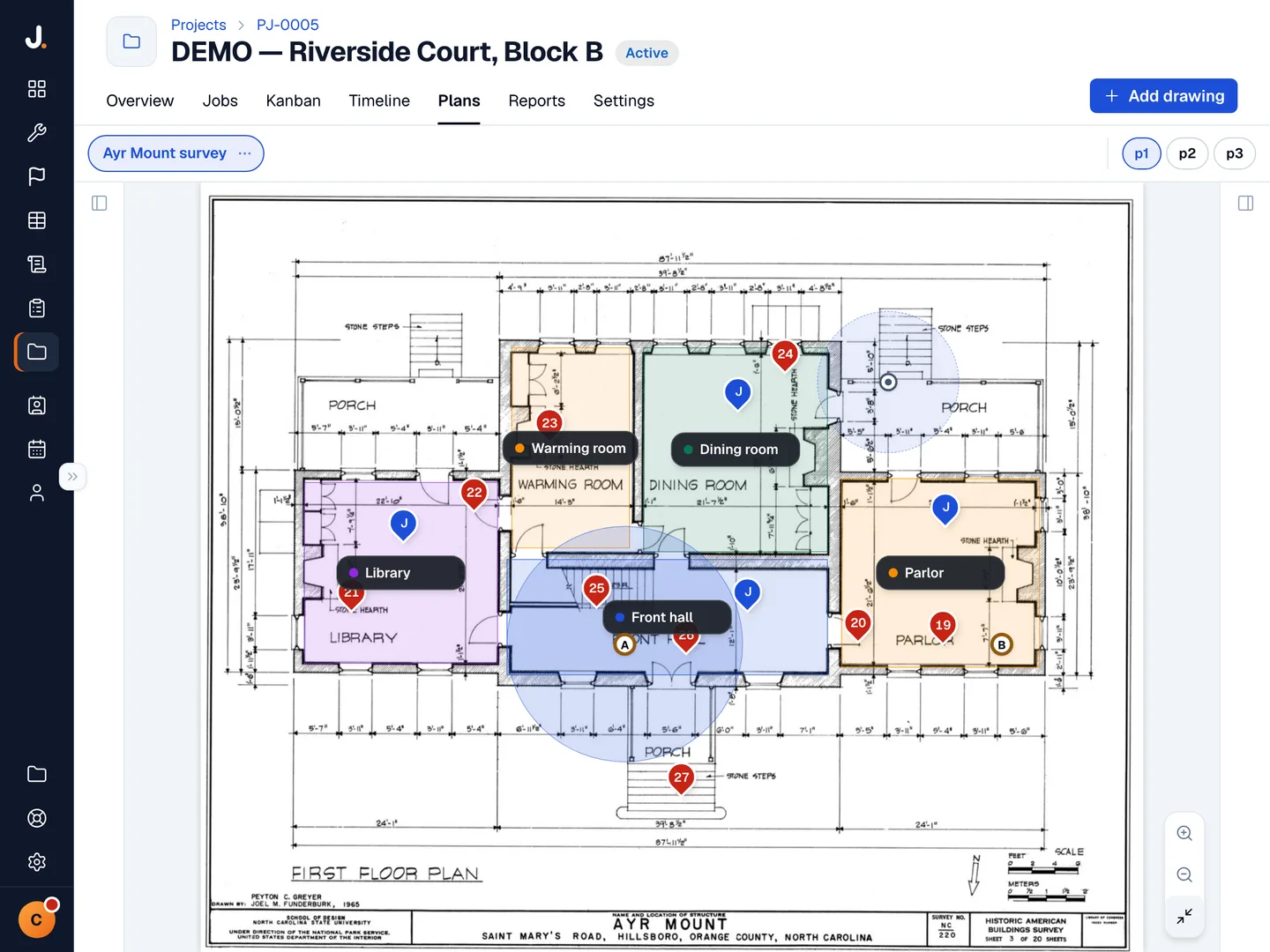
Upload your project drawings, pin every snag and job to its exact location, and mark out each room as an area.
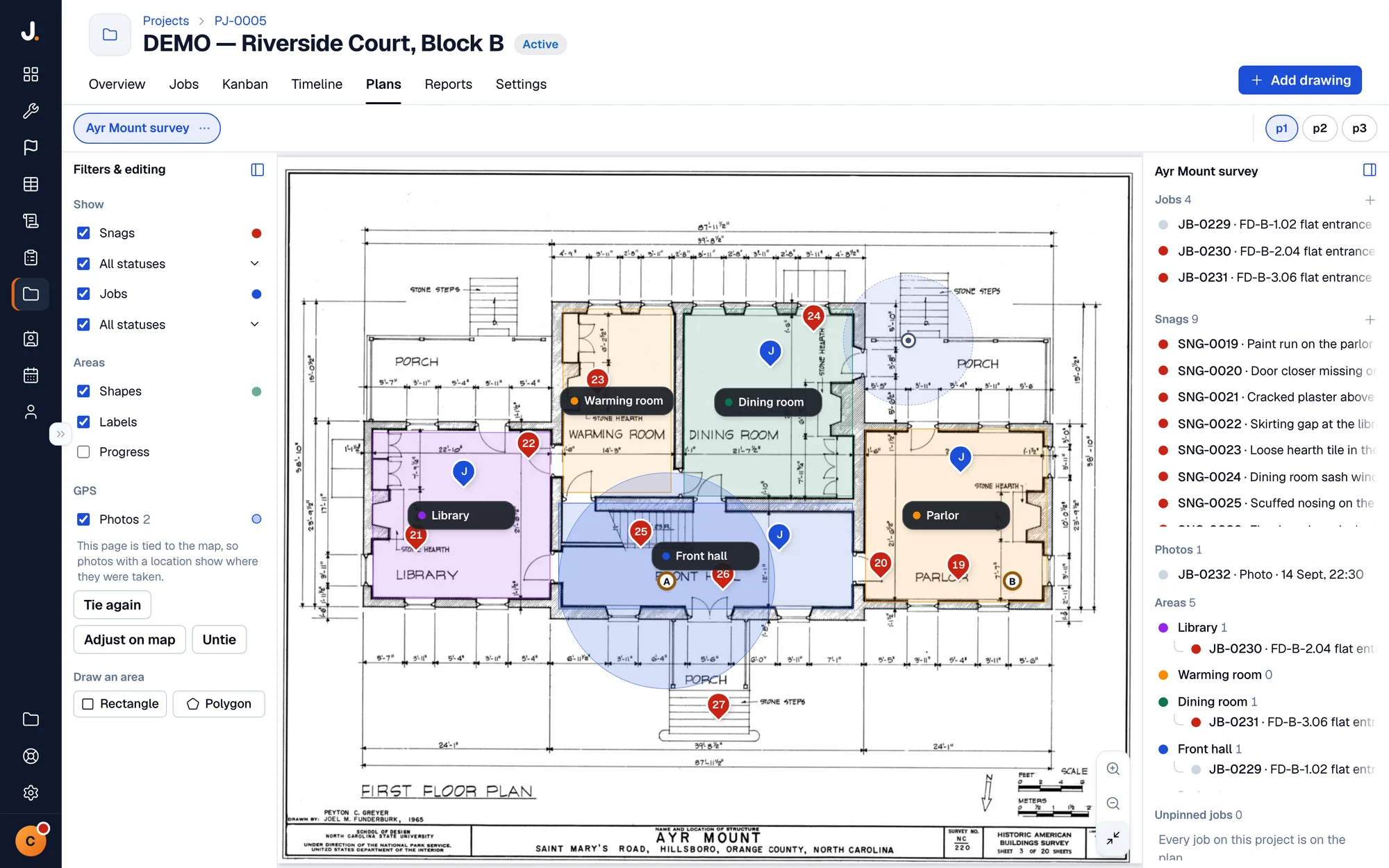
Each snag and job is pinned at its exact position on the drawing. Select one in the list to go to its pin, or select a pin to open its details.
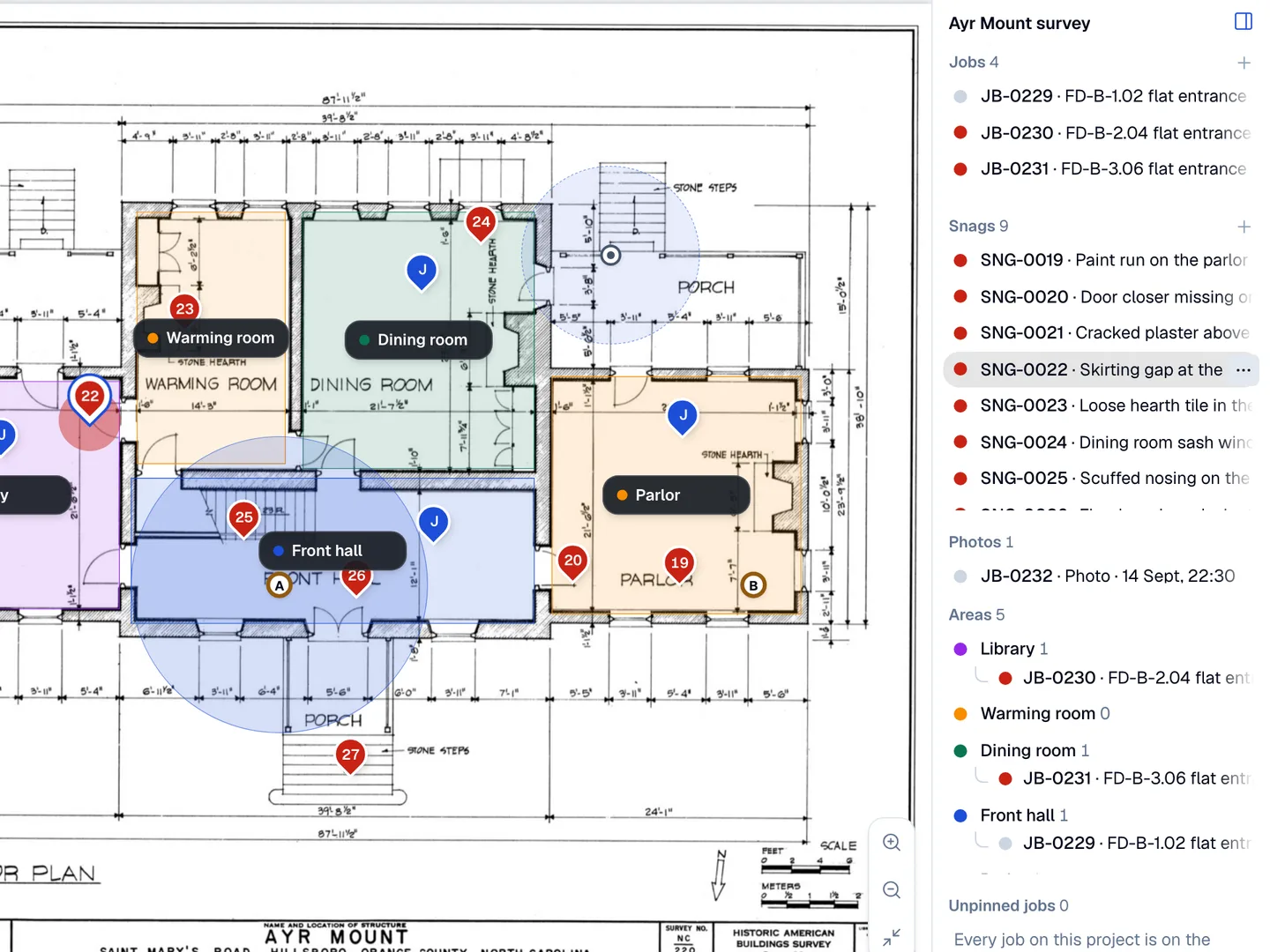
Upload the drawing, place it on the site and add jobs, snags and areas.
Upload a PDF or an image. Each page of a PDF becomes a separate sheet, which you can name, for example First floor.
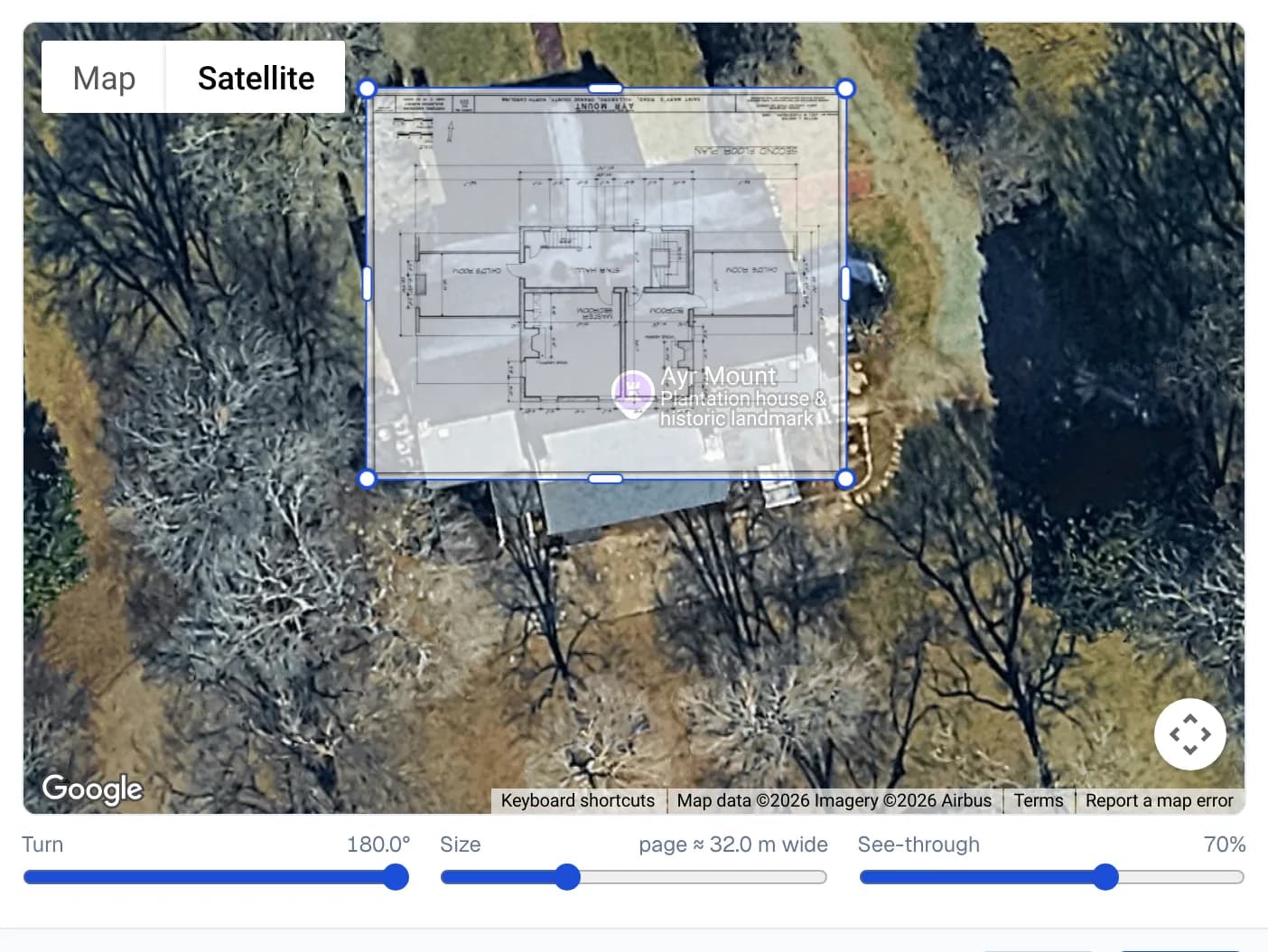
Google Maps opens at the project address in satellite view. Move, rotate and scale the drawing until it lines up with the building.
Right-click the drawing to raise a snag, link a job or draw an area around a room.
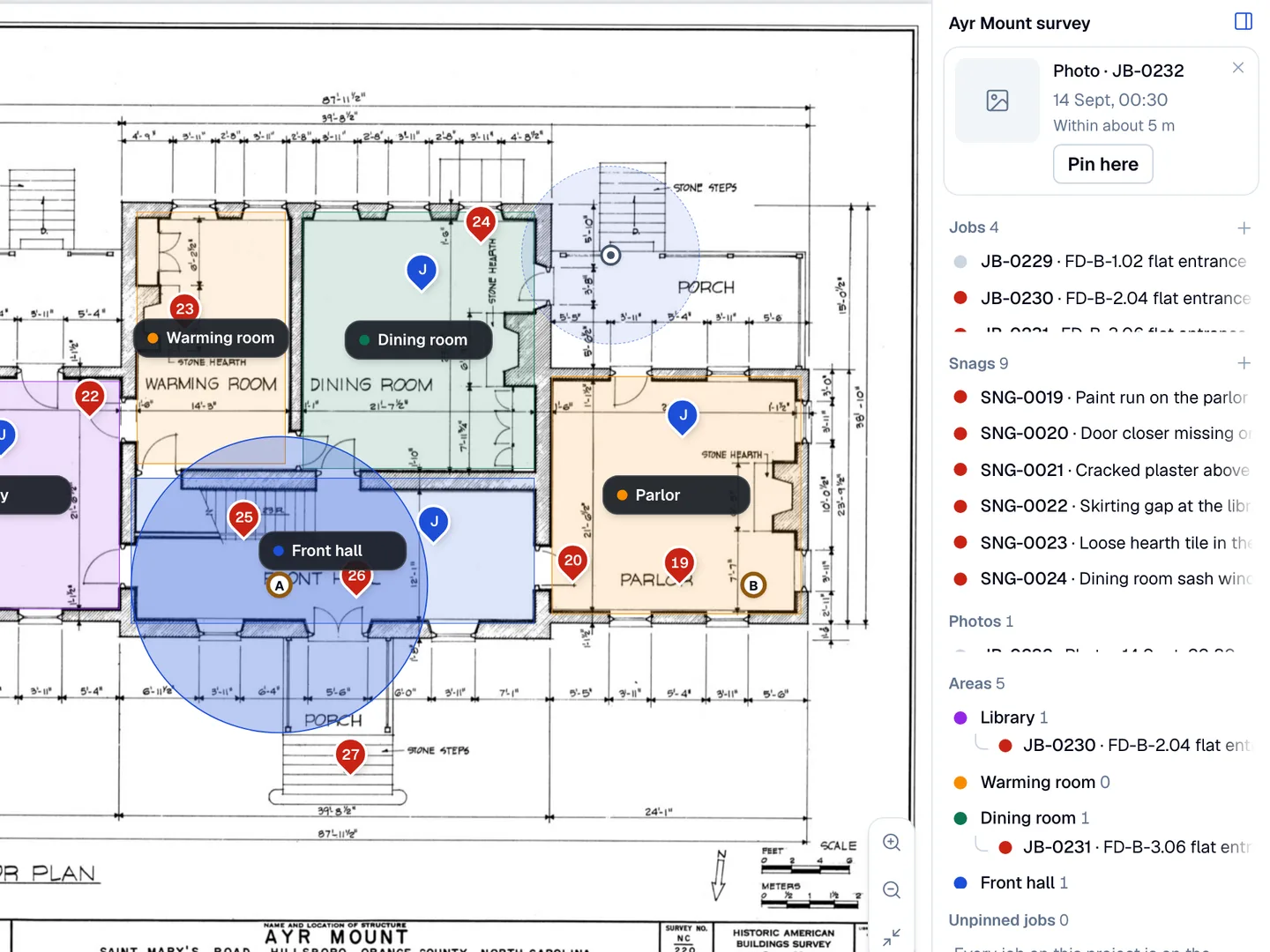
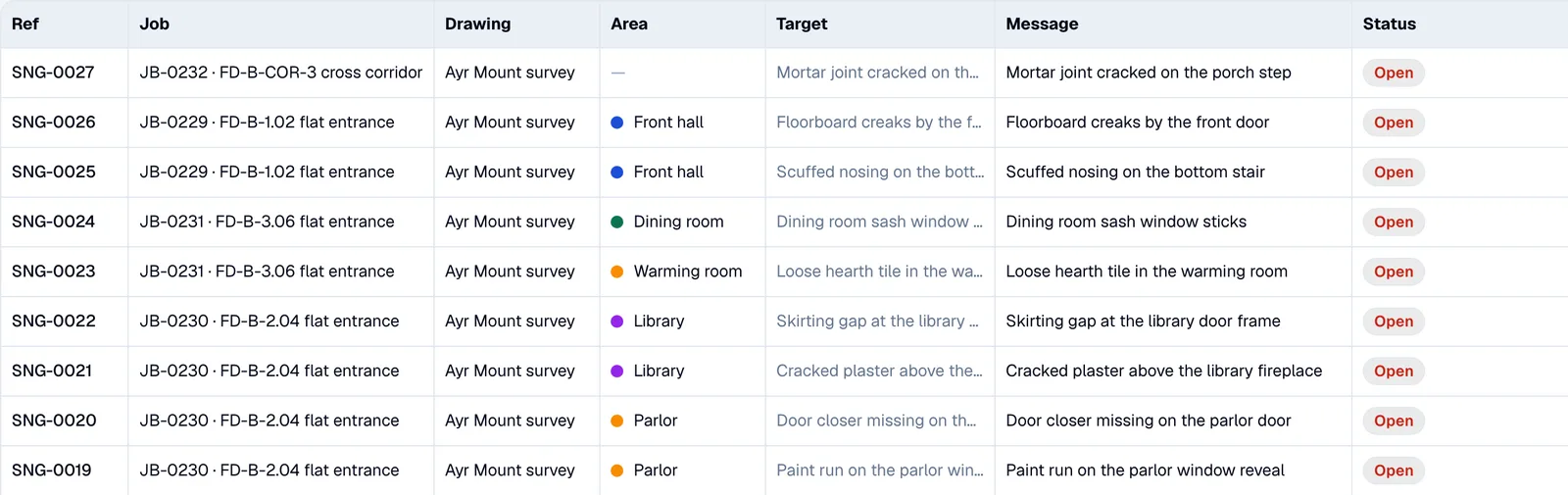
A job or snag pinned inside an area is assigned that drawing and area automatically, and both update when the pin moves. Filter the Jobs and Snags lists by either to see all open work in one room.
Every feature, unlimited jobs, 30 days free — no card required.
Start free 30-day trialEvery Jobivo project has a Drawings tab. Upload the architect's PDF drawings, name each sheet, and pin the project's snags and jobs to their exact location.
Draw a rectangle or polygon around a room or zone, then give it a name and a colour. Jobs and snags pinned inside an area are assigned to it, so the Jobs and Snags lists can be filtered by drawing and by area.
GeoLocation setup opens Google Maps at the project address. Move, rotate and scale the drawing until it lines up with the building, and the drawing is saved against its real-world location. Site management is part of Jobivo projects and works alongside job sheets and the mobile app.
Last updated