Create a project and add jobs
Start a project, put jobs into it, and give it a team.
What creating a project does
A project is a name that related jobs sit under. Creating one gives you a single page for those jobs, with shared dates, a team, a board and a timeline.
A project needs only a name. You can add jobs to it straight away or later, and a job can be taken out again without losing anything on it.
Where to start
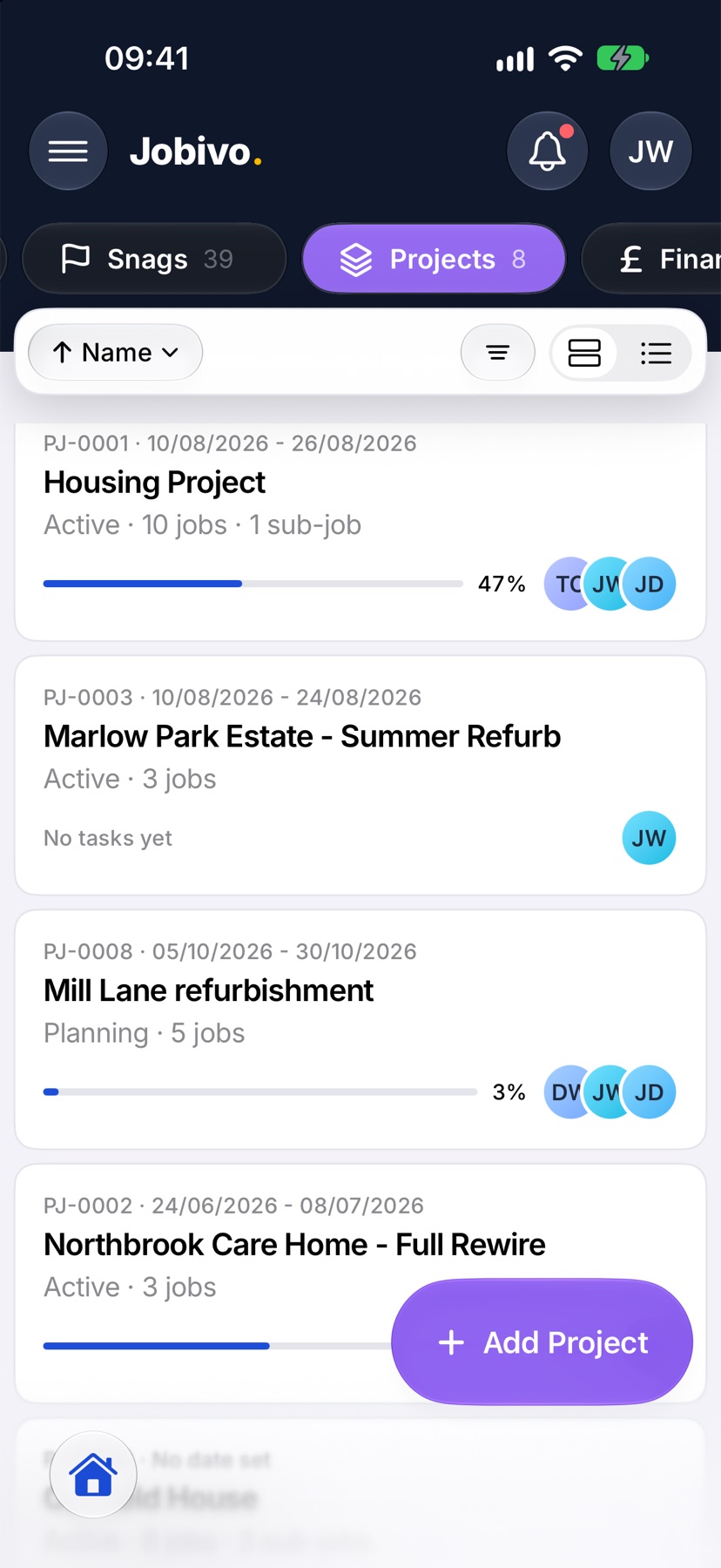
Open Jobivo on Home and tap Projects at the top. Tap Add Project at the bottom right. New project opens.
Name the project
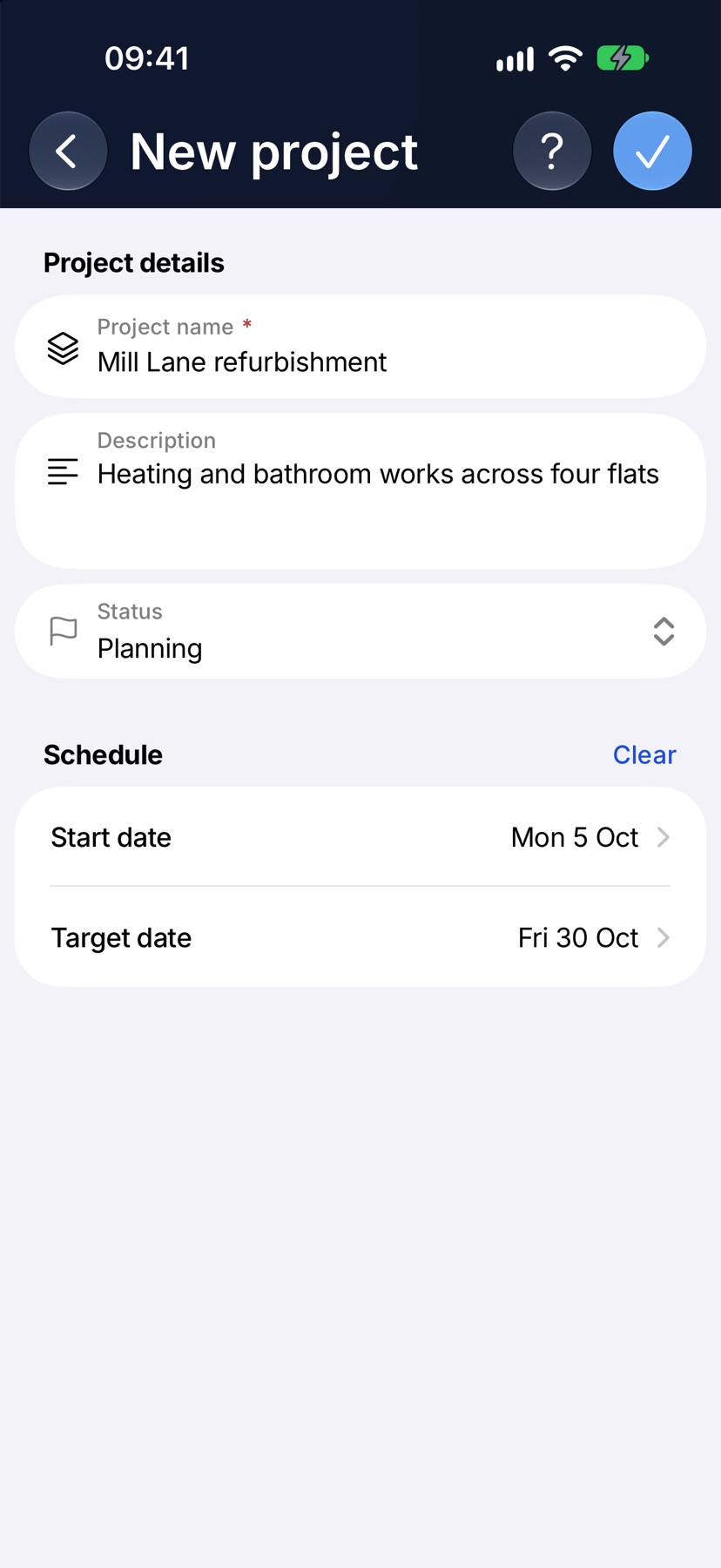
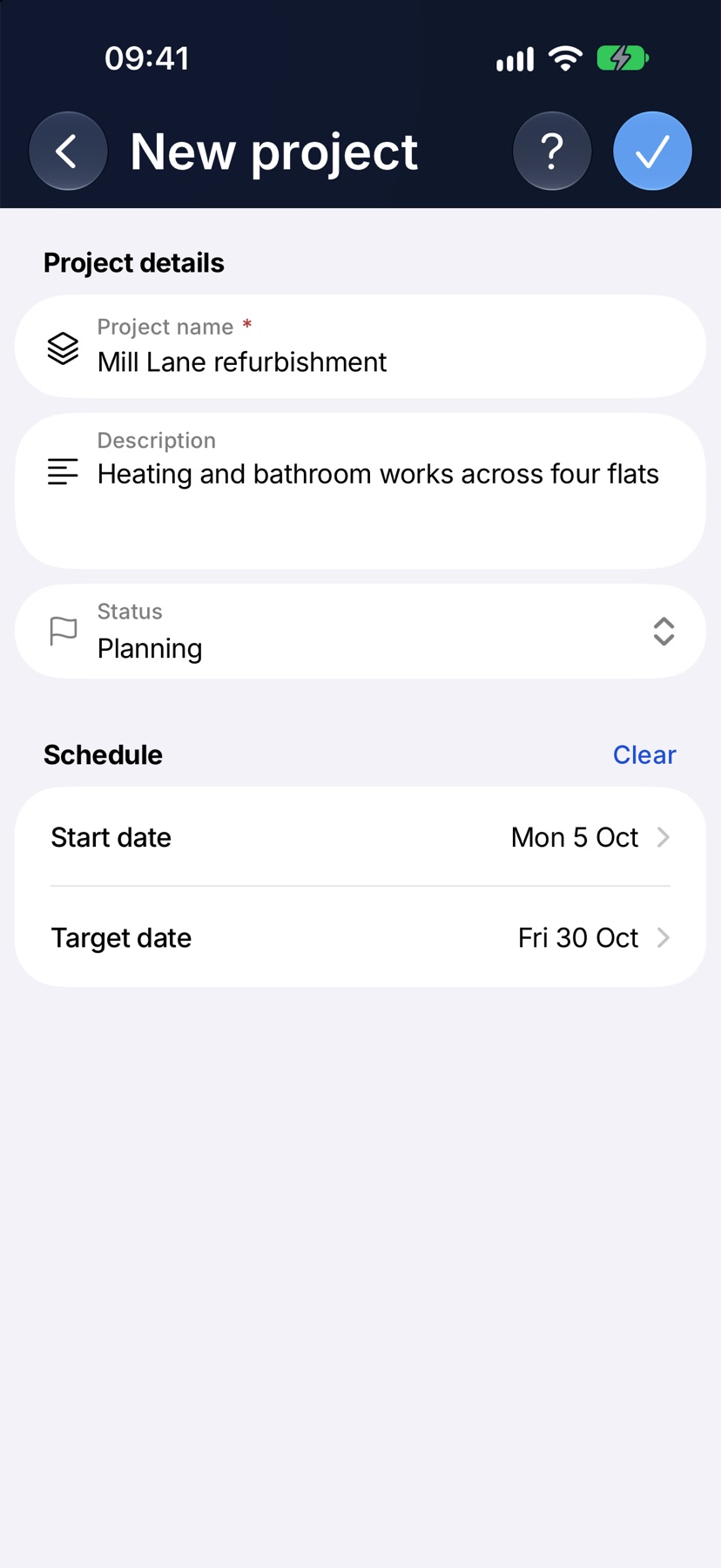
Type the Project name, such as “Mill Lane refurbishment”. Description is optional. Status starts at Planning, and you can set it to Active or Complete.
Under Schedule, tap Start date and Target date if you know them. Both are optional. The target date cannot be before the start date.
Create the project
Tap the tick at the top right. If the name is missing, the form marks the field. The new project opens on its Jobs tab, with its number in the bar at the top.
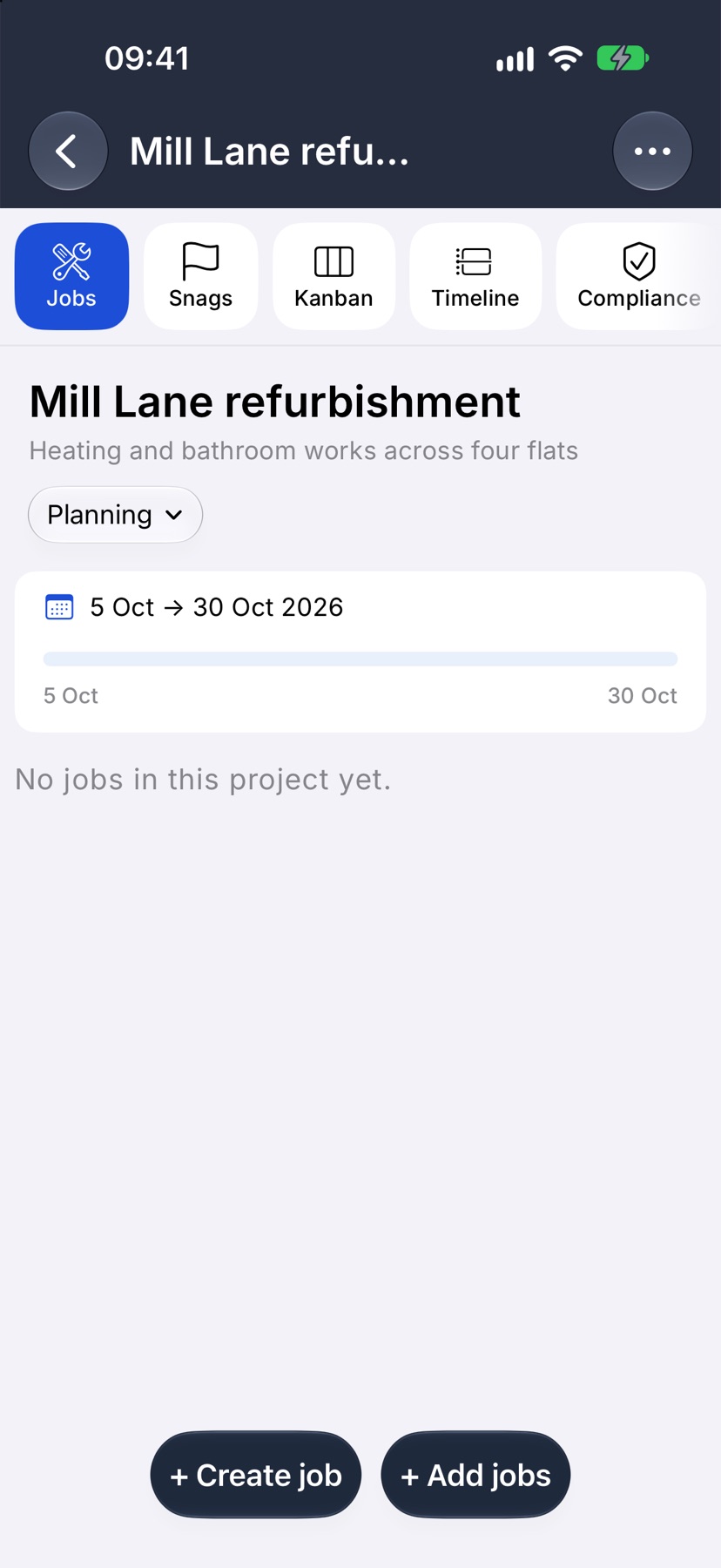
Add existing jobs
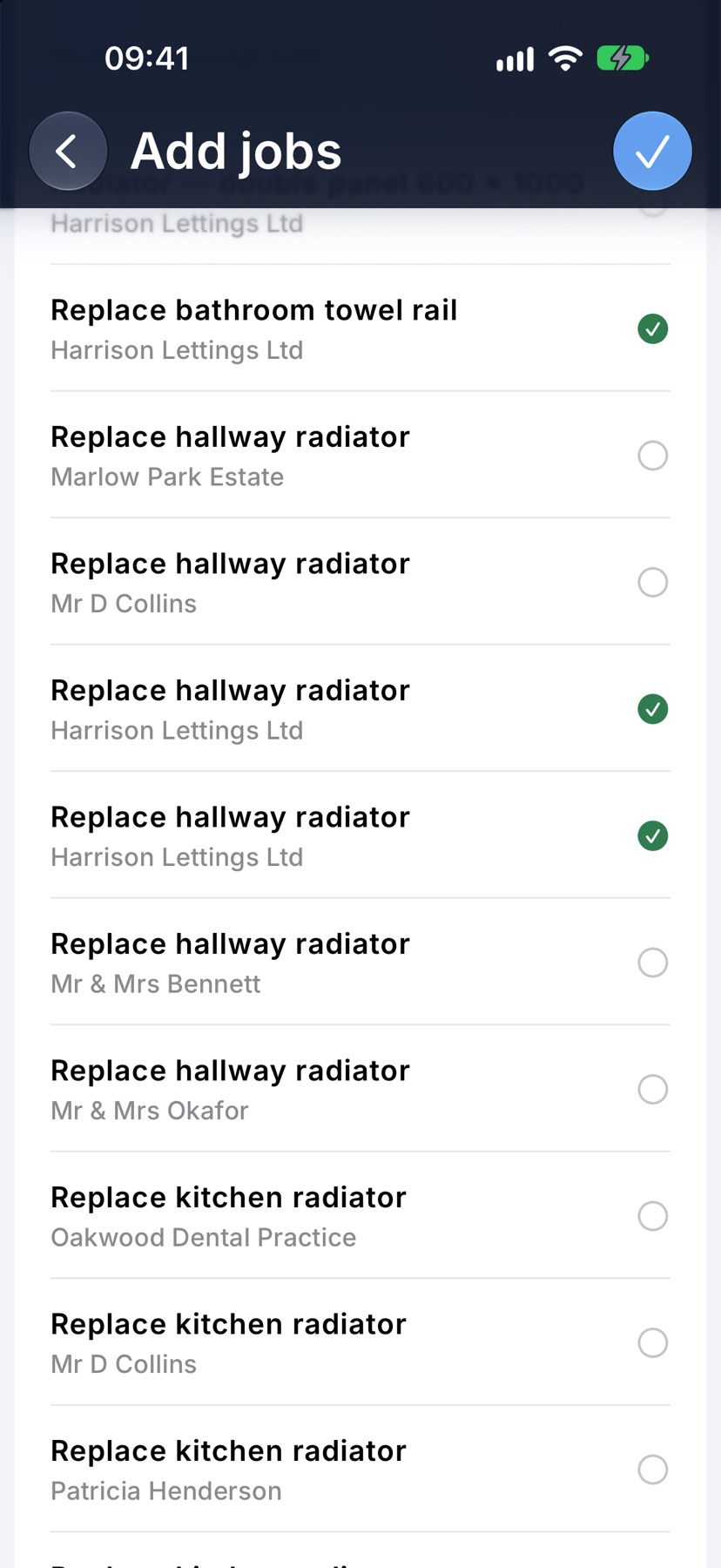
Tap + Add jobs at the bottom. Add jobs lists your jobs by name with the customer under each. Tap each job that belongs in the project, then tap the tick at the top right.
Jobs already in the project are shown ticked. Untick one and save to take it out of the project. The job itself is not changed.
Create a new job inside the project
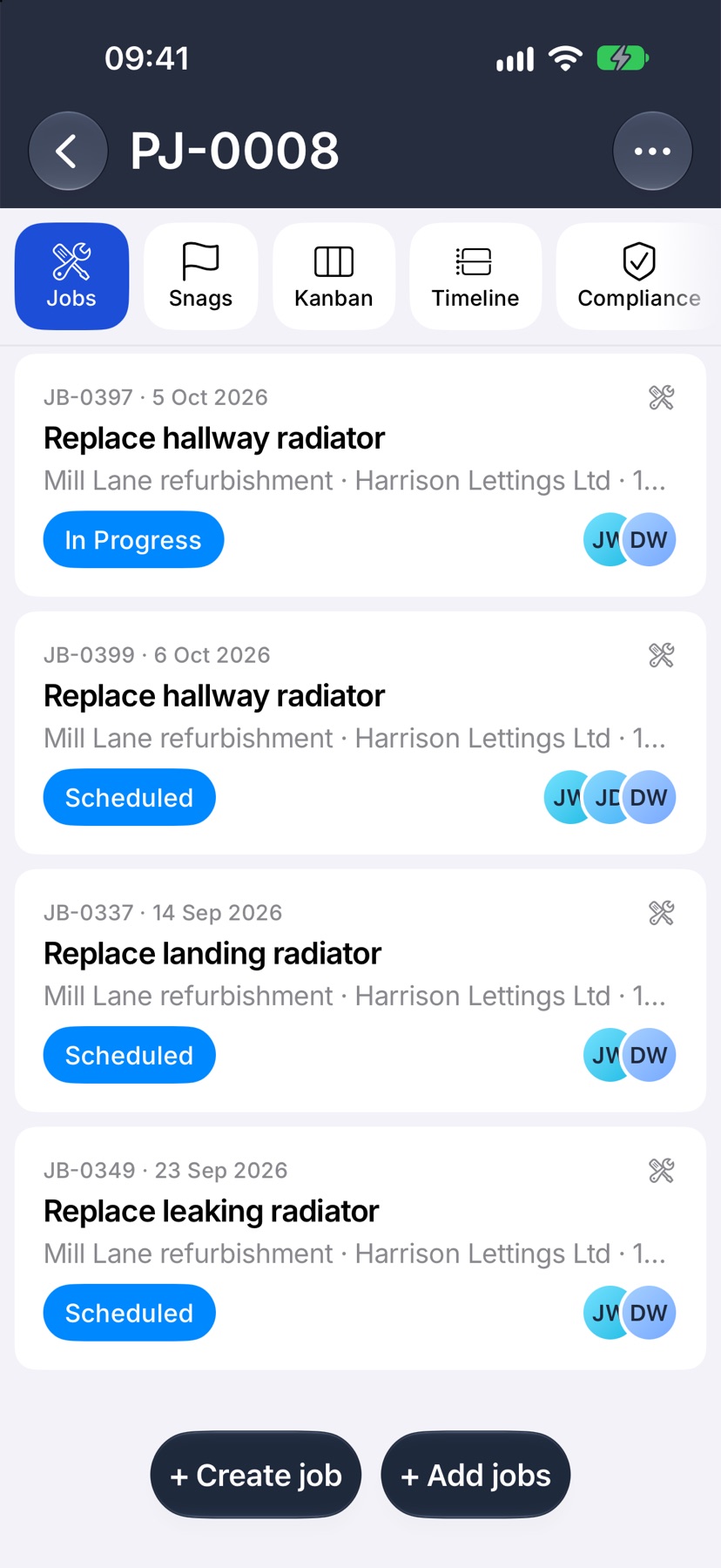
Tap + Create job. New job opens with this project already chosen. Fill in the customer and the job name as usual and tap Create job.
Give the project a team
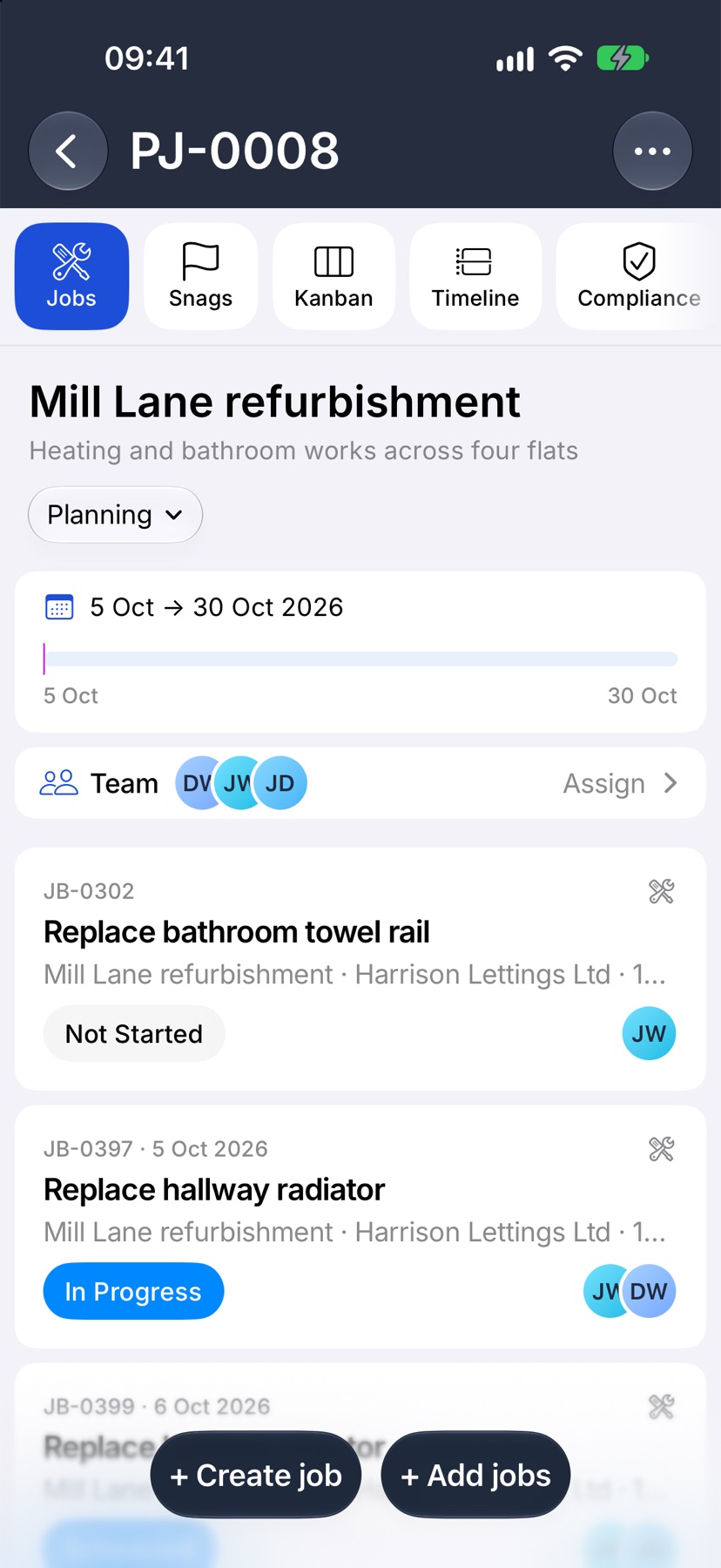
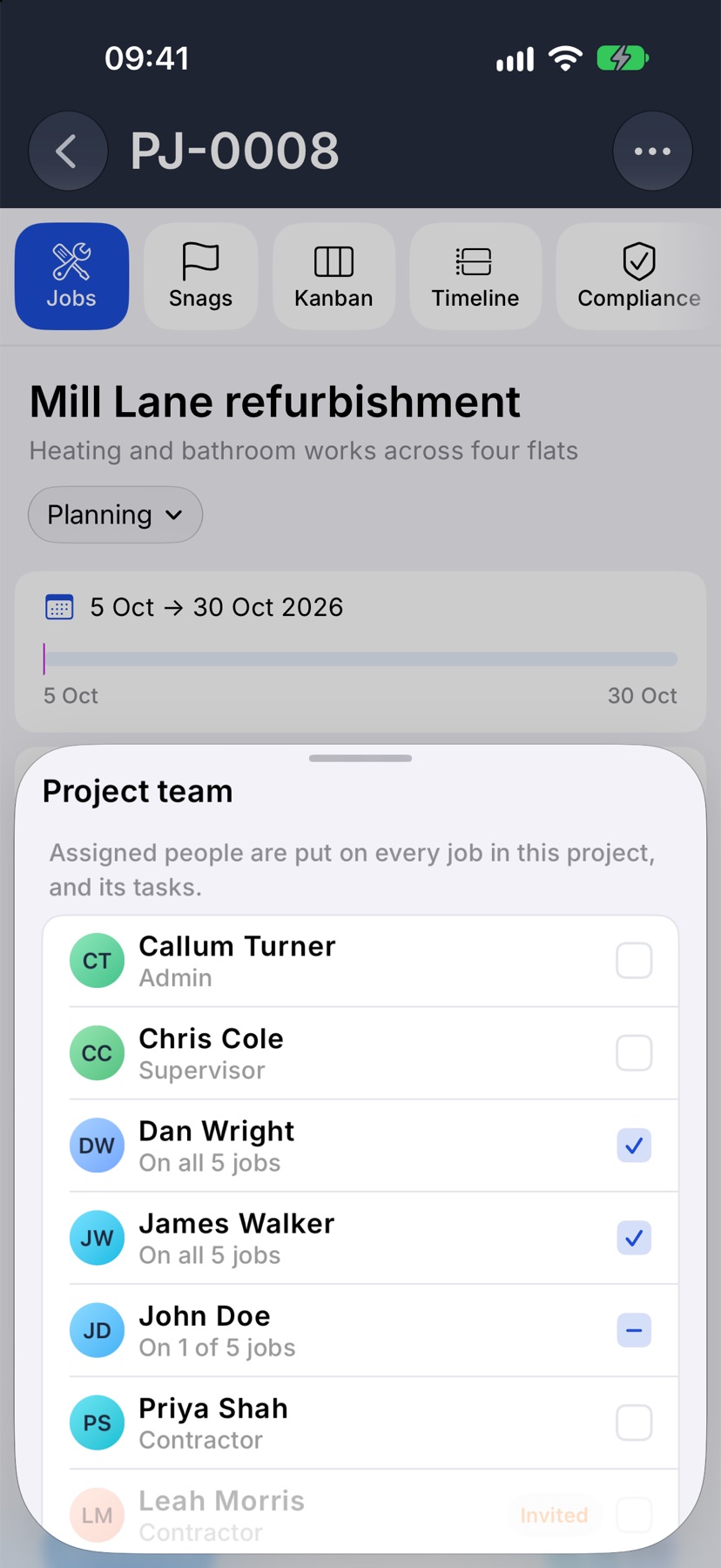
Once the project has a job, a Team card appears under its dates. Tap it to open Project team and tick the people working on the project.
Ticking someone puts them on every job in the project, and on those jobs' tasks. The row then says how many of the jobs they are on. Untick them to take them off.
Deleting a project keeps its jobs
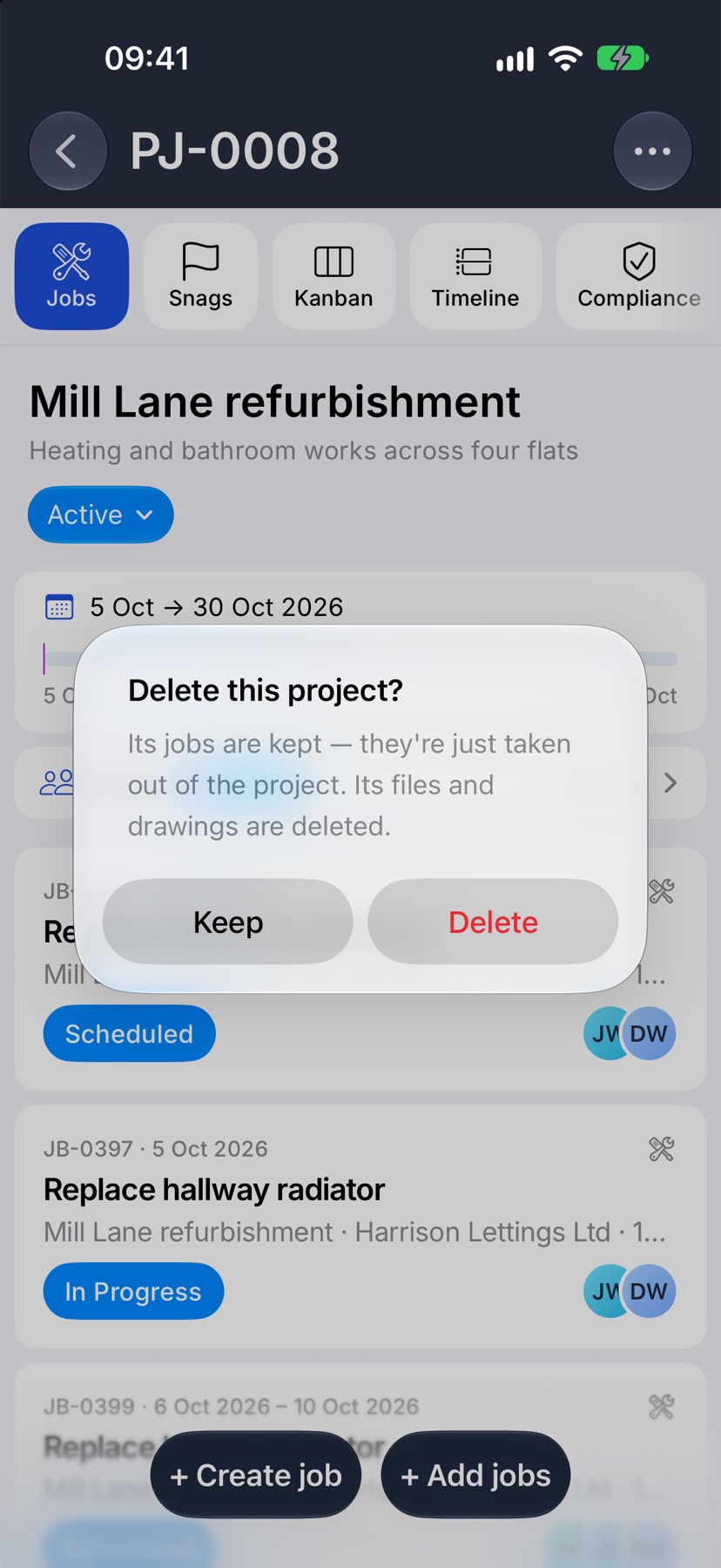
To remove a project, open it, tap the ⋯ at the top right and choose Delete project. Jobivo asks Delete this project? Tap Delete to go ahead or Keep to leave it.
The jobs are kept. They are taken out of the project and stay in your job list. The project's own files and drawings are deleted with it.