The project board and timeline
Move a project's work through To do, In progress and Done, and plan its dates on a timeline.
The board and the timeline
A project has two planning views. The board sorts the project's work into three columns by how far along it is. The timeline lays the same work out as bars against the calendar.
Both cover every job in the project at once, so you can see where the whole programme stands without opening each job.
Where to start
Open Jobivo on Home, tap Projects at the top and open the project. The tabs run across the top of the project. Tap Kanban for the board or Timeline for the timeline.
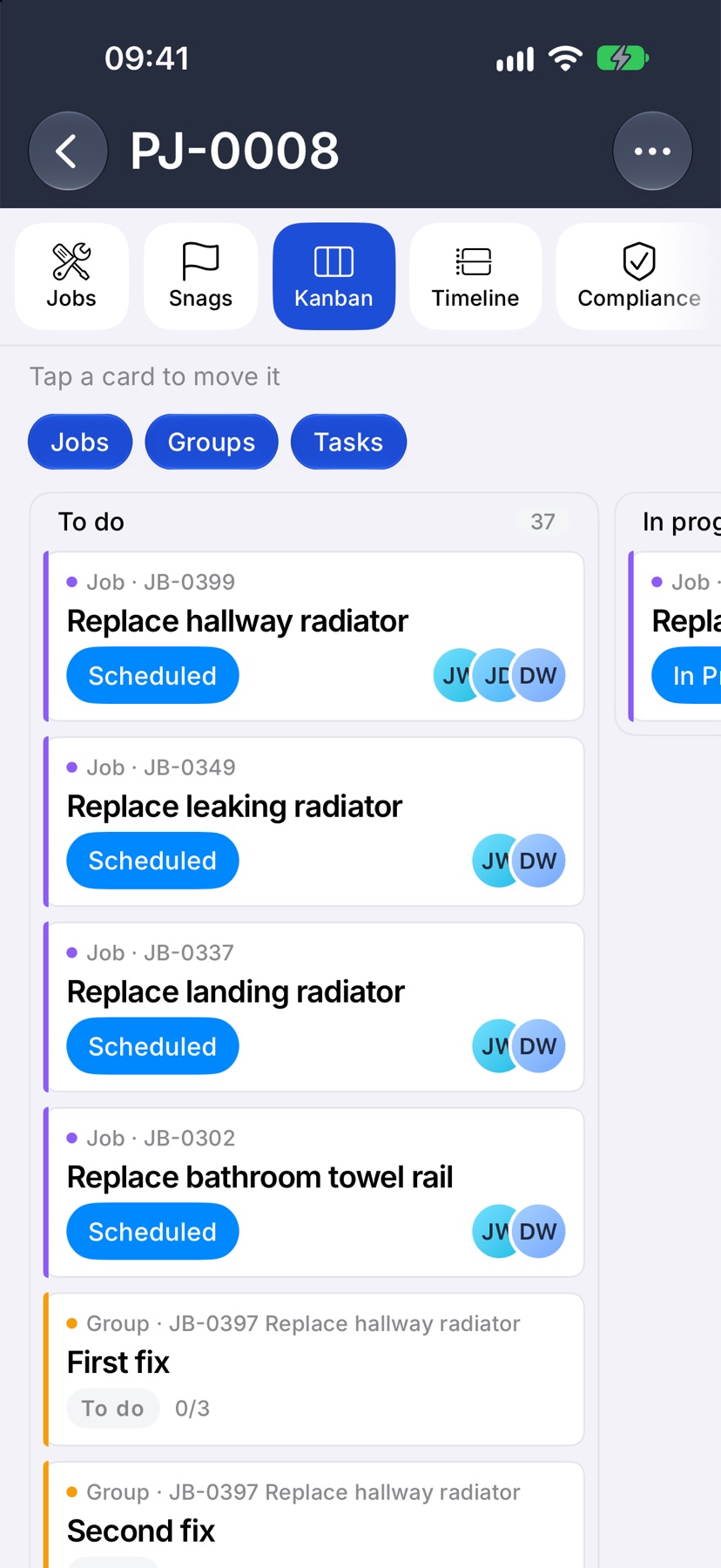
Read the board
The board has three columns: To do, In progress and Done. Each shows a count of its cards. Swipe sideways to move between the columns.
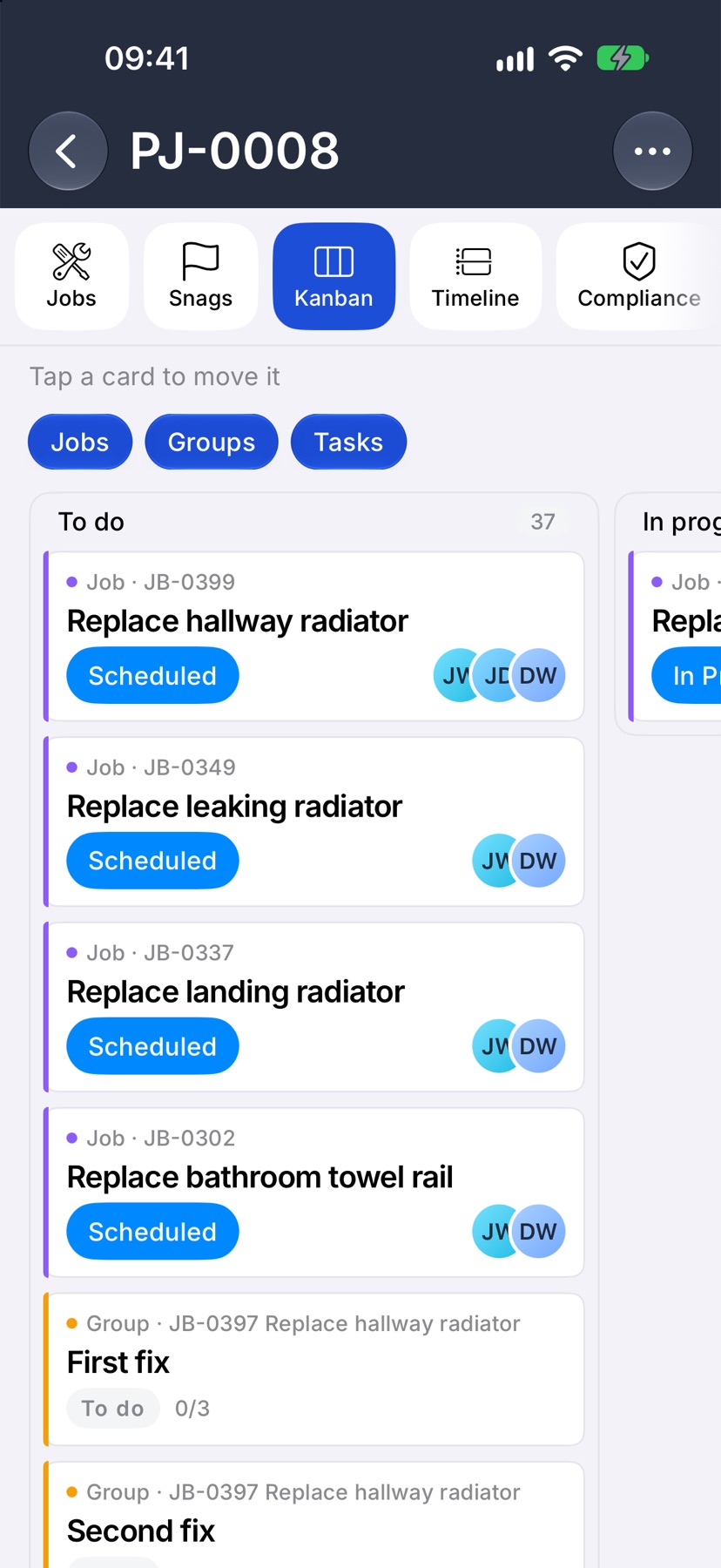
A card is a job, a group of tasks, or a single task. The line at the top of the card says which, and which job it belongs to. Job cards show the job's status. The chips above the board show or hide each sort of card.
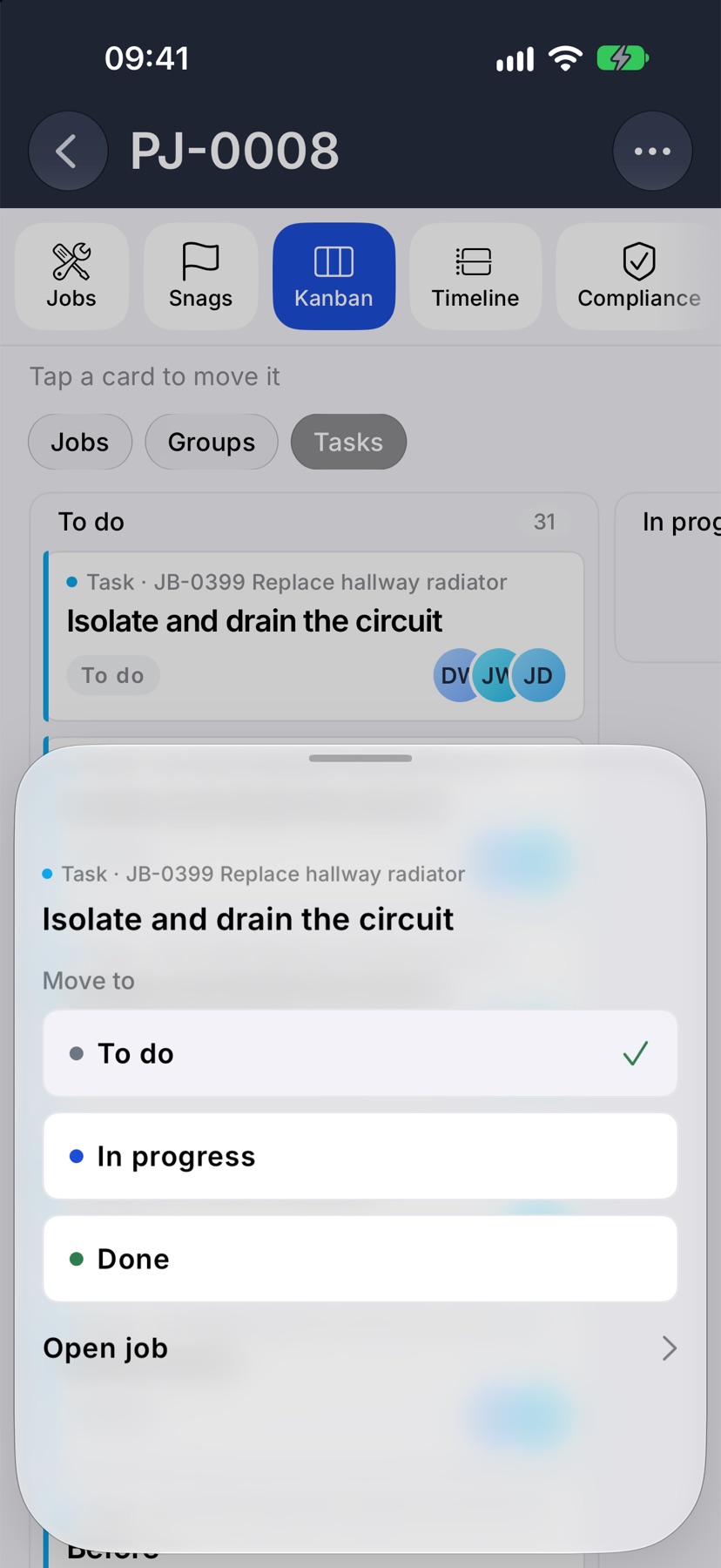
Move a card
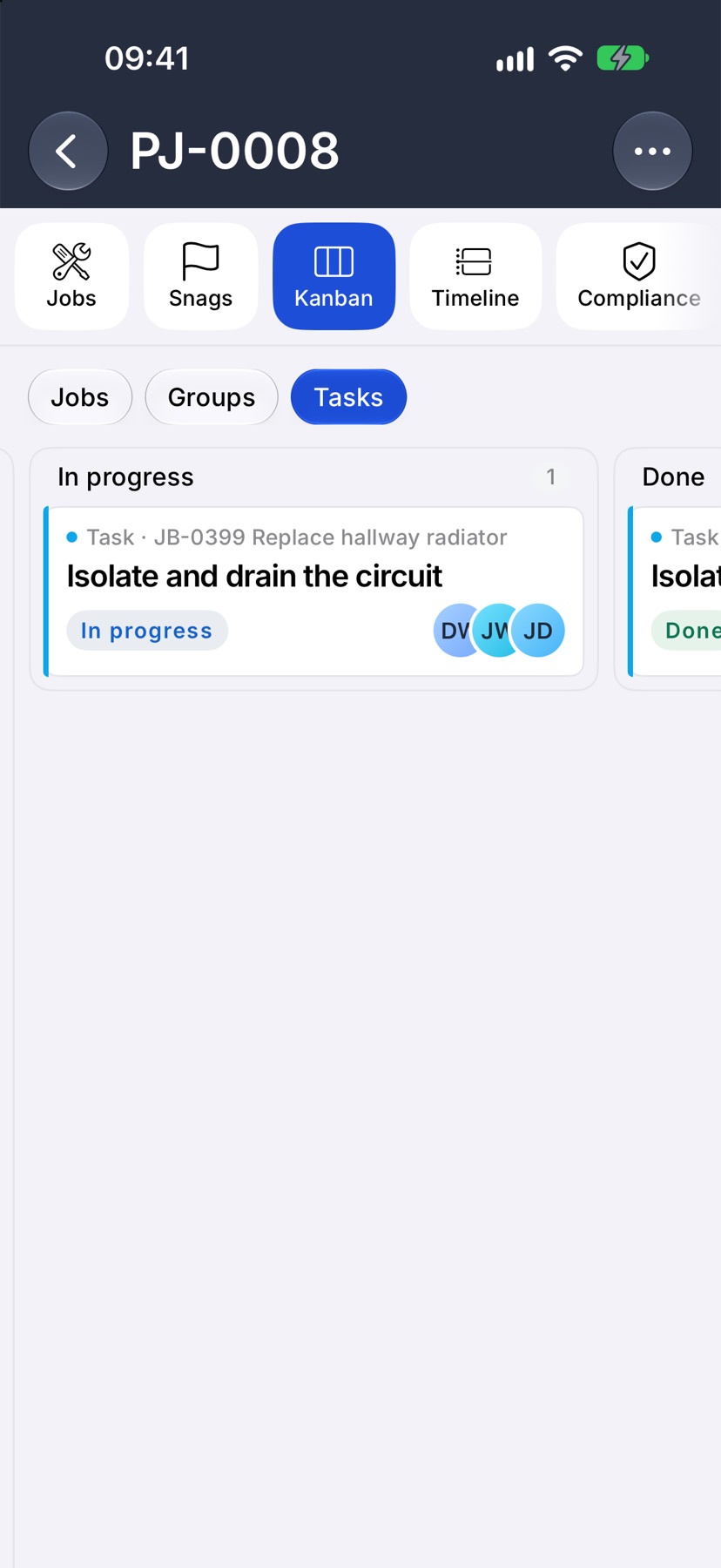
Tap a card. A sheet opens with Move to and the three columns, with a tick beside the one the card is in now. Tap the column you want and the card moves there.
Open job on the same sheet takes you to the job the card belongs to.
Read the timeline
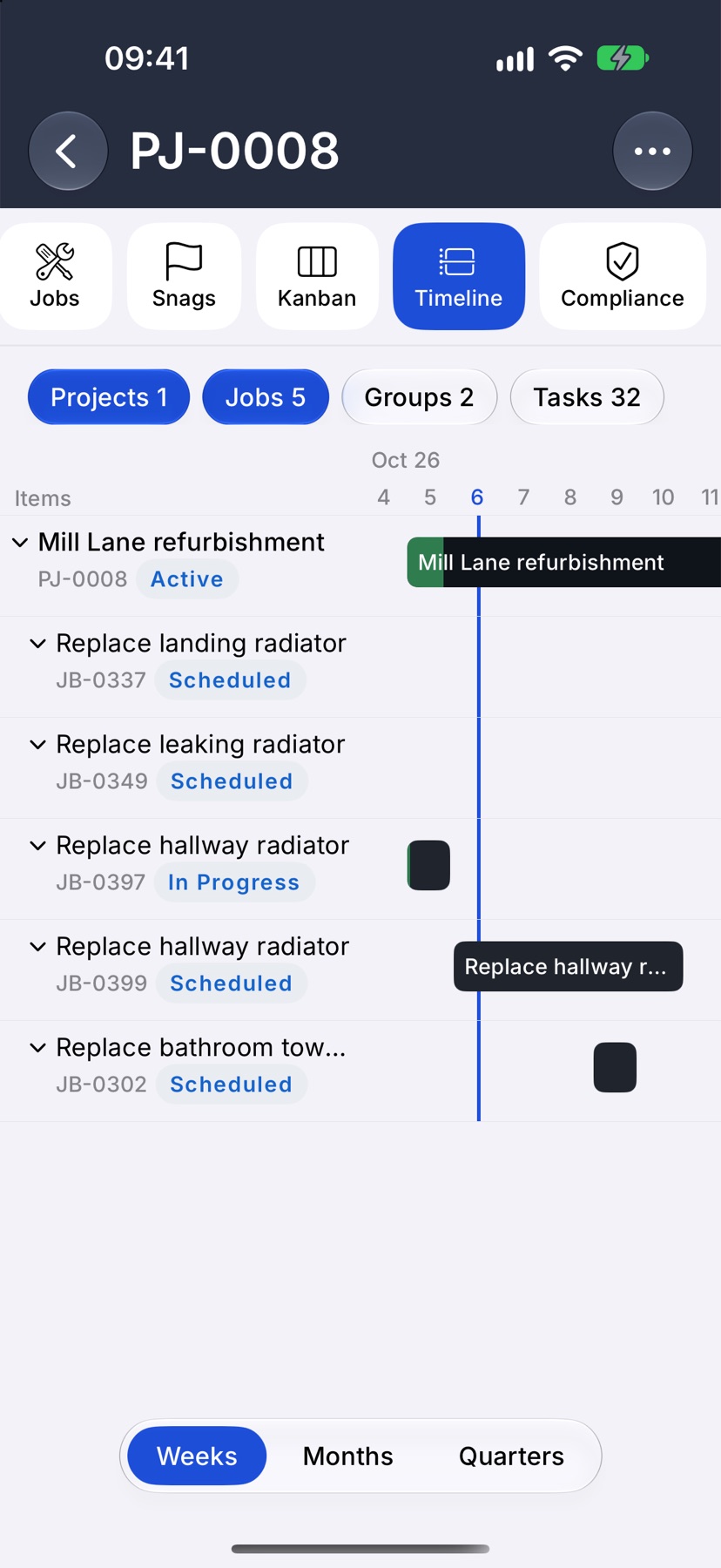
The Timeline tab lists the project and its work down the left under Items, with a bar for each across the dates. The chips at the top choose which levels are listed, each with a count.
Tap the arrow beside a row to hide or show the work under it. The control at the bottom sets the scale: Weeks, Months or Quarters.
Set dates from the timeline
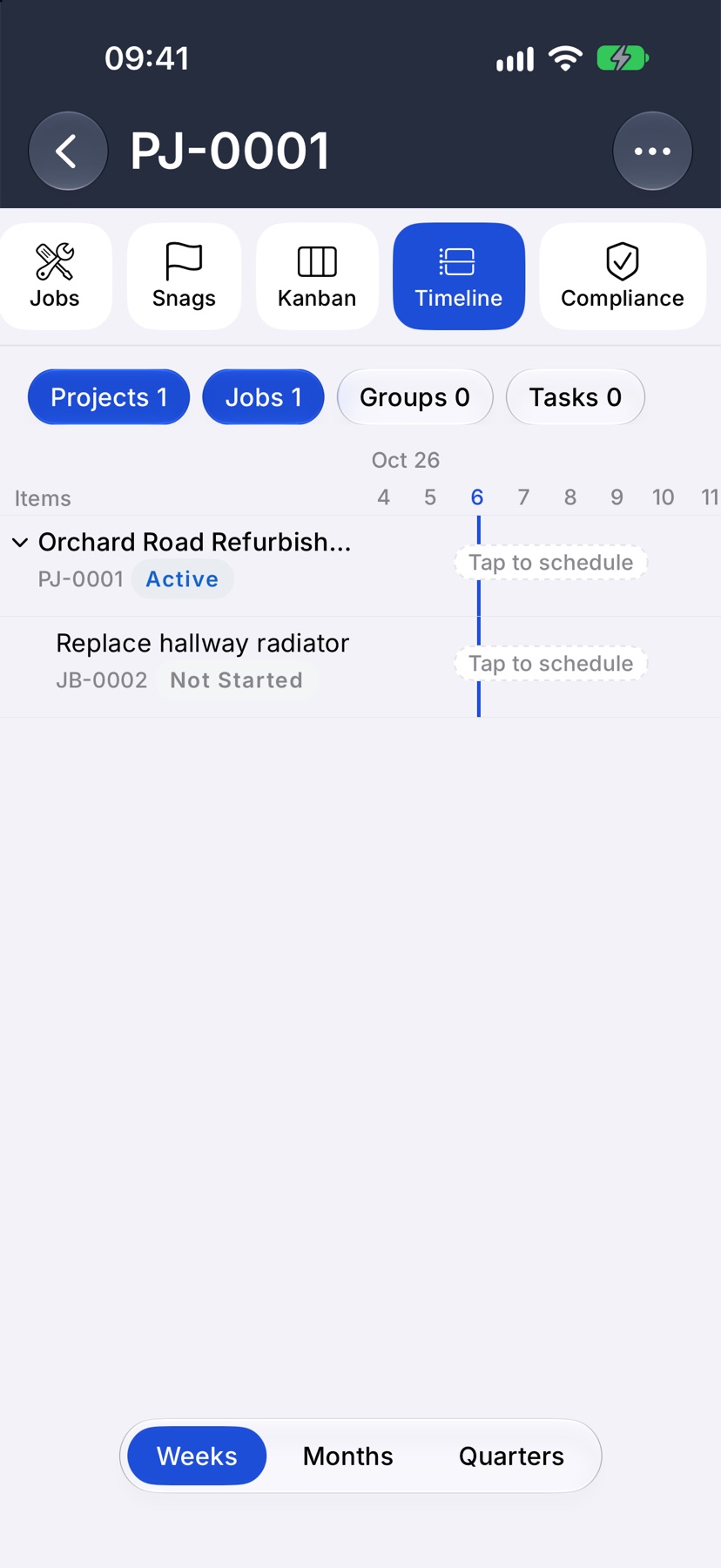
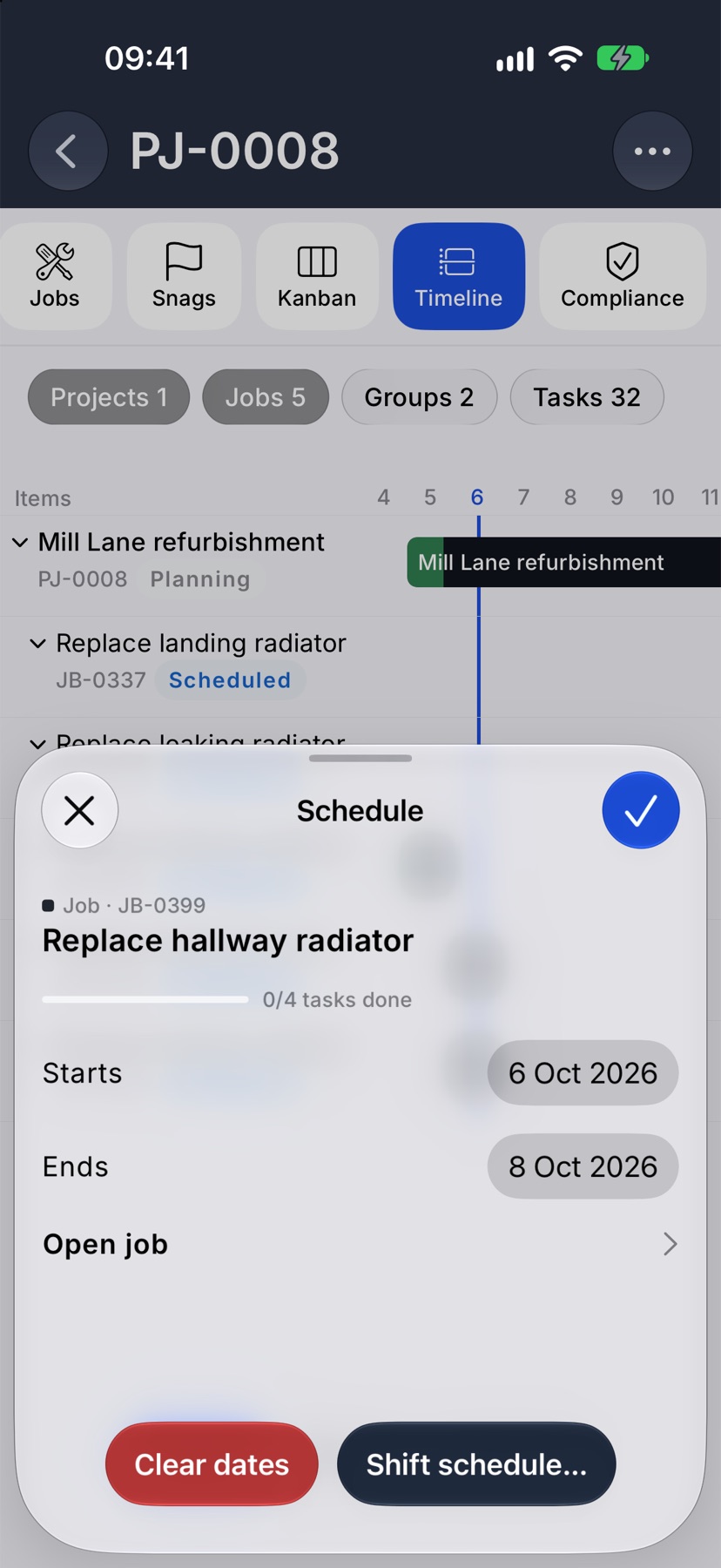
Tap a row's bar. A row with no dates reads Tap to schedule. The Schedule sheet opens. Set Starts and Ends and tap the tick.
A job or project with no dates of its own takes them from the work under it, and its bar follows that work. Tap Set its own dates to give it fixed dates instead. Clear dates removes them again.
Shift a block of work
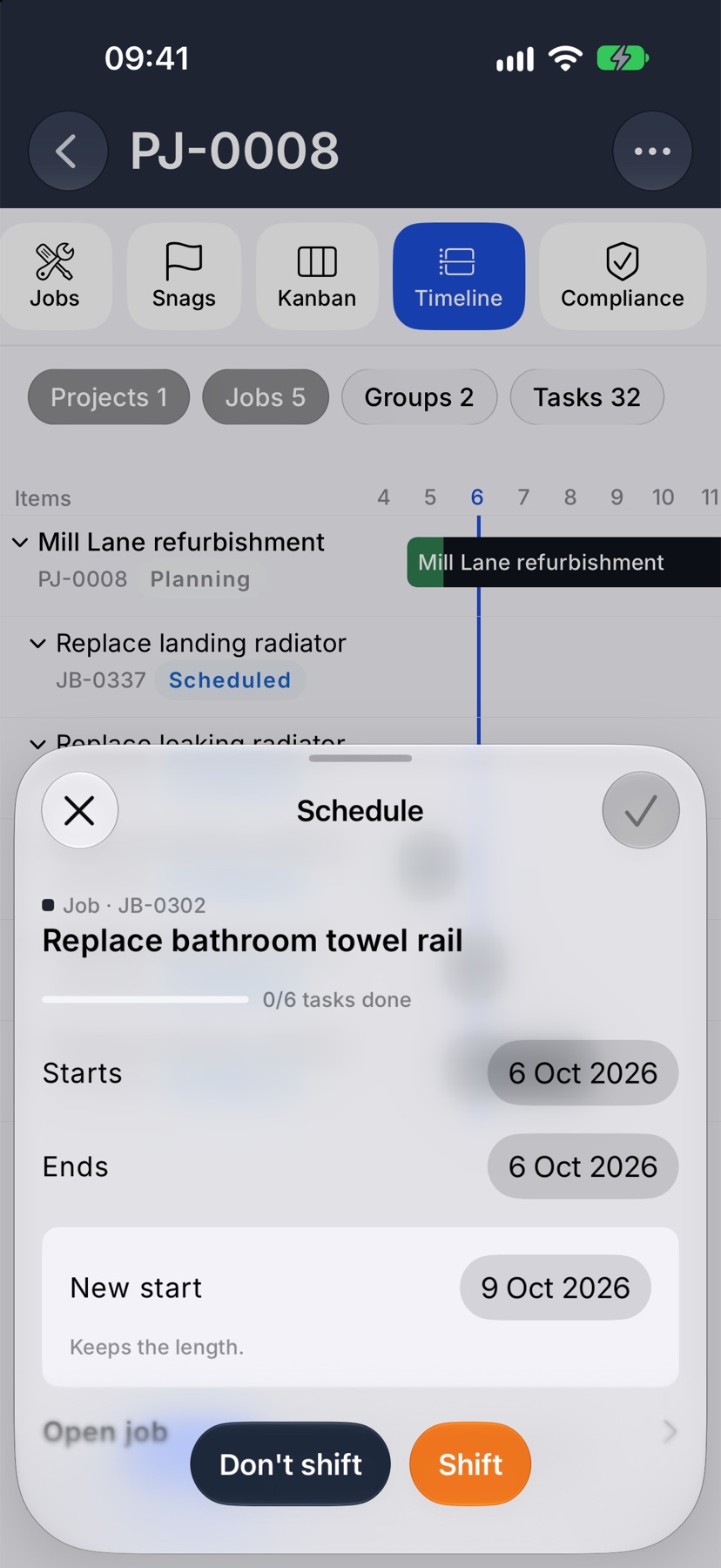
To move something that already has dates, tap its bar and tap Shift schedule… Choose the New start and tap Shift. The length stays the same, and the dated work under it moves by the same number of days.
A message at the bottom confirms the change, with Undo if you want it back as it was.
Who can move and schedule
Anyone who can open the board can move a task card. Moving a job or a group of tasks needs a role that sees the whole company. Without one, the move sheet says your role can move tasks here, not jobs.
The same applies to the timeline. A role that sees the whole company can set, shift and clear dates. Everyone else sees the dates and can open the job from the sheet.