Raise a snag
Report something that needs putting right, with photos and the people who should fix it.
What raising a snag does
Raising a snag records a problem on a job and tells the right people about it. It gets its own number, appears in the snag list, and stays open until someone marks it fixed and it is checked.
A snag can be raised against one task, when that task's work is the problem, or against the job as a whole, for anything that is not tied to a task.
The people you assign are told about it. If you assign nobody, everyone on the job is told.
Where to start
There are three ways in, and they open the same Add snag screen.
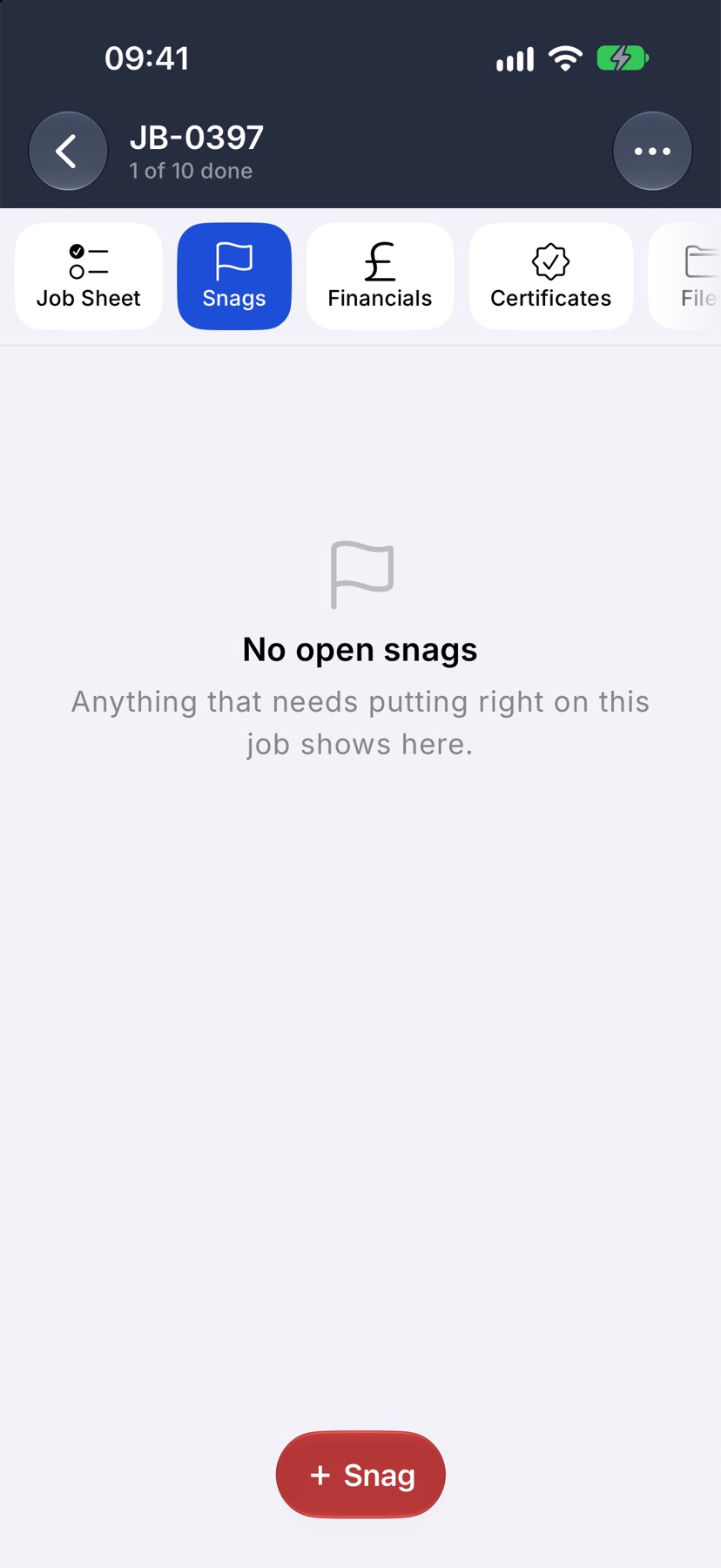
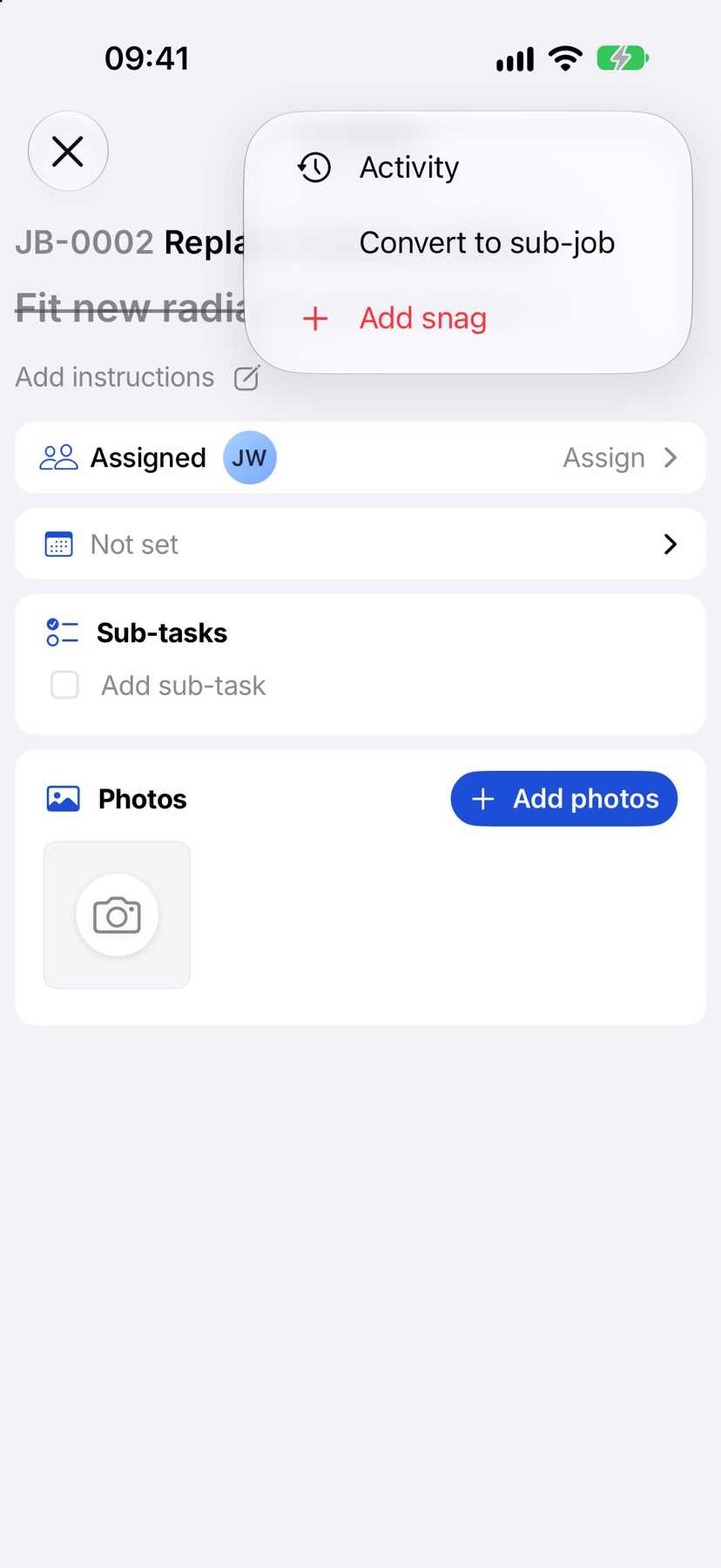
From a job: open the job, tap Snags in the tabs, and tap + Snag at the bottom. From a task: open the task, tap the three dots at the top right and tap Add snag. From anywhere: on Home, tap Snags at the top and then Add Snag.
Choose the job
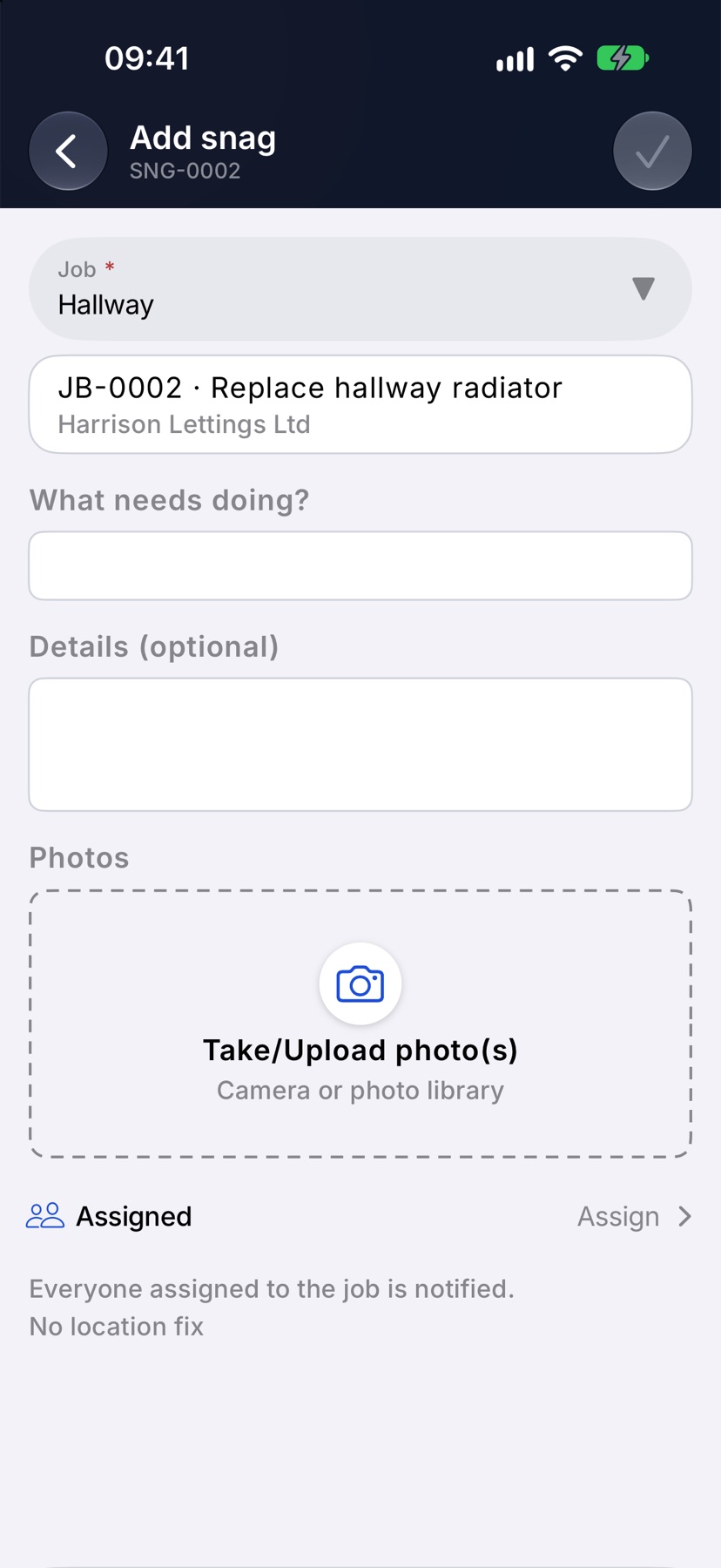
If you started from Home, the screen opens with a Job field. Tap it, type a few letters of the job or the customer, and tap the job. If you started from a job or a task, the job is already set and this field is not shown.
Say what is wrong
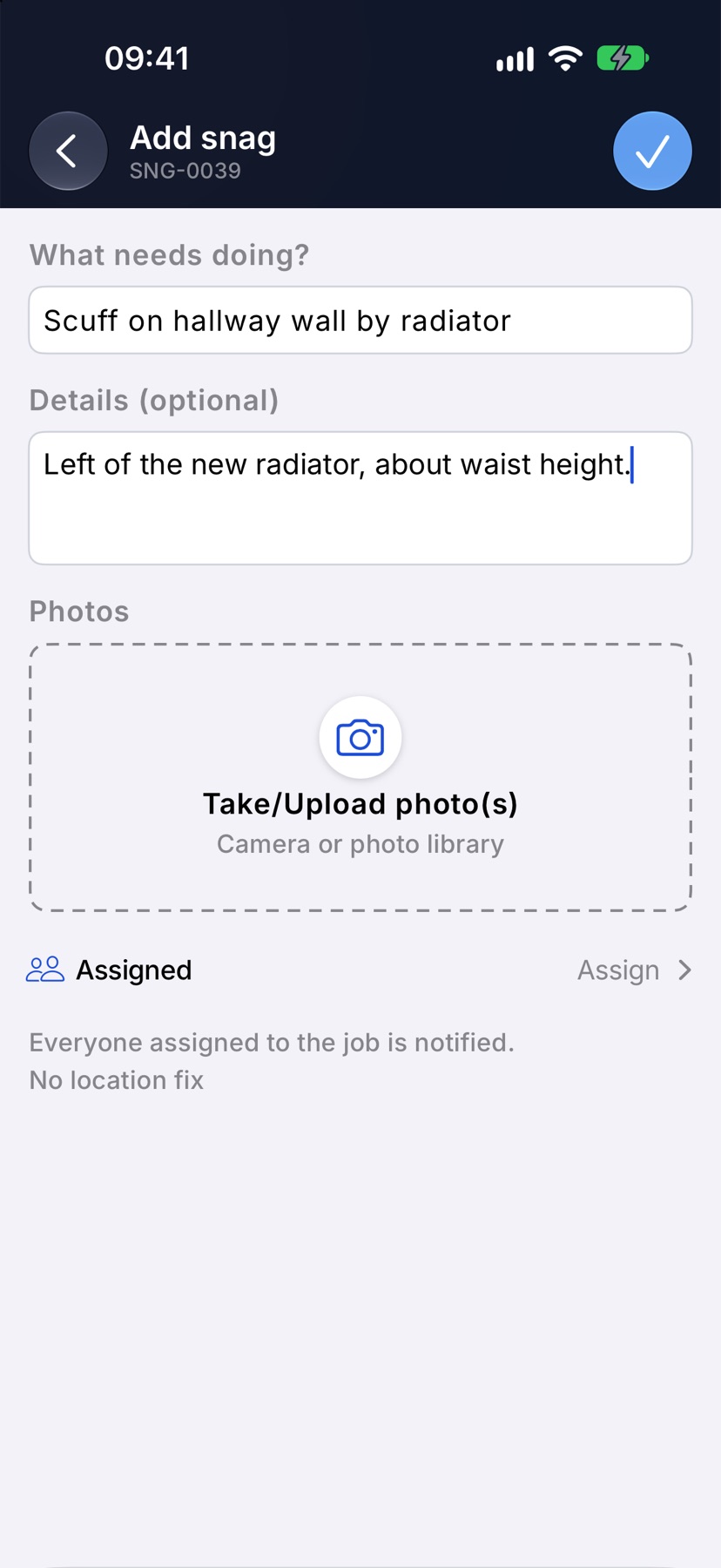
For a snag on the job, type a short title in What needs doing?, such as “Scuff on hallway wall by radiator”. Add more in Details (optional) if it helps.
For a snag on a task, type in What needs putting right? Write what the person on site needs to read: say exactly what is wrong and what you want done. The row above it names the task. Tap it and choose Whole job if the problem is wider than that task.
Raising a snag on a completed task leaves the task complete and keeps its photos.
Add photos
Under Photos, tap the camera box. Choose Take photos to use the camera or pick from your library. You can draw on each photo to point at the problem, then tap the tick at the top right to add them to the snag.
Choose who should fix it
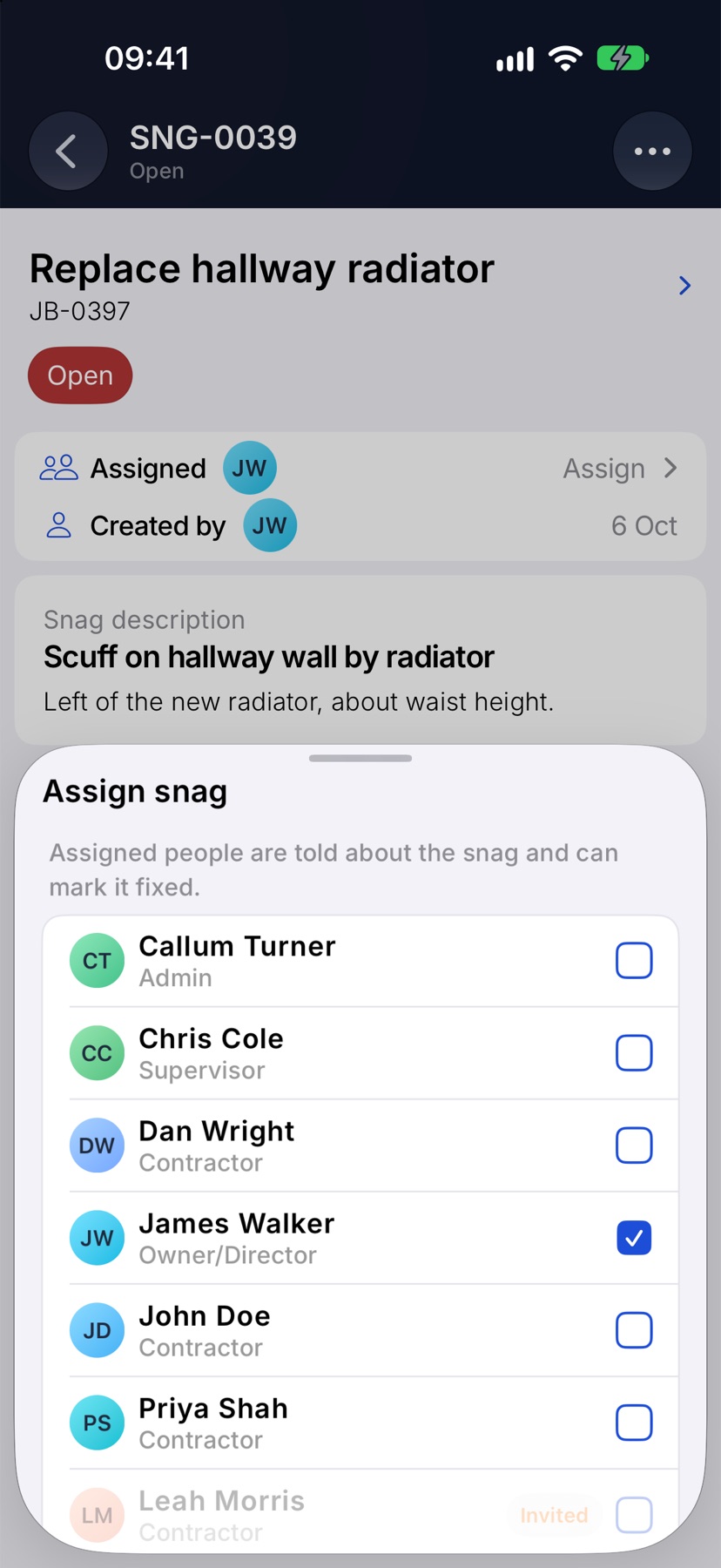
Tap Assigned. Assign snag opens with your team. Tick the people who should fix it. They are told about the snag and can mark it fixed.
The line under Assigned names who will be notified. With nobody chosen, everyone assigned to the job is notified. A snag raised from a task starts with that task's people.
Record where you are
For a snag on the job, the last line shows your location being found, then Location found. It is saved with the snag so others can see where it was raised. If location is off for Jobivo it reads Location off and the snag is raised without one.
Add the snag
Tap the tick at the top right. The tick is not available until the job is chosen and you have said what is wrong.
After the snag is raised
The snag appears on the job's Snags tab and in Snags on Home, with the status Open. A snag on a task also shows its number in red on that task's card. The people assigned are notified, and the job reads Open if work on it has started.