Snags
A snag is how you send work back: “this photo's out of focus”, “that task isn't finished”. It puts the request in writing, on the job, against the exact task — so it doesn't live in a text message nobody can find later.
Raise it against the task, not the job#
Open the task you're unhappy with and raise a snag there. Say what's wrong in plain words — “the left hinge photo is out of focus, please reshoot it”. That sentence is what the person on site reads, so specific beats polite.
The job goes to Rework#
As soon as a snag is open, the job reads Reworkin red — everywhere it appears. It can't be quietly overlooked, and anyone glancing at the list can see the job isn't really finished.
They fix it and mark it resolved#
Whoever's on site redoes the work, adds the photo, and marks the snag resolvedwith a note saying what they did. That doesn't close it — it tells you it's ready to check. The job moves to Awaiting.
You verify — or send it back#
Happy? Verify closes it for good. Not happy? Re-opensends it back as open again, and your note is what they'll see — so say what's still wrong. Turned out to be fine after all? Dismiss withdraws it and nobody has to fix anything.
It never closes on its own#
That's the whole point. A snag always ends with a person deciding it's right — so “we sorted that” is a record on the job with a name and a date against it, not a memory.
Tip — snags are worth raising even on your own work. The trail of what was wrong and what was done is exactly what you want six months later when a customer queries the job.
Keep everything that needs putting right in one list, each item with its photos, its people and its outcome.
What a snag is
A snag is something on a job that needs putting right: a task that was not finished properly, a mark on a wall, a part that is missing. Raising it puts the request in writing, on the job, with photos and the people who should fix it.
A snag has its own number, such as SNG-0042, and its own page. The page works like a conversation. People add comments and photos, the fixer marks it fixed, and whoever raised it checks the work.
A snag does not close by itself. It ends when a person verifies it or dismisses it, so there is a record of who decided it was right.
Where to start
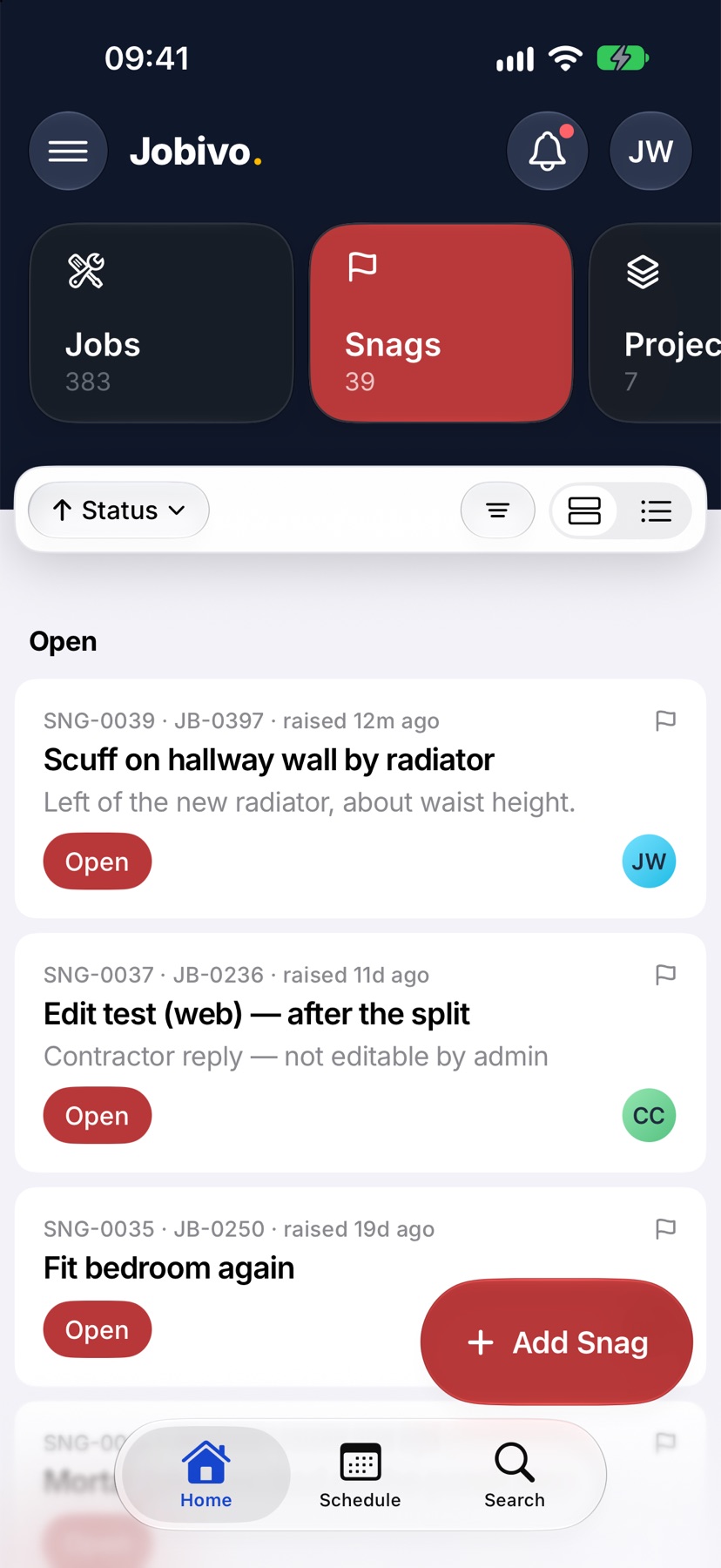
Open Jobivo on Home and tap Snags at the top. This is every snag you can see, across all jobs.
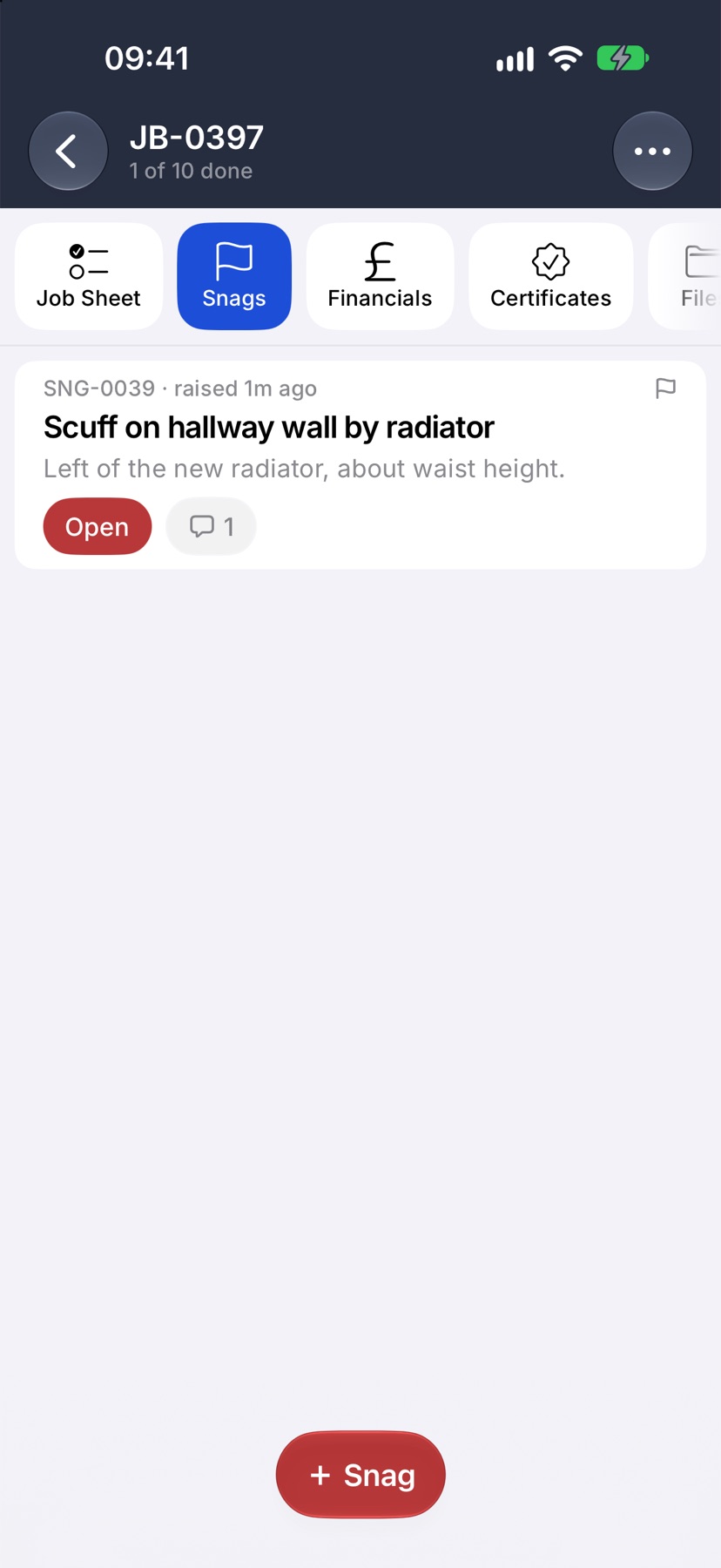
For one job's snags, open the job and tap Snags in the tabs across the top.
Read the list
Snags are grouped by where they have got to. Open snags are waiting to be fixed. Review snags have been marked fixed and are waiting to be checked. Each row shows the snag's number, what it is about and how long ago it was raised.
On a job's Snags tab, finished snags are folded away under Closed at the bottom. Tap it to see them.
Open a snag
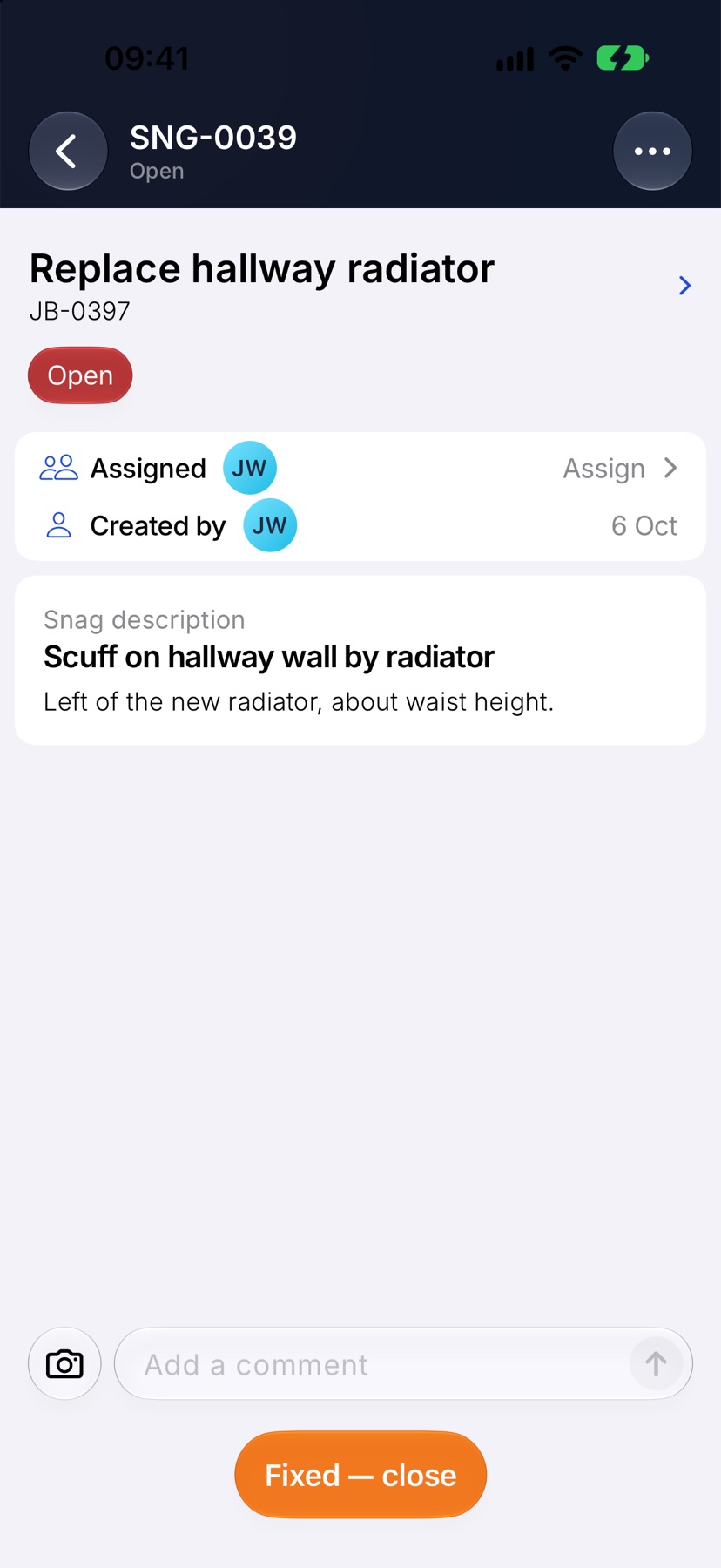
Tap a snag to open its page. The number is at the top with the status under it. Below are what the snag is about, who it is Assigned to and who it was Created by, then the comments and photos in the order they were added.
Type in Add a comment at the bottom to reply. The button beside it adds photos to your message.
How a snag moves on
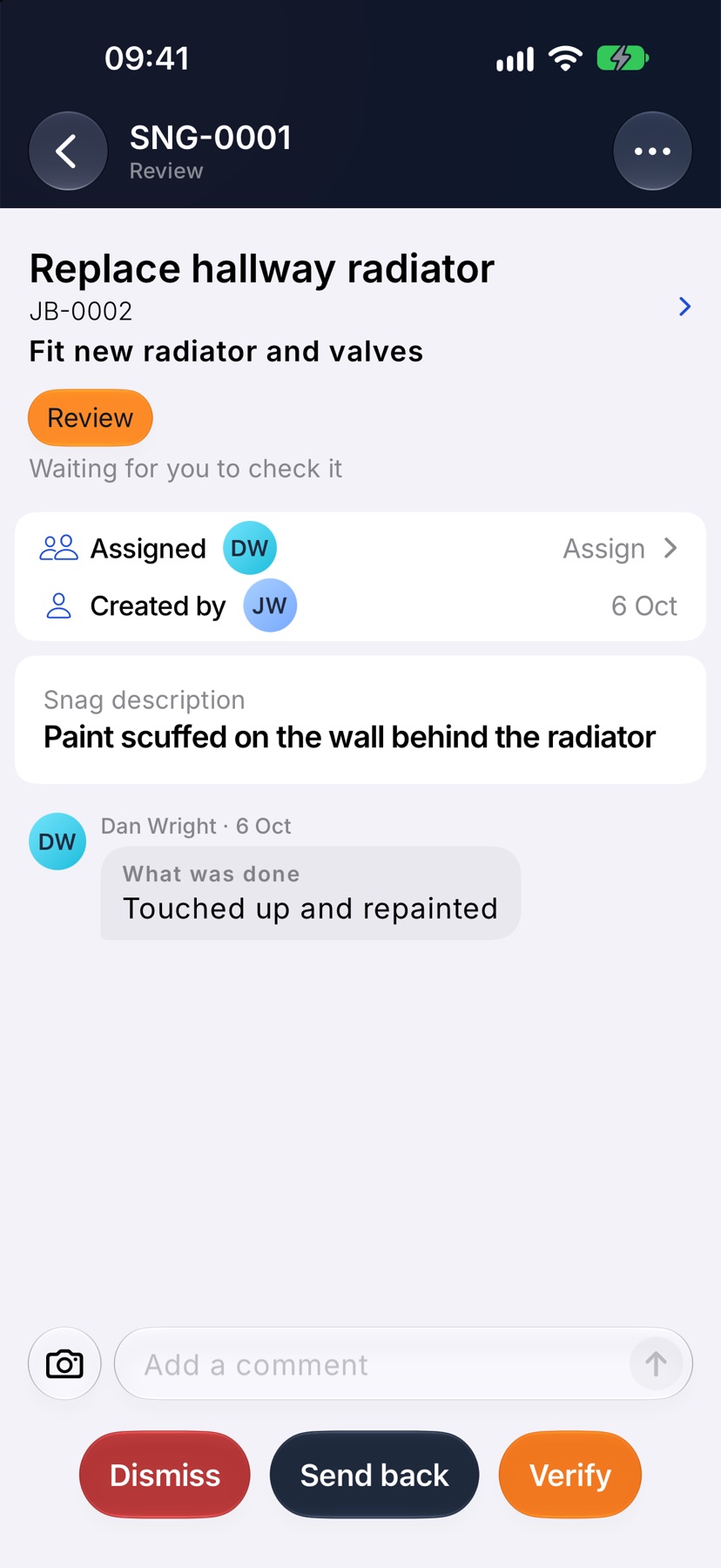
A snag starts as Open. The person fixing it does the work and taps Mark fixed, which moves it to Review.
Whoever manages snags then checks it. Verify closes it as Verified. Send back returns it to Open with a note saying what is still wrong. Dismiss withdraws it as Dismissed, when it turned out nothing needed fixing.
What a snag does to its job
While a job that is under way or complete has an open snag, the job's status reads Open in red wherever it appears, and the job cannot be completed. Once the snag is verified or dismissed, the job goes back to its own status.
Raising and closing snags
Raising a snag and signing one off each have their own guide. Tap Add Snag on Home, or + Snag on a job's Snags tab, to raise one.
More in Snags →
See what else Photo evidence can do. Still stuck? Email support@jobivo.co.uk and we'll get back to you.