Fix and sign off a snag
Mark a snag fixed once the work is done, then verify it, send it back or dismiss it.
How a snag is closed
A snag is closed in two moves, by two roles. The person fixing it does the work and marks it fixed. The person who manages snags then checks the work and signs it off.
The statuses follow that. Open means it is waiting to be fixed. Review means it has been marked fixed and is waiting to be checked. Verified means it was checked and closed. Dismissed means it was withdrawn.
Keeping the two moves apart means the record shows who said it was fixed and who agreed.
Where to start
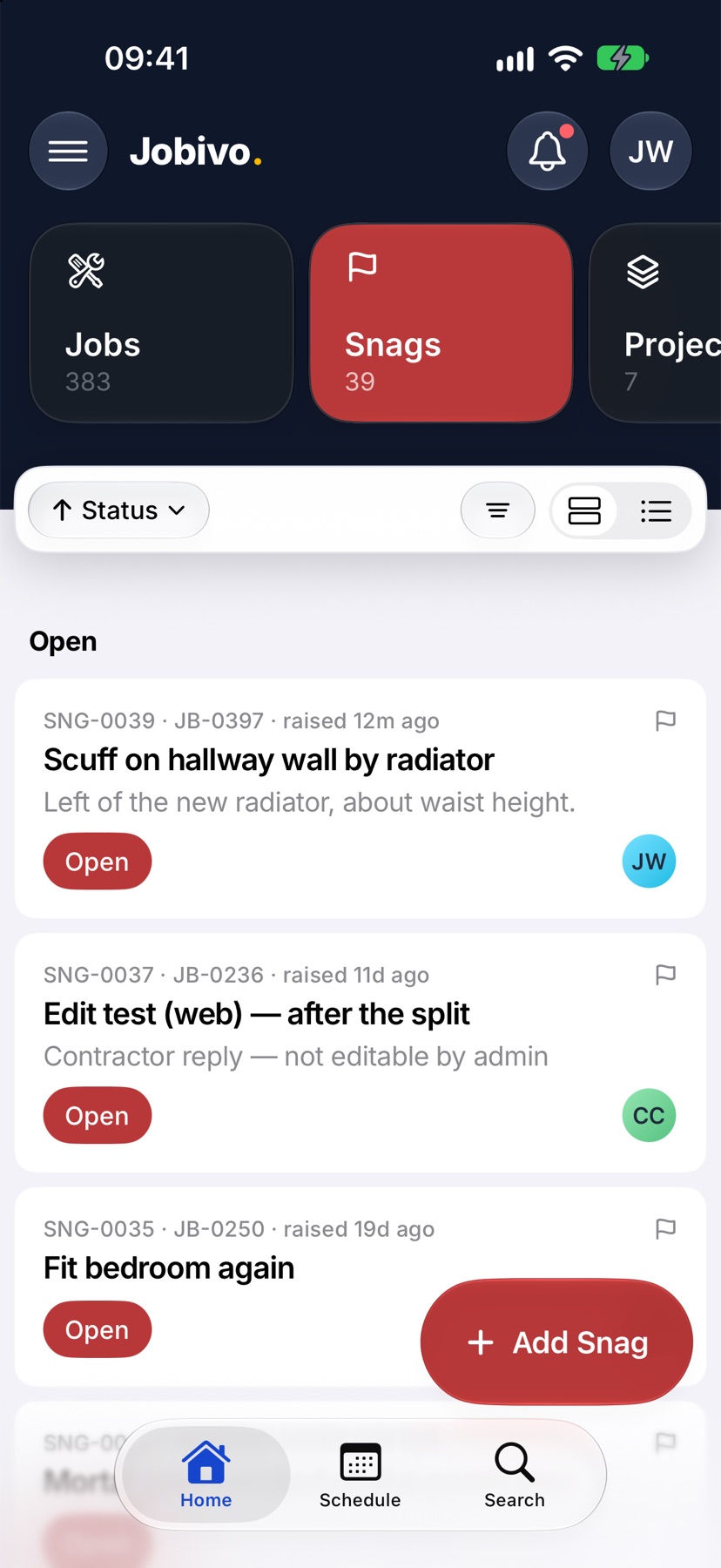
On Home, tap Snags at the top and tap the snag. Or open the job, tap Snags in the tabs, and tap it there. The snag's page opens with the buttons you can use in the bar at the bottom.
Mark a snag fixed
Do the work. Add a comment or photos of the result in Add a comment if you want to show it. Then tap Mark fixed at the bottom.
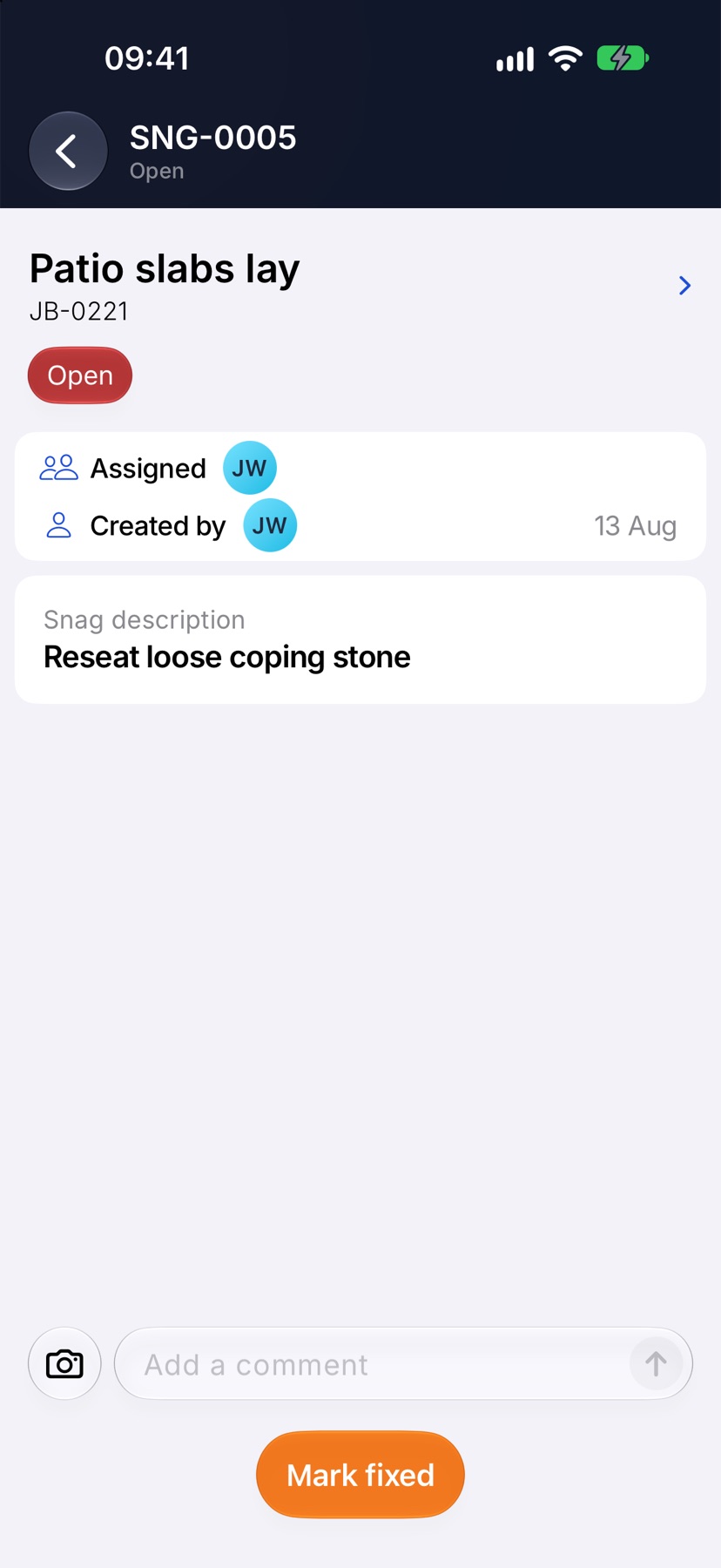
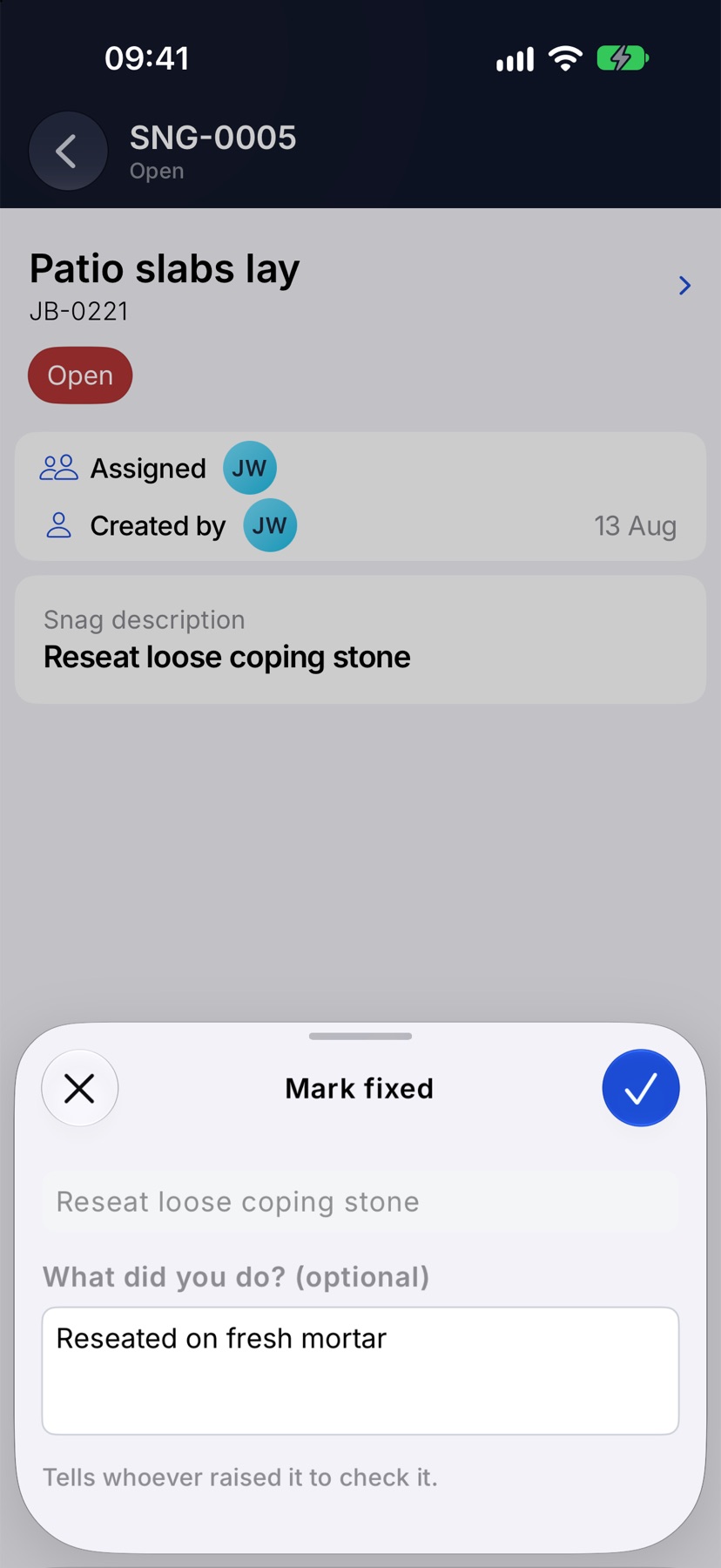
The sheet repeats what the snag asked for. Type what you did in What did you do? (optional) and tap the tick at the top right. The snag moves to Review, and whoever raised it is told to check it.
Verify the fix
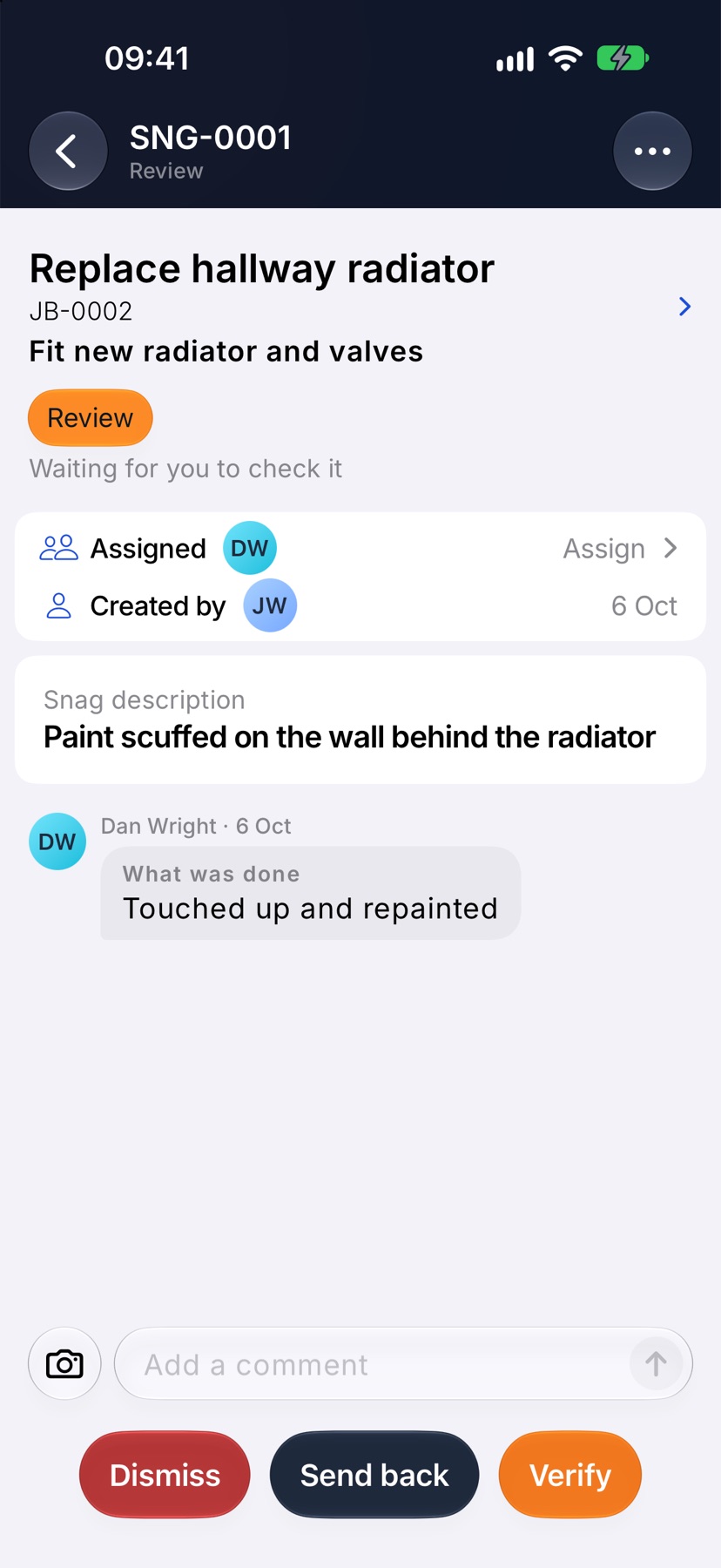
Open a snag that is in Review. A line on the page says who it is waiting for. Check the work, then tap Verify. Add a note if you want and tap the tick. The snag is closed as Verified.
Send it back
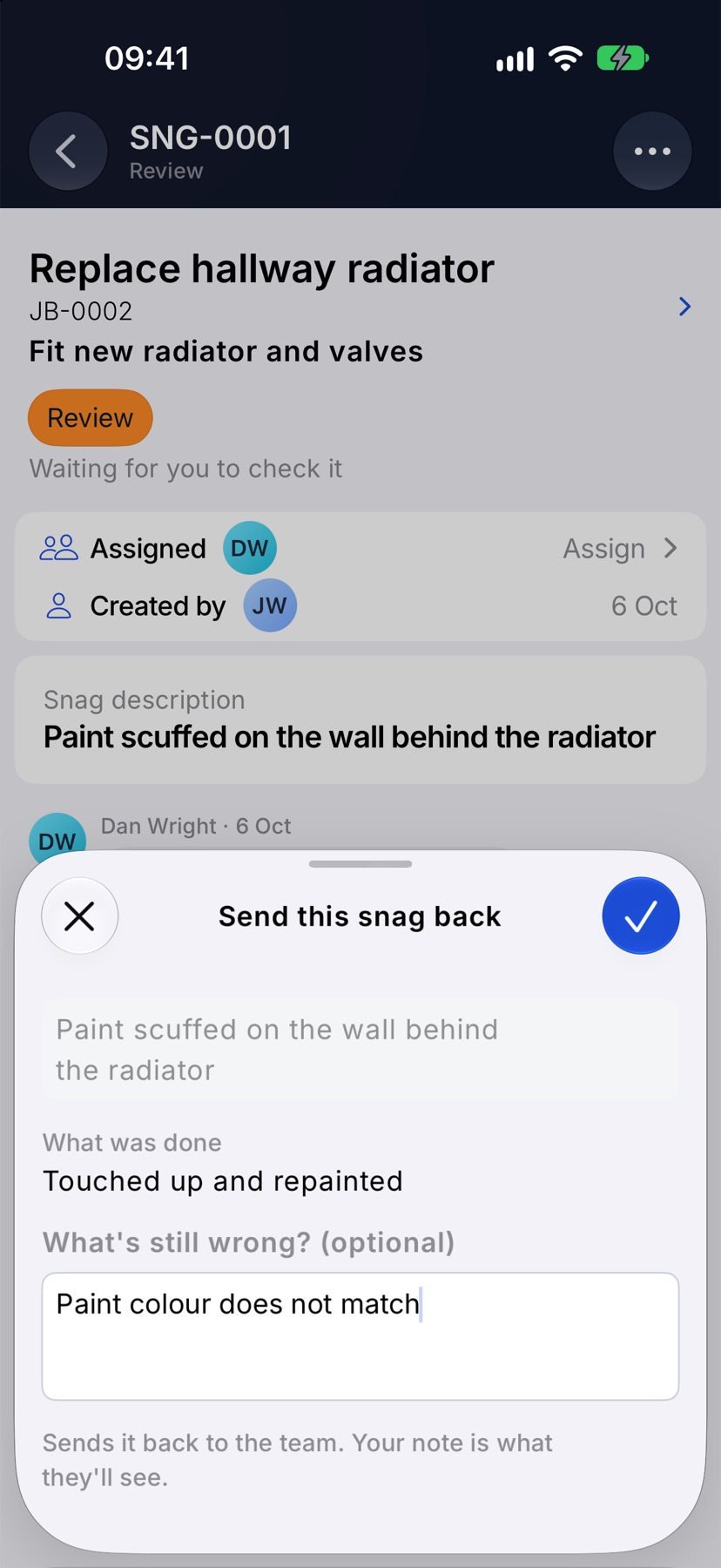
If the fix is not right, tap Send back. Type what is still wrong in What's still wrong? (optional) and tap the tick. The snag returns to Open, and your note is what the team sees.
Dismiss a snag
If the snag turns out not to need fixing, tap Dismiss. Give a reason in Why? (optional) and tap the tick. It is closed as Dismissed and nobody has to do anything.
Fix and close in one go
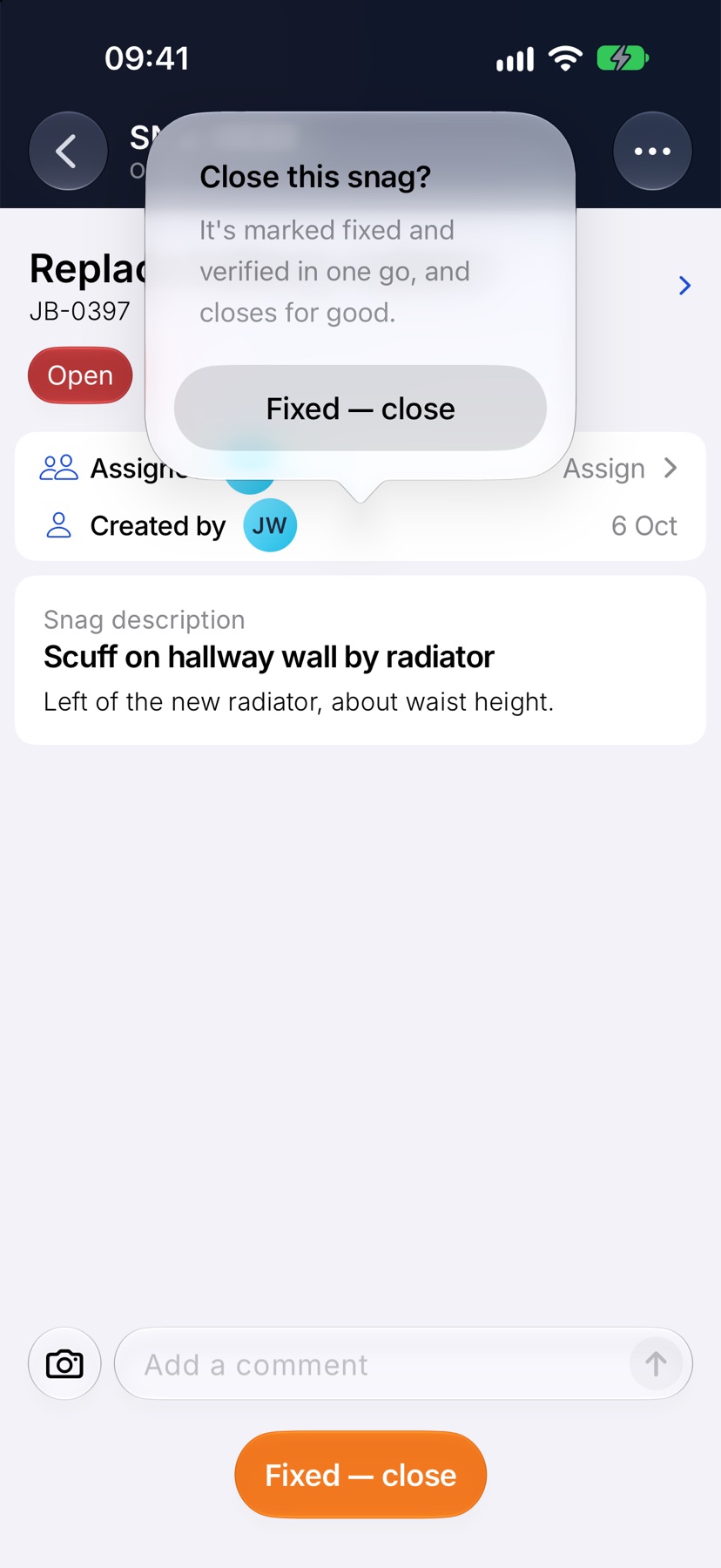
If you both fix snags and sign them off, an open snag assigned to you shows one button: Fixed — close. Tap it and confirm. The snag is marked fixed and verified together. A sole trader always sees this button.
Move a snag to another job
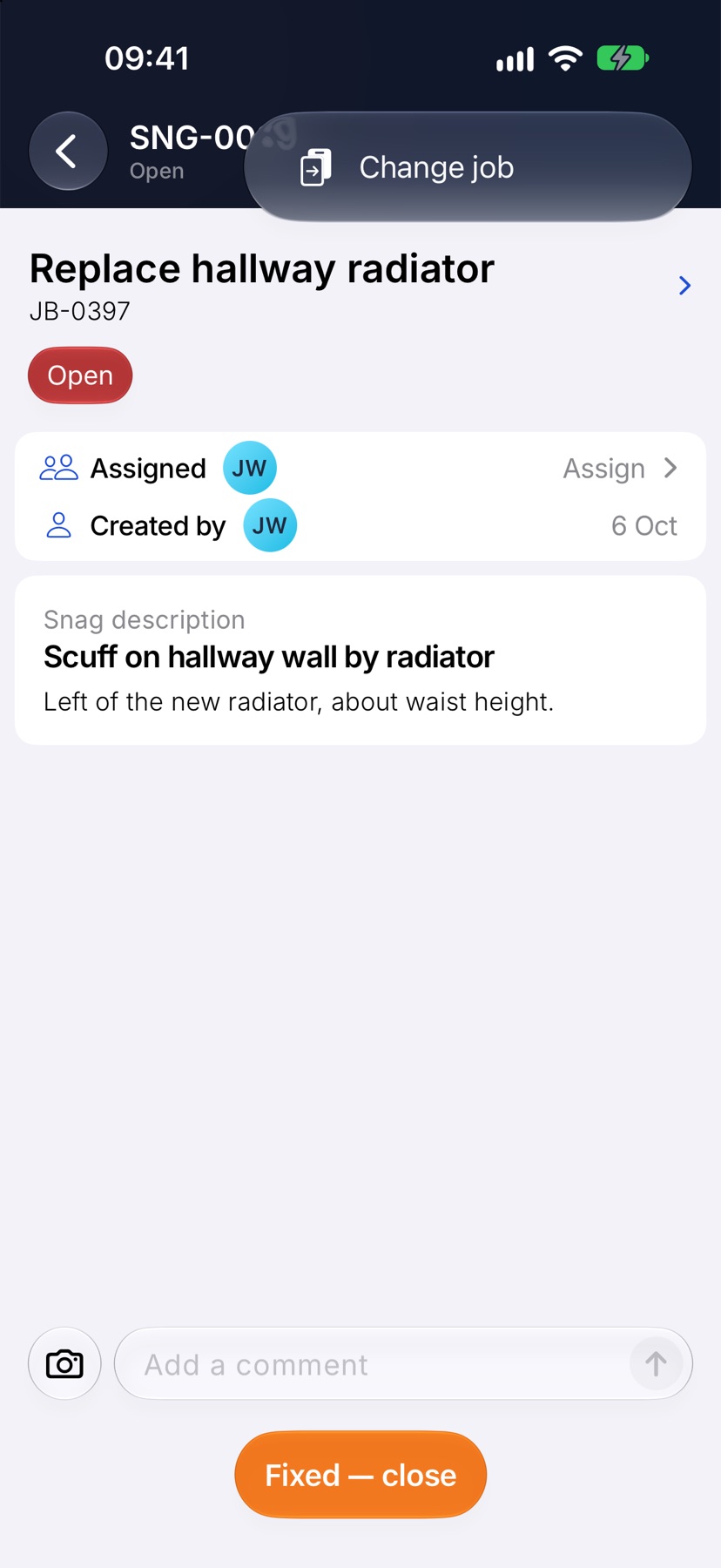
If a snag was raised on the wrong job, open it, tap the three dots at the top right and tap Change job. Choose the right job and tap the tick. A snag raised against a task loses its link to that task when it moves.
After a snag is closed
A verified or dismissed snag leaves the open list. On the job's Snags tab it is kept under Closed, with its comments, photos and closing note. When a job's last open snag is closed, the job stops reading Open and can be completed.