Save a job sheet as a template
Turn a job sheet that worked into a template, make it your default, and use it on other jobs.
What saving a job sheet as a template does
When a job's task list turns out right, you can save it as a template. The template is a copy of the job sheet as it stands, with its tasks, sub-tasks and groups.
The saved template appears in your Templates list and can be loaded onto any other job. Set it as the default and every new job starts from it.
Saving does not change the job. The job keeps its own sheet, and the template can be edited later without touching it.
Where to start
Open the job. It opens on Job Sheet. Scroll to the bottom of the tasks, where a row of three buttons reads Add task, Add template and Save template.
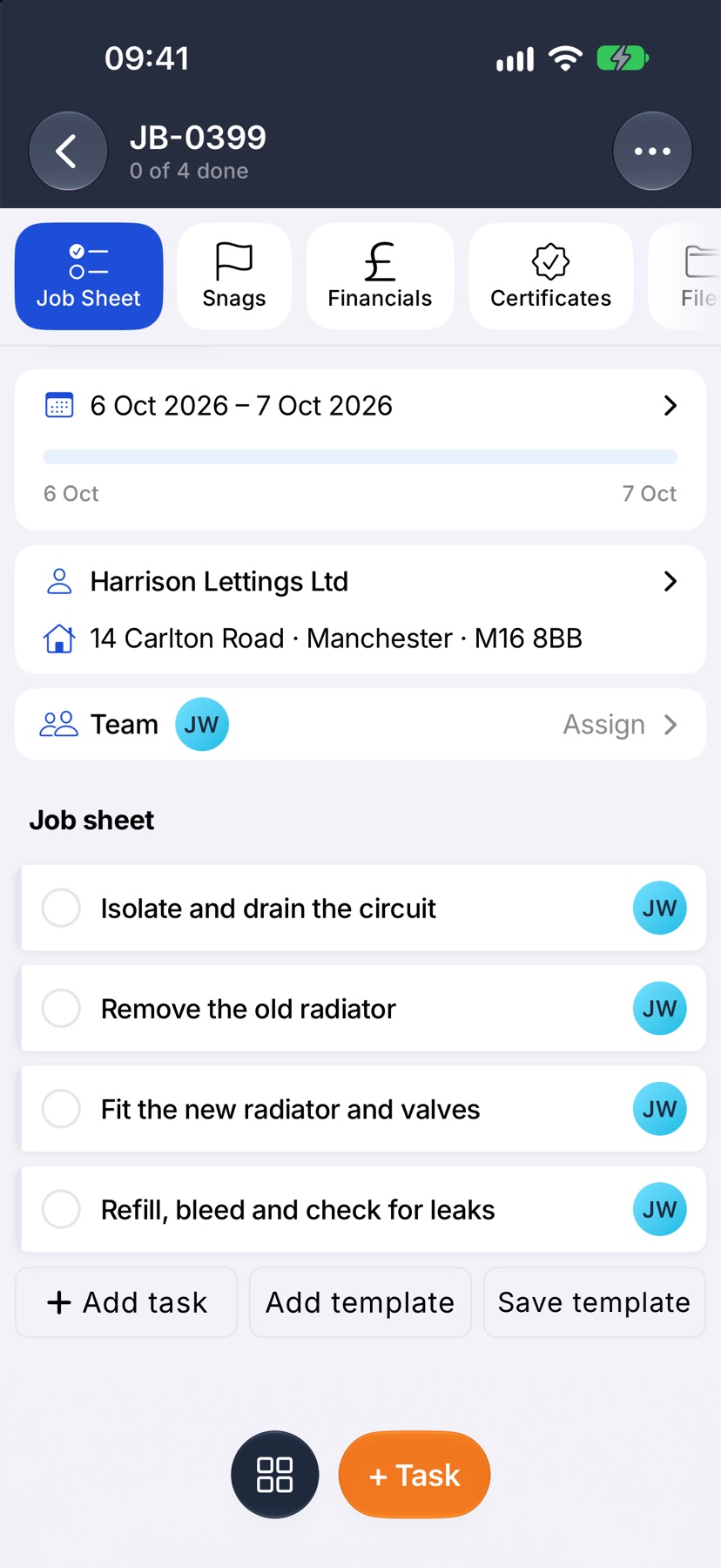
Name and save the template
Tap Save template. Save as template opens with the job's name already in Template name. Change it to something that describes the type of work, then tap the tick.
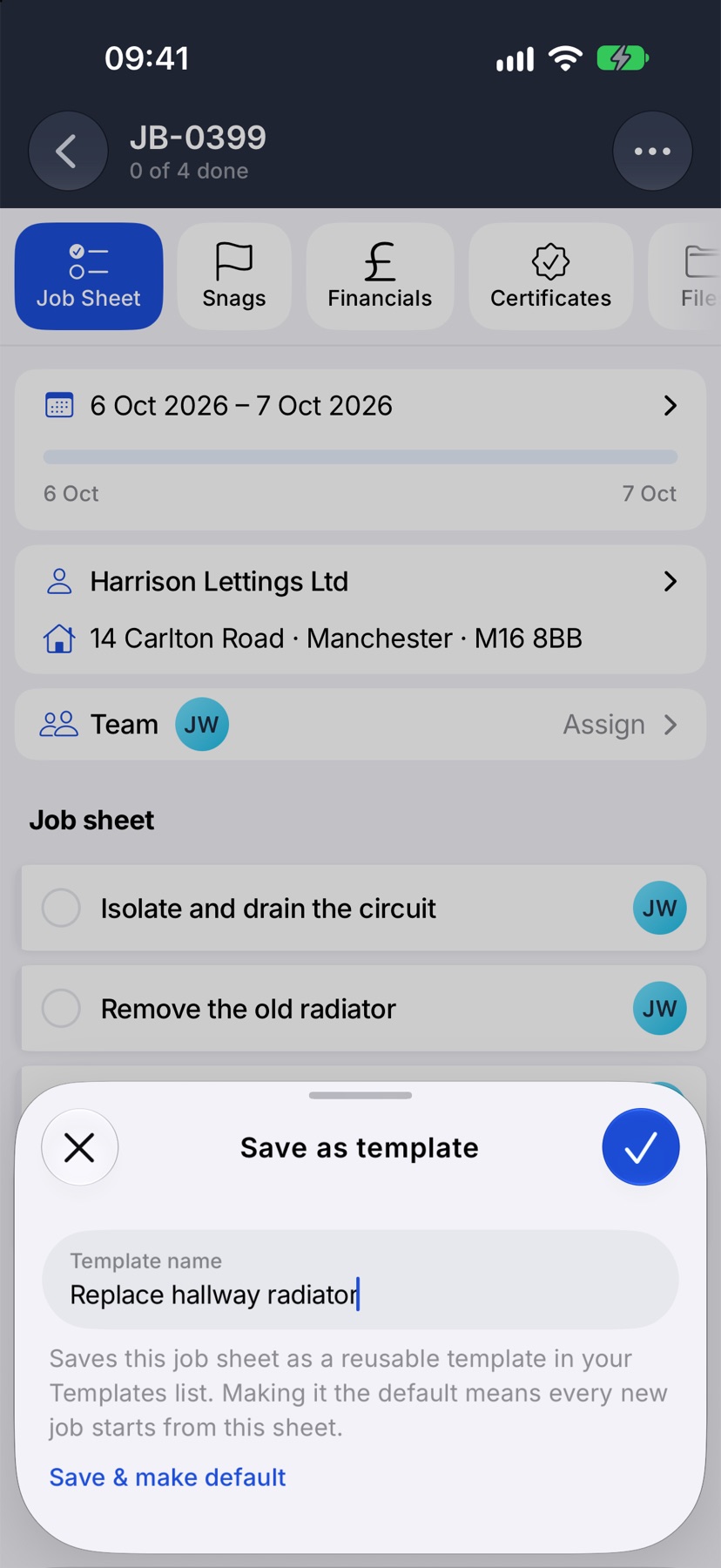
Make it the default
To save the template and make it the default in one go, tap Save & make default on the same prompt. Every new job then starts from this sheet.
To make a template the default later, open the menu, tap Templates, press and hold the template under Your templates and tap Set as default. The default template is marked Default in the list.
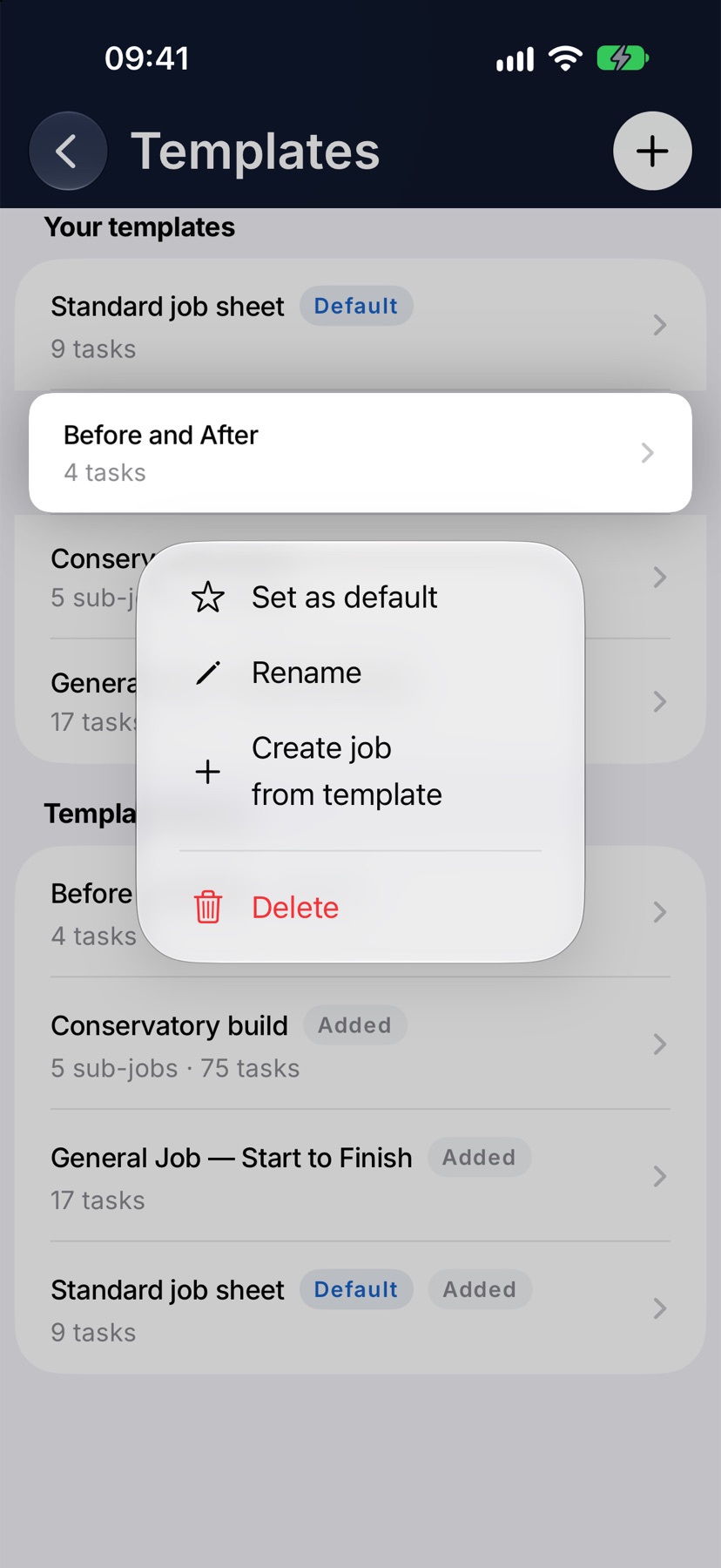
Use the template on a job you already have
Open the other job and scroll to the same row on its Job Sheet. Tap Add template, and tap the template under Your templates.
If the job sheet is empty, the template's tasks load straight onto it. If it already has tasks, Jobivo asks whether to add the template below them or replace them. Replacing is only offered while no work has been recorded on the sheet.
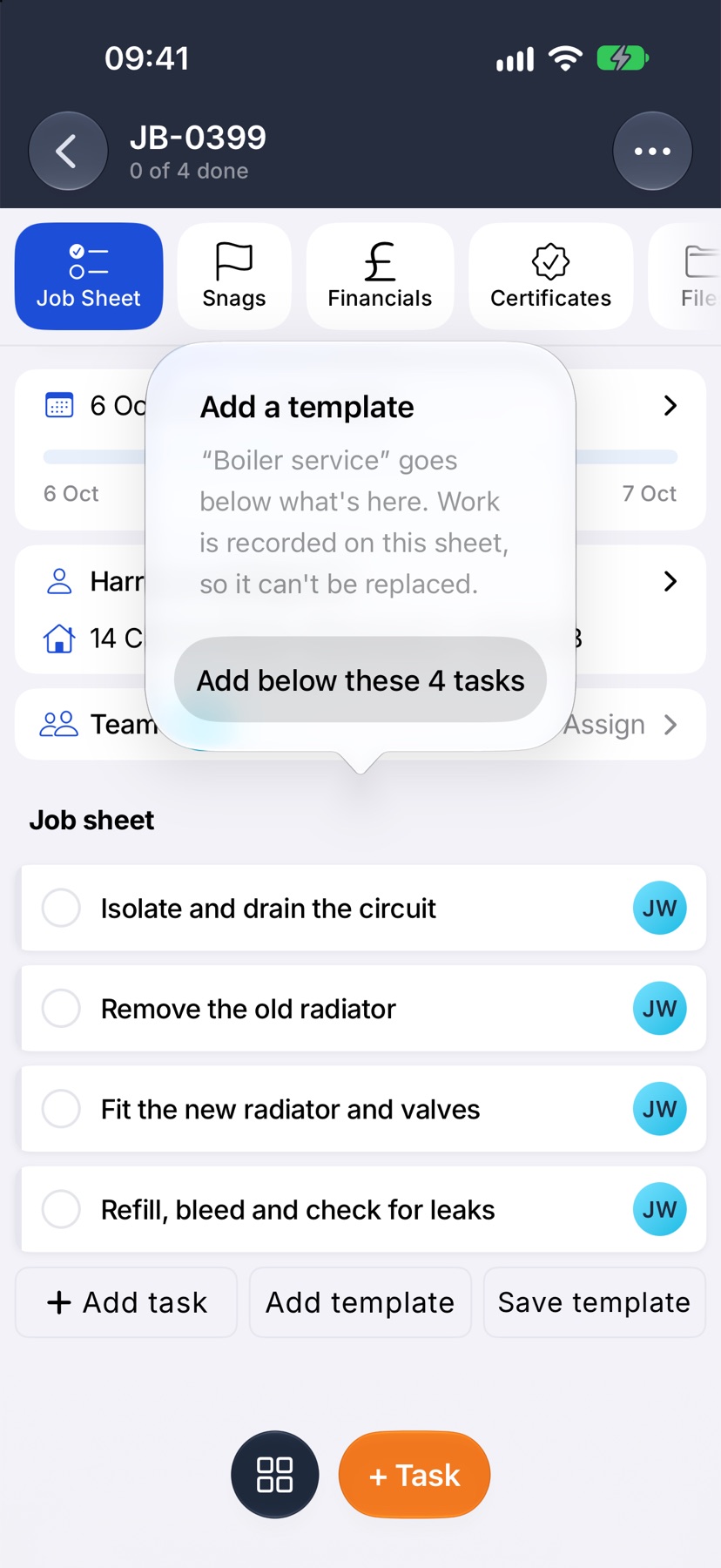
After the template is saved
The template is under Your templates in Templates, in the menu. Tap it there to change its tasks, rename it or delete it.
When you create a job, the template is offered under Template on the New job form, with your most-used templates first.