Invite your team
Jobivo is worth most when the people on site are in it — that's where the photos and the costs come from. Add them from Team → Invite.
Send a link, or send emails#
The join link is the quickest route: copy it into your WhatsApp group and anyone who taps it joins your company. Prefer to be deliberate? Type their email addresses instead and Jobivo invites them one by one.
Pick the right role#
Contractoris the default and the right answer for anyone on the tools — they see the jobs they're assigned to. Admin is for whoever runs the office: all the jobs, the money, the team. Owner/Directorbelongs to whoever created the company and can't be handed to anyone else.
Assign them work while they're still joining#
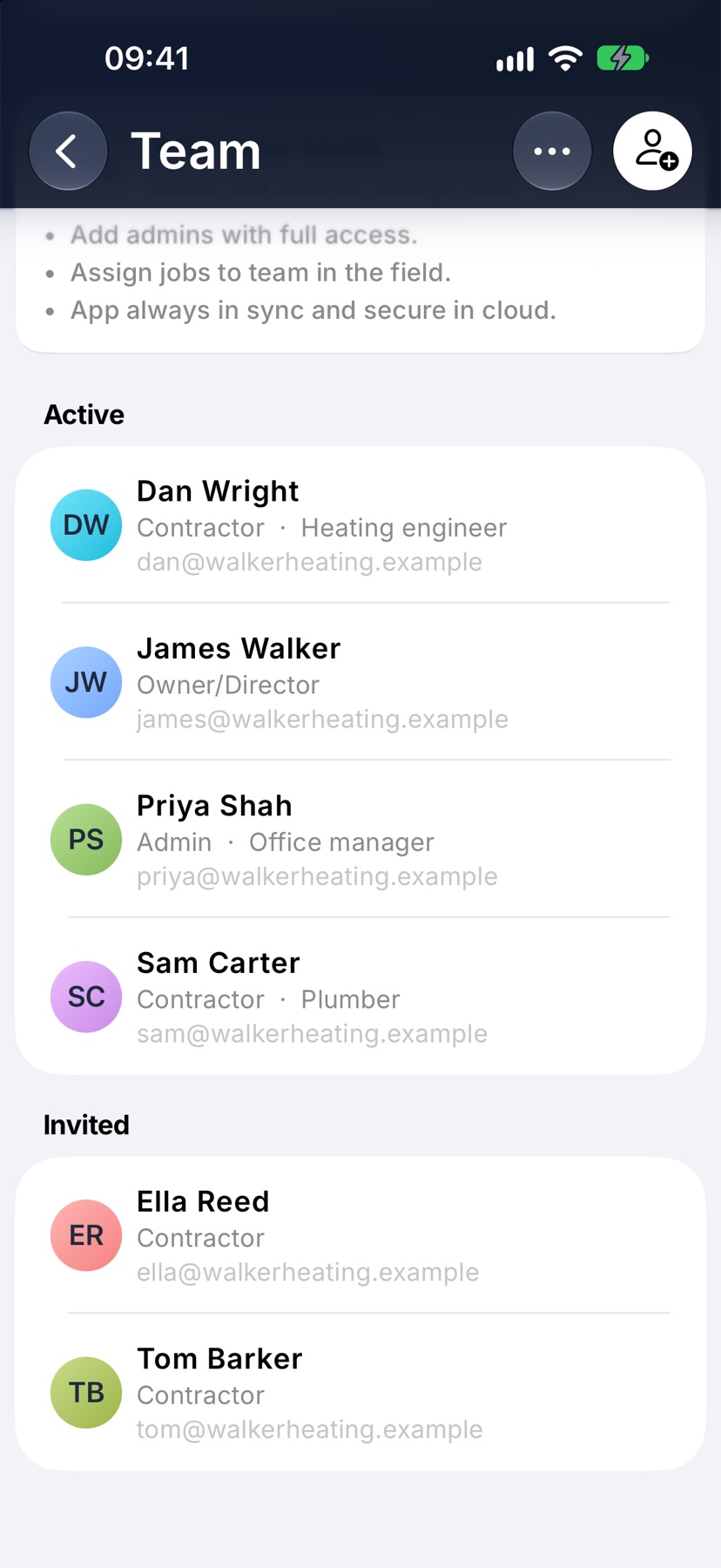
An invited person shows as Pending invite and can be assigned to jobs right away. The work is waiting the first time they open the app, so nobody has to remember to go back and set them up.
Licences follow active members#
Your plan is priced by how many people are active — one licence per active team member. Someone who's off the books for a while can be deactivated and reactivated later; someone who has left for good can be removed. Either way their jobs, photos and notes stay exactly where they are.
Tip — invite the people who take the photos first. One person in the office typing up someone else's day is the thing Jobivo is meant to remove.
Send invites to everyone at once, each on the right role, or share one code they can join with.
What inviting does
An invite is an email that brings someone into your company on Jobivo. They accept it, set a password, and from then on they see the jobs they are put on and can record work from their own phone.
Each invite carries a role, which decides what that person can see and do. You can send several invites in one go and give each person a different role.
If you do not have everyone's email address, your company also has a join code. Anyone who has the code can join without an invite.
Where to start
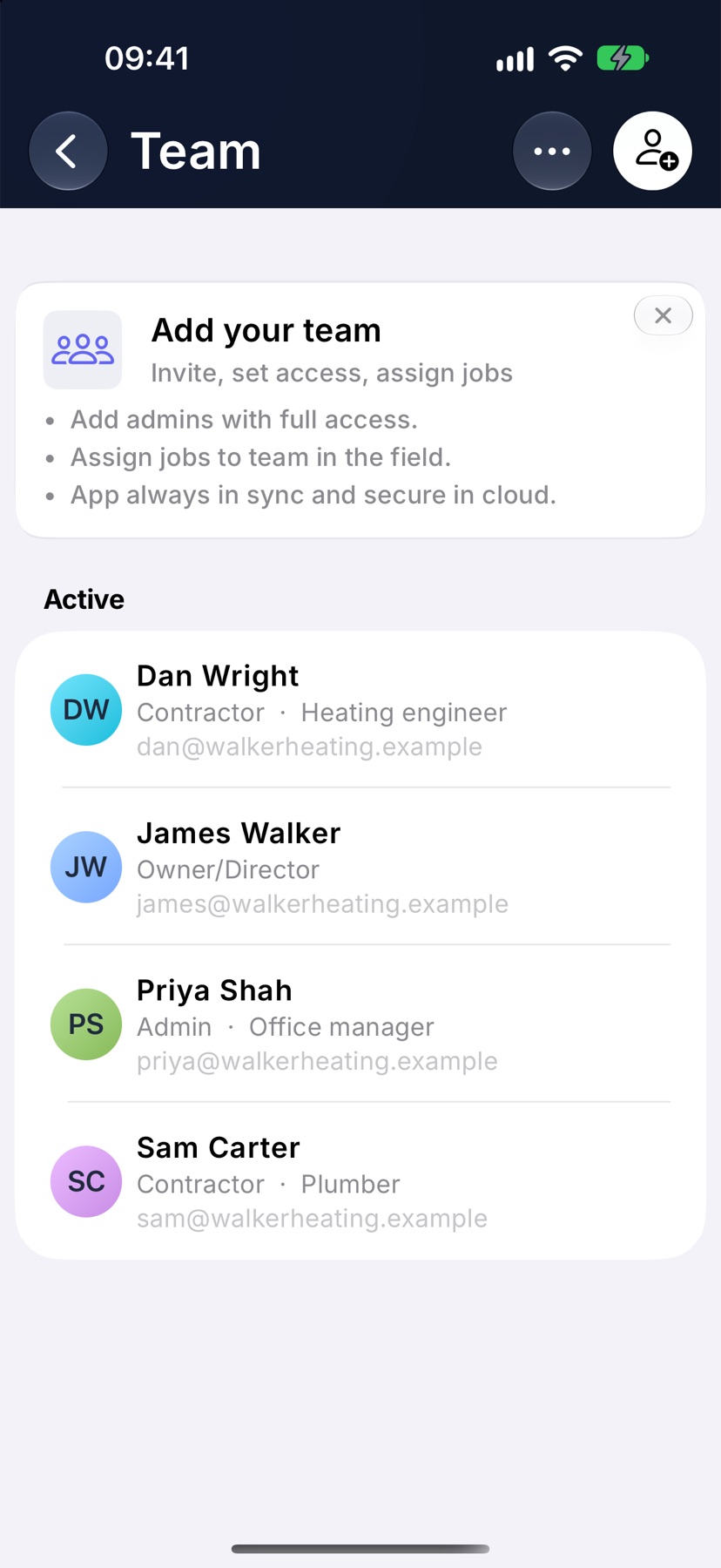
Open the menu with the three lines at the top left of Home and tap Team. On the Team page, tap the invite button at the top right. The Invite screen opens.
The same screen is in Settings, under Business Settings, as the Invite row.
Add the email addresses
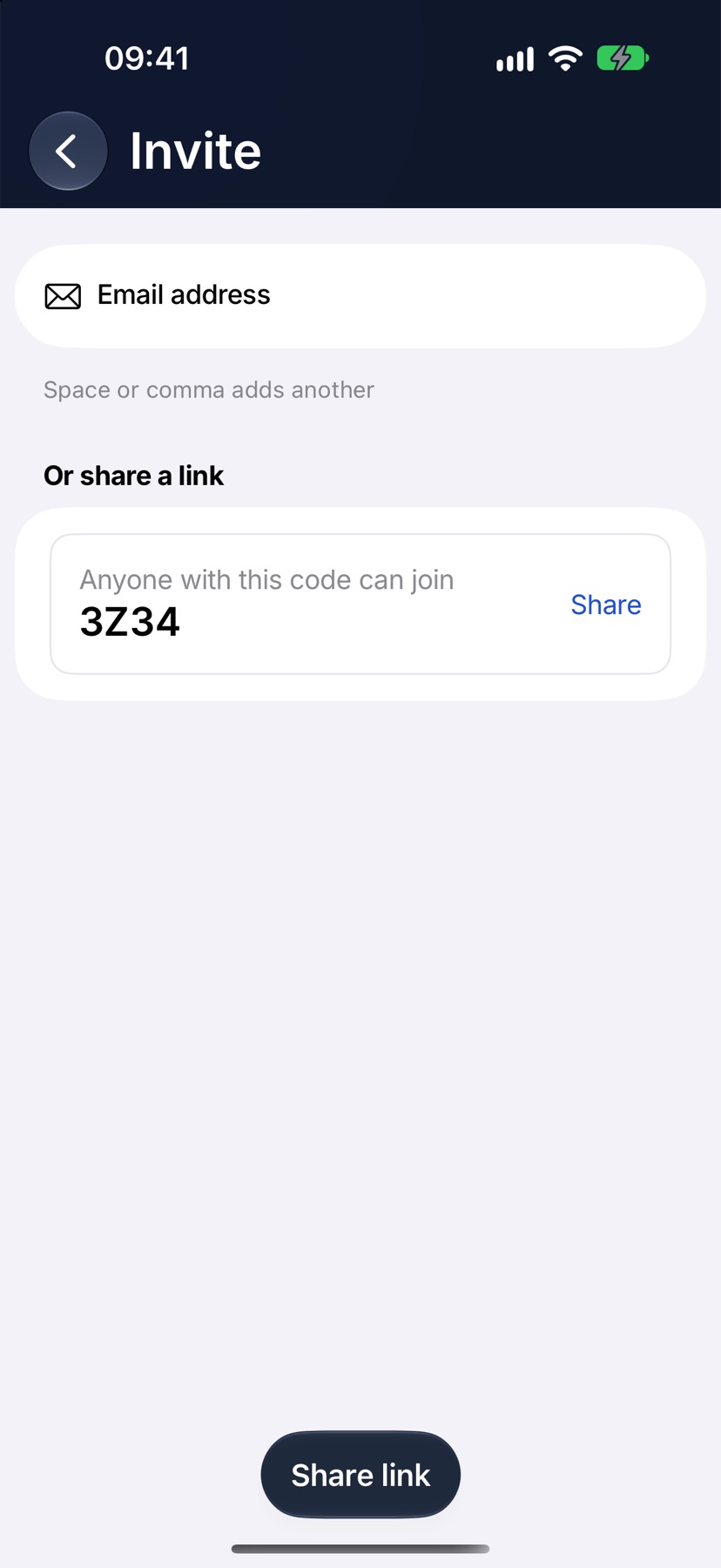
Type an address into Email address. A space or a comma adds it to the list and clears the field for the next one, so you can keep typing until everyone is on it.
The list is headed Inviting with a count. Tap the cross on a row to take that person off, or Clear to empty the list.
Choose each person's role
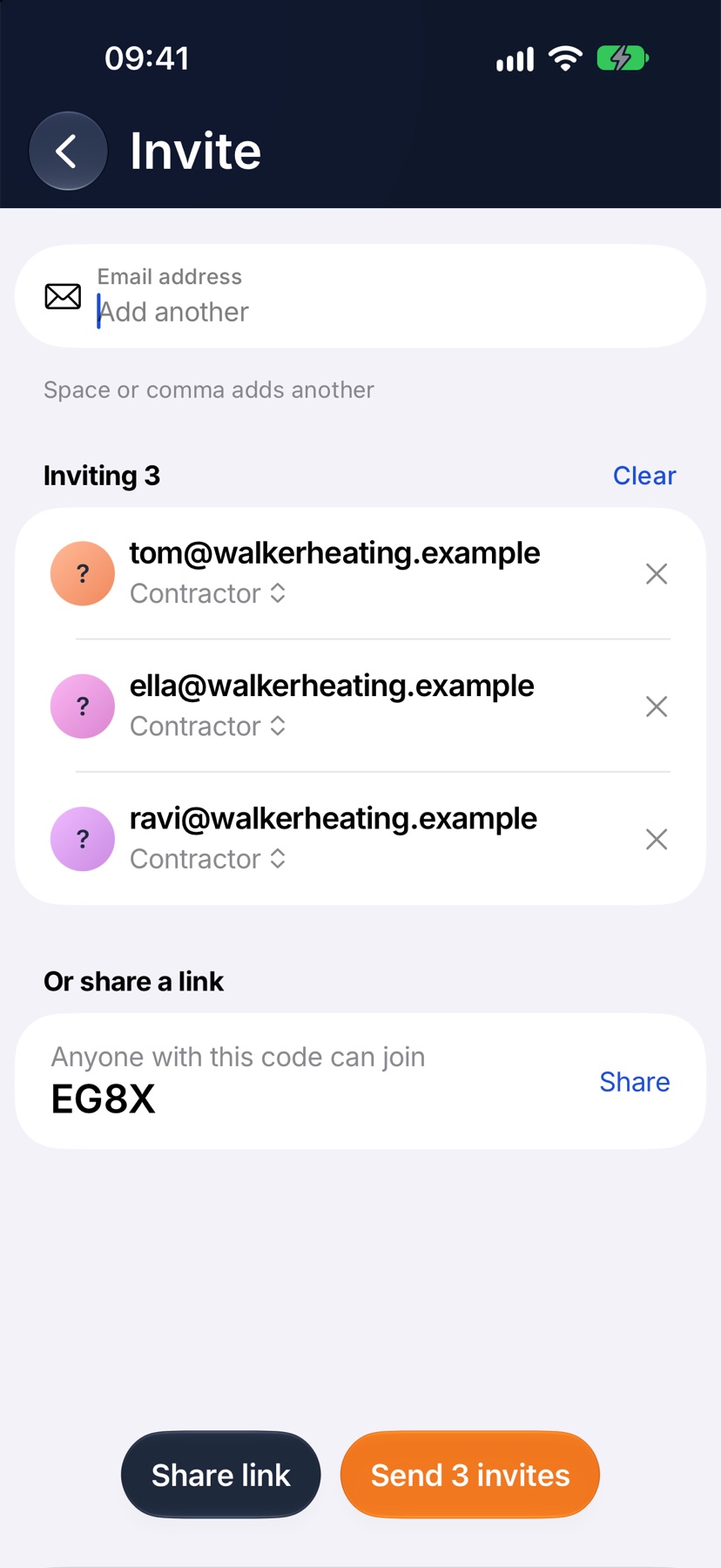
Every row shows the role that person will join on. Tap the role name on a row and pick another from your company's roles.
The Owner/Director role is never offered here. It belongs to the person who created the company.
Send the invites
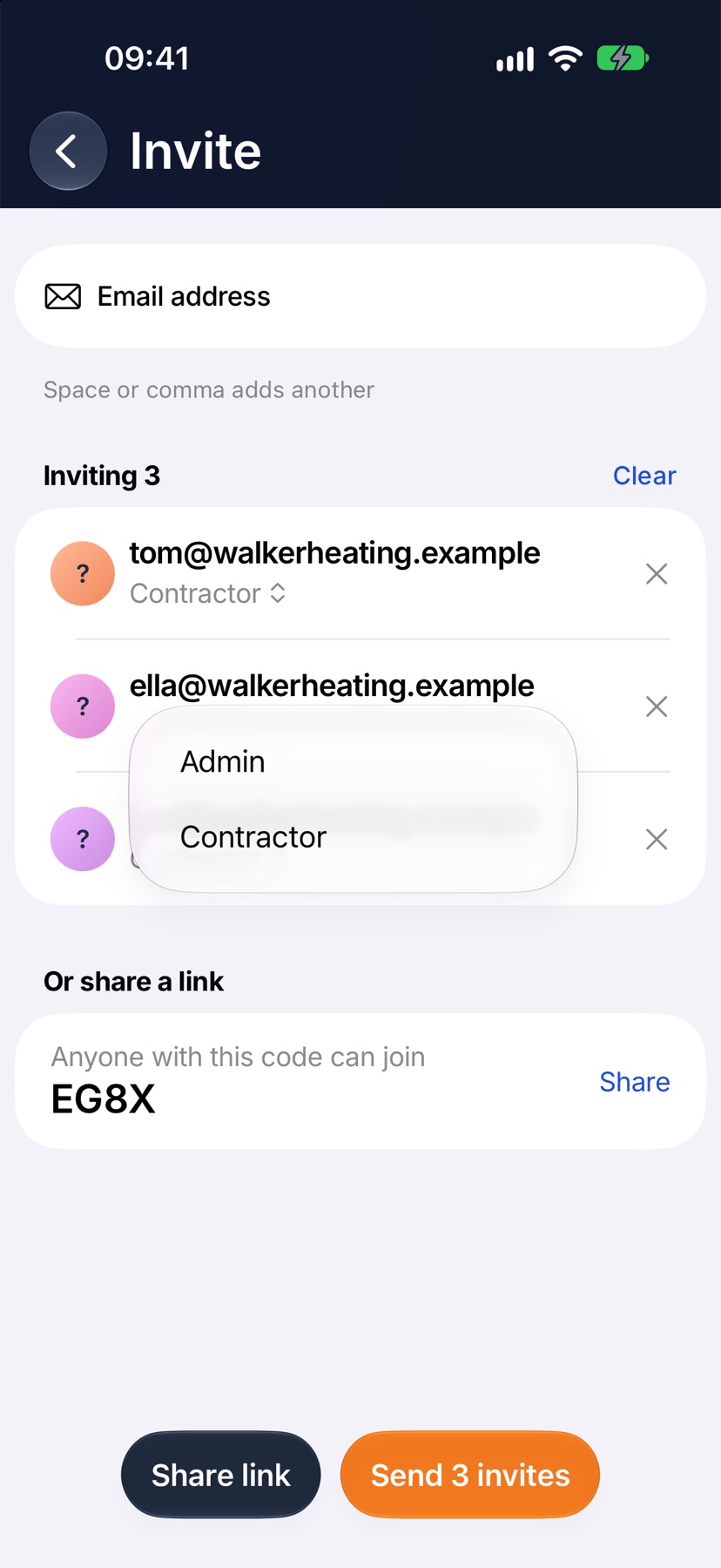
Tap Send invite at the bottom. With more than one person on the list the button counts them, for example Send 3 invites.
Each row then reports its own result. A tick and Invited means the email has gone. If a row shows a reason in red instead, tap Retry to send those again. Tap Done to leave.
Share the join code instead
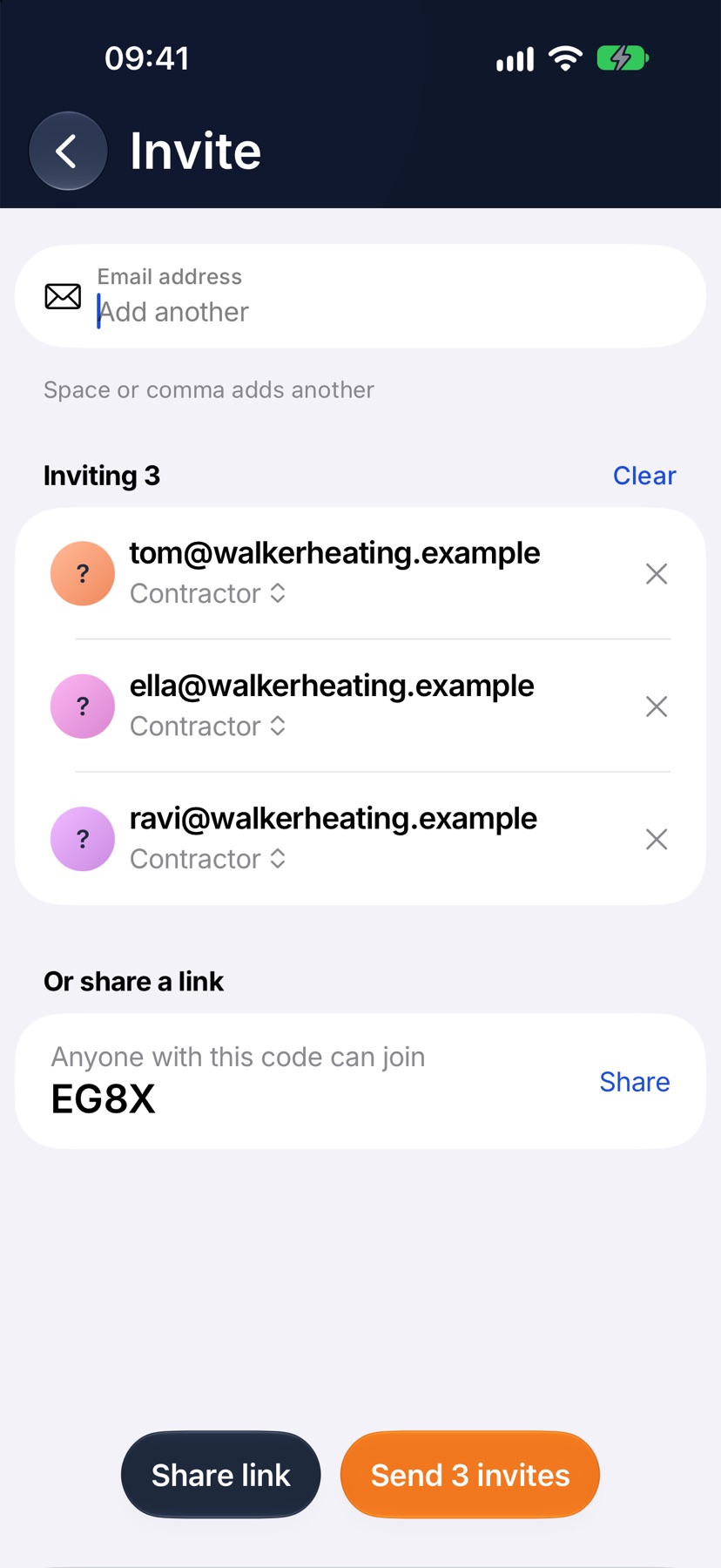
Under Or share a link is a card with your company's code and the line Anyone with this code can join. Tap the card, or Share link at the bottom, and send the message by text or any other app on your phone.
The message holds a link and the code. The person opens the link, or taps Join company in the app and enters the code.
After the invites are sent
The people you invited are listed on Team under Invited until they accept. Once they have set a password they move to Active.
If someone cannot find the email, open their page from the Team list, tap the menu at the top right and choose Resend invite.
More in Team & roles →
- Join codes and join requestsShare one code or link, then approve the people who ask to join.
- Roles and accessDecide what each role can see and do, module by module — and preview the app as them.
- Change, deactivate or remove someoneChange a person's role, pause their access, or remove them — and what happens to their work.
See what else Team can do. Still stuck? Email support@jobivo.co.uk and we'll get back to you.