Schedule a job
Give a job its dates, and book the visit so the customer and your team know when.
Dates and appointments
A job has two types of timing. Its planned dates say when the work starts and when it should be finished. An appointment is a booked visit on a day at a time, with the people going, and the customer can be emailed about it.
A small job often needs only one appointment. A longer job has planned dates and several appointments inside them.
Where to start
Open the job. Under its name and status, tap the date row. It reads Not set on a new job.
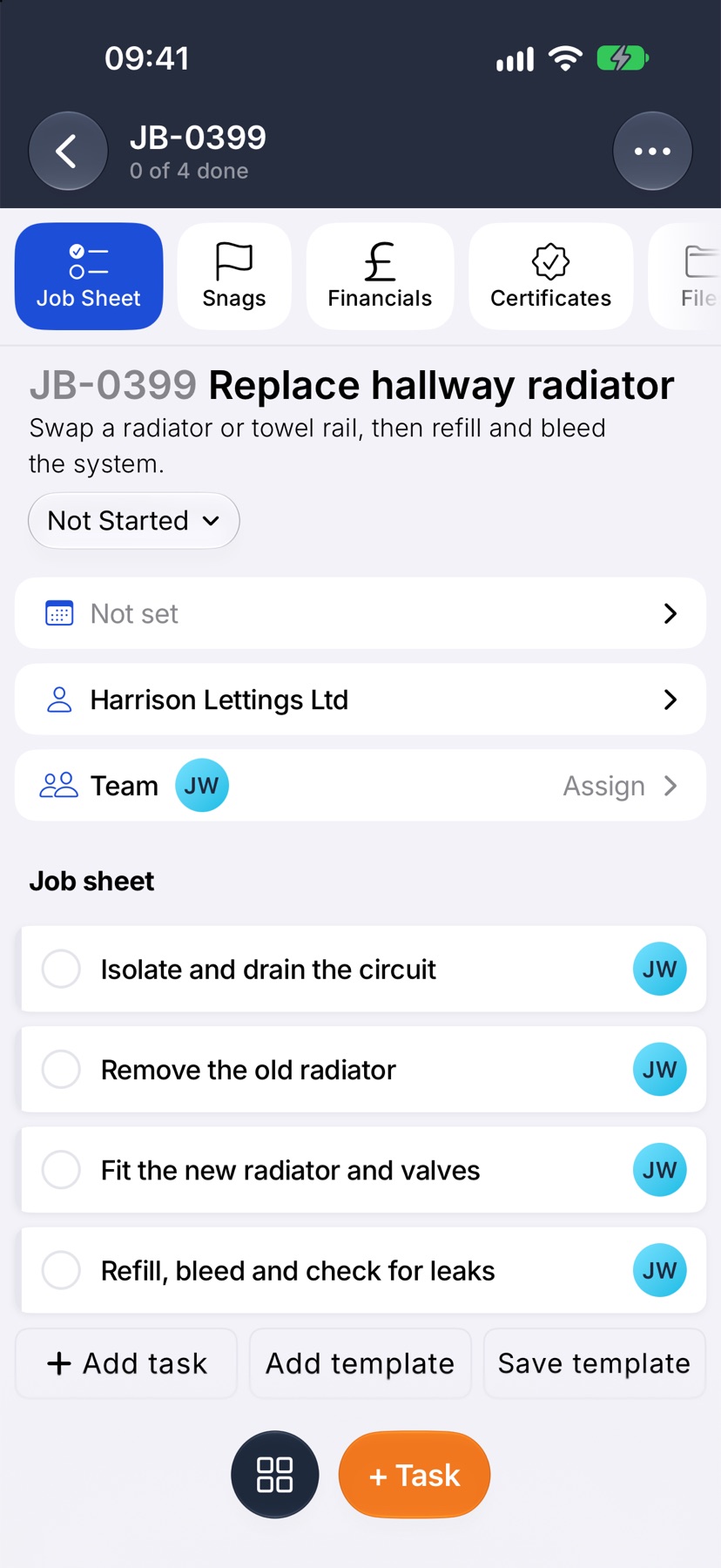
Set the planned dates
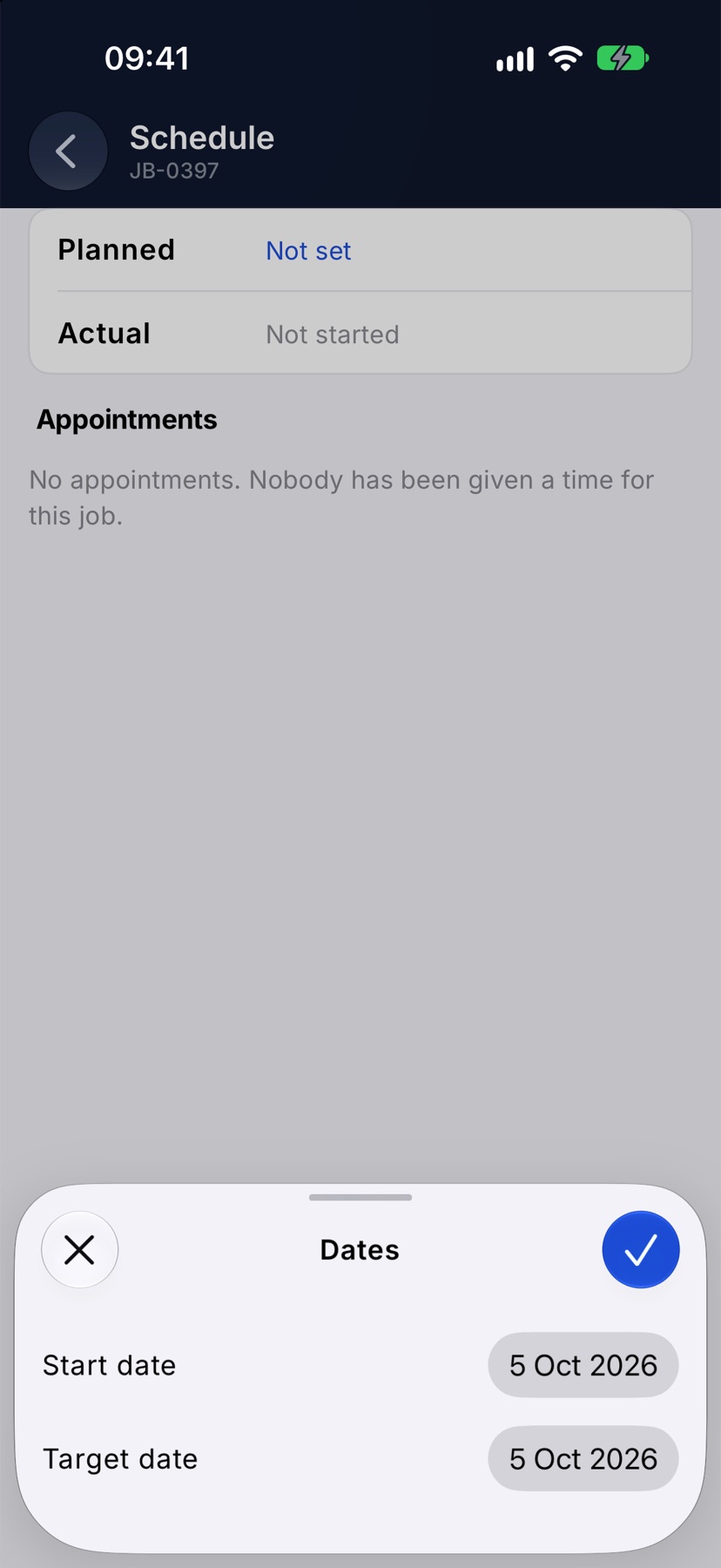
The job's Schedule opens. Tap Planned, set the Start date and the Target date, and tap the tick.
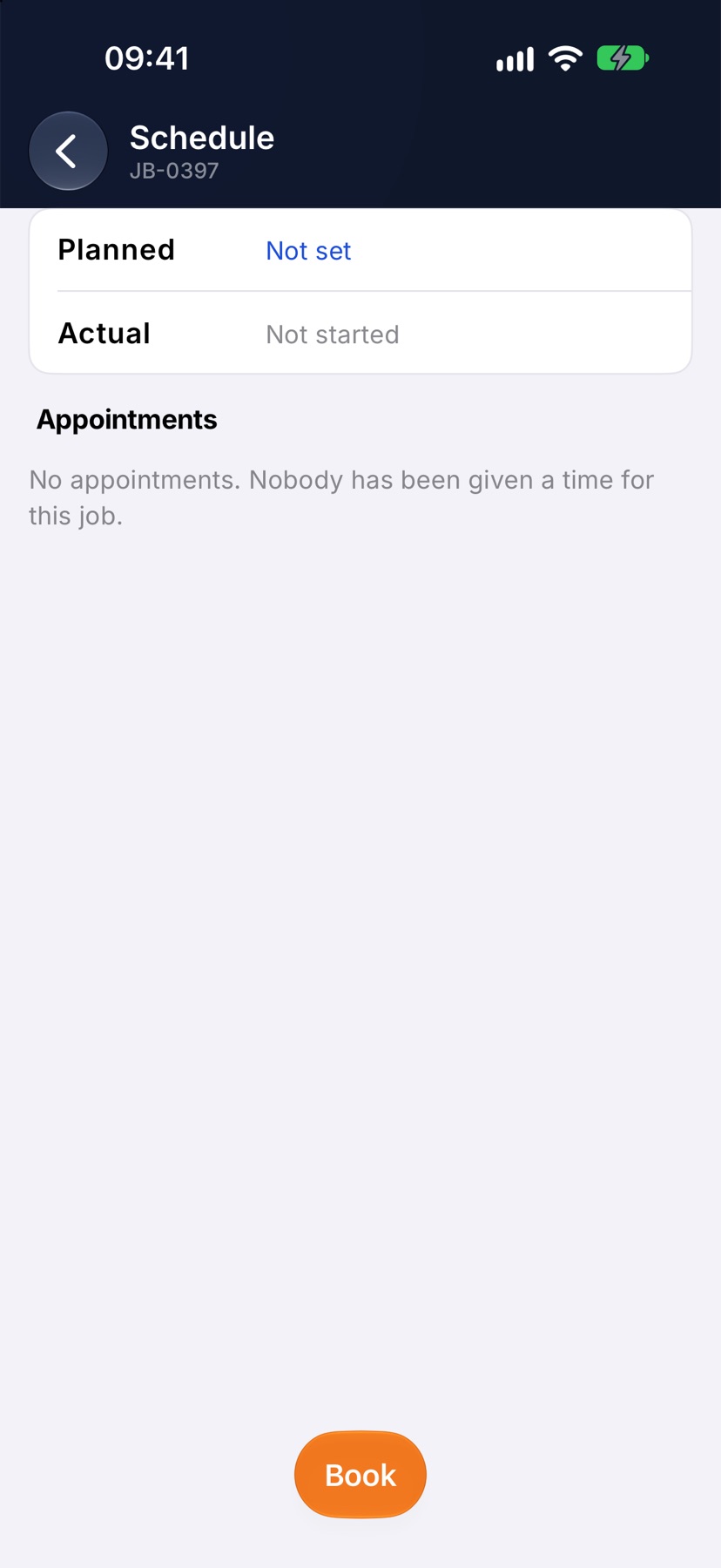
Book an appointment
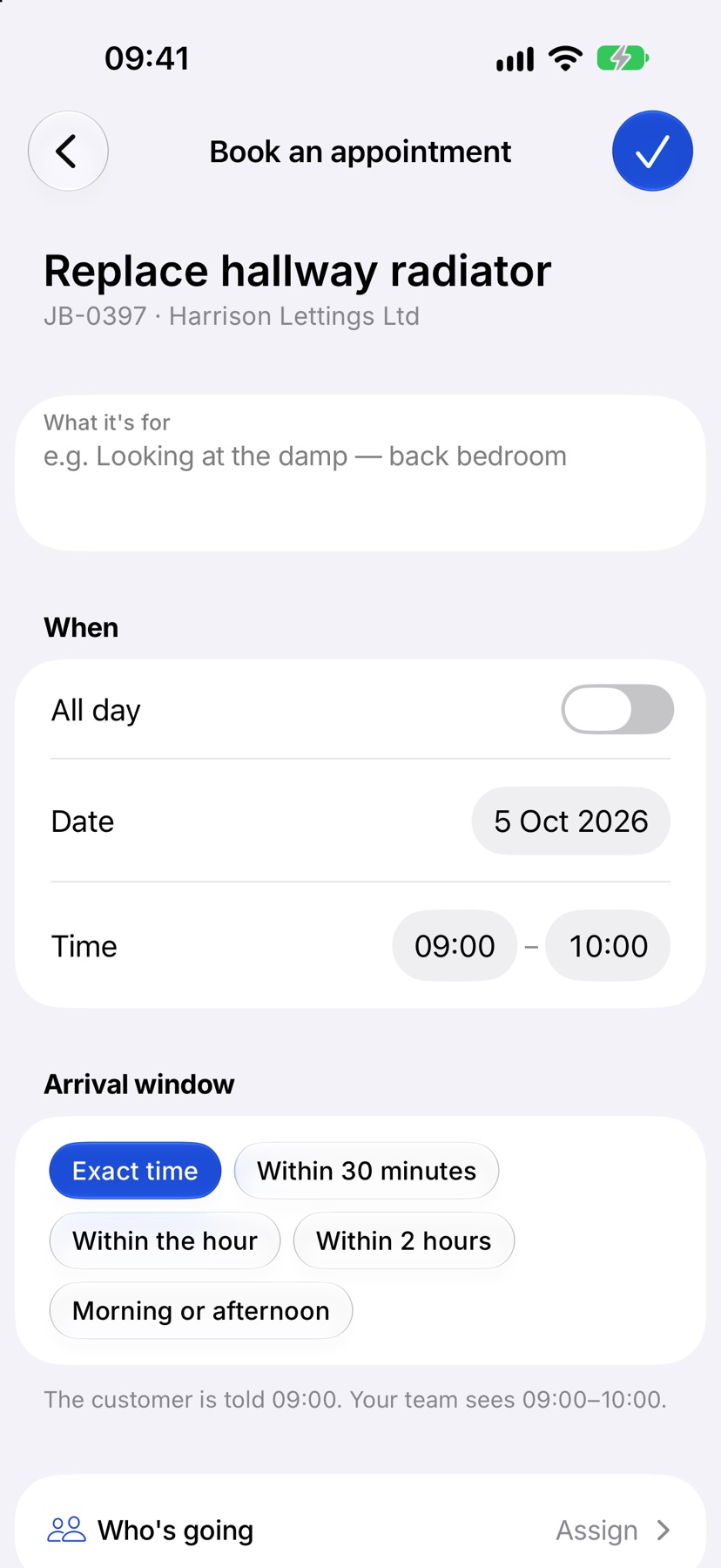
Tap Book. Say what the visit is for, set the Date and Time, and choose an Arrival window if you would rather promise the customer a window than an exact time.
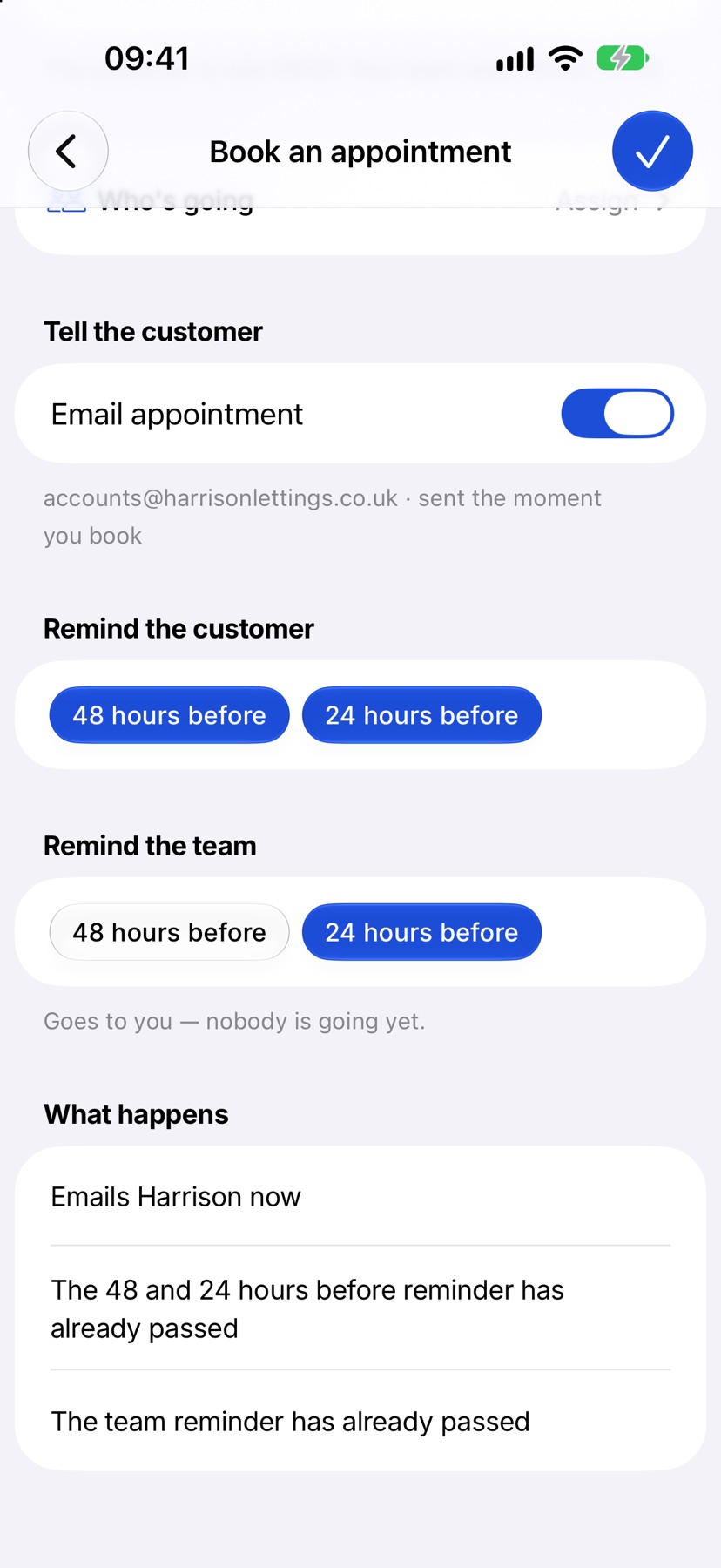
Further down, tap Who's going to assign people, and choose whether to email the customer and when to remind them. The form tells you what will be sent before you book. Tap the tick.
After it is booked
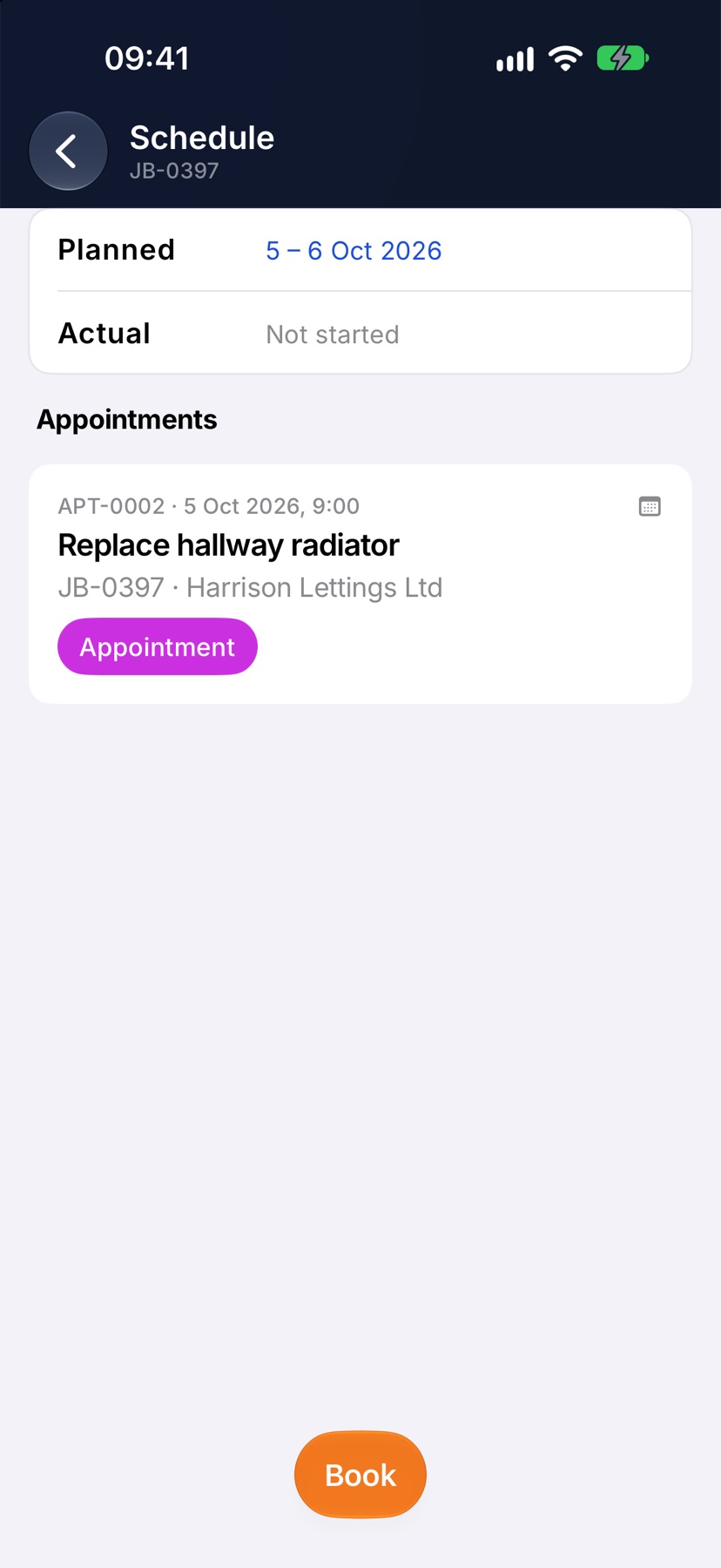
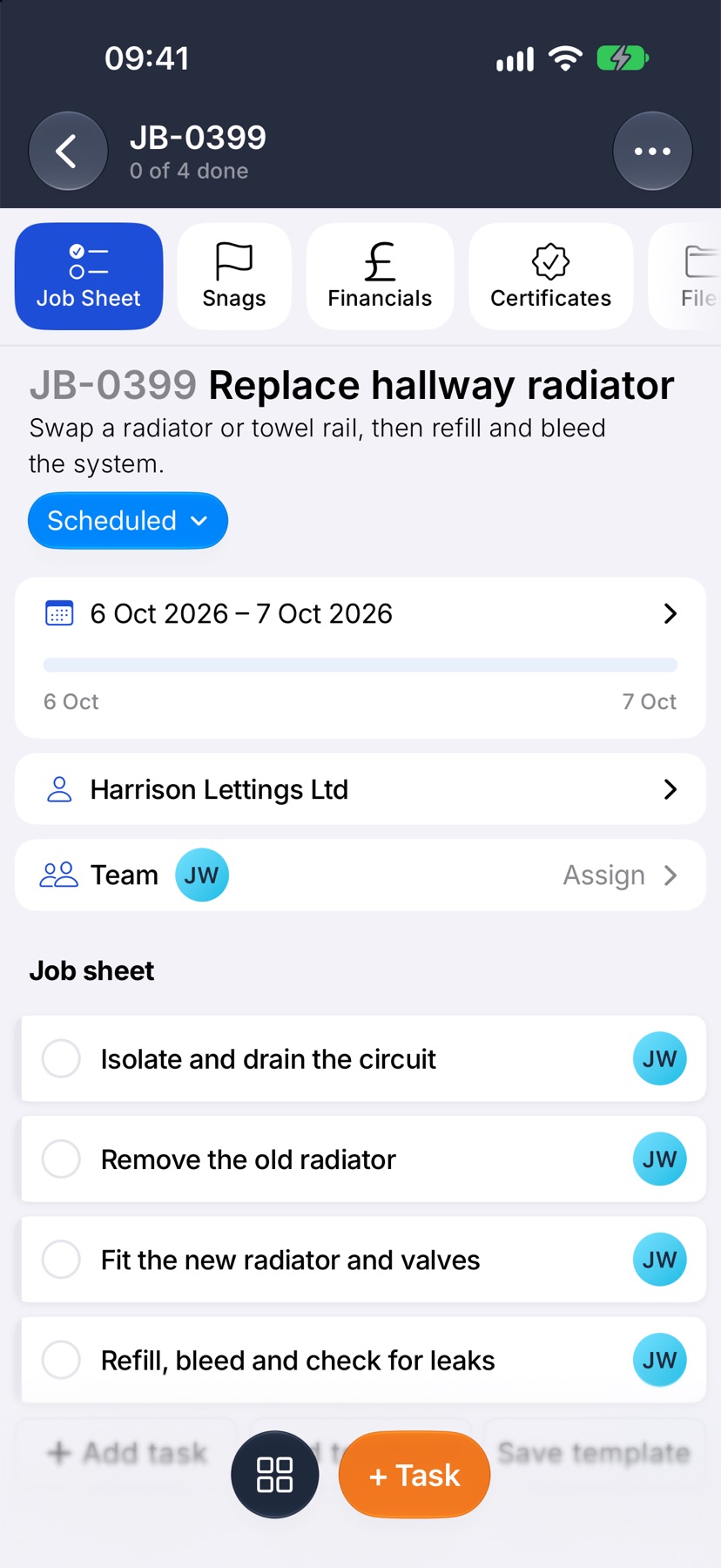
The appointment is listed on the job's Schedule and appears on the Schedule tab at the bottom of the app for everyone going. Back on the job, the status reads Scheduled and the date row shows the planned dates and what is booked.