The schedule
The schedule is your week laid out: every job with a date, in a calendar you can drag things around in. Give a job a start date anywhere in Jobivo and it appears here — there's nothing else to do to schedule it.
Pick the view that suits the question#
Day for “what's happening today”, Work week and Week for planning, Month for the shape of the next few weeks. Todayjumps you back whenever you've wandered off. Moving between them is instant — the calendar already has the data.
Drag to reschedule#
Move a job to another day or time by dragging it. The change lands on screen straight away and saves in the background — you never wait on a spinner, and if the save fails it snaps back and tells you.
The Unscheduled tray#
Jobs without a date sit in Unscheduled, with a count so you know how much is waiting. Drag one onto a day to book it in. It's the fastest way to clear a backlog: open the tray, drag, drag, drag.
Filter down to what you're looking at#
Filter by type and by status to cut the noise — just the jobs still to start, or just what's on hold. The filters are a lens on the same calendar, not a different screen.
Click through to the job#
Every block opens the job it belongs to. So the schedule is a way into the work, not a separate copy of it that drifts out of date.
Tip — the schedule and a job's start date are the same thing seen twice. Set the date on the job or drag it here — whichever is quicker at the time.
See what is on each day, across jobs, appointments and projects, and open any of it from there.
What the schedule shows
The schedule is your diary. Every job with dates appears on it, along with booked appointments and the span of each project. Nothing is entered here twice: give a job its dates anywhere in Jobivo and it shows up.
On the phone the schedule is for reading the days and opening the work. Dates are changed on the job or the appointment itself.
Someone who only sees their own work sees their own jobs and appointments here.
Where to start
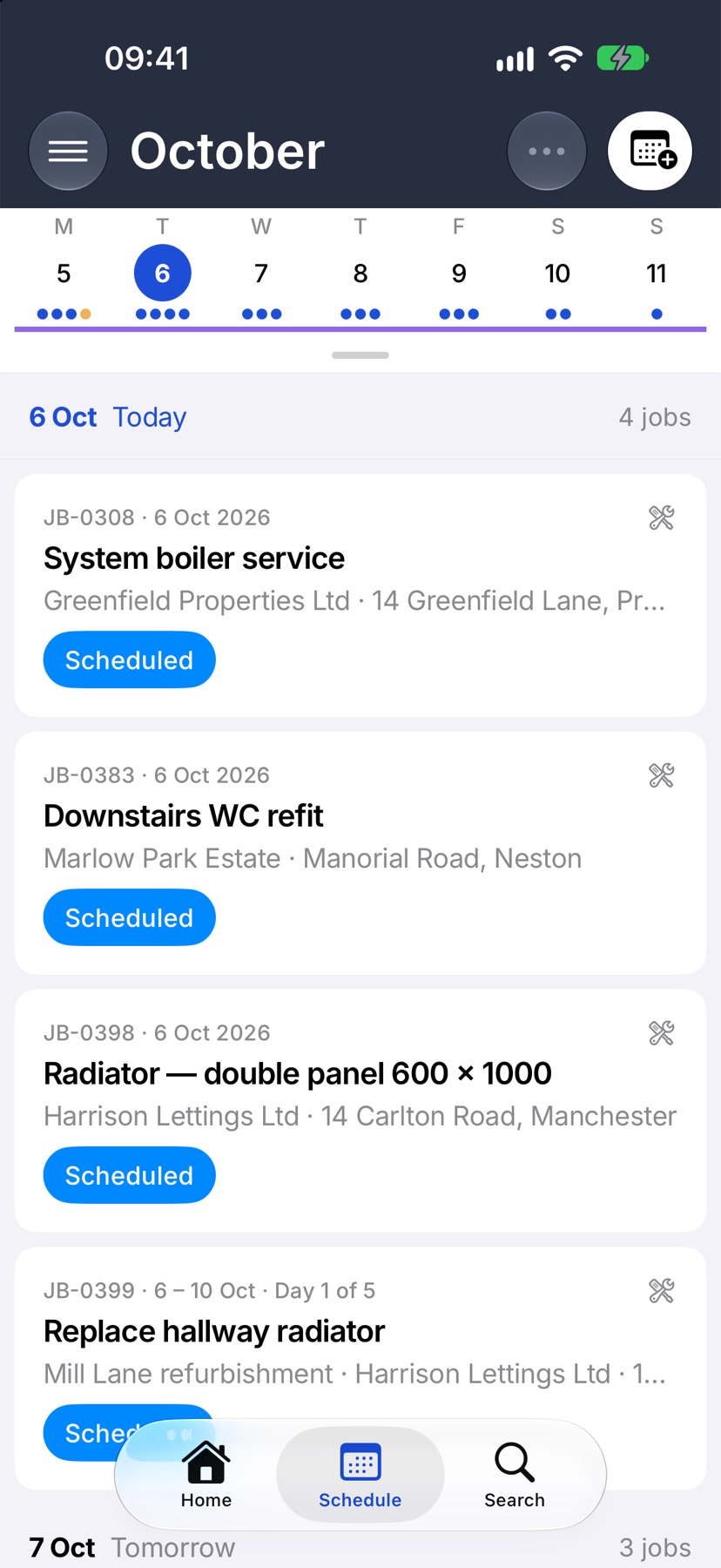
Tap Schedule in the bar at the bottom of the app. It opens on the agenda, with a strip of dates across the top and the work for each day listed under it.
Read the agenda
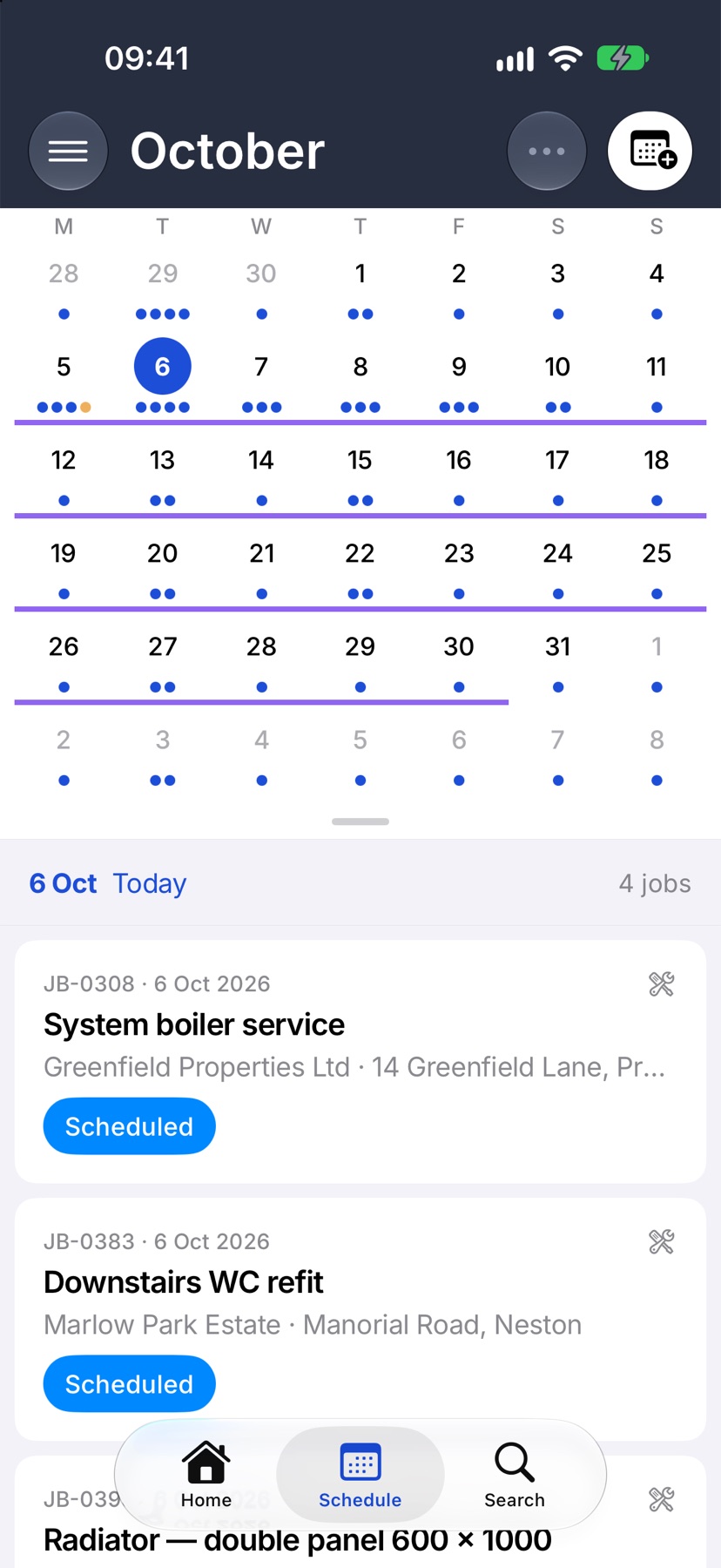
The strip at the top shows a week at a time. Dots under a date show there is work that day. Tap a date to jump to it. Drag the small handle under the strip down to open the whole month, and back up to close it.
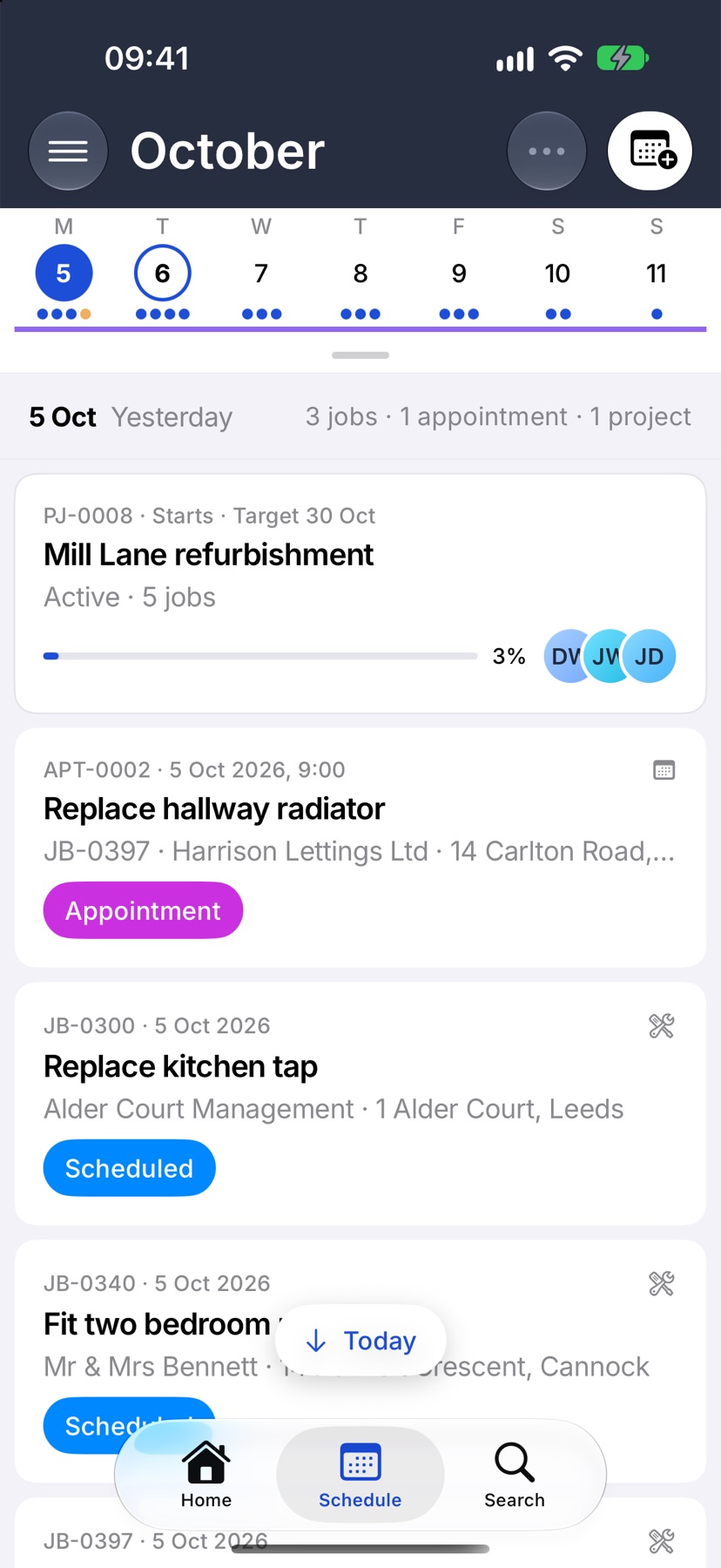
Below, each day has a heading with its date and a count of its jobs, appointments and projects, then a card for each. Scroll to move through the days. When today is off the screen, tap Today to return to it.
Open a job, appointment or project
Tap any card. A job opens the job, an appointment opens the appointment, and a project opens the project. Back returns you to the same place in the schedule.
A job that runs over several days appears on each of them, with its place in the run, such as day 2 of 3.
Change the view
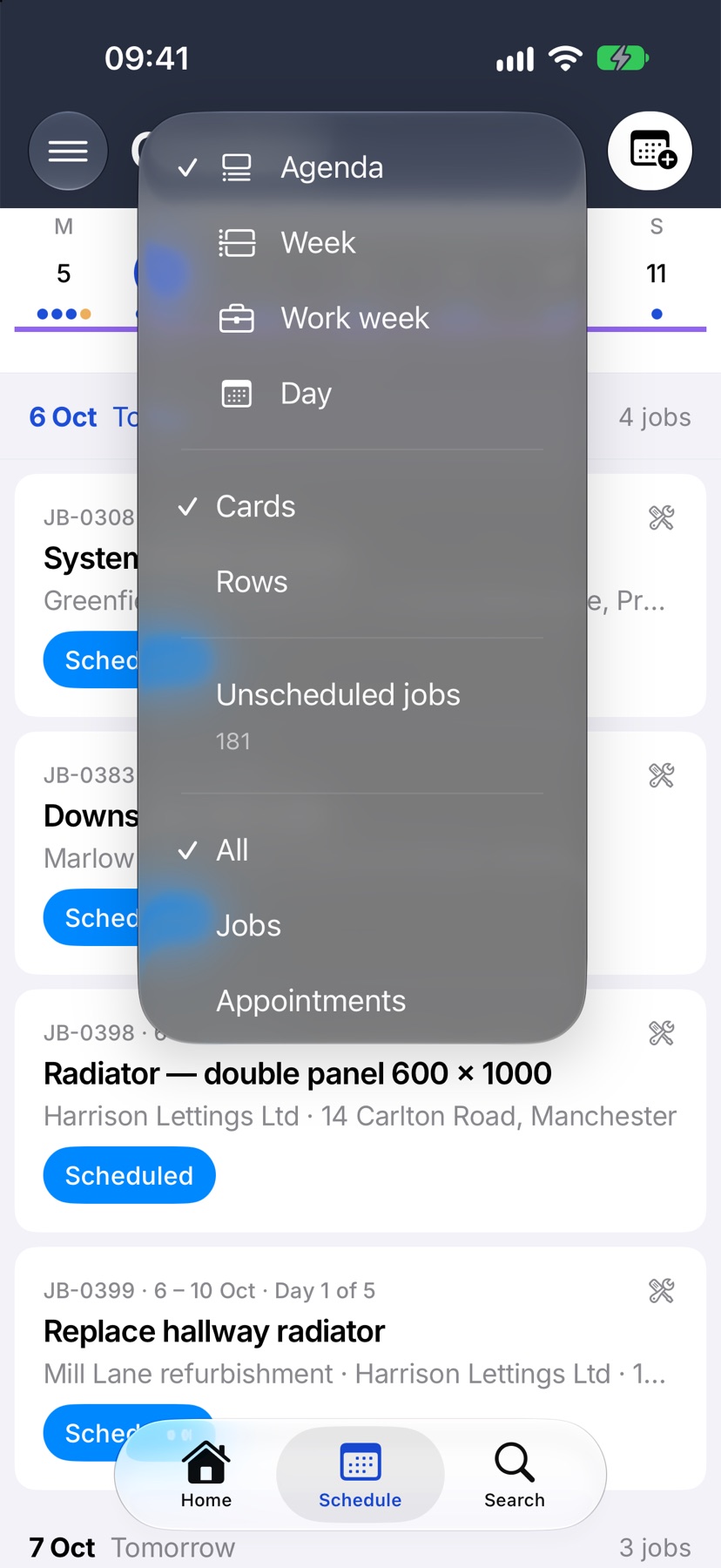
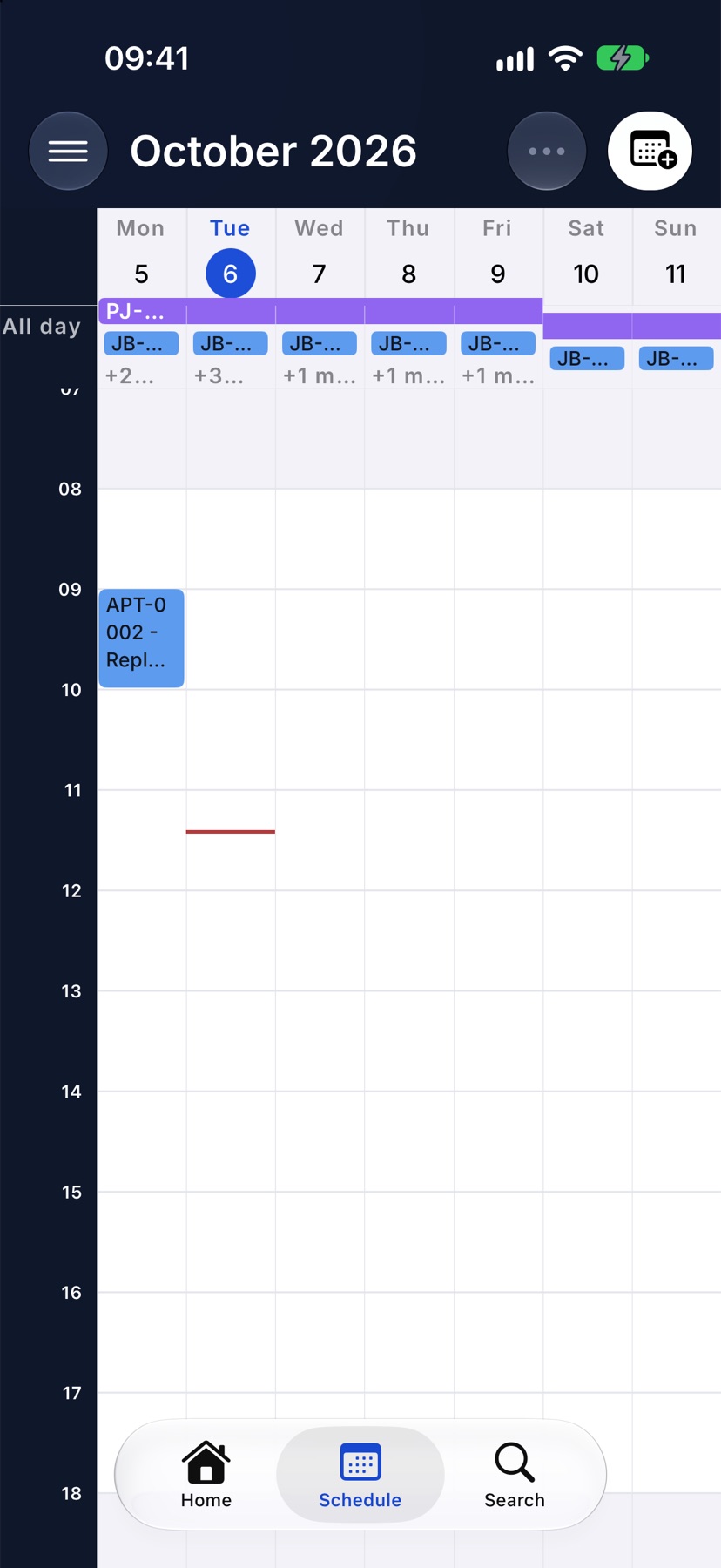
Tap the ⋯ at the top right. Under View, choose Agenda, Week, Work week or Day. The week and day views lay the work out against the hours of the day. In a week view, tap a date at the top to open that day.
On the agenda, Show as switches between Cards and Rows. Rows are more compact and lead with the time.
Filter what is shown
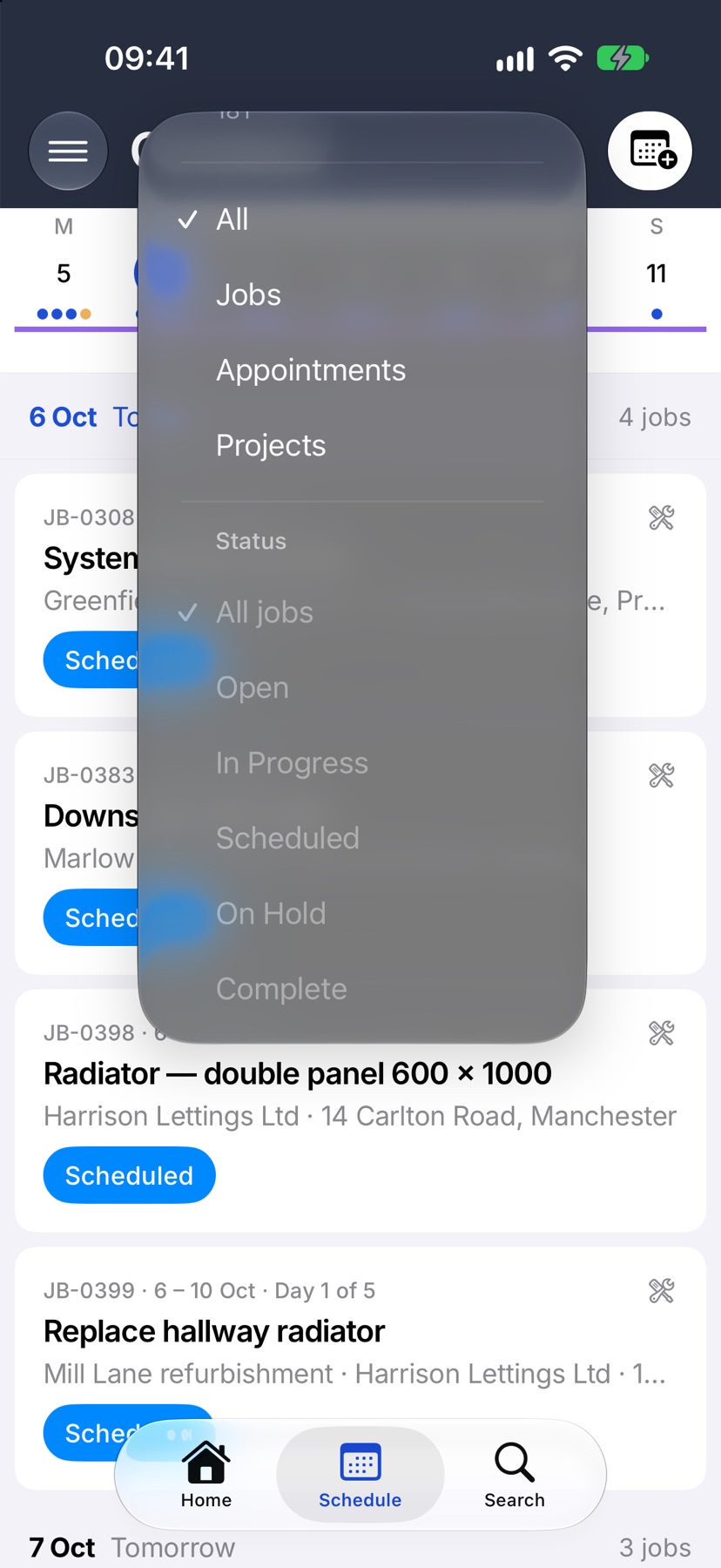
The same ⋯ menu filters the schedule. Under Type, choose All, Jobs, Appointments or Projects. Under Status, tick the job statuses you want, or All jobs to clear them.
The ⋯ changes colour while a filter is on. If nothing matches, the screen says so and offers Clear filters.
Find jobs with no date
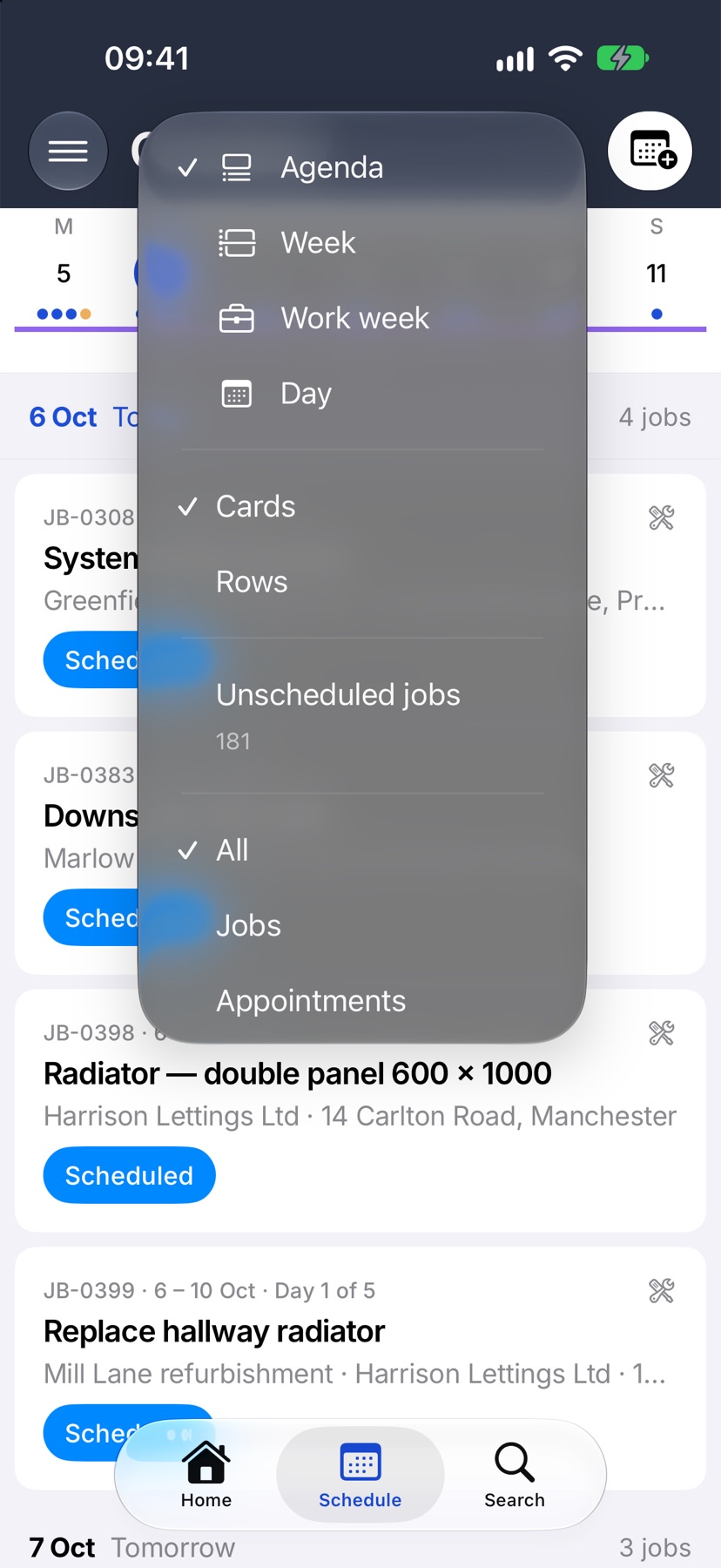
When open jobs have no date, the ⋯ menu shows Unscheduled jobs with a count. Tap it to go to Home with those jobs listed. Open one and set its dates, and it joins the schedule.
Booking from the schedule
The calendar button with a plus, at the top right, books an appointment. It appears when appointments are switched on for your company and your role can book them. Booking is covered in its own guide.
More in Schedule & appointments →
See what else Schedule can do. Still stuck? Email support@jobivo.co.uk and we'll get back to you.