Book an appointment
Book a visit, tell the customer, and keep it up to date until the visit is made.
What an appointment is
An appointment is a booked visit: a day, usually a time, and the people going. It belongs to a job. If there is no job yet, booking the appointment creates one.
Jobivo can email the customer when you book, and remind them and your team before the visit. The customer's email has a link where they can confirm the time or ask for another.
After booking you can reschedule the appointment, call it off, or mark it attended once the visit has happened.
Where to start
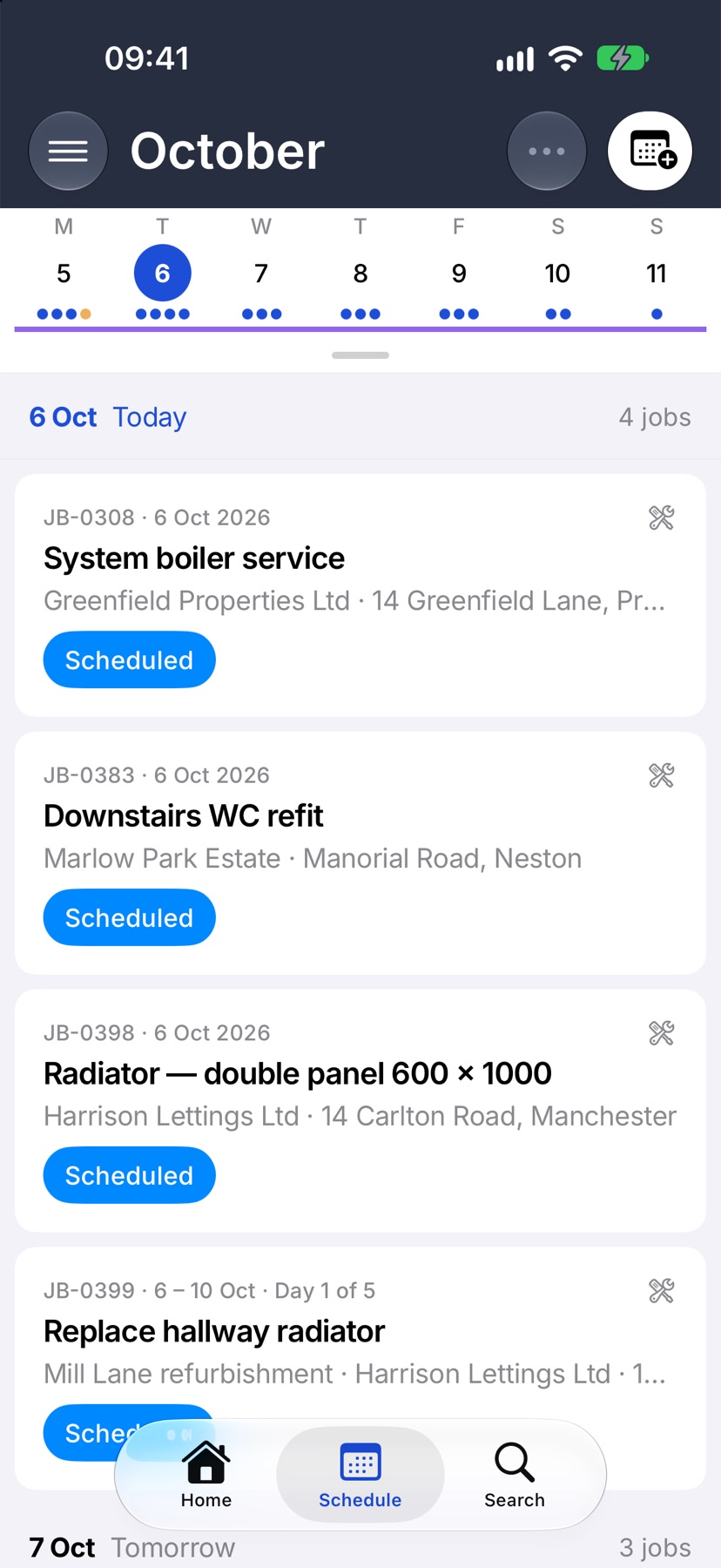
Tap Schedule in the bar at the bottom of the app, then tap the calendar button with a plus at the top right. Book an appointment opens.
To book against a job you already have open, tap its date row and tap Book on the job's Schedule. The form opens with the job and customer filled in.
Choose the customer and the job
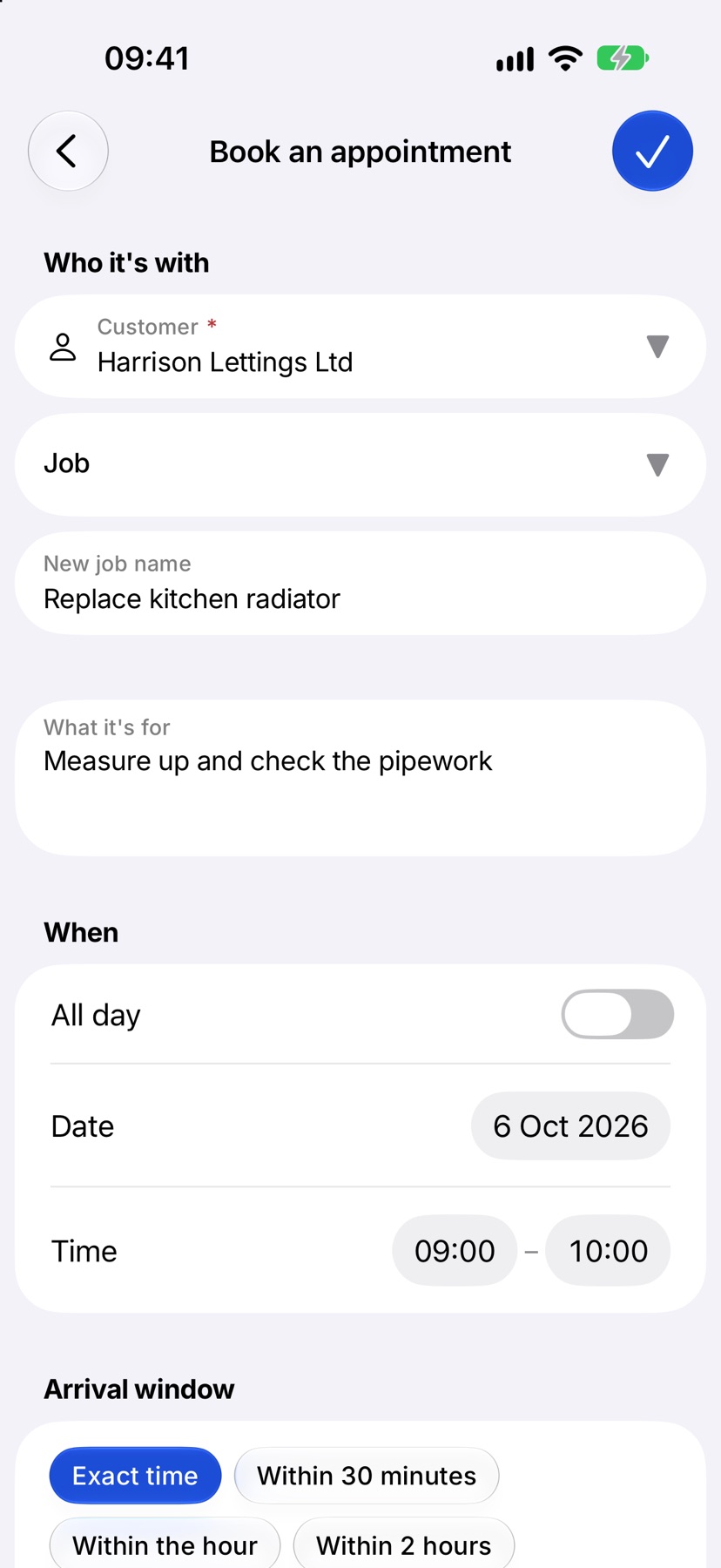
Under Who it's with, tap Customer and pick the customer, or type a new name and add them. Then tap Job to choose one of their jobs.
If the visit is the start of new work, leave Job empty and type a New job name. The job is created when you book.
In What it's for, say what the visit is about, such as “Looking at the damp in the back bedroom”.
Set the day and time
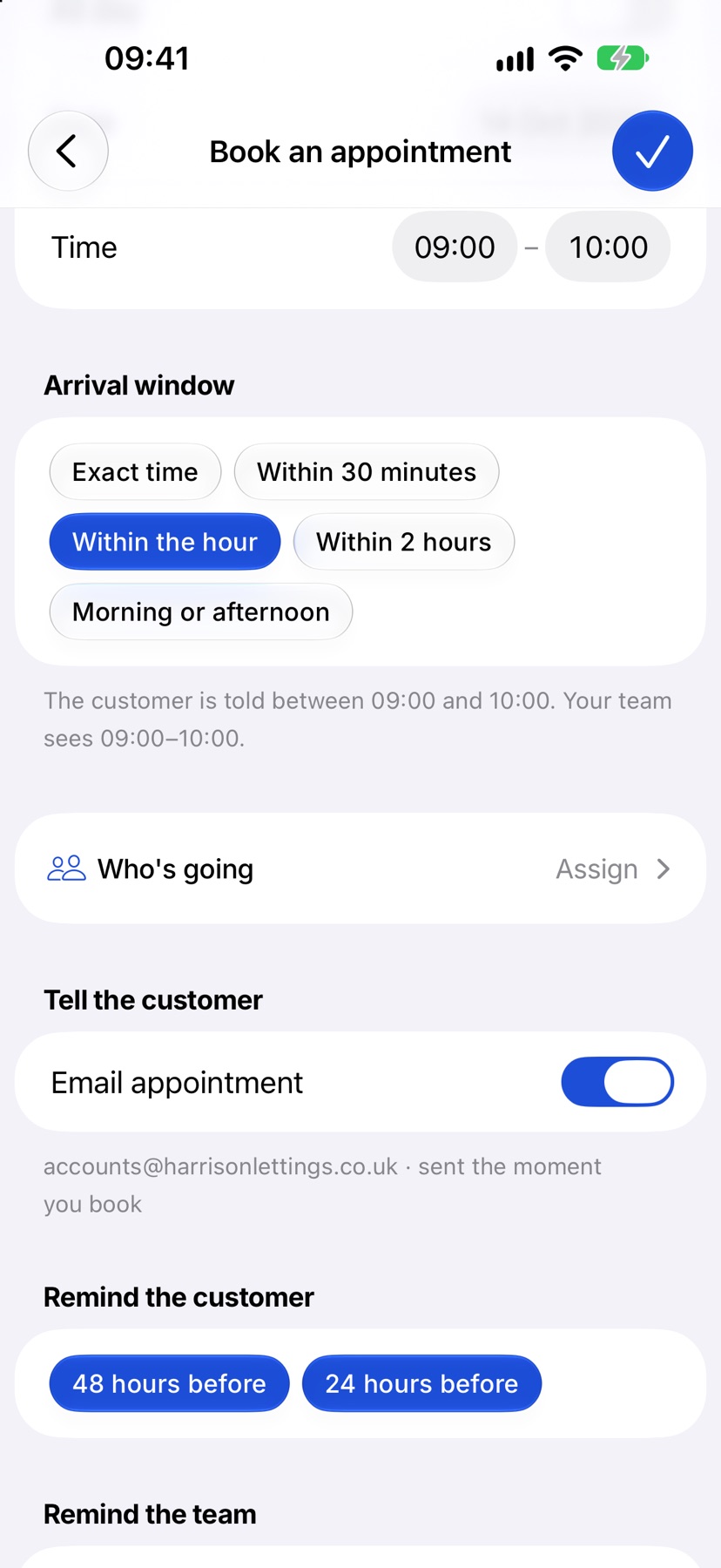
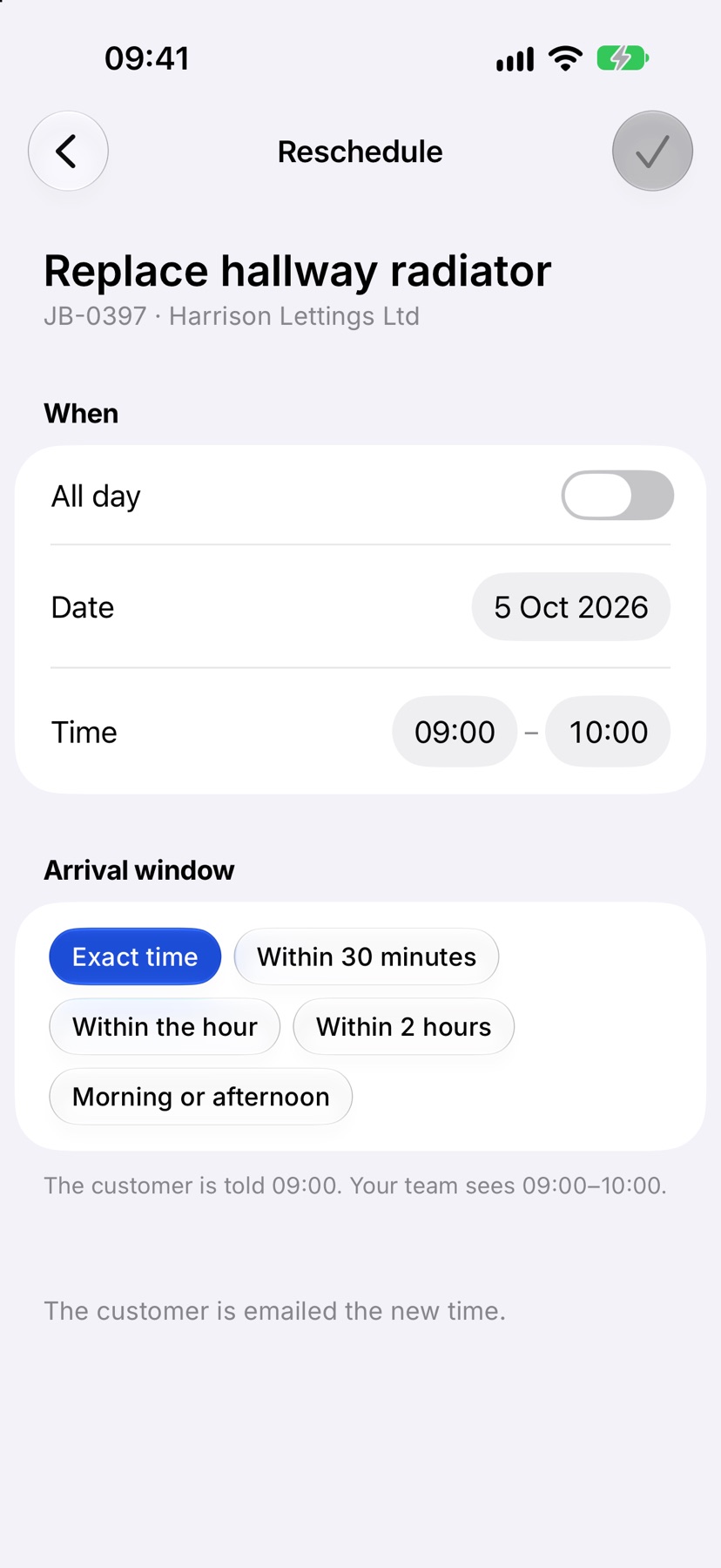
Under When, set the Date and the start and end Time. Turn on All day for a visit with no end time. You can still turn on Tell them a start time.
Under Arrival window, choose what the customer is promised: Exact time, Within 30 minutes, Within the hour, Within 2 hours or Morning or afternoon. The line underneath says what the customer is told and what your team sees.
Tap Who's going to choose the people making the visit.
Email and remind the customer and the team
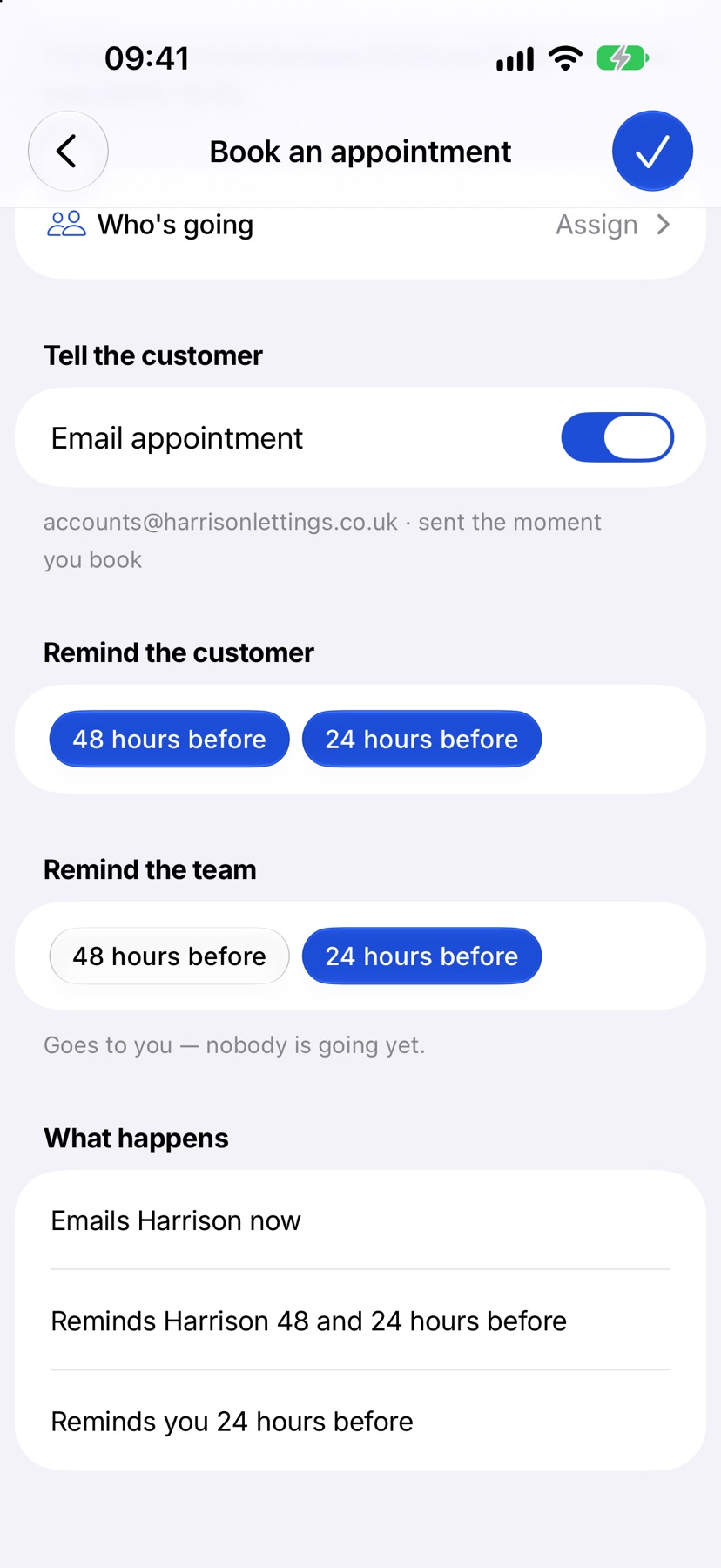
Under Tell the customer, Email appointment sends the customer the details the moment you book. The address it goes to is shown underneath. If the customer has no email address the switch is off and says so.
Remind the customer and Remind the team each offer 48 hours before and 24 hours before. Tap to turn each on or off. Team reminders go to whoever is going, or to you if nobody has been chosen.
What happens lists exactly what will be sent. Read it, then tap the tick at the top right to book.
The customer confirms or asks for another time
The customer's email links to a page showing the day, the time they were told and who is coming. From there they can confirm, or ask for another time with a note.
When they confirm, the appointment's status changes to Confirmed and its page shows when under The customer.
Asking for another time does not move the booking. The request is recorded on the job, and the people going, or whoever booked it, are told. Reschedule the appointment yourself once you have agreed a new time.
Open an appointment
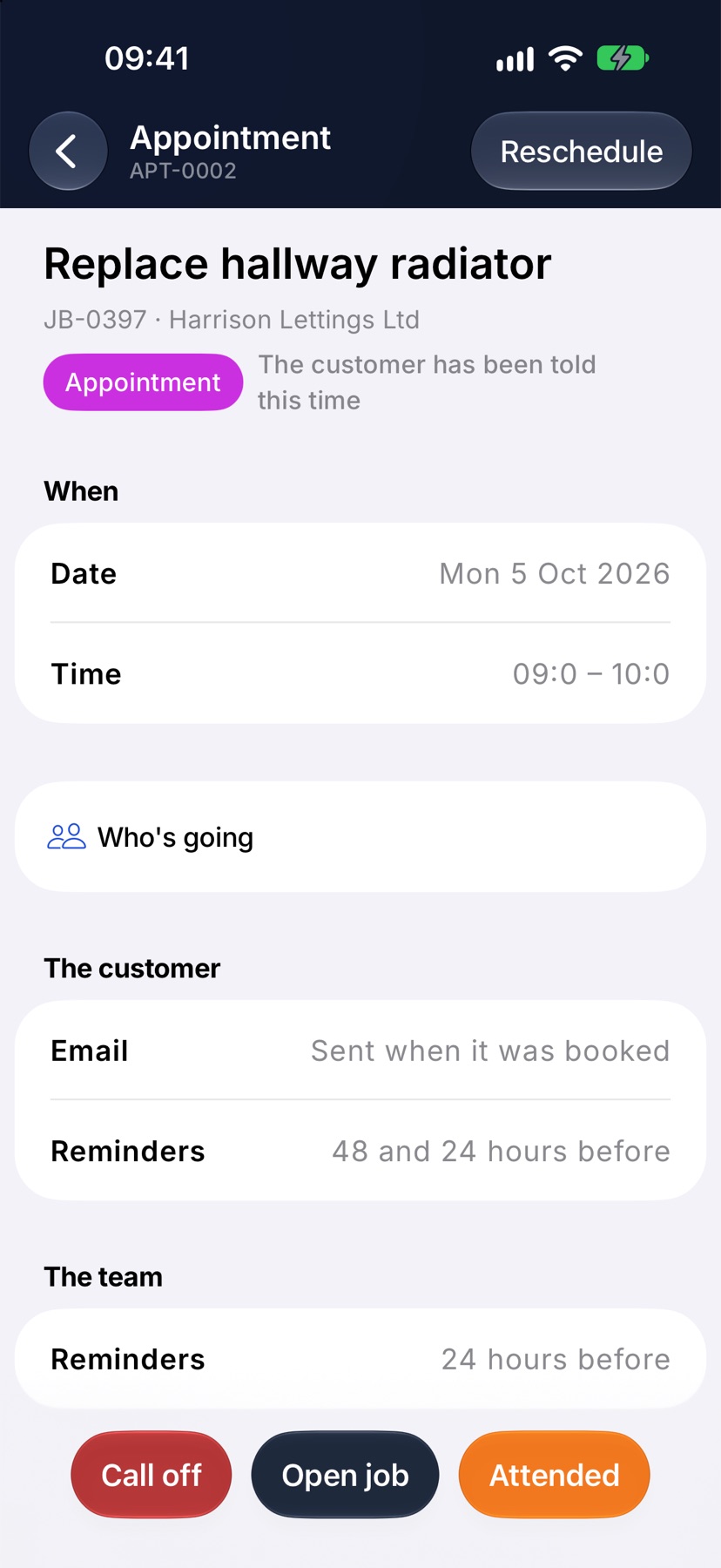
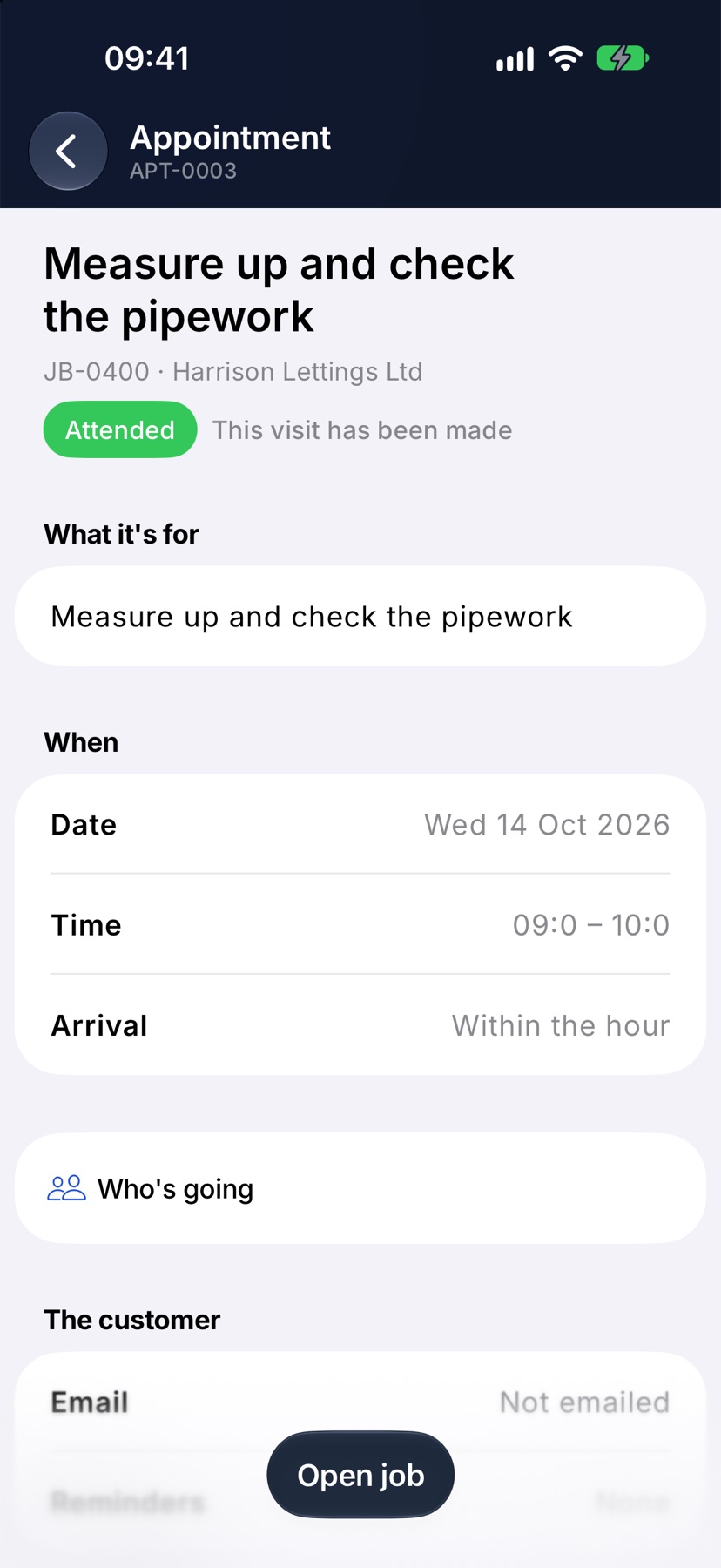
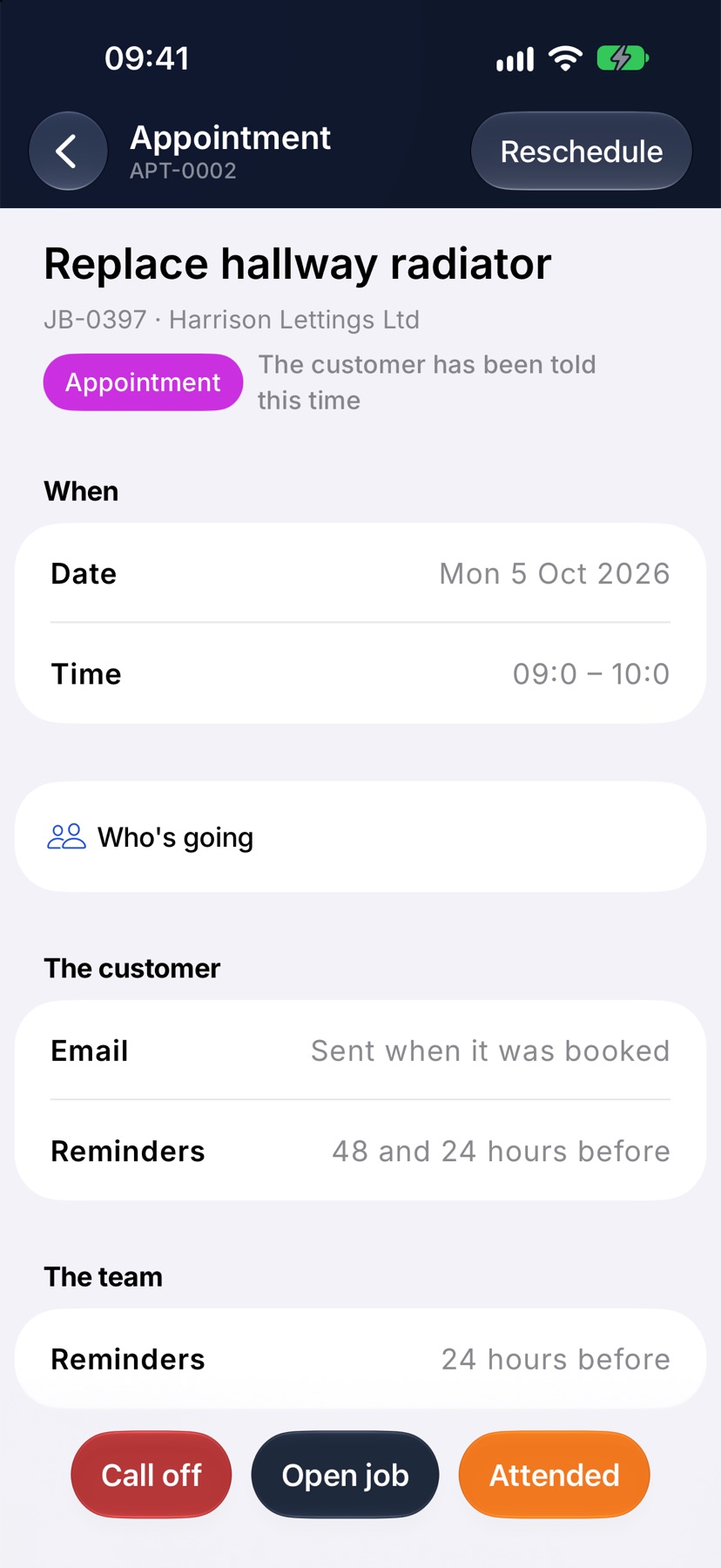
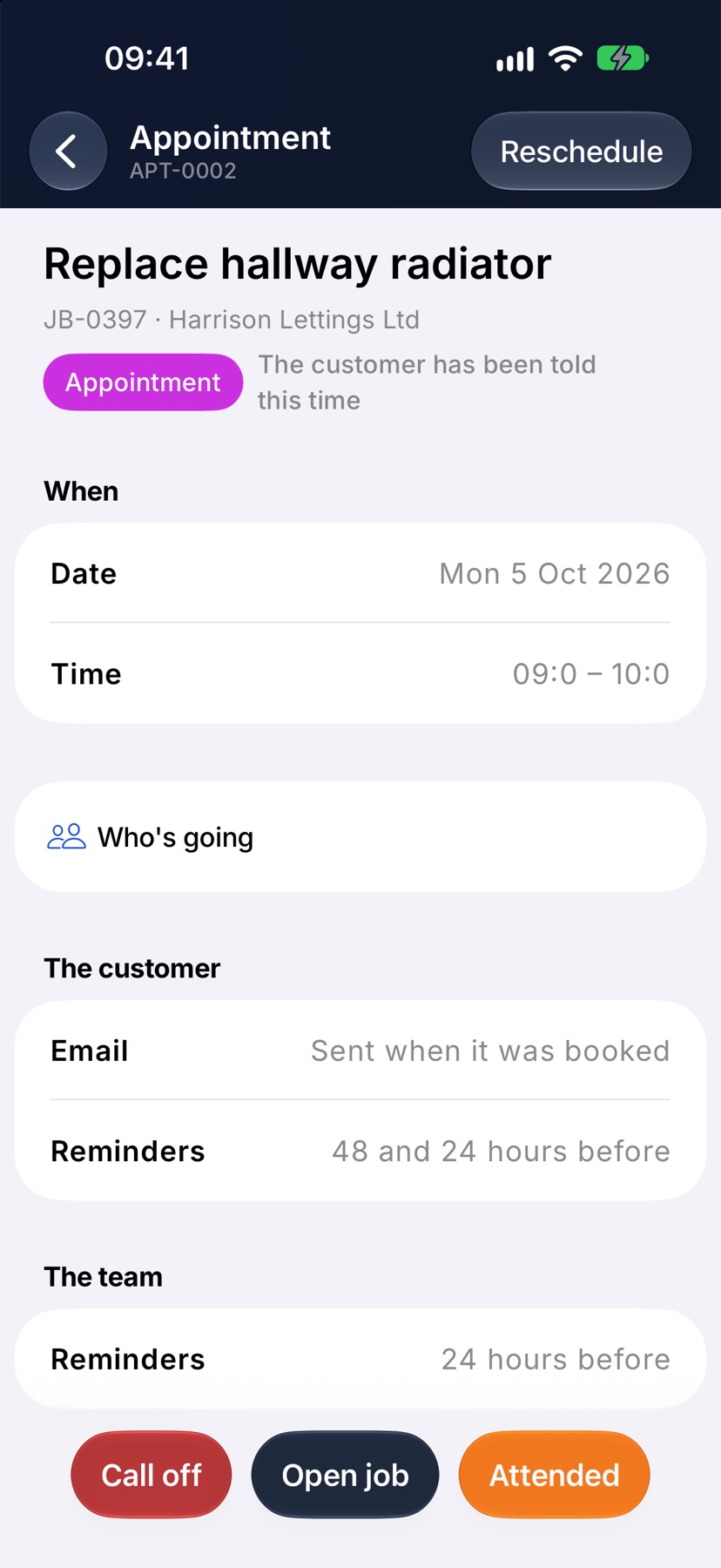
Tap the appointment on the Schedule tab, or in the Appointments list on the job's Schedule. The Appointment page shows what it is for, when it is, who is going, and what the customer and team were sent.
An appointment the customer has not been emailed about can be edited on this page and saved with the tick. Once the customer has been told the time, the details are fixed and the time is changed with Reschedule.
Reschedule
Tap Reschedule at the top right of the appointment. Change the Date, the Time or the Arrival window and tap the tick. The customer is emailed the new time.
Call off
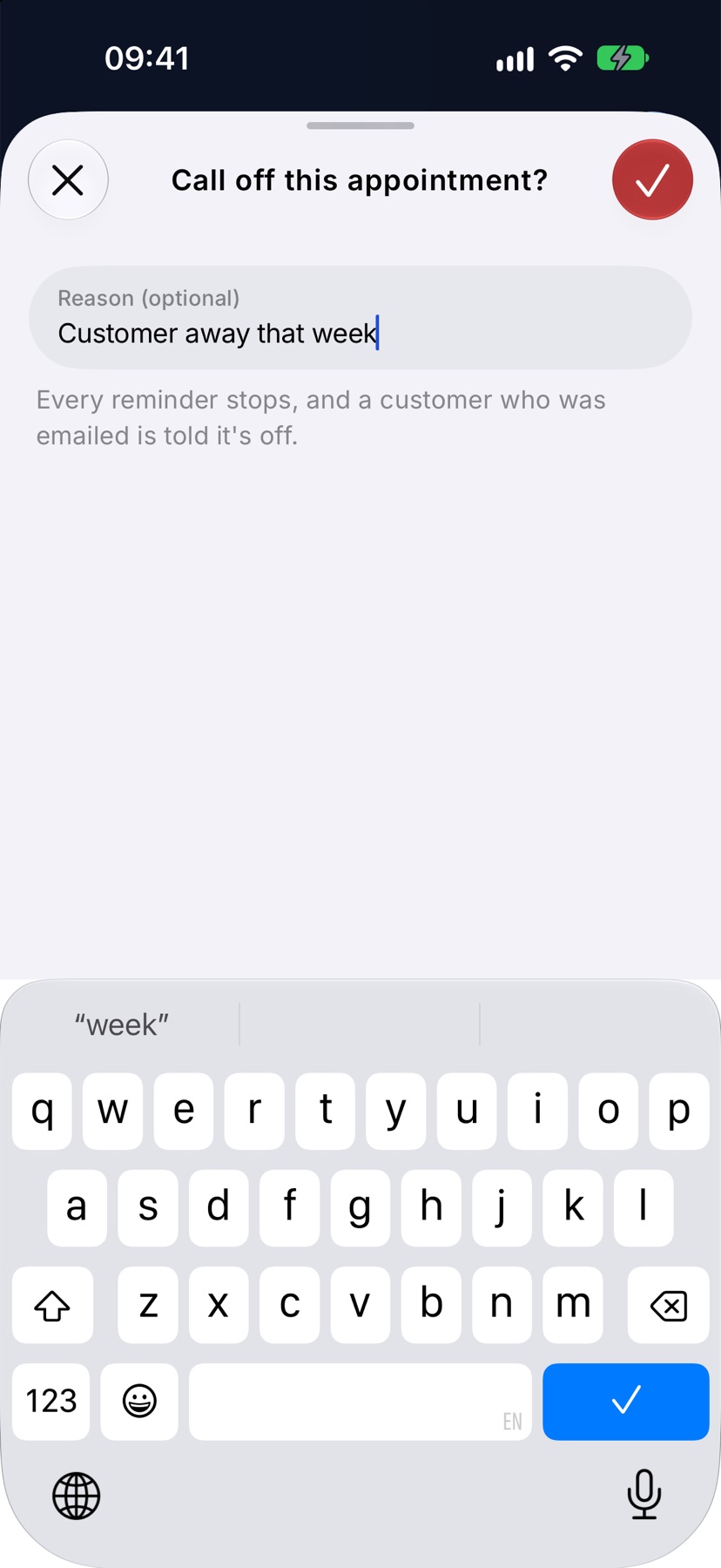
Tap Call off at the bottom of the appointment. You can give a reason, then tap the red tick at the top right. Every reminder stops, and a customer who was emailed is told it is off.
The appointment stays on the job as Cancelled, with the reason under Called off.
Mark it attended
When the visit has been made, tap Attended at the bottom of the appointment and confirm with Attended. The status changes to Attended and the appointment can no longer be changed.
Open job beside it takes you to the job to carry on with the work.