Turn on certificate packs
Choose your sectors, add your scheme numbers and your signature, and your certificates are ready to issue.
What certificate setup does
Certificates are switched on by your industry sectors. Pick the sectors your business works in and every certificate for them becomes available on your jobs. There is nothing to switch on form by form.
Three more things are printed on what you issue: the company's scheme registration numbers, each engineer's own licence number, and each engineer's signature. Add them once and every certificate uses them.
Sectors and company numbers are set by the company owner. Each person adds their own licence and signature.
Where to start
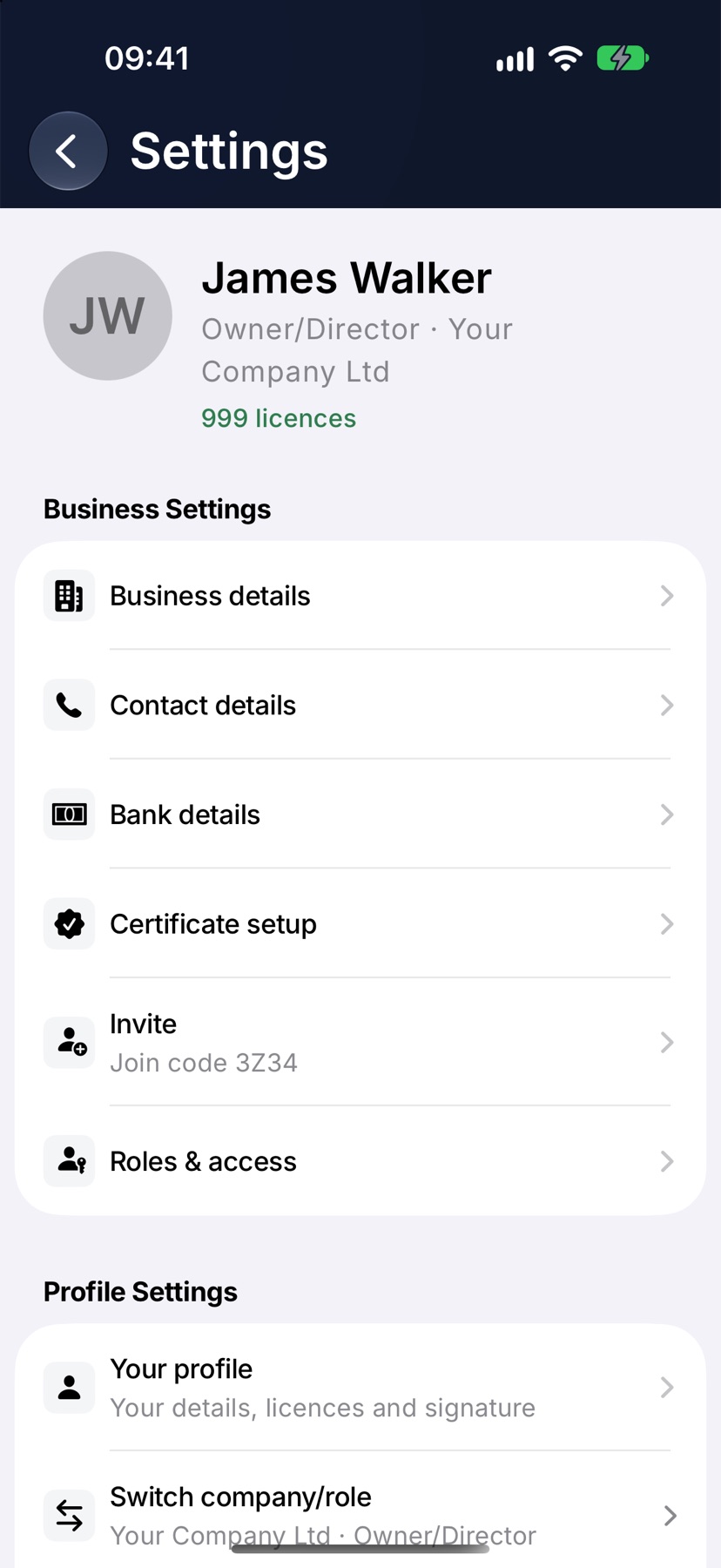
Open the menu and tap Settings. Under Business Settings, tap Certificate setup. This row is shown to the company owner.
Choose your sectors
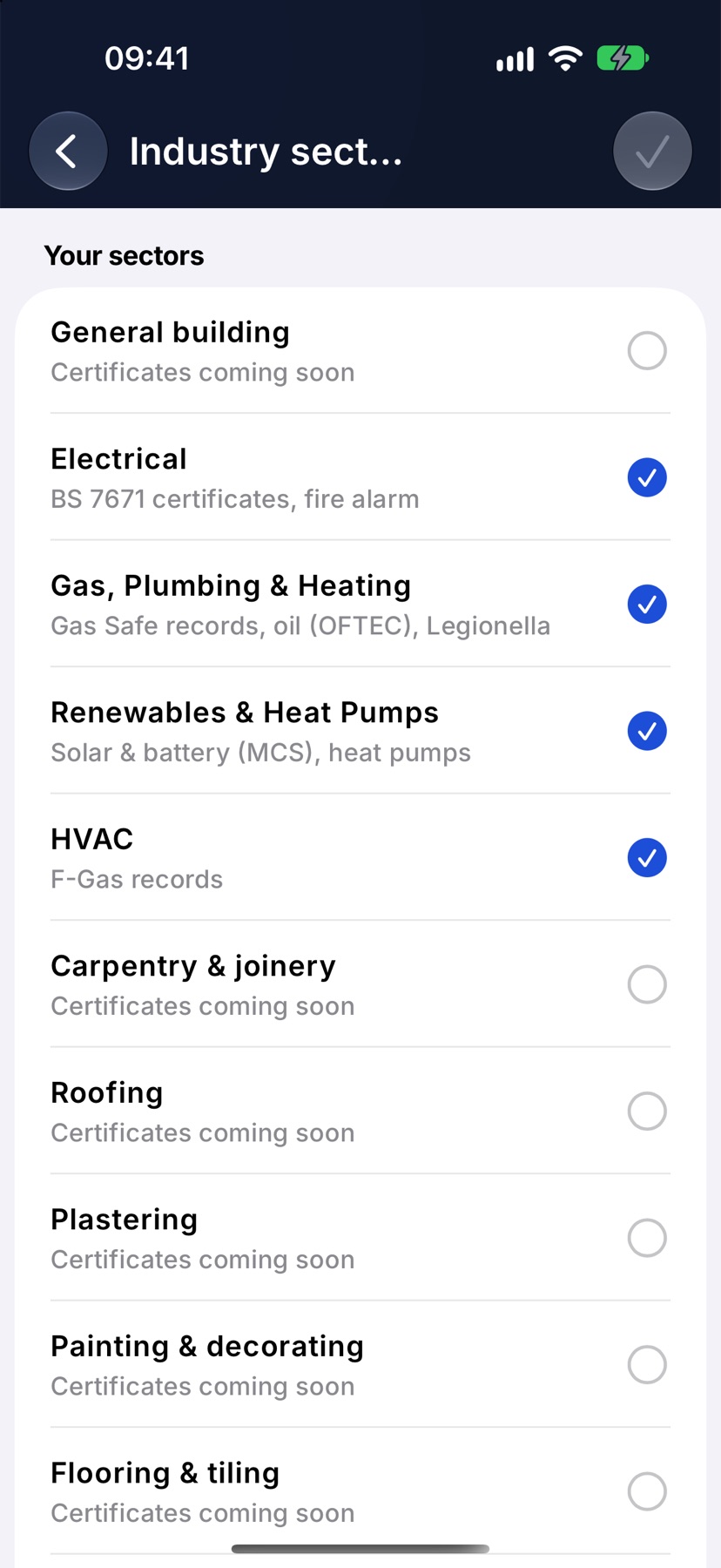
Your sectors is at the top of Certificate setup. Tap Choose your sectors, or Edit sectors if some are already set. Industry sectors opens with each sector and what it switches on.
Tick every sector your business works in and tap the tick at the top right to save.
Check which certificates you have
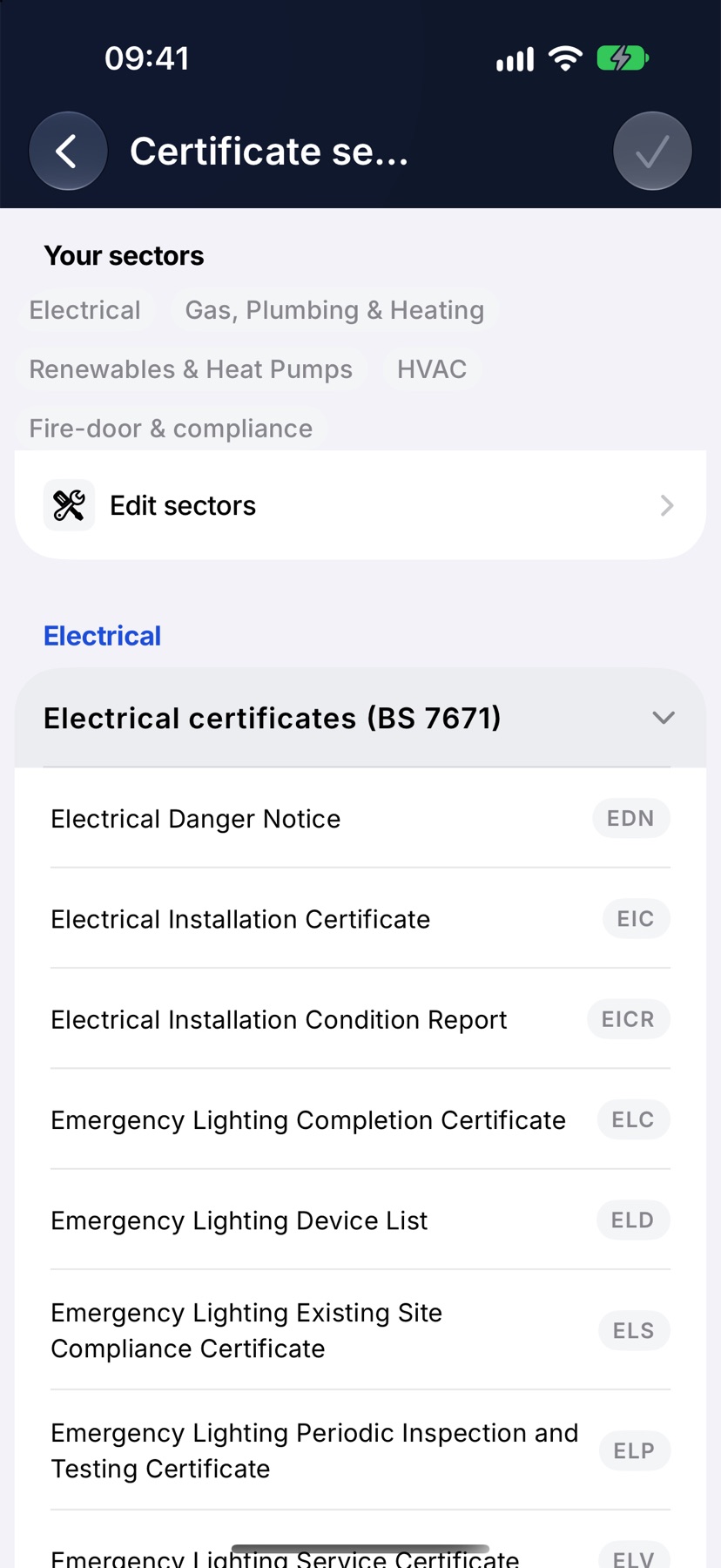
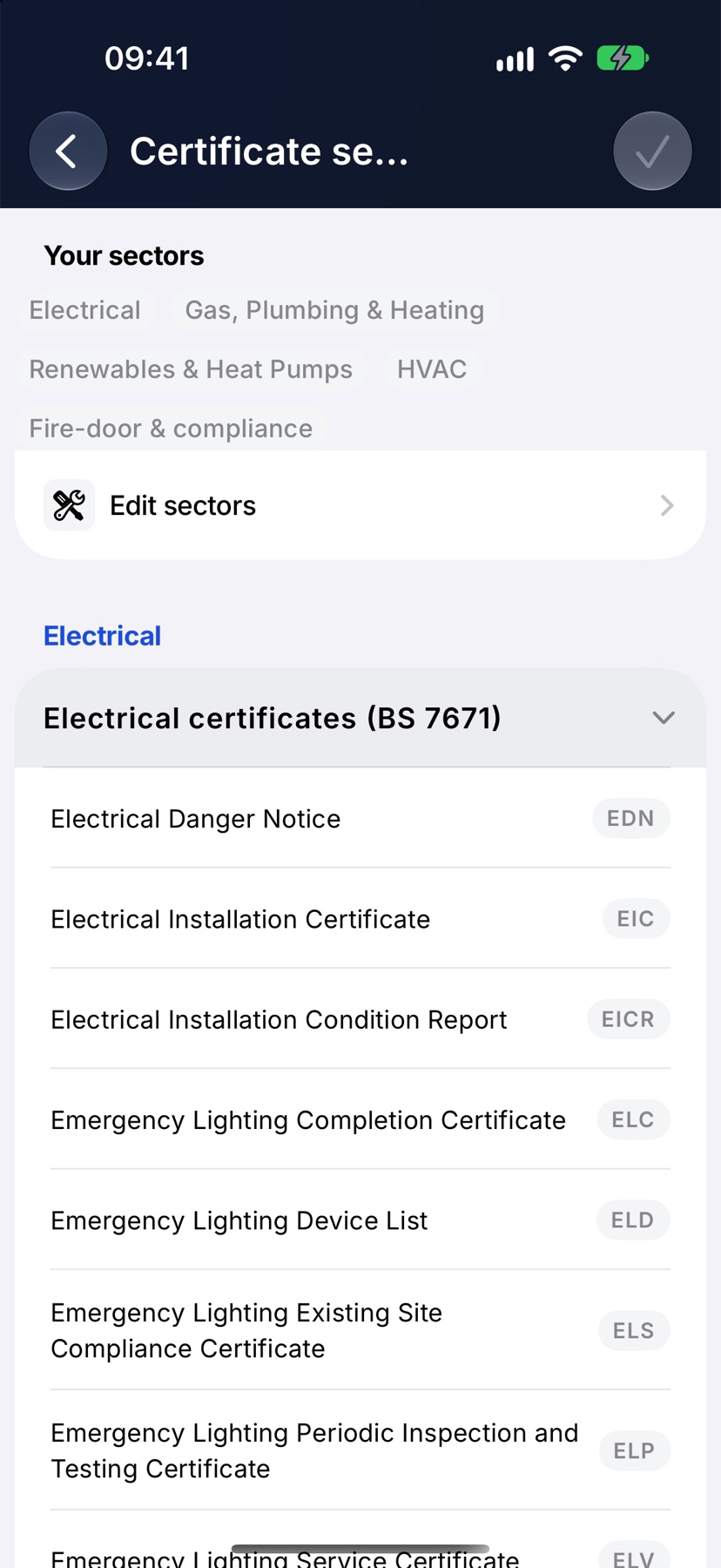
Back on Certificate setup, your certificates are listed under each sector. Tap a group to open it and see every form with its code.
A group marked Coming soon, or a form marked Soon, is not available yet. It switches on by itself when it is ready.
Add the company's scheme numbers
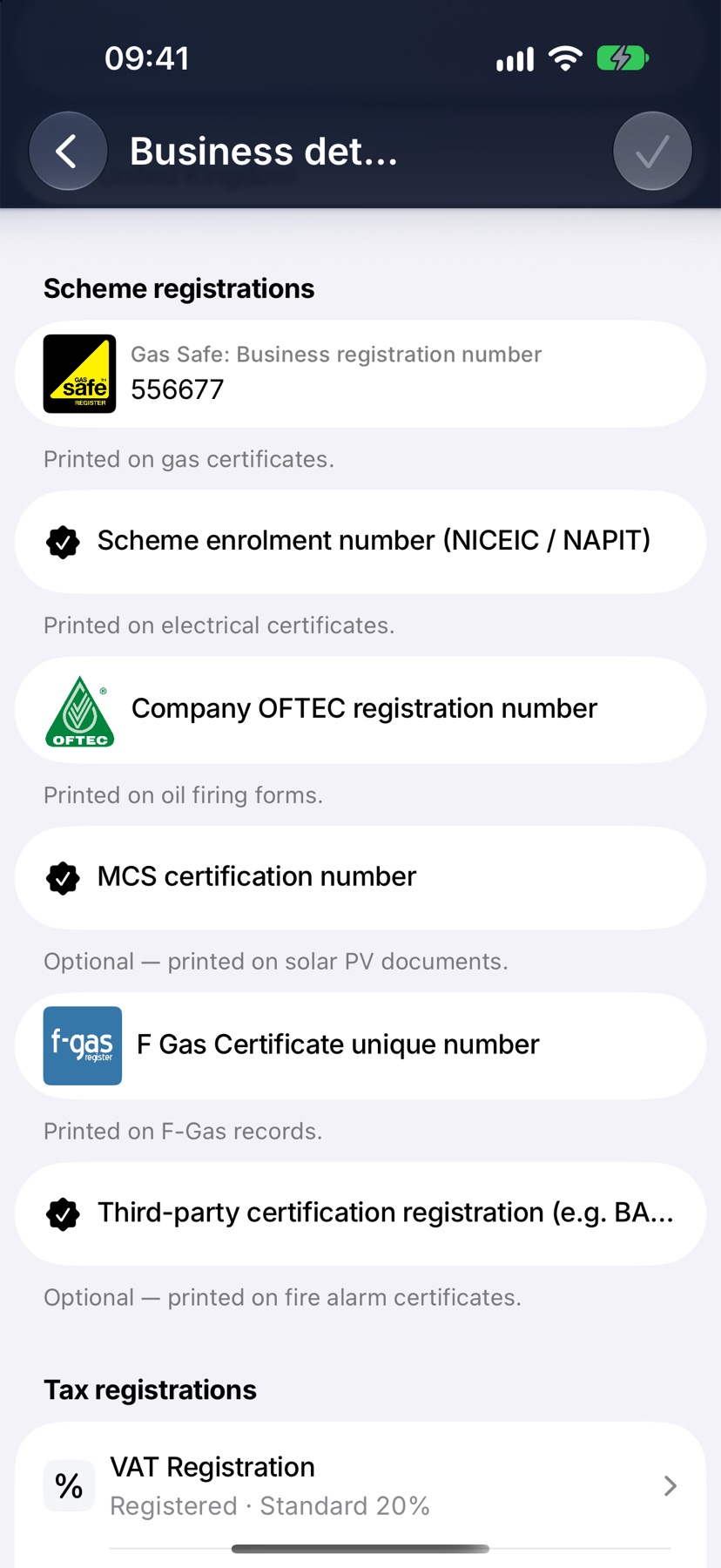
Go back to Settings and tap Business details. Scroll to Scheme registrations. It shows a field for each registration your sectors need, such as your Gas Safe business registration number or your NICEIC or NAPIT enrolment number.
Type each number and tap the tick to save. The note under each field says which certificates it is printed on.
Add your own licence and signature
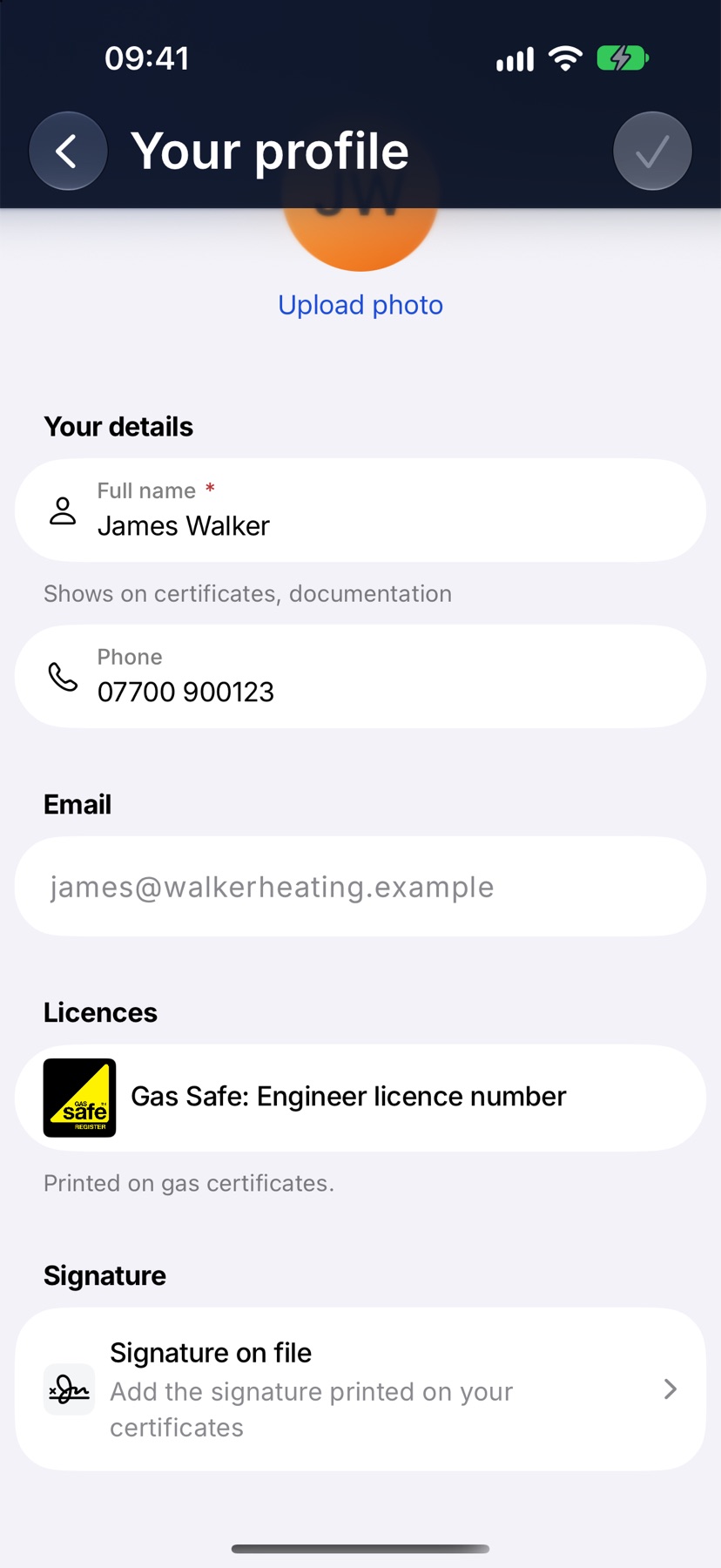
In Settings, tap Your profile. Under Licences, enter your own number for each scheme you hold, such as your Gas Safe engineer licence number, and tap the tick to save.
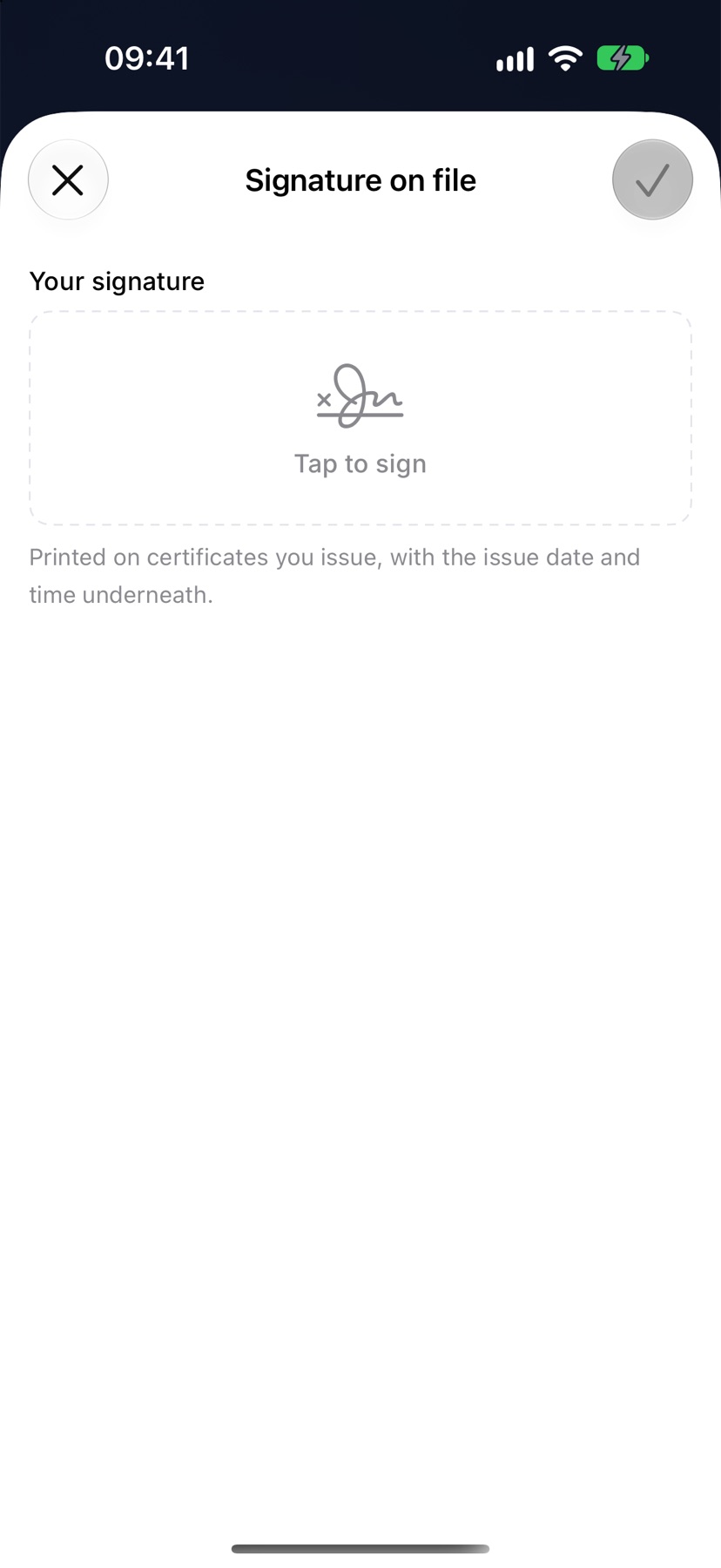
Under Signature, tap Signature on file, sign in the box and tap the tick. It is printed on certificates you issue, with the issue date and time underneath.
Everyone who issues certificates does this in their own profile.
Fire door installers
If your company has the fire door scheme switched on, Certificate setup also shows Q-Mark Fire Door Installation Scheme. Enter the Company certificate number.
Under Approved Persons, tap Add person for each person authorised to sign records, and enter their Name and AP number. Tap the tick at the top right to save.
After setup
Open any job and tap Certificates. + Certificate now lists the forms for your sectors.
When you open a form, a box at the top shows your licence number, the company number and whether a signature is on file. If one is missing it says so, and tapping it takes you to where it is entered.
More in Certificates & compliance →
- How certificates workDraft, fill in, sign and issue — and the verification page your customer can check.
- Fill in and issue a certificateStart from a job, work through the form section by section, sign it and send it.
- The certificate registerEvery certificate the company has issued, searchable, with what's due next.
Still stuck? Email support@jobivo.co.uk and we'll get back to you.