How certificates work
How a certificate goes from a draft on a job to an issued record your customer can open.
What a certificate is in Jobivo
A certificate is one of your trade's official forms, filled in on a job: a gas safety record, an electrical installation certificate, a commissioning record. Jobivo holds the forms, fills in what it already knows, and produces the finished document as a PDF.
The forms you can use depend on your industry sectors. Choosing a sector switches on every certificate for that trade. The forms are grouped by trade, and each form has its own short code where the trade uses one.
A certificate is always in one of two states. A draft can be edited or deleted. An issued certificate is numbered and fixed.
Where to start
Open a job and tap Certificates in the tabs across the top. This lists every certificate on the job with its state: Draft, Issued or Due.
For every certificate in the company, open the menu and tap Certificates under Operations.
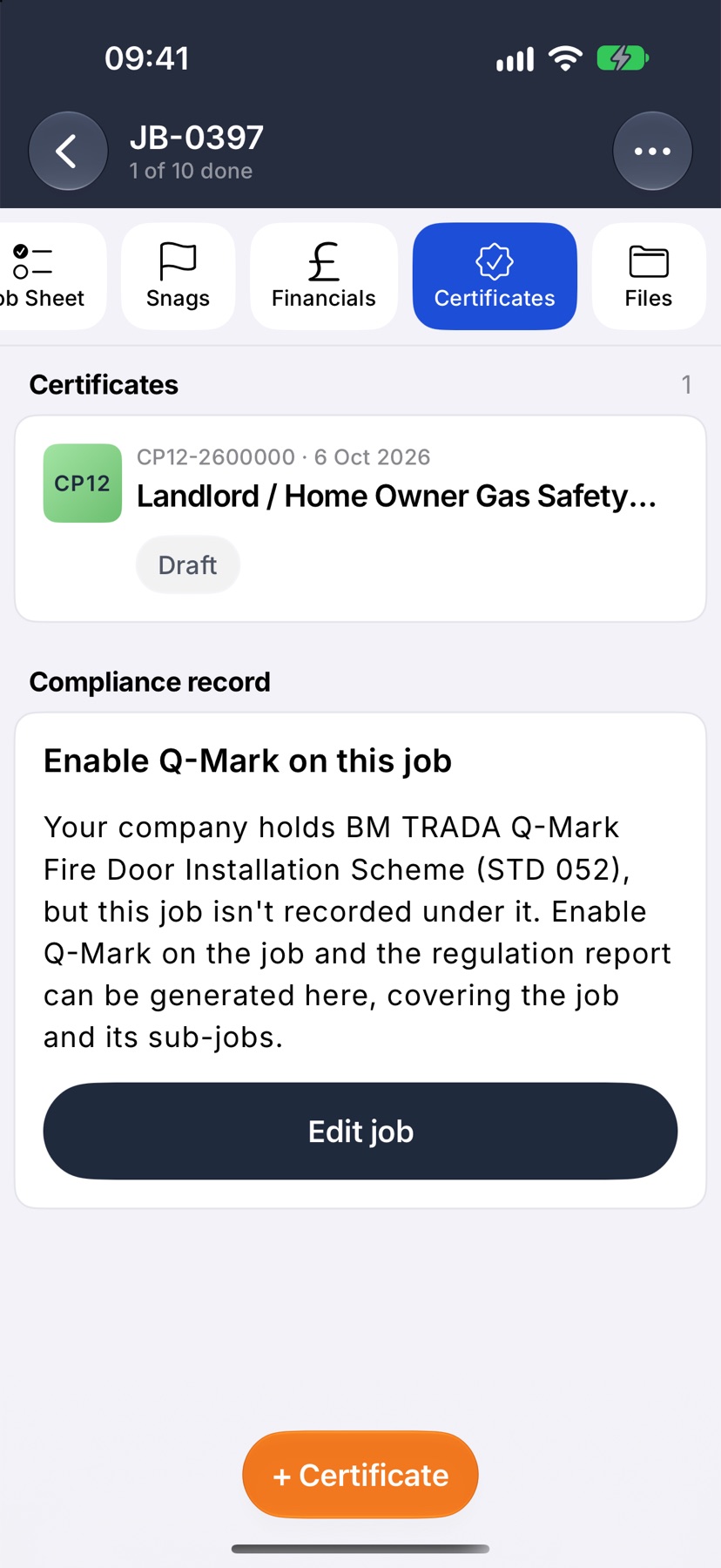
A draft
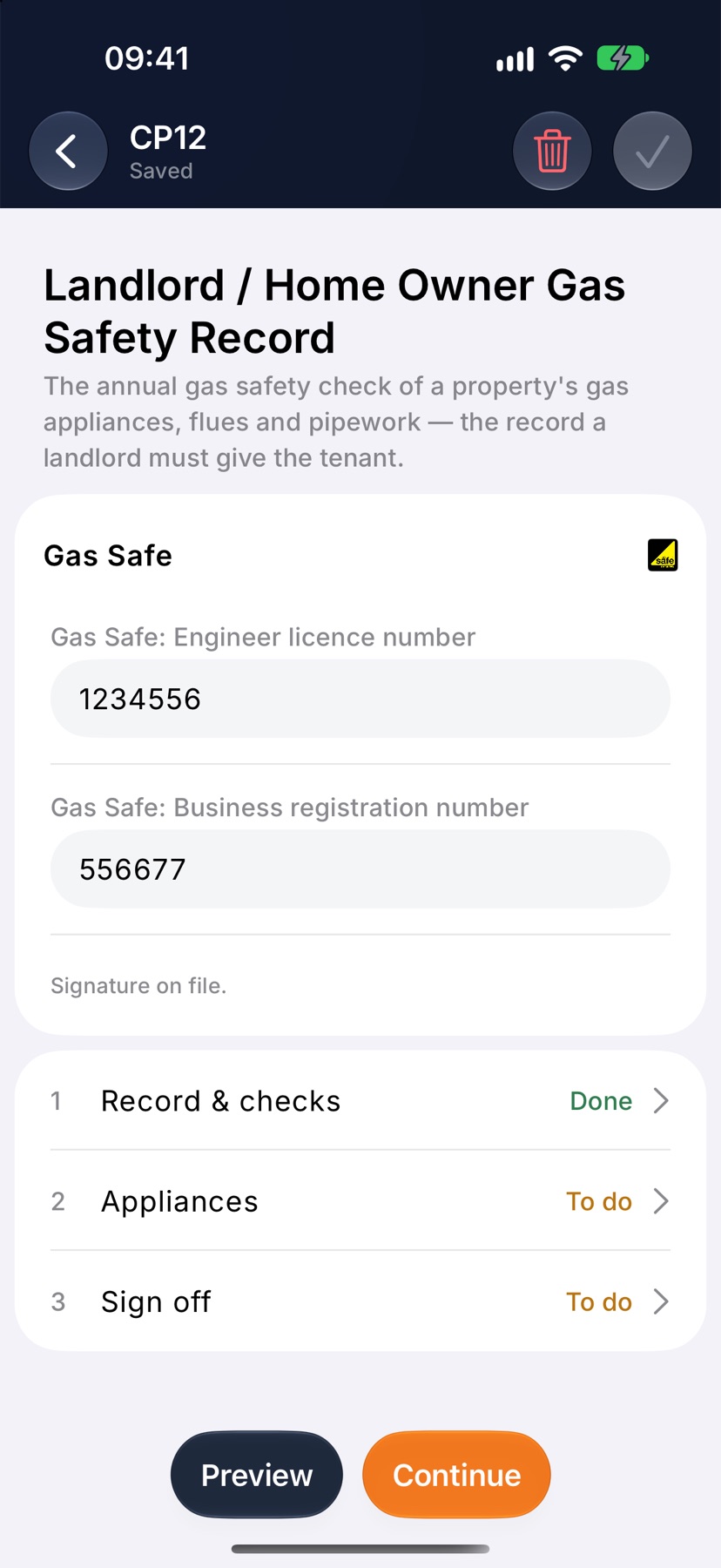
Tapping + Certificate and choosing a form starts a draft. It is saved each time you move between sections, and it stays on the job so you can pick it up later. A form you open and leave without entering anything is not kept.
A draft can be deleted. Open it and tap the bin at the top, or press and hold its card on the job and tap Delete draft. This removes the certificate and everything entered on it.
An issued certificate
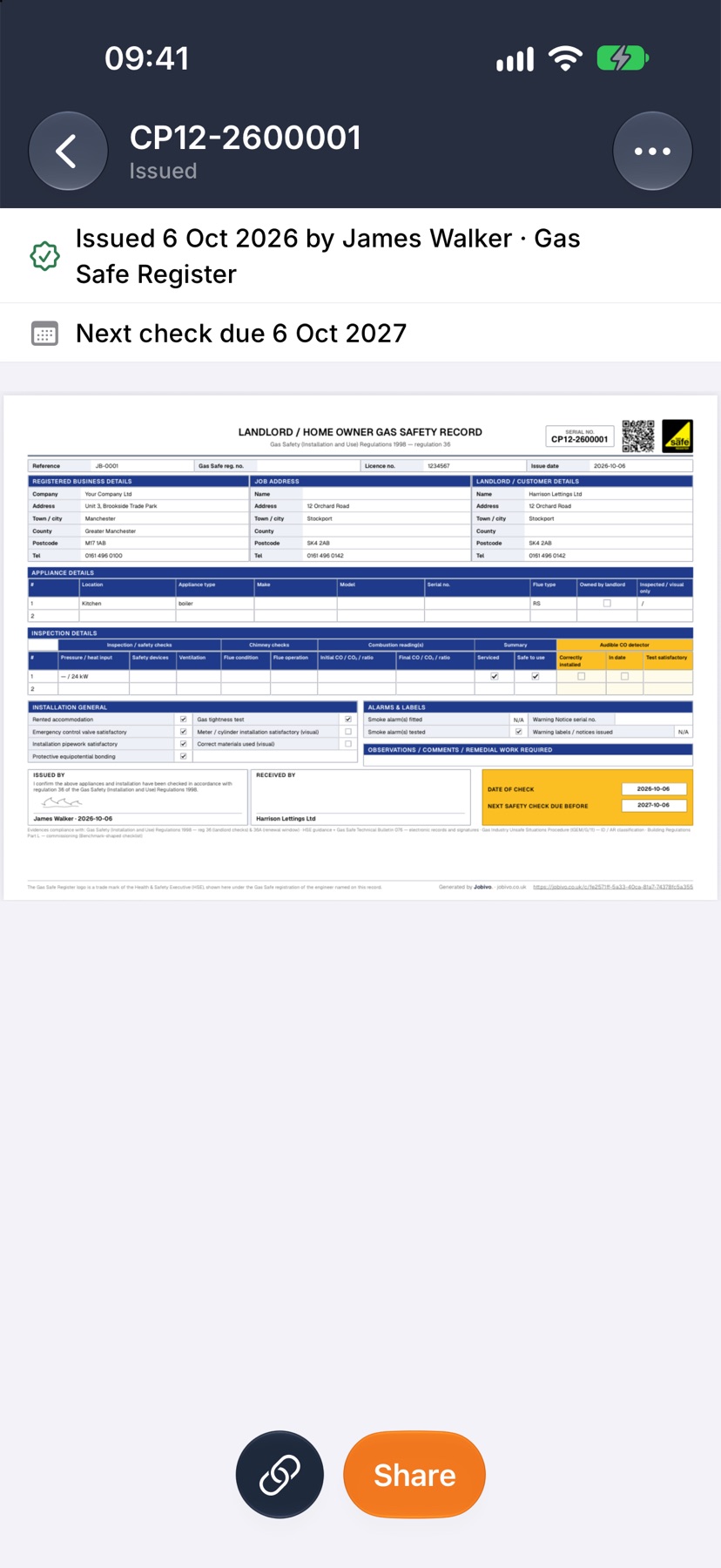
Tapping Issue on the last section checks the form and issues it. The certificate takes its number, and you land back on the job with a message showing the number it was issued as.
An issued certificate cannot be deleted. It is a record that the work was certified on that date by that person, so it stays on the job.
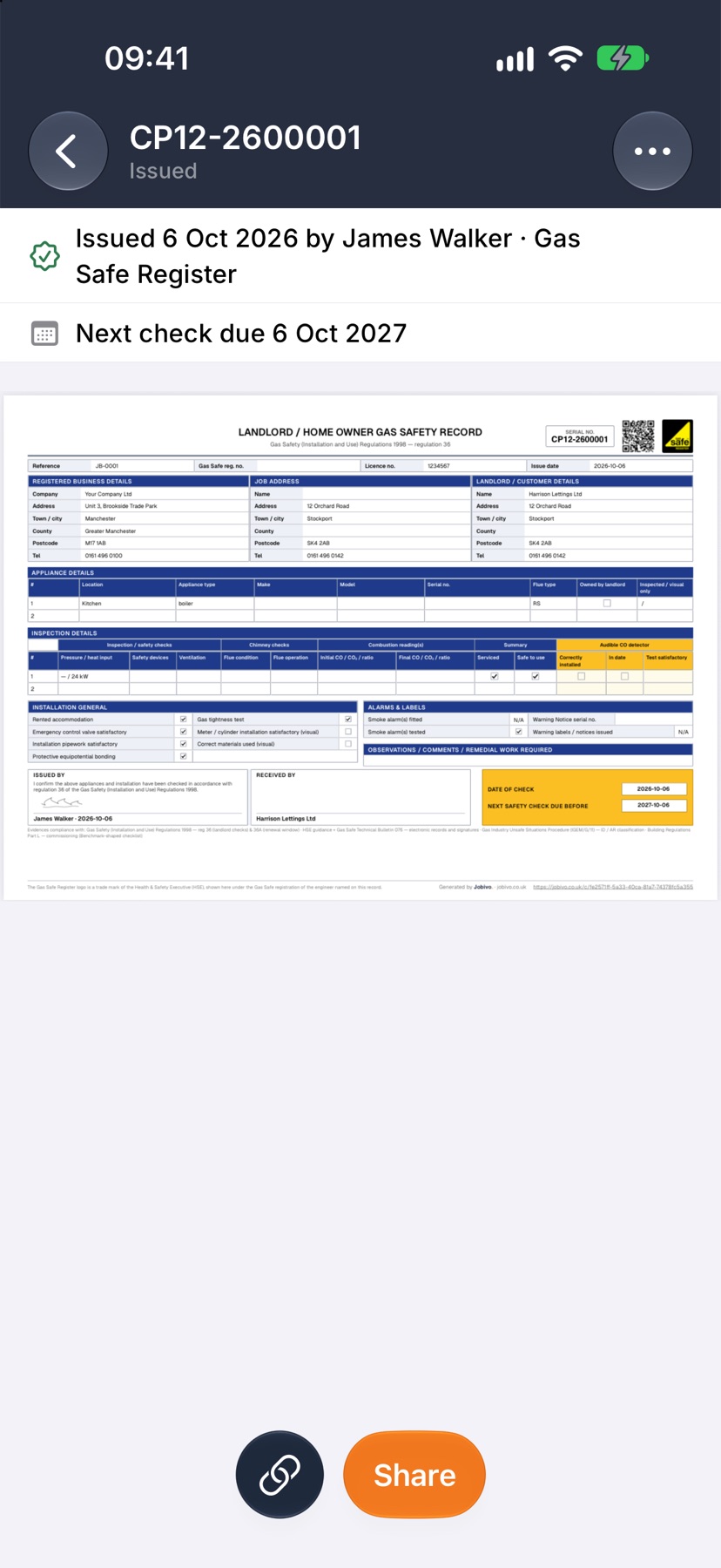
Opening an issued certificate shows the finished document. The line under the title says when it was issued and by whom.
When the next check is due
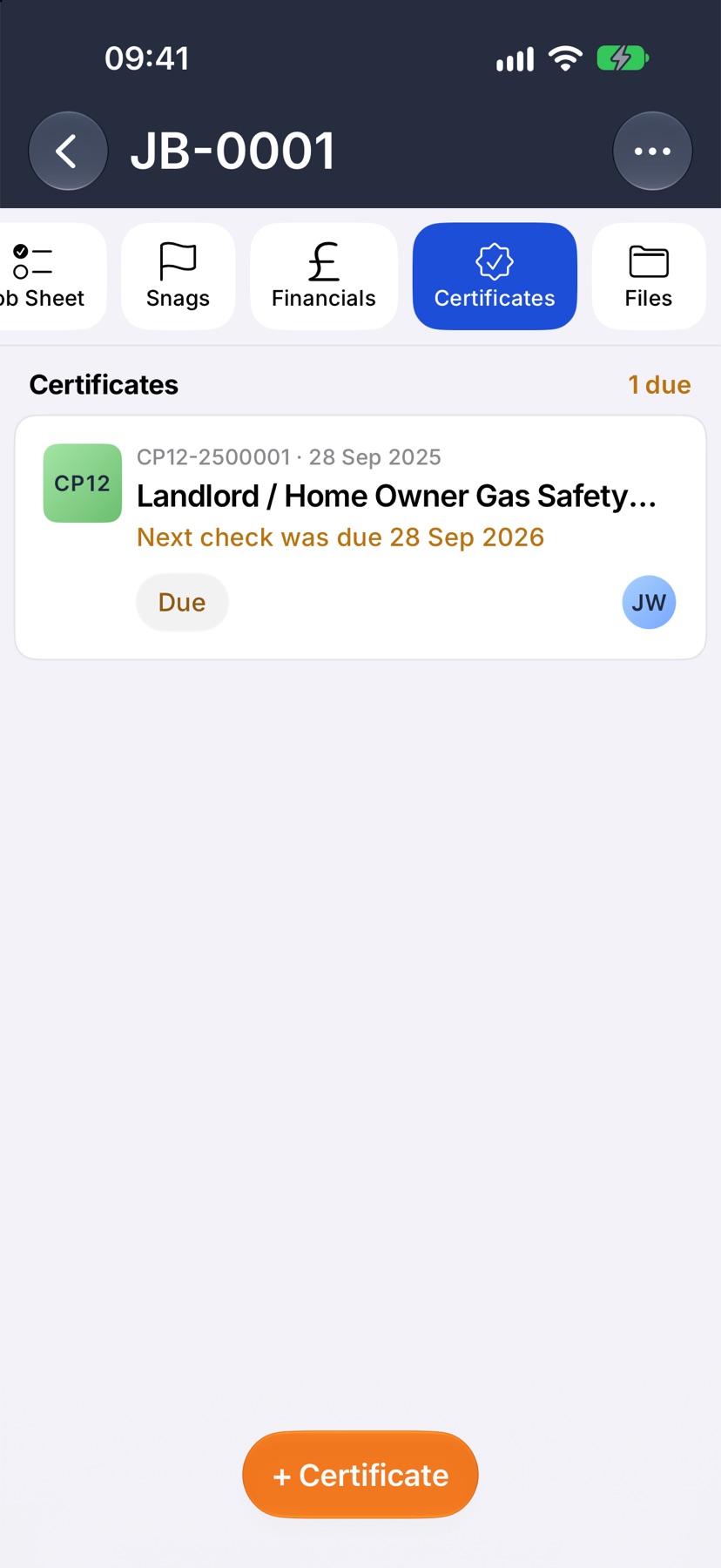
Many forms carry a next check date. Jobivo reads it from the issued certificate and shows it on the card. When that date arrives, the certificate's state changes from Issued to Due, and the job's Certificates heading counts how many are due.
Issuing the next certificate for the same property settles it. The older one then shows which certificate replaced it.
The online copy your customer can open
Every issued certificate has its own web link. On the issued certificate, tap the link button in the bottom bar to copy it, or tap Share to send the PDF with any app on your phone.
Anyone with the link can open the certificate online and check it is the one you issued.
Attach a certificate to an invoice
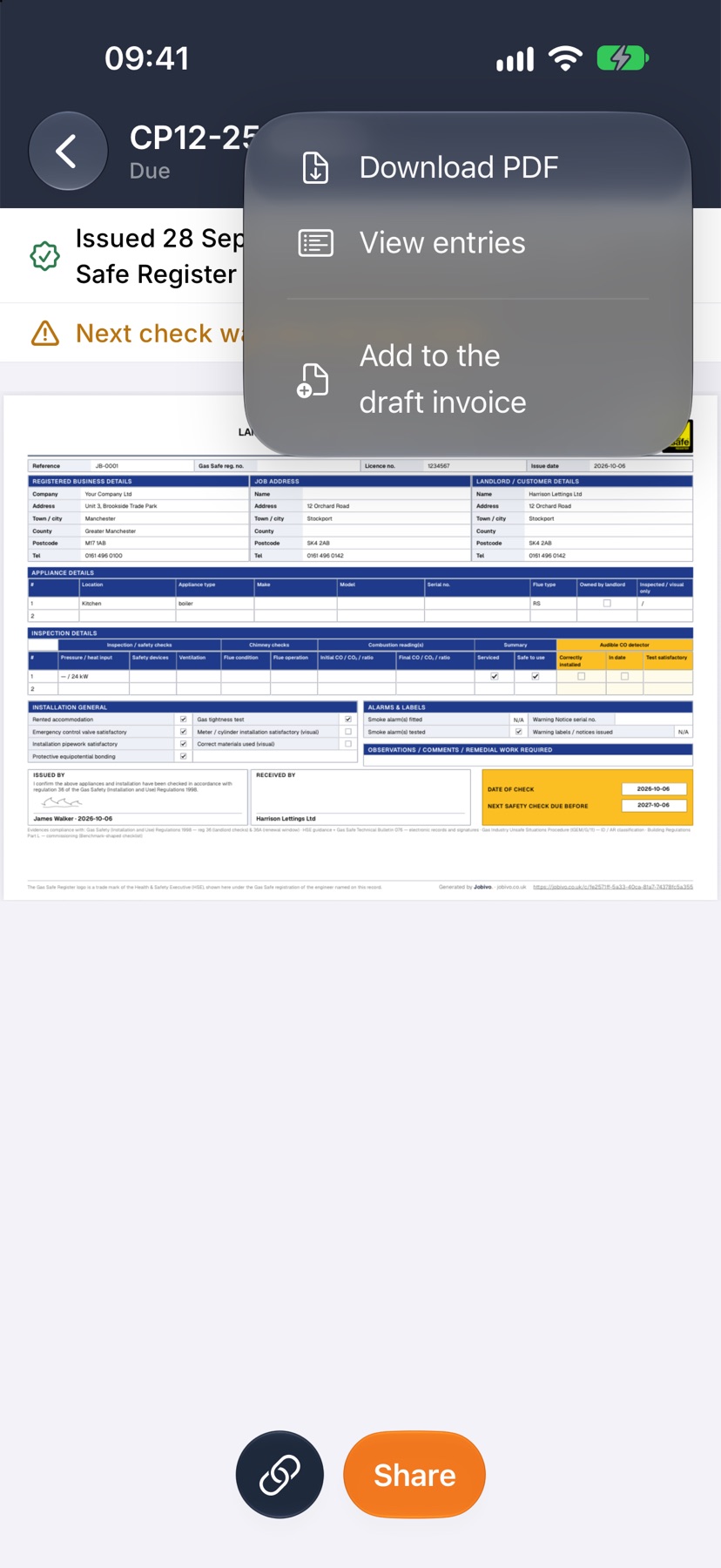
On an issued certificate, tap the three dots at the top right. If the job has one invoice, the menu offers Add to followed by its number, or Add to the draft invoice if it has not been sent yet. If it has several, tap Add to invoice and choose one.
The certificate is then sent to the customer as a PDF with that invoice's email. An invoice that already carries it is shown ticked.
More in Certificates & compliance →
- Turn on certificate packsChoose your trades, add your scheme numbers, and switch on the forms you issue.
- Fill in and issue a certificateStart from a job, work through the form section by section, sign it and send it.
- The certificate registerEvery certificate the company has issued, searchable, with what's due next.
Still stuck? Email support@jobivo.co.uk and we'll get back to you.