Fill in and issue a certificate
Start a certificate on a job, work through it a section at a time, issue it and share it.
What filling in a certificate involves
A certificate is started from the job it belongs to. Jobivo fills in what it already knows: the customer and property from the job, your company details, your licence number and today's date. You enter the readings, checks and results.
The form is split into sections so you can work through it on site in order. It stays a draft until you issue it, so you can stop and come back.
Where to start
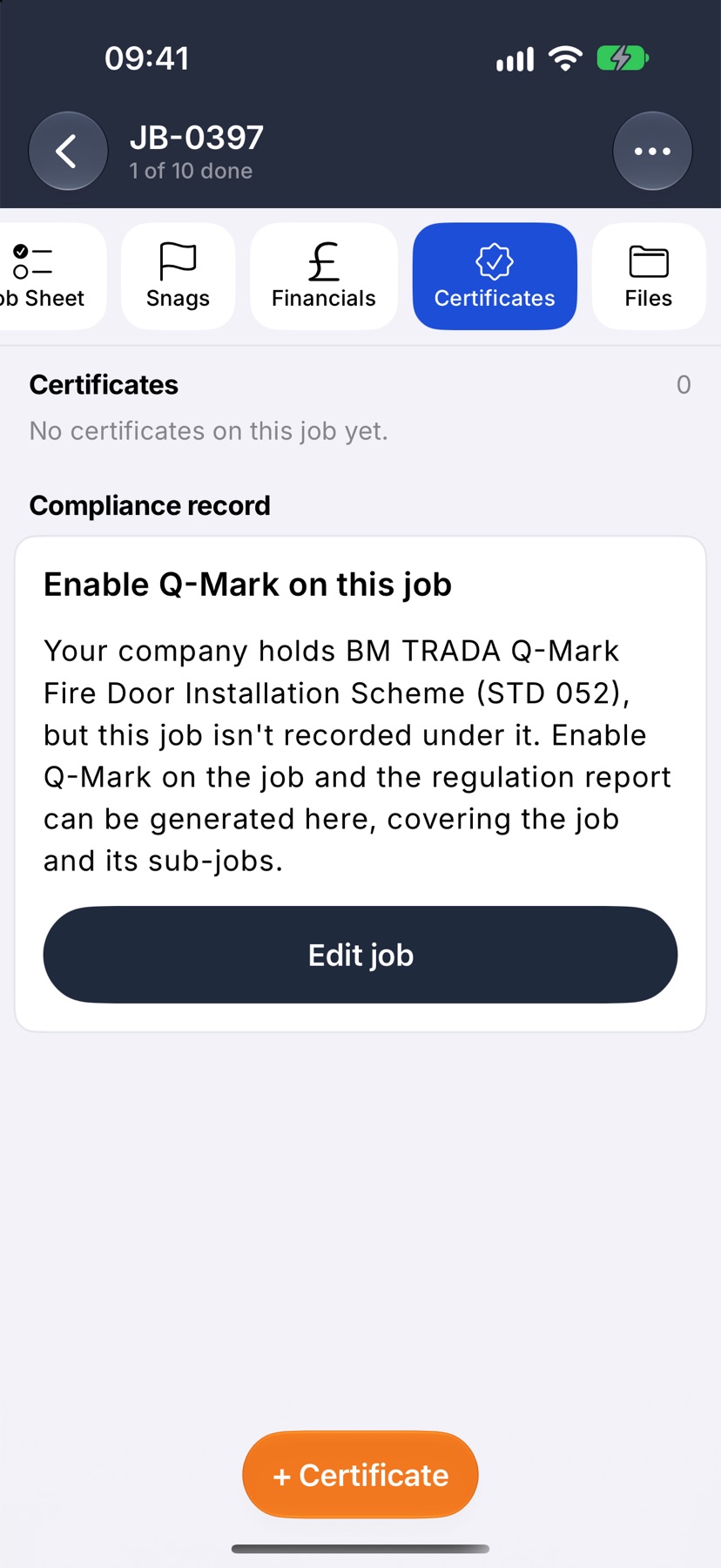
Open the job and tap Certificates in the tabs across the top. Tap + Certificate in the bottom bar.
Choose the form
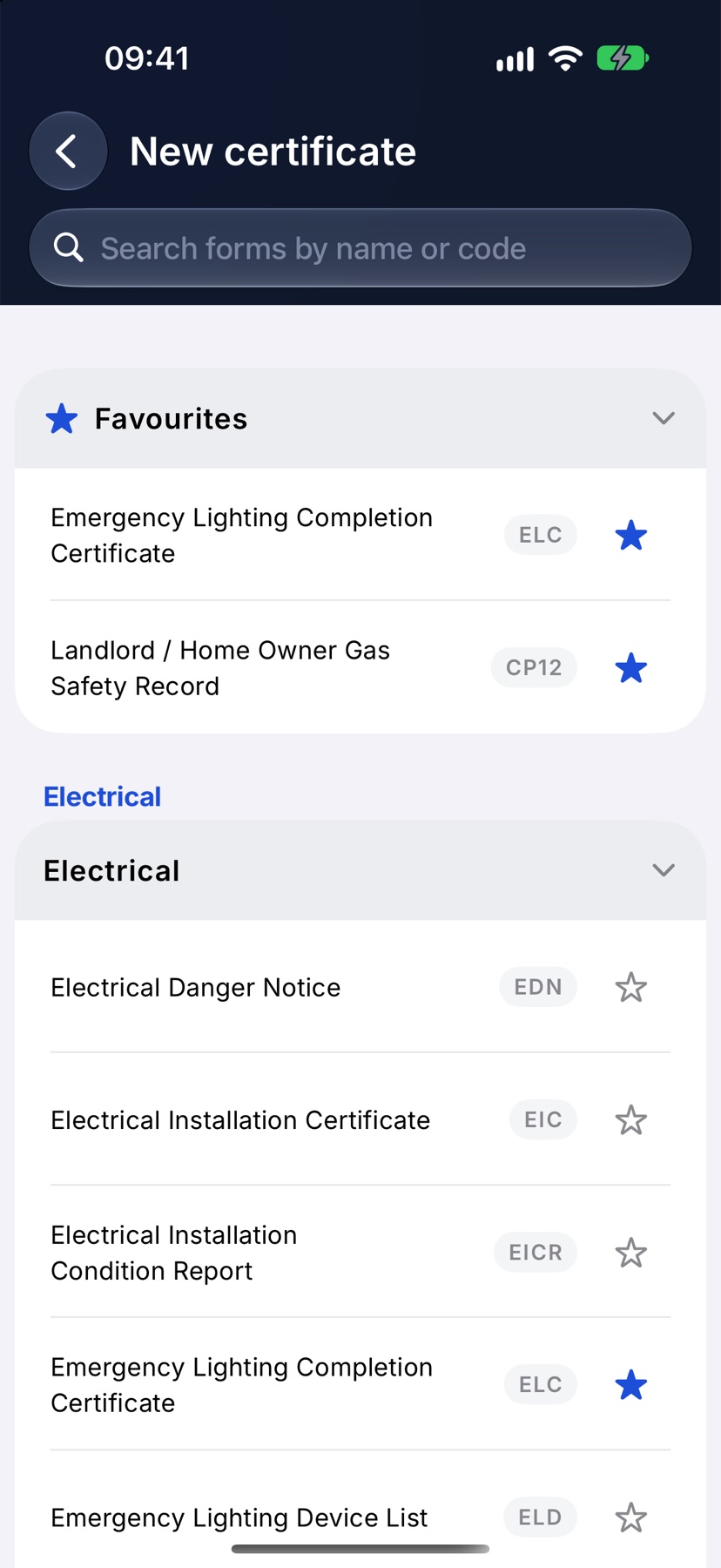
New certificate lists your forms by trade. Tap a group to open it, or type a name or code in the search field. Tap a form to start it.
Tap the star on a form you use often and it is kept under Favourites at the top. Forms issued before for this customer are listed above that, with the date each was last issued.
Read the overview
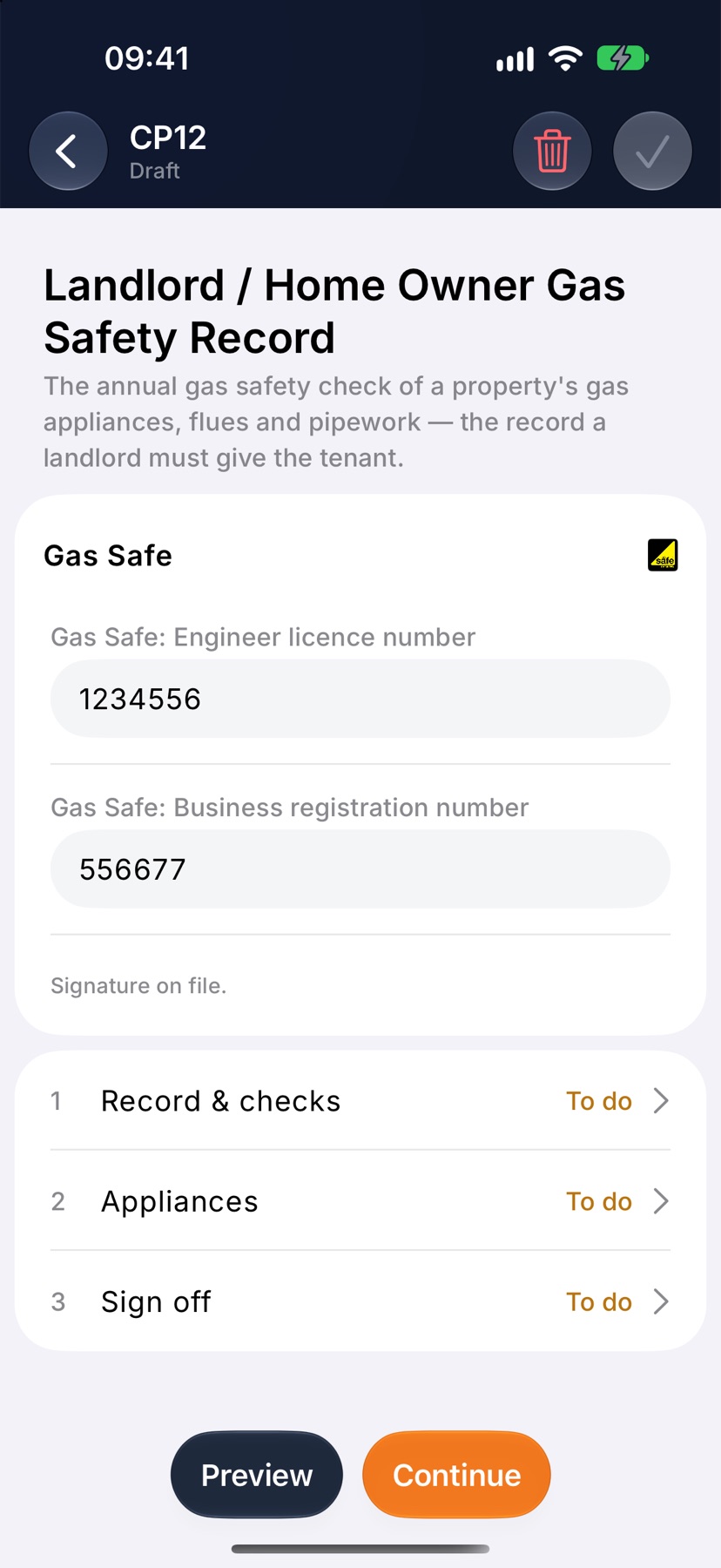
The certificate opens on an overview. The box at the top shows your licence number, the company's scheme number and whether your signature is on file. Below it, each section of the form is listed with Done or To do beside it.
Tap Continue to open the first section that still needs filling in, or tap any section to go straight to it.
Work through the sections
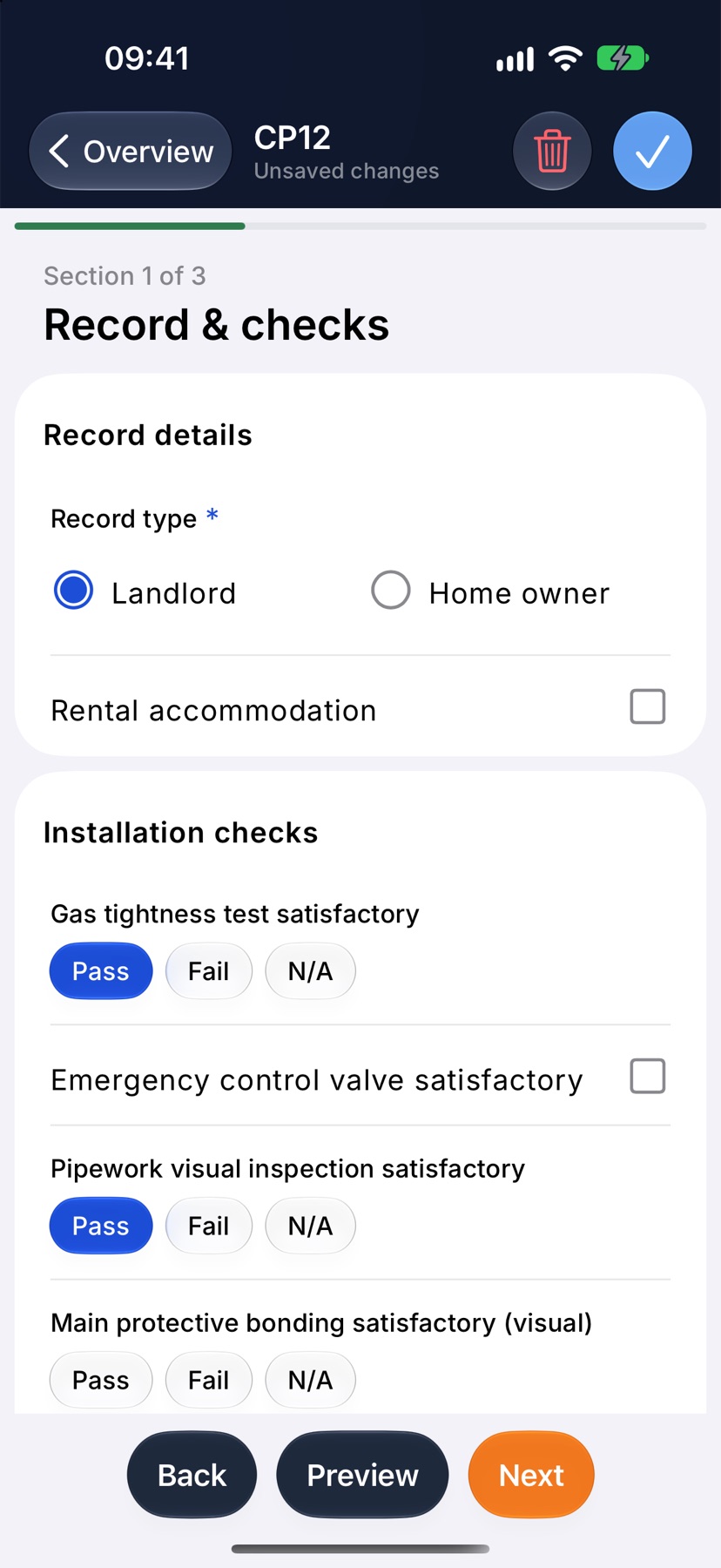
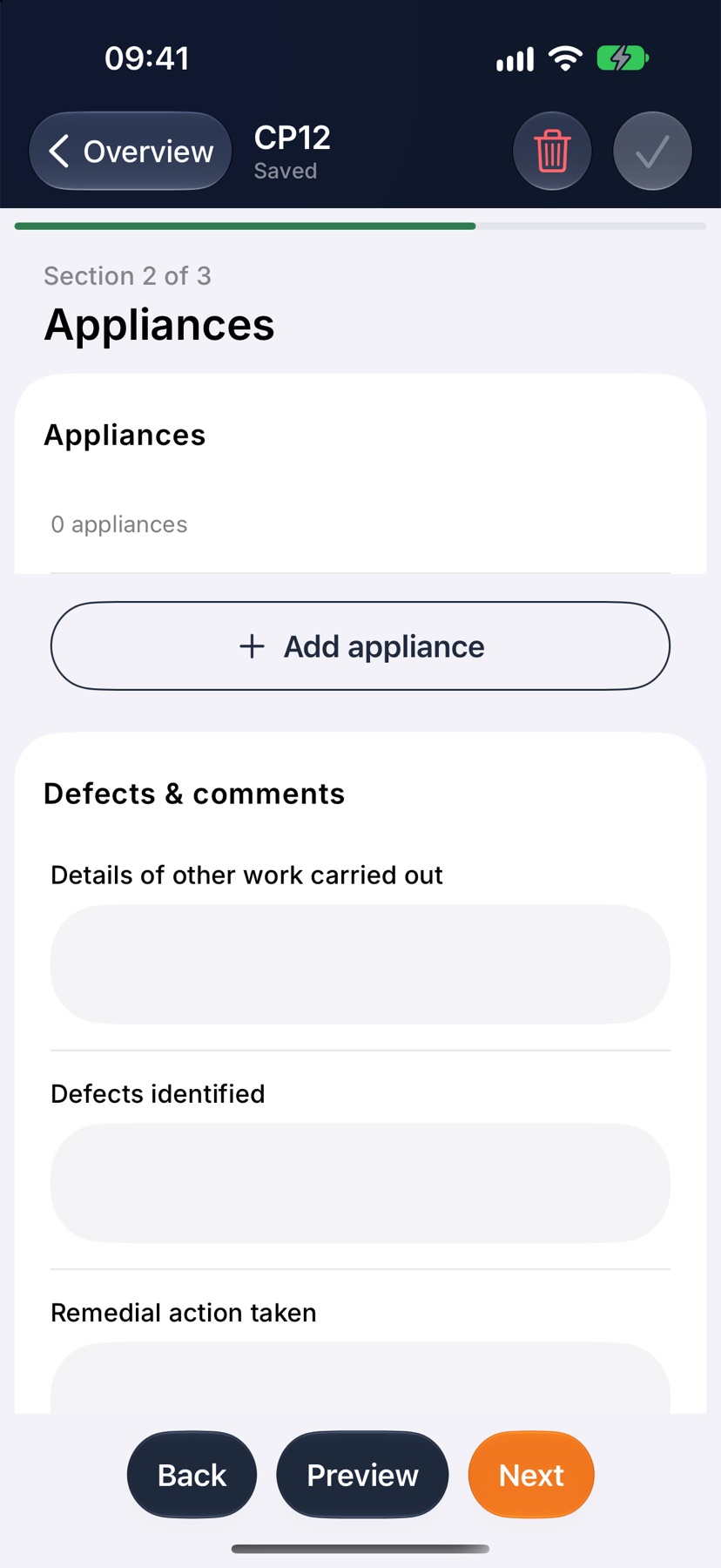
Fill in each section and tap Next. Details Jobivo already knows are filled in for you. Check them and change anything that is different on this job.
If a required field is empty, Required fields lists what is missing and the fields are marked. Tap Back to return to the section before, and Preview at any time to see the certificate as it will print.
The draft is saved each time you move between sections, and the line under the title shows Saved. To save without moving on, tap the tick at the top right. If you go back with changes that are not saved, Discard changes? asks before anything is lost.
Add appliances and other repeated items
Forms that record several items, such as the appliances on a gas safety record, have a section with an add button. Each item you add opens its own screen of fields.
An appliance you add is registered at the property, so the next certificate there can pick it from a list and you do not type it again. Where a property already has appliances on record, choose from them.
Issue the certificate
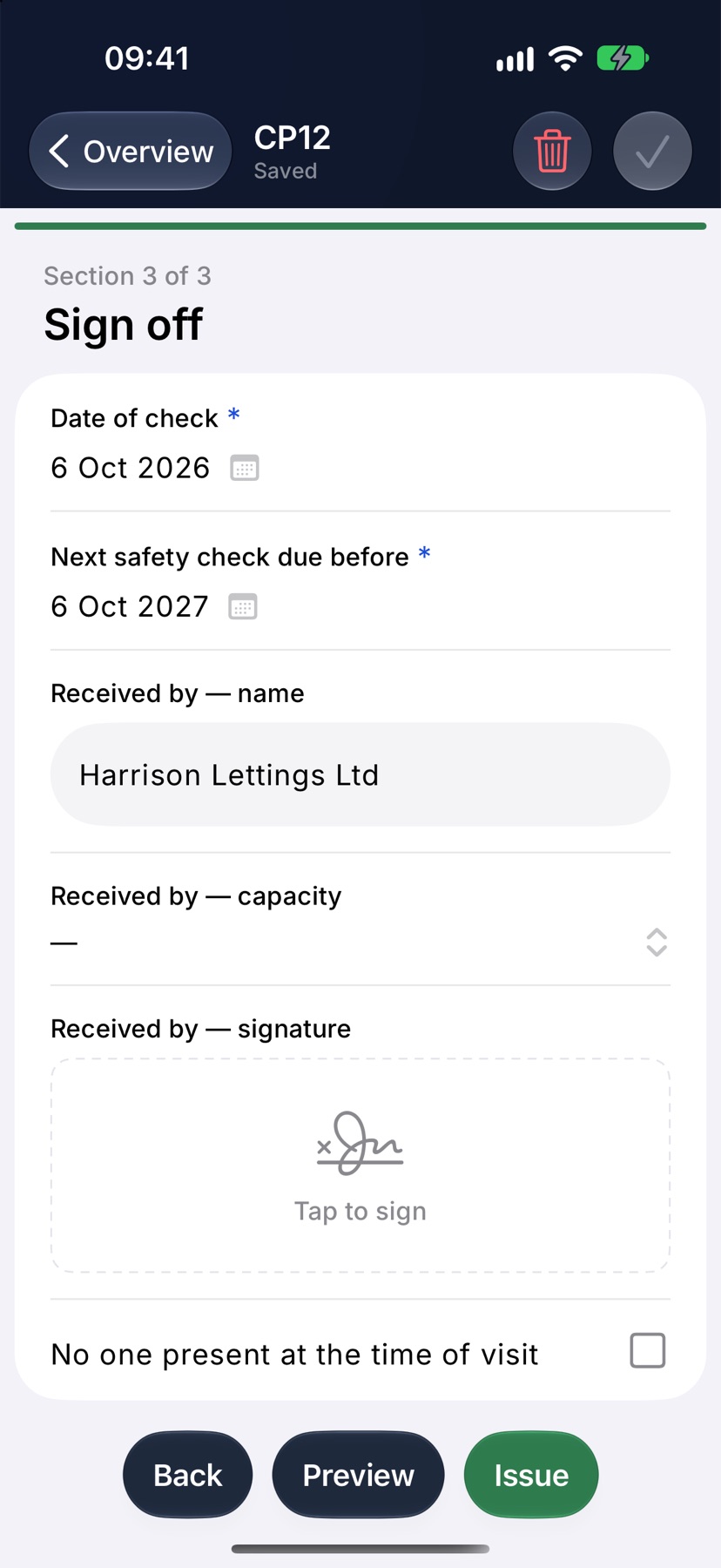
On the last section, tap Issue. Jobivo checks the form. If something is missing, Not issued tells you what to fix.
When it issues, the certificate takes its number and you are returned to the job. A message shows the number it was issued as. Tap View on that message to open it.
Issuing does not send anything to the customer. You choose how to share it next.
Share the issued certificate
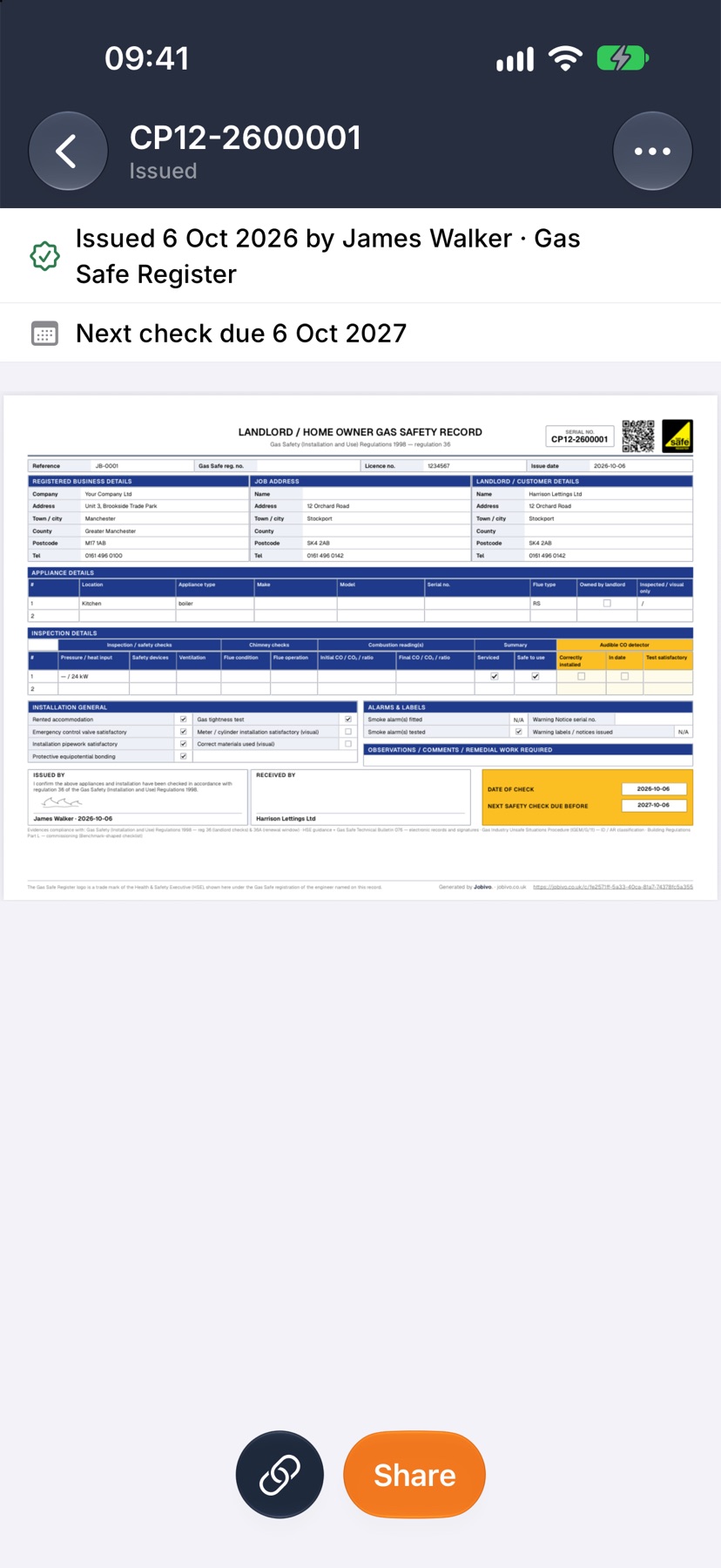
Open the issued certificate from the job's Certificates tab. Tap Share to send the PDF by email, message or any other app on your phone. The link button beside it copies the certificate's web link.
The three dots at the top right hold Download PDF, View entries to see what was entered, and a choice to add the certificate to one of the job's invoices.
Forms that are finished on the web
A few forms do not have a phone editor yet. Opening one shows No mobile editor yet. The draft is kept on the job, and you can fill it in from the same job on the web.
More in Certificates & compliance →
- How certificates workDraft, fill in, sign and issue — and the verification page your customer can check.
- Turn on certificate packsChoose your trades, add your scheme numbers, and switch on the forms you issue.
- The certificate registerEvery certificate the company has issued, searchable, with what's due next.
Still stuck? Email support@jobivo.co.uk and we'll get back to you.