Customise the dock
Put the pages you use most on the bar at the bottom of your Android phone.
What the dock is
This guide is for Android phones only. On the iPhone app the bar at the bottom is fixed at Home, Schedule and Search, and there is nothing to set.
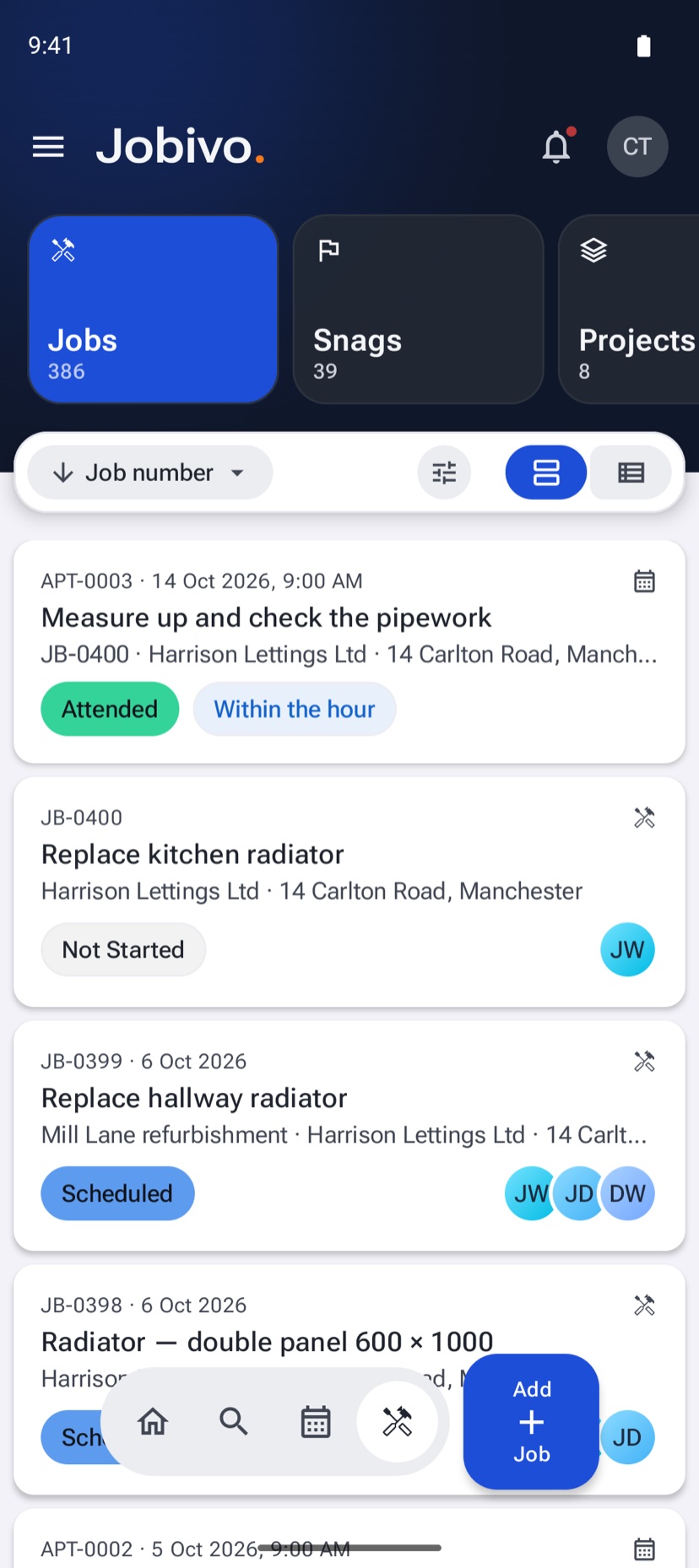
On Android, the dock is the bar at the bottom of the screen. It holds Home, Search and the pages you choose, so the ones you open all day are one tap away. Everything else stays in the menu.
The dock is set per phone. Changing it on yours does not change it for anyone else, or on your other devices.
Where to start
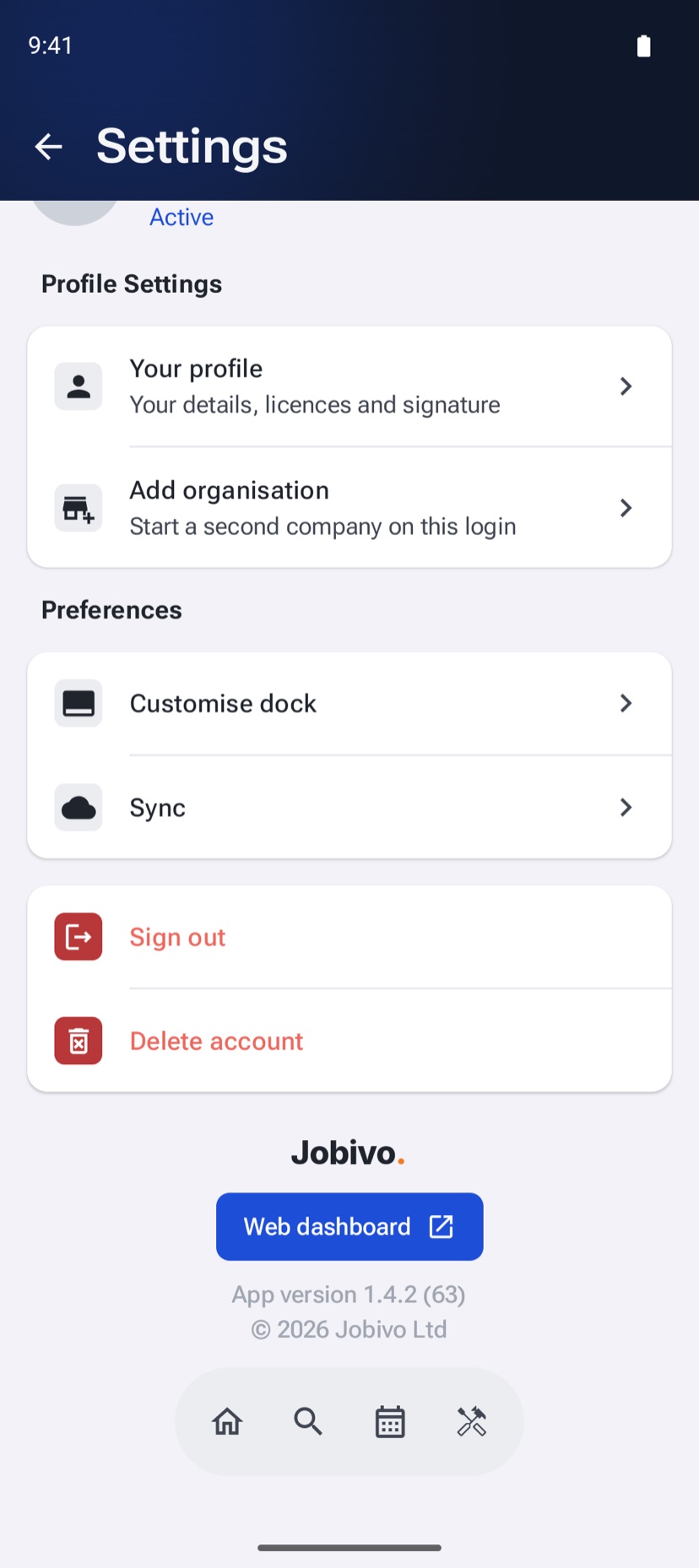
Open the menu and tap Settings. Under Preferences, tap Customise dock.
See what is on the dock
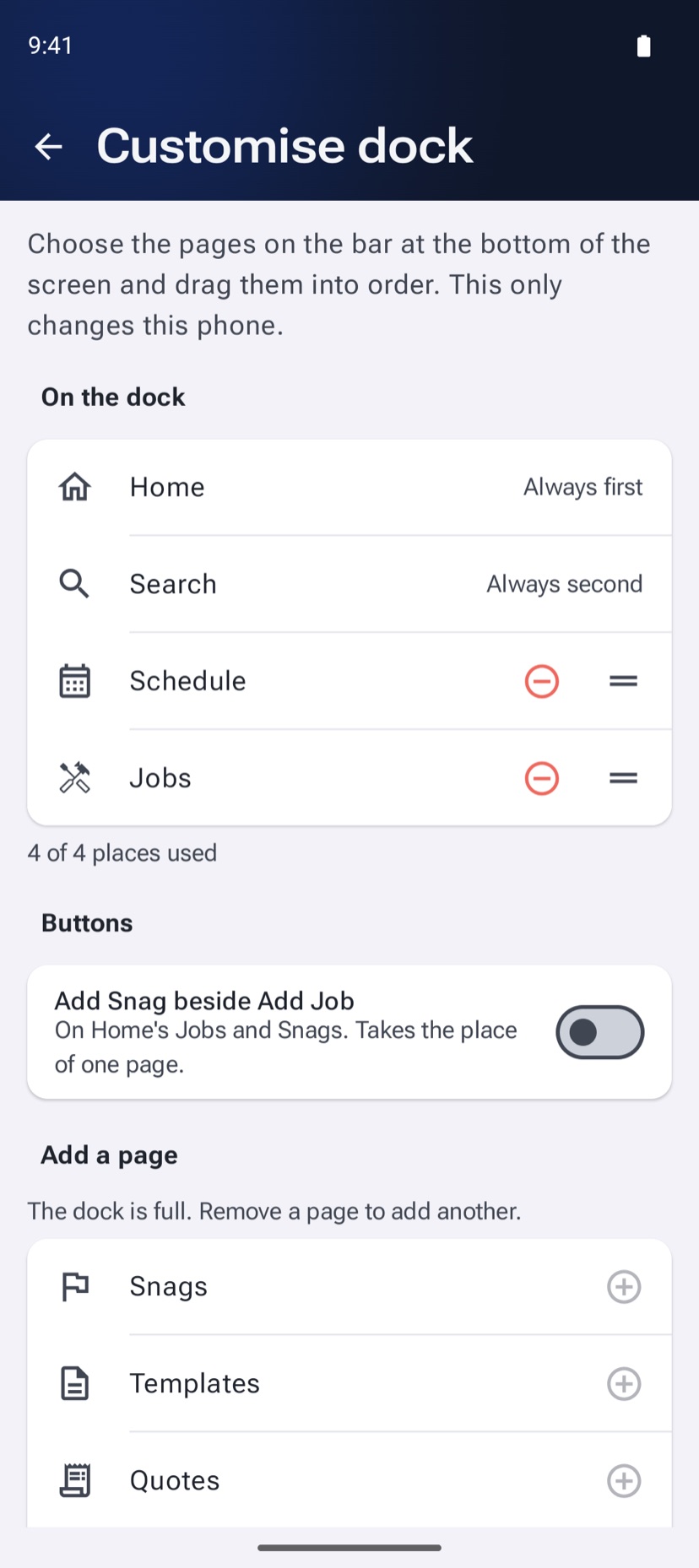
On the dock lists the pages on the bar, in order. Home is always first and Search is always second. A new phone starts with Schedule after them.
The line underneath counts the places used. The dock has four places, so you choose two pages besides Home and Search.
Add a page
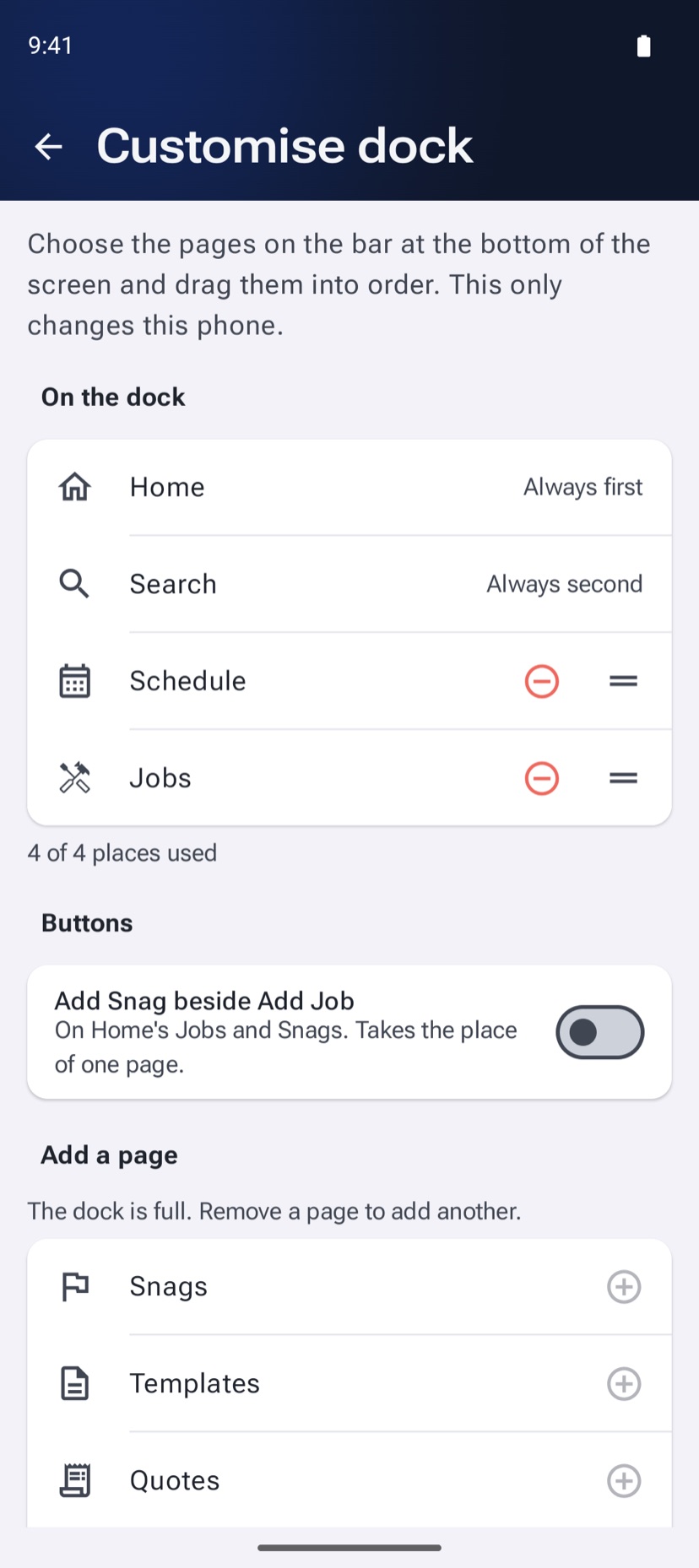
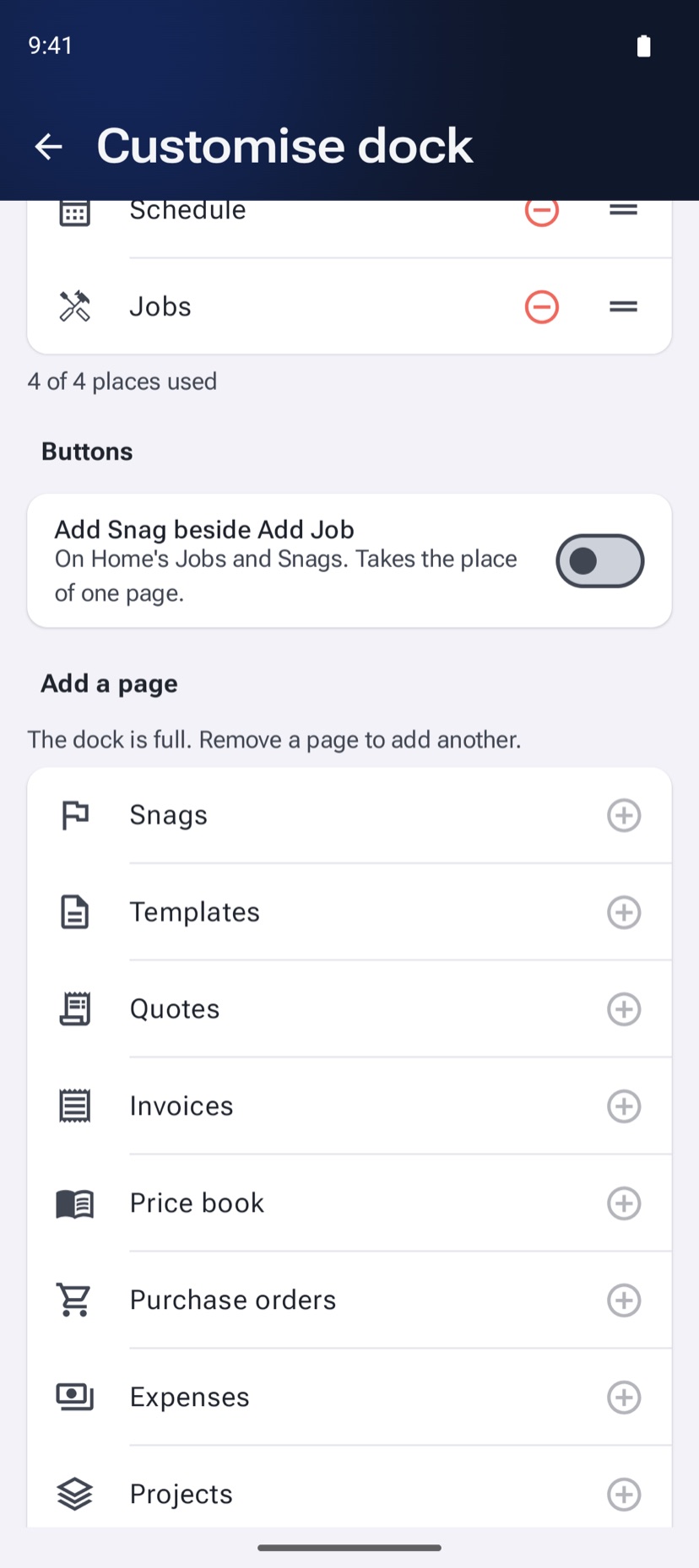
Add a page lists every page you can open that is not on the dock yet, such as Jobs, Quotes, Customers or Files. Tap the plus on a row to add it. It appears on the bar straight away.
When every place is taken the list says the dock is full. Remove a page first to add another.
Remove a page or change the order
Under On the dock, tap the red minus on a page to take it off. It goes back to the Add a page list and stays in the menu.
To change the order, hold the handle at the right of a row and drag it up or down. Home and Search do not move.
What the + button does on each page
The + button beside the dock adds whatever the page you are on holds. On Home it reads Add Job, Add Snag or Add Project, matching the list you are looking at. On Customers it is Add Customer, on Expenses Add Expense, on Schedule Book, and on Team Invite.
If your role cannot add to a page, the button is not shown there.
Put Add Snag beside Add Job
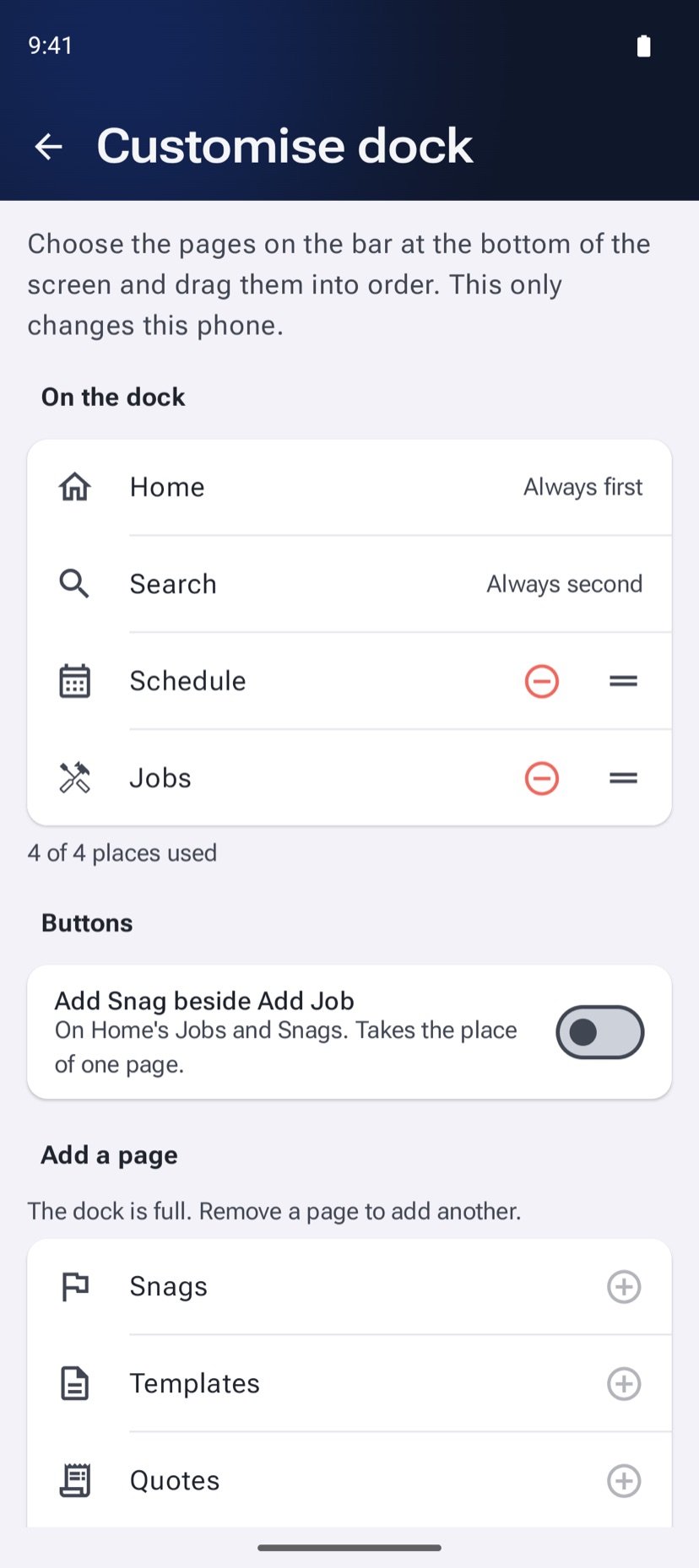
Under Buttons, switch on Add Snag beside Add Job to have both buttons on Home's Jobs and Snags lists. This is for people who raise snags as often as they add jobs.
The second button takes the place of one page, so the dock then holds three places.
More in The mobile app →
Still stuck? Email support@jobivo.co.uk and we'll get back to you.