Search and files
Find any record by typing a few letters, and browse every photo and document by project and job.
What Search and Files are
Search looks across everything you are allowed to see: jobs, projects, customers, quotes, invoices and more. It is the quickest way to a record when you know a name, an address or a number.
Files is the other way in. It lays out every photo and document your company has stored as folders, one per project, with the jobs inside. Use it when you want a file and do not want to open the job first.
Where to start
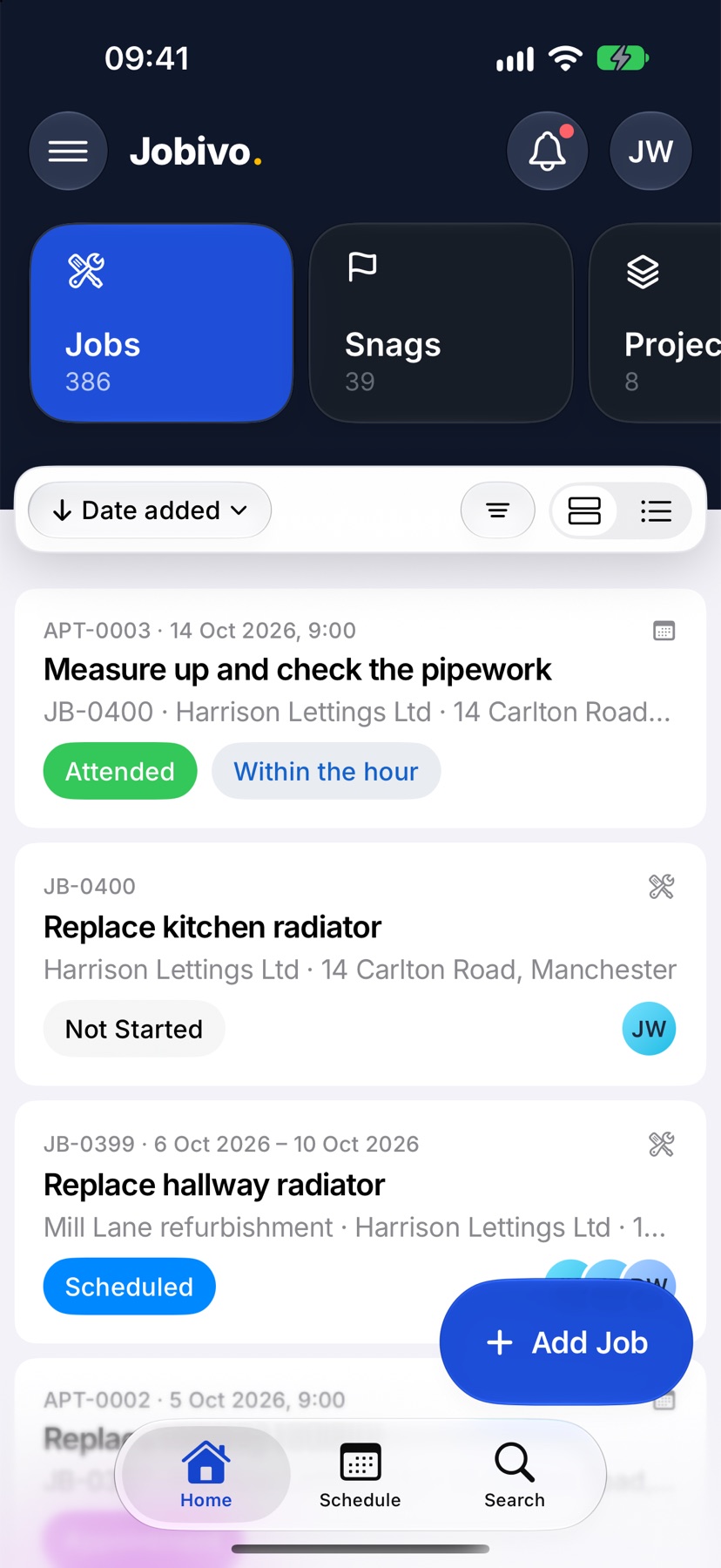
For Search, tap Search on the bar at the bottom of the screen.
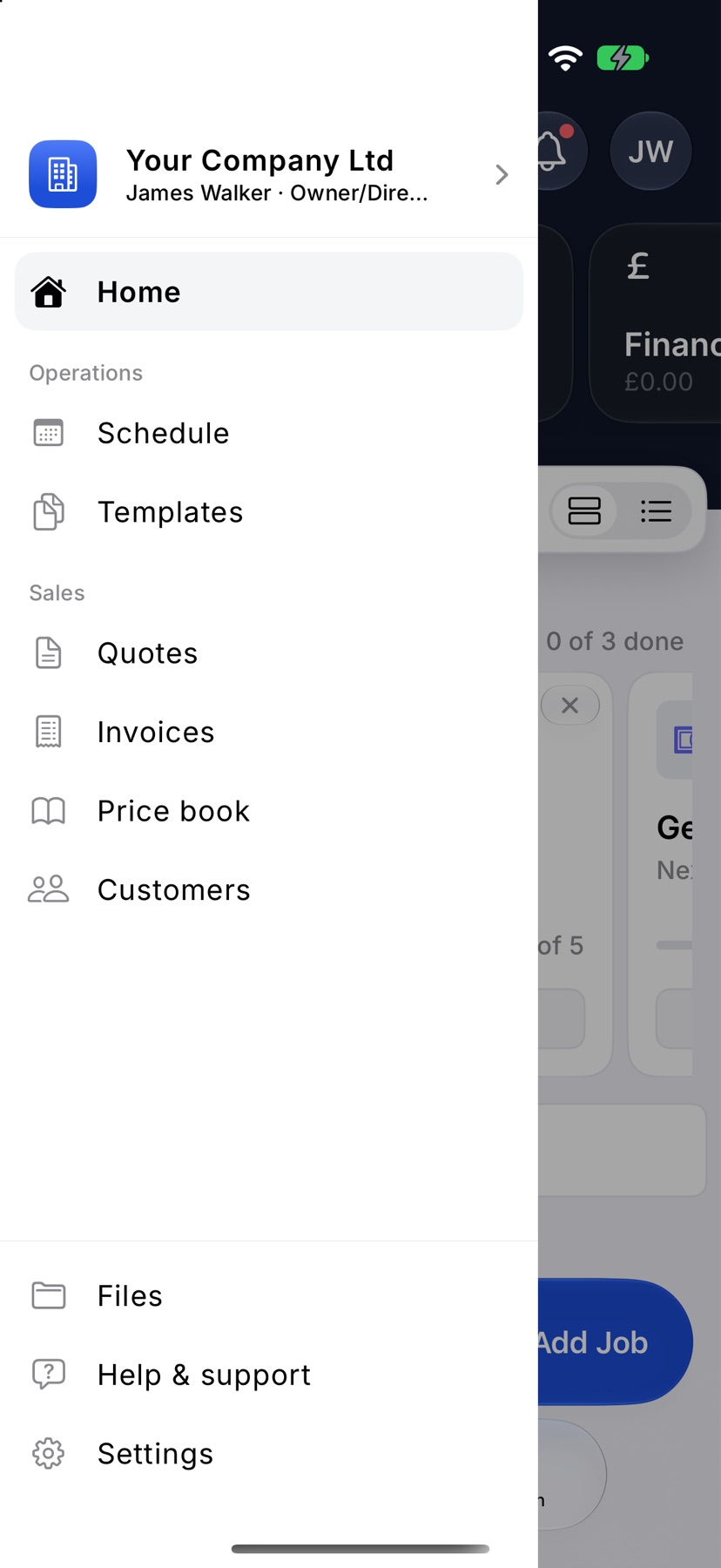
For Files, open the menu with the three lines at the top left of Home and tap Files, near the bottom of the menu.
Search across everything
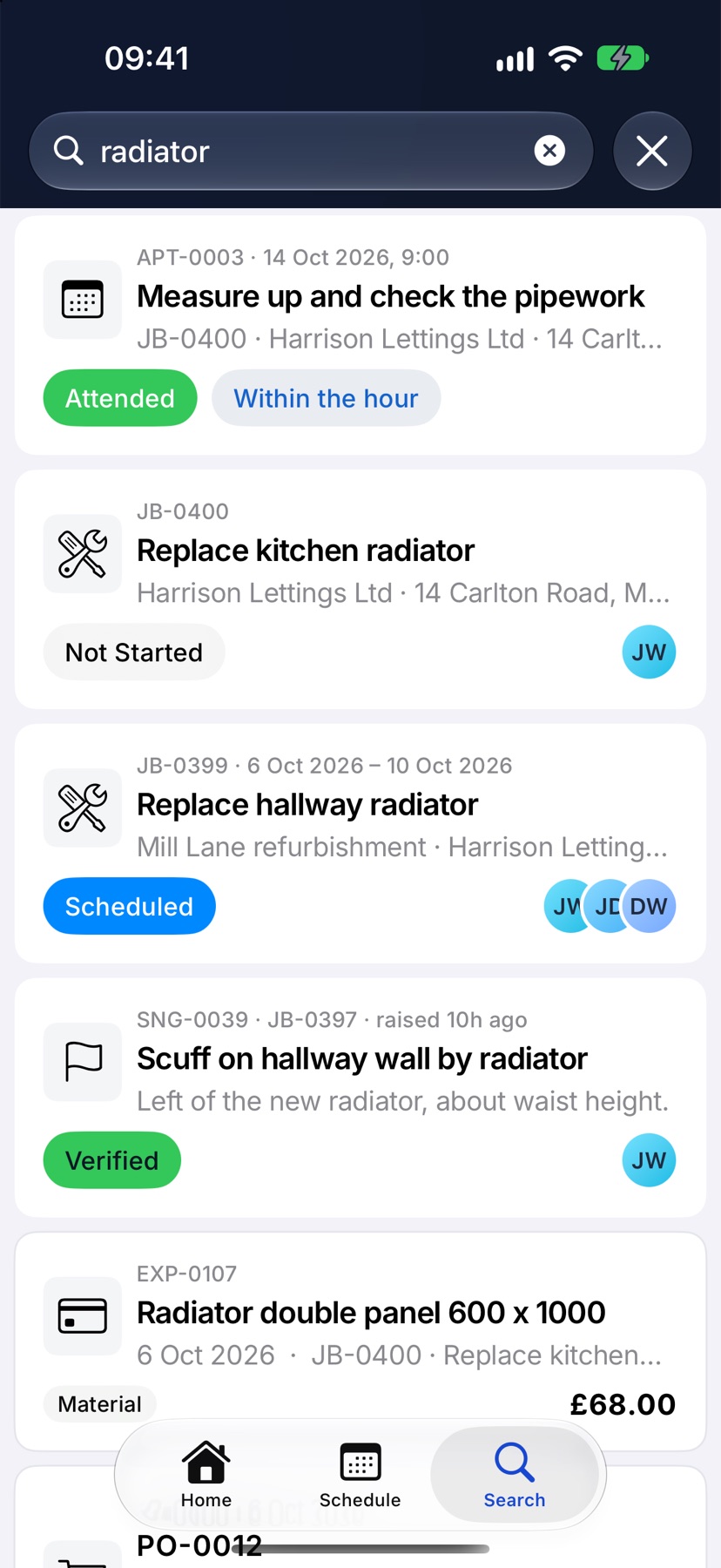
Type in the field at the top. Results appear as you type. Tap a result to open it.
If nothing matches, the page says No results. Try fewer letters, or a number such as the job or invoice reference.
Narrow the results to one type
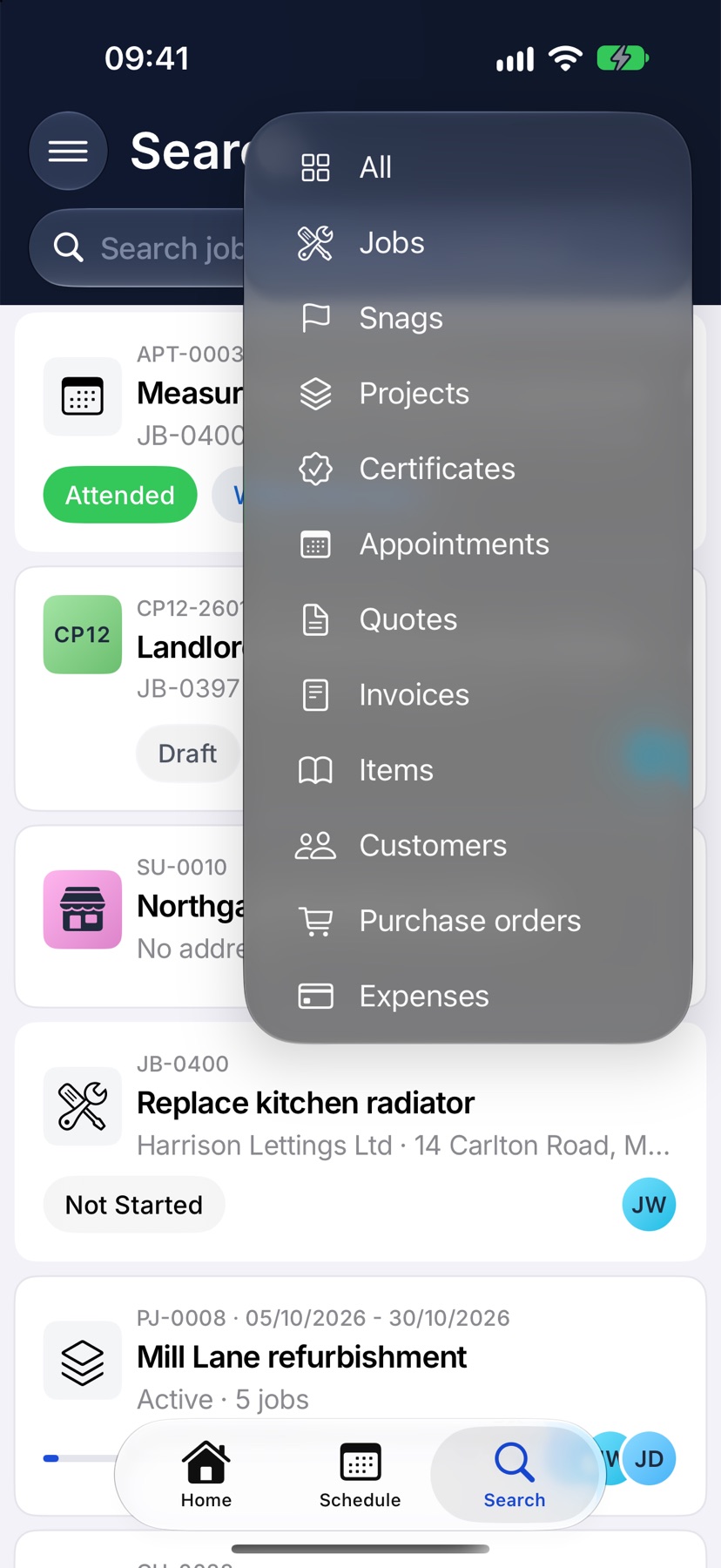
Tap the filter button at the top right and choose a type: Jobs, Snags, Projects, Certificates, Appointments, Customers, Quotes, Invoices, Items, Purchase orders, Expenses or Suppliers. The button changes to that type's icon while the filter is on.
Choose All to search everything again. The list only offers the types your role can see.
Browse files by project and job
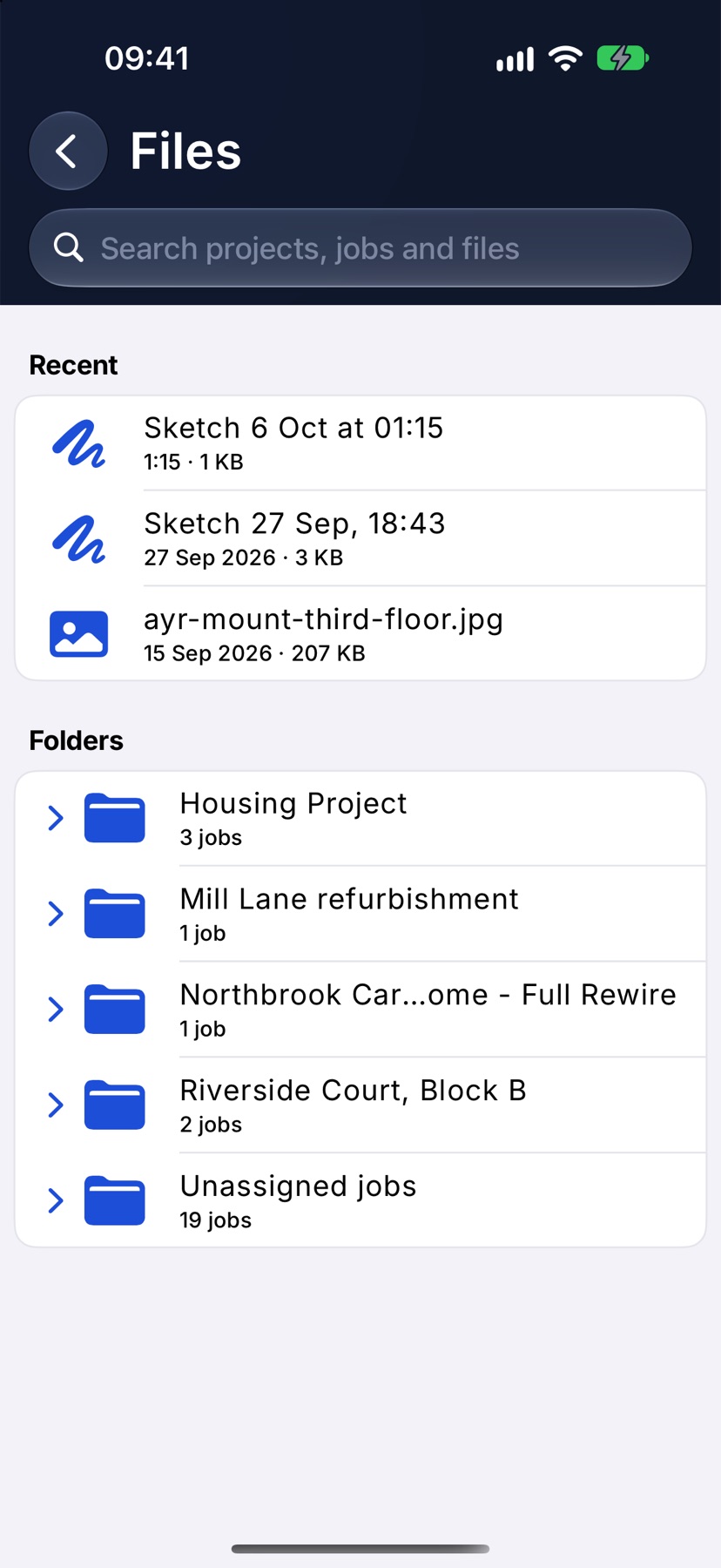
Files opens with Recent at the top, the files added most recently. Below it, Folders has one folder per project. Jobs that are not in a project are in Unassigned jobs.
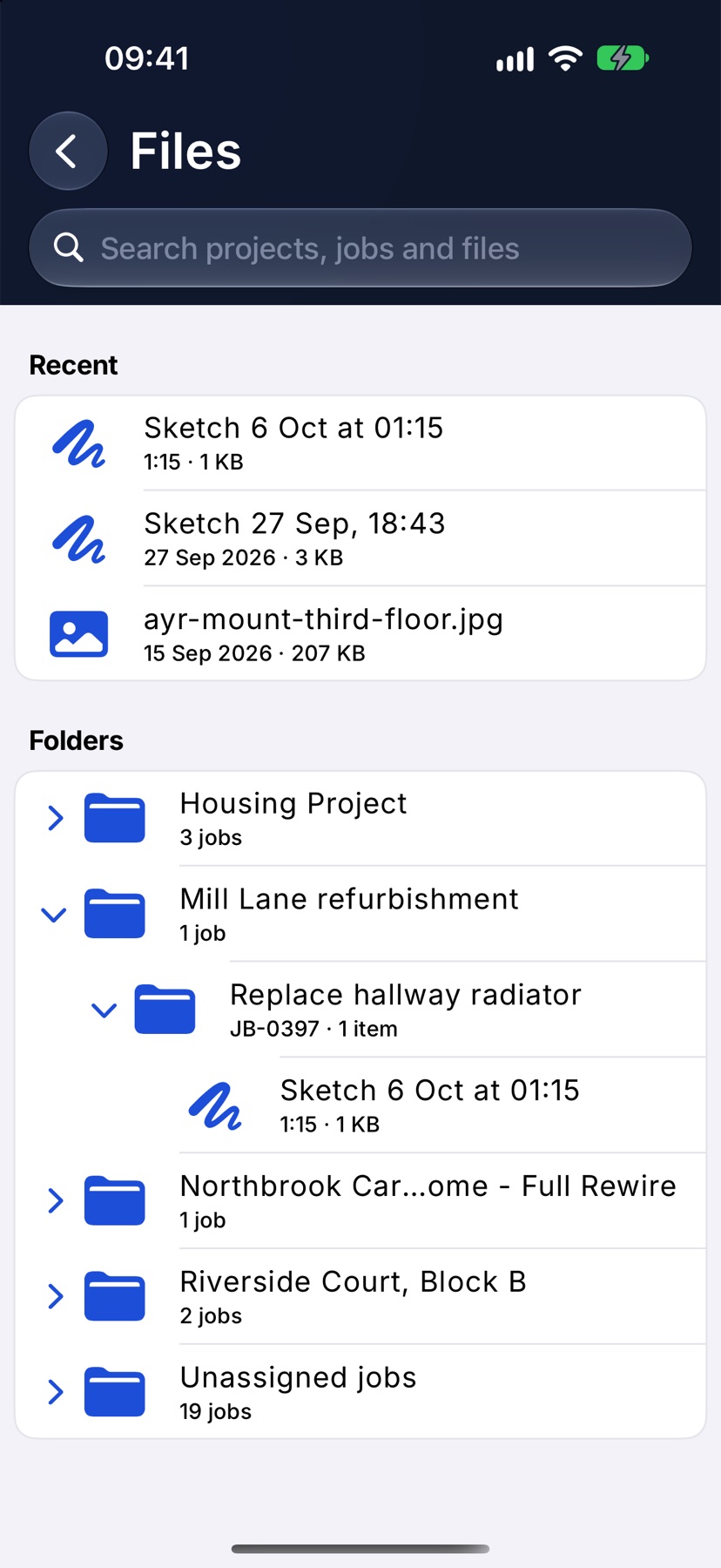
Tap the arrow beside a folder to open it in place. A project opens to its jobs, and a job opens to a Photos folder and its documents. Tap Photos to go to that job's photos. Tap a document to open it.
Search inside Files
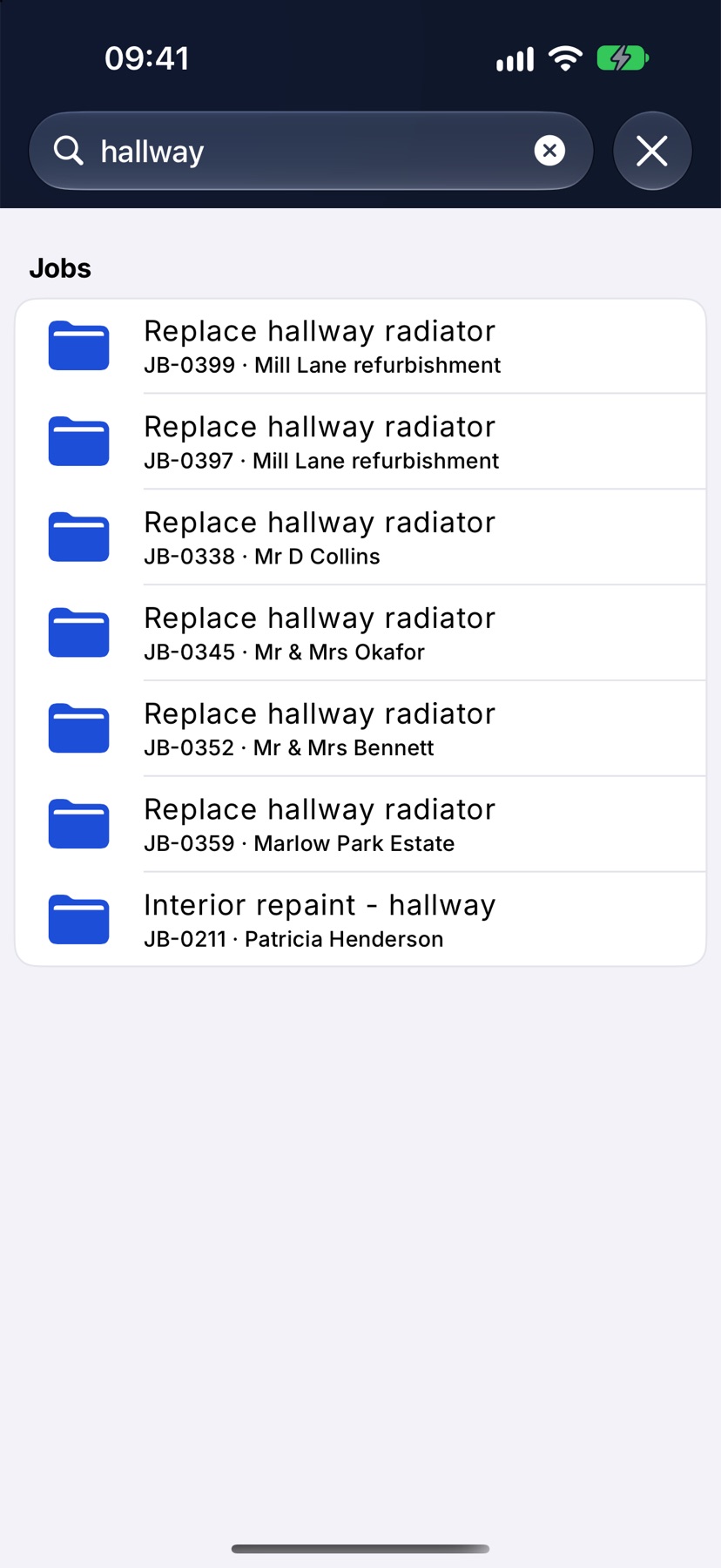
The field at the top of Files searches projects, jobs and file names together. Results are grouped under Files, Jobs and Projects. Tap a file to open it, or a job or project to go to its files.
Storage and the storage meter
Your plan includes an amount of storage for photos and documents. On the phone the meter stays out of the way until you are close to the limit. It then appears at the top of Files, showing how much is used and how much is left.
At the limit the meter reads Storage full. On a free trial the meter counts photos instead, and reads Trial photo limit reached when there is no room.
More in The mobile app →
Still stuck? Email support@jobivo.co.uk and we'll get back to you.