Get the app and sign in
Install Jobivo on your phone and get into your company, with the same account you use on the web.
What the app is for
The Jobivo app puts your jobs, schedule, photos and paperwork on your phone. It is the same account and the same data as the web app, so anything you do on one shows on the other.
There is one account per email address. If you already use Jobivo in a browser, you log in to the app with that email and password. If your company has invited you, or given you a code, you join from the app.
Where to start
On an iPhone, open the App Store, search for Jobivo and install it. On an Android phone, do the same in Google Play.
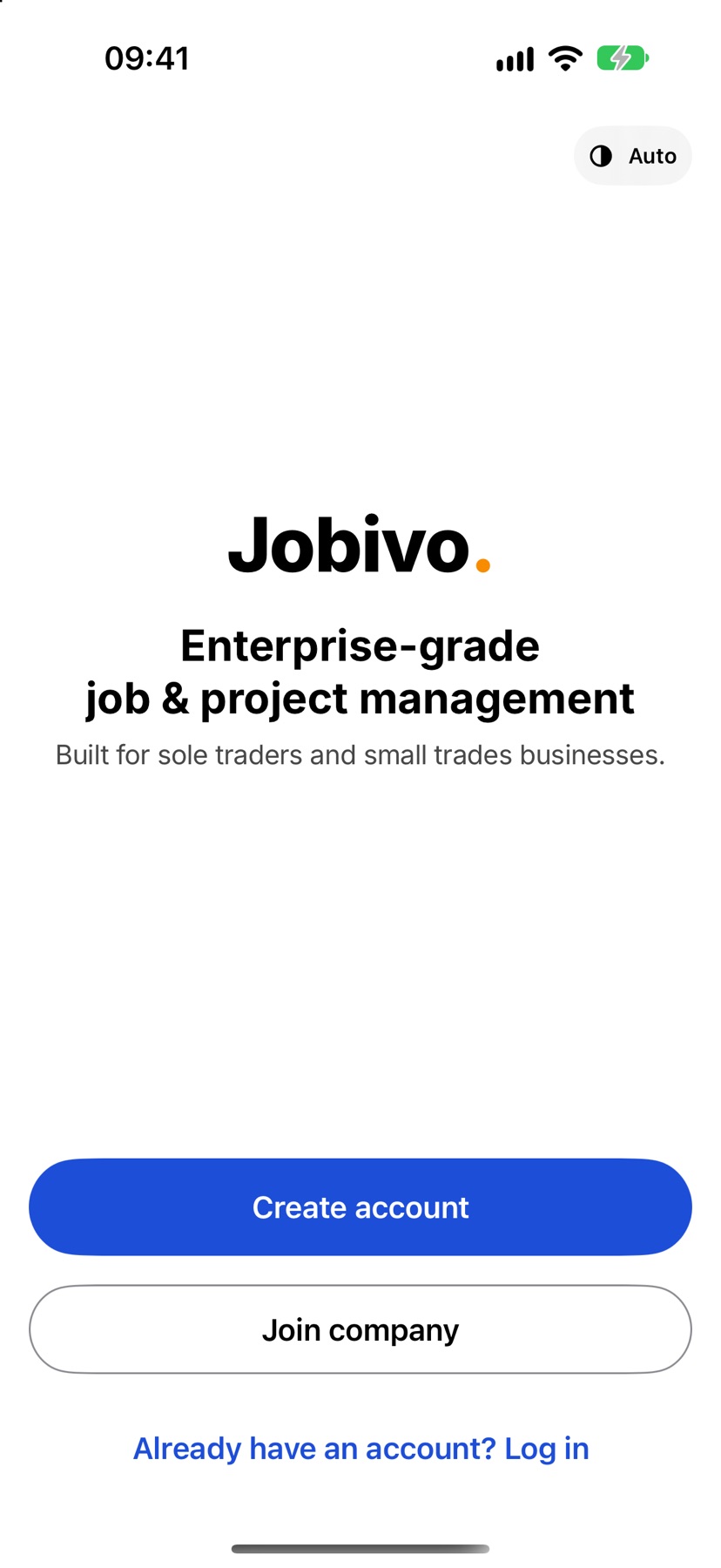
Open the app. The first screen offers Create account, Join company and Already have an account? Log in.
Log in with an account you already have
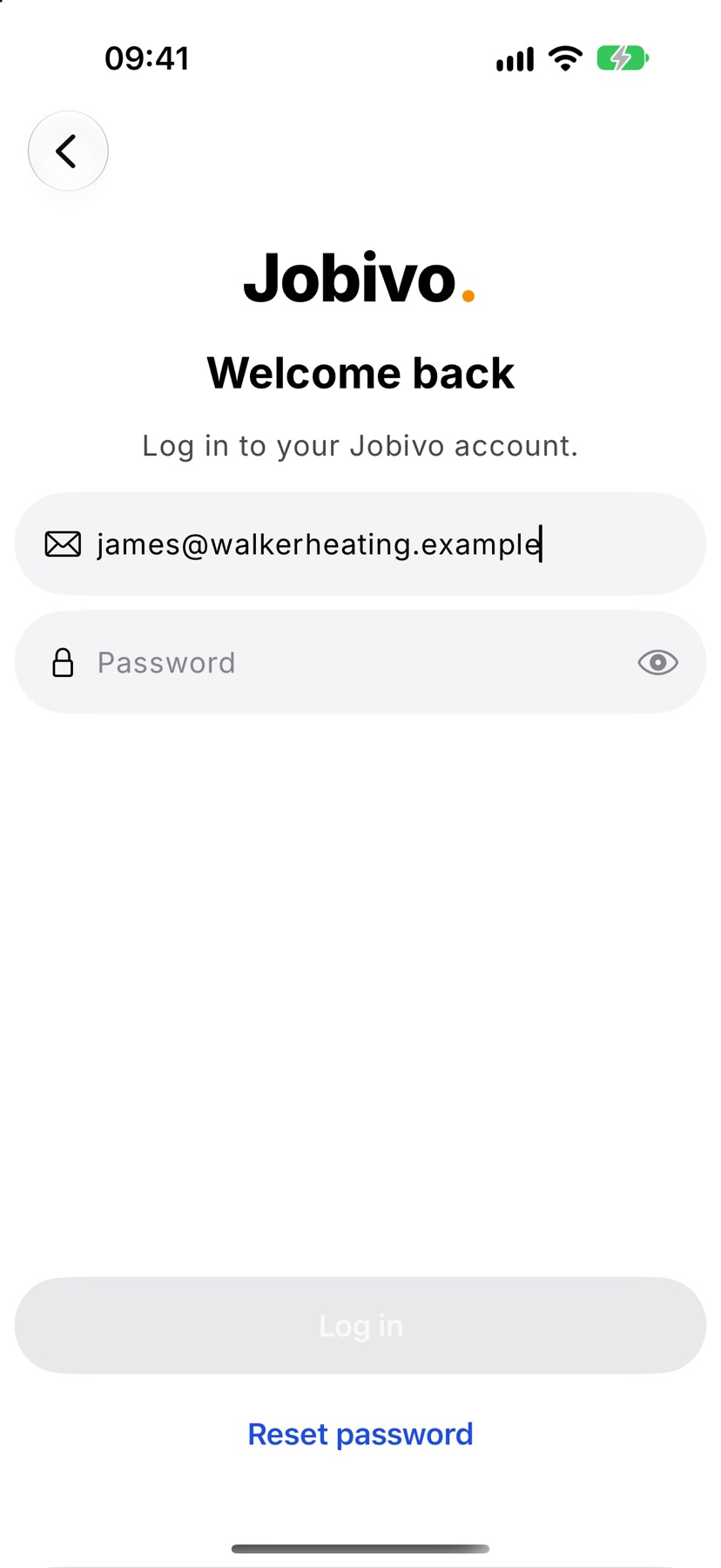
Tap Already have an account? Log in. On Welcome back, enter your email and password and tap Log in. The app opens on Home and downloads your company's data.
If you have forgotten the password, tap Reset password. Jobivo emails you a 6-digit code. Enter it, then choose a new password, and you are signed straight in.
Join from an invite
If your company emailed you an invite, open the link in it on your phone. The first screen of the app then says you have been invited, with the company's name. Tap Accept invite.
Your email is already filled in. Tap Continue, set a password, and tap Create account & sign in. You land in your company on the role you were invited as.
Join with a company code
Without an invite, tap Join company. Enter your work email and tap Continue. On Join your company, add your name and a password and tap Create account.
The next screen is Waiting to be connected. Under Have a company code?, type the code your company gave you and tap Connect with code. The app opens on your company.
If you have no code, stay on this screen. When your company approves you, the app lets you in without you doing anything.
Keep the app up to date
Updates arrive through the App Store or Google Play like any other app. Leave automatic updates on in your phone's settings and you will not need to think about it.
Now and then an update is needed before you can carry on. The app then shows an Update required screen. Tap Update now to go to the store, install the update and open the app again.
After you are signed in
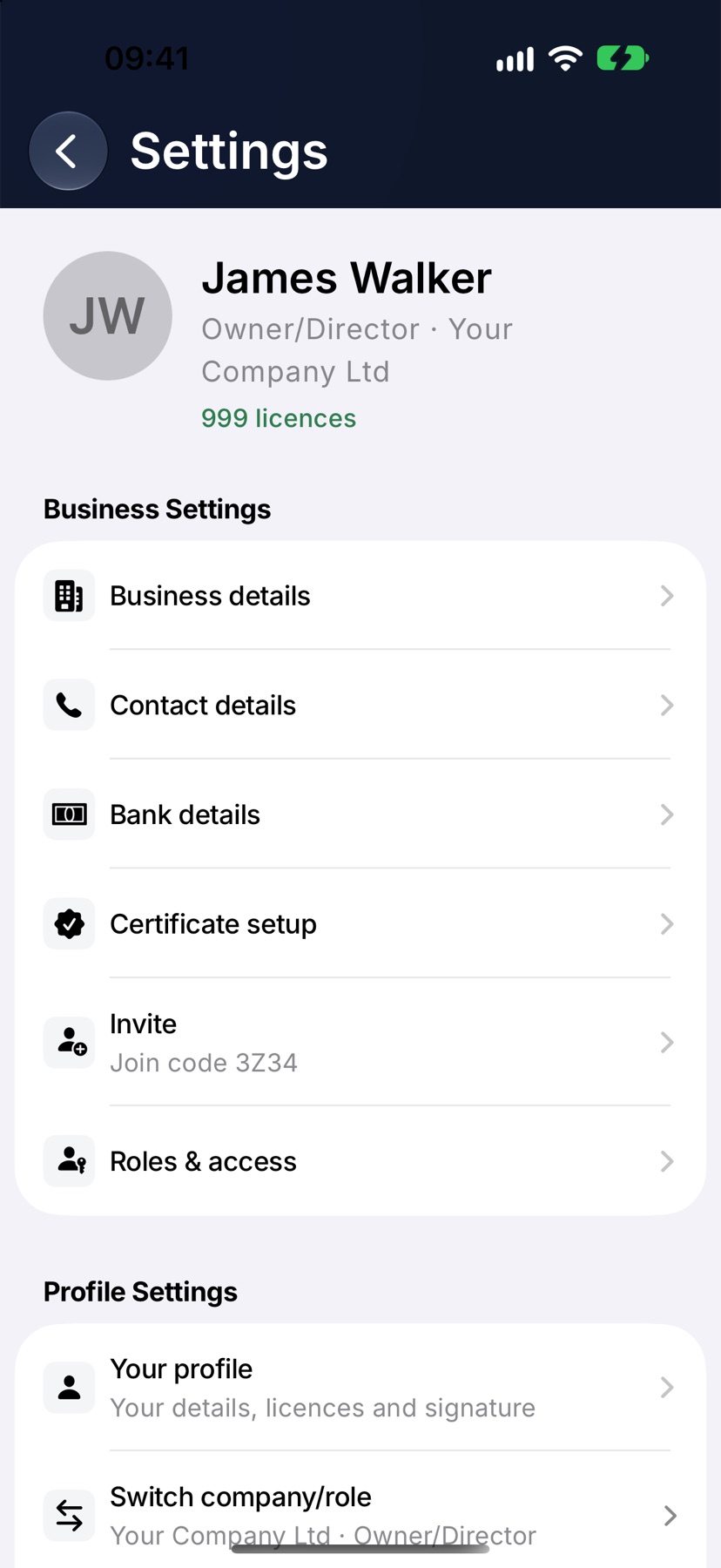
You stay signed in until you choose Sign out in Settings. If you belong to more than one company, Switch company/role in Settings moves between them.
More in The mobile app →
Still stuck? Email support@jobivo.co.uk and we'll get back to you.