Join codes and join requests
Share one code so people can join by themselves, and answer anyone who asks to join.
What join codes and join requests are
Your company has one join code. Anyone who enters it in the app joins your company straight away, with no invite email needed. It is the quick way to bring in people whose addresses you do not have.
A join request is different. It appears when someone creates an account with their work email and Jobivo matches that email to your company. They are not let in until you approve them.
Join requests are for the company owner to answer.
Where to start
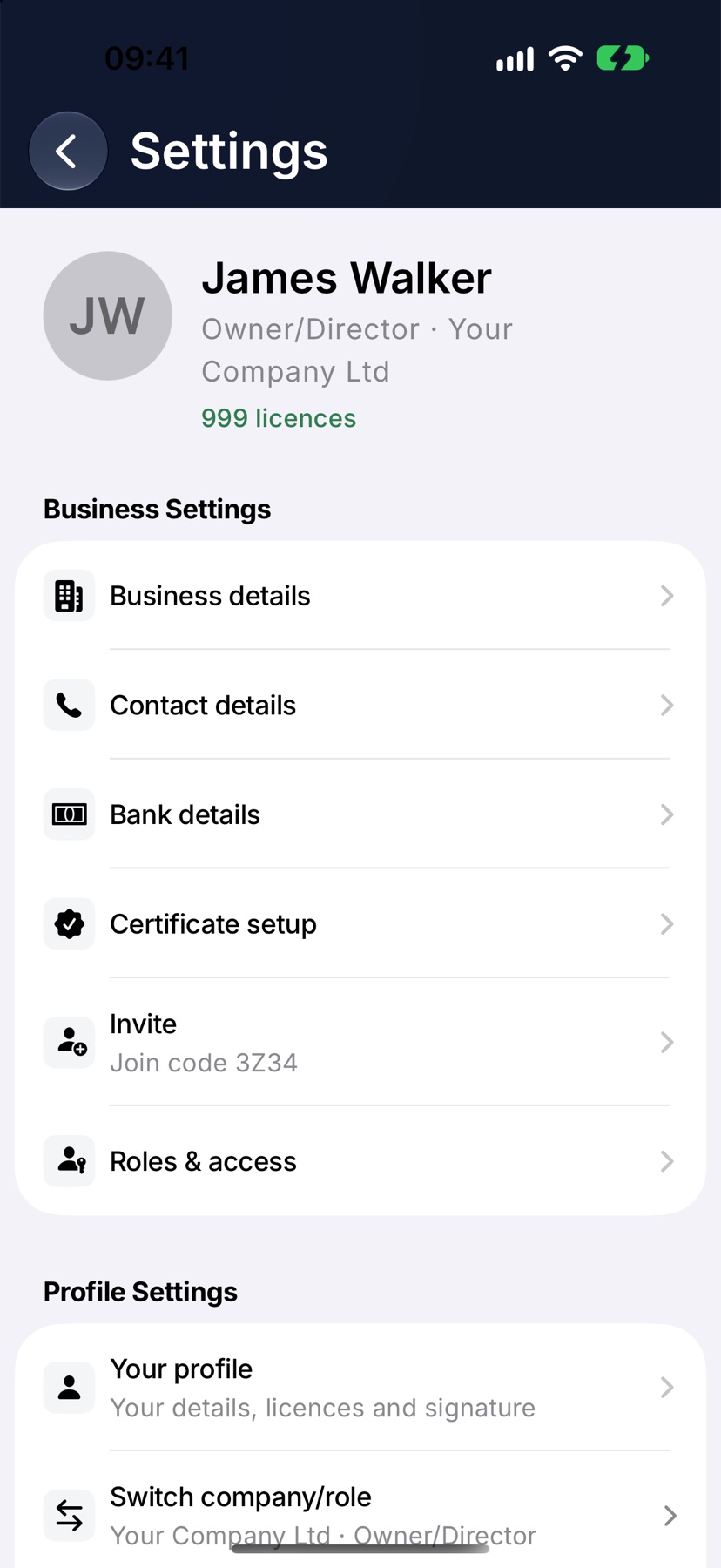
For the join code, open the menu with the three lines at the top left of Home, tap Settings, and find the Invite row under Business Settings. The row shows your join code. Tap it to open the Invite screen.
For a request, open the menu and tap Team. Anyone waiting is at the top of the page.
Share your company's code and link
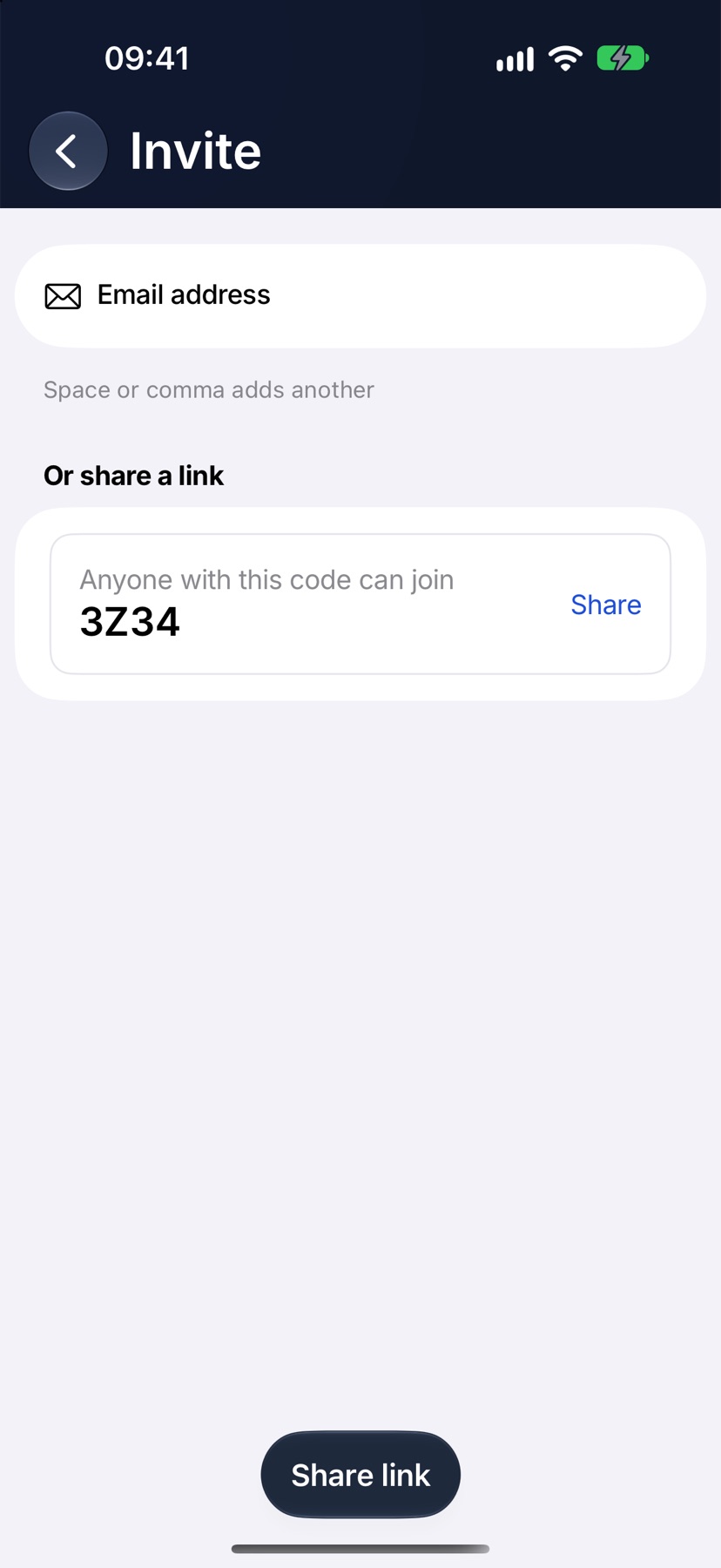
On the Invite screen, under Or share a link, a card shows the code with the line Anyone with this code can join. Tap the card, or Share link at the bottom, and choose how to send it.
The message contains a link and the code. The person opens the link, or taps Join company in the app and enters the code, and they are connected to your company.
See who is asking to join
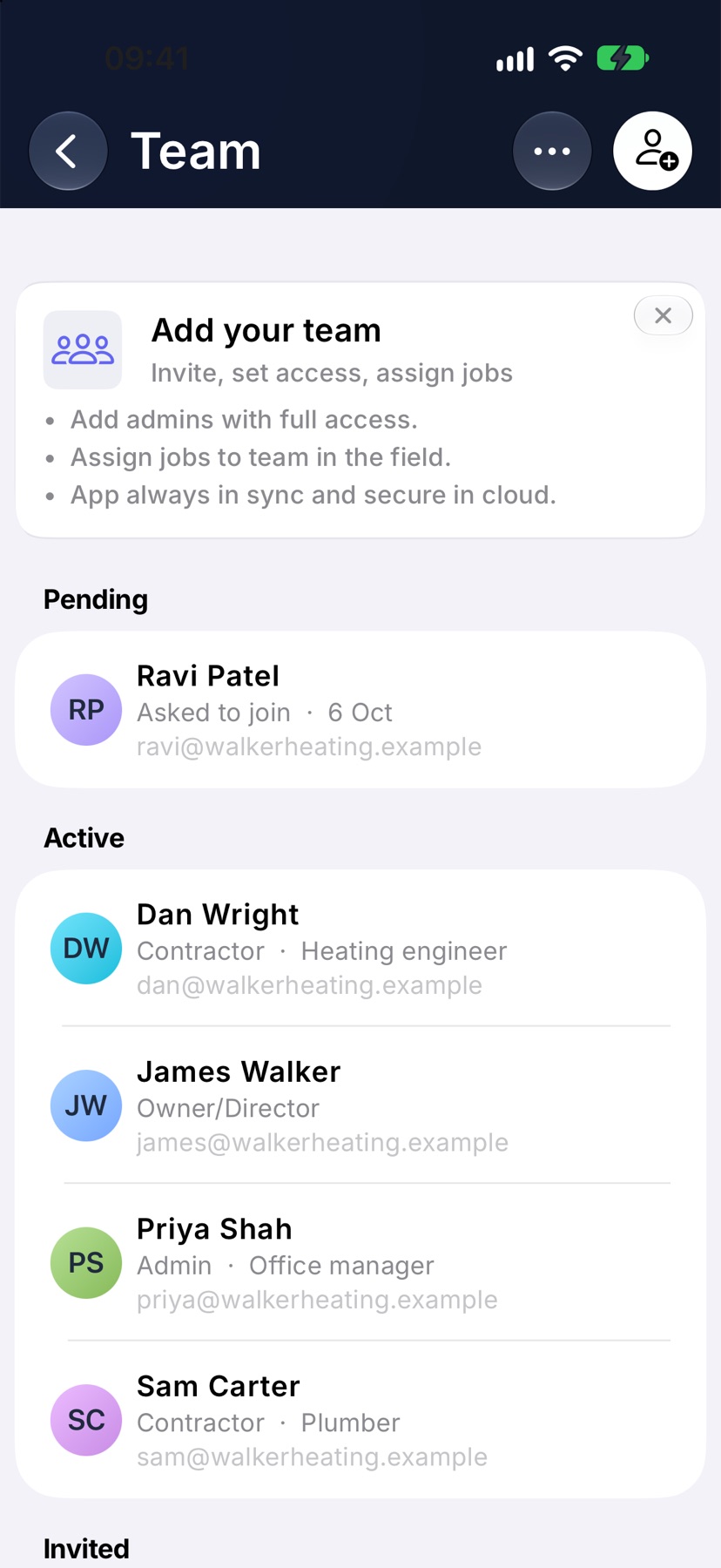
When someone is waiting, the Team page gains a Pending group above Active. Each person waiting has a row there with their name, email and the day they asked to join.
The menu also gains a Join requests row with a count, under Team. It lists everyone who is waiting. The row is only there while a request is open.
Approve a request
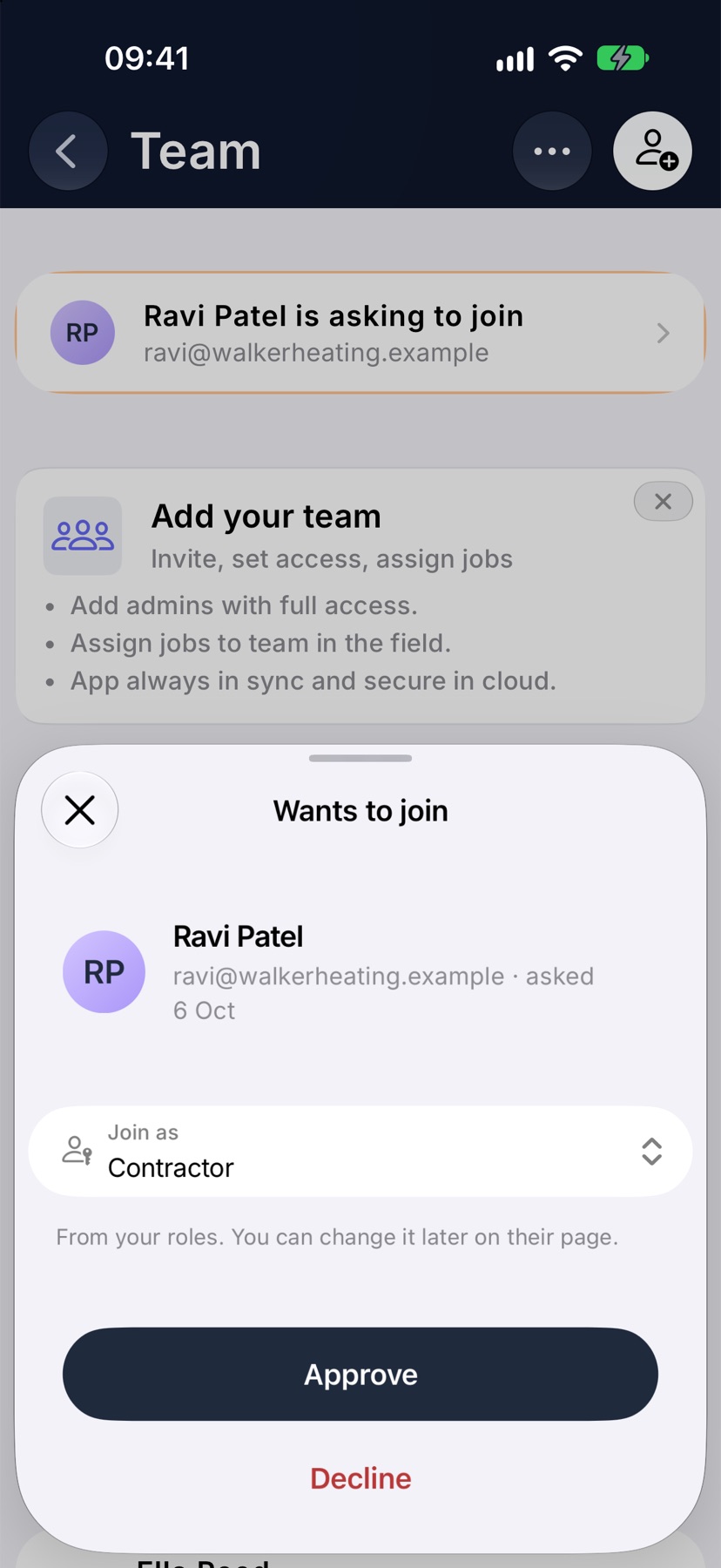
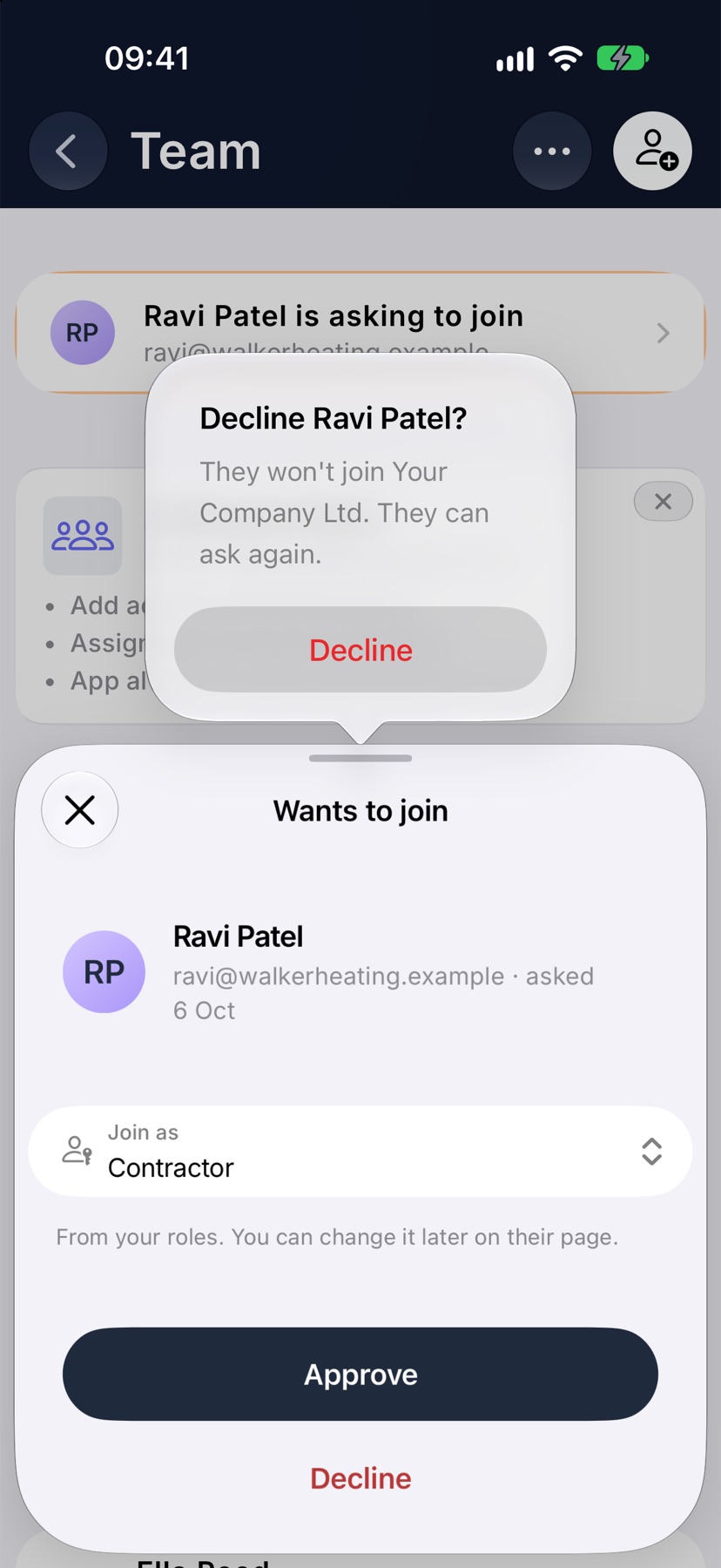
Tap the person under Pending. The Wants to join sheet opens with the person's name, email and the date they asked.
Check Join as. It starts on your default role for new people. Tap it to pick another of your roles, then tap Approve. The person moves into Active on the Team page. You can change their role later on their page.
Decline a request
On the same sheet, tap Decline. Jobivo asks you to confirm. Tap Decline again to refuse the request, or tap anywhere else to leave it waiting.
A declined person does not join your company. They can ask again.
What the person sees while they wait
Until you answer, the person's app shows Waiting to be connected. It tells them their account is ready and that they will come straight in once your company connects them.
The same screen asks Have a company code? If you give them your code, they can type it in and tap Connect with code to join without waiting for approval.
More in Team & roles →
- Invite your teamGet the people on site into Jobivo, and pick the right role for each of them.
- Roles and accessDecide what each role can see and do, module by module — and preview the app as them.
- Change, deactivate or remove someoneChange a person's role, pause their access, or remove them — and what happens to their work.
Still stuck? Email support@jobivo.co.uk and we'll get back to you.