Roles and access
Set what each role can see and do, module by module, then look at the app the way that role does.
What a role is
A role decides which parts of Jobivo someone sees, and whether they can change what they find. Every person on your team holds one role.
Your company starts with a set of roles. The Owner/Director role is fixed to the person who created the account and can see and change everything. The others are yours to edit, and you can add your own.
Only the owner can open and change roles.
Where to start
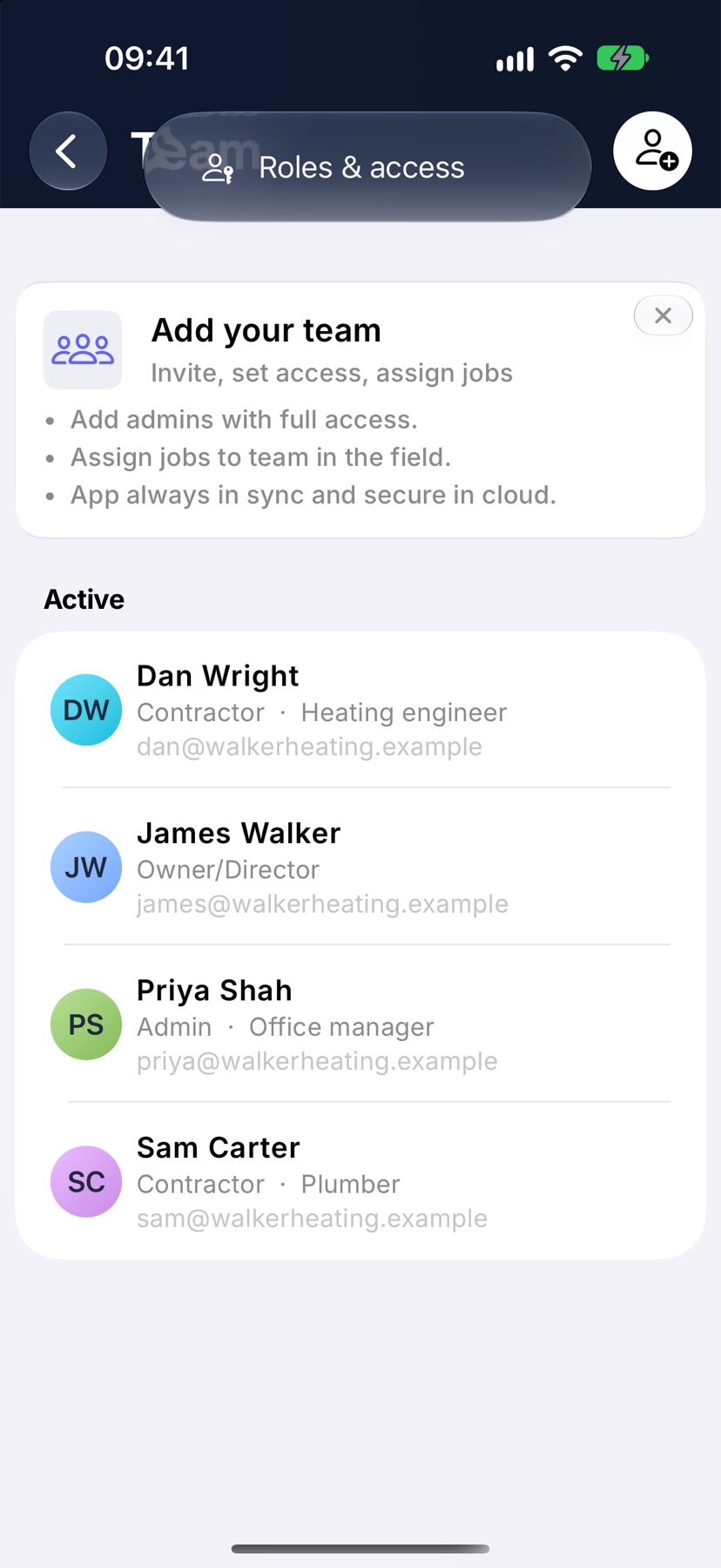
Open the menu with the three lines at the top left of Home and tap Team. Tap the three dots at the top right and choose Roles & access.
The same page is in Settings, under Business Settings, as the Roles & access row.
Read the list of roles
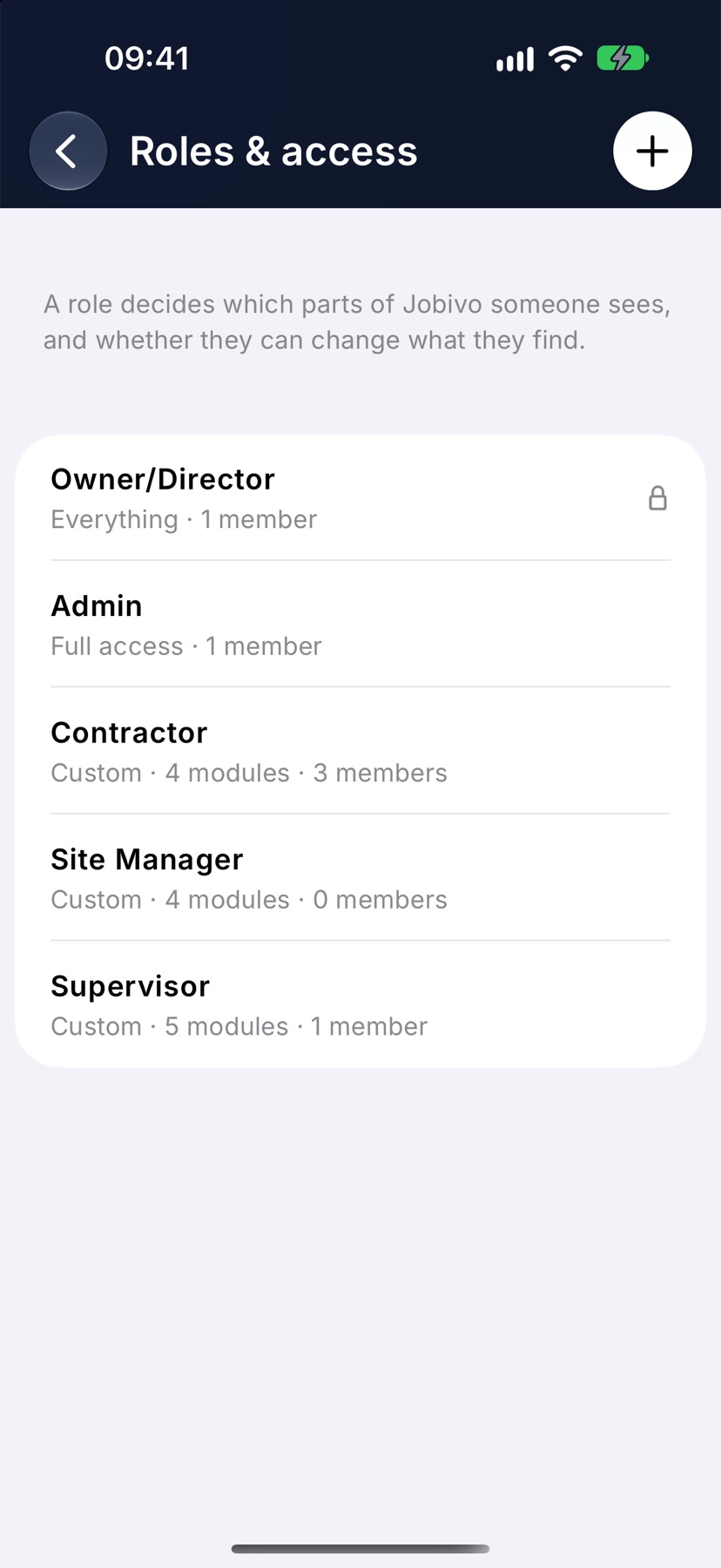
Each role is a row with its name and a short line underneath. The Owner/Director row carries a padlock and does not open, because that role cannot be changed.
Tap any other role to open it.
Set the access for each module
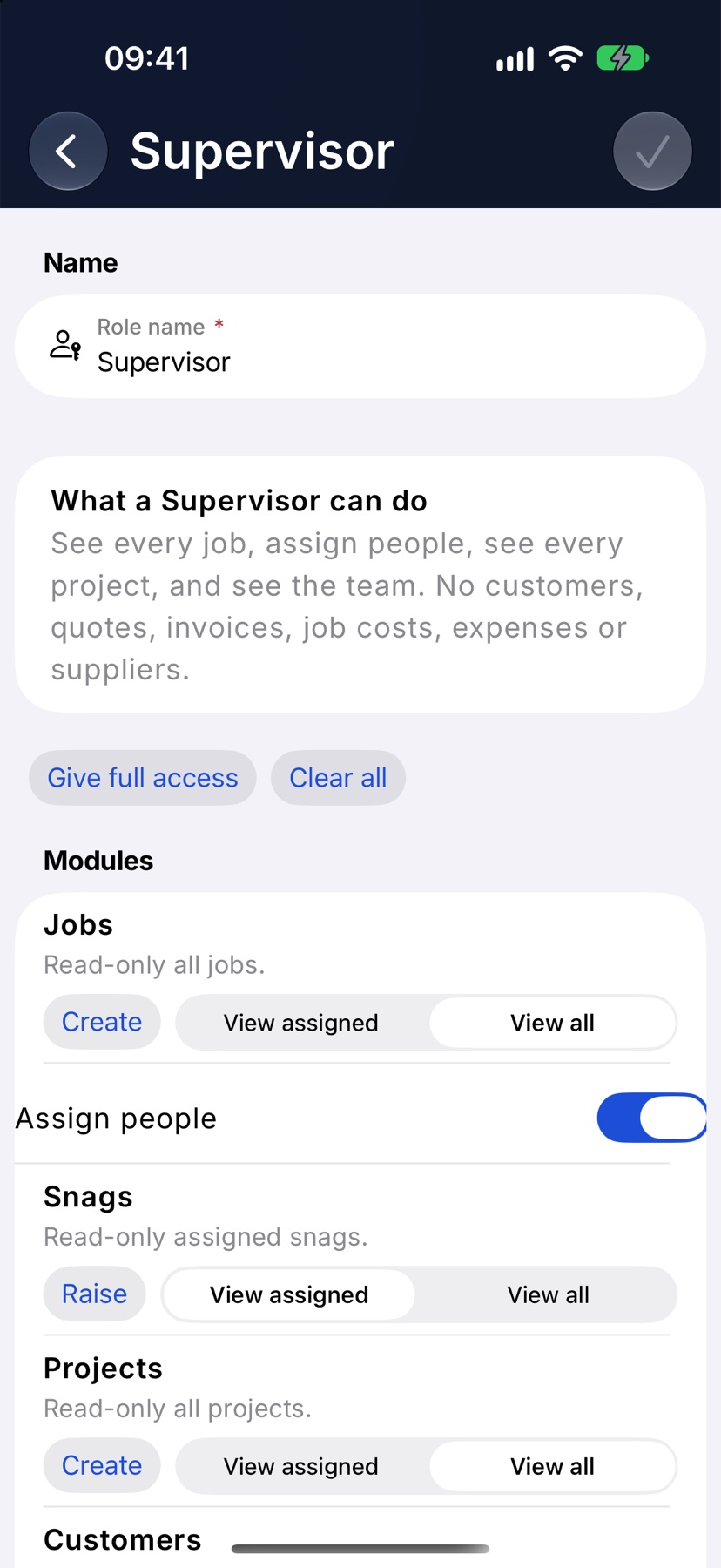
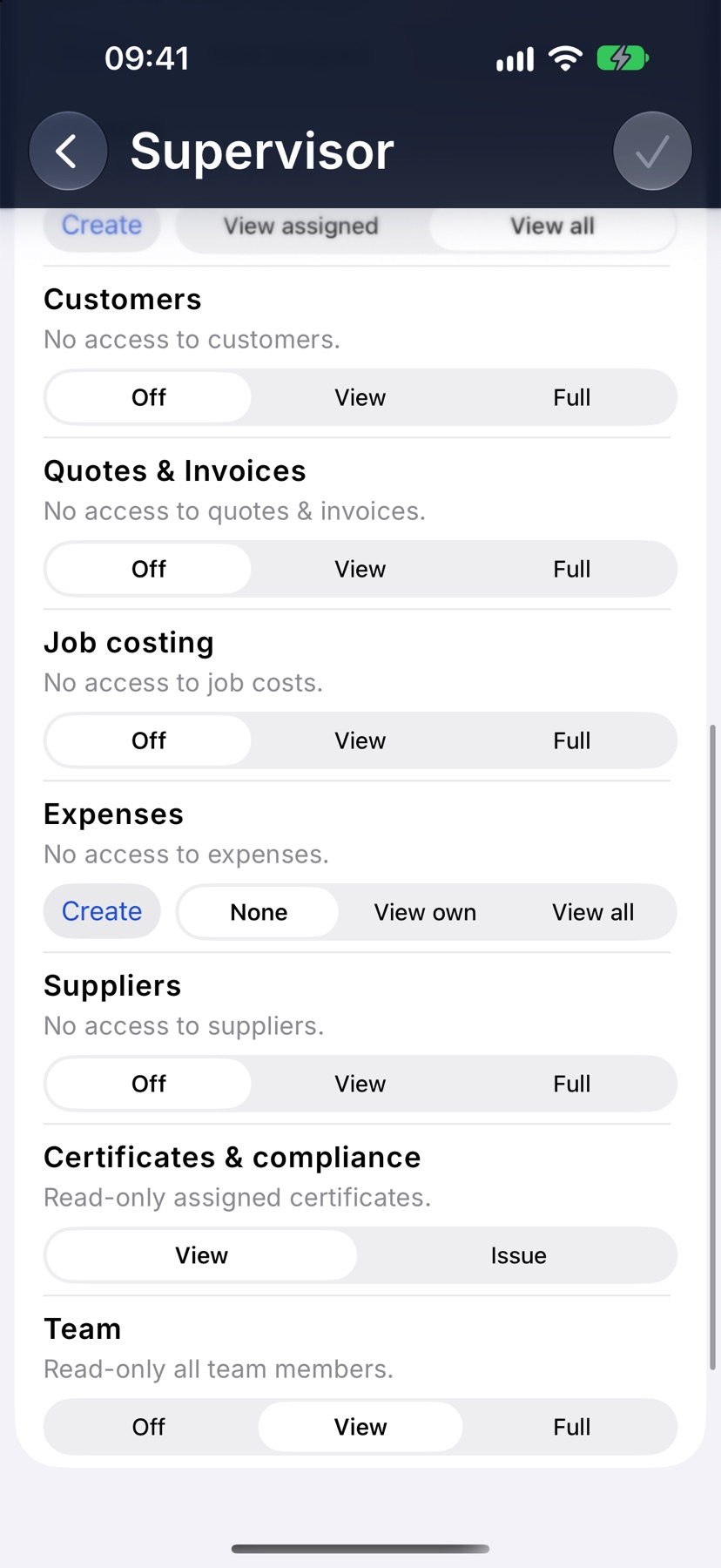
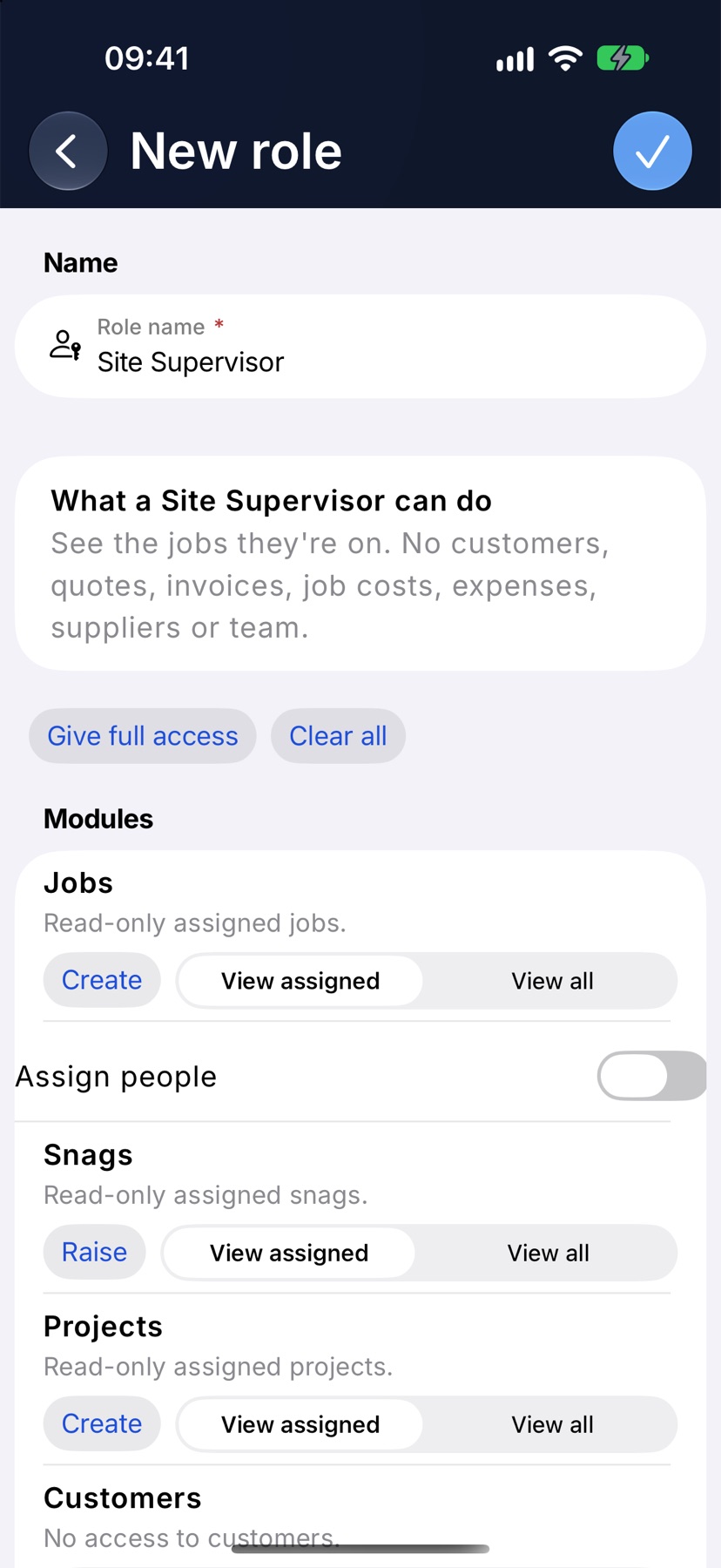
A role's page lists your modules under Modules, one row each, with a line beneath the name saying what the current setting allows. A summary above the list describes the whole role in words and updates as you change things.
Most modules have three choices. Off hides the module. View lets the person read it. Full lets them add and change records. On Certificates & compliance the top choice is Issue.
Jobs, Projects and Expenses are set in two parts. The Create button decides whether the person can add their own. The choices beside it decide what they can see: None, View assigned or View all. Expenses says View own, and Snags has a Raise button in place of Create.
Under Jobs, the Assign people switch decides whether the role can put people on jobs. To set everything at once, use Give full access or Clear all above the list. Tap the tick at the top right to save.
Create a custom role
On Roles & access, tap the plus at the top right. The New role page opens.
Type a Role name, set each module the same way as above, and tap the tick to save. The new role is then offered wherever you choose a role: when you invite someone, approve a join request or change a person's role.
Delete a role
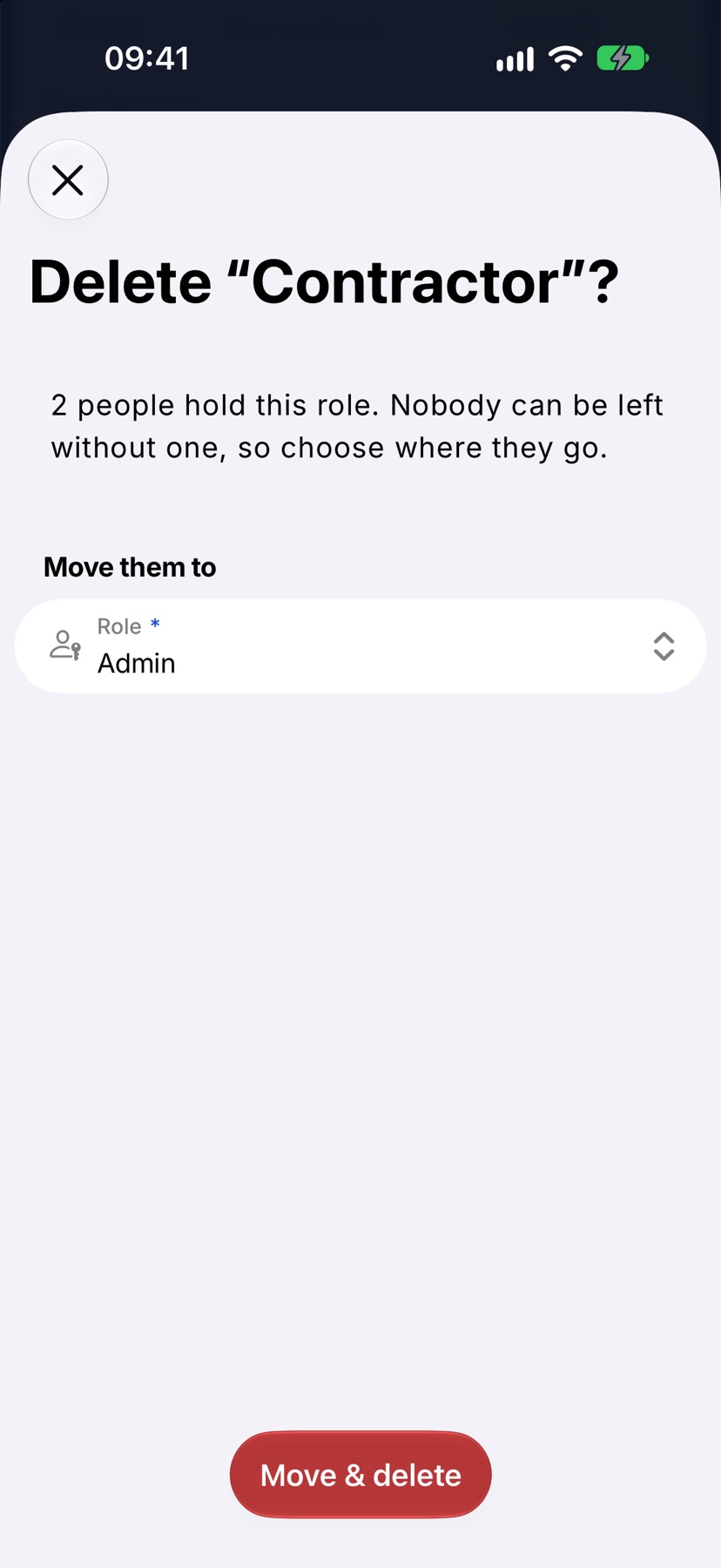
Open the role and tap Delete role at the bottom. If nobody holds it, confirm with Delete role.
If people hold the role, Jobivo asks where they should go. Pick a role under Move them to and tap Move & delete. Nobody is left without a role.
See the app the way a role does
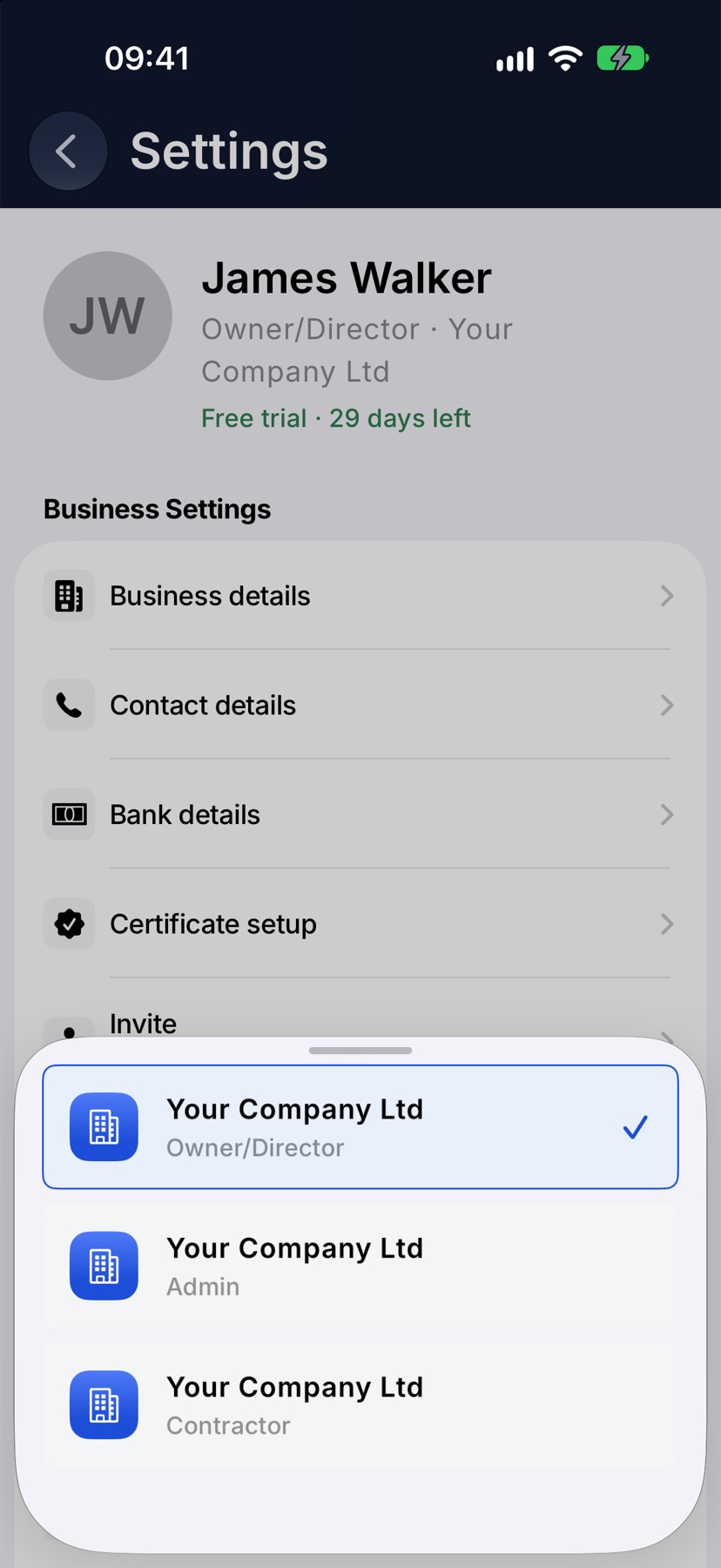
Open Settings and, under Profile Settings, tap Switch company/role. A sheet lists your company with each role you can look through. Tap one and the app redraws as someone on that role sees it: the menu, the tabs on a job and the buttons they would have.
Nothing about your own account changes. To go back, open Switch company/role again and tap your own role. The row's second line always shows which one is in force.
More in Team & roles →
- Invite your teamGet the people on site into Jobivo, and pick the right role for each of them.
- Join codes and join requestsShare one code or link, then approve the people who ask to join.
- Change, deactivate or remove someoneChange a person's role, pause their access, or remove them — and what happens to their work.
Still stuck? Email support@jobivo.co.uk and we'll get back to you.