Change, deactivate or remove someone
Change what someone can do, pause their access, or take them off the team, without losing their work.
What you can change about a team member
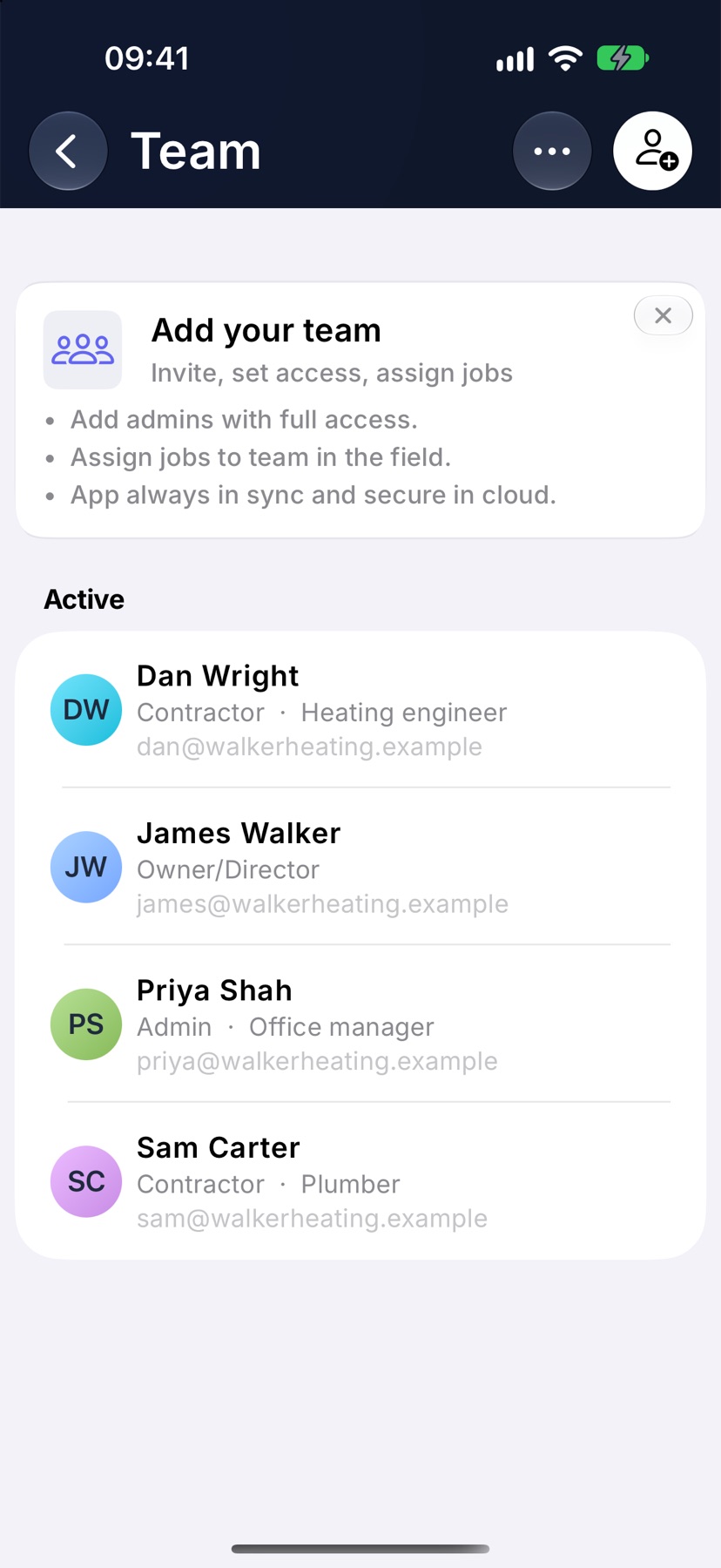
Each person on your team has a page of their own. From it you can change their role, correct their details, stop them signing in for a while, or remove them from the team.
None of these delete work. Jobs, photos and history a person recorded stay on the jobs they belong to.
You need full access to the Team module to manage other people. The owner cannot be deactivated or removed, and nobody can change their own role.
Where to start
Open the menu with the three lines at the top left of Home and tap Team. People are grouped under Active, Invited and Deactivated. Tap a person to open their page, titled Team member.
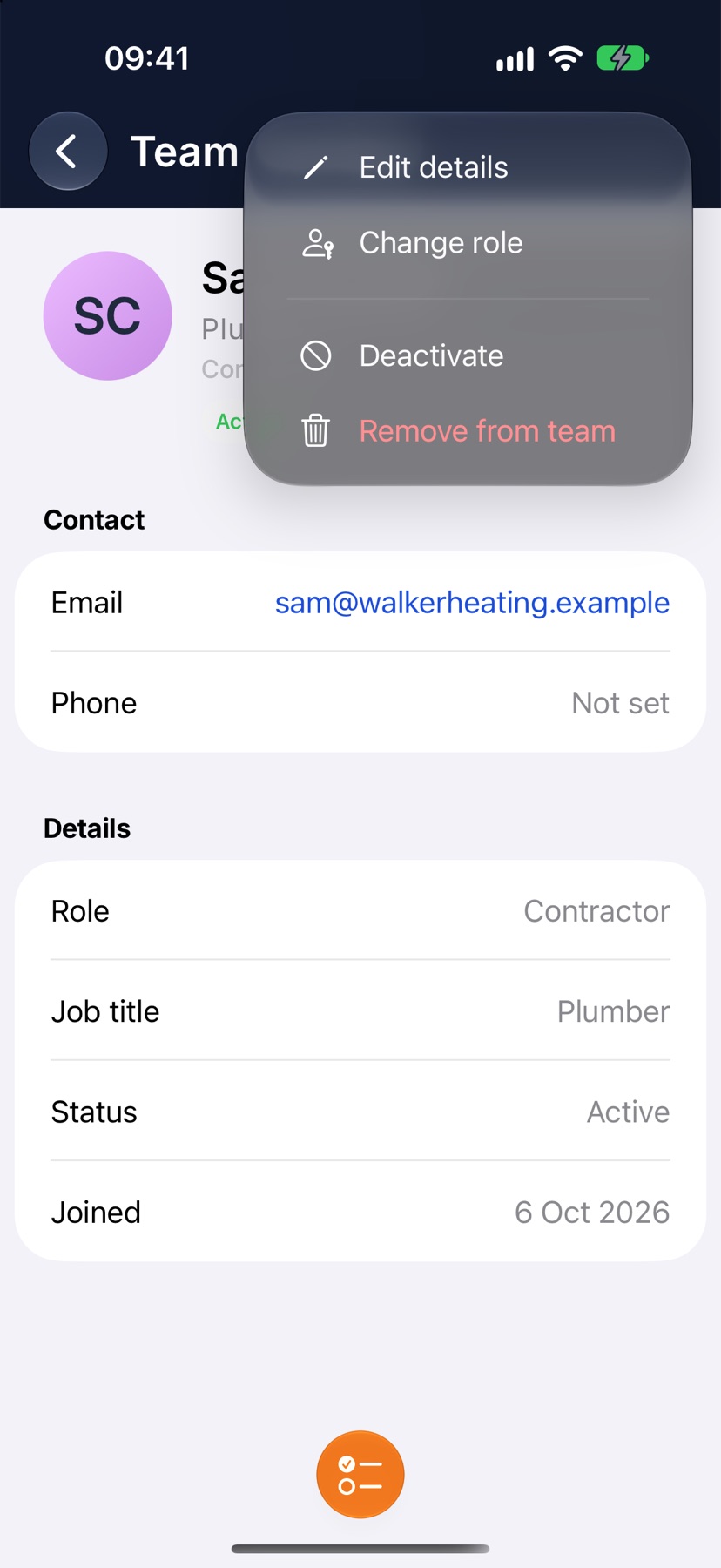
Everything in this guide is in the three-dot menu at the top right of that page.
Change their role
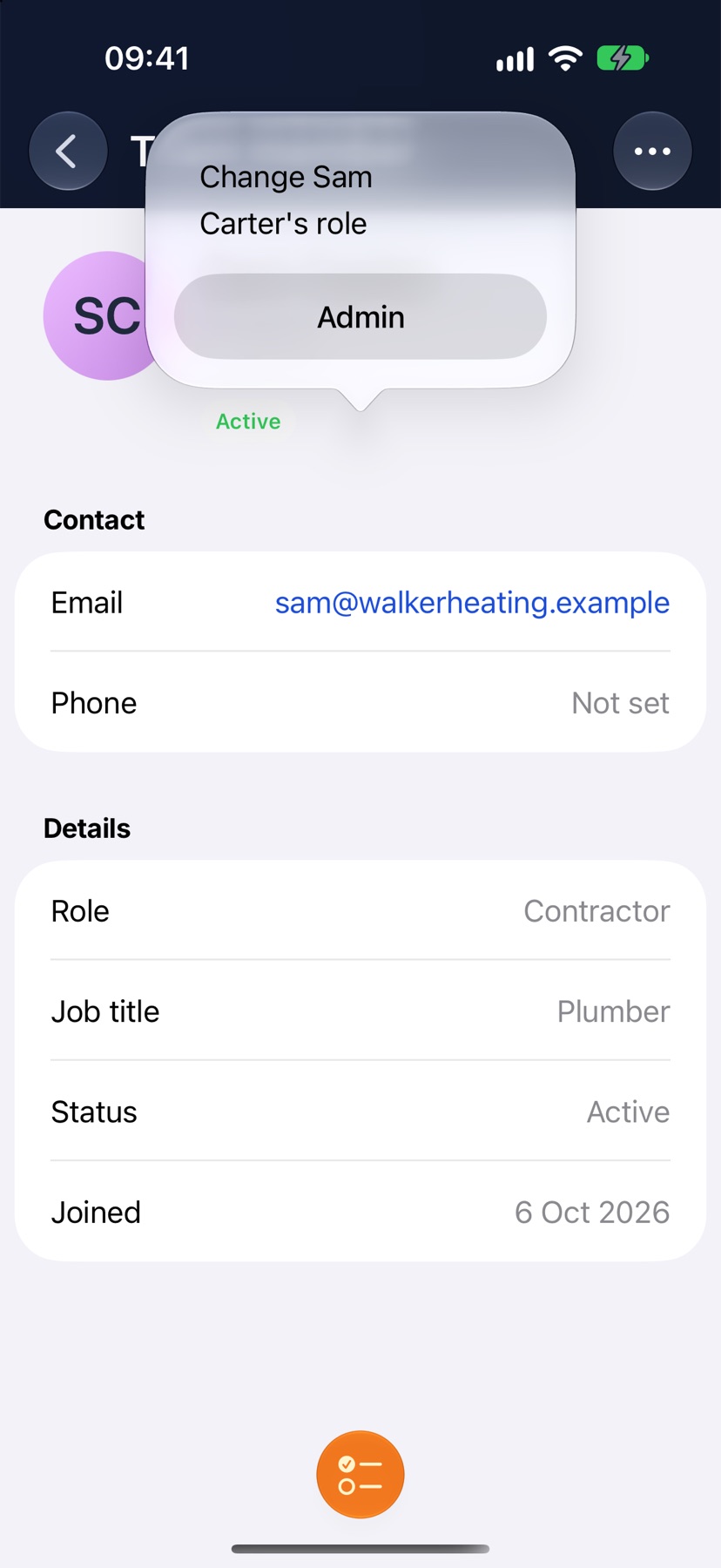
Open the menu and tap Change role. A list of your other roles appears. Tap the one they should hold. The change applies straight away and a message confirms it.
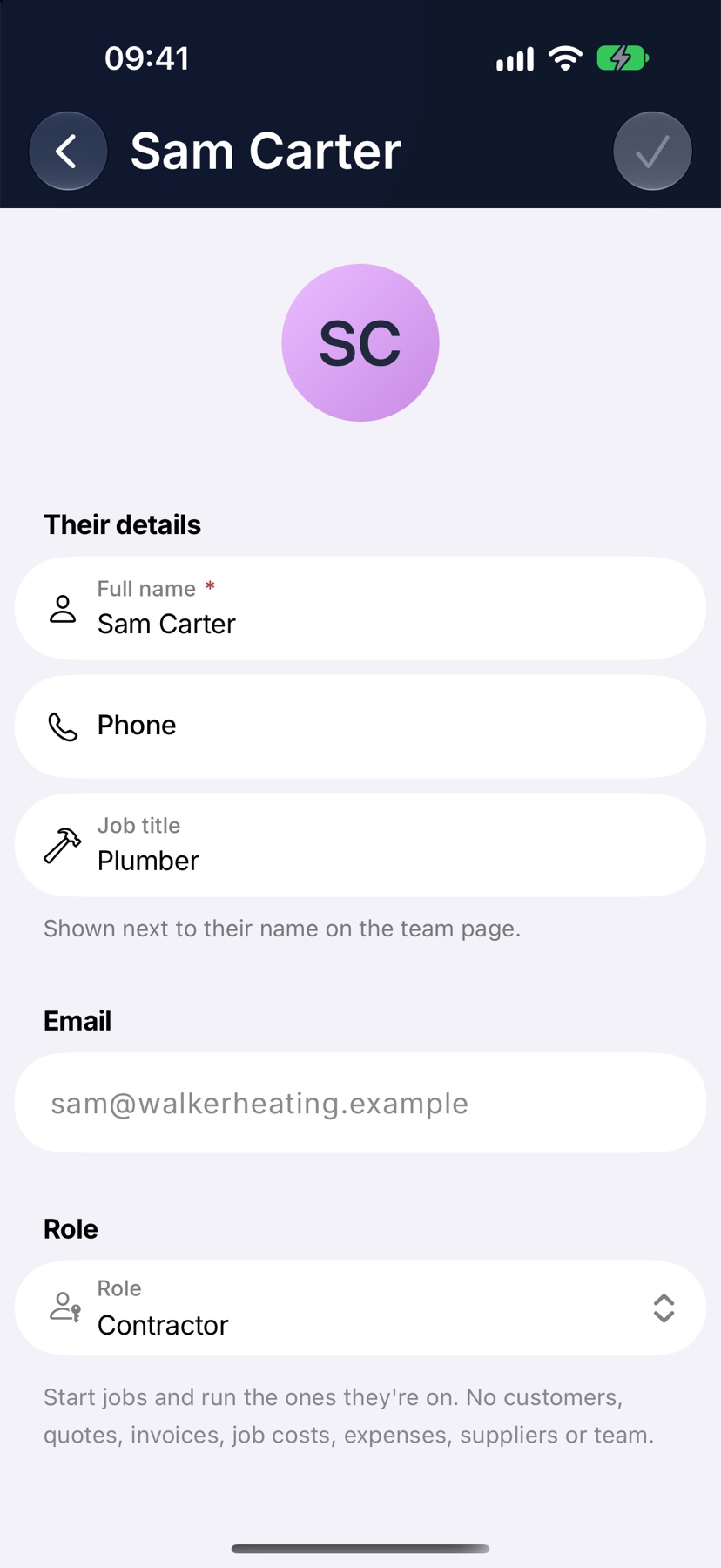
The role is also on the Edit details page, where the line under the Role field says in words what the chosen role can do.
Edit their details
Open the menu and tap Edit details. Under Their details you can change Full name, Phone and Job title. The job title shows next to their name on the Team page.
Their email cannot be changed here. Tap the tick at the top right to save.
Deactivate and reactivate
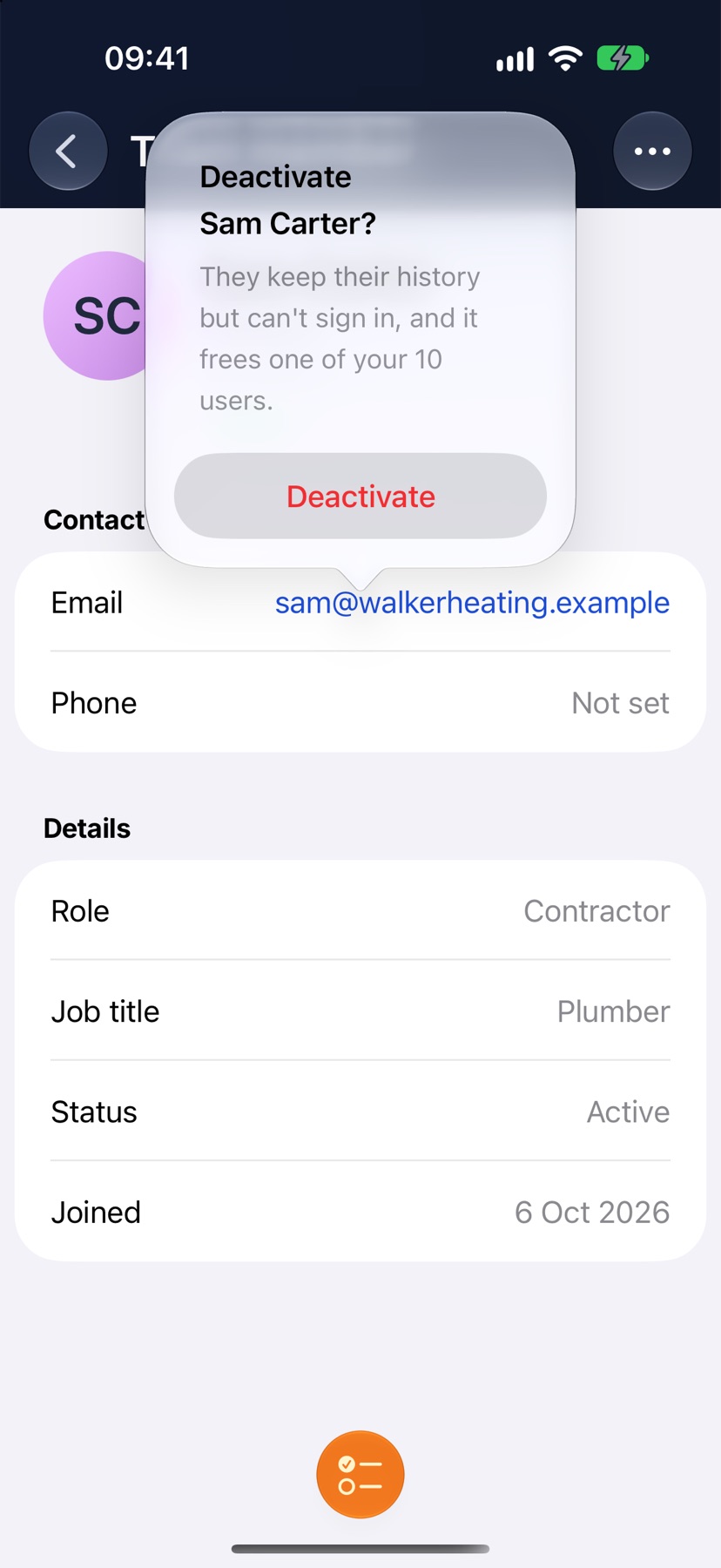
Open the menu and tap Deactivate, then confirm with Deactivate, or tap Keep to cancel. A deactivated person keeps their history but cannot sign in, and their place on your plan is freed for someone else.
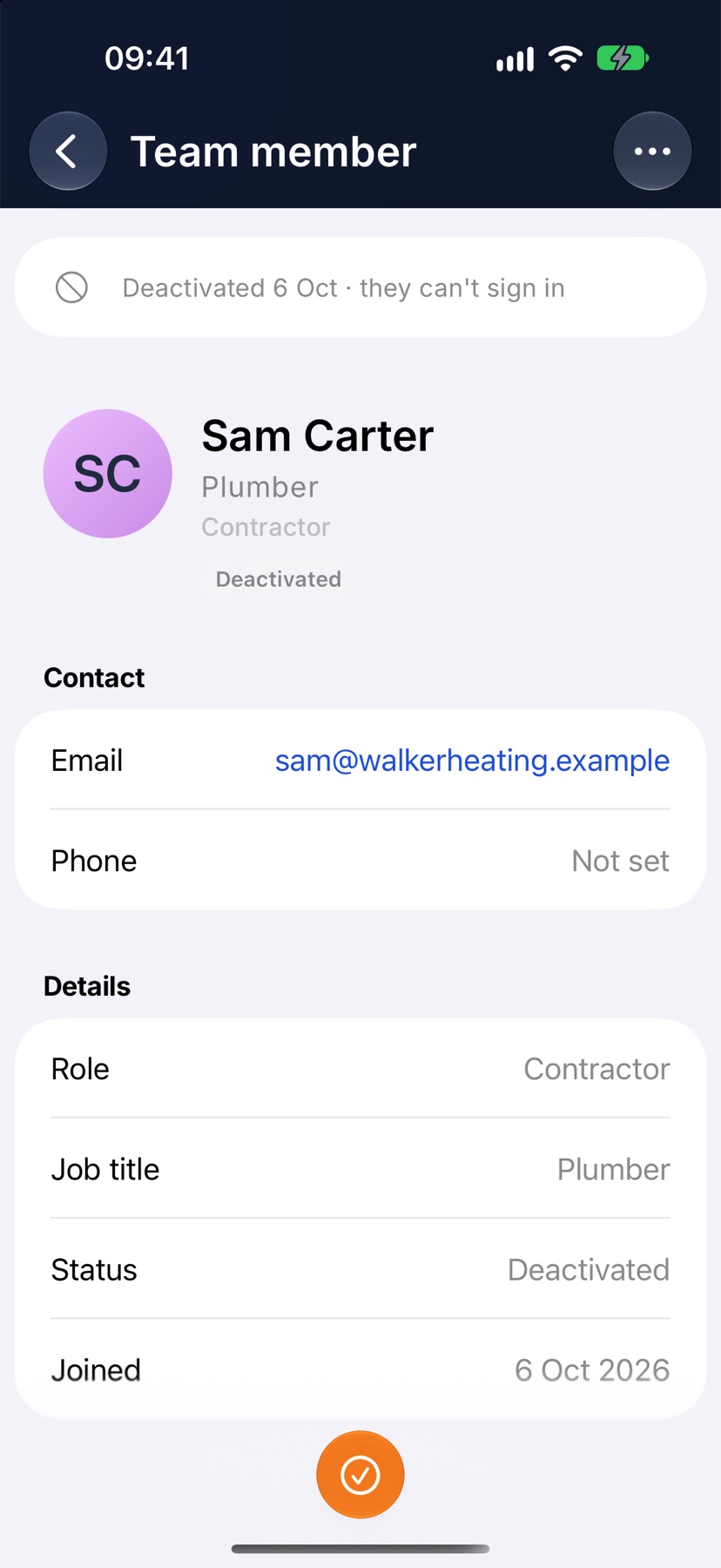
They move to the Deactivated group on the Team page, and their page says they are deactivated and cannot sign in. To bring them back, open their page and tap Activate at the bottom.
Remove someone from the team
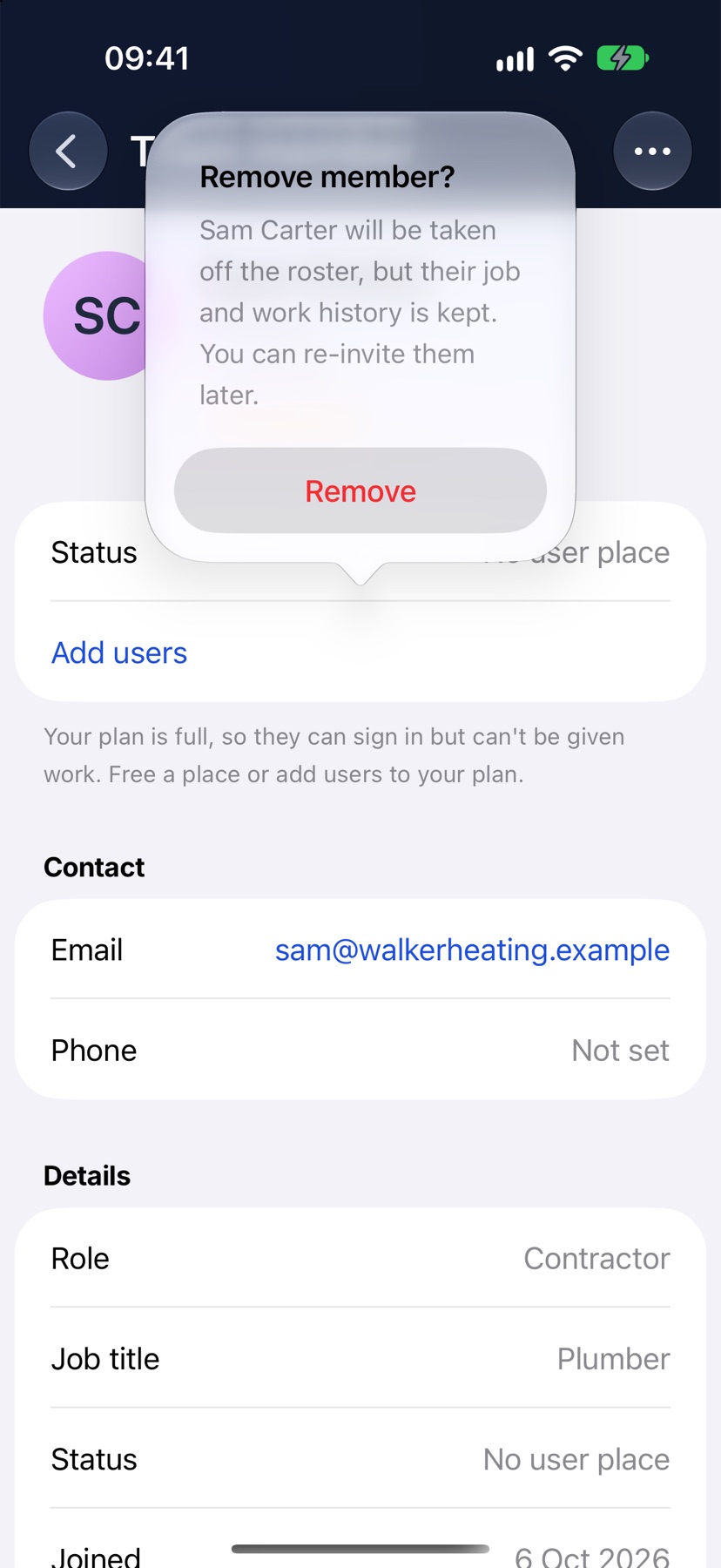
Open the menu and tap Remove from team. Jobivo asks Remove member? Tap Remove to confirm.
They are taken off the Team list, and their job and work history is kept. You can invite them again later.
When the team is full
The line at the foot of the Team page counts the users on your plan against the number it includes. On a free trial, a Team is full notice appears at the top once every place is taken. Tap it to see the plans.
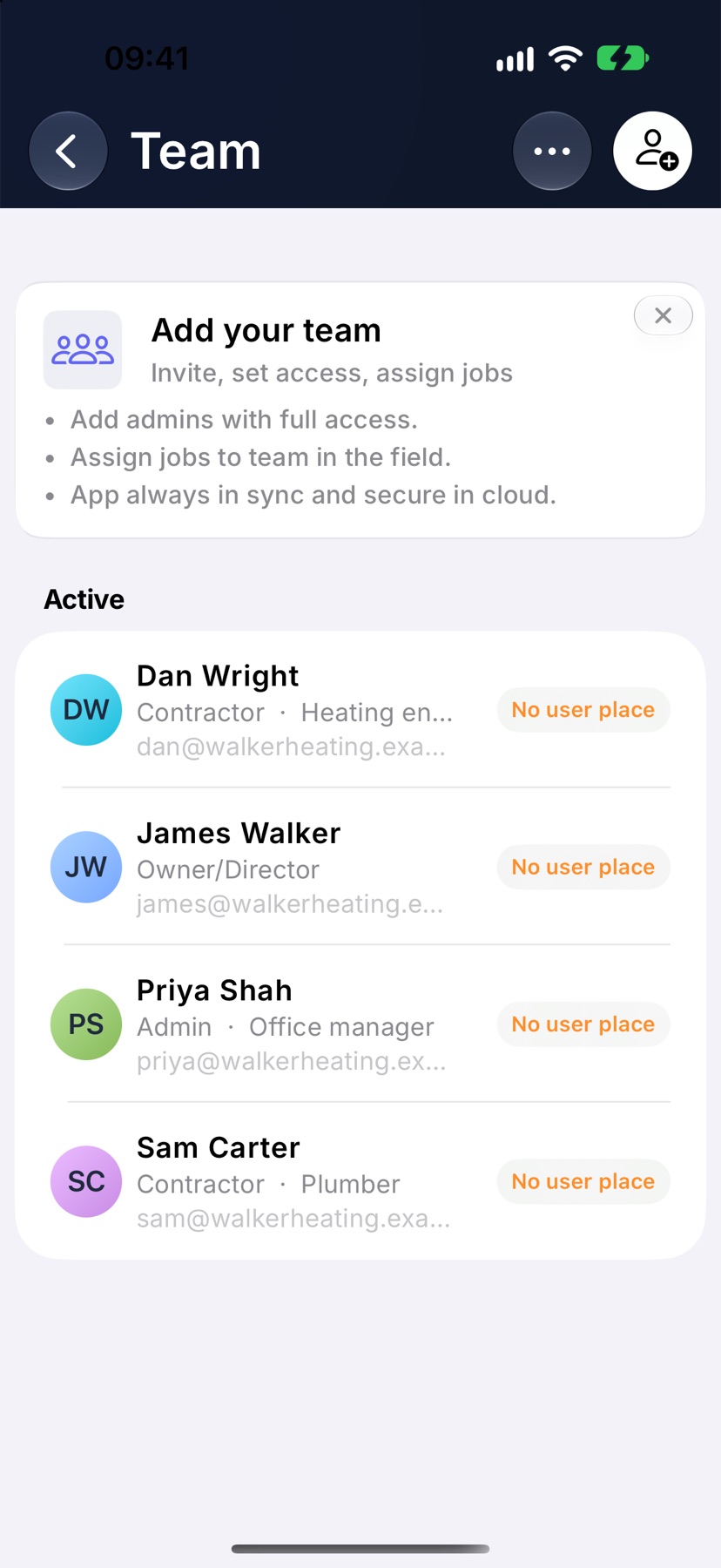
Someone who joins when there is no room shows No user place. They can sign in but cannot be given work. Free a place by deactivating or removing someone, or, as the owner, tap Add users on their page to add to your plan.
More in Team & roles →
Still stuck? Email support@jobivo.co.uk and we'll get back to you.