The appliance register
Keep each boiler, tank or heat pump on record against the property, and see every certificate that has named it.
What the appliance register is
The appliance register is the list of equipment at a customer's properties: gas and oil appliances, oil tanks, hot water vessels and heat pumps. Each one is recorded once, against the site it is in.
Once an appliance is on the register, a certificate can pick it from the list, so nobody retypes the make, model and serial number on every visit.
Appliances get onto the register in two ways. You can add one yourself, or the first certificate that names an appliance registers it for you.
Where to start
Open the menu with the three-line button at the top left, tap Customers and tap the customer. Scroll to Appliances, near the bottom of their page.
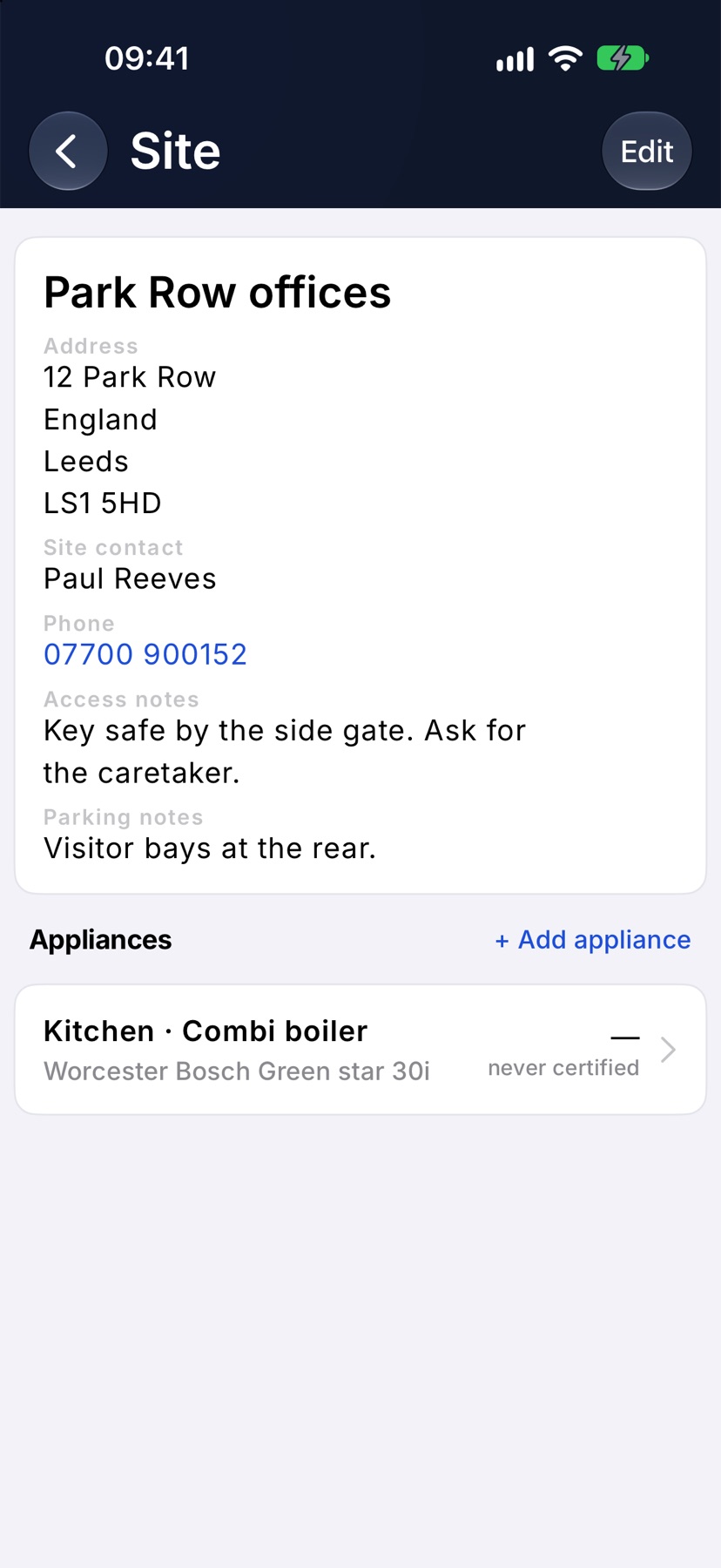
Each row shows the appliance, its make, model and serial number, and when it is next due or was last seen on a certificate.
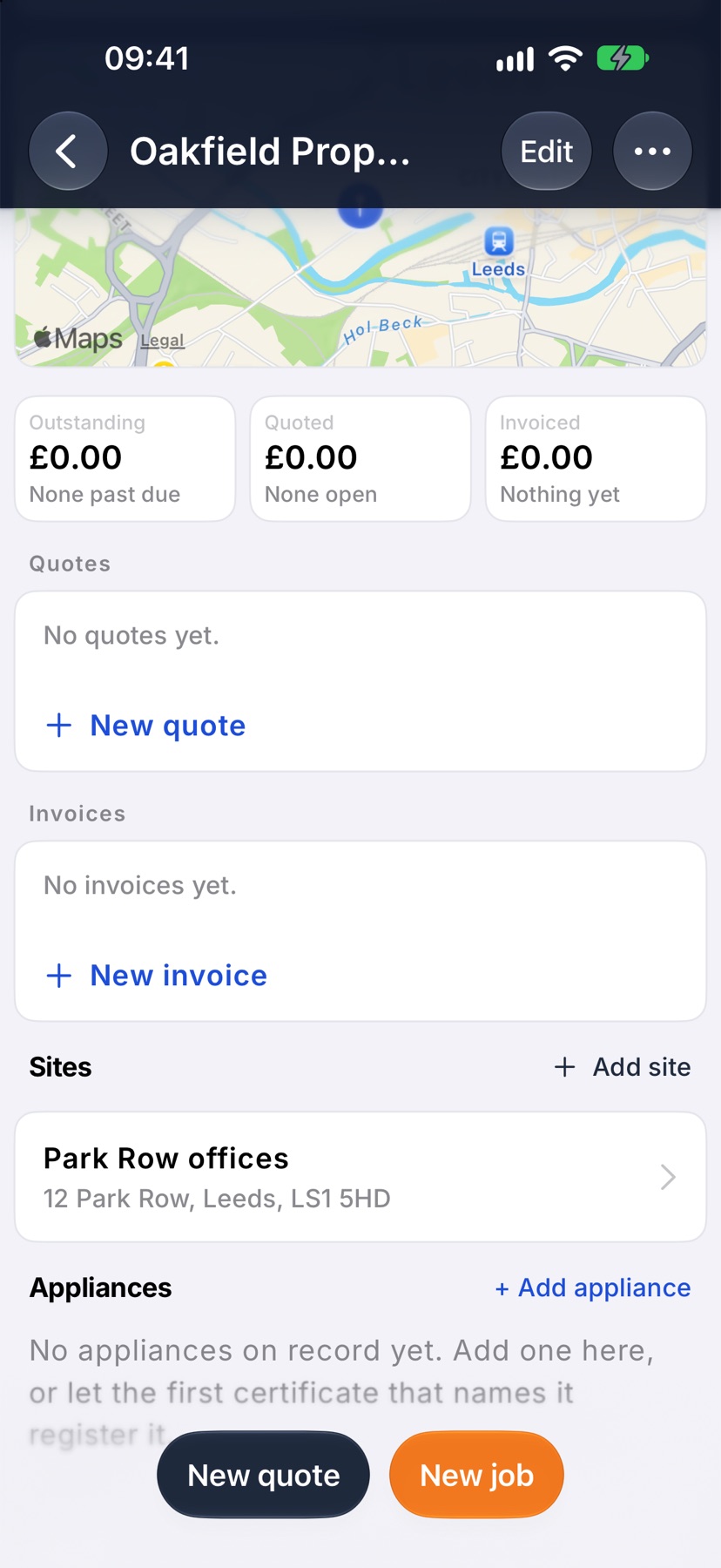
Add an appliance
Tap + Add appliance. Choose what the appliance is under What is it? The choices are Gas appliance, Oil appliance, Oil tank, Hot water vessel and Heat pump.
If the customer has more than one site, choose the address under Which property?
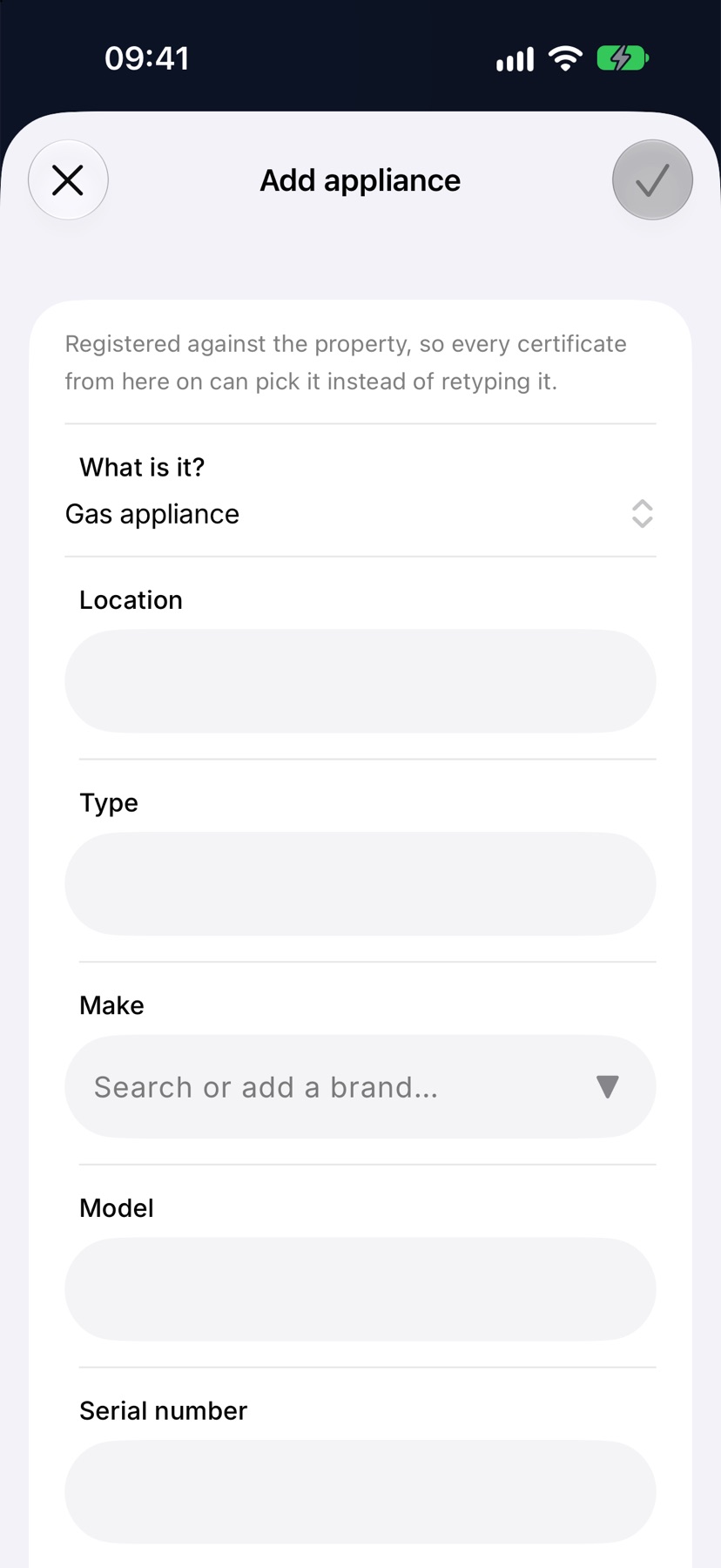
Record what identifies it
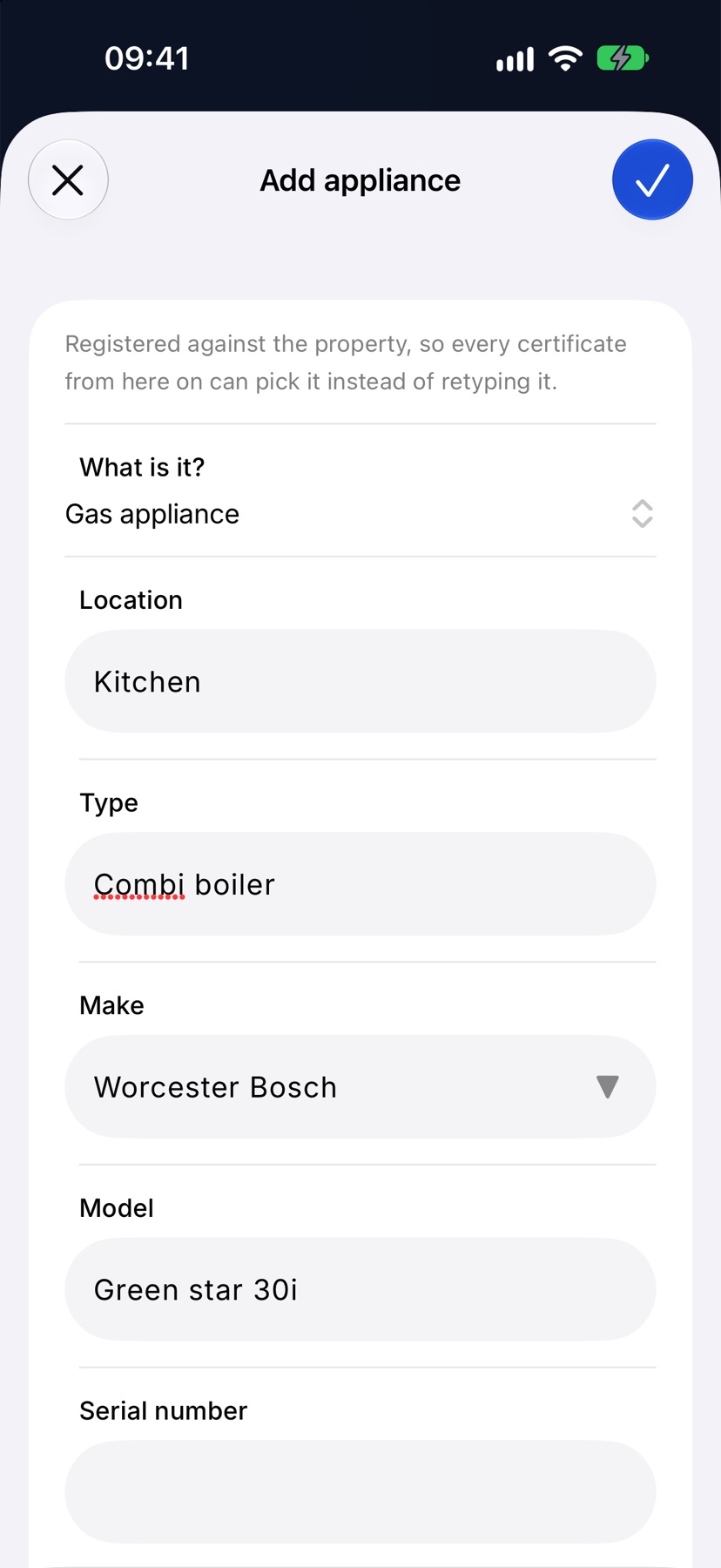
Fill in Location, Type, Make, Model and Serial number. A gas appliance also has GC number. The fields change with what the appliance is.
The appliance needs a serial number, or a make and a model, before it can be saved. That is what tells it apart from the next one. Tap the tick at the top right to add it to the register.
See an appliance's history
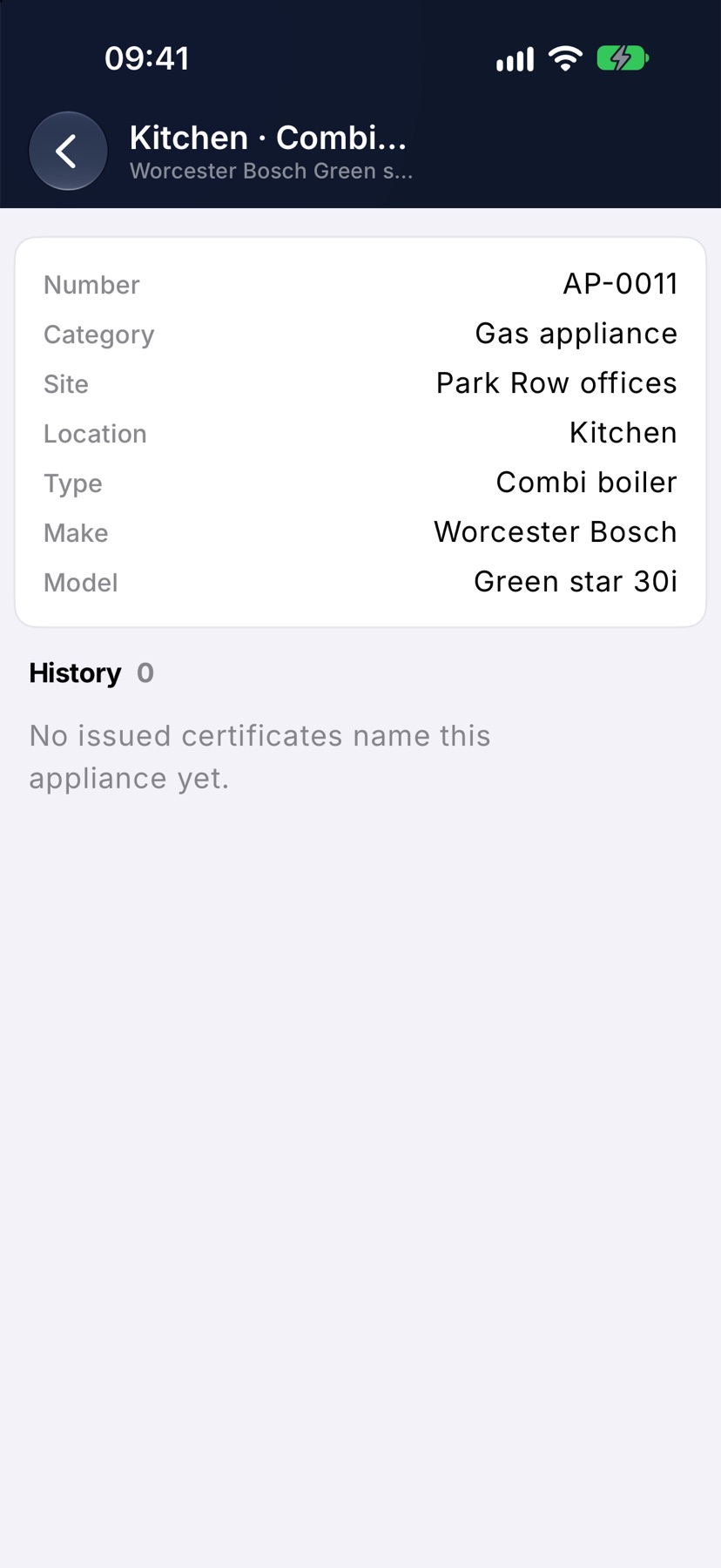
Tap an appliance in the list. Its page shows what the register holds about it, then History: every issued certificate that names this appliance, with the issue date and when it expires.
Tap a certificate in the history to open it on its job.
After an appliance is on the register
The next certificate at that property can pick the appliance from the register, and that certificate is added to the appliance's history when it is issued.
An appliance that has been taken out of use is marked Decommissioned and drops out of the main list. Tap Show on the line under the list to see decommissioned appliances again.
Tapping a site on the customer's page shows only the appliances at that address.
More in Customers & sites →
- Add a customerCreate the business you invoice, set their terms once, and let the address finder do the typing.
- The customer pageWhat they owe you, everything you've done for them, and the terms driving their paperwork.
- Add a siteRecord each address you work at, with access notes, parking and a site contact.
- Archive or restore a customerTidy away customers you no longer work for without losing their history.
Still stuck? Email support@jobivo.co.uk and we'll get back to you.