Archive or restore a customer
Hide a customer you no longer work for, keep all of their history, and bring them back when you need to.
What archiving does
Archiving hides a customer from the Customers list and from the customer search on new jobs and quotes. It is for customers you no longer work for.
Nothing is deleted. Their jobs, documents and history are all kept, and anything they already have still opens.
An archived customer can be restored at any time, and comes back exactly as they were.
Where to start
Open the menu with the three-line button at the top left, tap Customers and tap the customer you want to archive. On their page, tap the three-dot button at the top right, next to Edit.
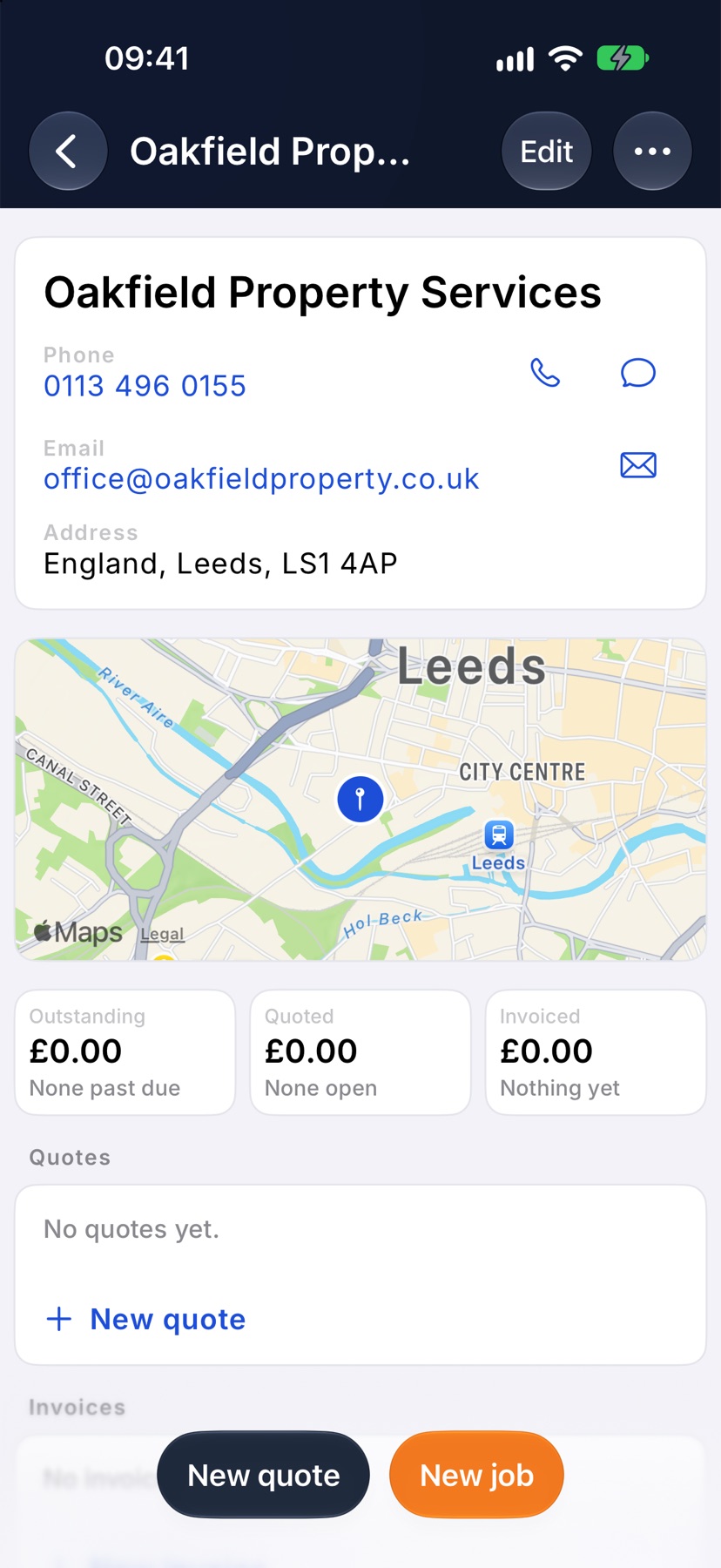
Archive the customer
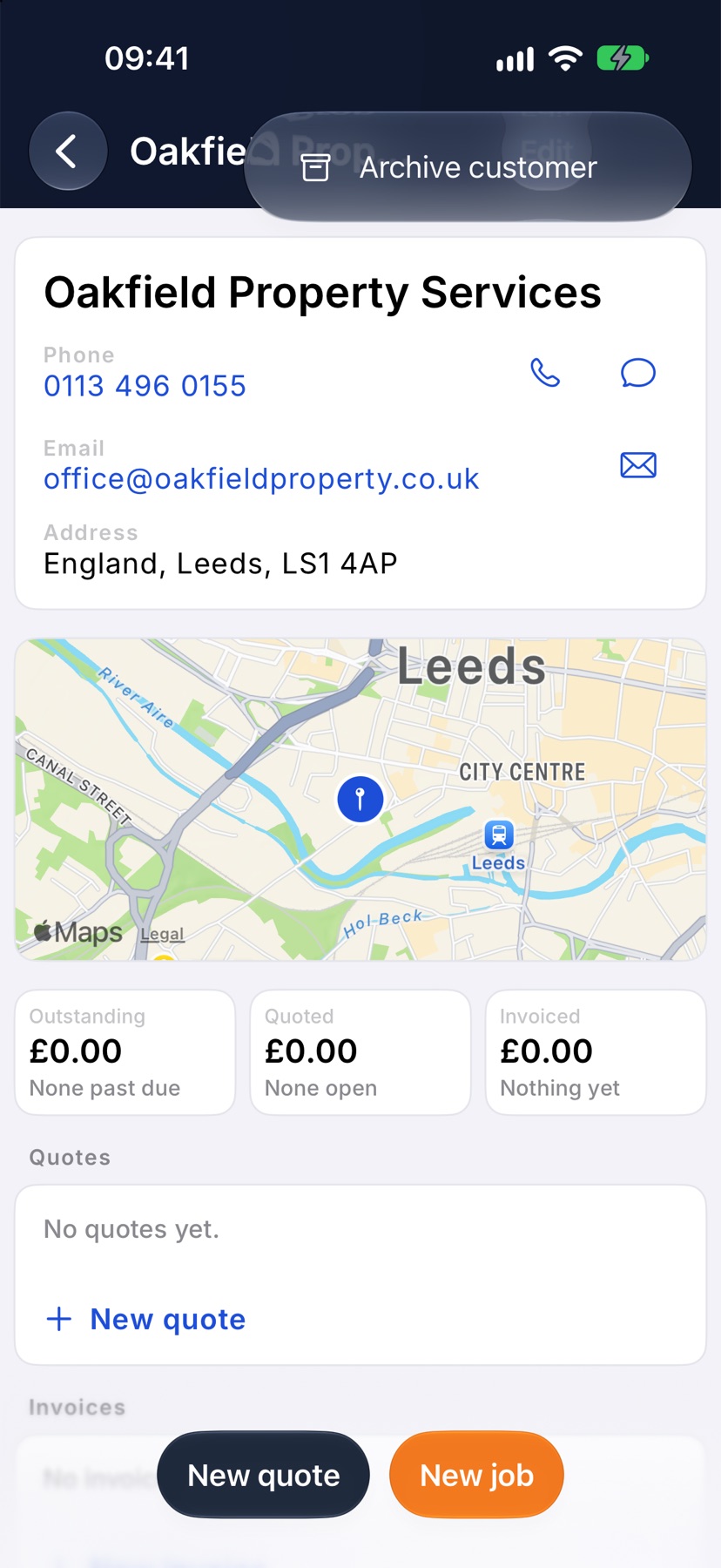
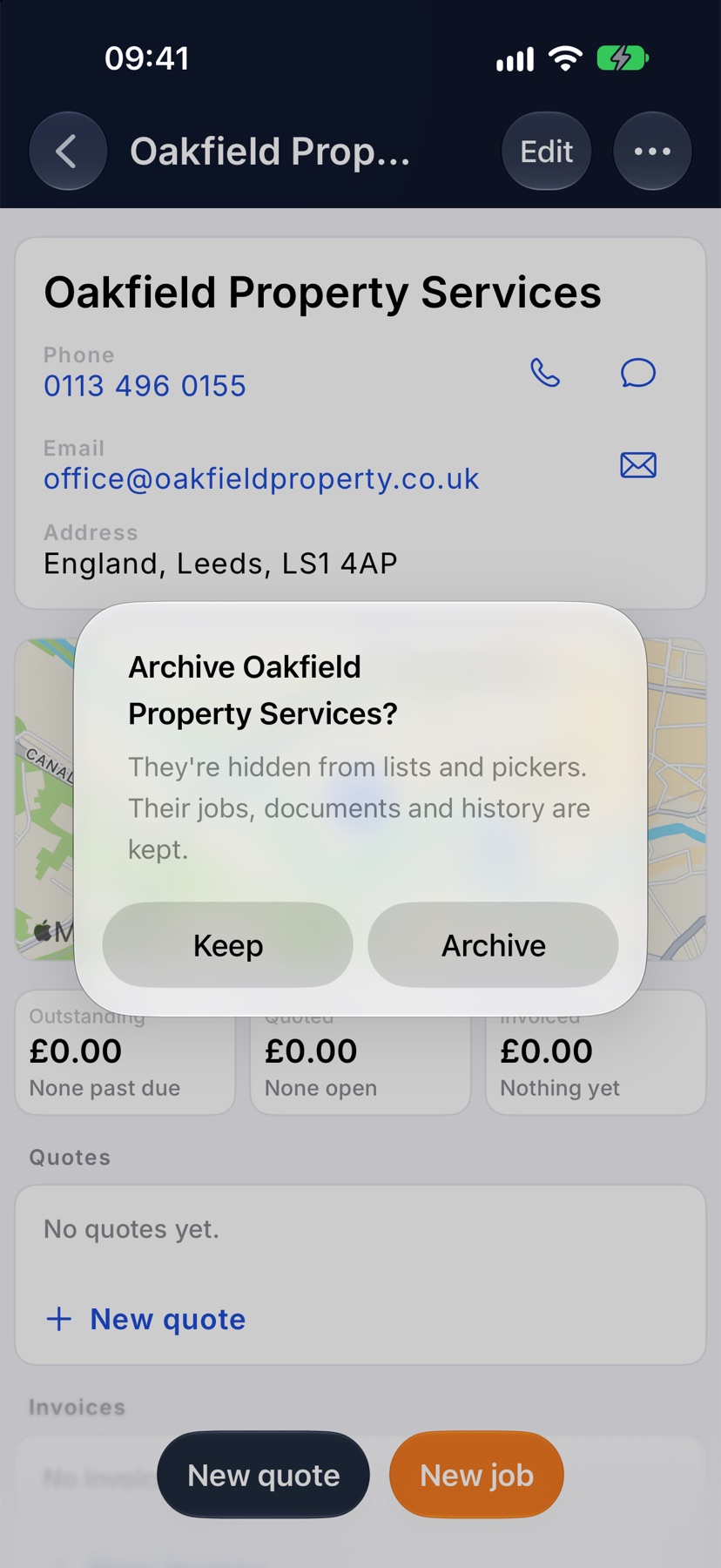
Tap Archive customer. Jobivo asks you to confirm, and reminds you that their jobs, documents and history are kept. Tap Archive, or Keep to leave them as they are.
An Archived band appears at the top of the customer's page. While they are archived, the page no longer offers New quote, New job or Add site. Restore them first to start new work.
Find archived customers
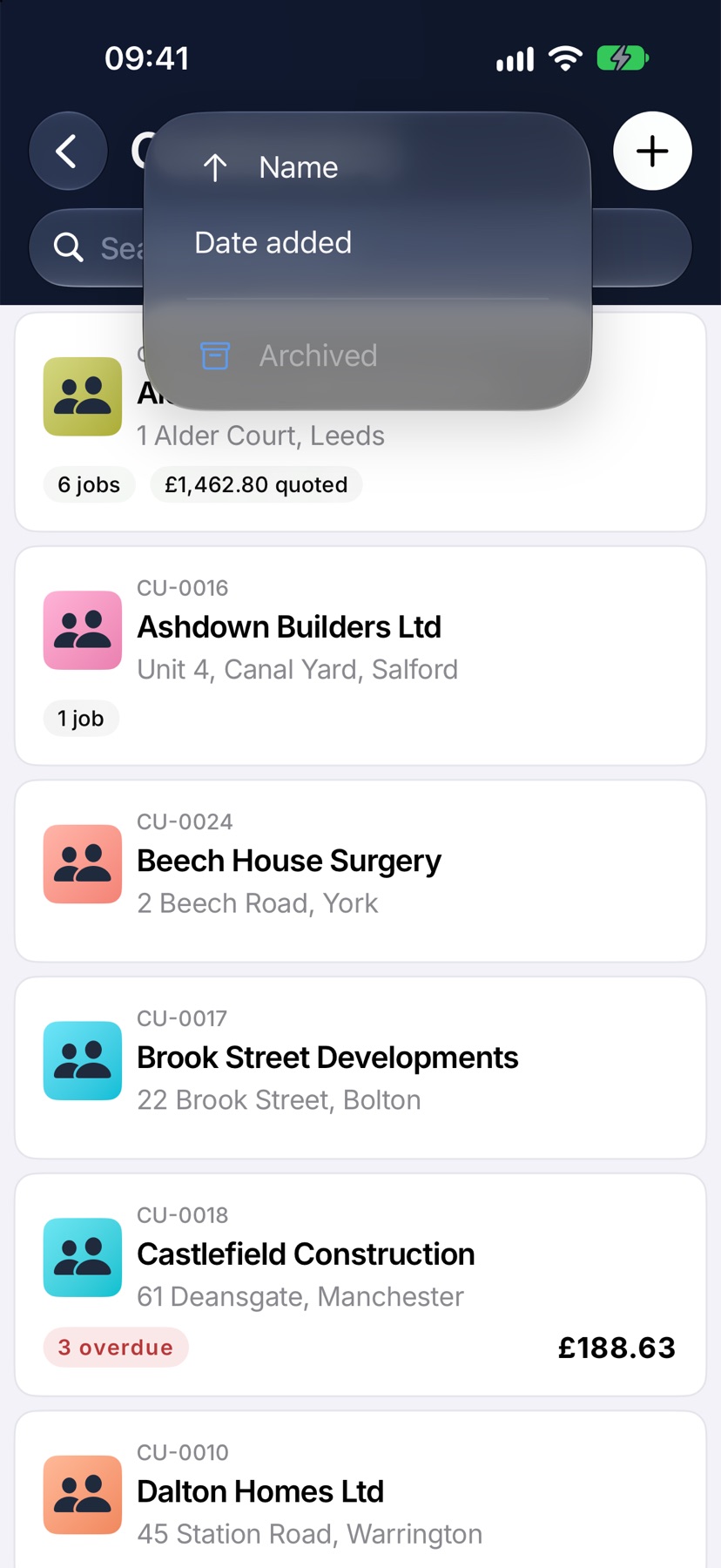
Go back to the Customers list and tap the sort button at the top right, the one with two arrows. Tap Archived. The list changes to Archived customers and shows only the customers you have archived.
Tap Archived in the same menu again to return to your current customers.
Restore a customer
Open the customer from Archived customers. Tap the three-dot button at the top right and tap Restore customer. There is nothing to confirm.
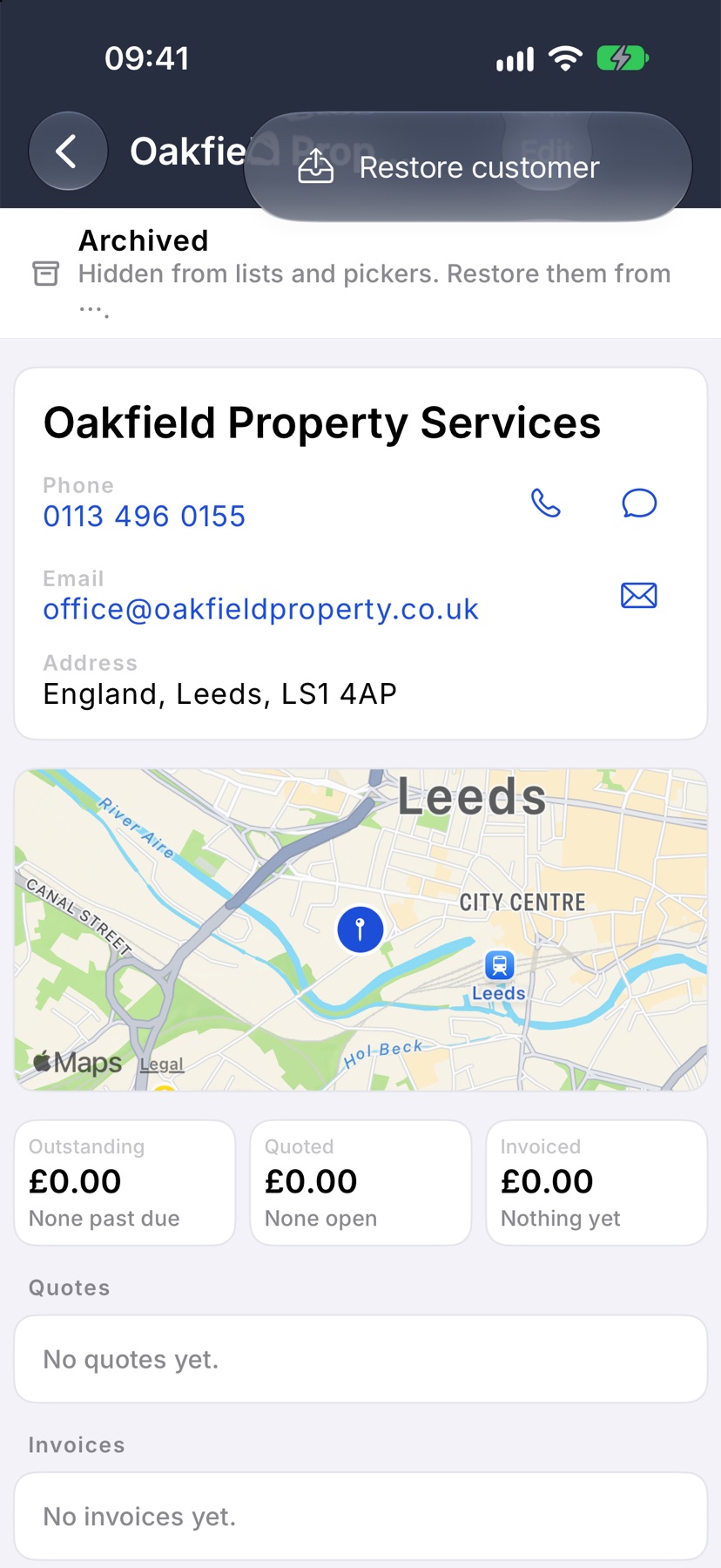
After a customer is restored
The Archived band goes and the customer is back in the Customers list and in the customer search on new jobs and quotes. New quote and New job return to the bottom of their page.
More in Customers & sites →
- Add a customerCreate the business you invoice, set their terms once, and let the address finder do the typing.
- The customer pageWhat they owe you, everything you've done for them, and the terms driving their paperwork.
- Add a siteRecord each address you work at, with access notes, parking and a site contact.
- The appliance registerKeep each boiler, board or alarm on record, and see every certificate that named it.
Still stuck? Email support@jobivo.co.uk and we'll get back to you.