Add a customer
A customer is who the work is for and who gets billed. Everything else hangs off them — jobs, quotes, invoices and what they owe you. Add one from Customers → New customer, or create one mid-flow without losing your place.
Name them, then the person you actually ring#
Customer name is the only thing you have to fill in — the business or household you invoice. Contact name, phone and email are the human you deal with, and they're what the app uses when it emails a quote or an invoice.
Let the address finder do the typing#
Start typing the street in Street addressand pick from the list — city, county and post code fill themselves in, and the exact spot is saved with it. That's what drops the pin on the job's location map, so whoever is going knows where they're going. Nothing found? Type the fields in by hand; it works the same.
Set their terms once#
Currency, payment terms and whether they're VAT registeredbecome the defaults on every quote and invoice you raise for them. Set them here and you stop re-deciding on each document — a 30-day customer's invoices land with the right due date automatically.
Or create them mid-job#
You don't have to come here first. On a new job or quote, type a name the app doesn't recognise and create it on the spot — the customer is made with just a name, and you fill in the address and terms whenever you get them.
Tip — one customer, many addresses? Put the billing address on the customer and the working address on each job — the job's address is what appears on the schedule and on site.
Add the person or business you work for, with their address and payment terms, ready to quote or book a job.
What a customer is
A customer is the person or business you quote, do the work for and invoice. Every job, quote and invoice belongs to one.
A customer needs a name and nothing else. An address, a phone number and an email make the record more useful: the address becomes their first site, and the email is where quotes and invoices are sent.
Payment terms set on the customer are used on their invoices, so you set them once.
Where to start
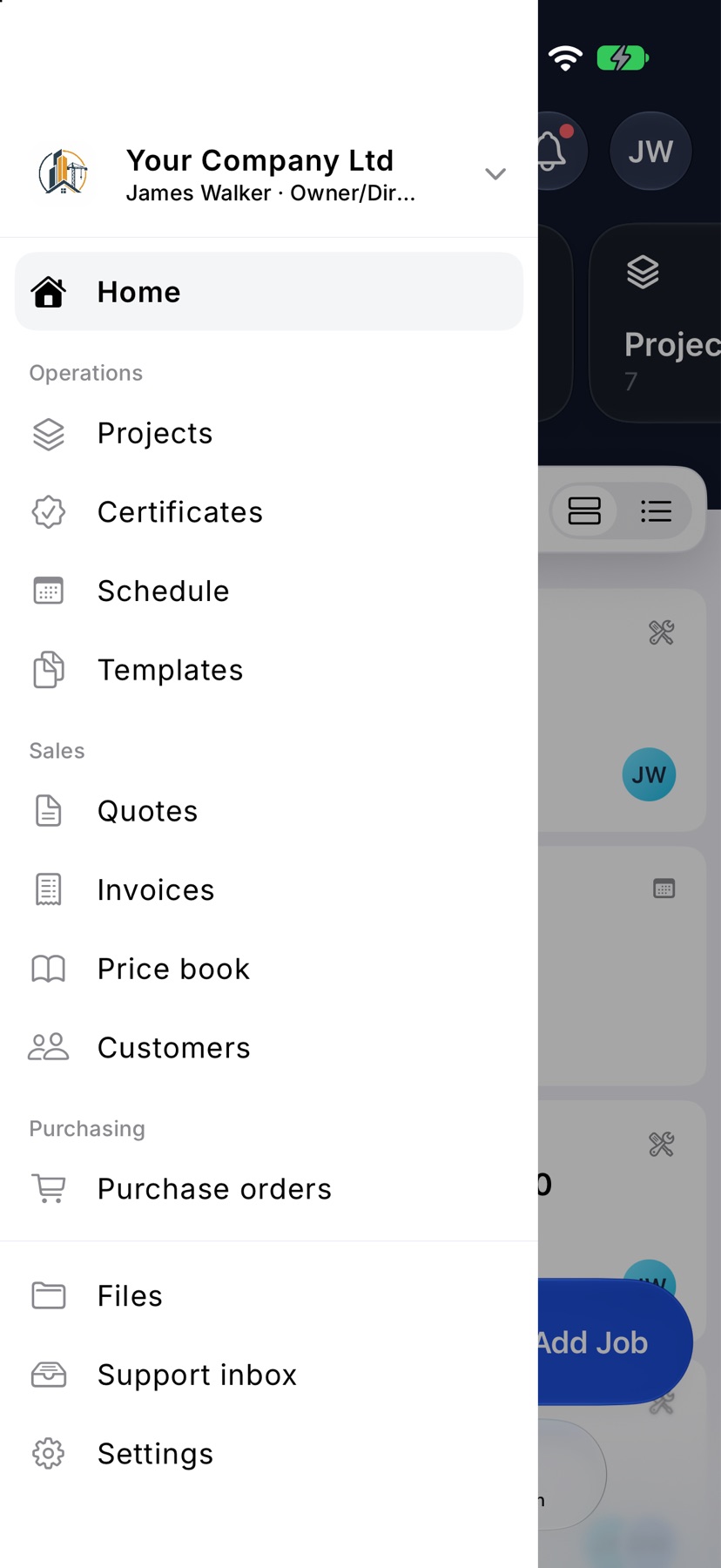
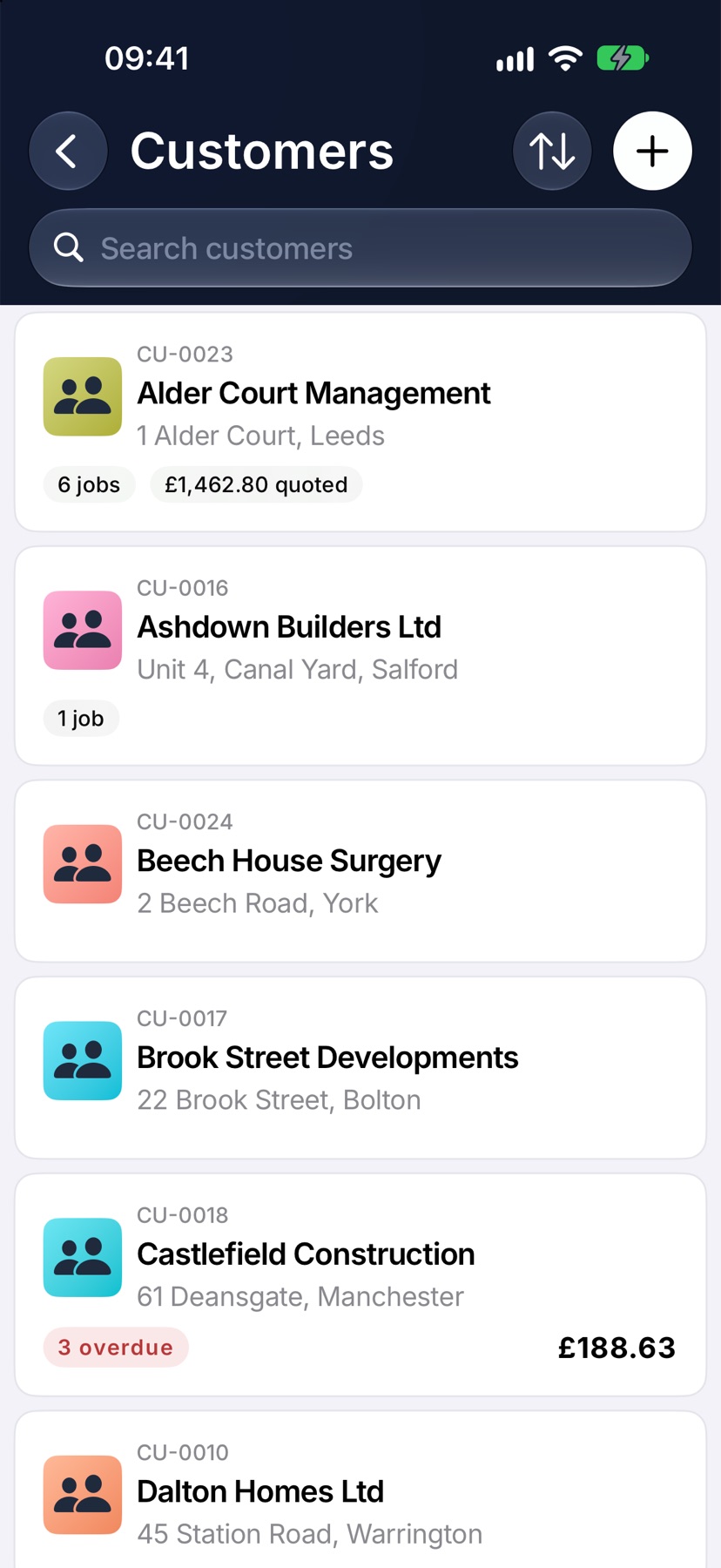
Open the menu with the three-line button at the top left and tap Customers. It sits under Sales. On the Customers list, tap the plus button at the top right. New customer opens.
Enter the name and contact details
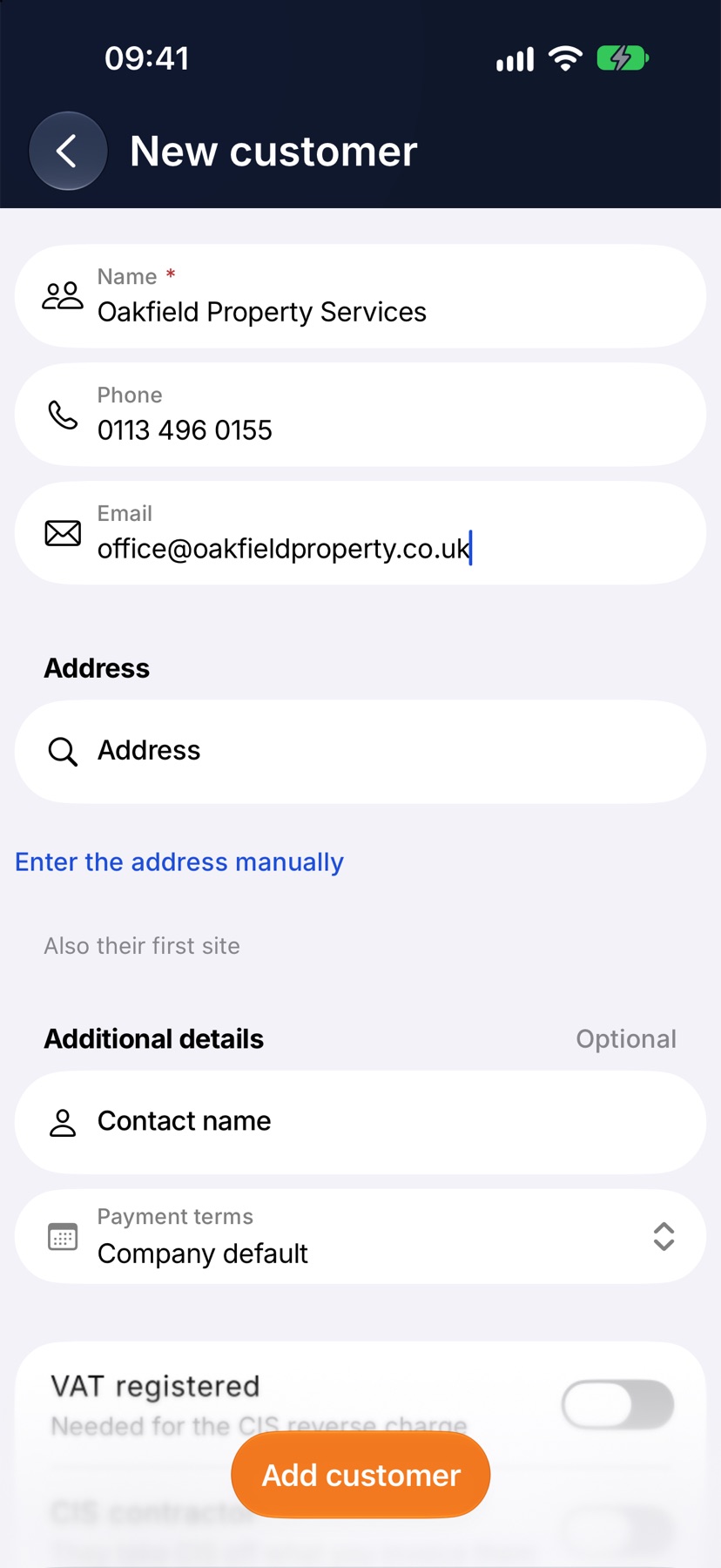
Type the customer's name in Name. It can be a person or a business. This is the only field the form insists on.
Add a Phone number and an Email if you have them.
Find the address
Under Address, start typing the address or postcode in the search field. Matching addresses appear underneath. Tap the right one. The address is shown on one line with a map under it.
Check it against what the customer gave you. A search can find the street without the house number. Tap the pencil beside the address to correct it. To type the whole address yourself without searching, tap Enter the address manually.
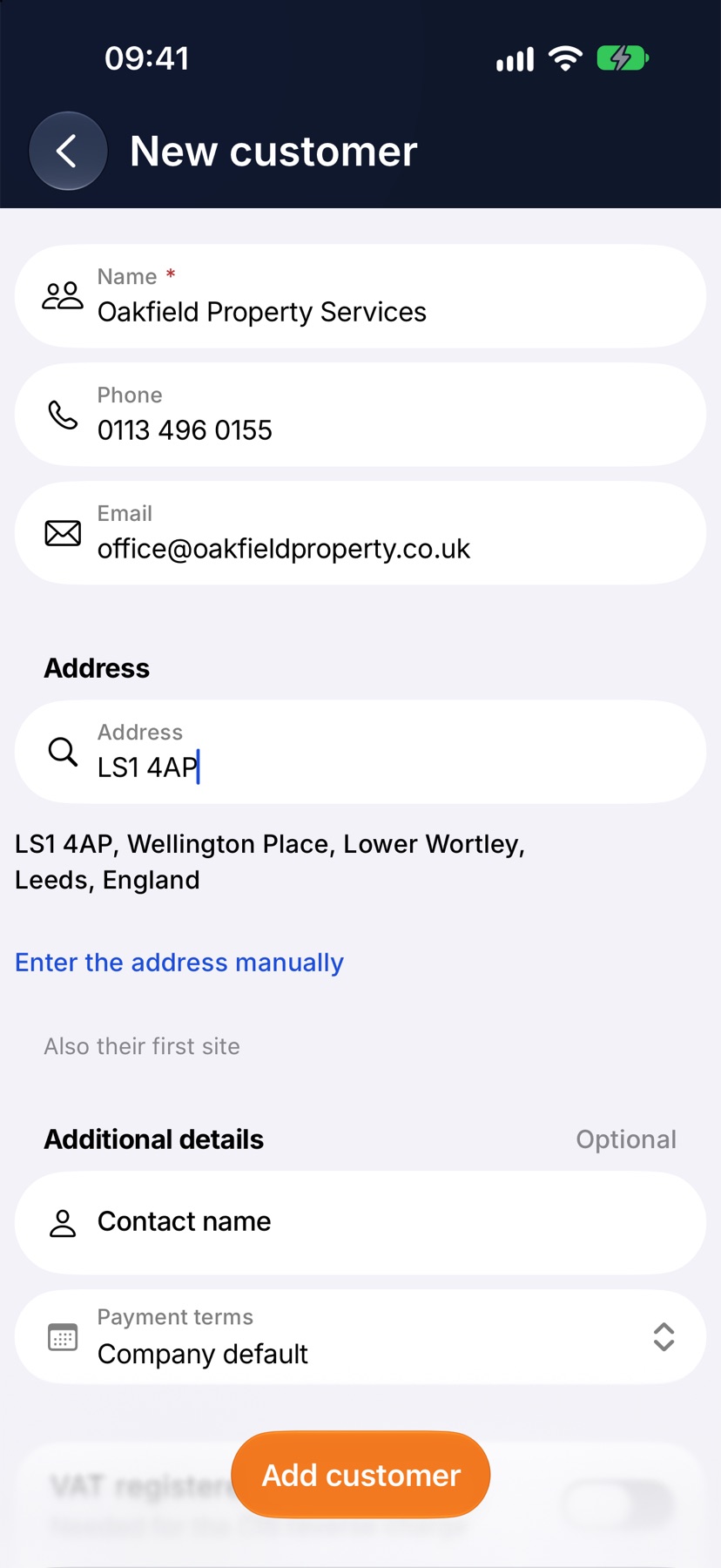
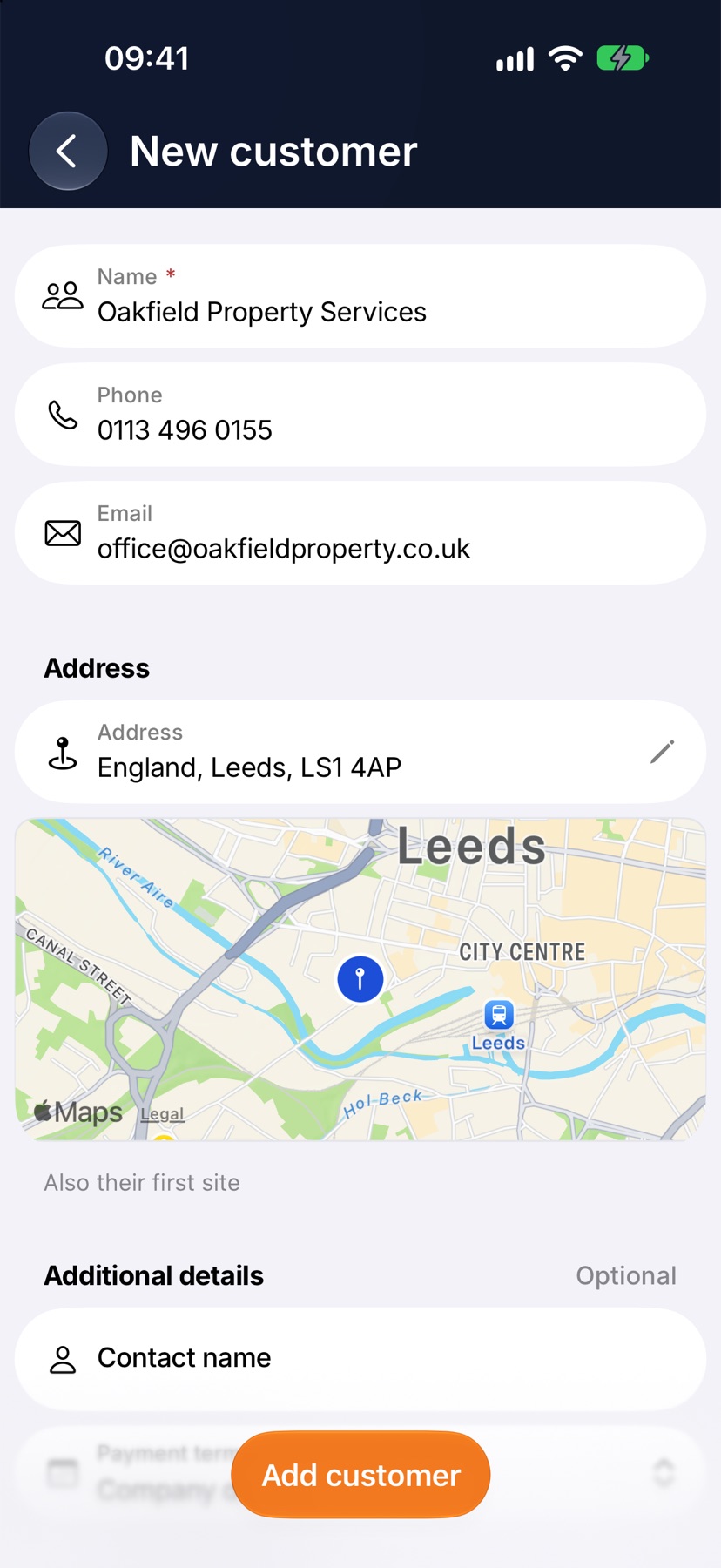
This address is also saved as the customer's first site, so a job for them has somewhere to go straight away.
Set payment terms and tax details
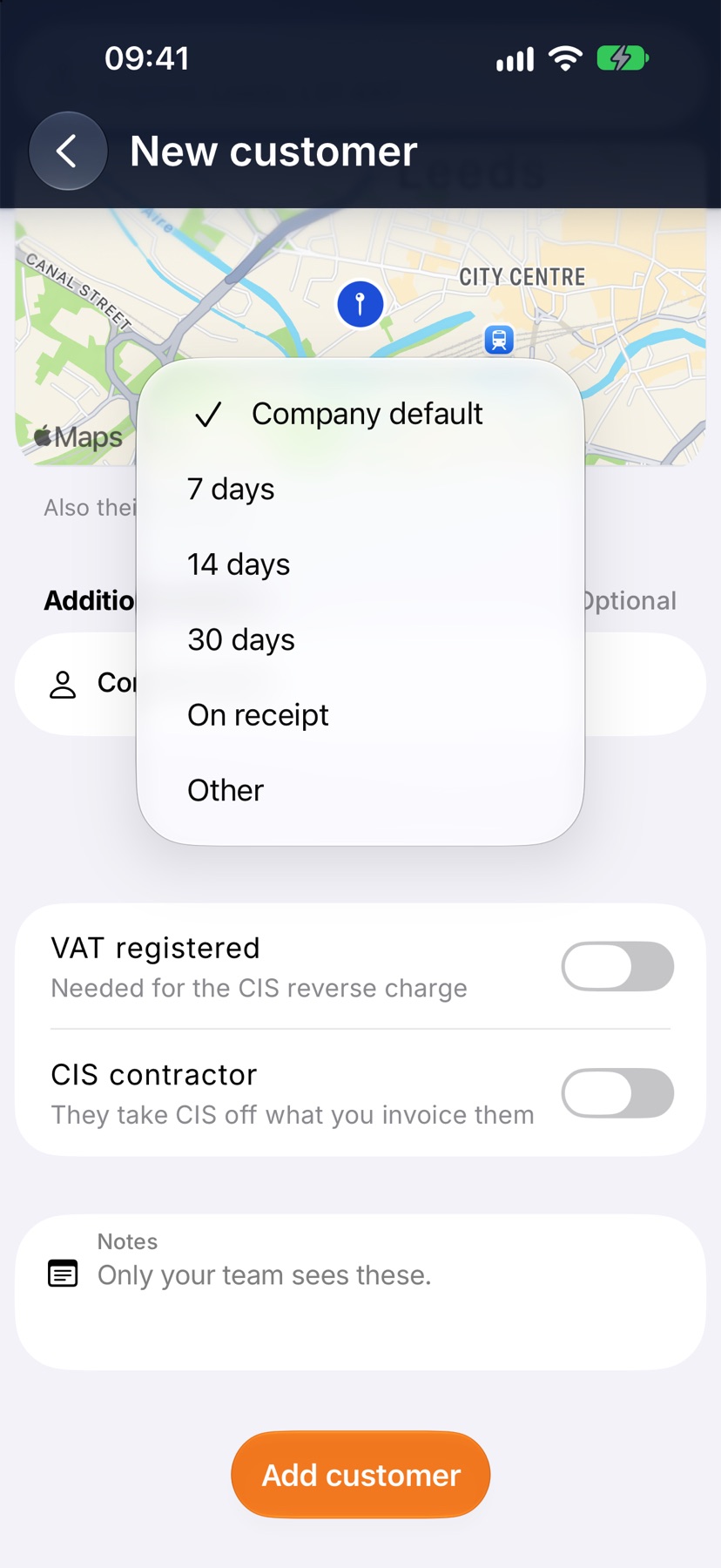
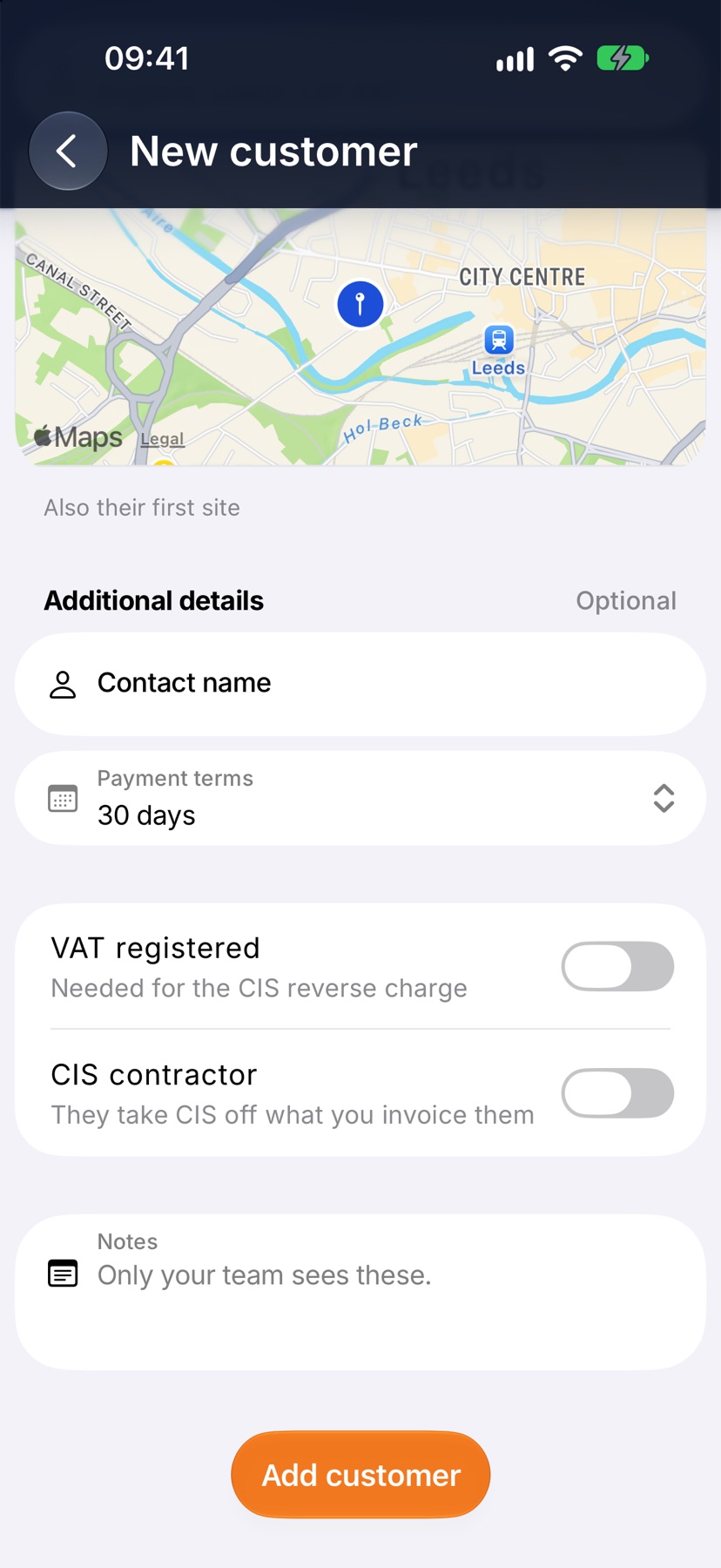
Additional details is optional. Contact name is who to ask for at a business.
Tap Payment terms to choose Company default, On receipt, 7 days, 14 days, 30 days or Other. With Other, type the number in Days to pay.
Switch on VAT registered or CIS contractor if they apply to this customer. Notes are seen only by your team.
Add the customer
Tap Add customer at the bottom of the screen. If the name is missing, or an address was started and not finished, the form shows you where.
After the customer is added
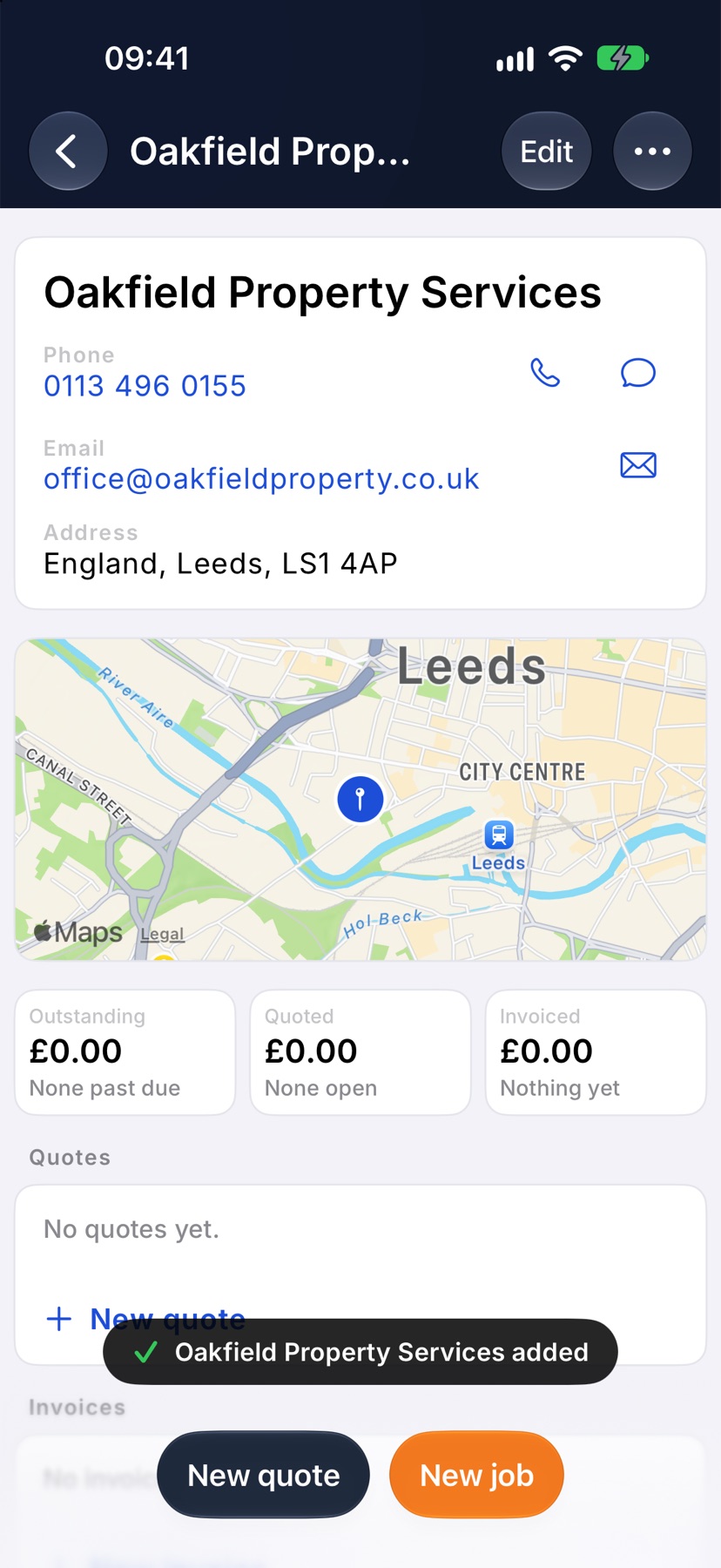
The customer's own page opens, with a message confirming they were added. New quote and New job at the bottom start either one with this customer already filled in.
Tap Edit at the top to change anything later. The edit form also has Currency, and a Sites section for adding more addresses.
More in Customers & sites →
- The customer pageWhat they owe you, everything you've done for them, and the terms driving their paperwork.
- Add a siteRecord each address you work at, with access notes, parking and a site contact.
- The appliance registerKeep each boiler, board or alarm on record, and see every certificate that named it.
- Archive or restore a customerTidy away customers you no longer work for without losing their history.
See what else Customers can do. Still stuck? Email support@jobivo.co.uk and we'll get back to you.