Add a site
Record another address for a customer, with the access notes, parking notes and site contact your team needs when they arrive.
What a site is
A site is an address where you do work for a customer. One customer can have many sites. A landlord has a site for each property, while a homeowner usually has one.
The customer is who you invoice. The site is where the job happens. Keeping them apart means the invoice goes to the right place and the team goes to the right door.
The address you gave the customer is already their first site. You only need to add a site when you work somewhere else for them.
Where to start
Open the menu with the three-line button at the top left, tap Customers and tap the customer. Scroll down their page to Sites and tap Add site. New site opens.
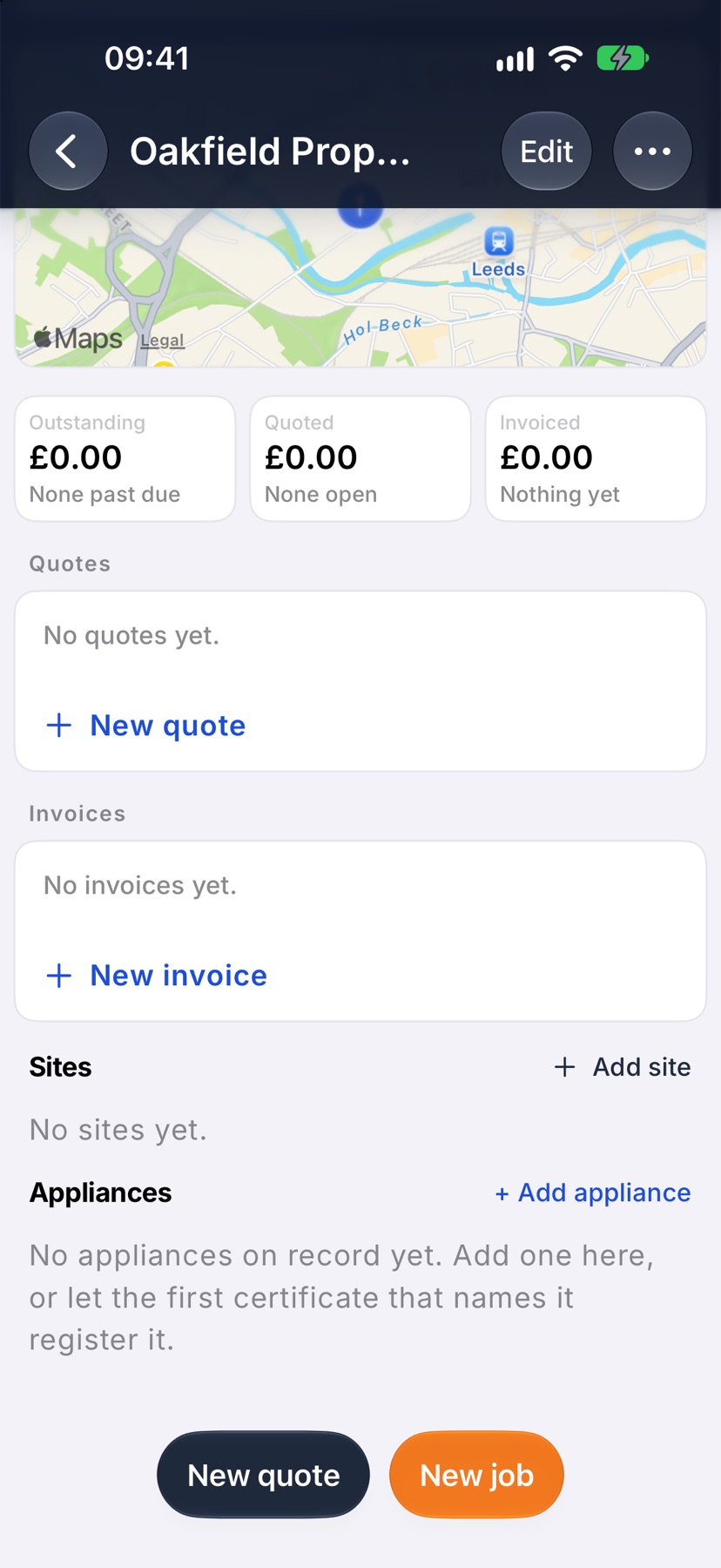
Find the address
Start typing the address or postcode in Address. Tap the right match and the address is shown on one line. Check it has the house or flat number, and tap the pencil beside it to correct it. A site needs the first line of its address and its postcode.
Site name is optional. Left empty, the site is named after the first line of its address. Give it a name when that helps people recognise it, such as a block or a shop name.
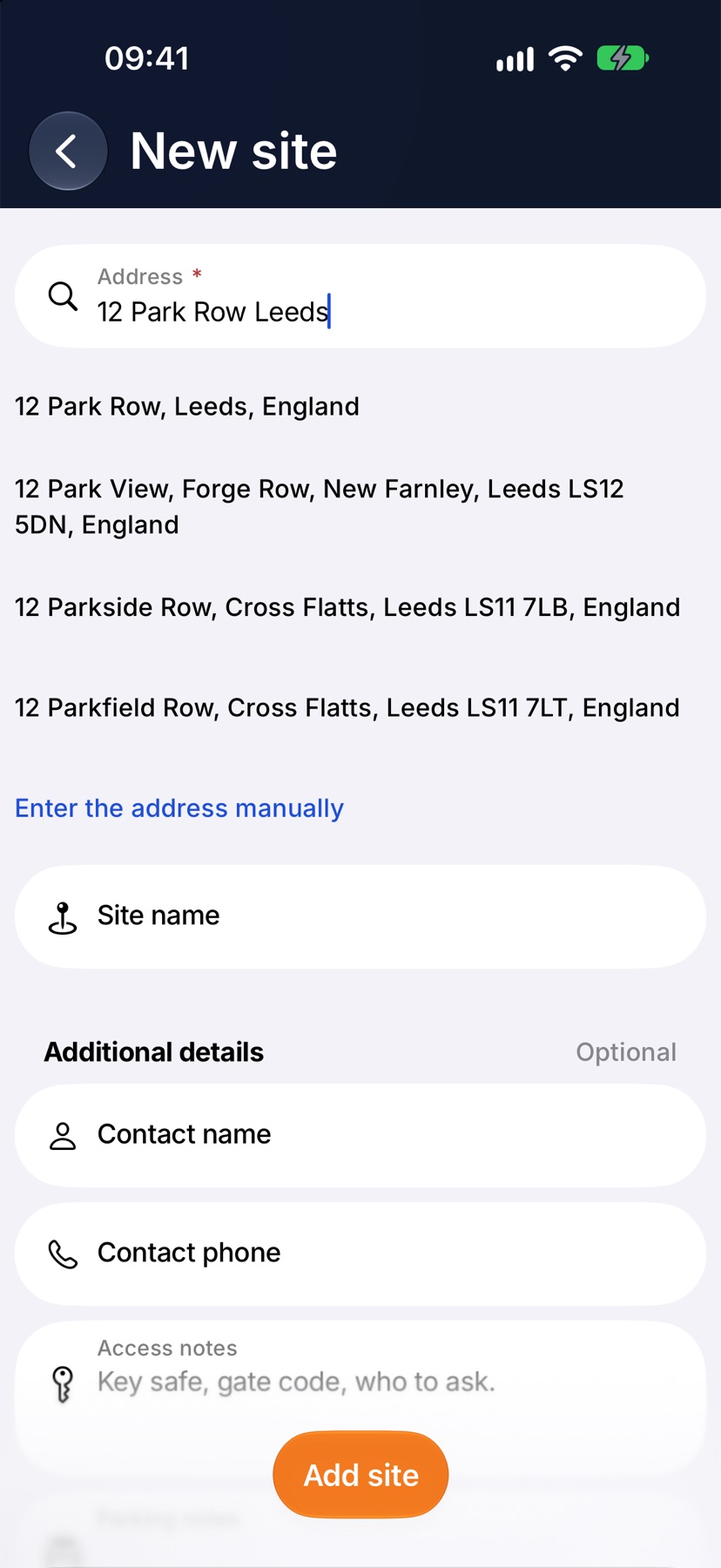
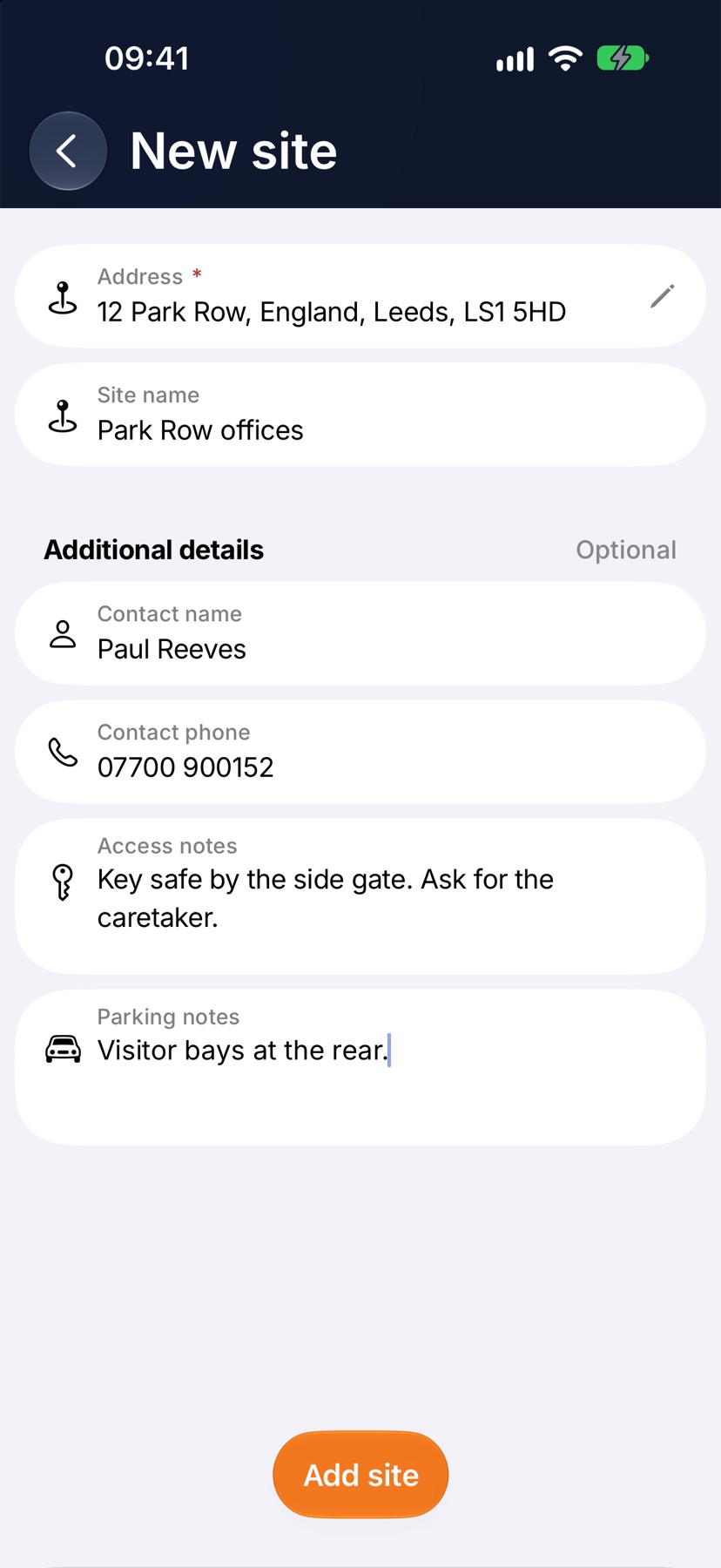
To type the address yourself, tap Enter the address manually.
Add a site contact
Under Additional details, Contact name and Contact phone are for the person at the address. That is often a tenant, a caretaker or a site manager, and not the person who pays the invoice.
Add access and parking notes
Use Access notes for how to get in: a key safe, a gate code, who to ask for. Use Parking notes for where a van can go.
Write them for someone who has never been to the address. Your team reads these notes on the site's page.
Add the site
Tap Add site at the bottom of the screen. If the first line of the address or the postcode is missing, the form shows you where.
After the site is added
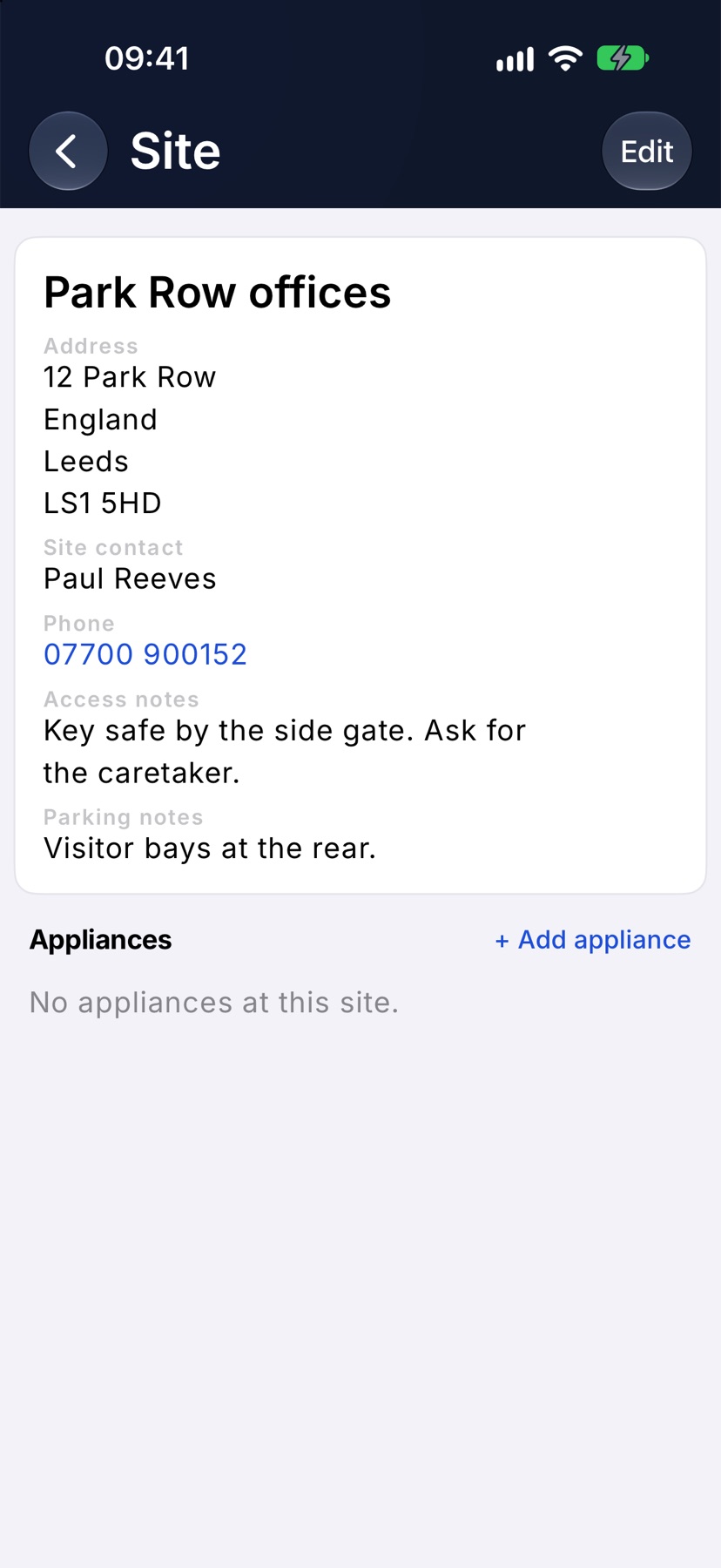
The site is listed under Sites on the customer's page. Tap it to open the Site page, which shows the Address, Site contact, Phone, Access notes and Parking notes. Tap Edit there to change any of them.
When you create a job for this customer, tap Address on the job form to choose which of their addresses the job is at.
More in Customers & sites →
- Add a customerCreate the business you invoice, set their terms once, and let the address finder do the typing.
- The customer pageWhat they owe you, everything you've done for them, and the terms driving their paperwork.
- The appliance registerKeep each boiler, board or alarm on record, and see every certificate that named it.
- Archive or restore a customerTidy away customers you no longer work for without losing their history.
Still stuck? Email support@jobivo.co.uk and we'll get back to you.