Subscription
Your subscription lives under Settings → Billing → Subscription. Plans scale by how many people are using Jobivo — one licence per active team member — so the price follows the size of your team, not a feature list.
Everything is included on every plan#
There's no “you need the higher tier for that”. Job sheets, photo evidence, quotes, invoices, costing, certificates — all of it is on every plan. The only thing that changes between tiers is how many people can use it.
Licences are how you count#
Each activeteam member holds one licence. Deactivate someone and their licence frees up for the next person. If you're at your cap, someone who joins can still sign in but can't start work until you free a licence or move up a tier.
Changing plan#
Change planmoves you up or down a tier — pick the card with the number of users you need. Growing mid-month is the common case, so you don't have to wait for a renewal date to add the person you hired this week.
Your trial#
New companies start on a free trial with everything switched on. The card at the top of the page shows how many days are left and when it ends; picking a plan before then keeps everything exactly as it is, and choosing one afterwards picks up where you left off.
Tip — licences are assigned on the Team page, not here — making a member active is the licence switch. This page only decides how many you have to hand out.
See which plan your company is on, how many licences are in use, and when a trial ends.
What a subscription is
Jobivo is paid for by the company, not by each person. Every plan includes every feature. The only thing that changes between plans is how many people can be active at once.
Each active team member uses one licence. The plans are Sole trader, Up to 3 users, Up to 5 users, Up to 10 users and Up to 20 users.
A new company starts on a 30-day free trial with everything unlocked. Only the company owner sees the subscription.
Where to start
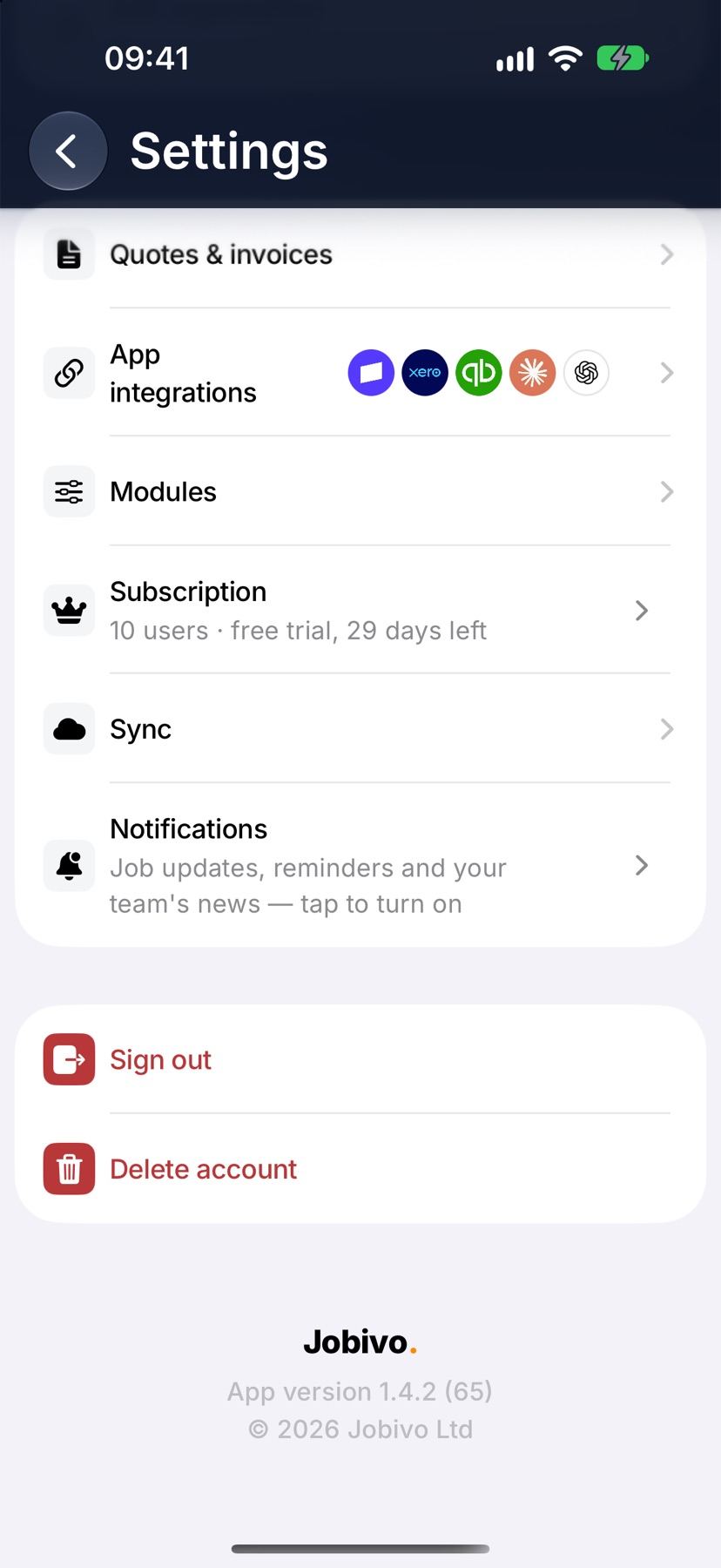
On Home, tap the menu button at the top left, then tap Settings at the bottom of the menu. Under Preferences, tap Subscription. The line under it already gives the short version: the number of users, and the days left on a trial or the monthly price.
Read the plan card
The card headed Your plan is at the top. It names the plan, with a label beside it such as Active, Full or the days left on a trial. The line beneath gives the monthly price and who bills it.
The bar shows Licences in use against the number your plan allows. The line under the bar tells you whether there are licences spare or whether every one is assigned.
Check a free trial
During a trial the card reads Free trial with the days left and the date it ends. The bar shows Active members, because a trial covers a set number of people at a time.
Under the card, How your 30-day free trial works sets out the dates: when the trial began, when the reminder email is sent, and the day it ends.
When a trial has ended the card reads Trial ended. Nothing is deleted. The team can still sign in and read, and subscribing lets everyone work again.
Change plan
The plans are listed under the card, each with its monthly price. Swipe to the size you need and confirm with the button beneath it. The purchase is made through your Apple ID.
Move up when the card says every licence is assigned and you need to add someone. Move down when licences are sitting spare.
If the screen reads Subscription managed on the web, the company pays outside the App Store and the plan is changed from the web dashboard.
After a change
The card updates to the new plan and the new number of licences, usually within a minute. The Subscription row in Settings shows the new size and price.
Extra licences are spare until you make someone active in Team.
More in Account & subscription →
- Your profile and signatureYour name, photo, licences and the signature printed on what you sign off.
- Subscribe via Google Play or the App StoreBuying in the app, restoring a purchase, and plans that are billed on the web instead.
- Switch company or roleWork for more than one company on one login, or start a second company of your own.
- Delete your accountHow to permanently delete your Jobivo account, and what happens to your data.
Still stuck? Email support@jobivo.co.uk and we'll get back to you.