Your profile and signature
Set the name, photo, licence numbers and signature that appear on your work.
What your profile is
Your profile is the part of Jobivo that is about you, not the company: your name, your photo, your phone number, your licence numbers and your signature.
Your name and photo show your team who is on a job. Your name, licence numbers and signature are printed on the certificates you issue, so they need to be right before you sign one off.
Everyone has a profile, whatever their role, and each person edits their own.
Where to start
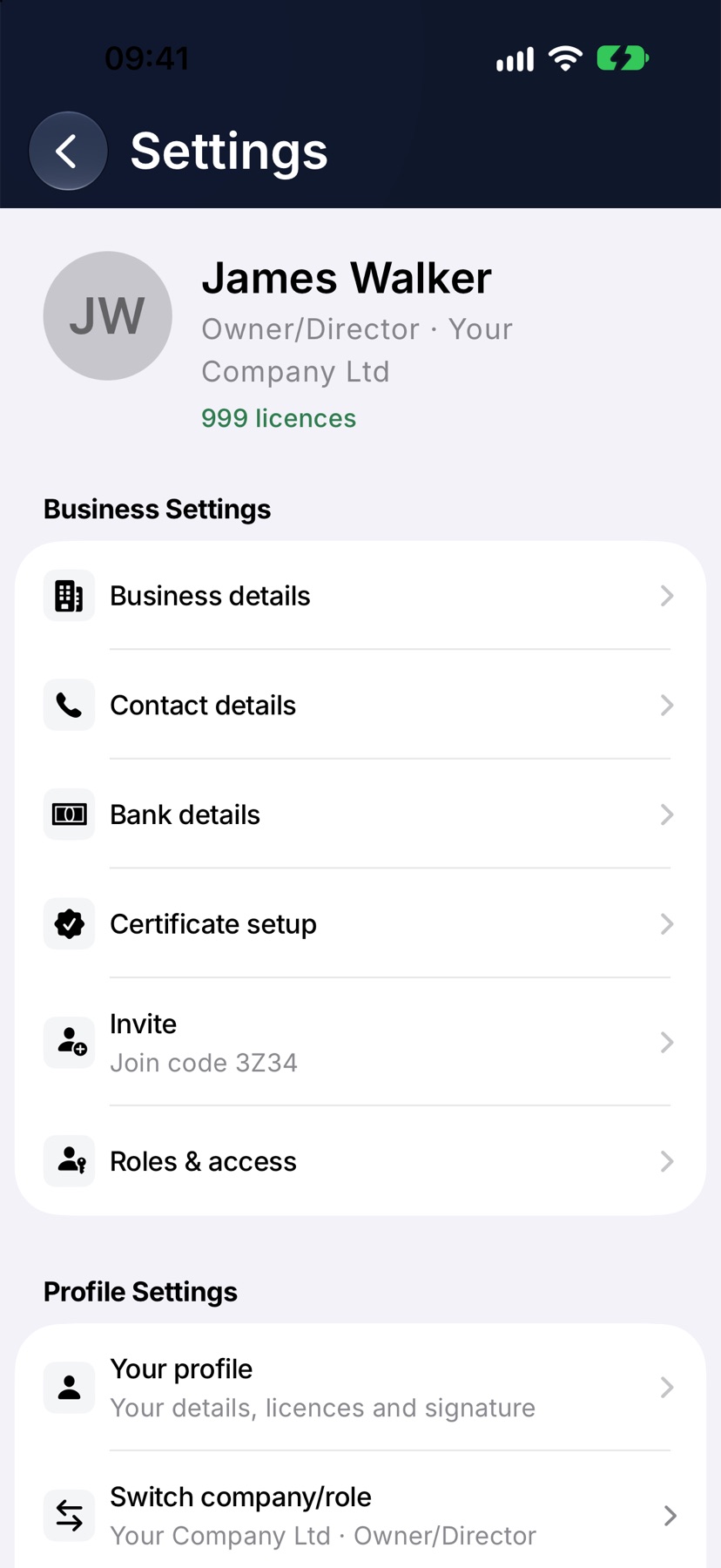
On Home, tap the menu button at the top left, then tap Settings at the bottom of the menu. Under Profile Settings, tap Your profile.
Set your name, phone and photo
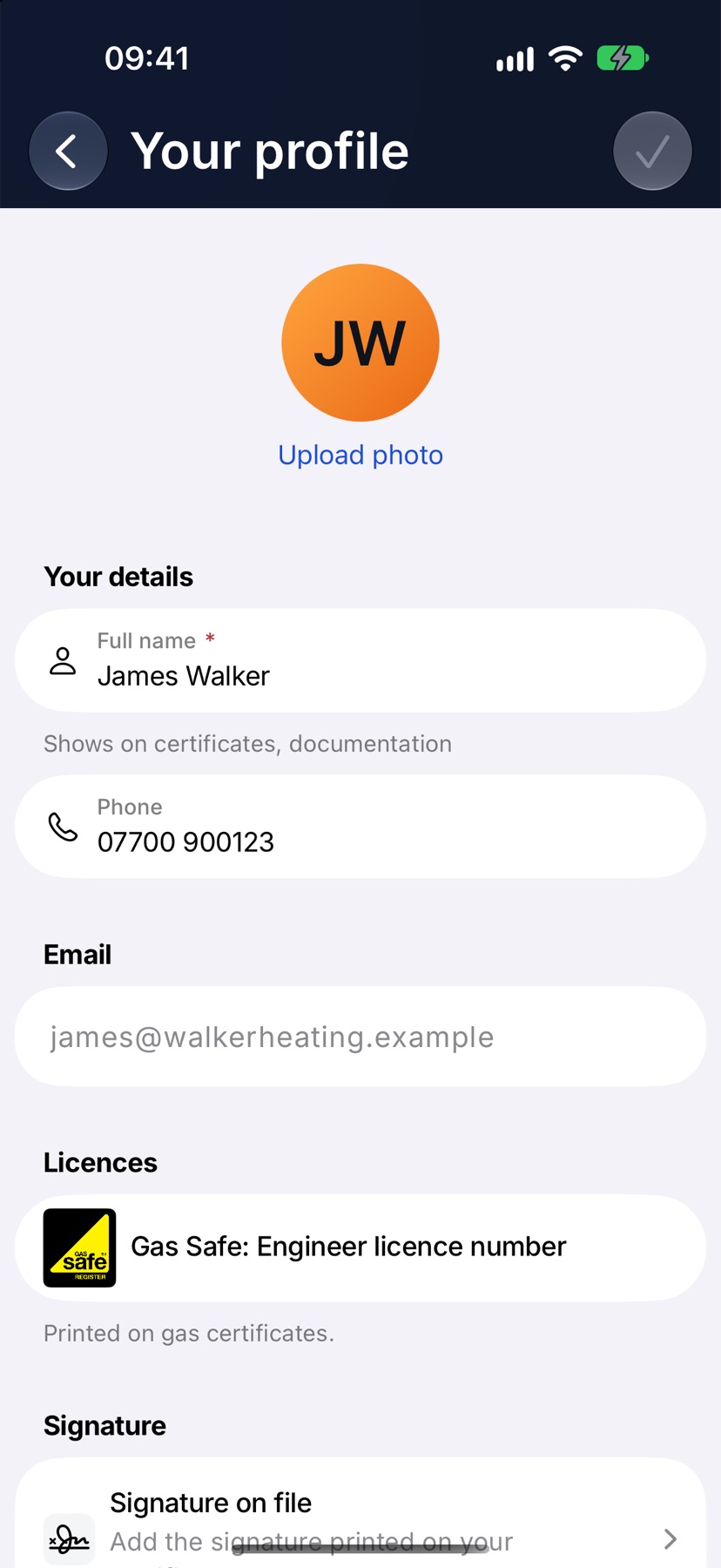
Your profile opens with your photo at the top. Tap Upload photo and pick a picture from your phone. Once you have one, the link reads Change photo, with Remove beneath it.
Under Your details, type your Full name as it should print on certificates, and your Phone. Tap the tick at the top right to save.
Enter your licence numbers
The Licences section appears when your company issues certificates that need one. It shows a field for each licence those certificates ask for, such as Gas Safe: Engineer licence number.
Type each number that applies to you and tap the tick to save. The number is then printed on the certificates you issue, without being typed again.
- Gas Safe: Engineer licence number
- The seven-digit number on your own Gas Safe ID card, not the business number. Printed on gas certificates beside your signature.
- ECS card number
- Optional. Kept for reference.
- Technician OFTEC registration number
- Your own OFTEC number. Printed on oil firing forms.
- F-Gas qualification category
- Your category, such as Category I. Required on F-Gas records.
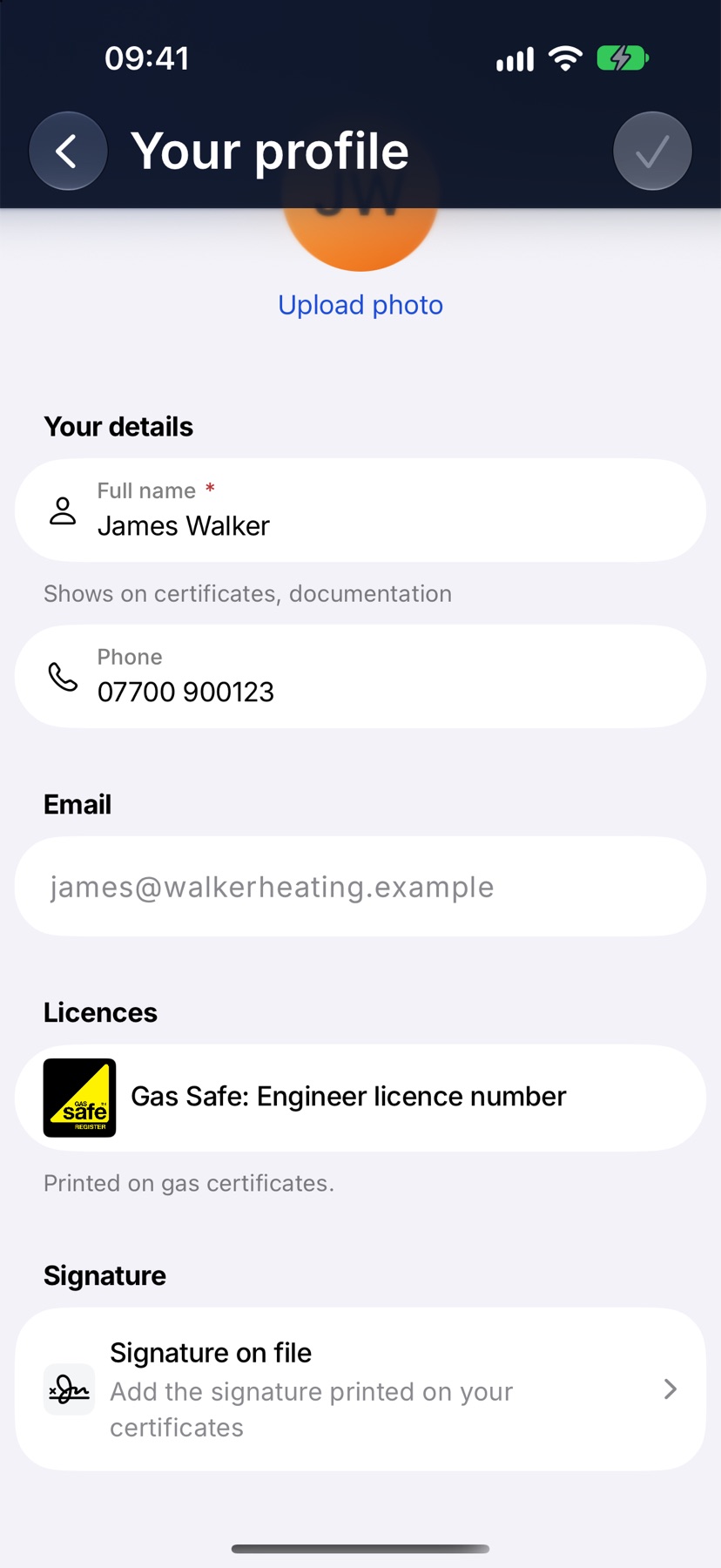
If there is no Licences section, none of the certificates your company has switched on needs a personal licence.
Save your signature
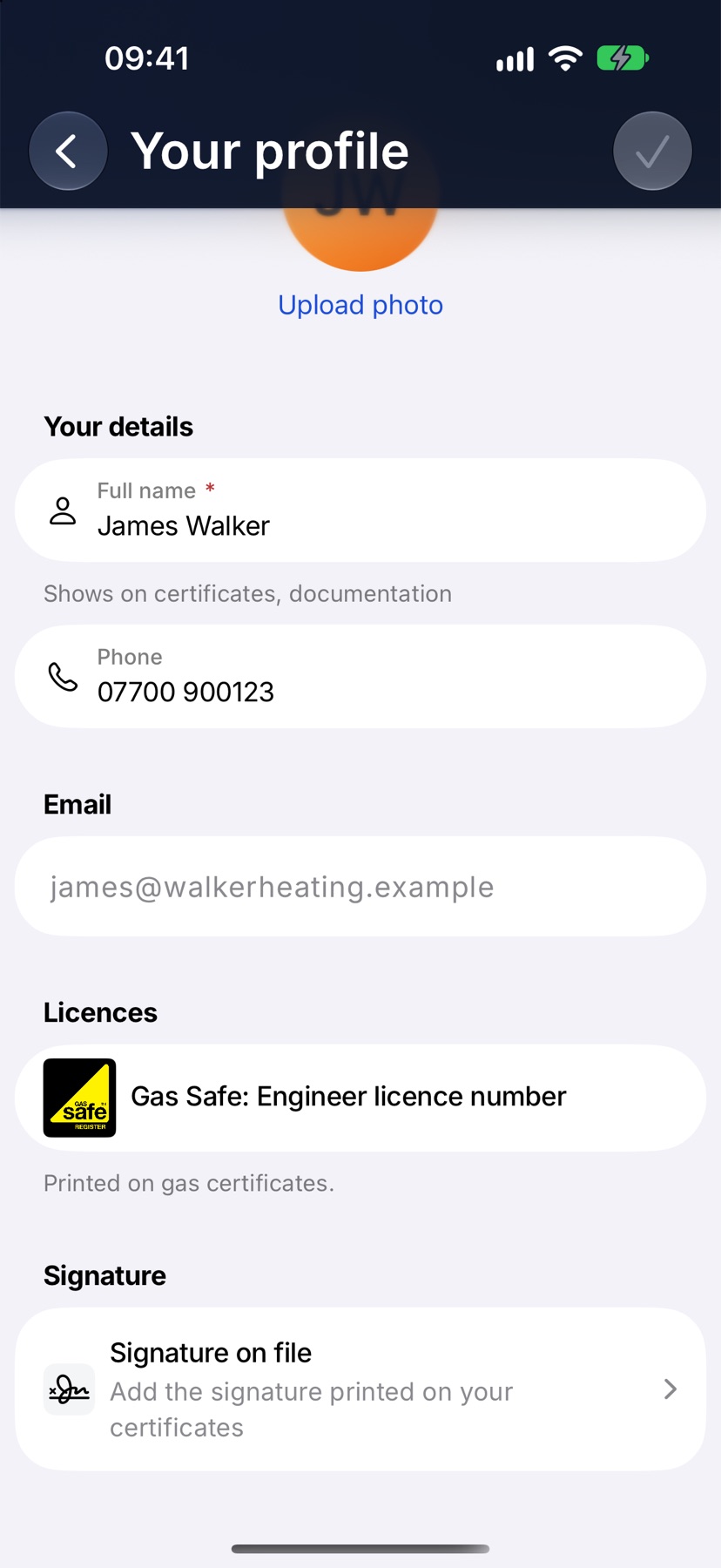
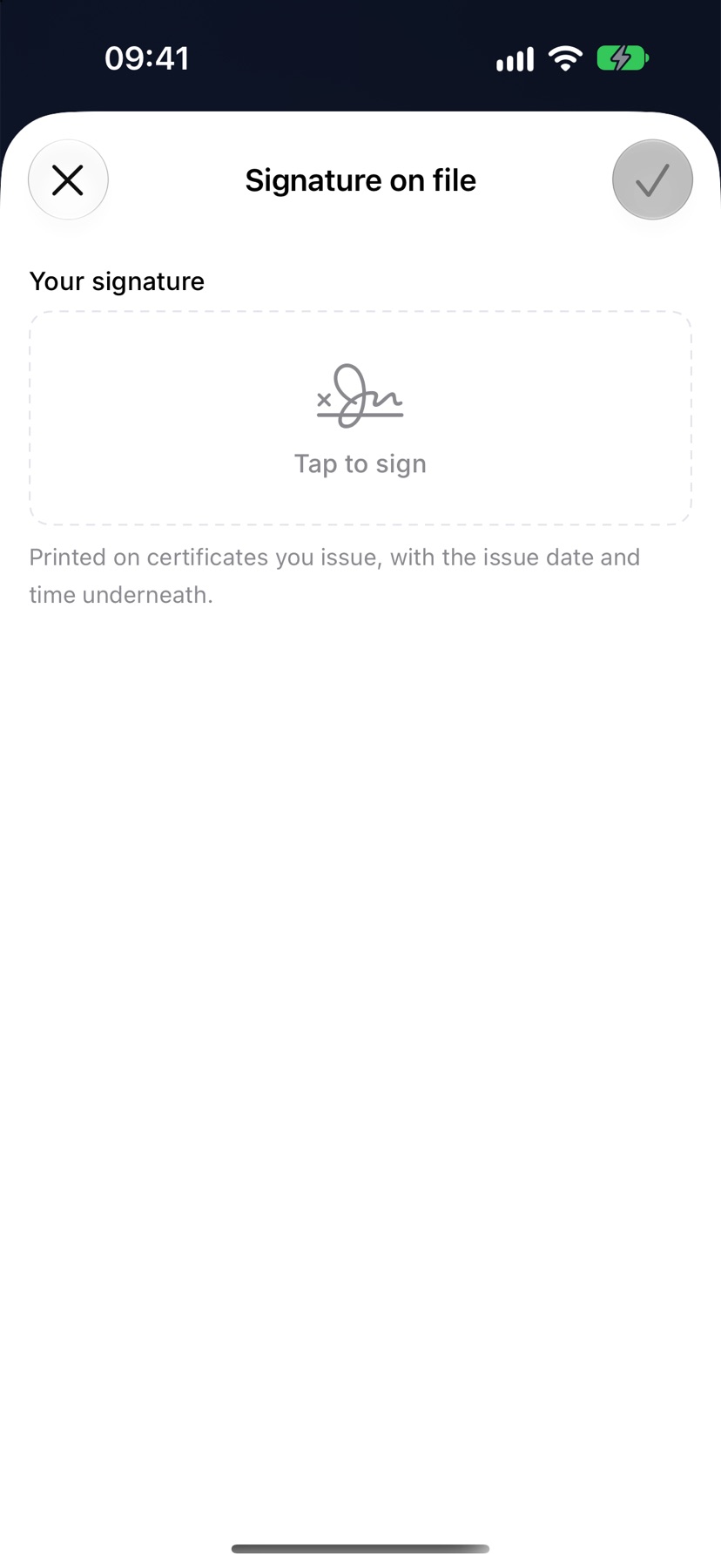
Under Signature, tap Signature on file. Sign with your finger in the Your signature box, then tap the tick. The signature saves straight away, separately from the rest of the profile.
It is printed on the certificates you issue, with the issue date and time underneath.
After your profile is saved
Your name and photo update wherever you appear in the company: in Settings, in the menu and on the jobs you are on.
The Signature on file row now reads Saved — tap to replace. Open it again to sign a new one, or tap Remove signature. Certificates you issue after removing it print without a signature until you add one again.
More in Account & subscription →
- SubscriptionPlans scale by people, not features — how licences work and how to change tier.
- Subscribe via Google Play or the App StoreBuying in the app, restoring a purchase, and plans that are billed on the web instead.
- Switch company or roleWork for more than one company on one login, or start a second company of your own.
- Delete your accountHow to permanently delete your Jobivo account, and what happens to your data.
Still stuck? Email support@jobivo.co.uk and we'll get back to you.