Switch modules on and off
Switch off the parts of Jobivo you do not use, so the menu and each job only show what matters to you.
What a module is
A module is one whole part of Jobivo, such as snags, appointments or expenses. Jobs, customers and the schedule are always there. The modules are the parts you can choose to have or not.
Switching a module off hides it for everyone in the company. Its row leaves the menu and its sections leave the job. A plumber who never raises purchase orders can switch Suppliers off and stop seeing them.
Only the company owner can change modules.
Where to start
On Home, tap the menu button at the top left, then tap Settings at the bottom of the menu. Under Preferences, tap Modules.
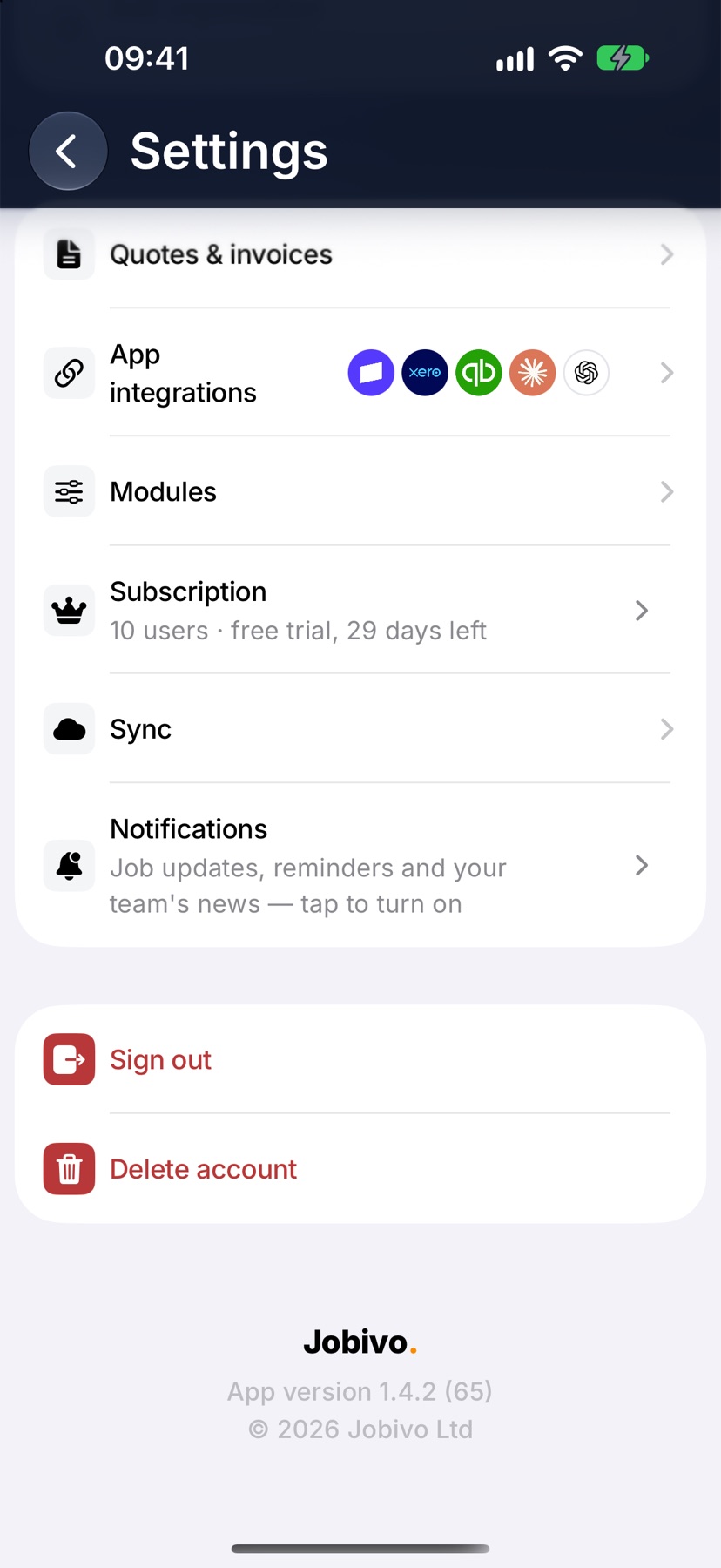
Switch a module on or off
Modules lists each one with a line saying what it does and a switch. Tap the switch. The change is saved straight away and applies to the whole company.
The list is Snags, Appointments, Quotes & Invoices, Job costing, Expenses, Suppliers, Projects and Team.
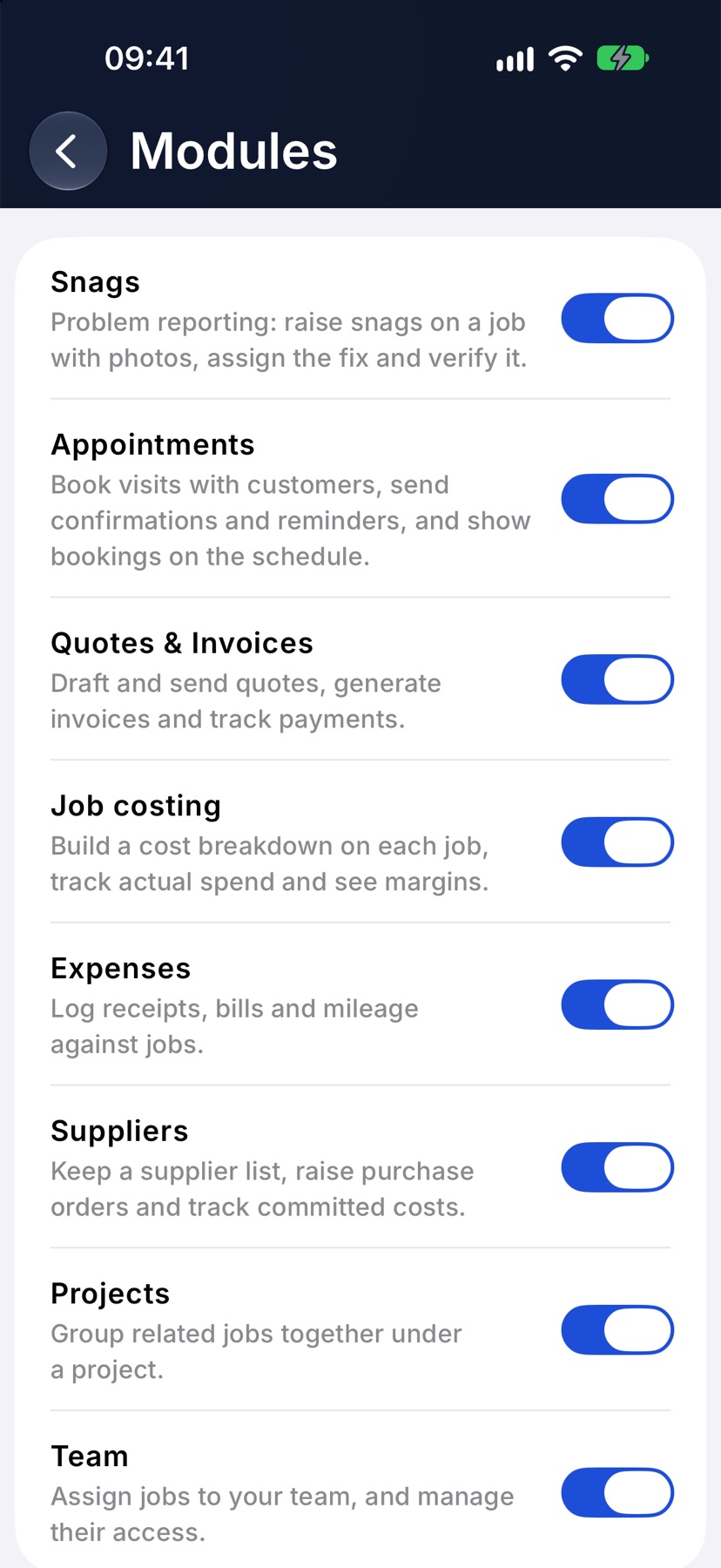
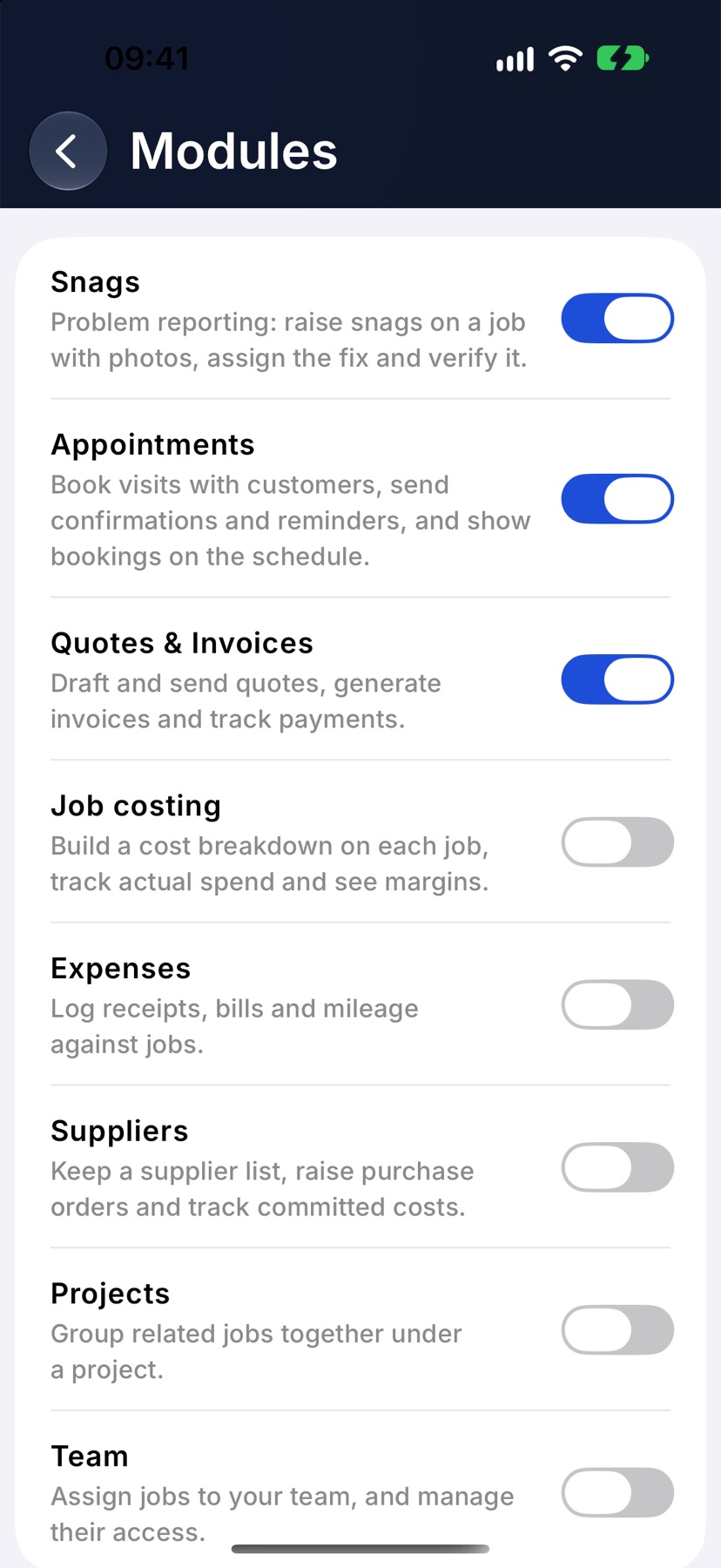
What each module covers
Snags is problem reporting on a job, with photos and a fix to verify. Appointments is booking visits with customers and sending confirmations and reminders.
Quotes & Invoices is drafting and sending quotes, raising invoices and tracking payments. Job costing is the cost breakdown on each job, with actual spend and margin. Expenses is logging receipts, bills and mileage against jobs.
Suppliers is your supplier list and purchase orders. Projects groups related jobs together. Team is assigning jobs to people and managing their access.
After a module is switched off
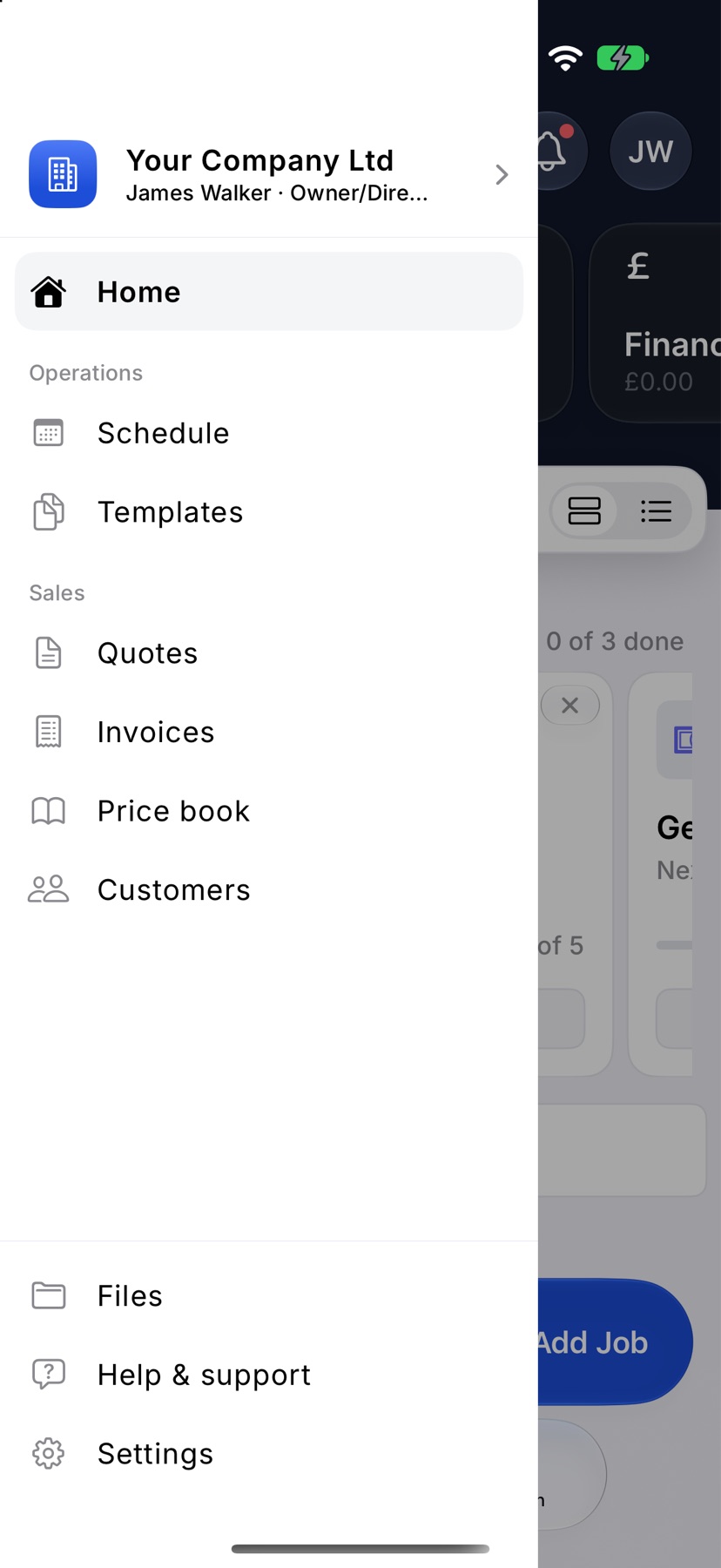
The module's row leaves the menu on every phone in the company, and on the web. Open the menu to check.
Switching a module off hides it. It does not delete anything. Switch it back on in Modules and the records you had are shown again.
More in Getting started →
- Jobivo OverviewHow customers, jobs, evidence and money hang together — the shape of the whole app.
- Find your way aroundHome, the menu, search and the + button — where everything lives on the web, Android and iPhone.
- Create your accountSign up, name your company and pick your trades — or join a company that already uses Jobivo.
- Set up your companyThe settings worth doing first: your details, VAT, bank details and document defaults.
Still stuck? Email support@jobivo.co.uk and we'll get back to you.