Set up your company
Every company setting, field by field: what to enter and what it is used for. All of it is under Settings, at the bottom of the side menu. Only the company owner sees the Workspace settings.
Your logo#
Go to Settings → Company. The page opens on the Company info tab. Click Upload logo and pick the file. It appears at the top of every quote, invoice and certificate you send.
Company details#
On the same tab, under Details. Fill these in and click Save changes at the bottom right.
- Company name
- The name your customers know you by. It is the heading on every document.
- Phone
- The number customers should call. Printed on quotes and invoices.
- Search by postcode
- Type your postcode and pick your address to fill the address fields for you.
- Address line 1
- House number and street.
- Address line 2
- Unit, estate or district. Optional.
- City, County, Postcode
- The rest of your business address. It prints on every quote, invoice and certificate.
- Website
- Optional. Printed with your contact details.
- Company Reg No
- Your Companies House number, if you are a limited company. Leave it empty if you do not have one.
- VAT Number
- Your VAT registration number, if you are registered. Printed on quotes and invoices.
- Industry sectors
- Pick the trades you work in. Each one switches on the certificates and reports for that trade, and the scheme number fields below.
Gas Safe and other scheme numbers#
Further down Company info is the Scheme registrations card. It holds the numbers your business holds with a trade scheme. A field shows only when one of your industry sectors needs it, so pick your sectors first. Each number has its own Save button.
- Gas Safe: Business registration number
- Your business's Gas Safe Register number. Printed on gas certificates.
- Scheme enrolment number (NICEIC / NAPIT)
- Your enrolment number with your electrical scheme. Printed on electrical certificates. Choose the Enrolment type beneath it.
- Company OFTEC registration number
- Your company's OFTEC number. Printed on oil firing forms.
- MCS certification number
- Optional. Printed on solar PV documents.
- Third-party certification registration
- Optional. Your BAFE or NSI registration, printed on fire alarm certificates.
- F Gas Certificate unique number
- This one is under Settings → Certificate setup, with the certifying body and expiry date. Printed on F-Gas records.
Your own licence and signature#
The business number is not enough on its own. Each engineer adds their own licence number and signature under Settings → Your profile, in the Licences card. Both print on the certificates that engineer issues.
- Gas Safe: Engineer licence number
- The number on your own Gas Safe ID card, not the business number. Add the expiry date beside it and click Save.
- ECS card number
- Optional. Kept for reference.
- Technician OFTEC registration number
- Your own OFTEC number. Printed on oil firing forms.
- F-Gas qualification category
- Your category, such as Category I. Required on F-Gas records.
- Signature on file
- Draw your signature once and click Save signature. It prints on certificates you issue, with the issue date and time underneath.
VAT#
Go to Settings → Invoicing. The page opens on the Tax rates tab. Set this before you send anything, then click Save changes at the right of the tab row.
- VAT registered
- Switch on if you charge VAT. Off, your quotes and invoices carry no VAT.
- Default VAT rate
- The rate new lines start on, usually Standard 20%. You can change the rate on any line.
Construction Industry Scheme (CIS)#
Go to Settings → Company and open the CIS tab. Fill it in only if you work as a subcontractor under CIS.
- Registered subcontractor
- Switch on if contractors deduct CIS from what they pay you. CIS then appears on your quotes and invoices.
- Unique Taxpayer Reference (UTR)
- Your 10-digit UTR from HMRC, so the contractor can verify you.
- Subcontractor deduction rate
- The rate HMRC has given you: Gross (0%), Standard (20%) or Higher (30%). It works out the deduction on each invoice.
Bank details#
Go to Settings → Invoicing and open the Bank & payment tab. These are printed on your invoices so customers know where to pay you.
- Account name
- The name on the account, exactly as the bank holds it.
- Bank name
- The bank the account is with.
- Sort code
- Six digits.
- Account number
- Eight digits.
- IBAN
- Optional. Add it if customers pay you from abroad.
- Payment instructions
- Optional. A line printed under the bank details, such as asking for the invoice number as the reference.
Document defaults and modules#
Settings → Invoicing → Documents sets payment terms, quote validity and your numbering prefixes. Settings → Modules turns whole areas of the app on and off, so the menu only shows what you use. To take card payments on invoices, connect Stripe under Settings → Connections.
Tip — do VAT and bank details before you send your first document. Everything else can be changed later, and the change applies to documents created from then on.
Every company setting, field by field: what to enter and what it is used for.
What company setup is
Company setup is the handful of settings that print on everything you send: your name and address, your VAT registration, your bank details and your logo.
Entering them once means you never retype them on a document. It is worth doing before the first quote or invoice goes out, because VAT and bank details are awkward to correct on a document a customer already has.
These settings belong to the company owner. Other team members do not see them.
Where to start
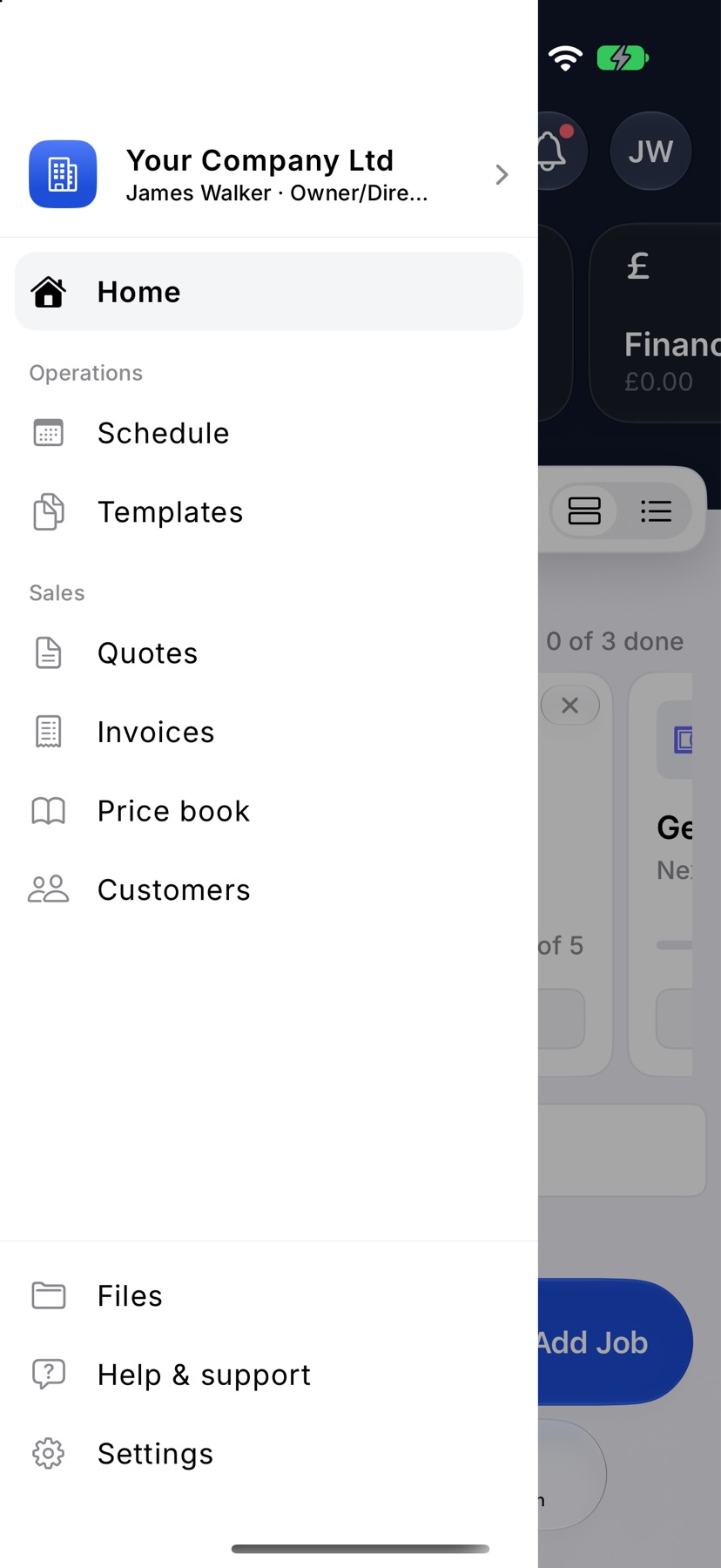
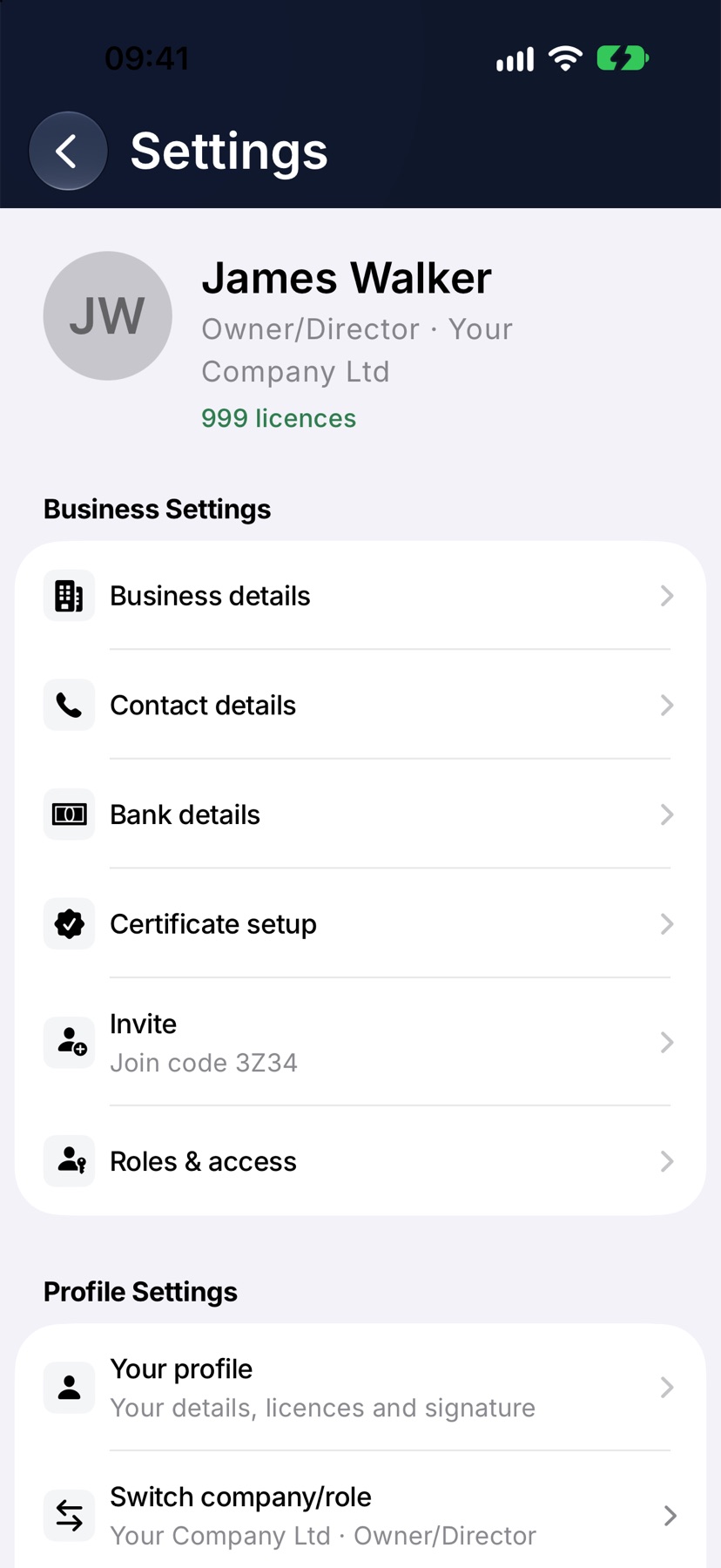
On Home, tap the menu button at the top left, then tap Settings at the bottom of the menu. The company settings are under Business Settings and Preferences.
Business details
Tap Business details. Fill in the fields below and tap the tick at the top right to save.
- Business type
- Choose how you trade, such as sole trader or limited company. It decides whether the next field asks for a company name or a trading name.
- Company name / Trading name
- The name your customers know you by. It is the heading on every quote, invoice and certificate.
- Company Registration Number
- Your Companies House number, if you are a limited company. It prints as Company No. at the foot of invoices. Leave it empty if you do not have one.
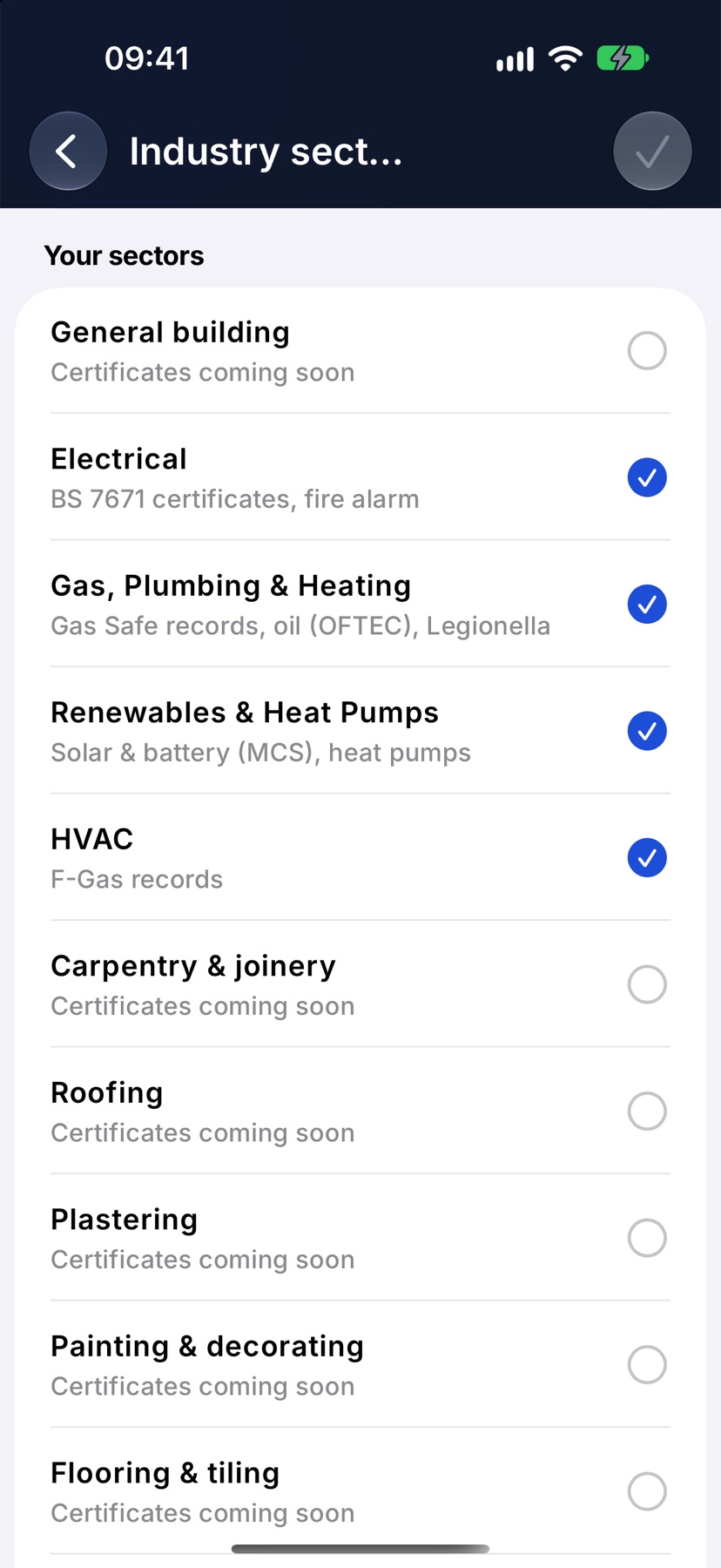
- Industry sectors
- Tick the trades you work in. Each one switches on the certificates and reports for that trade, and the scheme number fields below.
- Logo
- Shows the logo on your documents. To add or change it, follow the link to Document design.
Business address
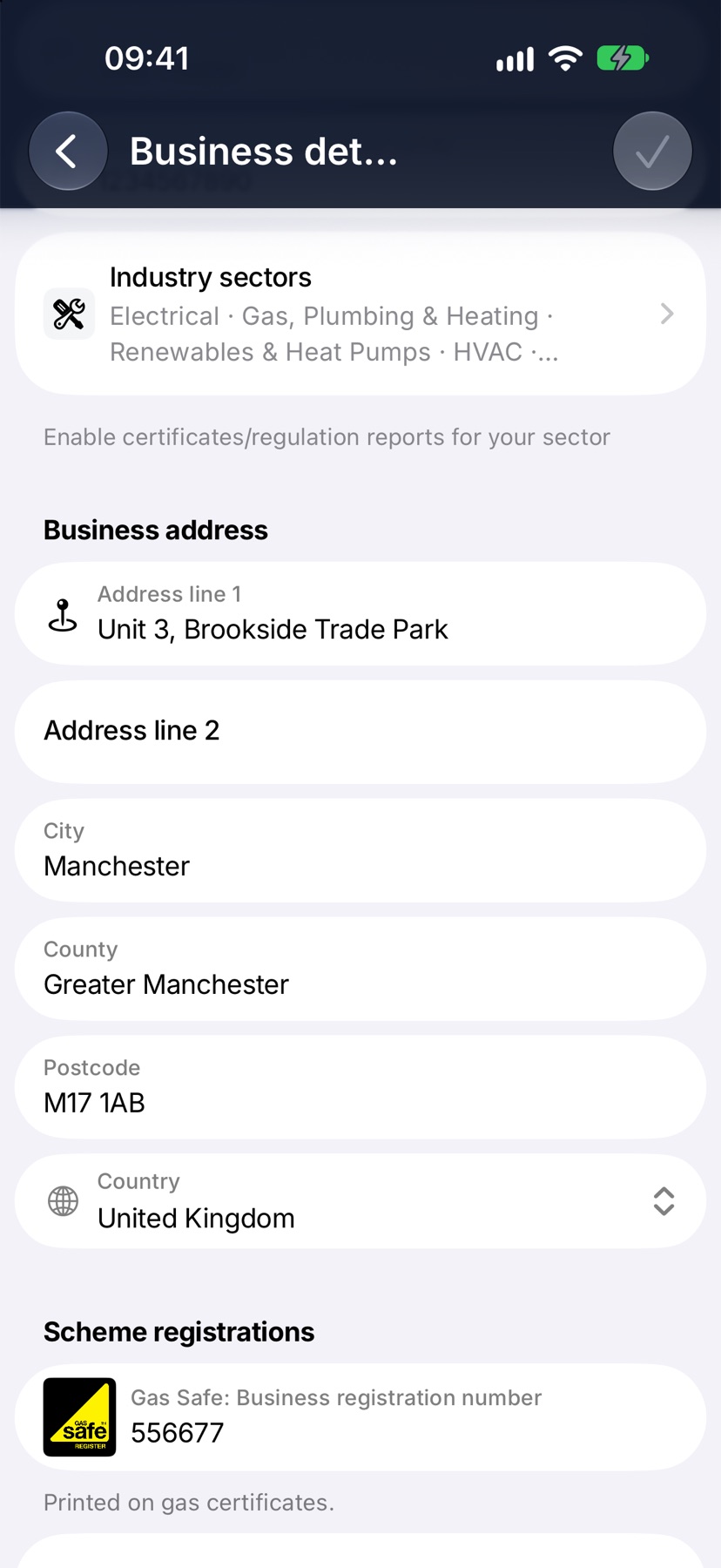
Further down Business details. This is the address printed on every quote, invoice and certificate.
- Address line 1
- Building number and street.
- Address line 2
- Unit, estate or district. Optional.
- City
- Town or city.
- County
- Optional.
- Postcode
- Your business postcode.
- Country
- The country you trade from.
Gas Safe and other scheme numbers
Under Scheme registrations in Business details. These are the numbers your business holds with a trade scheme. A field shows only when one of your industry sectors needs it, so tick your sectors first.
- Gas Safe: Business registration number
- Your business's Gas Safe Register number. Printed on gas certificates.
- Scheme enrolment number (NICEIC / NAPIT)
- Your enrolment number with your electrical scheme. Printed on electrical certificates.
- Company OFTEC registration number
- Your company's OFTEC number. Printed on oil firing forms.
- MCS certification number
- Optional. Printed on solar PV documents.
- F Gas Certificate unique number
- Your company F-Gas certificate number. Printed on F-Gas records.
- Third-party certification registration
- Optional. Your BAFE or NSI registration, printed on fire alarm certificates.
VAT Registration
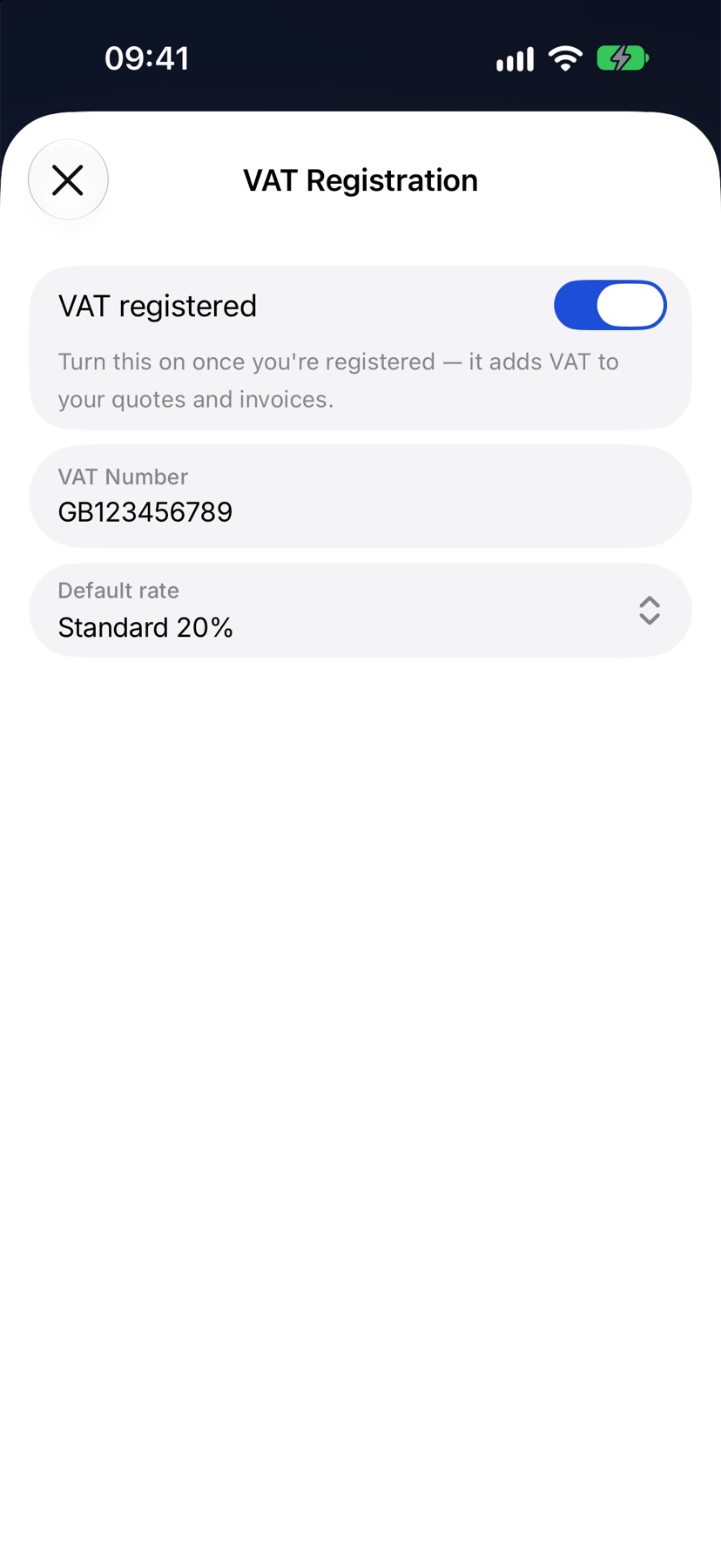
Under Tax registrations in Business details, tap VAT Registration. Close the sheet when you are done, then tap the tick to save.
- VAT registered
- Switch on if you charge VAT. Off, your quotes and invoices carry no VAT.
- VAT Number
- Your VAT registration number. Printed on quotes and invoices.
- Default rate
- The rate new lines start on, usually Standard (20%). You can change the rate on any line.
Construction Industry Scheme (CIS)
The row below VAT Registration. Fill it in only if you work as a subcontractor under CIS.
- Registered subcontractor
- Switch on if contractors deduct CIS from what they pay you. CIS then appears on quotes and invoices to CIS contractors.
- Unique Taxpayer Reference (UTR)
- Your 10-digit UTR from HMRC, so the contractor can verify you.
- Deduction rate
- The rate HMRC has given you: Gross (0%), Standard (20%) or Higher (30%). It works out the deduction on each invoice.
Contact details
Back in Settings, tap Contact details. These print on your quotes and invoices so a customer can reach you.
- Phone
- The number customers should call.
- The address customers should reply to. It can be different from the one you sign in with.
- Website
- Optional.
Bank details
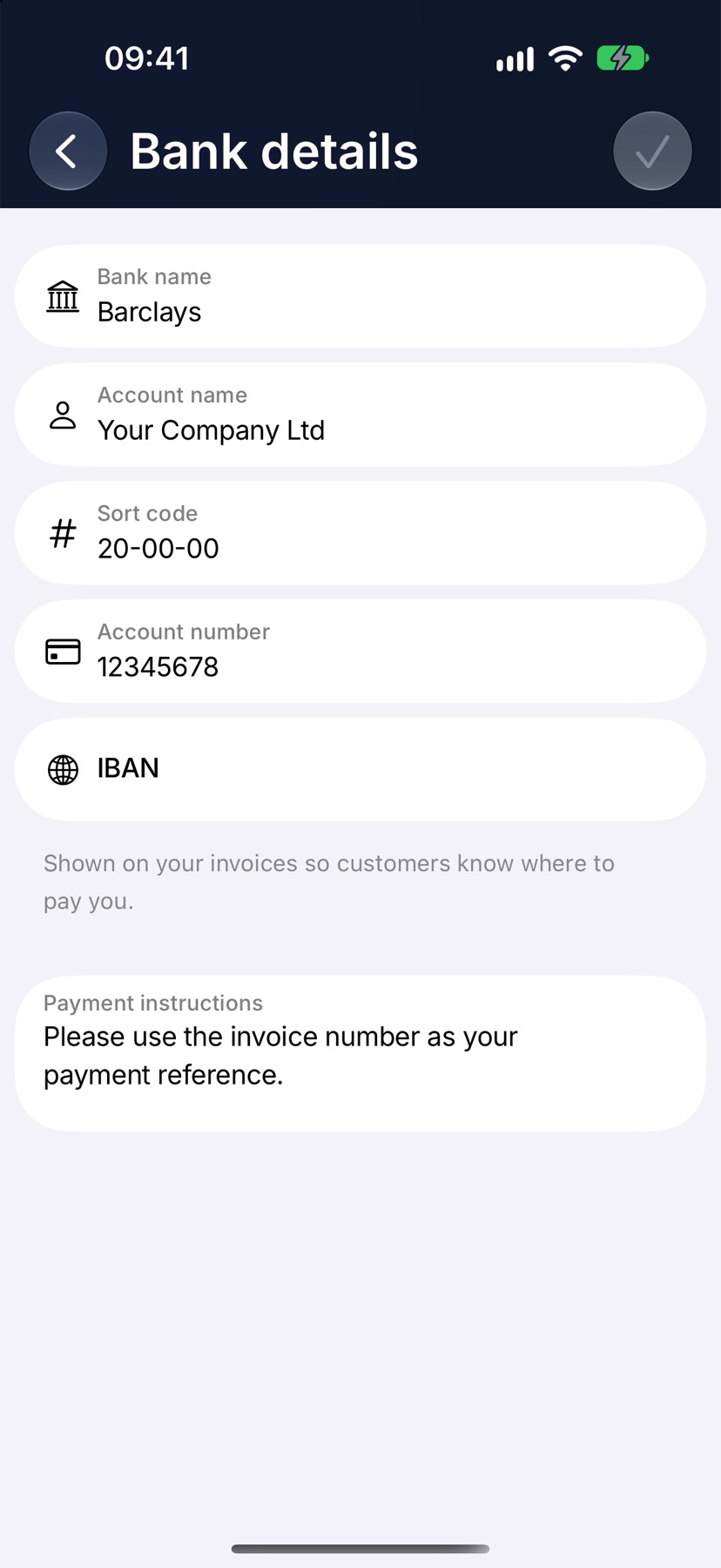
In Settings, tap Bank details. They are shown on your invoices so customers know where to pay you.
- Bank name
- The bank the account is with.
- Account name
- The name on the account, exactly as the bank holds it.
- Sort code
- Six digits.
- Account number
- Eight digits.
- IBAN
- Optional. Add it if customers pay you from abroad.
- Payment instructions
- Optional. A line printed under the bank details, such as asking for the invoice number as the reference.
Set your logo and document defaults
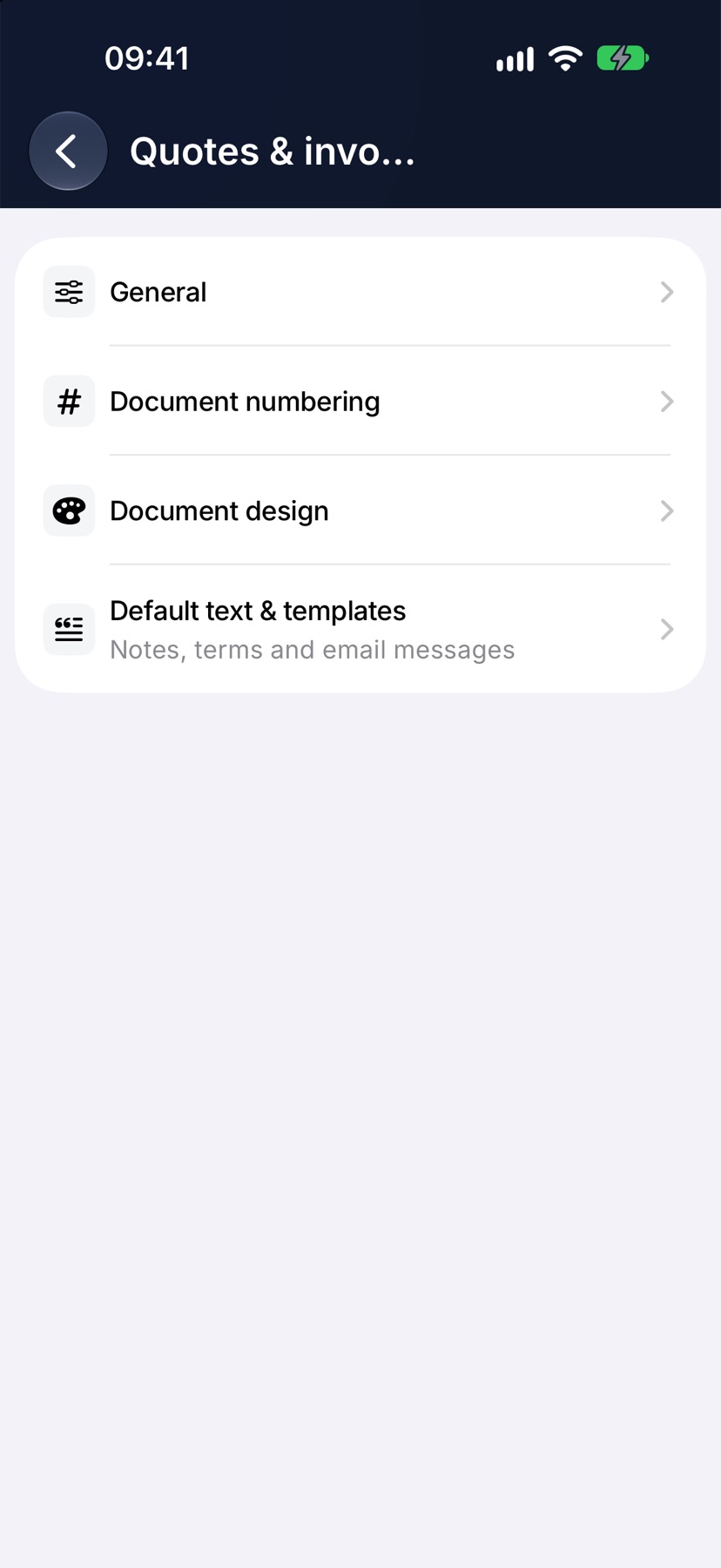
In Settings, under Preferences, tap Quotes & invoices. Four screens sit behind it.
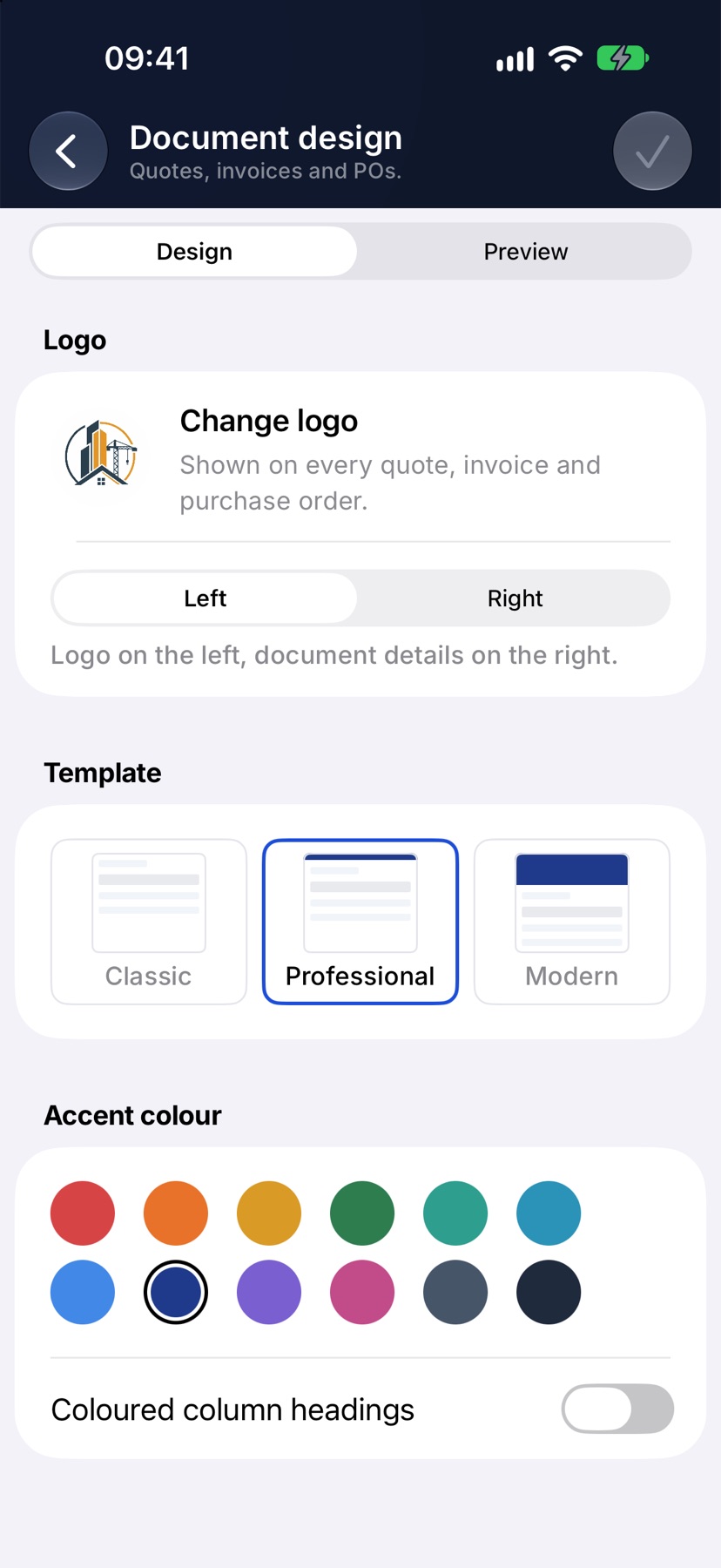
Document design is where you tap Add logo, pick a Template and an Accent colour. Switch to Preview at the top to see a document with your choices.
General holds the Payment terms and Quote validity in days, and the Itemised switch that decides whether new documents show every line. Document numbering holds the prefixes and the next number. Default text & templates holds the notes, terms and email messages that documents start with.
Certificates and modules
Certificate setup in Settings lists the certificates your industry sectors have switched on. There is nothing to enter there unless you fit fire doors.
Modules in Settings turns whole parts of the app on or off for everyone in the company, so the menu only shows what you use.
After setup
Every new quote and invoice now starts with your logo, address, VAT number, terms and bank details already in place. Anything here can be changed later, and the change applies to documents created from then on.
To take card payments on invoices or send them to your accounts package, tap App integrations in Settings.
More in Getting started →
- Jobivo OverviewHow customers, jobs, evidence and money hang together — the shape of the whole app.
- Find your way aroundHome, the menu, search and the + button — where everything lives on the web, Android and iPhone.
- Create your accountSign up, name your company and pick your trades — or join a company that already uses Jobivo.
- The setup checklistThe Finish setup cards on Home — what each one does and which you can skip.
Still stuck? Email support@jobivo.co.uk and we'll get back to you.