The setup checklist
Work through the Finish setup cards on Home until your company is ready to send documents.
What the setup checklist is
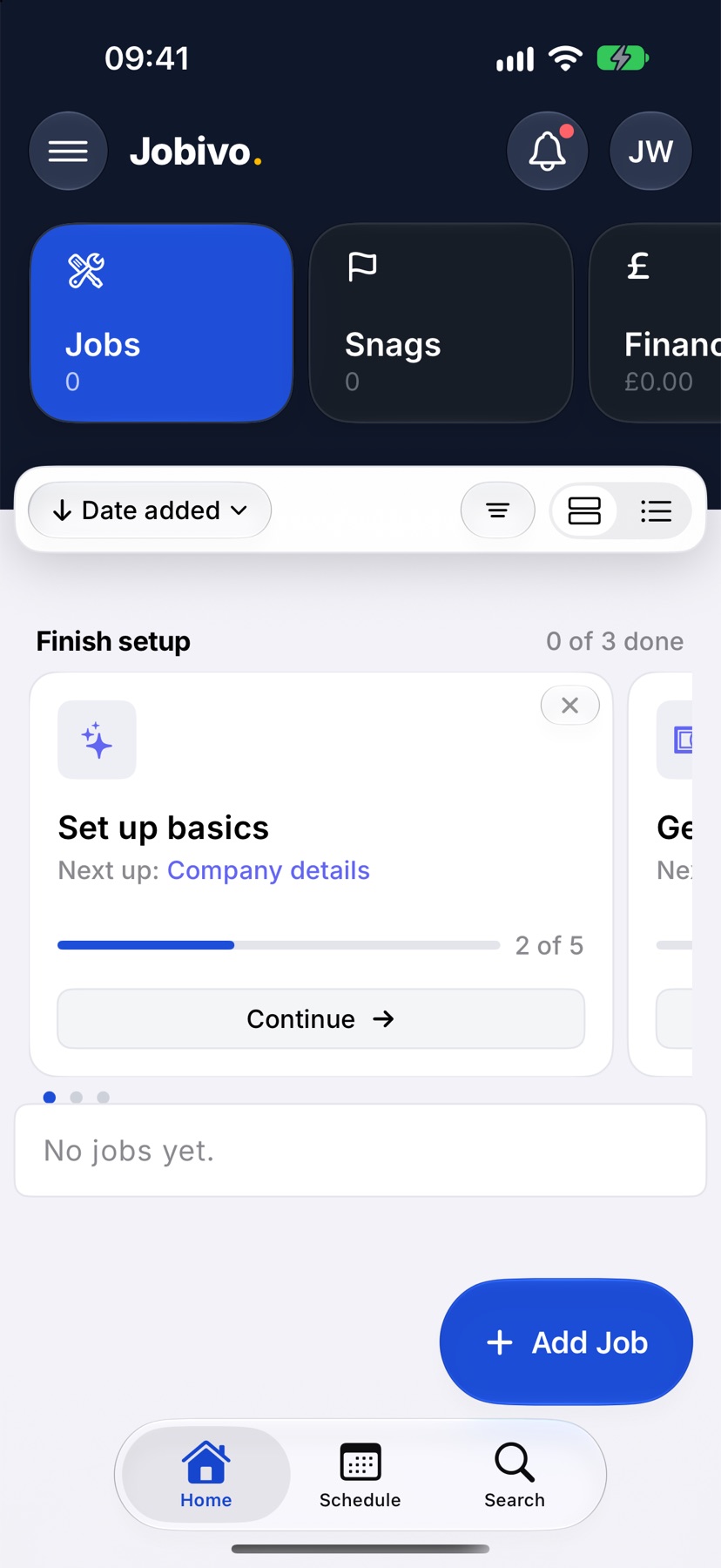
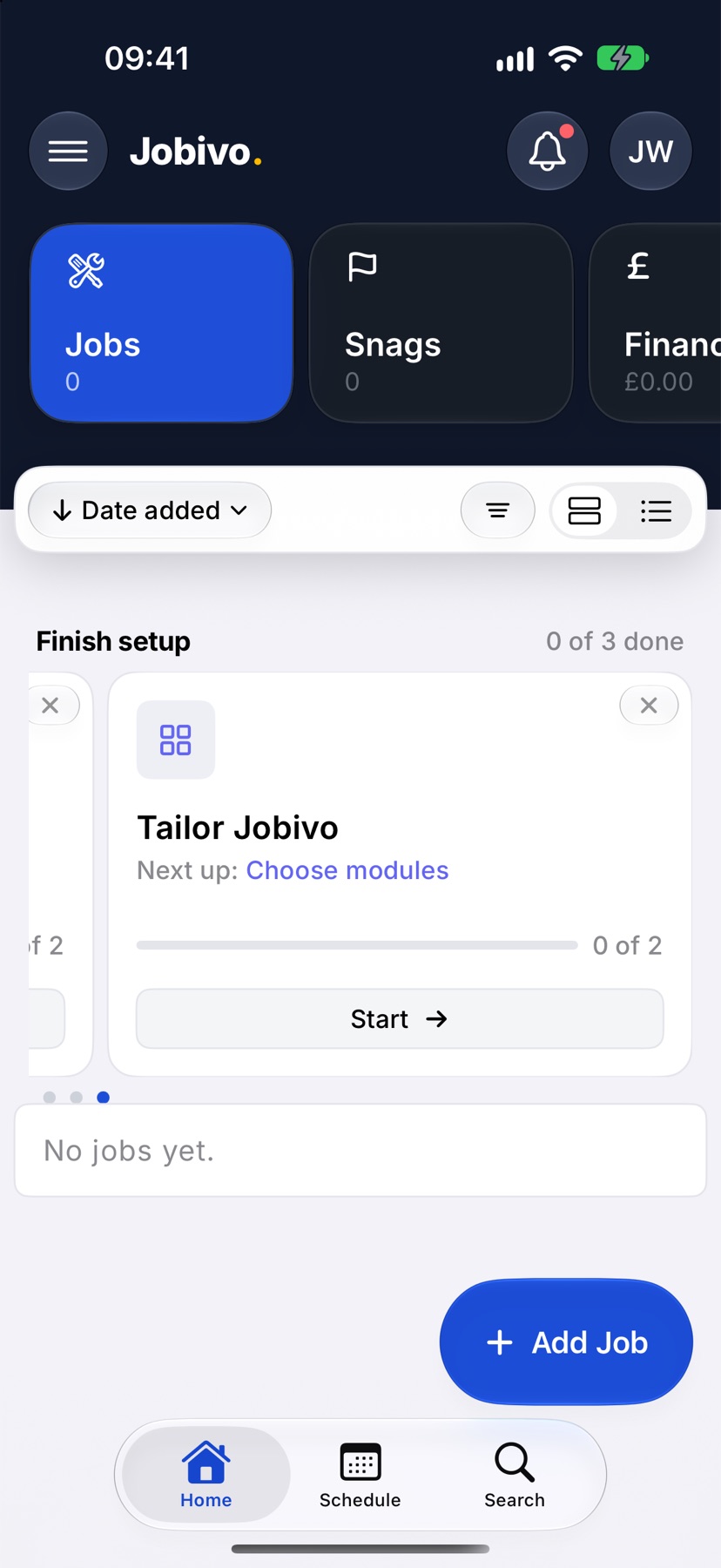
A new company starts with a short list of things still to fill in. Home shows them as cards under Finish setup, grouped into three: Set up basics, Getting paid and Tailor Jobivo.
Each card opens the exact screen where the missing detail goes, so you do not have to find it in Settings. Items tick themselves off as you fill them in, and a card leaves Home once everything on it is done.
The cards are shown to people who run the company. Team members who only see their own work do not get them.
Where to start
Open Jobivo on Home. The cards are under the heading Finish setup, which also says how many of the three are done. Swipe sideways to see the others.
Each card names what is Next up and shows how far along it is. Tap Start to go straight to the next item, or Continue once you have begun. Tap the card itself to see its whole list.
Work through a card's list
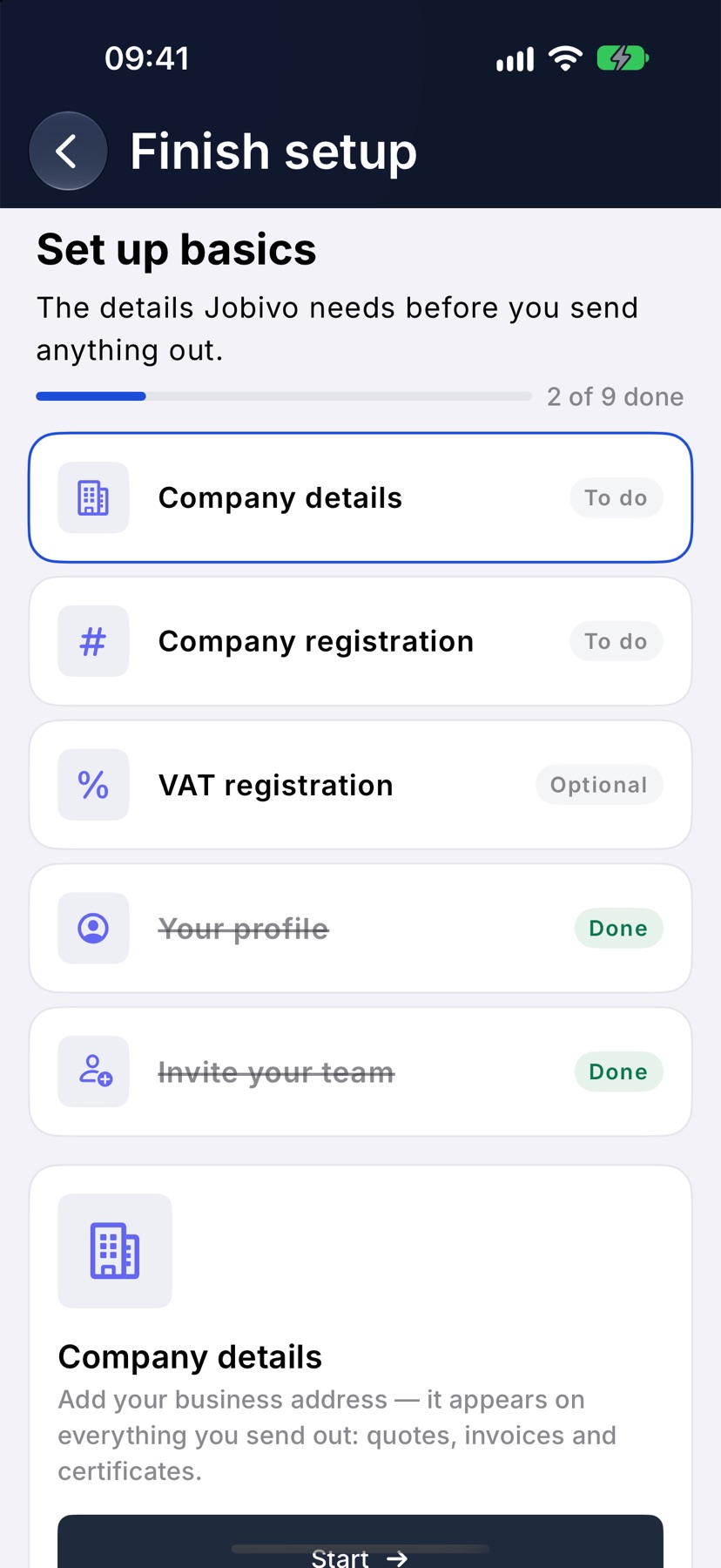
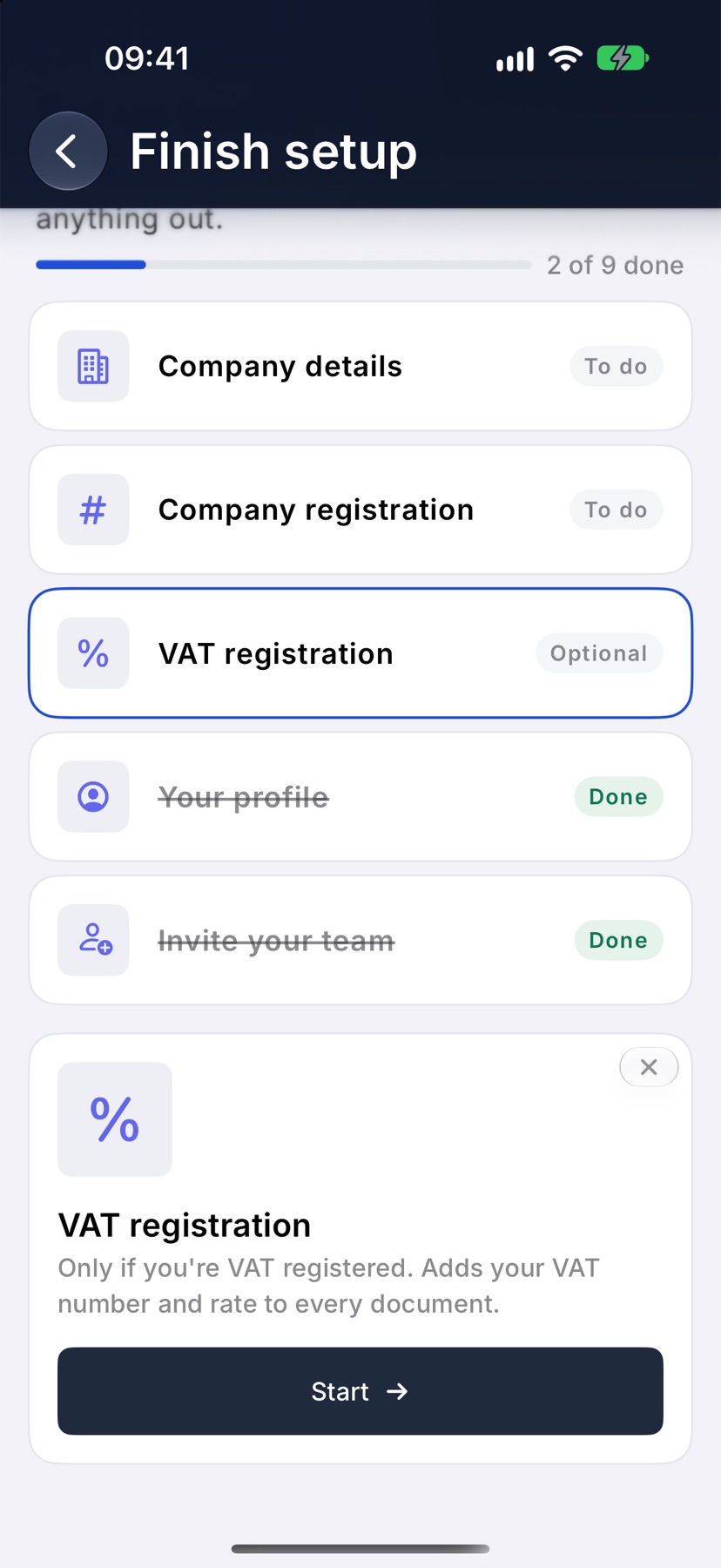
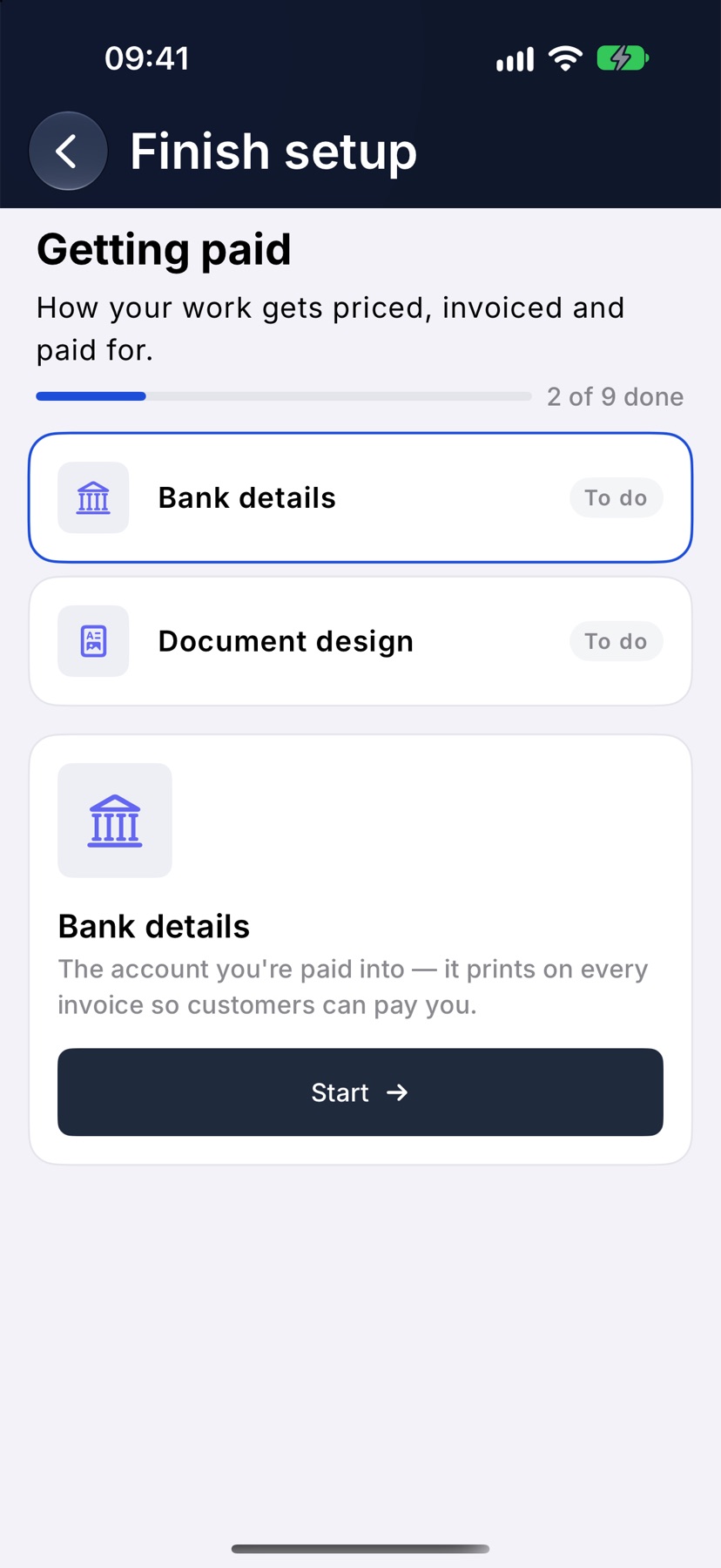
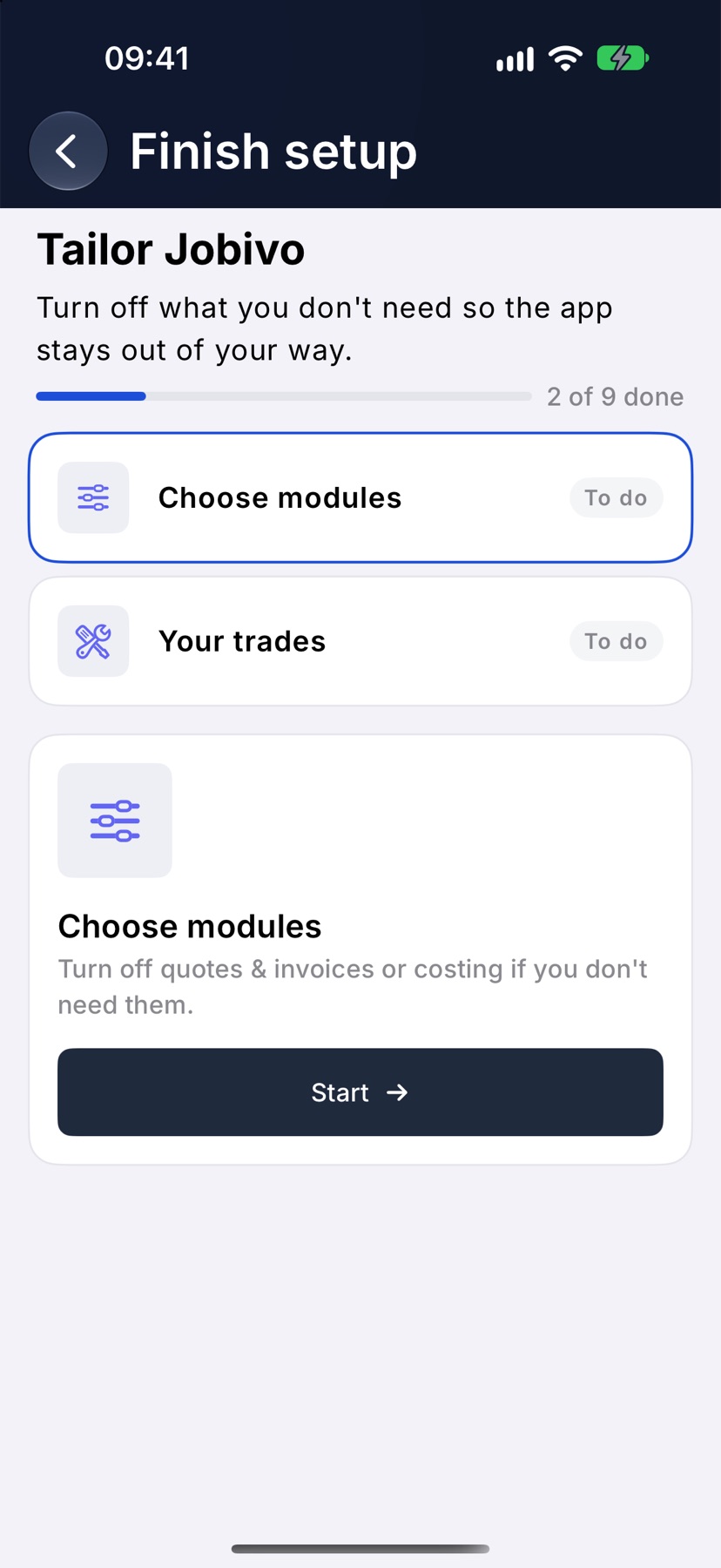
Tapping a card opens Finish setup with that card's items. Each row is marked To do, Optional or Done. Tap a row to select it. A panel below explains what the item is for, with a Start button that opens the right screen.
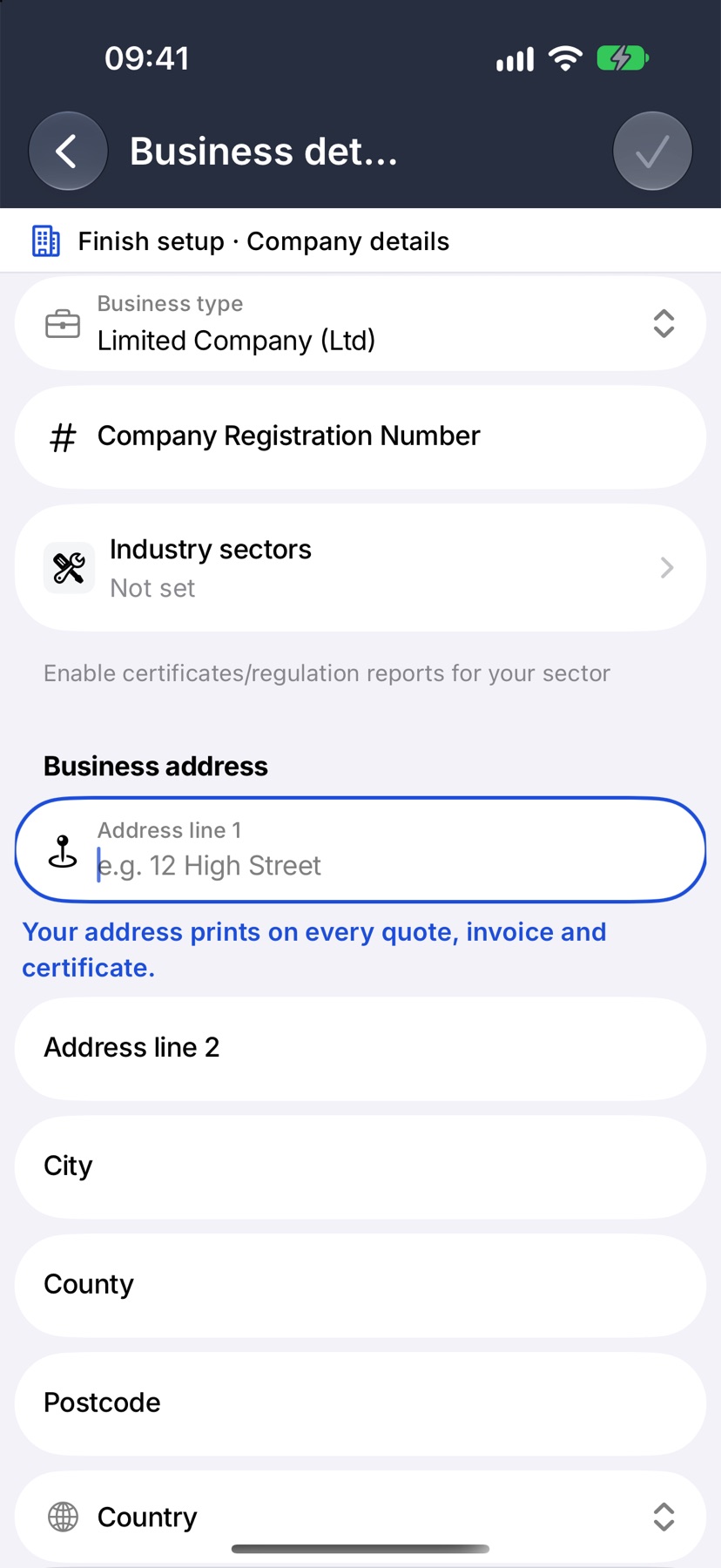
Fill in the highlighted field and tap the tick to save. You return to the list with the item marked Done. A finished item shows Review instead of Start, so you can go back and change it.
Set up basics
Company details asks for your business address, which prints on quotes, invoices and certificates. Company registration asks for your registration number, which has to appear on invoices.
VAT registration is marked Optional. Fill it in only if you are VAT registered. If you are not, tap the cross on its panel to remove it from the list.
Your profile asks for your name and photo. Invite your team opens the invite screen so your people can sign in on their own phones.
Getting paid
Bank details asks for the account you are paid into. It prints on every invoice. Document design is where you add your logo and choose a layout, with a preview of how a quote, invoice or purchase order will look.
Tailor Jobivo
Choose modules opens Modules, where you switch off the parts of the app you do not need. Your trades opens Industry sectors, where ticking a trade switches on its certificates and reports.
Both can be skipped if the defaults suit you. Opening Choose modules or Document design is enough to mark it done, because there is nothing that must be filled in.
Hiding the checklist
A card disappears from Home by itself when every item on it is done. To hide one before then, tap the cross at the top right of the card on Home.
Nothing is lost by hiding a card. Every item it listed is still in Settings, under Business Settings, Profile Settings and Preferences.
More in Getting started →
- Jobivo OverviewHow customers, jobs, evidence and money hang together — the shape of the whole app.
- Find your way aroundHome, the menu, search and the + button — where everything lives on the web, Android and iPhone.
- Create your accountSign up, name your company and pick your trades — or join a company that already uses Jobivo.
- Set up your companyThe settings worth doing first: your details, VAT, bank details and document defaults.
Still stuck? Email support@jobivo.co.uk and we'll get back to you.