Add costs to a job
Build up what a job will cost you, see the profit, and quote the customer from it.
What a cost is
A cost is something the job needs that you pay for: a material, a length of pipe, hours of labour. Each cost line holds what it costs you and the price you charge for it.
Adding costs first tells you what the job should make before you quote it. The quote is then built from the same lines, so nothing is typed twice, and the customer sees your price and never your cost.
Costs are optional. You can also price a job straight onto a quote or an invoice.
Where to start
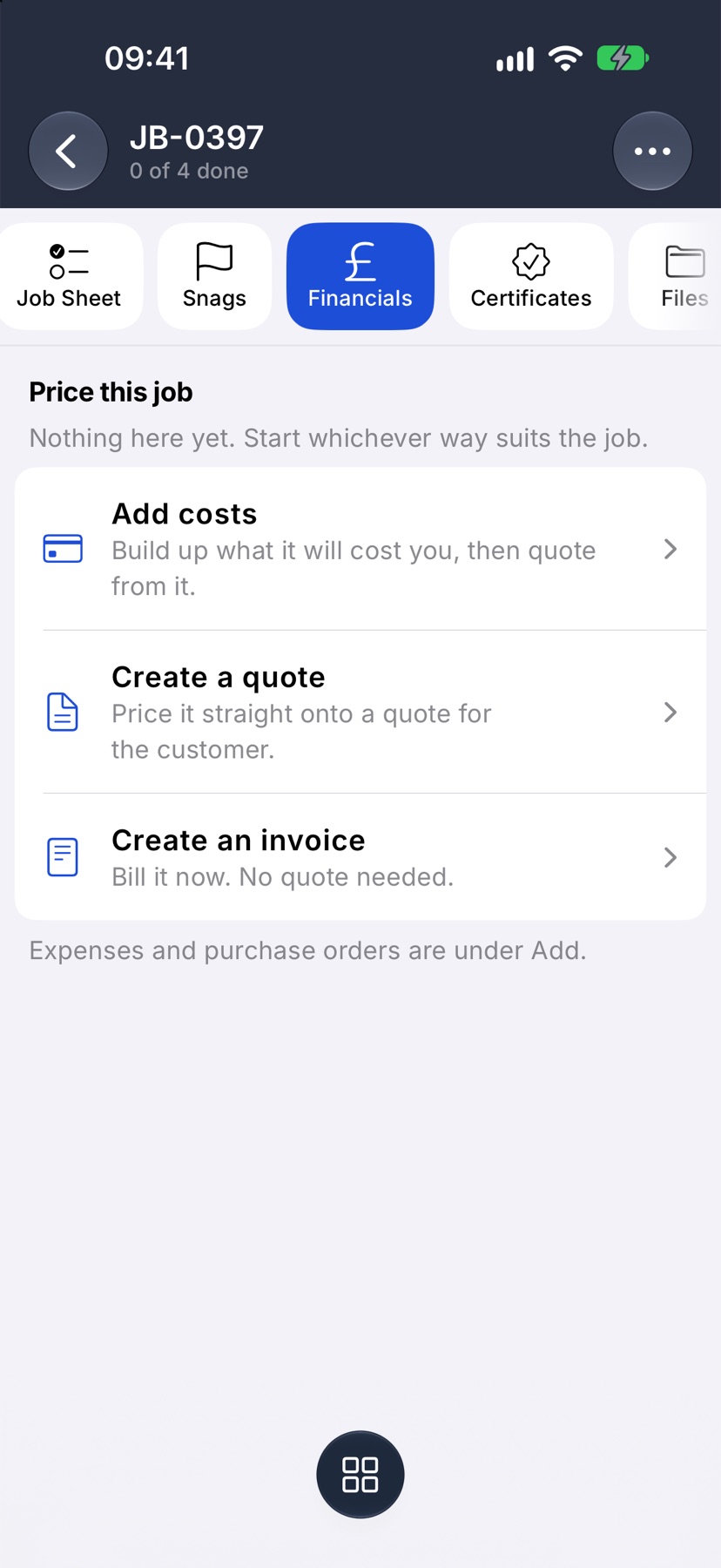
Open the job and tap Financials. On a job with nothing priced yet, tap Add costs.
Say what the cost is
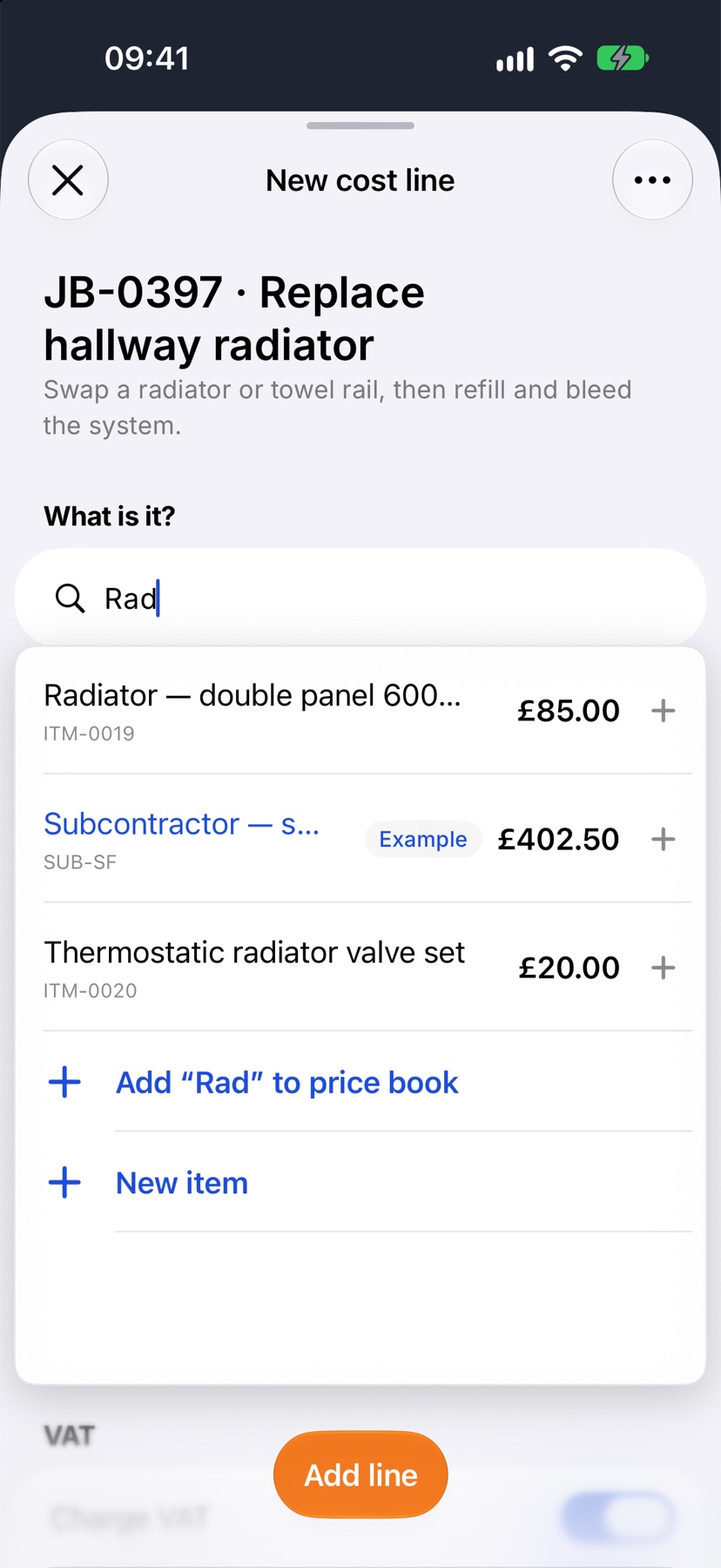
New cost line opens. Type in What is it? to search your price book, and tap the item. If it is not there, type its name and tap New item.
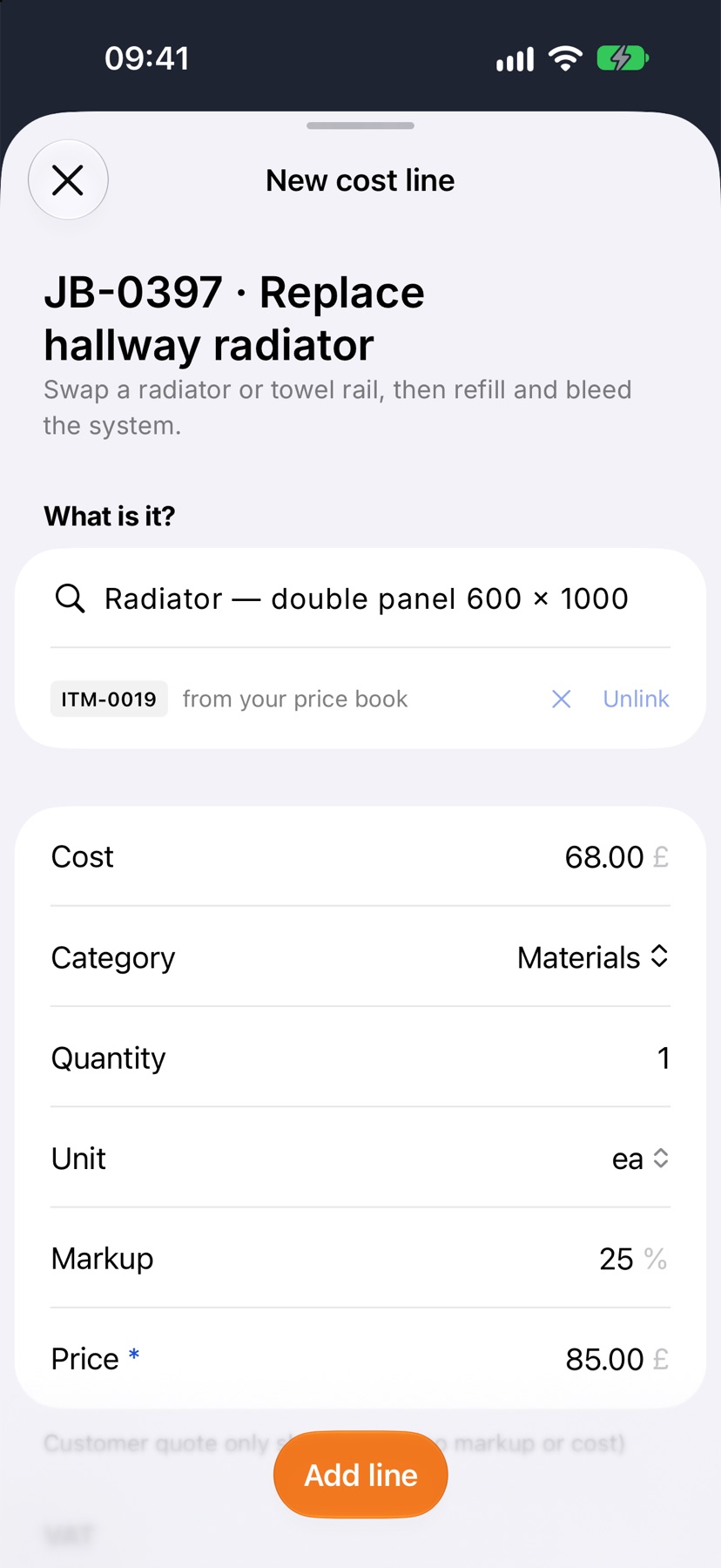
An item from the price book fills its Cost, Category, Unit, Markup and Price. Set the Quantity and change anything that is different for this job. Tap Add line.
See what the job should make
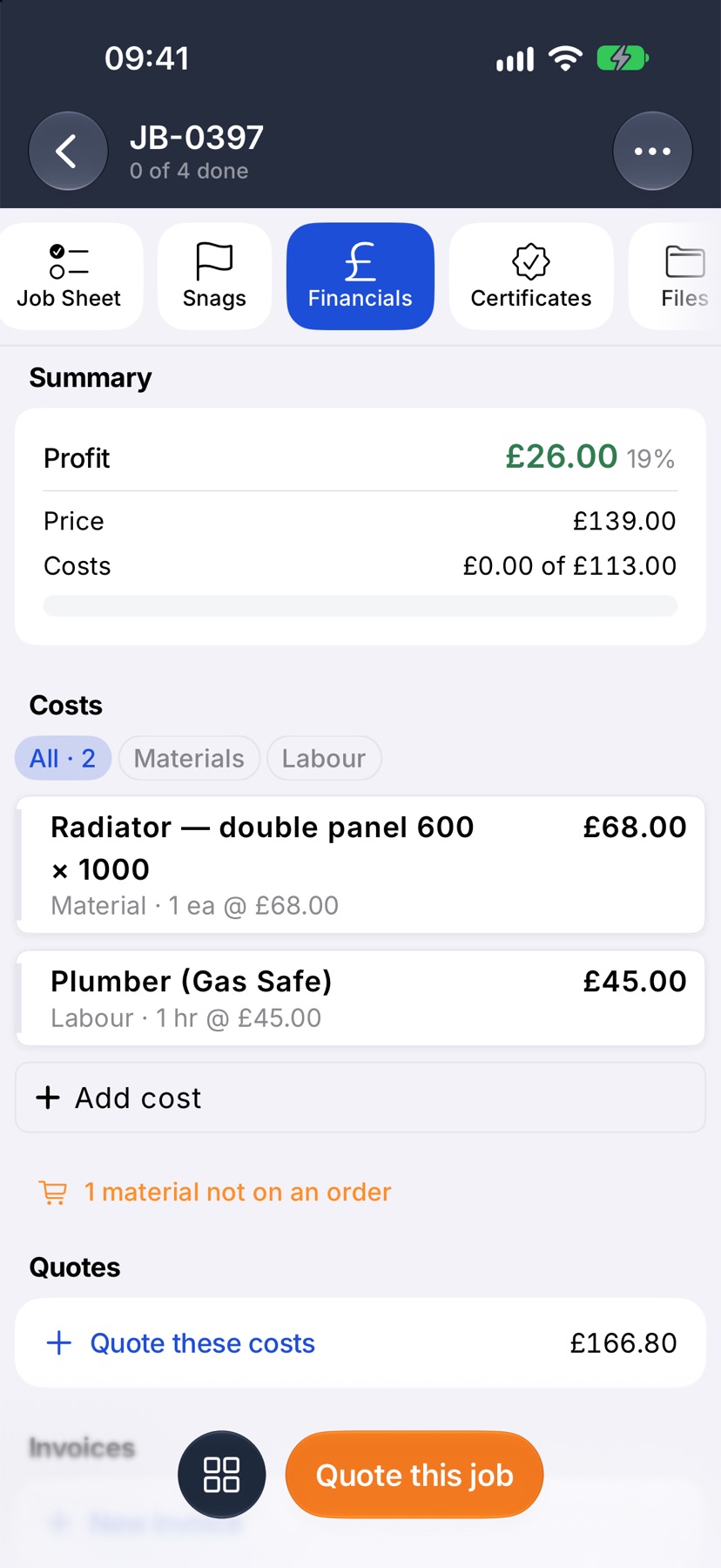
Each cost is now on the job. Summary shows the Profit: the price less what the job is expected to cost. Tap Add cost for each further line, such as labour.
Quote the customer from the costs
When the costs are in, tap Quote these costs. The amount beside it is what the quote will come to with VAT. Jobivo makes a draft quote for the job's customer with every cost as a priced line.
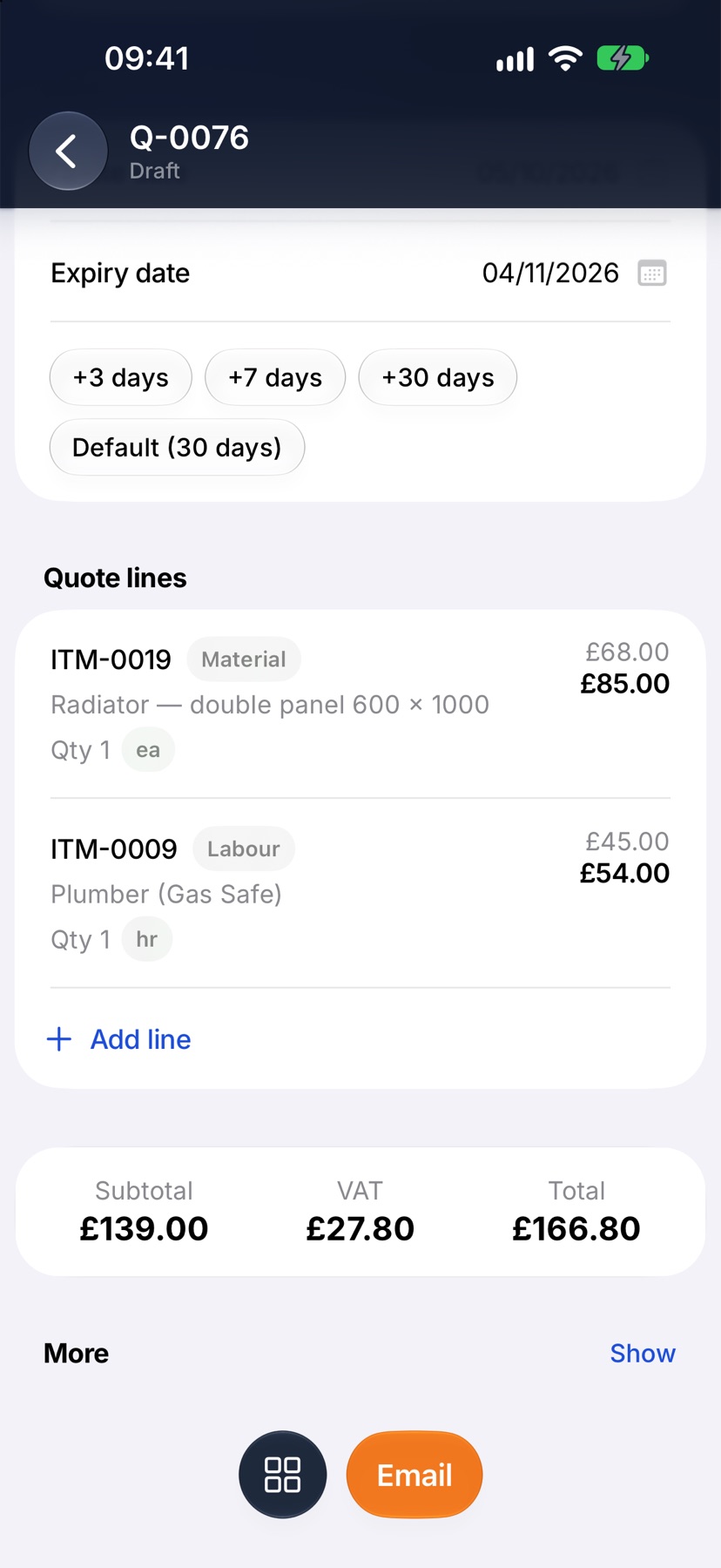
Check the lines and the total. The small figure above each price is your cost, shown only to you. Tap Email to send the quote.
More in Costing & purchasing →
- Estimate, committed, actualHow the cost strip reads, and why committed costs stop a job looking healthier than it is.
- Check a job's profitSee what a job is making, what has been paid, and where the cost is going.
- Purchase ordersRecord what you have ordered the moment you order it, not when the bill lands.
- Send a PO and receive the goodsEmail the order to the supplier, then receive it in full or in part.
Still stuck? Email support@jobivo.co.uk and we'll get back to you.