Check a job's profit
See what a job is making, whether you have been paid, and where the cost is going.
What the Financials tab tells you
Every job has a Financials tab. It answers the questions you ask about a job while you can still do something about it: is it making money, have I been paid, and what is the cost being spent on.
The figures come from what is already on the job: its costs, its quotes and invoices, its purchase orders and its expenses. There is nothing extra to fill in.
Where to start
Open the job and tap Financials in the tabs across the top.
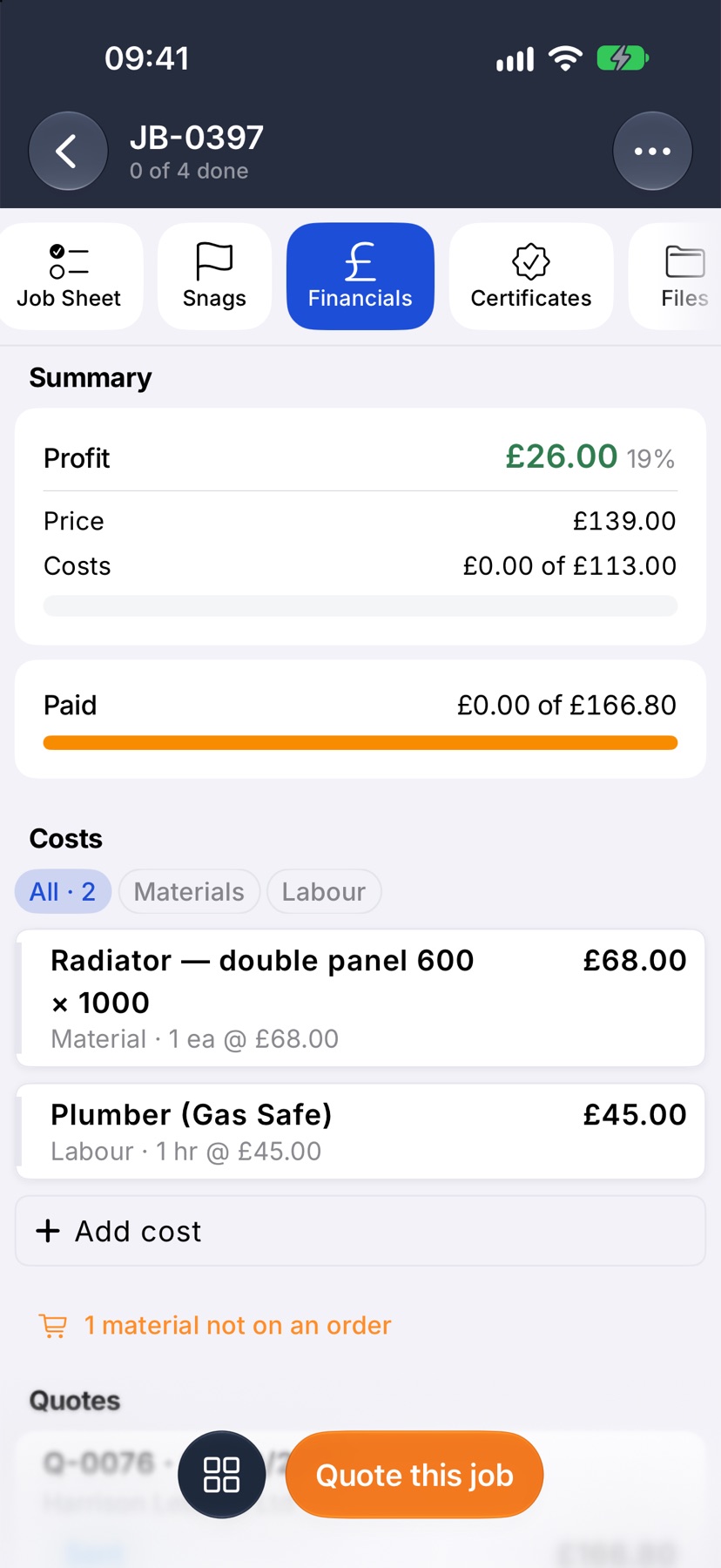
Read Profit and Paid
Profit is the price less what the job is expected to cost, with the margin beside it. Price is what the customer pays before VAT. Costs shows what has been spent so far against what you planned.
Paid shows how much of the invoiced total the customer has paid. It appears once the job has been quoted or invoiced.
Look for red
Red marks a figure that is over or late. Over plan appears under Costs when the job has cost more than you planned, and the profit falls to match. Overdue appears under Paid when an invoice has passed its due date.
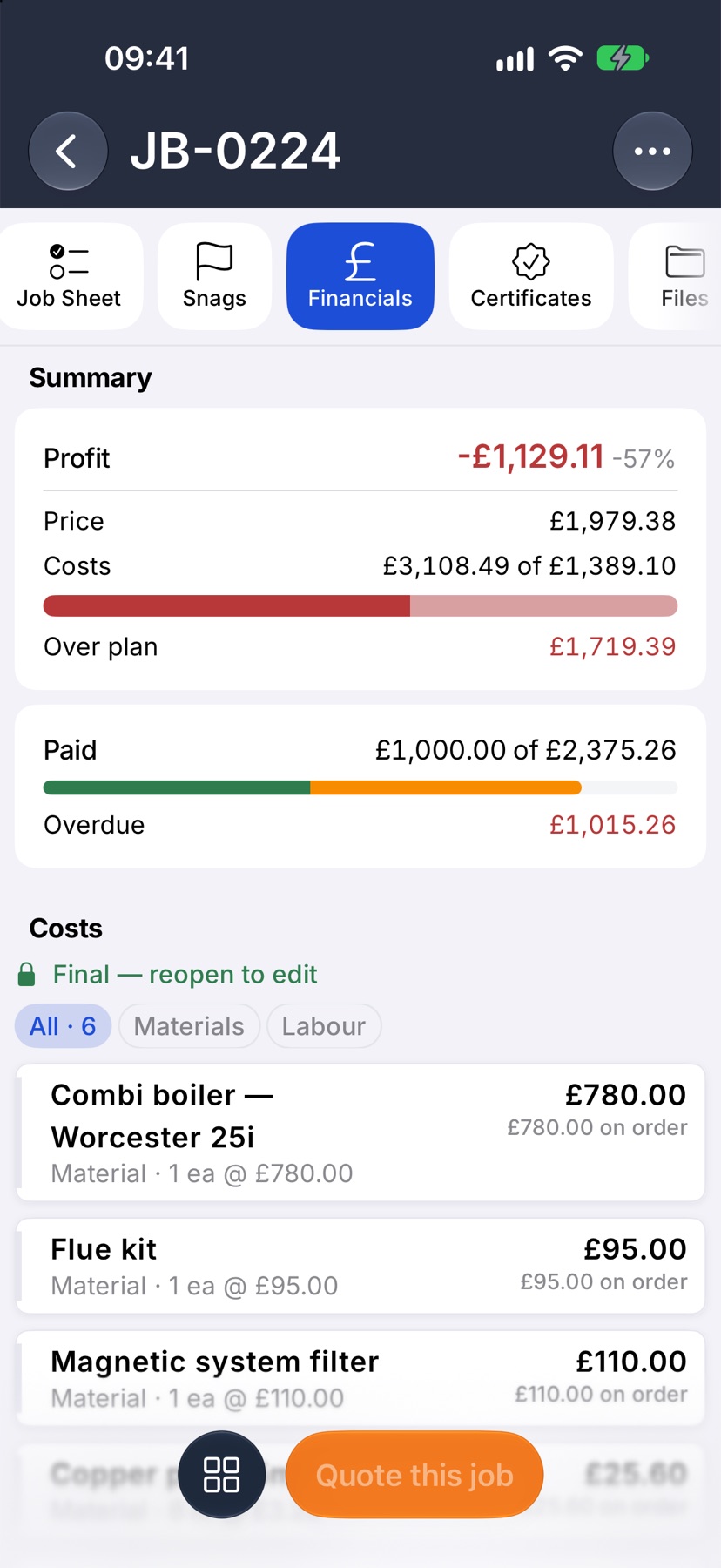
Each cost line shows what has been spent or ordered against it, so you can see which line went over.
See where the cost is going
Under Costs, each line shows what you planned for it. The buttons above the list filter by category, such as Materials or Labour. Tap Add cost to add one. A note in orange tells you when a material has not been ordered yet.
On a job with sub-jobs
The Summary covers the whole job. Under Costs, each sub-job has its own row with its spend against its plan, its price and its margin. Tap a row to open its cost lines, or the arrow to open the sub-job itself.
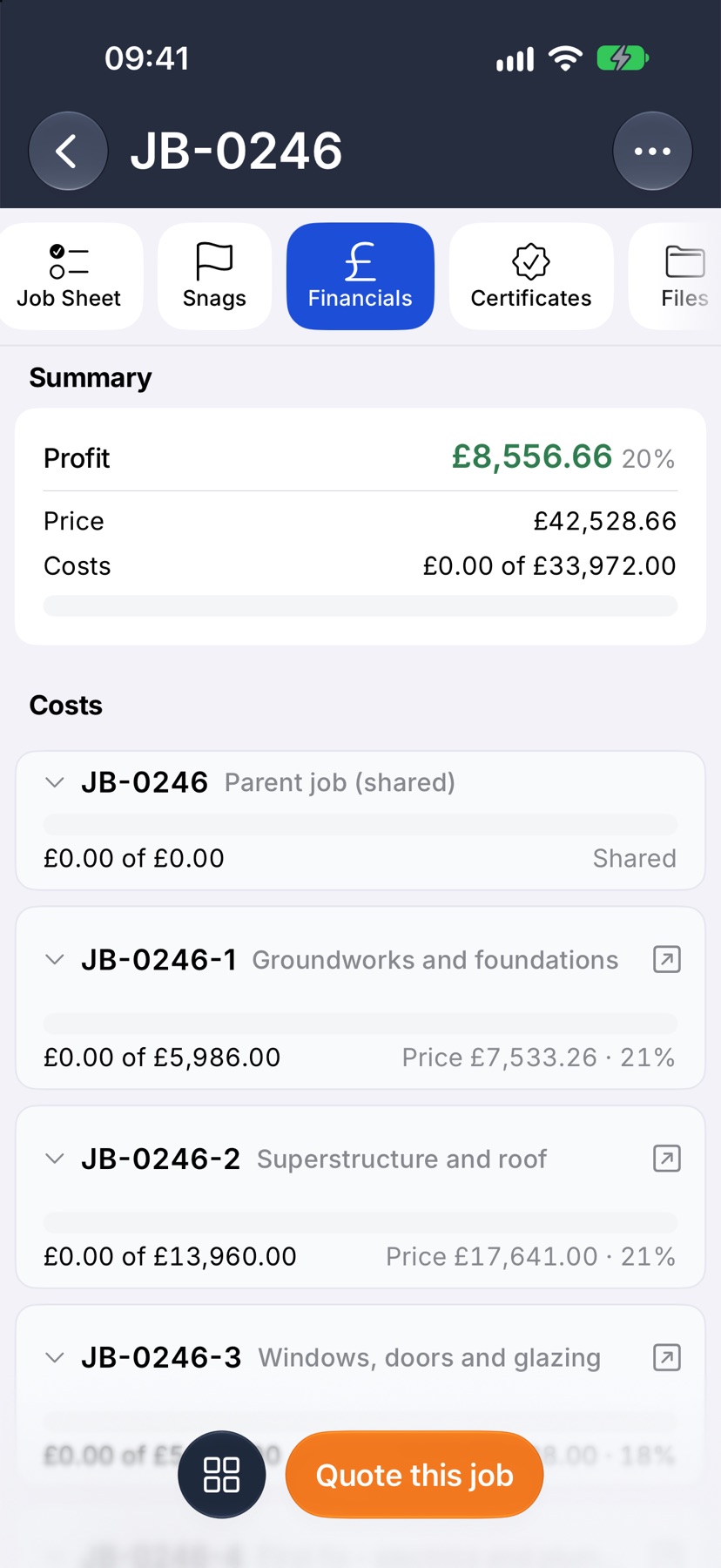
Find the paperwork
Scroll down for the job's Quotes, Invoices, Purchase orders and Expenses. Each shows its status and amount, and each section ends with a row to add another.
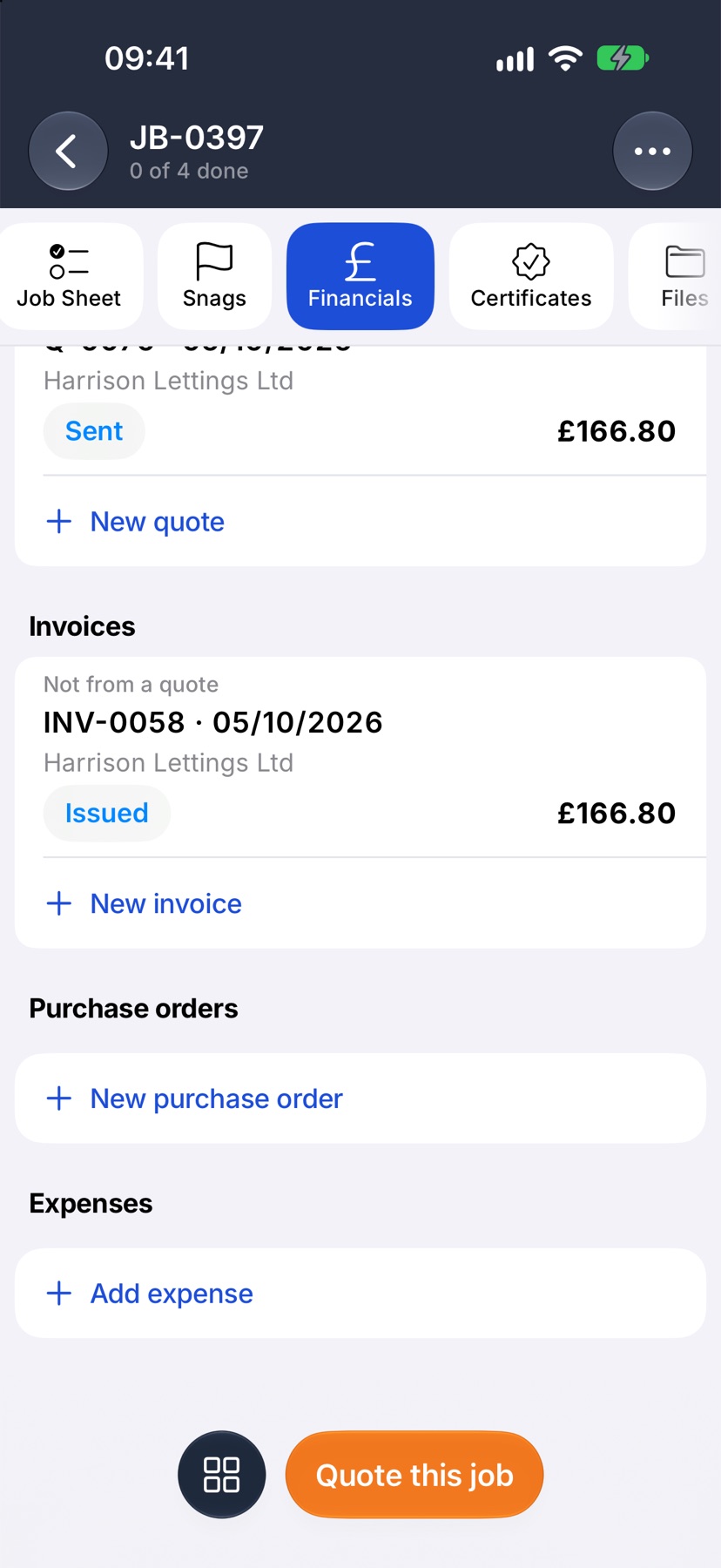
More in Costing & purchasing →
- Estimate, committed, actualHow the cost strip reads, and why committed costs stop a job looking healthier than it is.
- Add costs to a jobBuild up what a job will cost you, see the profit, and quote the customer from it.
- Purchase ordersRecord what you have ordered the moment you order it, not when the bill lands.
- Send a PO and receive the goodsEmail the order to the supplier, then receive it in full or in part.
Still stuck? Email support@jobivo.co.uk and we'll get back to you.