Send a PO and receive the goods
Send an order to the supplier, then record what arrives, in full or in part.
What sending and receiving do
A purchase order starts as a draft. Sending it gives it a number and commits its value to the job. Receiving it records that the goods have arrived and moves that value from on order to the job's expenses.
You can receive an order all at once or a few lines at a time. What has not arrived stays on order until you receive it or cancel the order.
Where to start
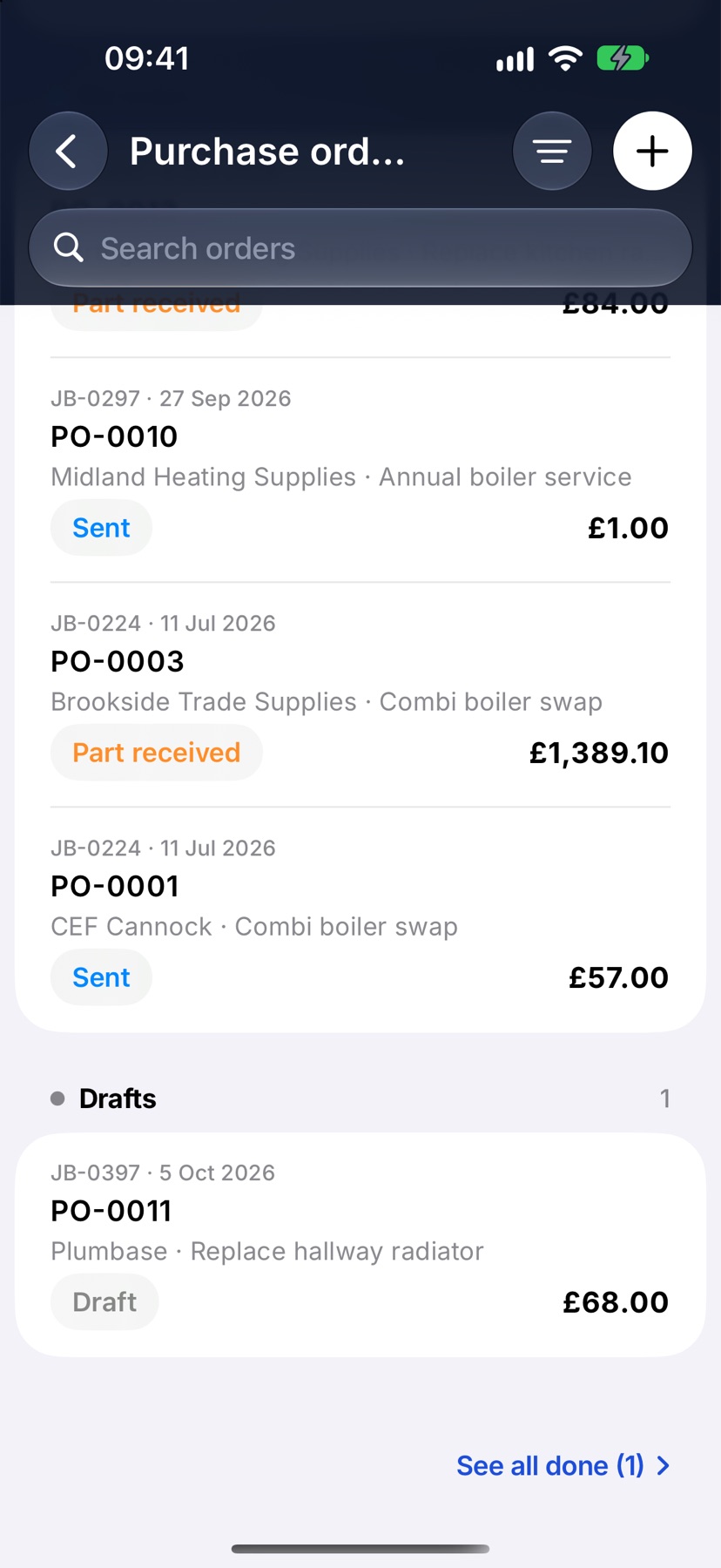
Open the menu and tap Purchase orders under Purchasing. The list is grouped into Late, On order and Drafts. Tap an order to open it.
You can also reach an order from its job: open the job, tap Financials and scroll to Purchase orders.
Order the materials a job still needs
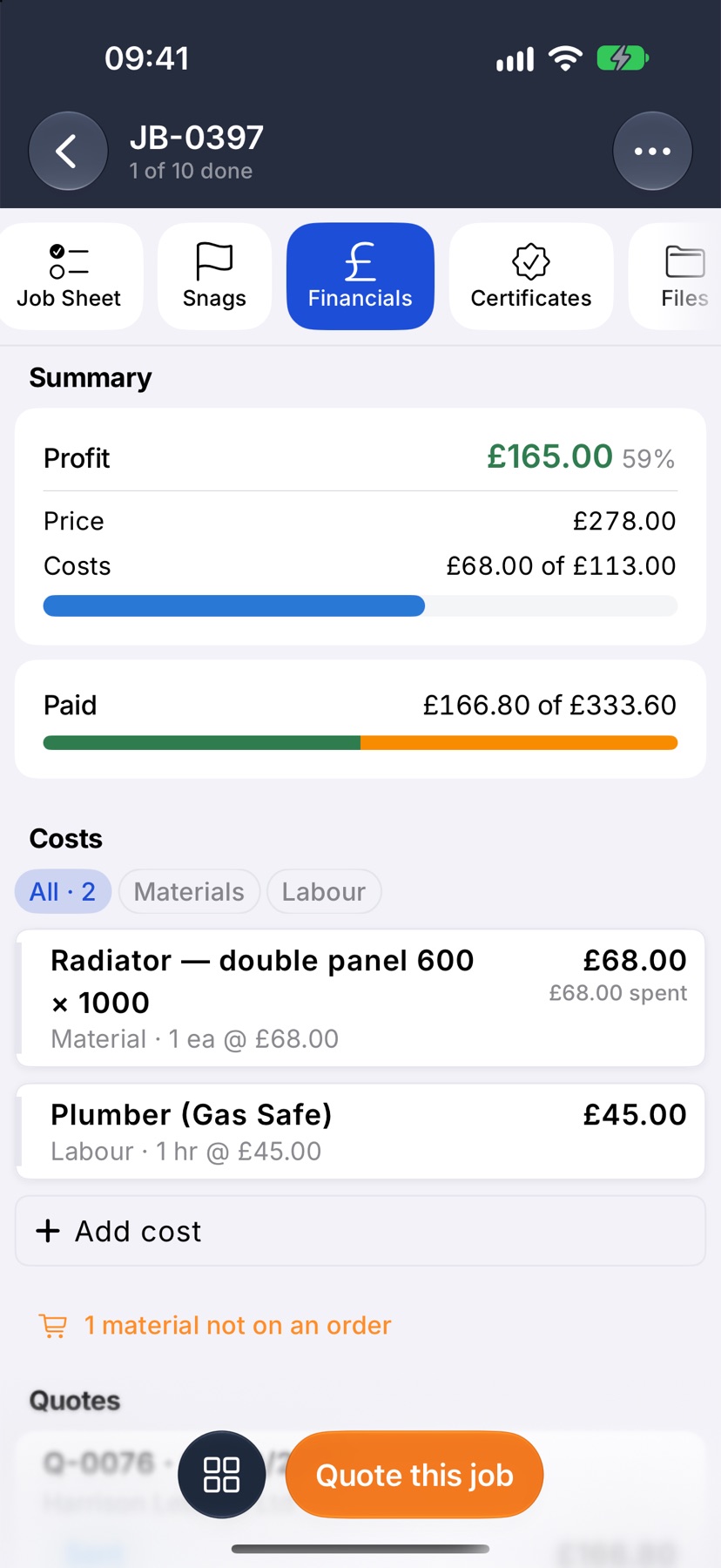
On a job's Financials tab, a line in orange under Costs counts the materials that are not on an order yet. Tap it and Order from the costs opens with those materials ticked.
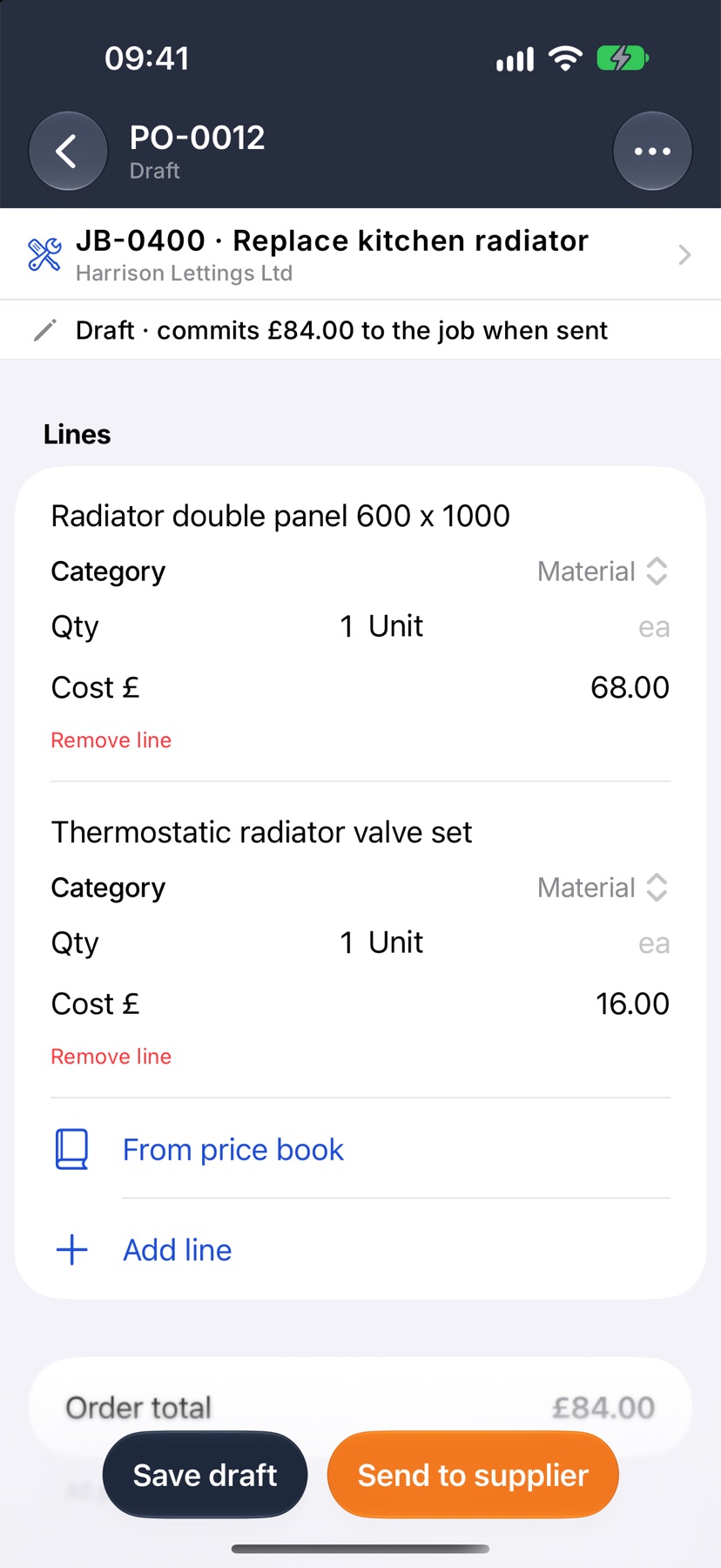
Choose the Supplier, untick anything you are not ordering now, and tap the tick. A draft order opens with its lines filled in.
Send the order to the supplier
On the draft, tap Send to supplier. Choose how it goes. Email followed by the supplier's name sends the PDF and a link. Share link opens the share sheet so you can send the link yourself. Mark as ordered sends nothing, for an order you placed by phone or at the counter.
If you chose email, check the address and tap Send. The address is filled in from the supplier's record and you can change it.
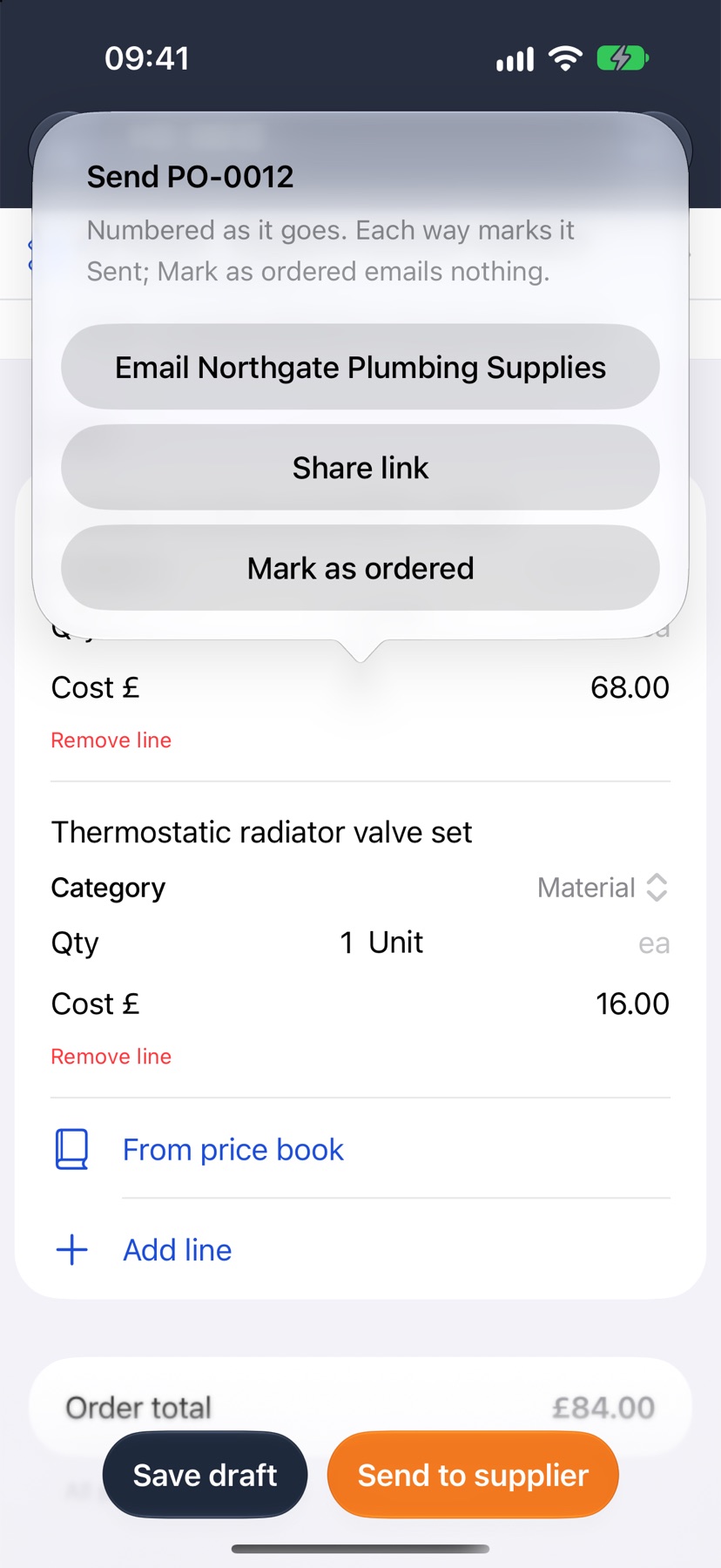
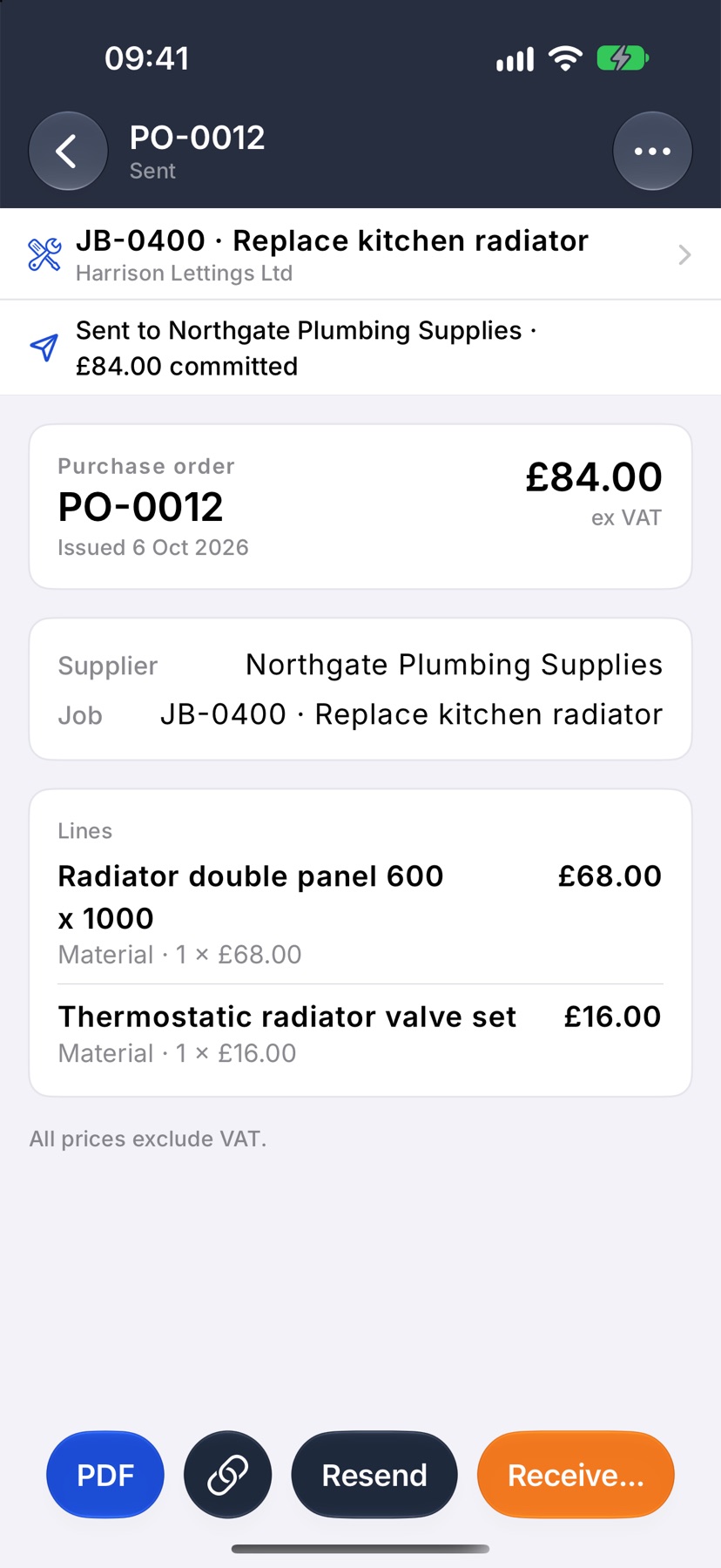
Each way marks the order Sent and gives it its number. The line under the title now shows the amount committed and the expected date. To send it again later, tap Resend.
Receive the goods
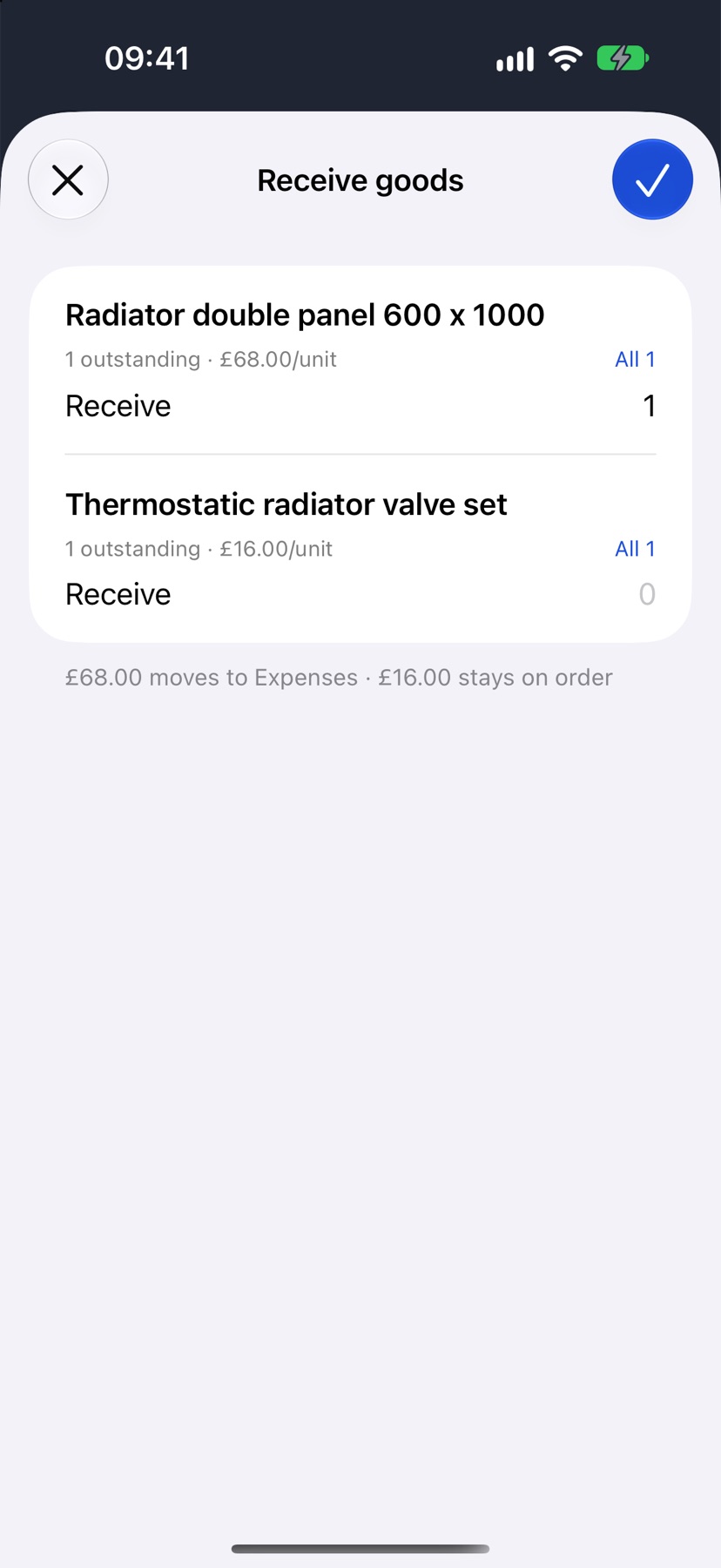
When the delivery arrives, open the order and tap Receive…. Receive goods lists each line with how many are outstanding.
For each line that arrived, tap All to receive the full quantity, or type the number that came in the Receive field. The note under the lines shows how much moves to Expenses and how much stays on order. Tap the tick.
When only part arrives
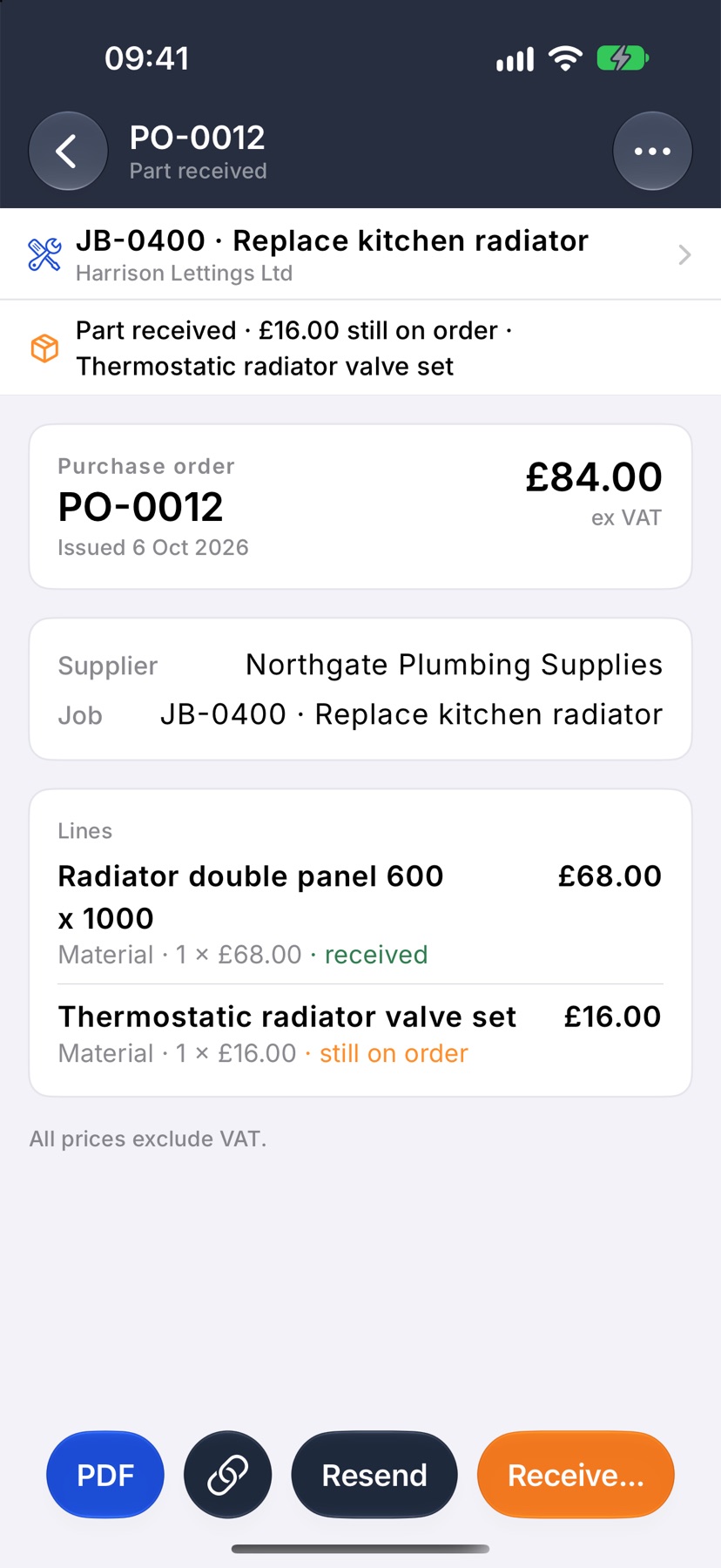
Receive the lines that came and leave the rest empty. The order becomes Part received. The line under its title shows what is still on order and names what is still to come, and each line of the order says whether it was received.
When the rest arrives, tap Receive… again. Only the outstanding quantities are listed.
Cancel an order
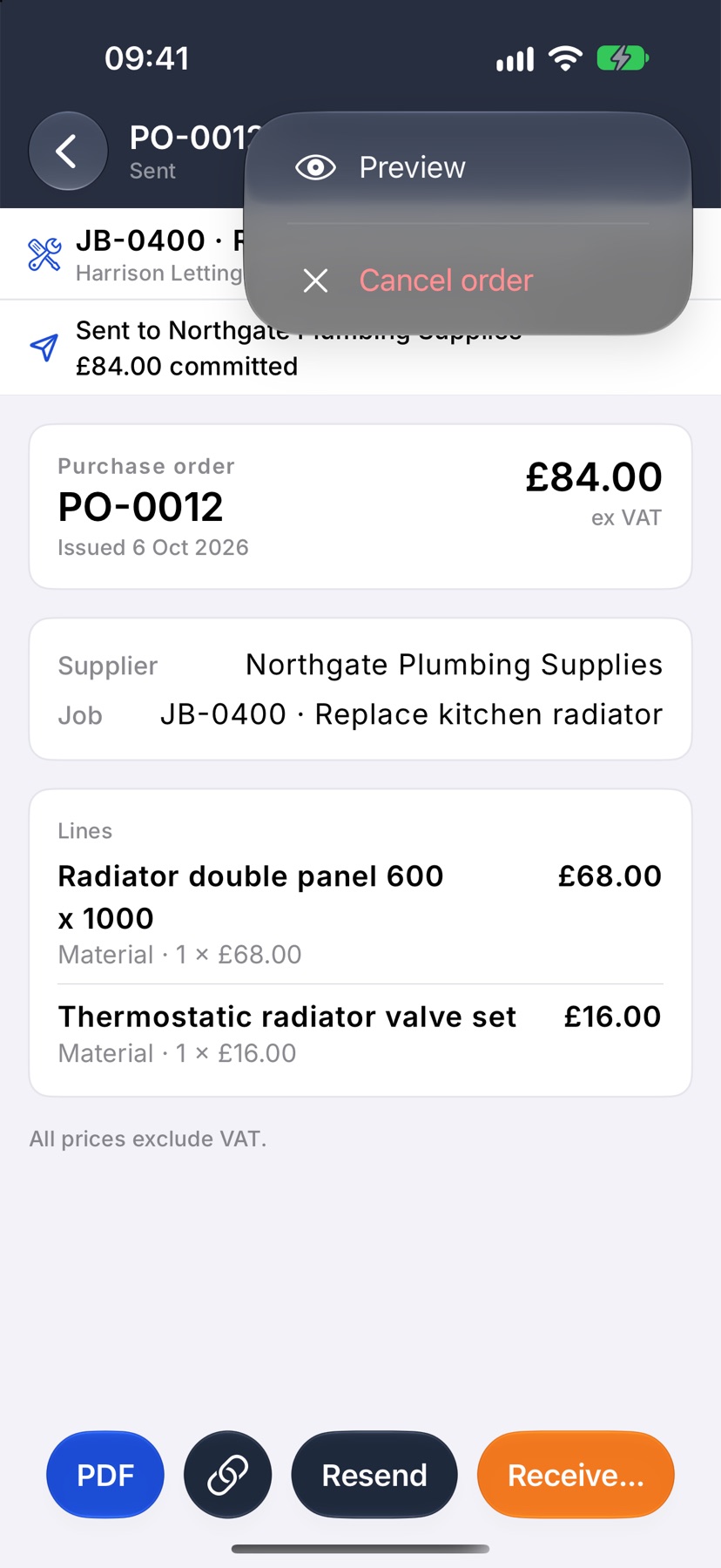
Open the order, tap the three dots at the top right and tap Cancel order. Confirm with Cancel order, or tap Keep to leave it as it is.
Cancelling releases the order's committed cost from the job. It does not tell the supplier, so let them know yourself.
A draft that was never sent has Delete draft in the same menu instead.
After the order is received
The order shows Received and its cost has moved to the job's Expenses. On the job's Financials tab the amount counts as spent, no longer as on order.
In the Purchase orders list, received and cancelled orders are kept behind See all done at the bottom.
More in Costing & purchasing →
- Estimate, committed, actualHow the cost strip reads, and why committed costs stop a job looking healthier than it is.
- Add costs to a jobBuild up what a job will cost you, see the profit, and quote the customer from it.
- Check a job's profitSee what a job is making, what has been paid, and where the cost is going.
- Purchase ordersRecord what you have ordered the moment you order it, not when the bill lands.
Still stuck? Email support@jobivo.co.uk and we'll get back to you.