Pay back what staff spent
See what the business owes each person for what they paid out of their own pocket, and record paying it back.
What counts as owed
When someone on the team pays for something for a job with their own card or cash, the business owes them that amount. Jobivo keeps the total for each person until you record that it has been paid back.
An expense is owed when it was saved with Paid with set to Paid personally. The person logging it sees a note under that field telling them it is owed to them until it is paid back.
Paying back in Jobivo is a record for your books. It does not move any funds, so pay the person the way you normally would.
Where to start
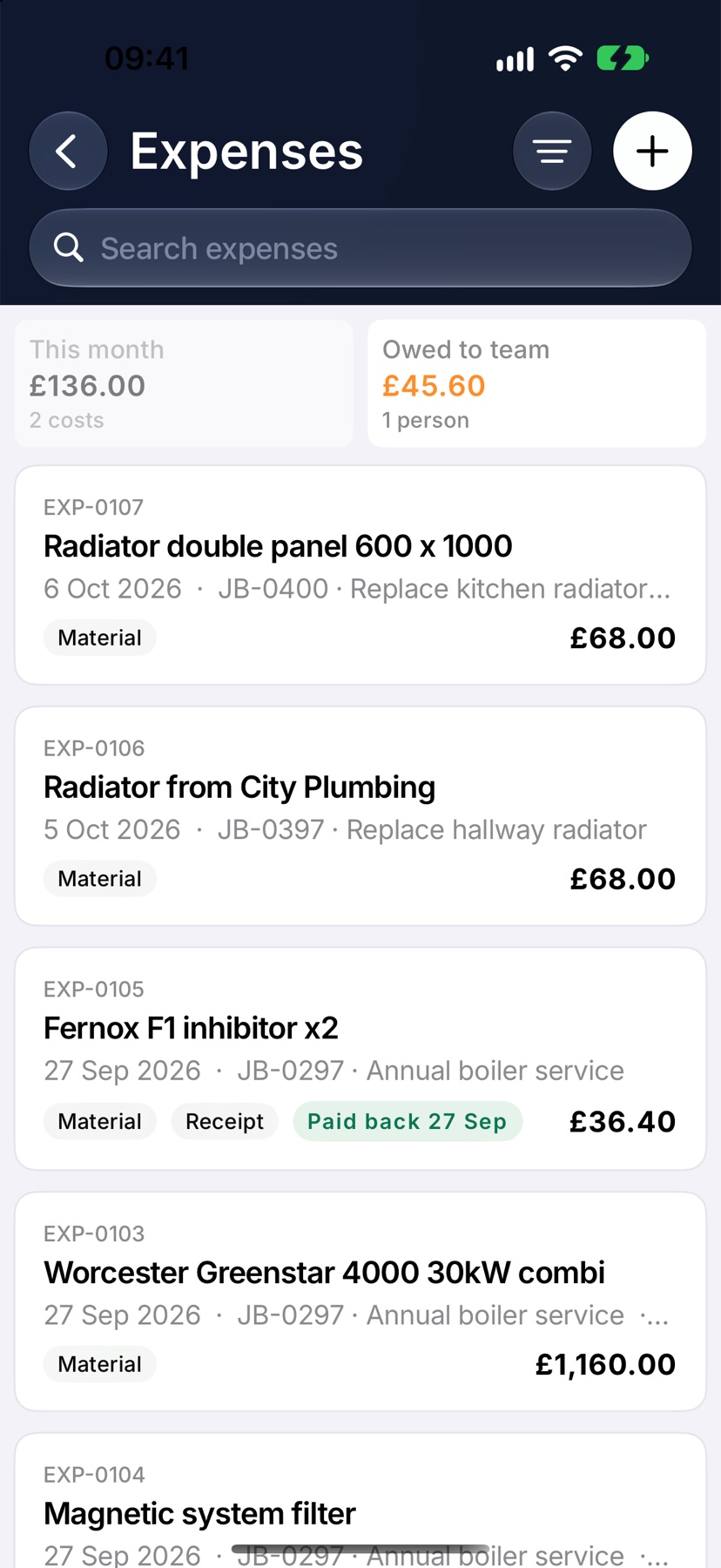
Open the menu and tap Expenses under Purchasing. Two figures sit at the top: This month and Owed to team. Owed to team shows the total and how many people it is owed to.
See who is owed
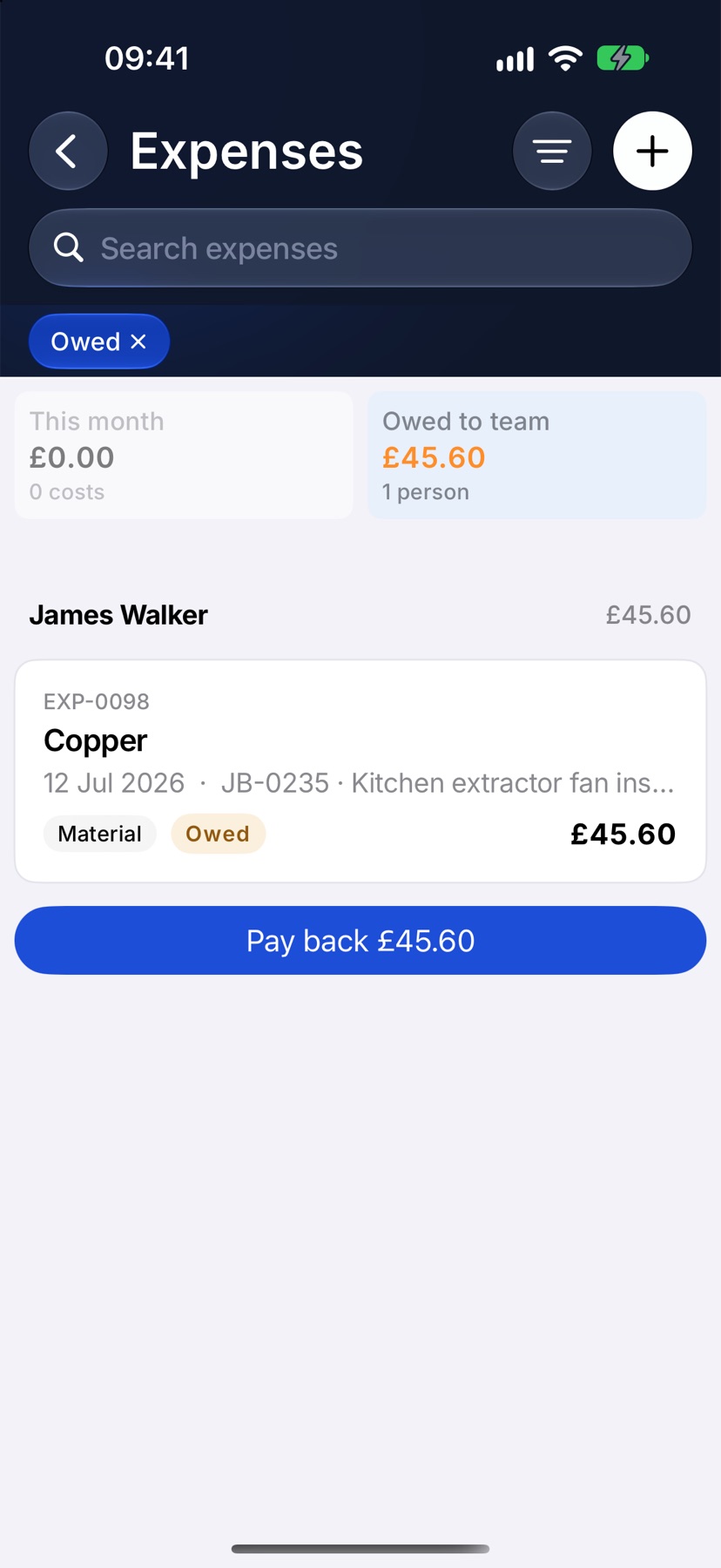
Tap Owed to team. The list changes to show only what is owed, grouped by person, with each person's name and total above their receipts. Each expense still owed carries an Owed badge.
Tap any expense to open it and check the receipt before you pay. To go back to the full list, tap Owed to team again.
Pay a person back
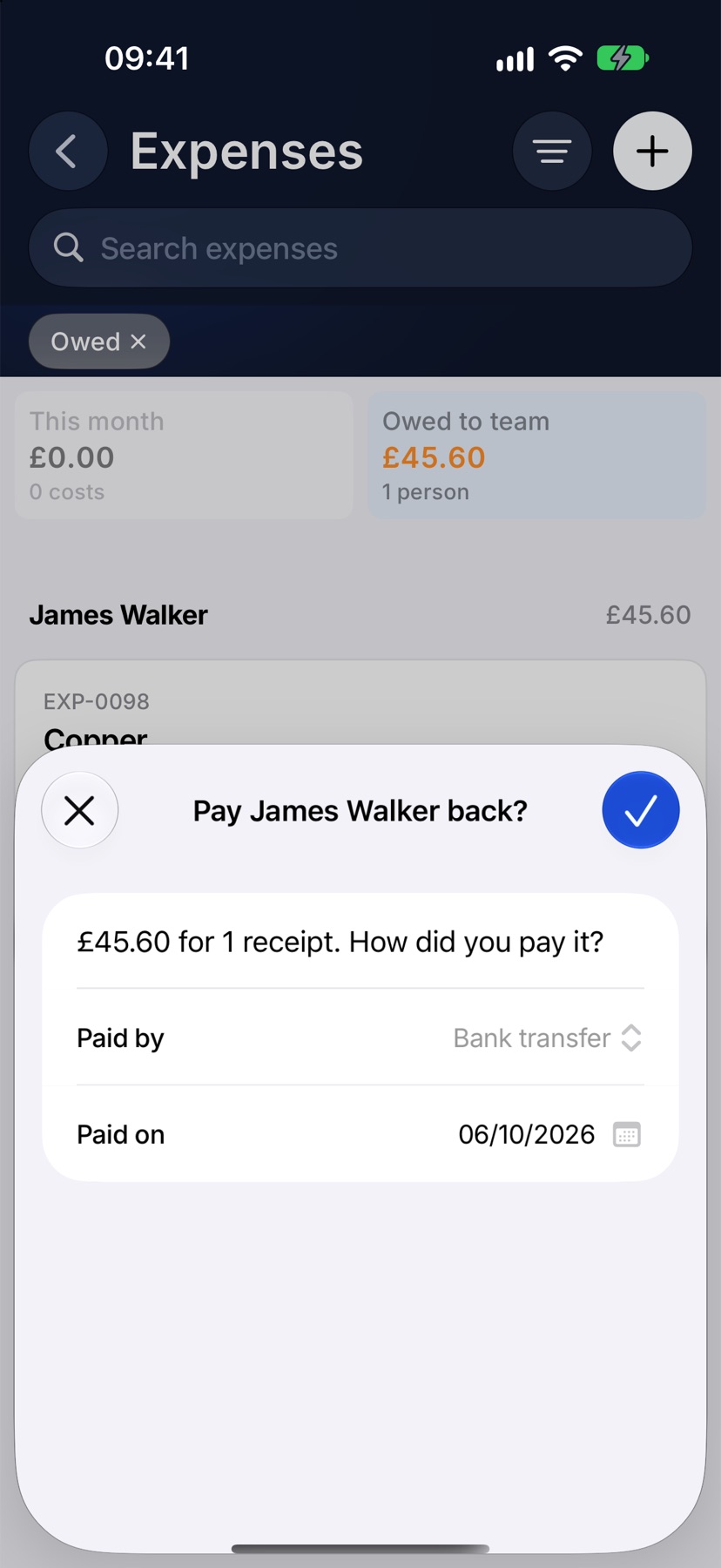
Under a person's receipts, tap Pay back with their total. A sheet asks how you paid. Choose Paid by: Bank transfer, Cash, With their pay or Other. Set Paid on to the day you paid them, and tap the tick.
Every owed receipt in that person's group is settled together.
After it is paid back
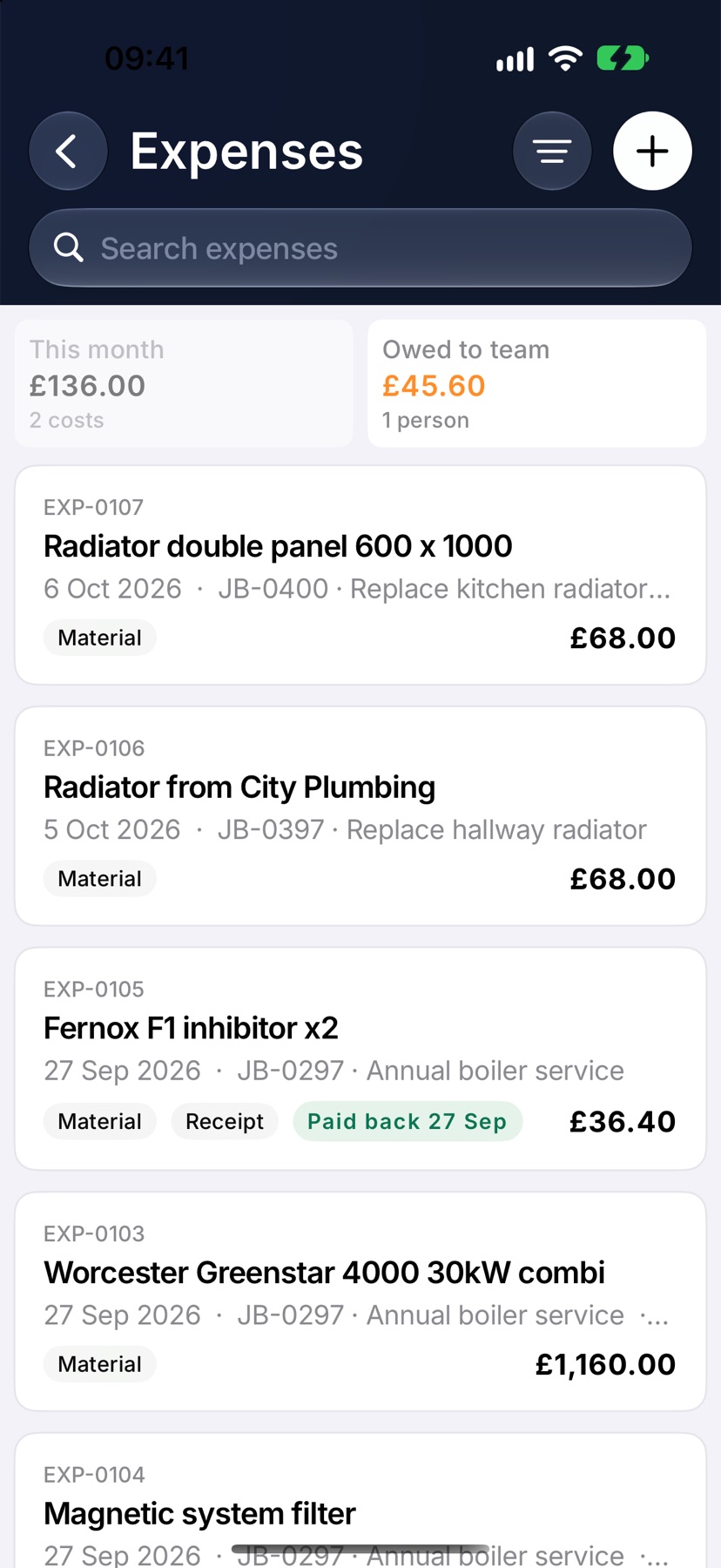
The person drops off the owed list and the Owed to team total falls. Their expenses stay in the list with a green Paid back badge and the date, so you can still see what was settled and when.
Who can pay back
The Pay back button appears only for people whose role lets them manage everyone's expenses. Others can see the list they are allowed to see, without the button.
The person who is owed can open their own expense at any time. It shows who it is owed to until it is paid back.
More in Costing & purchasing →
- Estimate, committed, actualHow the cost strip reads, and why committed costs stop a job looking healthier than it is.
- Add costs to a jobBuild up what a job will cost you, see the profit, and quote the customer from it.
- Check a job's profitSee what a job is making, what has been paid, and where the cost is going.
- Purchase ordersRecord what you have ordered the moment you order it, not when the bill lands.
Still stuck? Email support@jobivo.co.uk and we'll get back to you.