Amend, void or bill extra work
Correct an invoice after it has gone out: change it, cancel it, or bill the extra on a new one.
Fixing an invoice that has been issued
An issued invoice has a number, so it is never deleted or edited without a trace. Jobivo gives you three ways to put one right, and which one you get depends on whether any payment has been recorded.
Before any payment, you can amend the invoice: change its lines and send the customer the new figure. You can also void it, which cancels it with a credit note.
Once a payment is recorded the figures are fixed. Extra work then goes on a new invoice linked to the first.
Where to start
Open the invoice. Tap the menu button at the top left of Home, tap Invoices under Sales, and tap the invoice. Then tap the square button at the bottom left to open its menu.
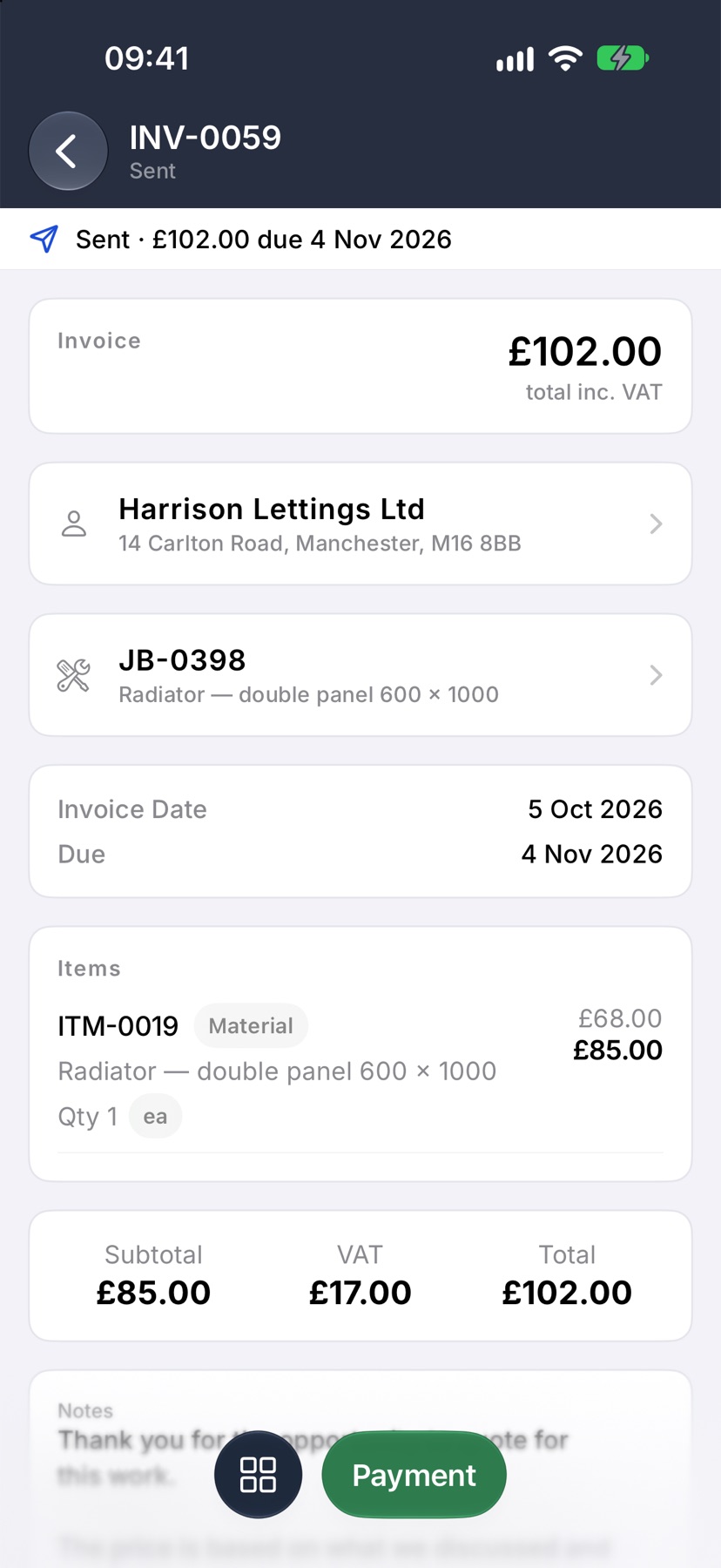
Amend an invoice
In the menu, tap Amend. A sheet opens named after the invoice. You can type why in Reason (optional). It is shown in the invoice's activity beside what changed. Tap the tick.
The invoice opens for editing. Change the lines, then tap Save changes. Tap Discard to leave it as it was.
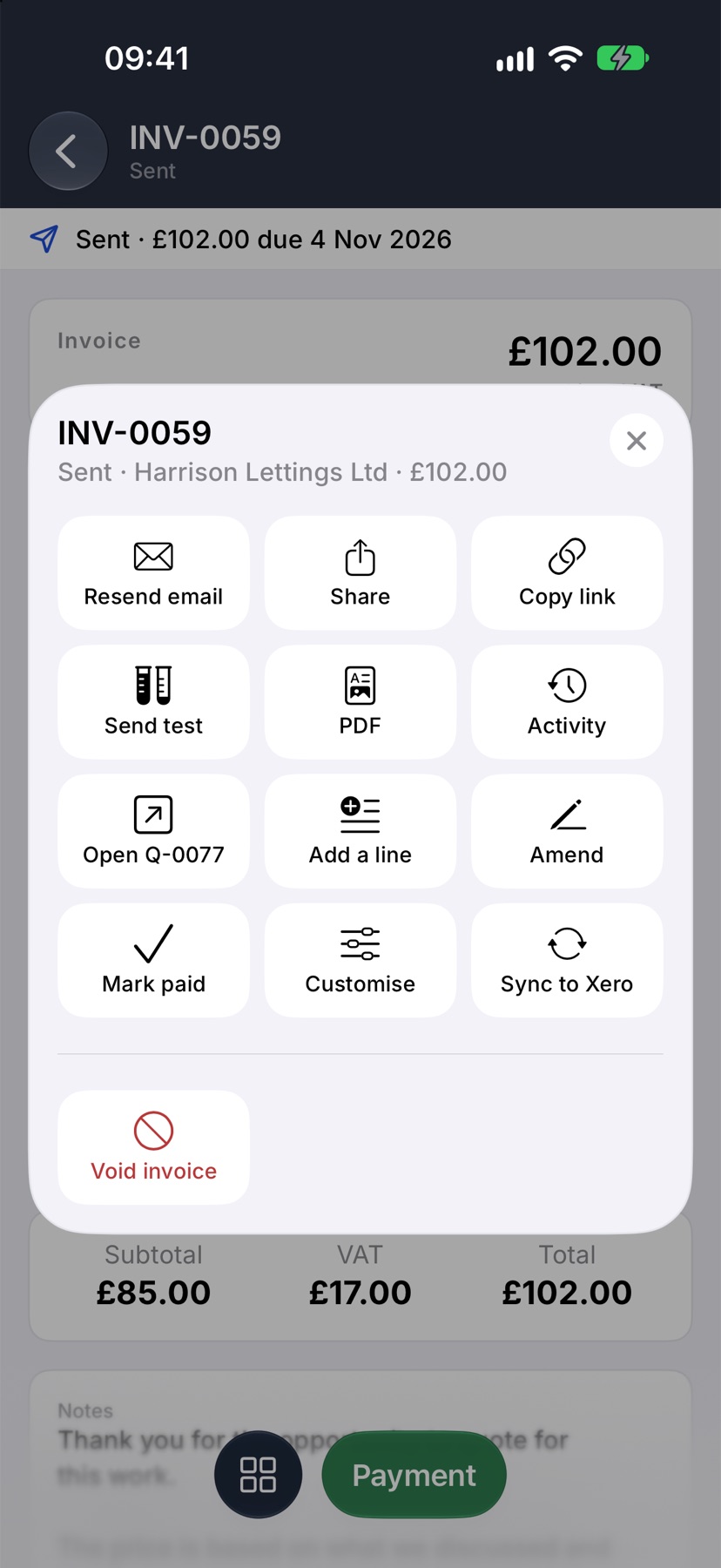
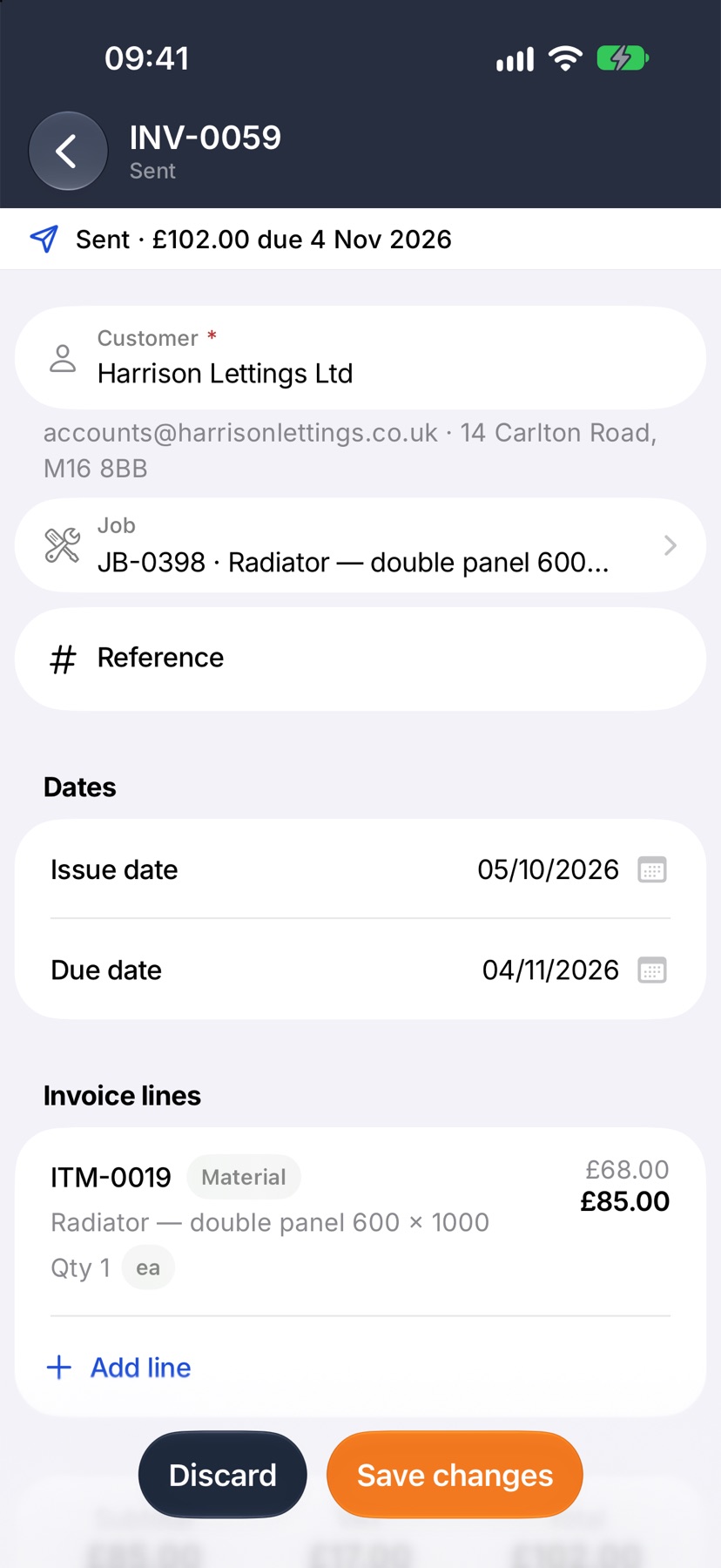
Amend is offered on an invoice that is issued or sent and has no payment against it.
Send the customer the new figure
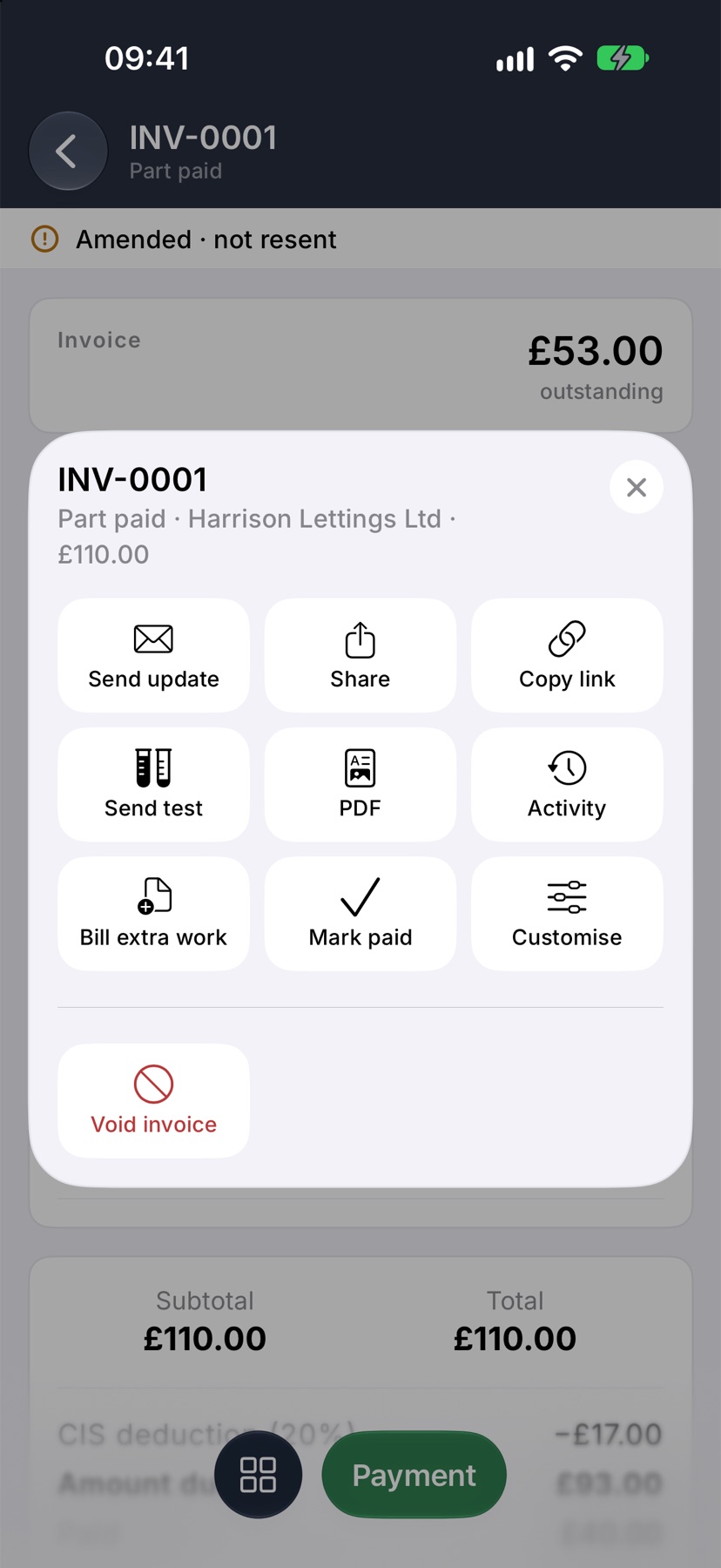
If the invoice had already been sent, it now reads Amended · not resent. The customer still has the old figure. Open the menu and tap Send update.
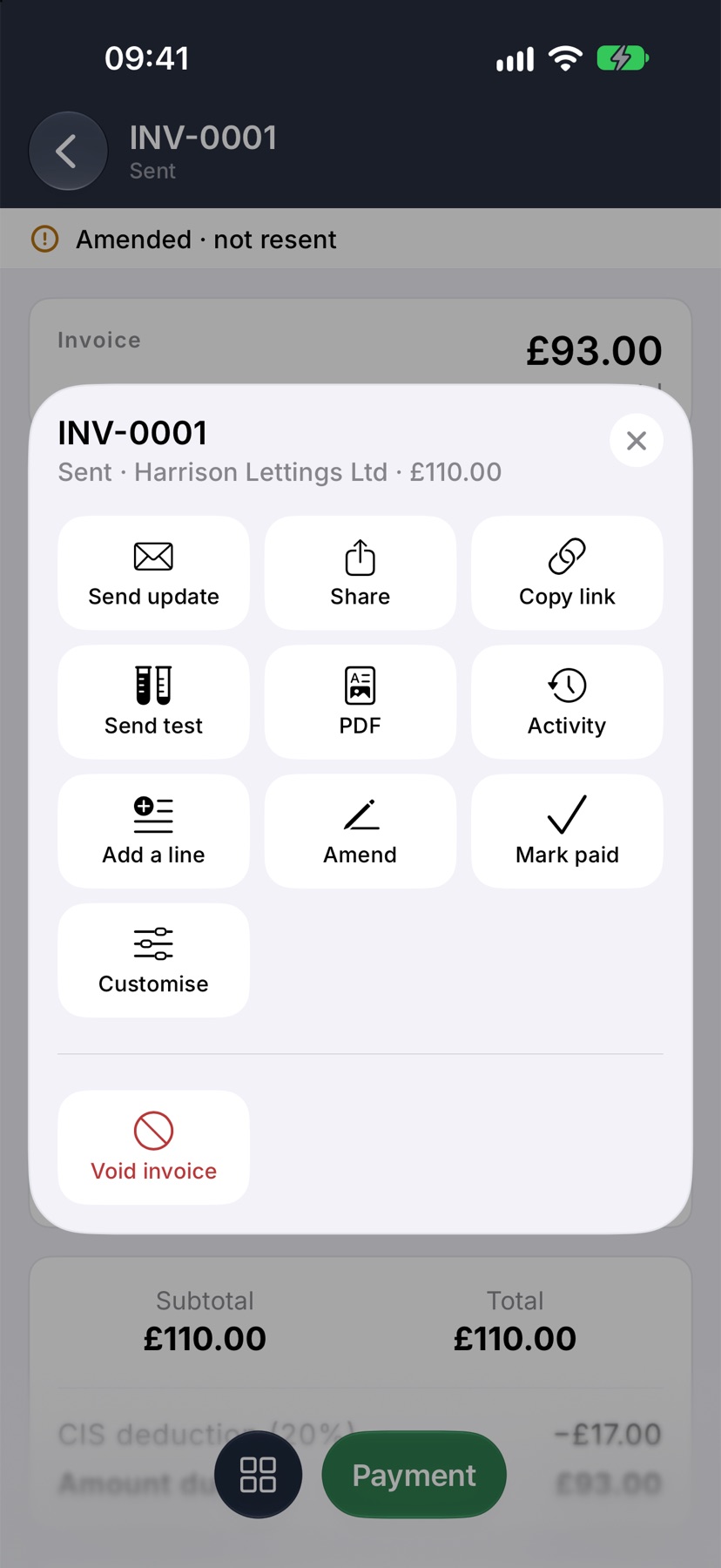
Void an invoice
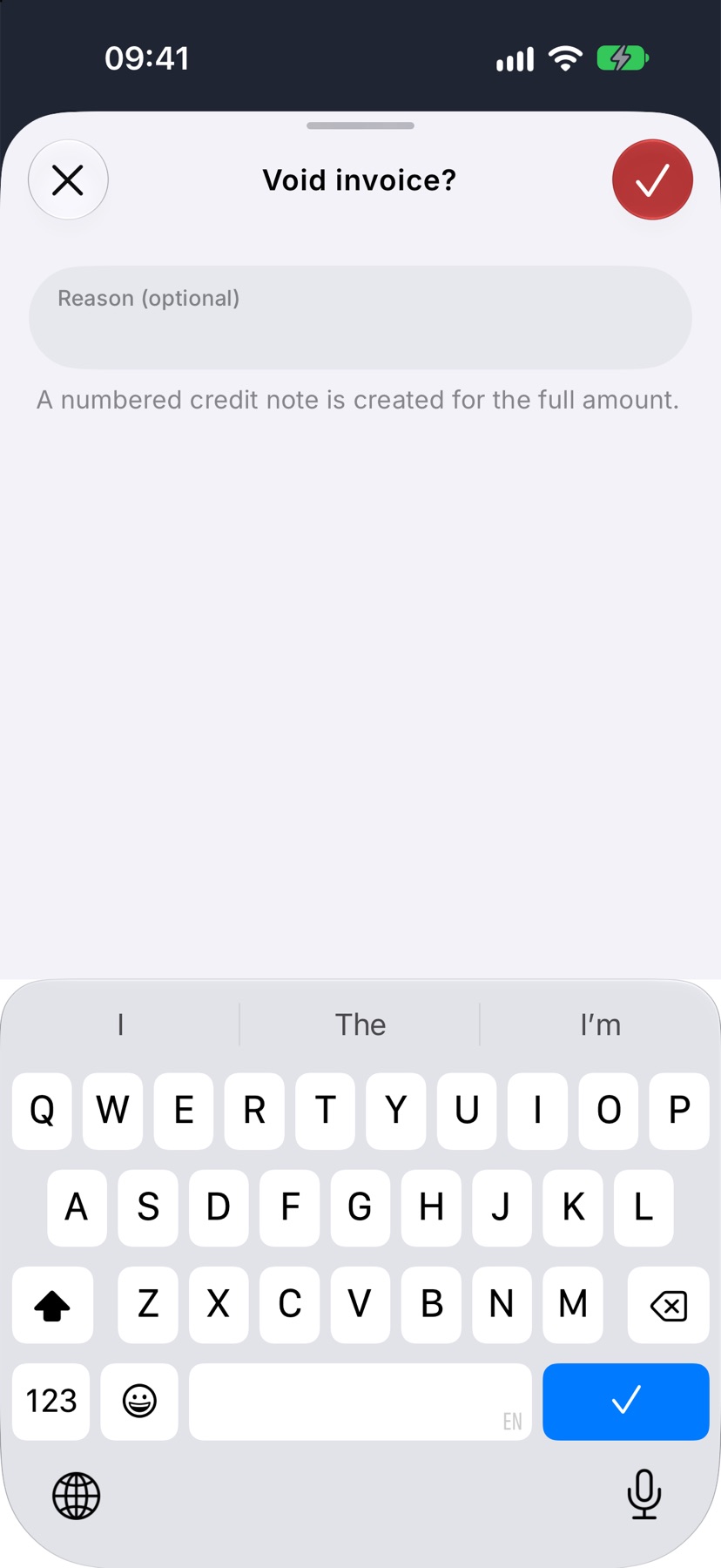
Open the menu and tap Void invoice, the red tile at the bottom. Jobivo asks Void invoice? You can type a reason. Tap the red tick at the top right.
The invoice reads Voided and nothing more is owed on it. It stays in the Invoices list, where the Void filter finds it.
Void invoice is offered while money is still owed on the invoice. A paid invoice cannot be voided.
The credit note
Voiding creates a numbered credit note for the full amount of the invoice. It is Jobivo's record that the invoice was cancelled, and it appears in the Invoices list. A credit note cannot be paid or voided.
Bill extra work
When a payment has been recorded, the menu shows Bill extra work in place of Amend. Tap it. A new draft invoice opens, linked to the first. Add the lines for the extra work, tap Save, then Email.
The first invoice is left as it is, with its payments.
Checking what changed
Open the invoice's menu and tap Activity. It lists each change, when it was made and the reason you gave.
More in Quotes & invoices →
- Price bookBuild your cost items once, then price any job in minutes without showing your margin.
- Send your first quoteFrom a blank quote to the customer's inbox — and what they see when it arrives.
- QuotesBuild a quote from cost lines, send it, and let the customer accept it online.
- Revise a quote or add a variationChange a sent quote without losing the original, or price extra work as a variation.
Still stuck? Email support@jobivo.co.uk and we'll get back to you.