Invoices
An invoice uses the same lines, templates and theme as your quotes — different fields (invoice date, due date, payments) but the same document your customer already recognises.
Start from a quote — or from scratch#
Converting an accepted quote (Convert to invoice) carries its lines, notes, terms and display choice across. Or build one directly: add price book or ad-hoc lines exactly like a quote, with quantity, unit and VAT per line.
Summary or itemised — you choose#
By default the customer's invoice rolls your lines up into one total per category (Summary) — standard time-and-materials billing, and your cost detail stays private. Business customers reclaiming VAT sometimes want the detail: flip the Invoice display toggle to Itemised and every line shows with its quantity, unit price and VAT. The company-wide default lives in Settings → Invoicing → Documents.
Send it & get paid#
Generate assigns the invoice number, then Sendemails a branded message with the PDF, or copy a link for WhatsApp or SMS. The customer's page shows your bank details beside the total automatically — and a Pay now card button when Stripe is connected (Settings → Connections).
Track payments#
Record bank transfers in the Payments panel; card payments record themselves. The invoice moves through part paid to paid, and your dashboard's outstanding and overdue figures follow. Made a mistake after sending? Issue a credit note from the ⋯ menu.
Tip — add your bank details once in Settings → Invoicing → Bank & payment and they appear on every unpaid invoice automatically.
Find any invoice, see what is owed on it, and know what each button on it does.
What the Invoices list is for
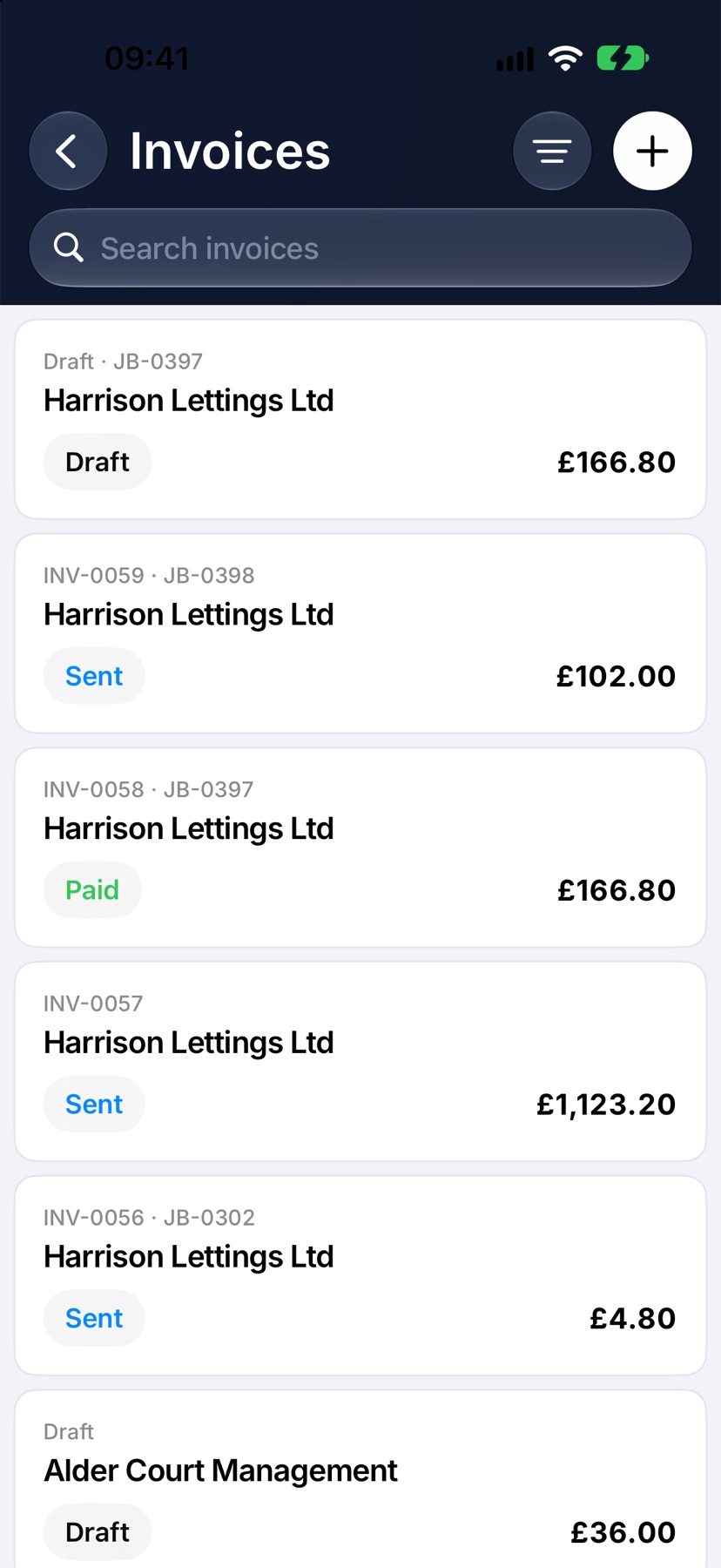
Every invoice your company has raised is kept in one list. Each one shows where it stands: draft, sent, overdue, part paid or paid.
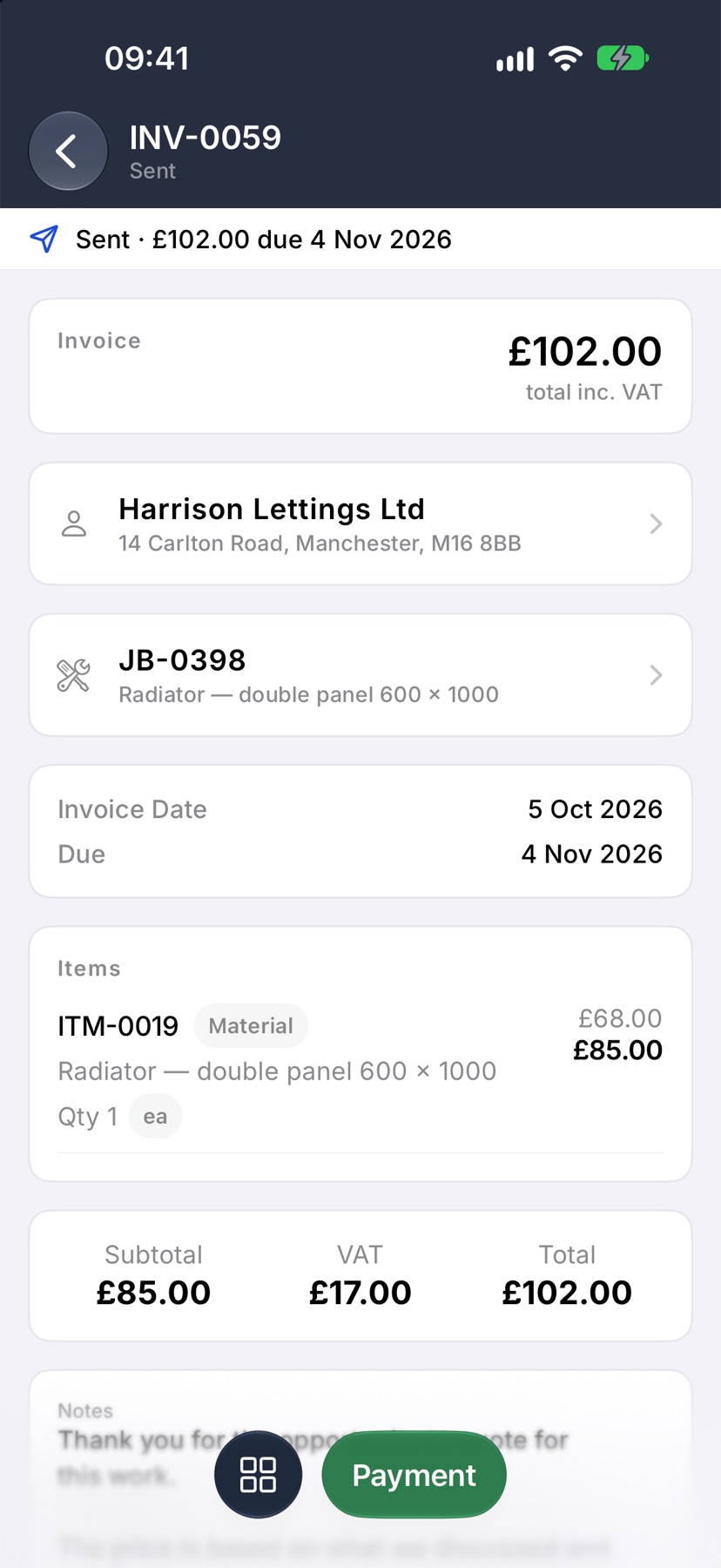
Opening an invoice shows its status, the amount still owed and the due date in one line under the title. The button at the bottom takes the payment. Everything else you can do with it is in a single menu.
Where to start
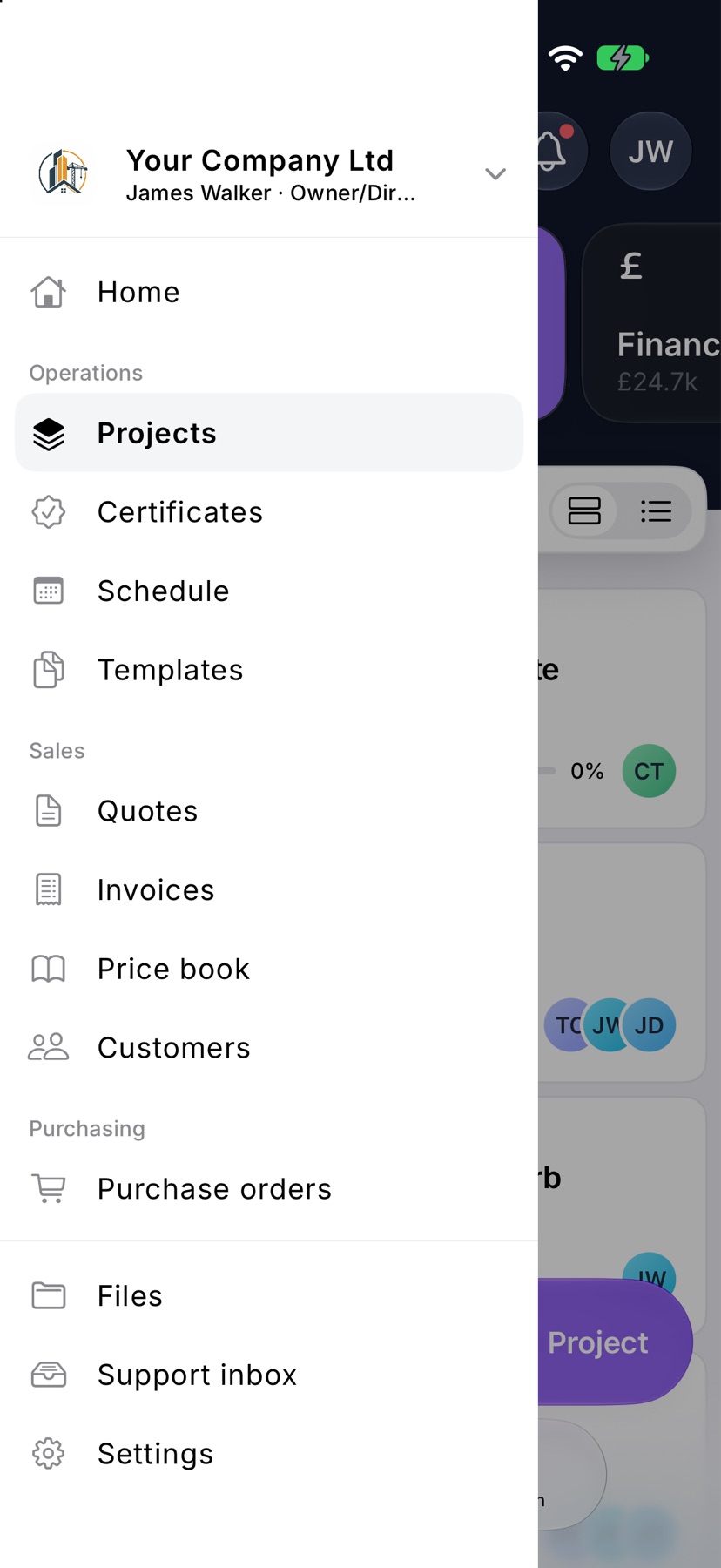
Tap the menu button at the top left of Home. Under Sales, tap Invoices.
What you are owed is also on Home. Swipe the tiles at the top to Financials. Outstanding is everything billed and not yet paid, and Overdue is the part of it past its due date. The groups below list the invoices, with See all under each.
Find an invoice
Each card shows the customer, the invoice number and its status. An invoice on a job shows the job number beside its own.
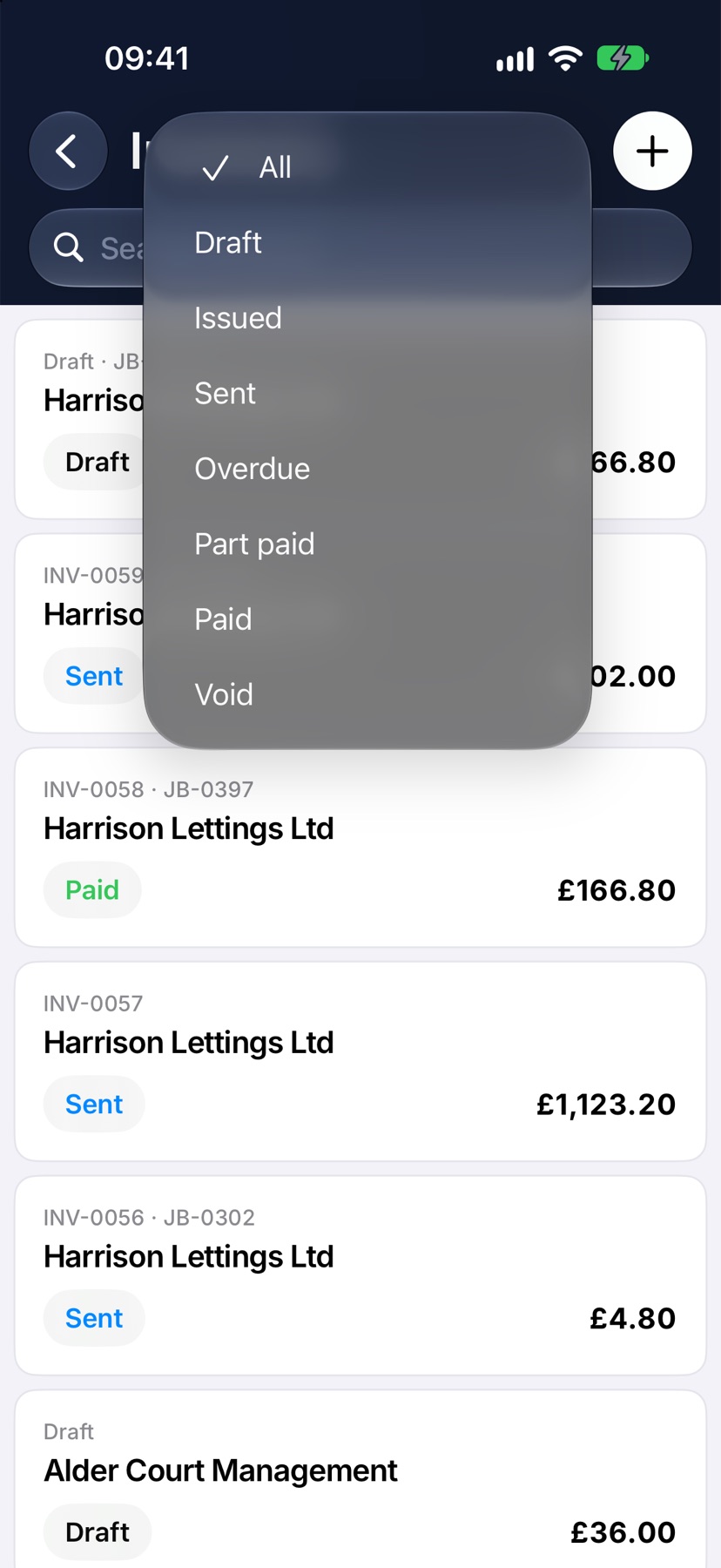
Type in Search invoices to find one by number, customer or status. To see one status only, tap the filter button at the top right and choose it. Tap All to see everything again.
What each status means
Draft: saved, with no number yet. Issued: numbered but not sent to the customer.
Sent: emailed or shared. The line on the invoice shows the amount and the date it is due.
Overdue: money is still owed and the due date has passed. Part paid: some has been paid and the rest is still owed.
Paid: nothing left to pay. Void: cancelled, with a credit note against it.
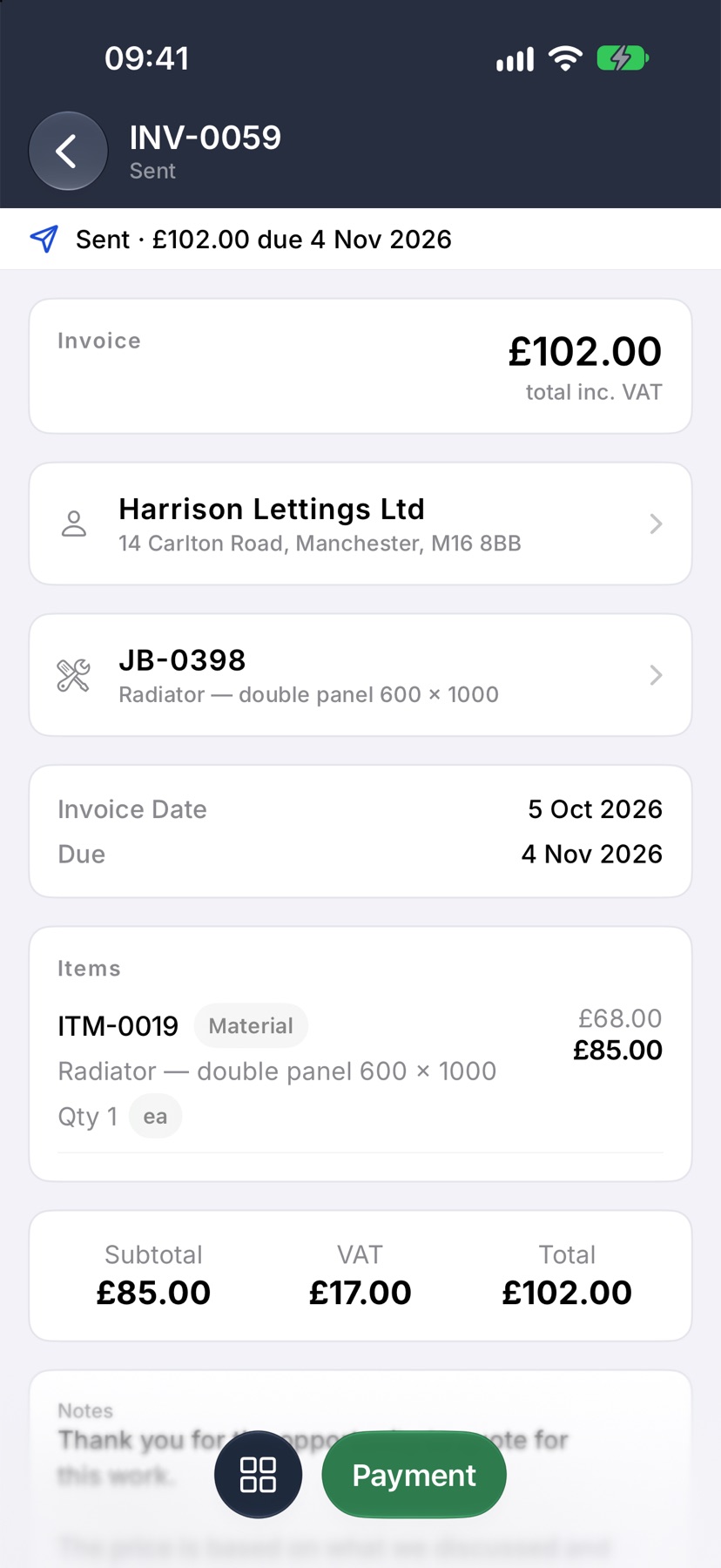
If you change an invoice after sending it, the line reads Amended · not resent until you send the customer the new figure.
The button at the bottom
A draft shows Save, then Email once it is saved. An invoice with money owed shows Payment, which records what the customer has paid. A paid or void invoice has no next button.
Everything else you can do
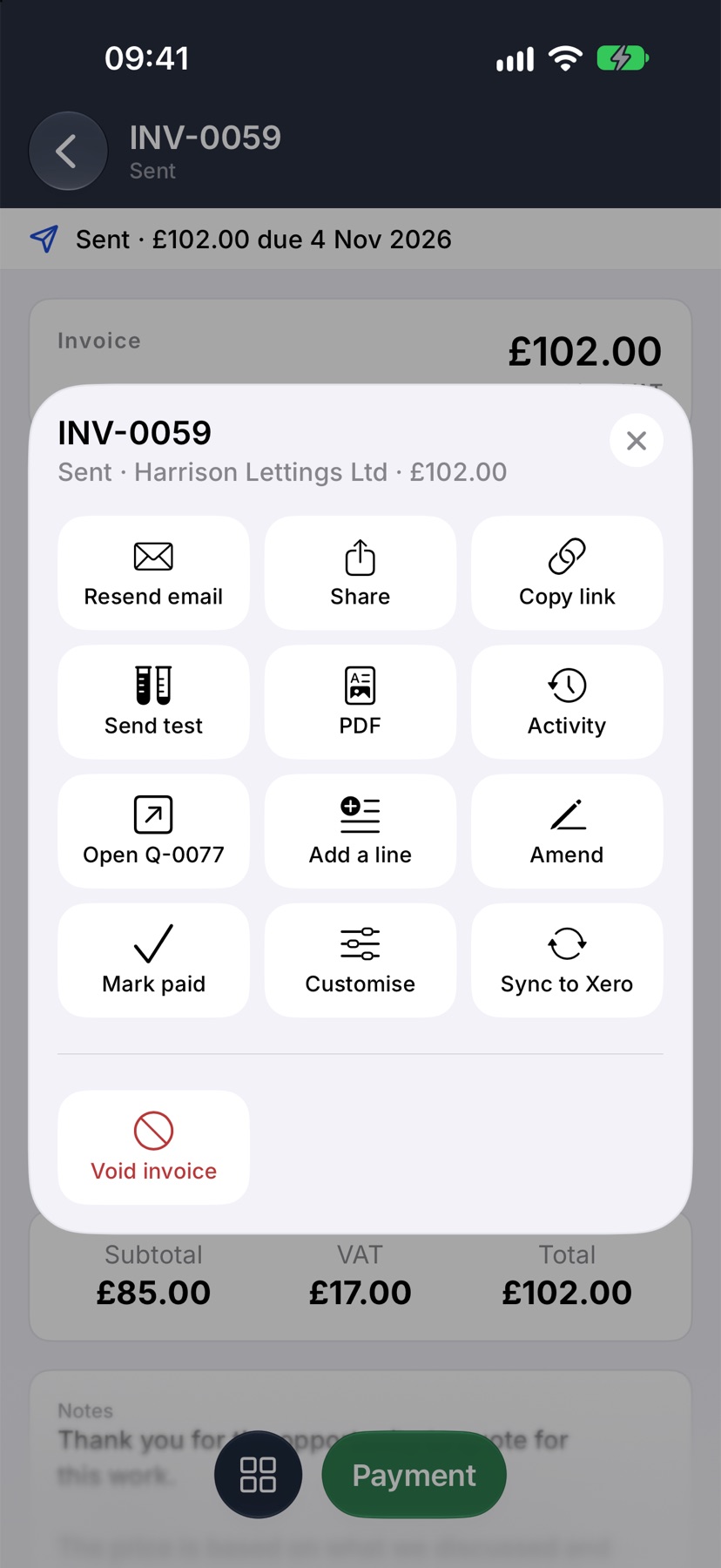
The square button at the bottom left opens a menu of everything else. It only shows what this invoice can do right now.
Resend email emails the invoice again. After a change it reads Send update. Share opens the iPhone share sheet with the invoice's link. Send test emails the invoice to you, and nothing is recorded against it.
Activity lists what has happened to the invoice and when. If the invoice came from a quote, a tile opens that quote.
Mark paid records the whole outstanding amount as paid in one tap. Use Payment instead when you want to record how it was paid.
Add a line, Amend, Bill extra work and Void invoice are for correcting an invoice after it has gone out.
Get the PDF or the link
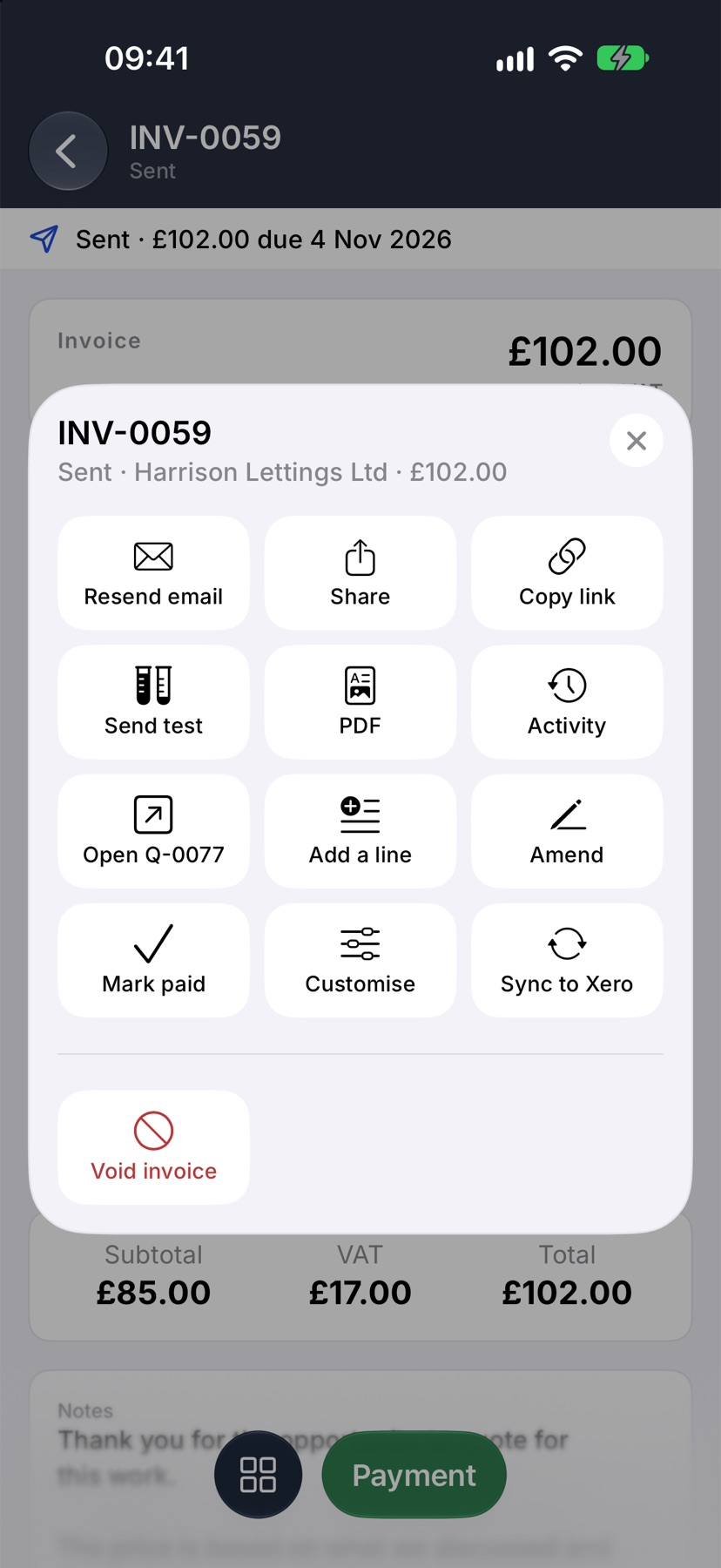
In the same menu, tap PDF to open the invoice as the customer's PDF, full screen.
Tap Copy link to copy the customer's online link. Link copied shows at the bottom. Paste it into a text or a message. The link is there once the invoice has been issued.
When it is paid
Once the full amount is recorded, the invoice reads Paid and leaves Outstanding on Home. It stays in the Invoices list, where the Paid filter finds it.
More in Quotes & invoices →
- Price bookBuild your cost items once, then price any job in minutes without showing your margin.
- Send your first quoteFrom a blank quote to the customer's inbox — and what they see when it arrives.
- QuotesBuild a quote from cost lines, send it, and let the customer accept it online.
- Revise a quote or add a variationChange a sent quote without losing the original, or price extra work as a variation.
See what else Invoices can do. Still stuck? Email support@jobivo.co.uk and we'll get back to you.