Revise a quote or add a variation
Change a quote the customer already has, price extra work on top of an agreed one, or withdraw it.
Changing a quote after it is sent
A sent quote is locked, so the customer and you are always looking at the same figures. To change it you revise it. Jobivo makes a new draft with the same lines, and keeps the version the customer saw as a record.
Once a quote is accepted, extra work goes on a variation: a separate quote for the additional work, which the customer accepts on its own.
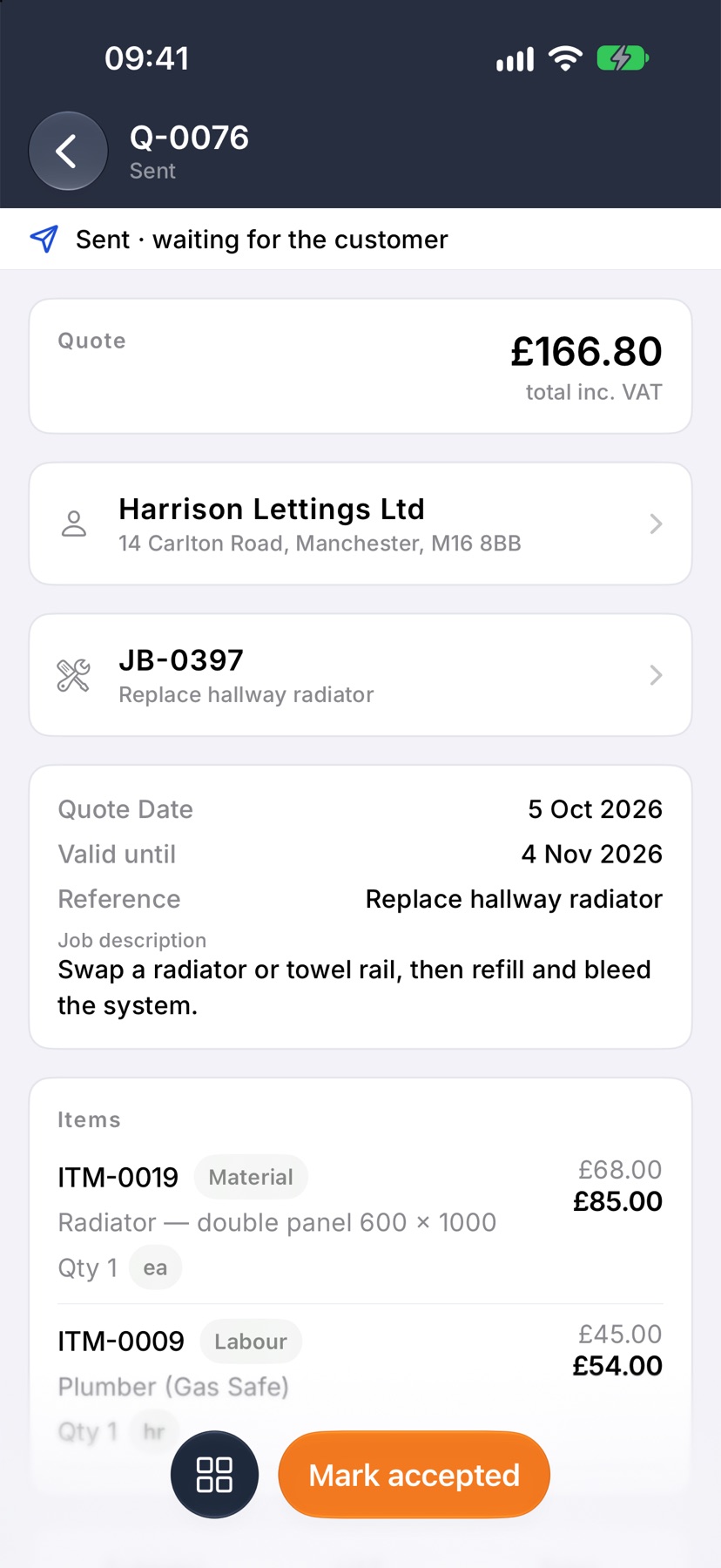
You can also cancel a quote you no longer want accepted, and mark one accepted when the customer says yes by phone or in person.
Where to start
Open the quote. Tap the menu button at the top left of Home, tap Quotes under Sales, and tap the quote. Then tap the square button at the bottom left to open its menu.
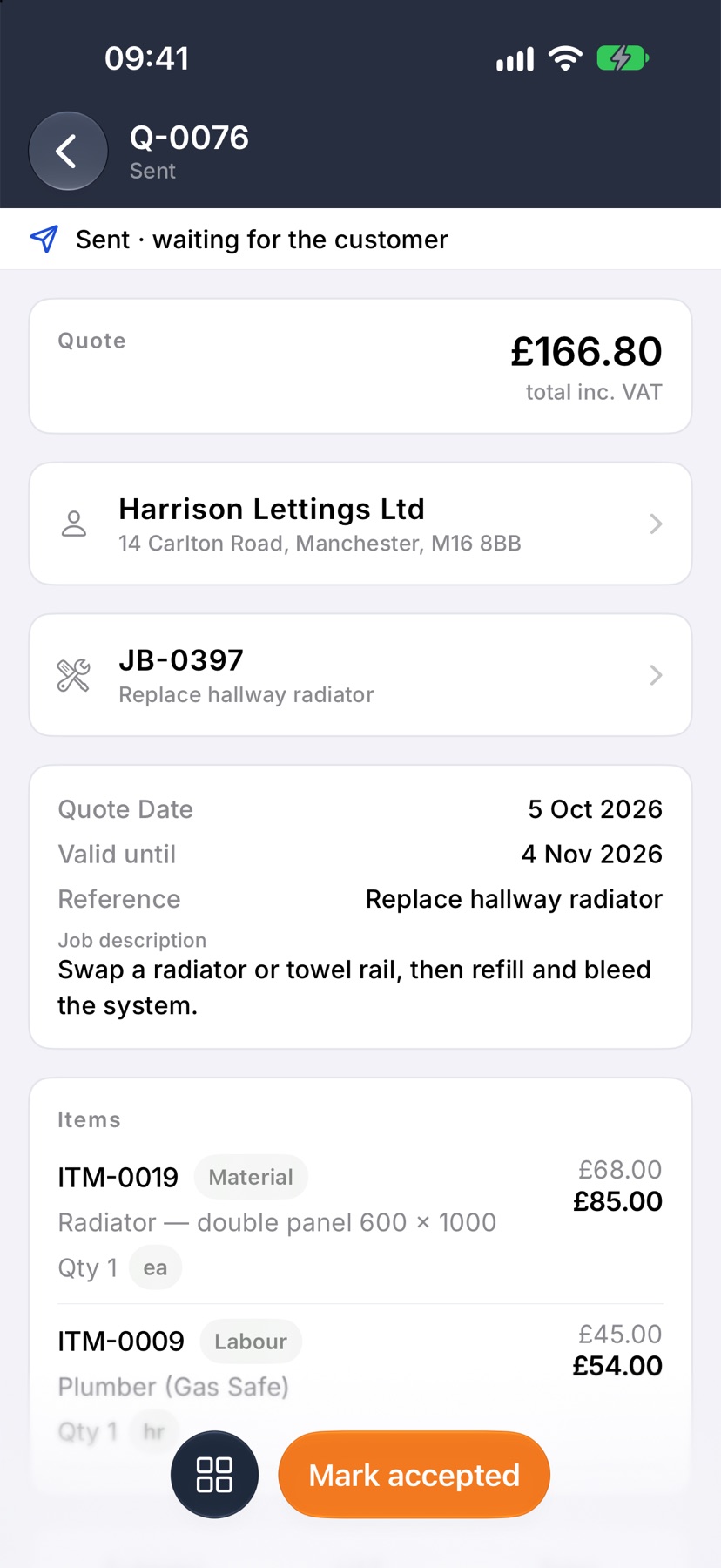
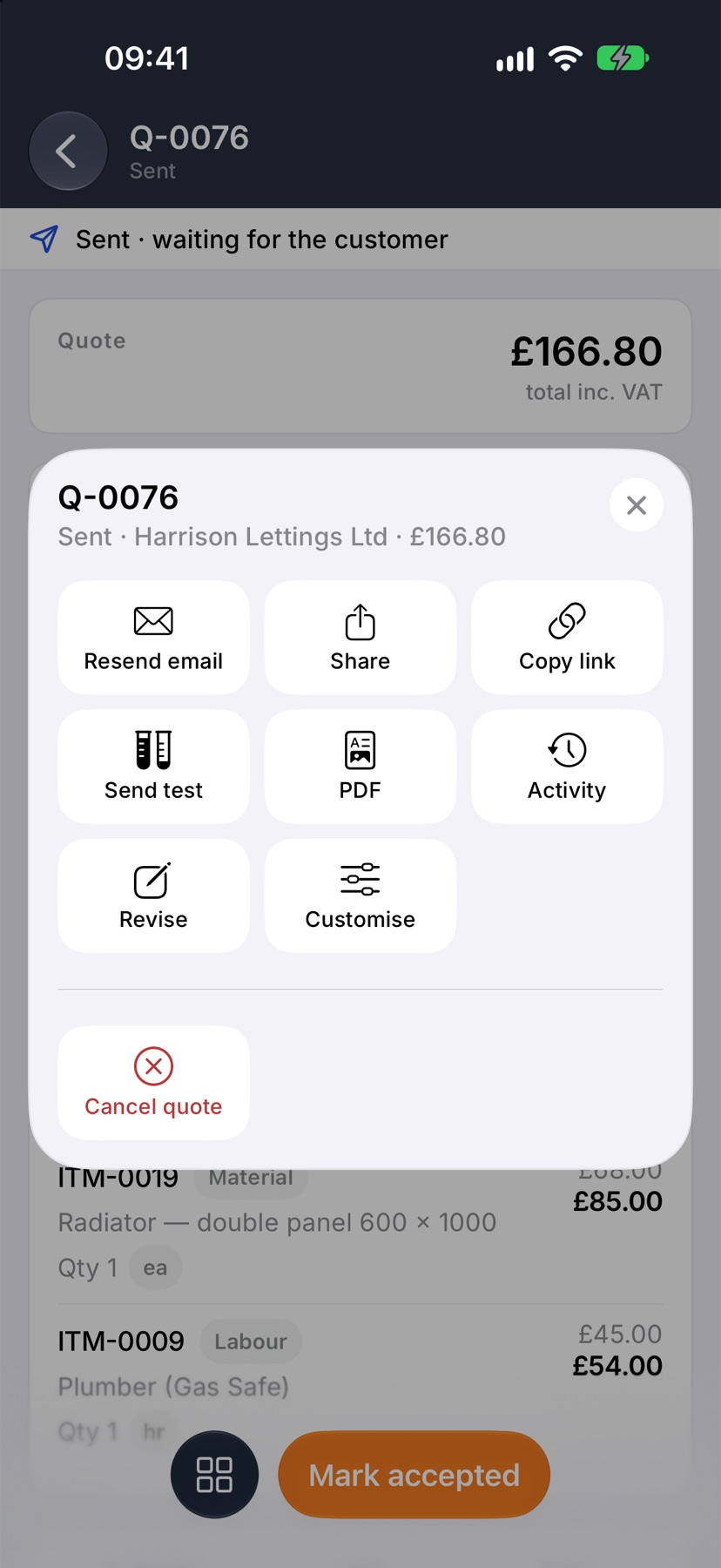
Revise a sent quote
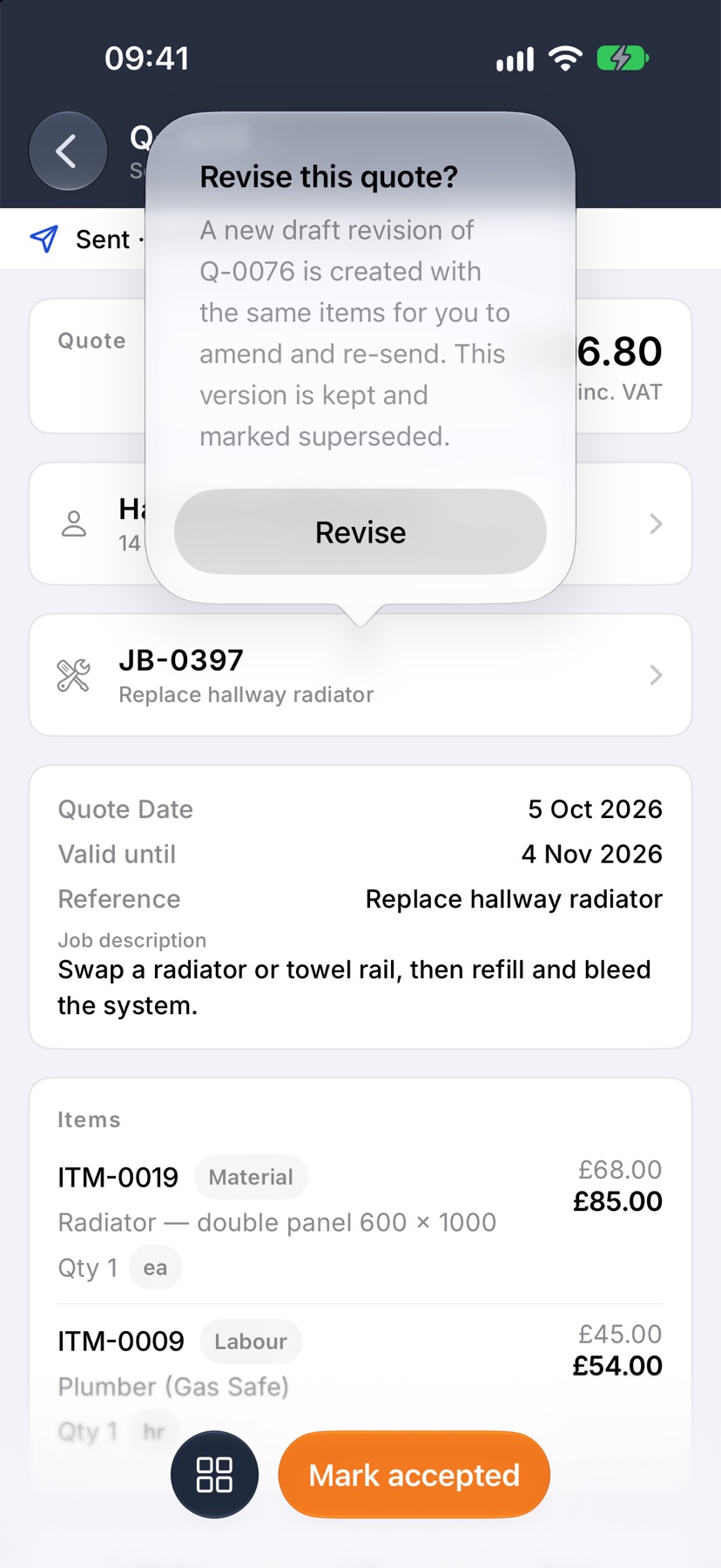
In the menu, tap Revise. Jobivo asks Revise this quote? Tap Revise.
A new draft opens with the same lines. Change the lines, quantities or prices, tap Save, then tap Email to send the new version.
The earlier version is kept. It reads Replaced, with the number of the quote that replaced it, and shows as Superseded in the Quotes list. The customer can no longer accept it.
You can revise a quote that is sent, viewed or declined. When a quote has expired or been declined, Revise quote is the button at the bottom.
Price extra work as a variation
Open the accepted quote and open its menu. Tap Variation. A new draft quote opens for the extra work.
Add the lines for the additional work only, tap Save, then Email. The original quote stays accepted and unchanged.
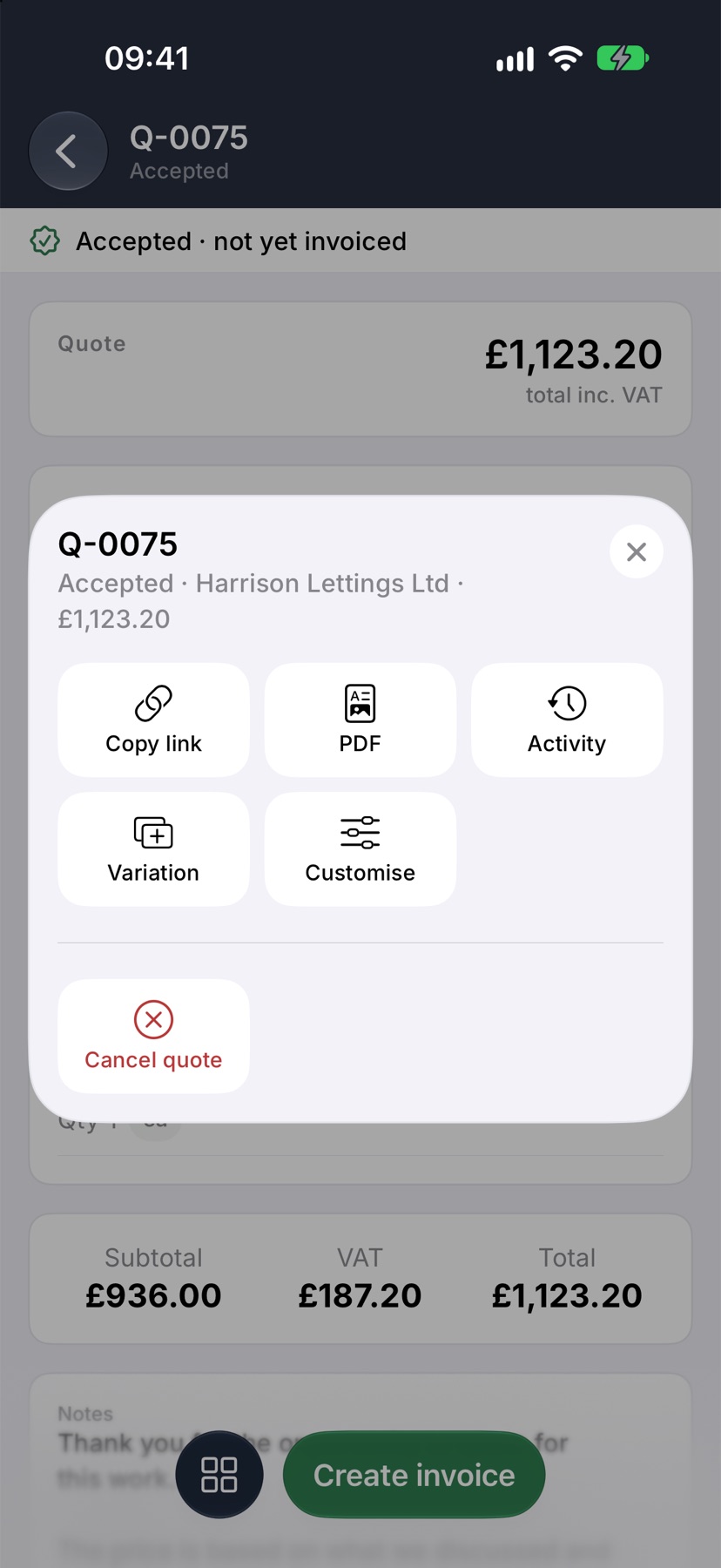
Variation is offered on a quote that has been accepted, including one that has already been invoiced.
Cancel a quote
Open the quote's menu and tap Cancel quote, the red tile at the bottom. Jobivo asks Cancel this quote? Tap Cancel quote to confirm, or tap anywhere else to leave it as it is.
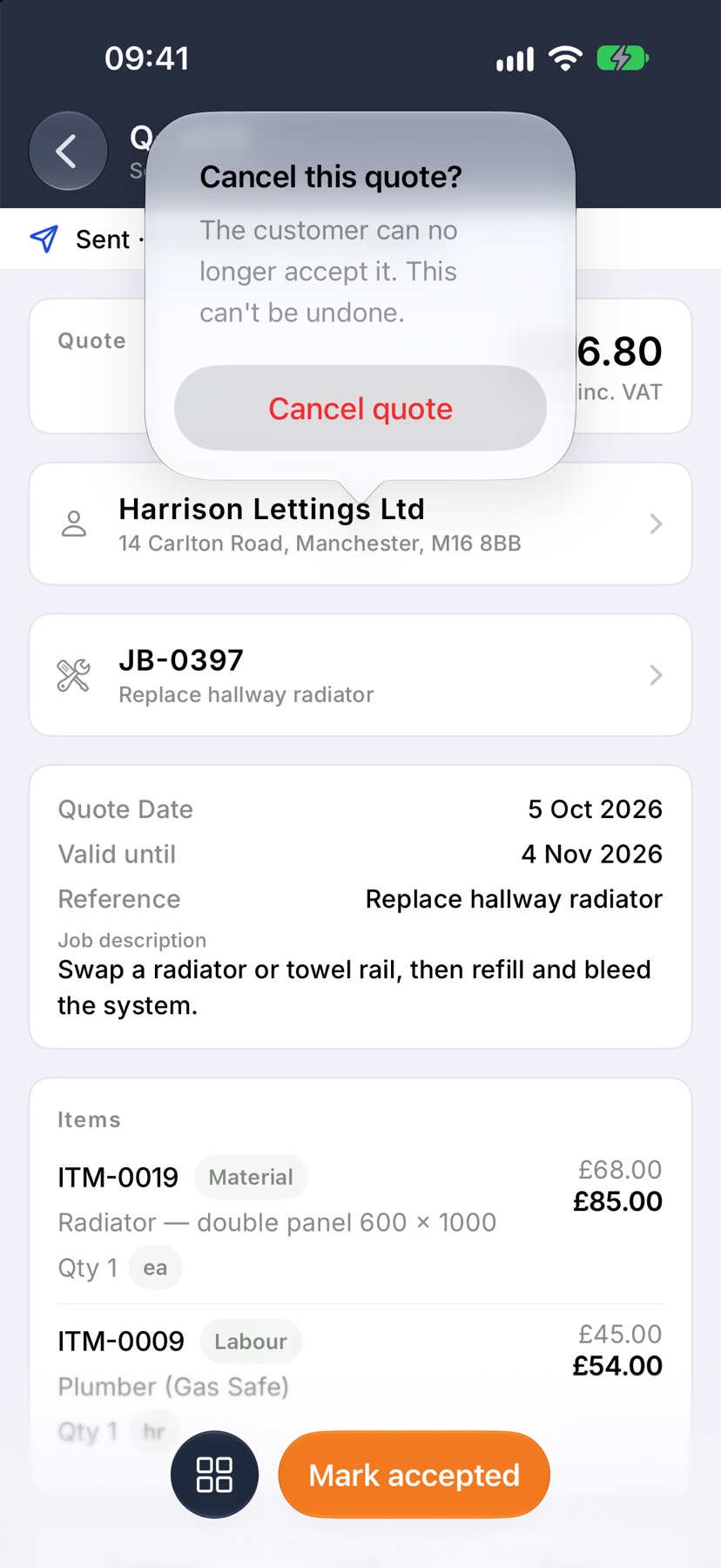
The quote reads Cancelled and the customer can no longer accept it. It stays in the Quotes list.
Mark a quote accepted yourself
When the customer says yes by phone, text or in person, open the sent quote and tap Mark accepted at the bottom.
In Who agreed it?, type the name of the person who said yes, and tap the tick. The name is optional, but it is your only record of who agreed.
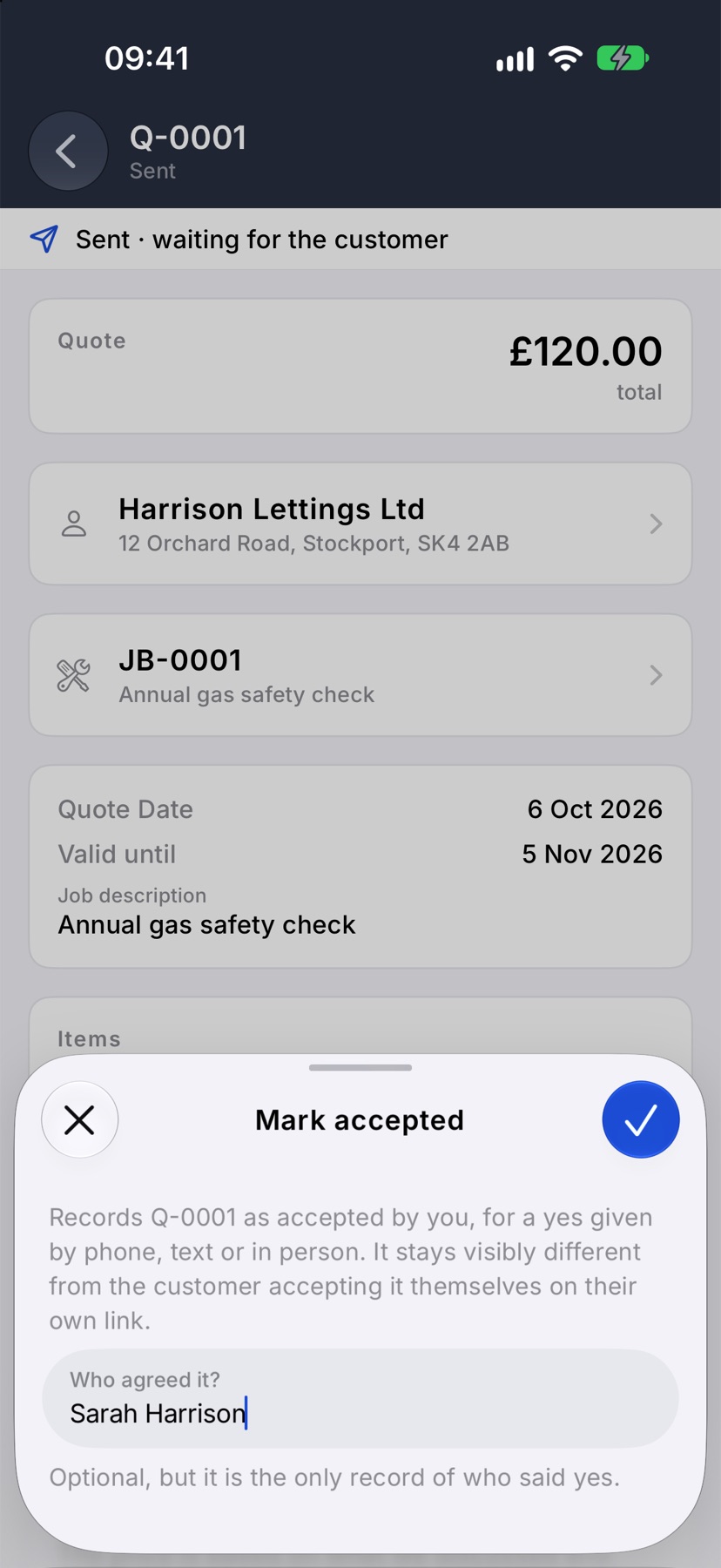
Jobivo records that you marked it accepted, which stays different from the customer accepting it on their own link.
After the quote is accepted
The quote reads Accepted · not yet invoiced. The buttons at the bottom become Create invoice and, if the quote has no job yet, Create job.
More in Quotes & invoices →
- Price bookBuild your cost items once, then price any job in minutes without showing your margin.
- Send your first quoteFrom a blank quote to the customer's inbox — and what they see when it arrives.
- QuotesBuild a quote from cost lines, send it, and let the customer accept it online.
- Turn an accepted quote into a jobCreate the job from the quote the customer accepted.
Still stuck? Email support@jobivo.co.uk and we'll get back to you.