Send your first quote
A quote is a list of lines with a customer at the top. Send it as an email or a link, and your customer can accept it online with one tap — you'll see the moment they open it.
Start a new quote#
Go to Sales → Quotes → New. Already on the job? Use New quote on the job instead — the quote comes out linked to it.
Tap ☰ → Quotes, then +. Already on the job? Use the job's Add menu and pick Quote — the quote comes out linked to the job.
Pick the customer#
Type in Search or add a customer…. If they're not in Jobivo yet, carry on typing their name and add them right there, without leaving the quote. Add their email while you're at it — it's where the quote will go.
Add your lines#
Click Add line. Under What is it? start typing — your price book items come up as you go, or just type a description. Fill in Quantity, Unit and Price (£), leave Charge VAT ticked if you're registered, and Save line. Your cost and markup stay on your side; the customer only sees the price.
Tap Add line. Under What is it? start typing — your price book items come up as you go, or just type a description. Fill in Qty and Price (£), and leave Charge VATon if you're registered. Save with the ✓ at the top.
Check it, then send it#
Preview shows the quote exactly as the customer will see it — online, in their email, or as a PDF. Then Send to customer: Email to customer sends it to the address on the customer, Copy link gives you a link for WhatsApp or a text, and Download PDF is there for print. Any of the three marks the quote as sent.
Happy with it? Tap Send at the bottom. Email customer emails it to the address on the customer; Share link lets you send it by WhatsApp or text. Send test… sends it to you first, if you want to see it as they will. Preview is in the ⋯ menu.
When they reply#
The quote goes from Sent to Viewed when your customer opens it. They can Accept quote (giving their name) or Rejectit with a reason, and you're notified either way. Said yes on the phone instead? Use Mark accepted in the ⋯ menu. Once it's accepted, Create invoice turns it into an invoice, lines and all.
The quote goes from Sent to Viewedwhen your customer opens it. They can accept it online or decline it, and you're notified either way. Said yes on the phone instead? Tap Mark accepted at the bottom. Once it's accepted, Create invoice turns it into an invoice, lines and all.
Tip — quoting the same work often? Put it in your price book once — cost, markup and all — and every quote after that is a few taps.
Price a piece of work and email it to the customer before you leave the site.
What a quote is
A quote tells a customer what the work will cost before you start. In Jobivo it is a list of priced lines with VAT and a total, emailed to the customer as a link and a PDF. They can accept it online.
An accepted quote is where the rest of the work starts. You can turn it into a job and into an invoice, so nothing is typed twice.
You need the customer and at least one priced line. Items in your price book fill their own price.
Where to start
Open Jobivo on Home and swipe the tiles at the top to Financials. Tap it, then tap Add Quote at the bottom right.
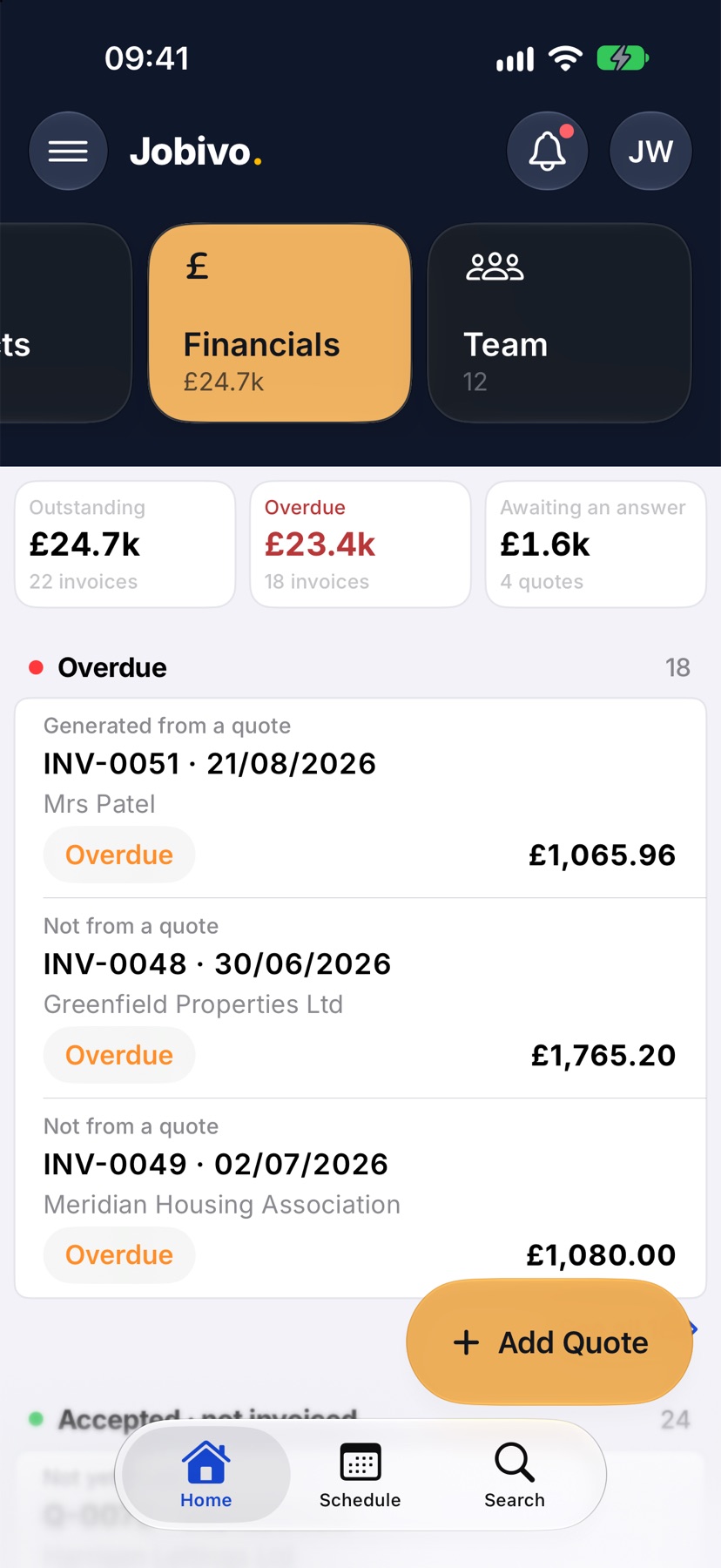
You can also start a quote from a job: open its Financials tab and tap New quote.
Choose the customer
New quote opens with nothing filled in. Tap Customer, type a few letters of their name, and tap them in the list. If they are new, tap New customer.
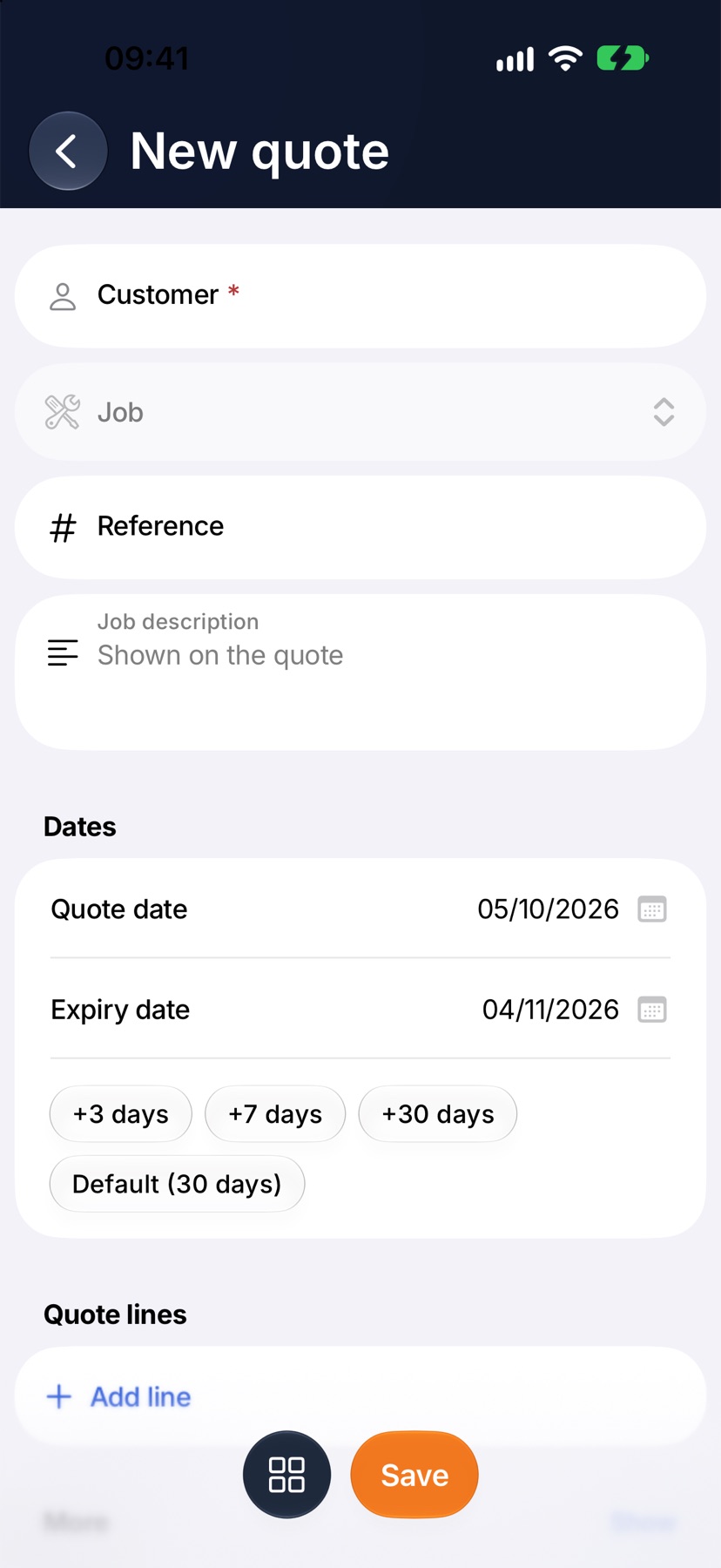
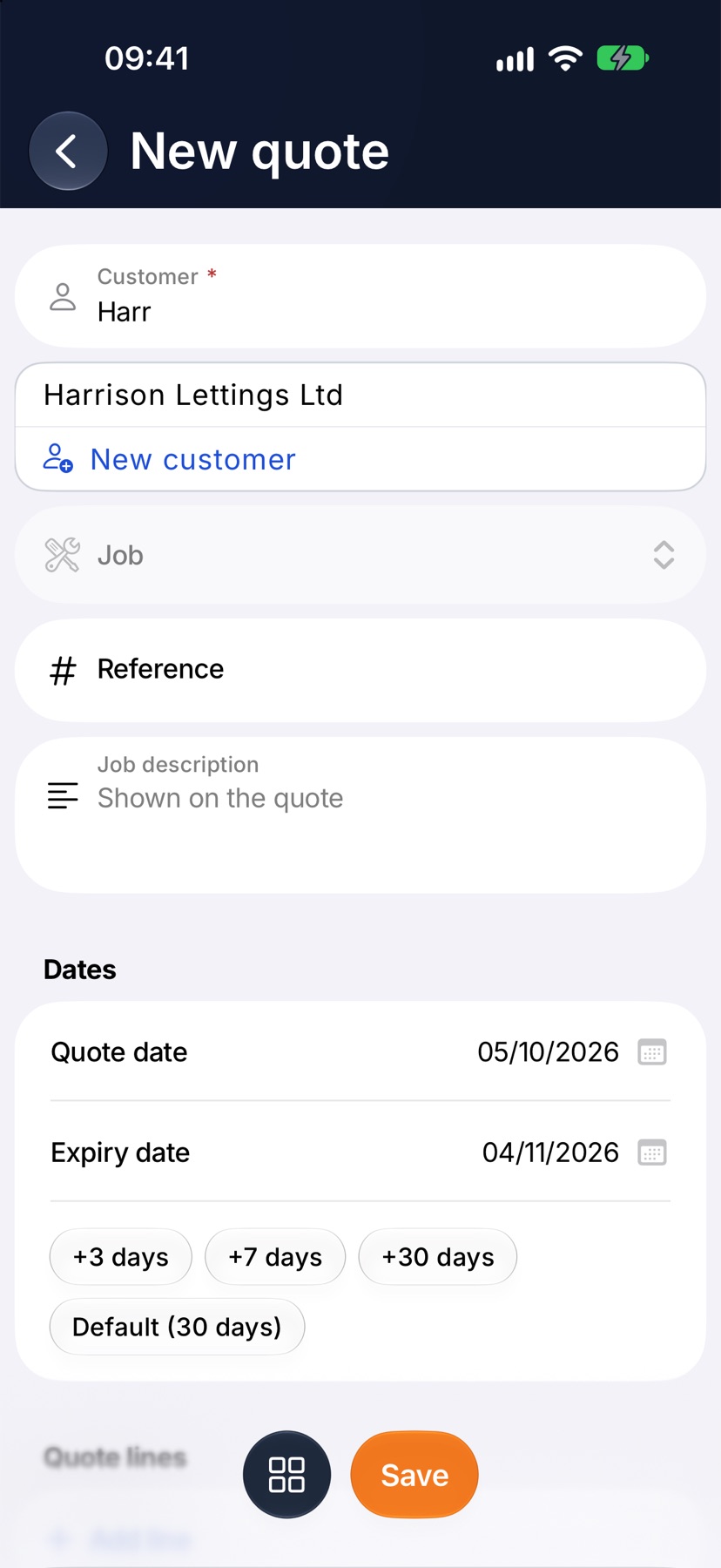
The dates are set for you: today, and an expiry 30 days on. The quick buttons under them change the expiry.
Add what you are quoting for
Scroll down to Quote lines and tap Add line. In What is it?, type to search your price book and tap the item.
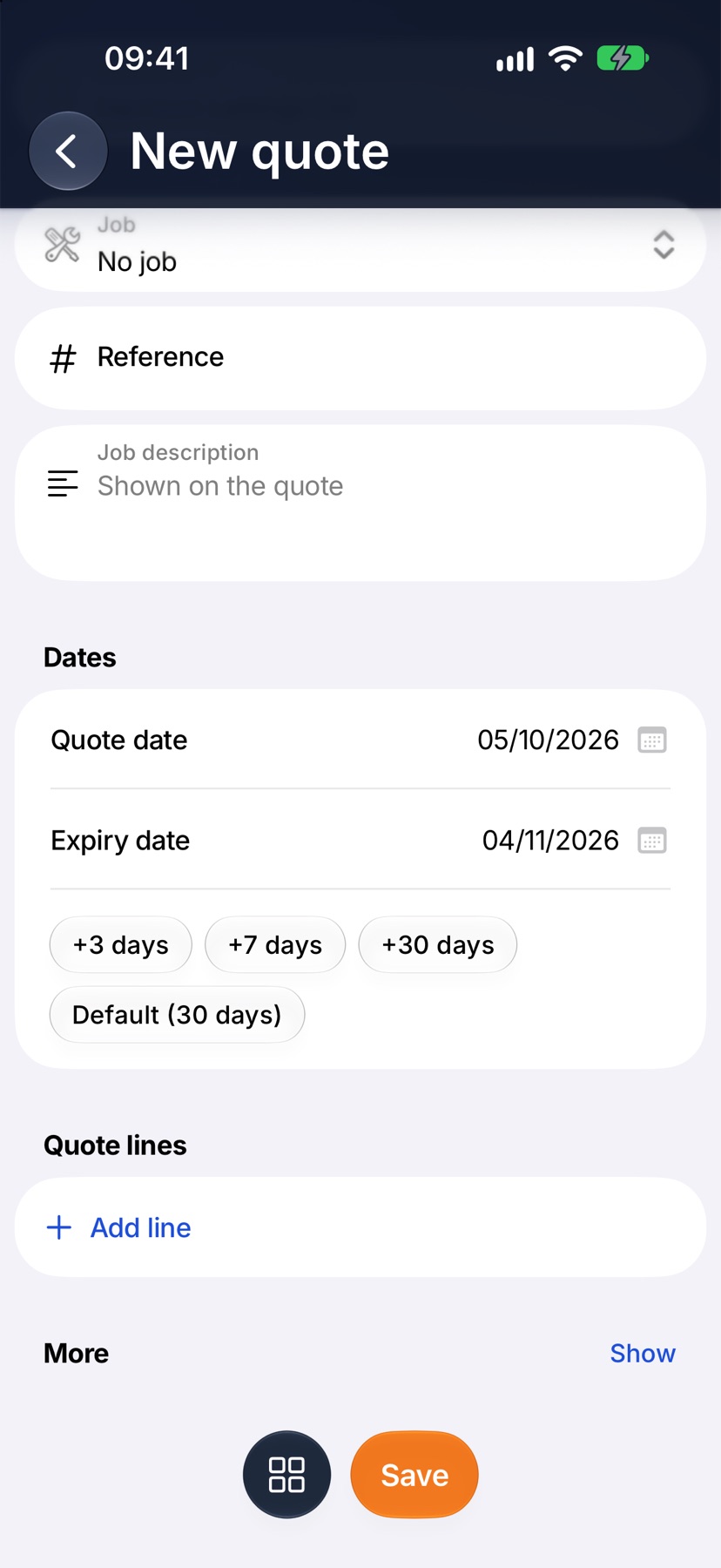
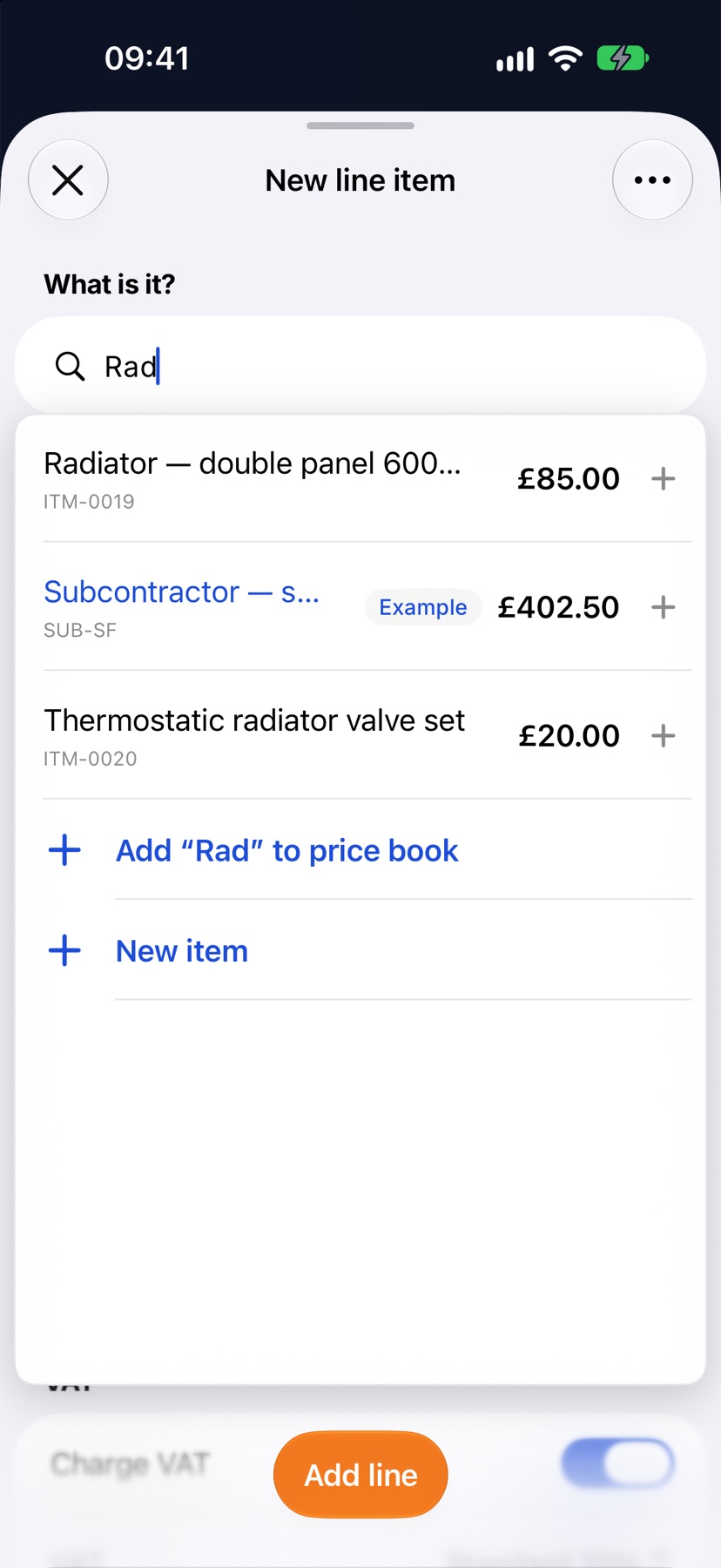
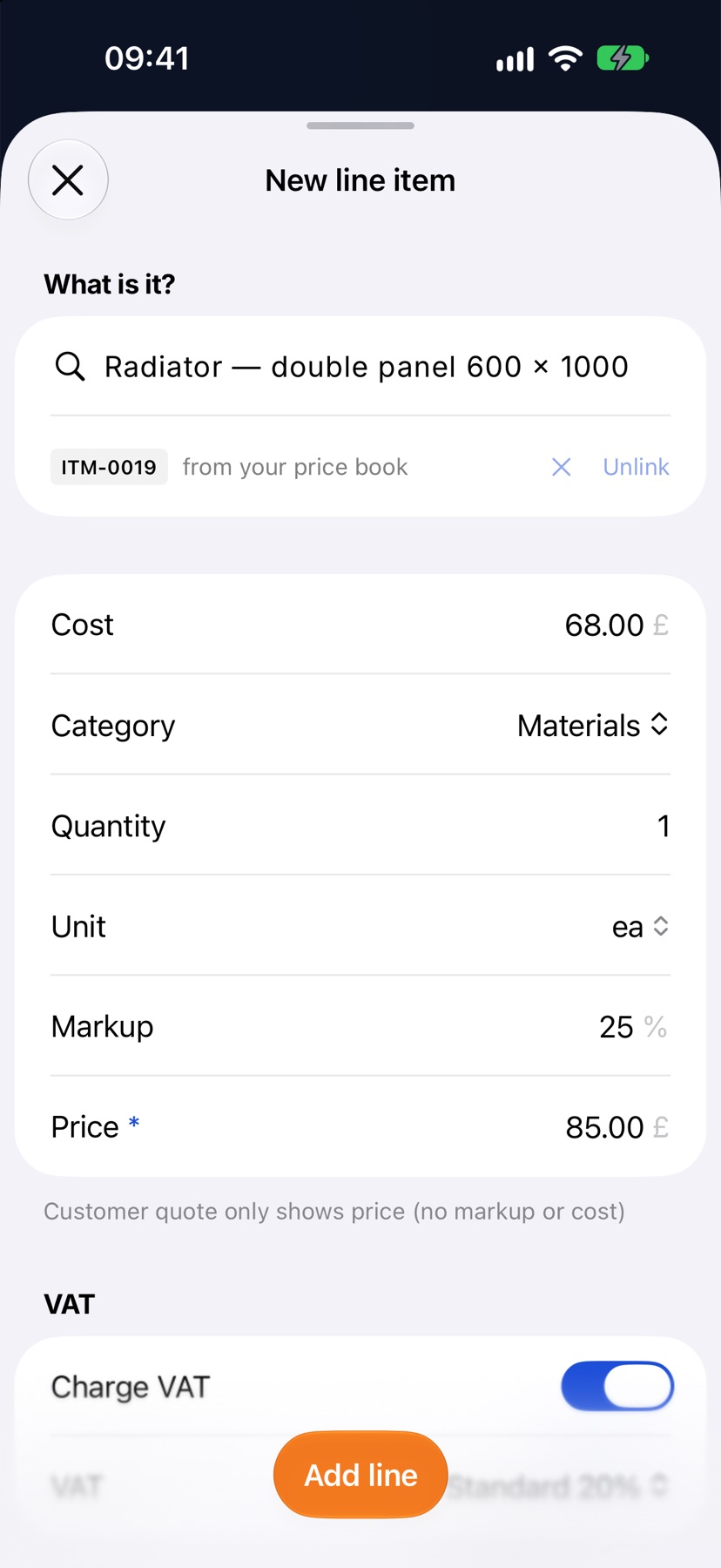
The item fills its cost, markup and price. Set the Quantity, change the price if this job is different, and tap Add line. Repeat for each thing you are quoting for.
Check the line
The customer sees the Price. Your cost and markup are shown only to you.
Save the quote
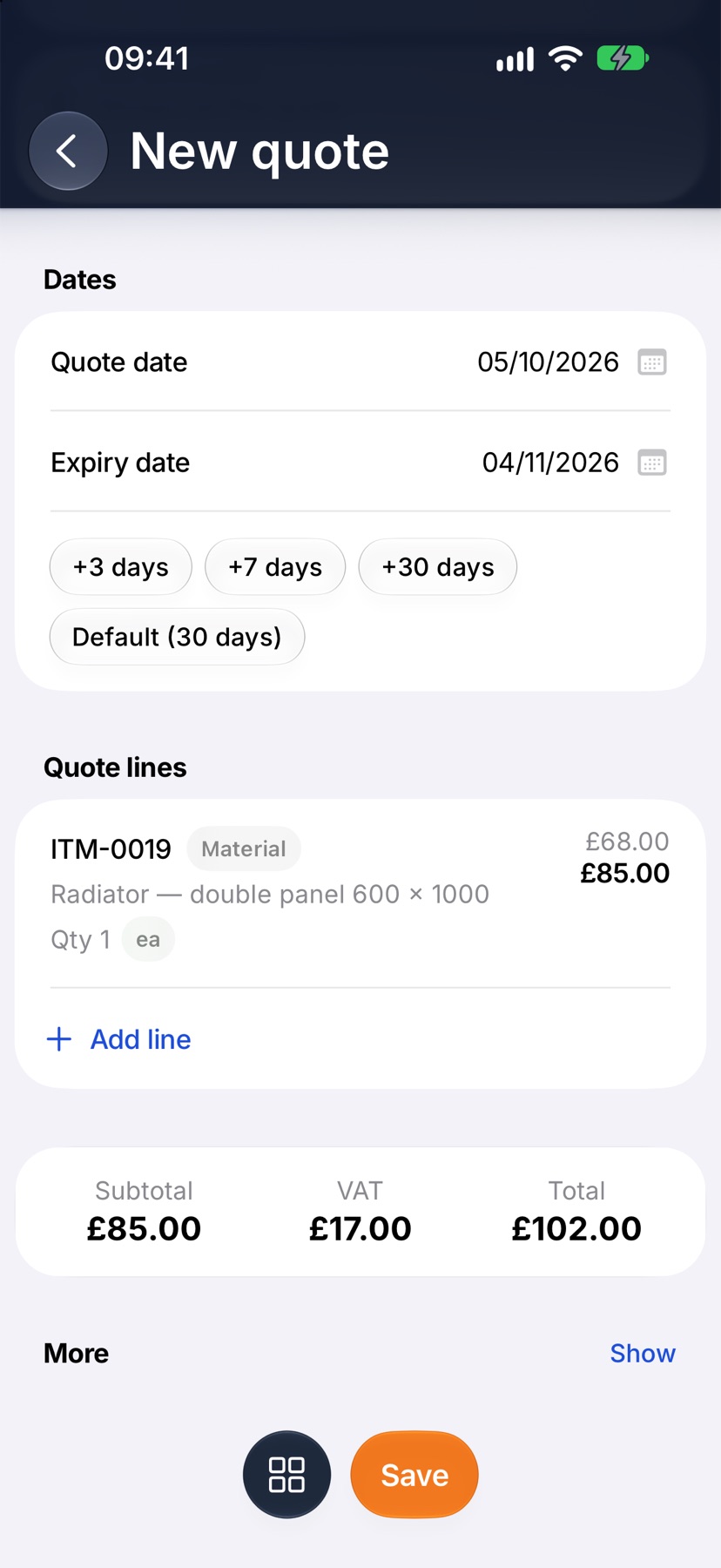
Back on the quote, the line is in place with the subtotal, VAT and total under it. Tap Save. The quote is now a draft you can come back to.
Email it to the customer
Once saved, the button becomes Email. Tap it. Jobivo numbers the quote and sends it, and a message shows who it is going to with Undo for a few seconds.
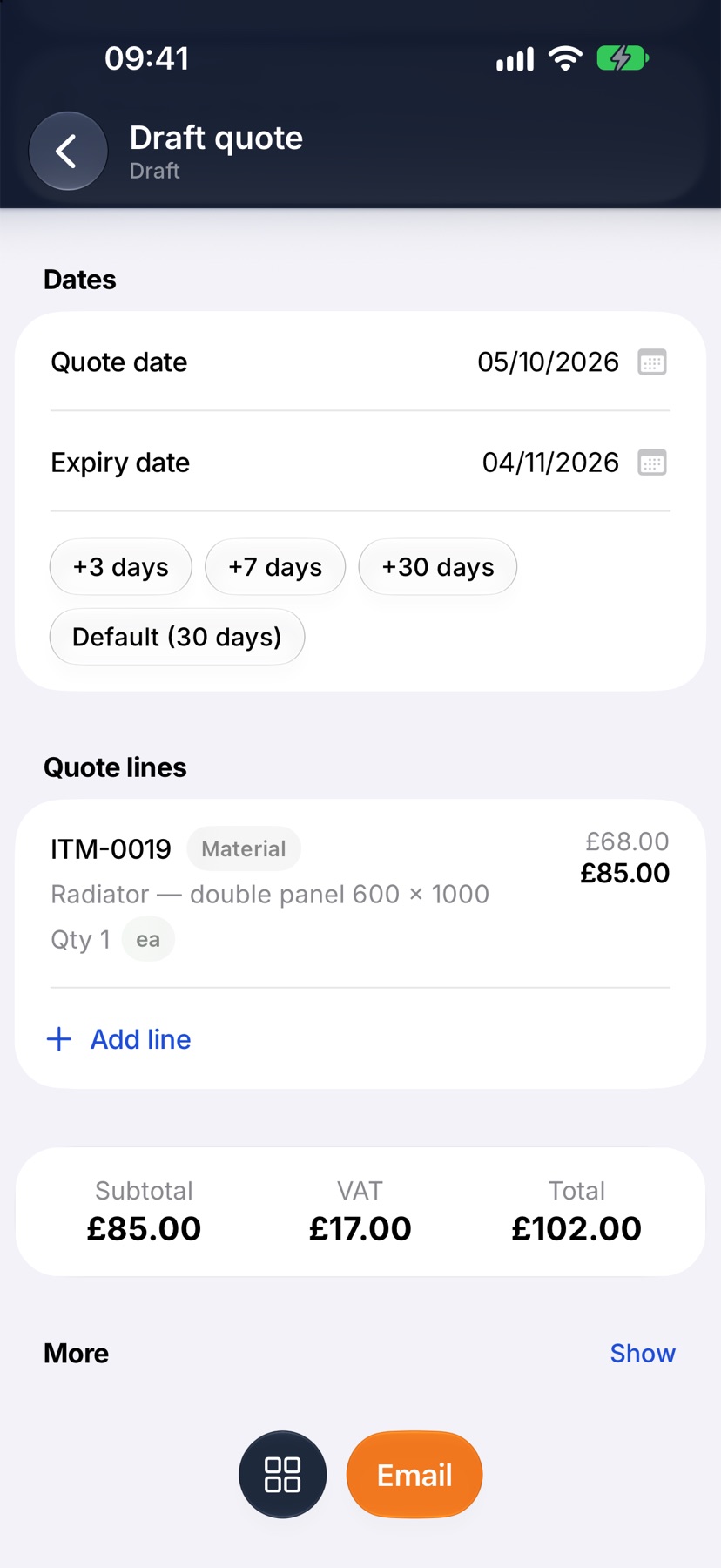
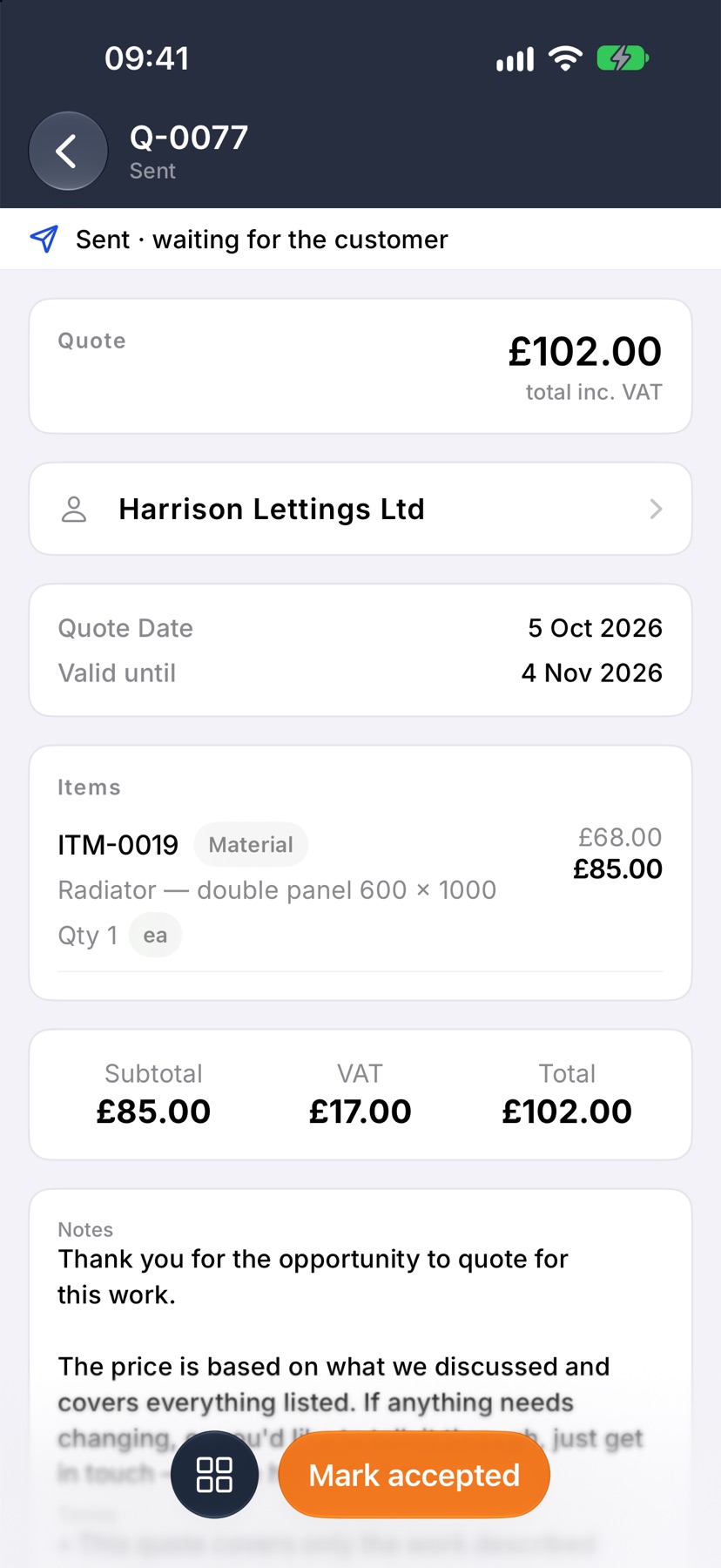
The square button beside it opens everything else you can do with the quote, such as viewing the PDF or copying its link.
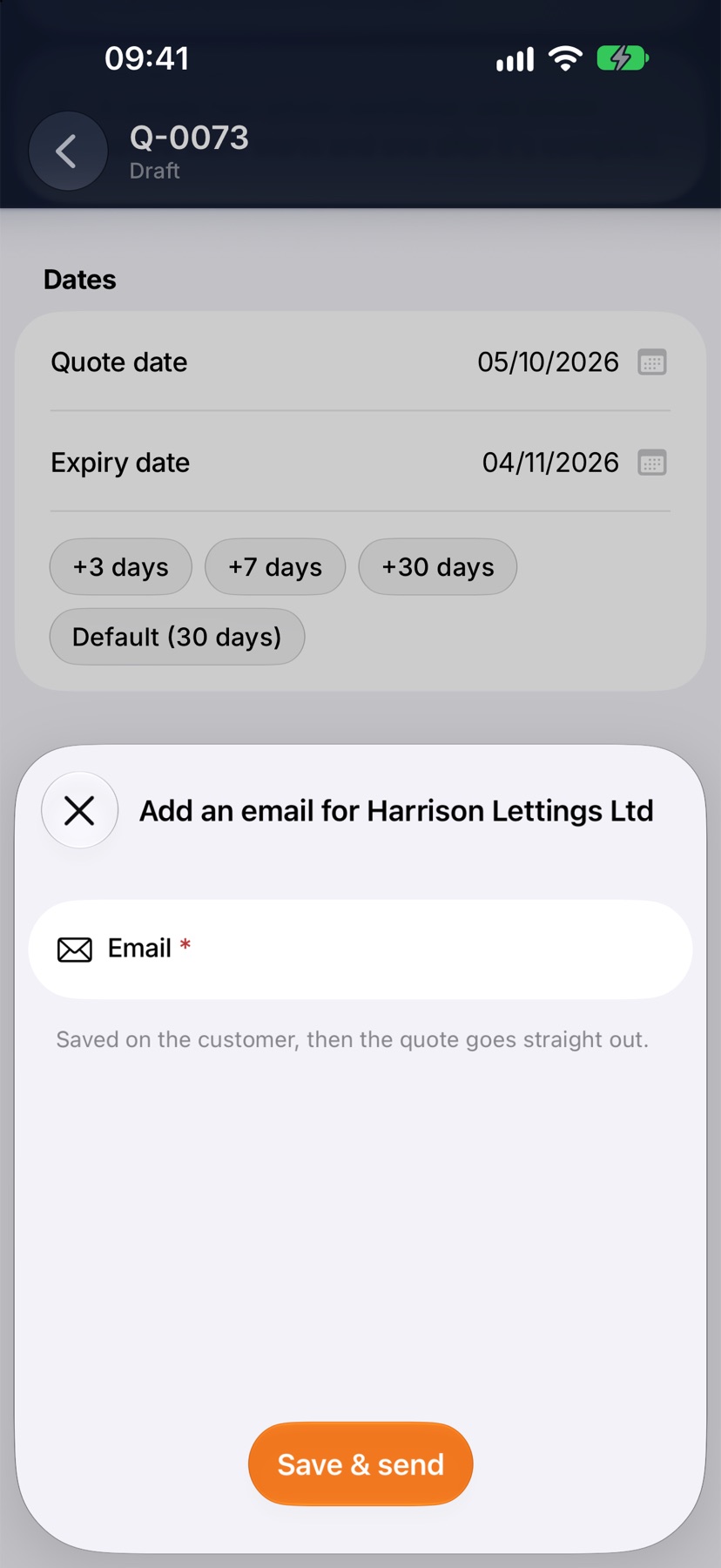
If the customer has no email
Tap Email as normal. Jobivo asks for the address, saves it on the customer and sends the quote.
After it is sent
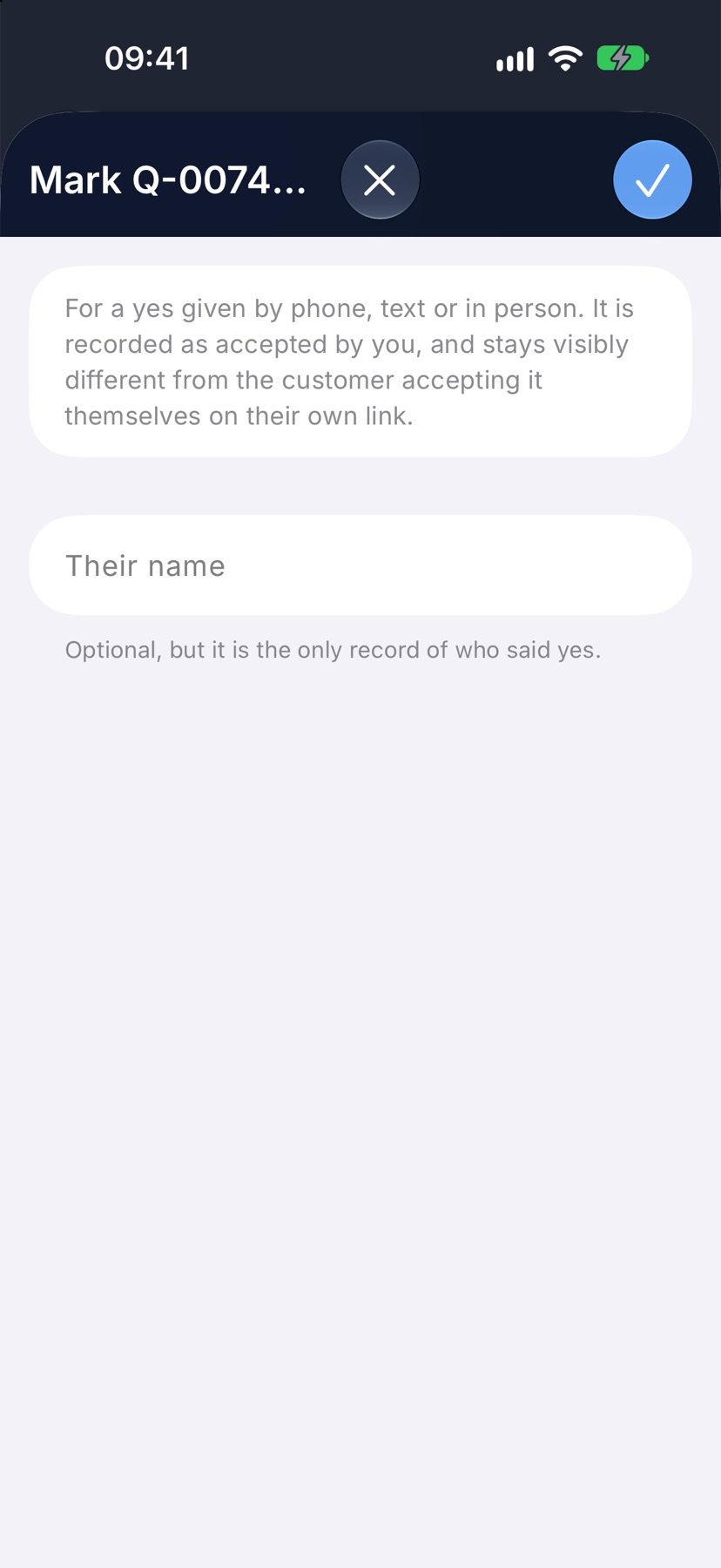
The quote reads Sent. The customer can accept it from the link in their email. If they say yes by phone or in person, open the quote, tap Mark accepted and add their name as your record of who agreed.
More in Quotes & invoices →
- Price bookBuild your cost items once, then price any job in minutes without showing your margin.
- QuotesBuild a quote from cost lines, send it, and let the customer accept it online.
- Revise a quote or add a variationChange a sent quote without losing the original, or price extra work as a variation.
- Turn an accepted quote into a jobCreate the job from the quote the customer accepted.
See what else Quotes can do. Still stuck? Email support@jobivo.co.uk and we'll get back to you.