Send your first invoice
An invoice is where the job turns into money. Send it as an email with a link, let your customer pay online if you've connected Stripe, and record any other payments against it so you always know who still owes you.
Start the invoice#
There are three ways in. Sales → Invoices → New starts from scratch. On a job, New invoice links it to the job. And on an accepted quote, Create invoice carries every line across — usually the quickest of the three.
There are three ways in. ☰ → Invoices → + starts from scratch. On a job, New invoice links it to the job. And on an accepted quote, Create invoice carries every line across — usually the quickest of the three.
Issue it and send it#
Issue invoice gives it its number and locks it in. Then Send to customer emails them a link, with the PDF attached. Tick Include photo evidence to let them see the work, and use Add attachment → Certificates in the editor to send the paperwork with it.
Tap Send invoice at the bottom. That one tap gives the invoice its number and emails it to your customer. Handing it over yourself? Use ⋯ → Issue without sending instead. (Photo evidence and certificates are attached from the web.)
What your customer sees#
The link opens the invoice in their browser, with Download PDFand — if you've connected Stripe — a Pay nowbutton. If you included photo evidence or certificates, they're there too. When they pay online, the invoice marks itself paid; you don't record anything.
Record a payment#
Paid another way? Record payment, put in the Amount and the Method — Bacs, Card, Cash, Cheque or Other — and save. Part payments are fine: the invoice shows Part paid until the rest comes in. Paid the lot? Or mark the full amount as paid does it in one click.
Once it's sent, the button at the bottom becomes Payment (or Tap to Pay if you take cards on your phone). For a bank transfer or cash, use ⋯ → Record payment: the amount, how they paid and a reference. Paid the lot? ⋯ → Mark paid records the whole outstanding amount in one go.
Keep an eye on what's owed#
Each invoice shows where it's up to: Issued, Sent, Part paid, Paid — or Overdueonce it passes its due date. The customer's page totals what they owe you across every invoice.
Tip — connect Stripe in Settings and every invoice link gets a Pay now button — customers who can pay in two taps tend to pay sooner.
Bill a job from your phone, with its costs already on the invoice.
What an invoice is
An invoice asks the customer to pay for work you have done. In Jobivo it is a list of priced lines with VAT, a total and a due date, emailed to the customer as a link and a PDF.
Invoicing from the job keeps everything together. The invoice takes the customer from the job and can take its costs as lines, and the job then shows what has been billed and paid.
The invoice gets its number when it is sent, so your numbering has no gaps from abandoned drafts.
Where to start
Open the job and tap Financials. Under Invoices, tap New invoice.
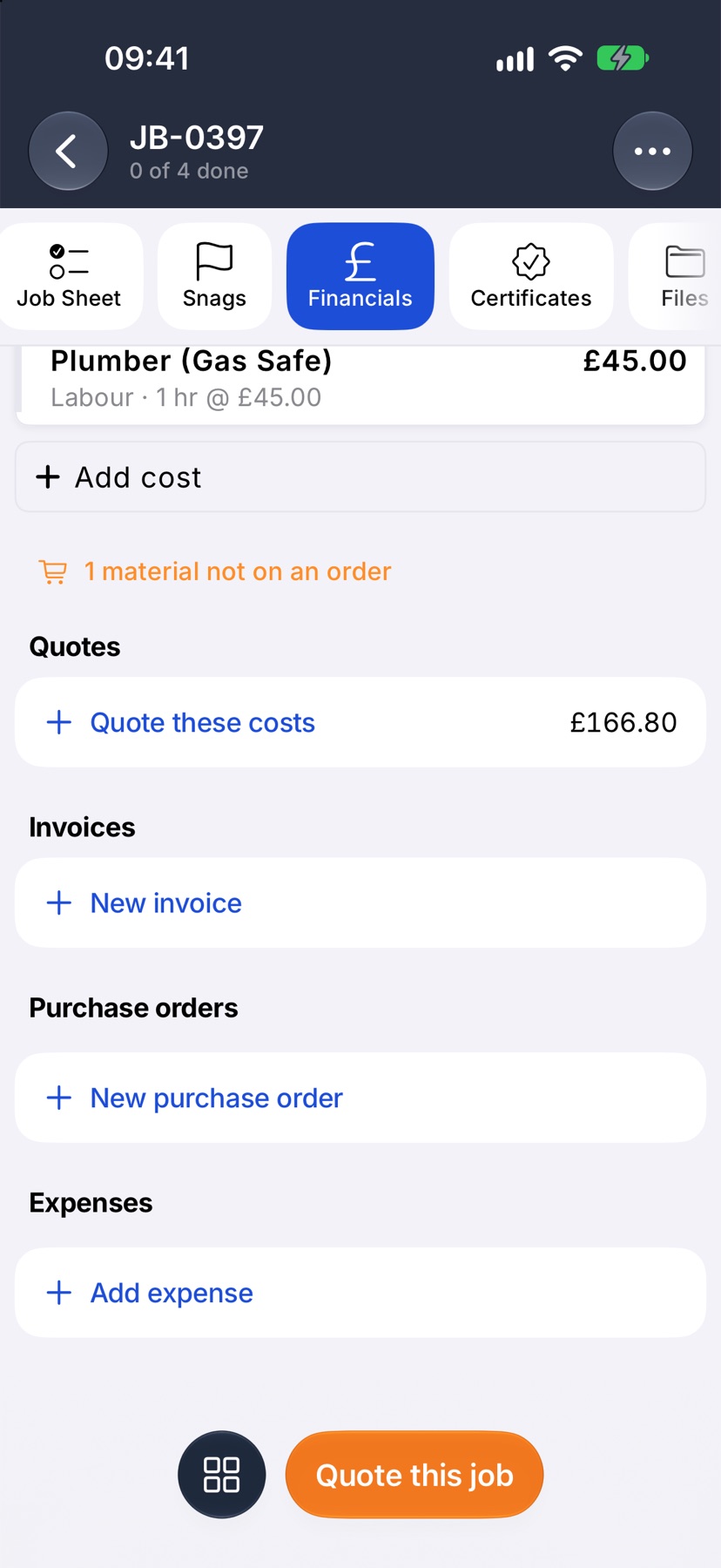
Add the job's costs
New invoice opens with the customer and the job filled in, and the customer's email under their name. The issue date is today and the due date follows your payment terms.
Under Invoice lines, tap Add the job's costs. Every cost on the job becomes a line at its price. Tap Add line for anything else.
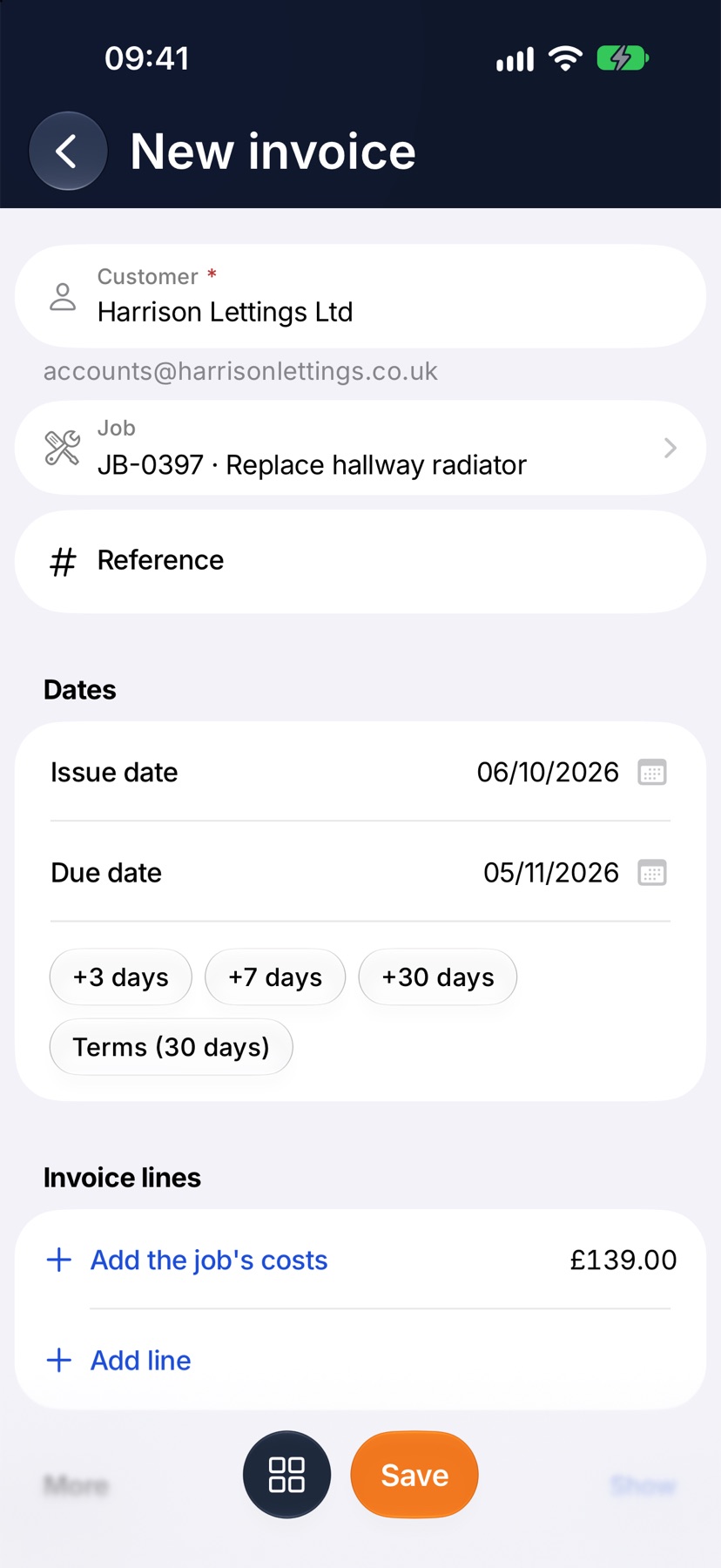
Save, then email it
Tap Save. The invoice becomes a draft and the button changes to Email. Tap Email to number the invoice and send it. A message shows who it is going to, with Undo for a few seconds.
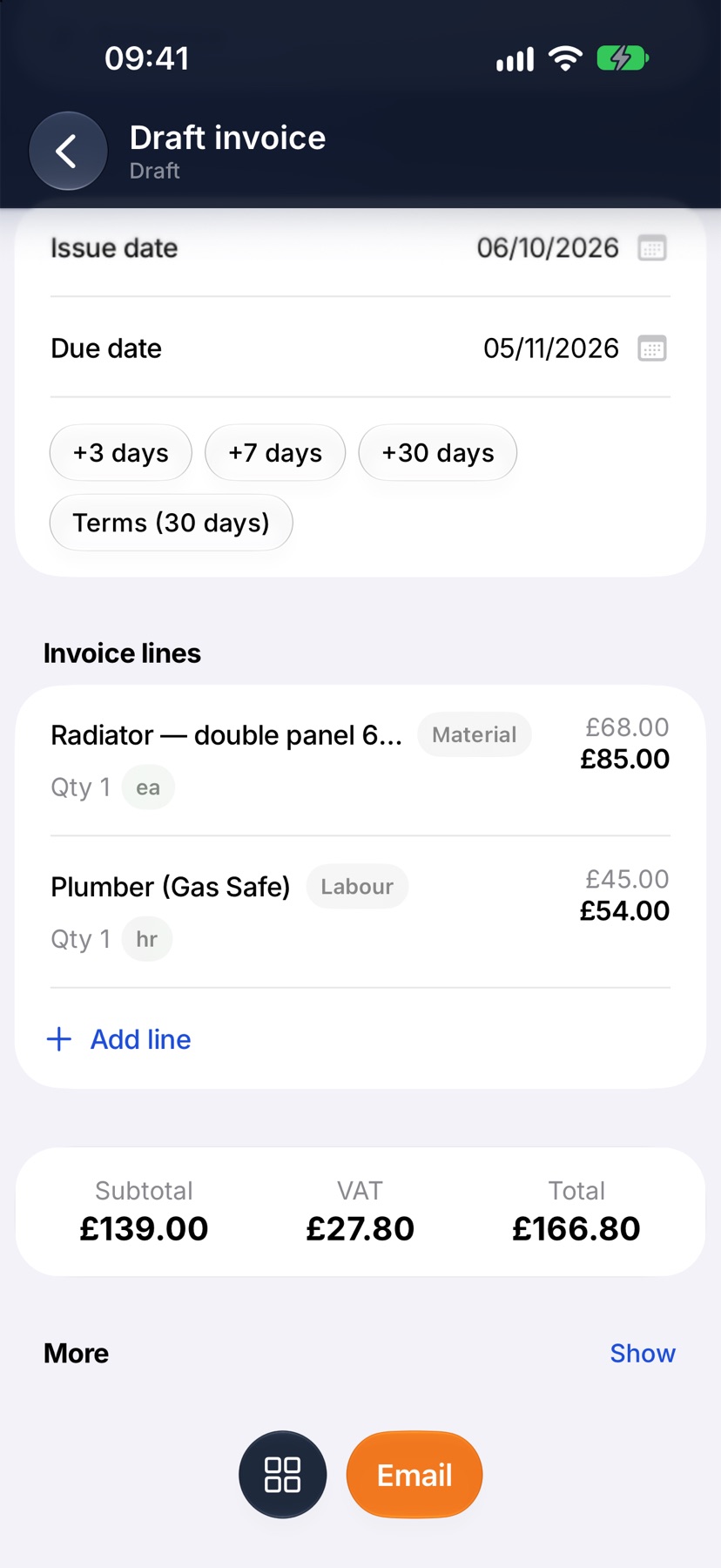
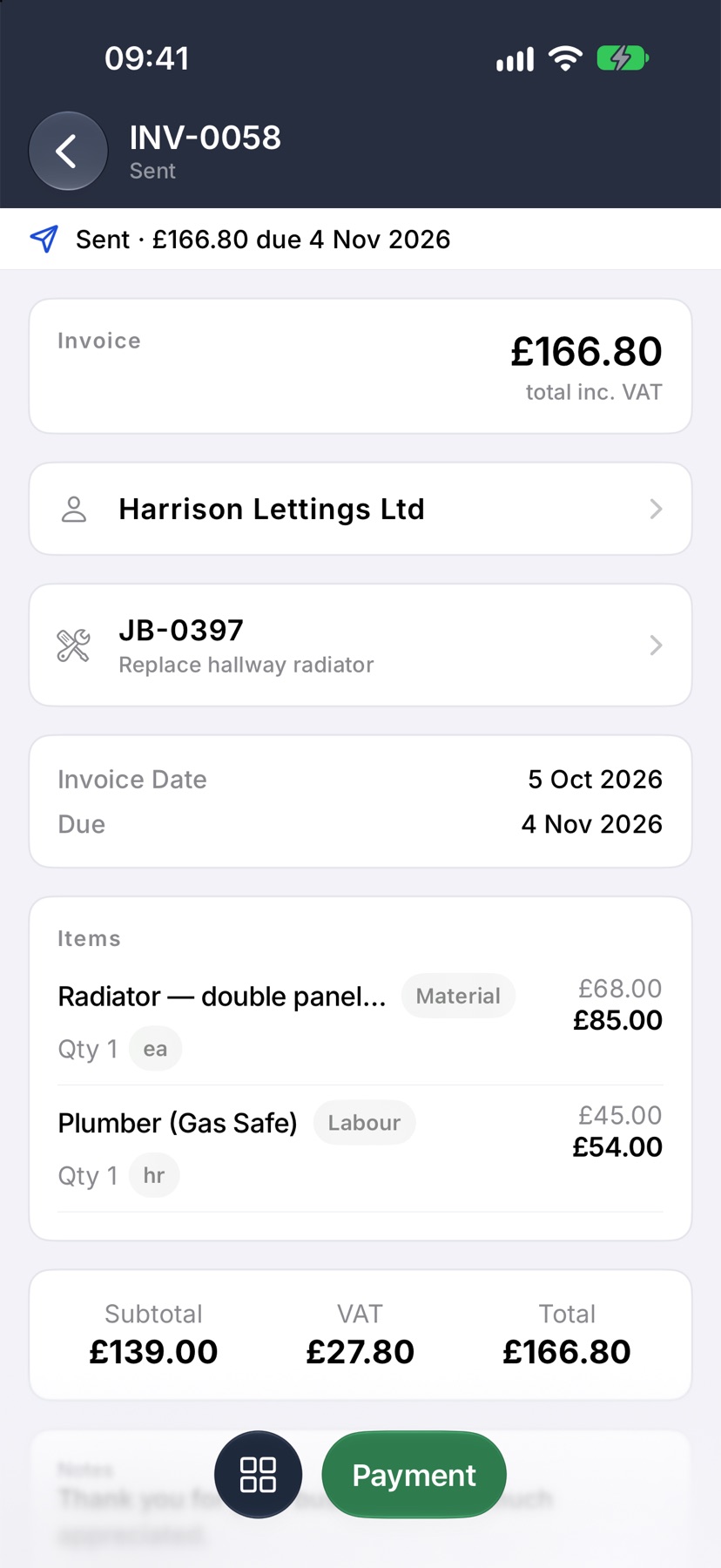
If the customer has no email on file, Jobivo asks for it first, saves it on the customer and sends the invoice.
After it is sent
The top of the invoice shows what is owed and when it is due. When the customer pays, open the invoice and tap Payment to record it. The job's Financials tab then shows it as paid.
More in Quotes & invoices →
- Price bookBuild your cost items once, then price any job in minutes without showing your margin.
- Send your first quoteFrom a blank quote to the customer's inbox — and what they see when it arrives.
- QuotesBuild a quote from cost lines, send it, and let the customer accept it online.
- Revise a quote or add a variationChange a sent quote without losing the original, or price extra work as a variation.
See what else Invoices can do. Still stuck? Email support@jobivo.co.uk and we'll get back to you.