Invoice an accepted quote
In this article (4)
Turn a quote the customer accepted into an invoice, without typing it again.
Why invoice from the quote
When a customer accepts a quote, the price is agreed. Invoicing from that quote copies its customer, lines and totals onto the invoice, so what you bill is exactly what they said yes to.
The quote and the invoice stay linked. The quote shows it has been invoiced, and the invoice shows which quote it came from.
Where to start
Open the accepted quote. It reads Accepted · not yet invoiced. Tap Create invoice.
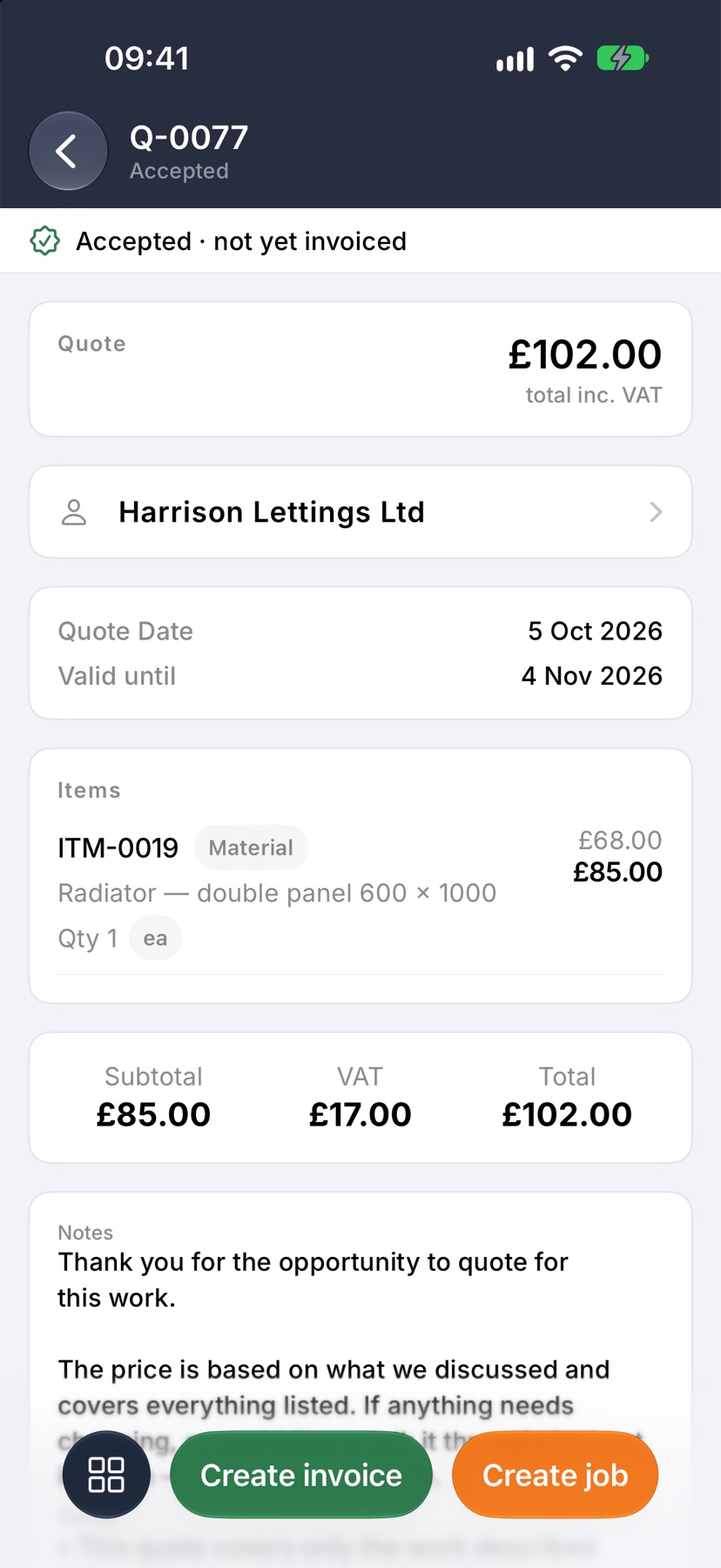
A quote is accepted when the customer accepts it from their email, or when you tap Mark accepted on a sent quote.
Check the invoice
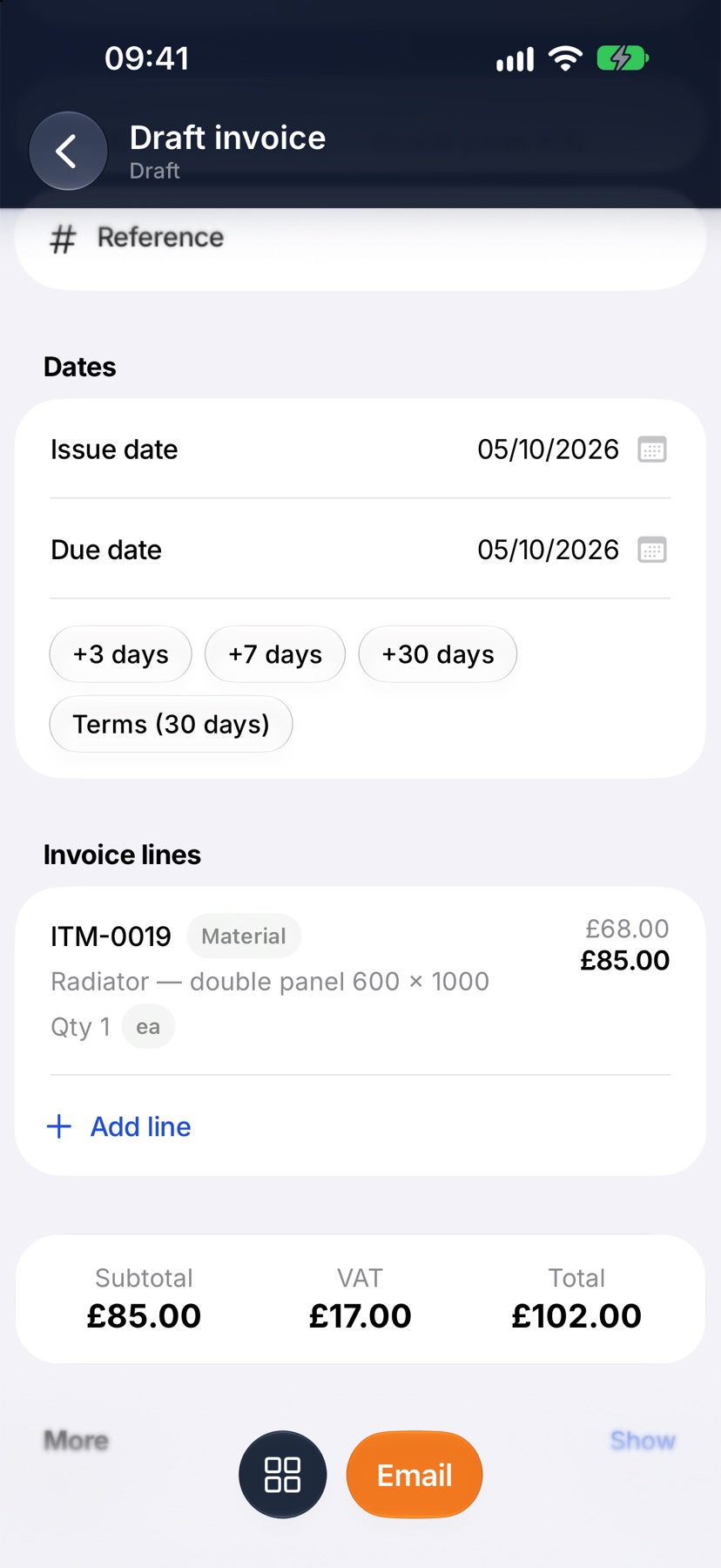
A draft invoice opens with the quote's lines and totals. Check the dates, and change or add lines if the work changed. Then tap Email.
After it is sent
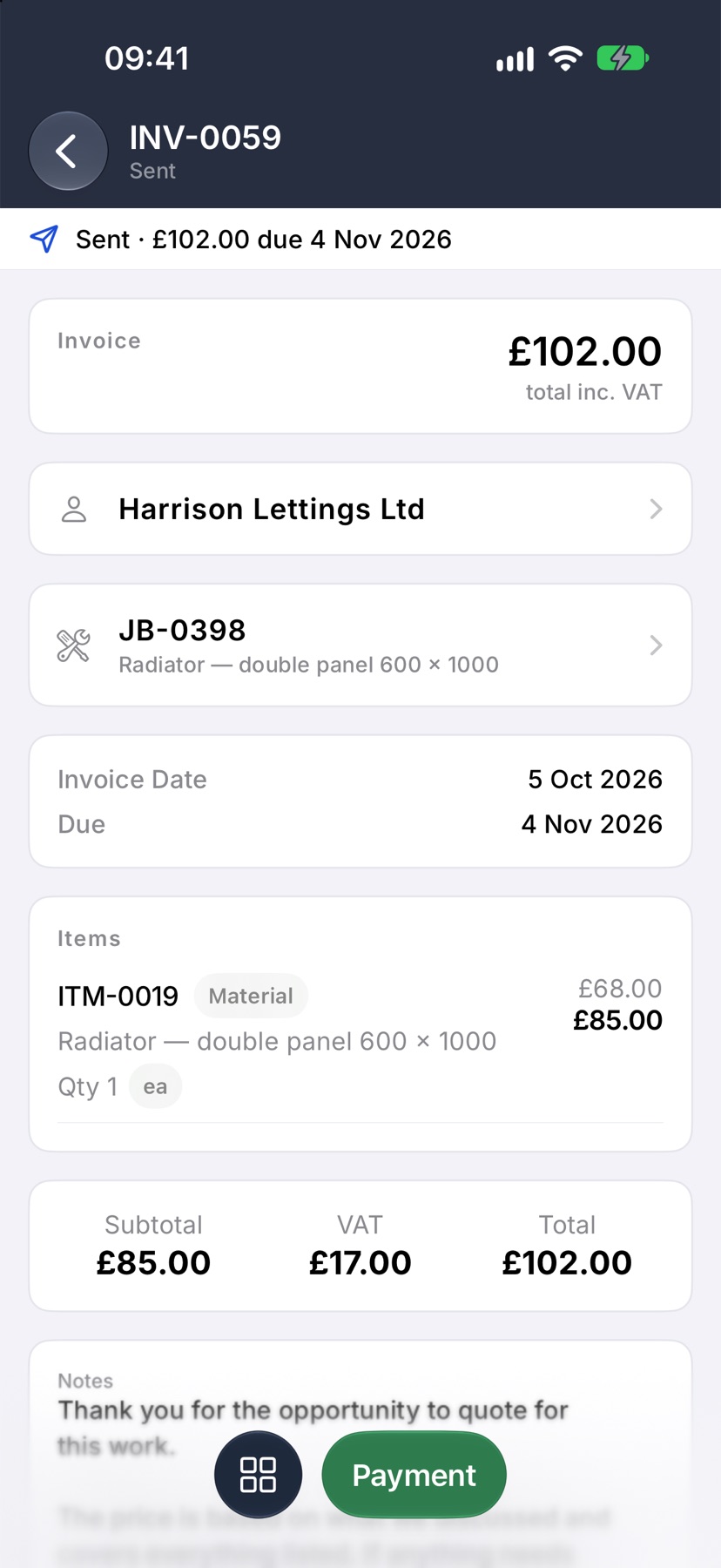
The invoice has its number and shows what is owed and when it is due. Tap Payment when the customer pays.
More in Quotes & invoices →
- Price bookBuild your cost items once, then price any job in minutes without showing your margin.
- Send your first quoteFrom a blank quote to the customer's inbox — and what they see when it arrives.
- QuotesBuild a quote from cost lines, send it, and let the customer accept it online.
- Revise a quote or add a variationChange a sent quote without losing the original, or price extra work as a variation.
Still stuck? Email support@jobivo.co.uk and we'll get back to you.