Complete, cancel or reopen a job
Close a job when the work is done, call one off, bring one back, or delete one made by mistake.
What ending a job does
A job ends in one of two ways. Complete says the work is done. Cancelled says the work is not going ahead. Either way the job sheet is locked, and the job stays on record with its tasks, photos and paperwork.
Neither is final. A completed or cancelled job can be set back to an earlier status when there is more to do.
Deleting is different. It removes the job and everything on it for good, and is meant for jobs created by mistake.
Where to start
Open the job from Home. Everything here is done from the job's own page: the bottom bar of Job Sheet, the status capsule under the job's name, and the three dots at the top right.
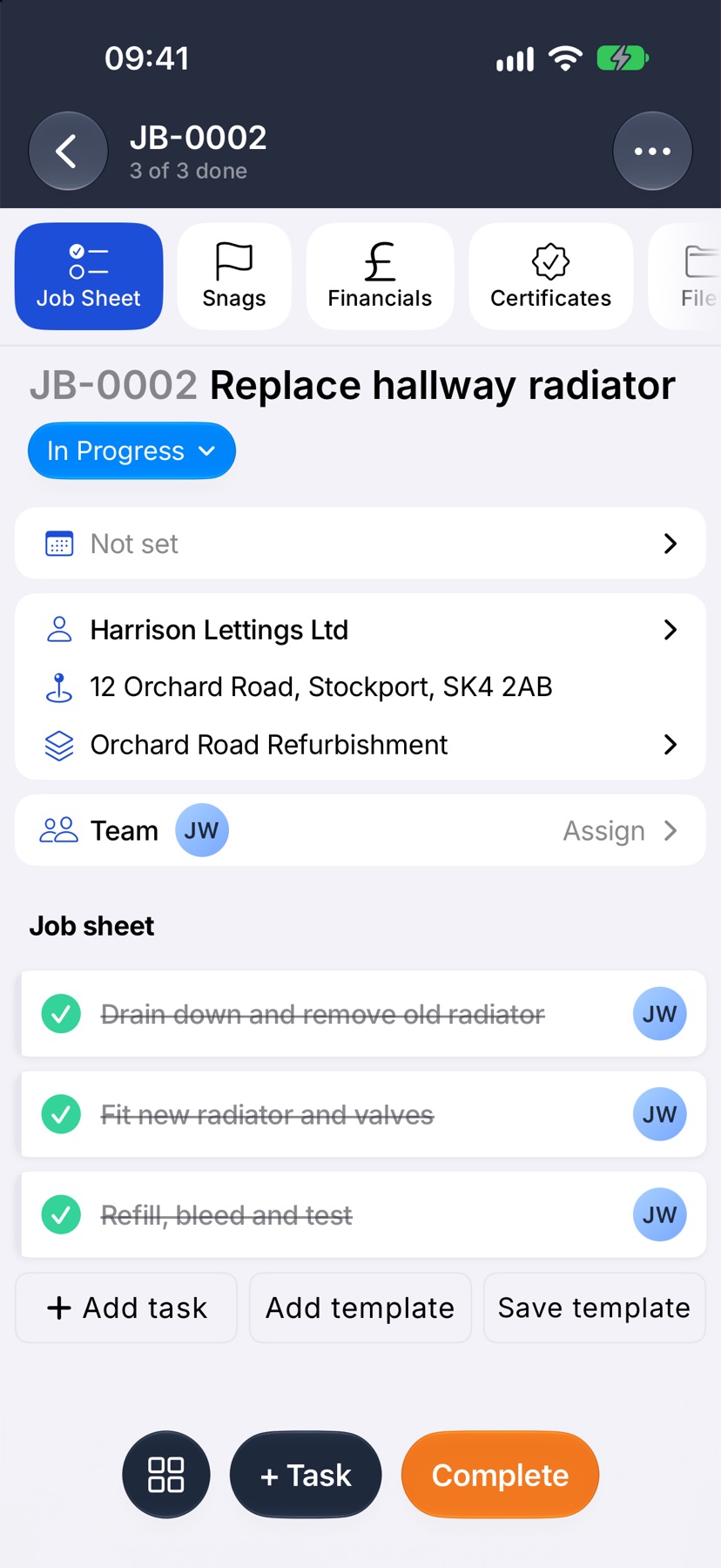
Complete a job
When every task on the sheet is ticked, Complete appears in the bottom bar. Tap it. The app asks Complete this job? Tap Complete job.
The status changes to Complete and the sheet is locked.
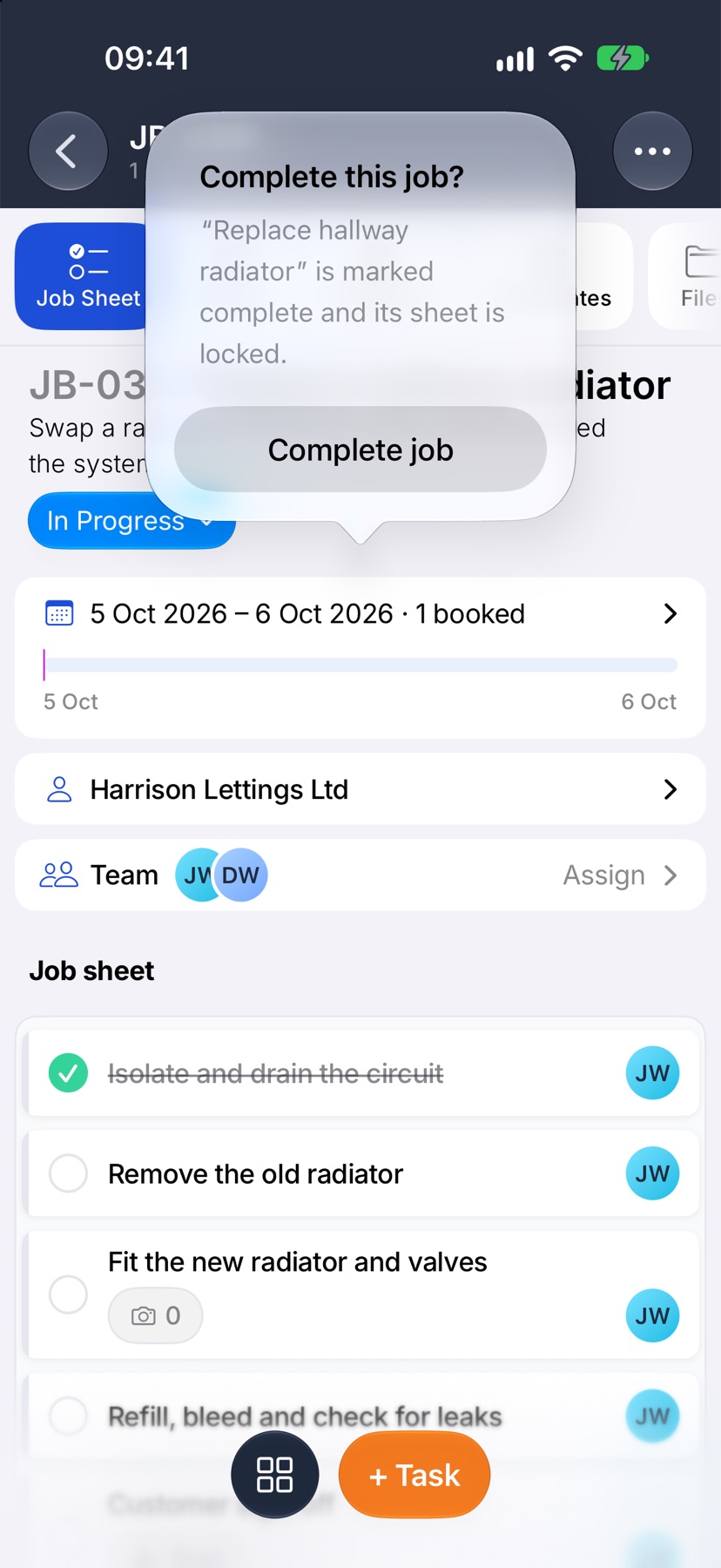
Complete a job before every task is ticked
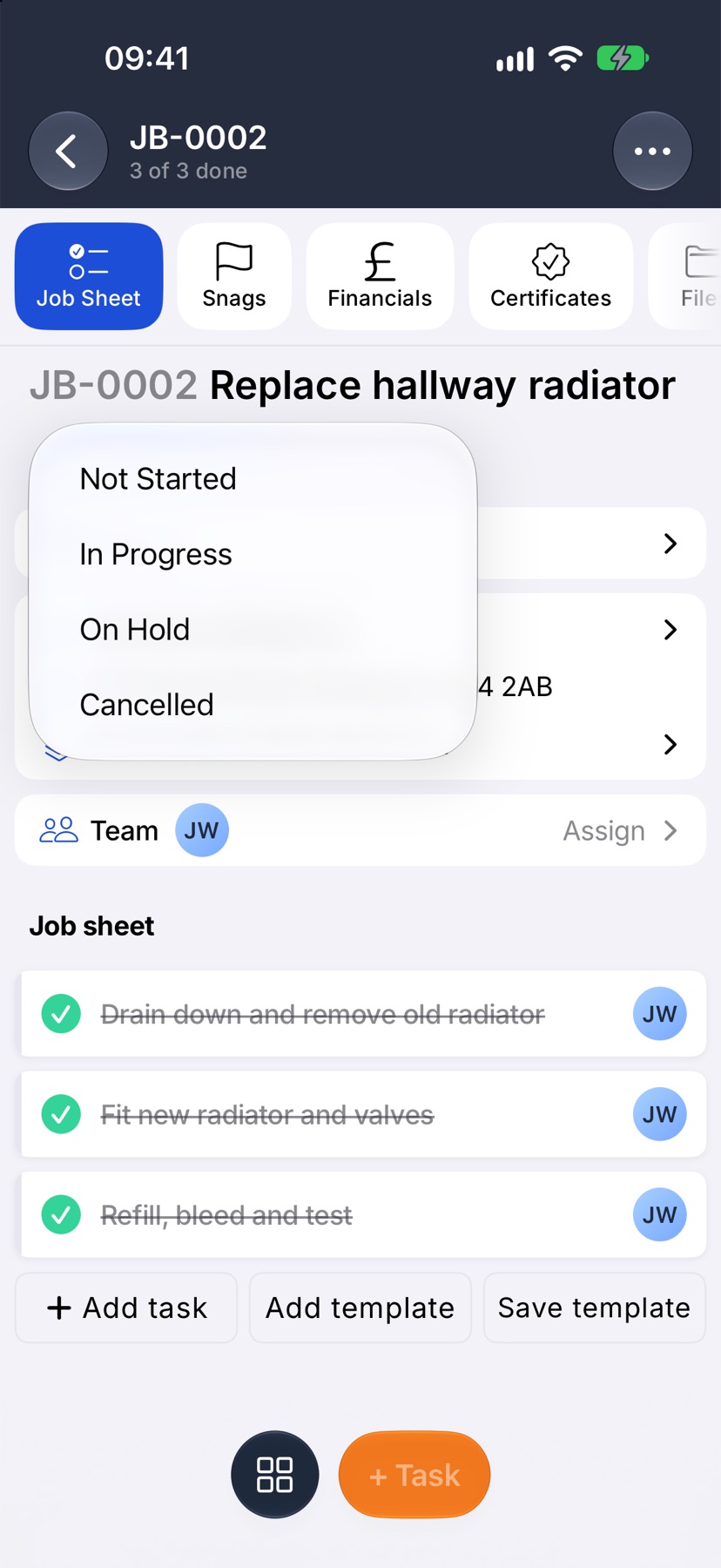
Tap the status capsule under the job's name and tap Complete, then Complete job. Use this when the remaining tasks no longer apply.
Cancel a job
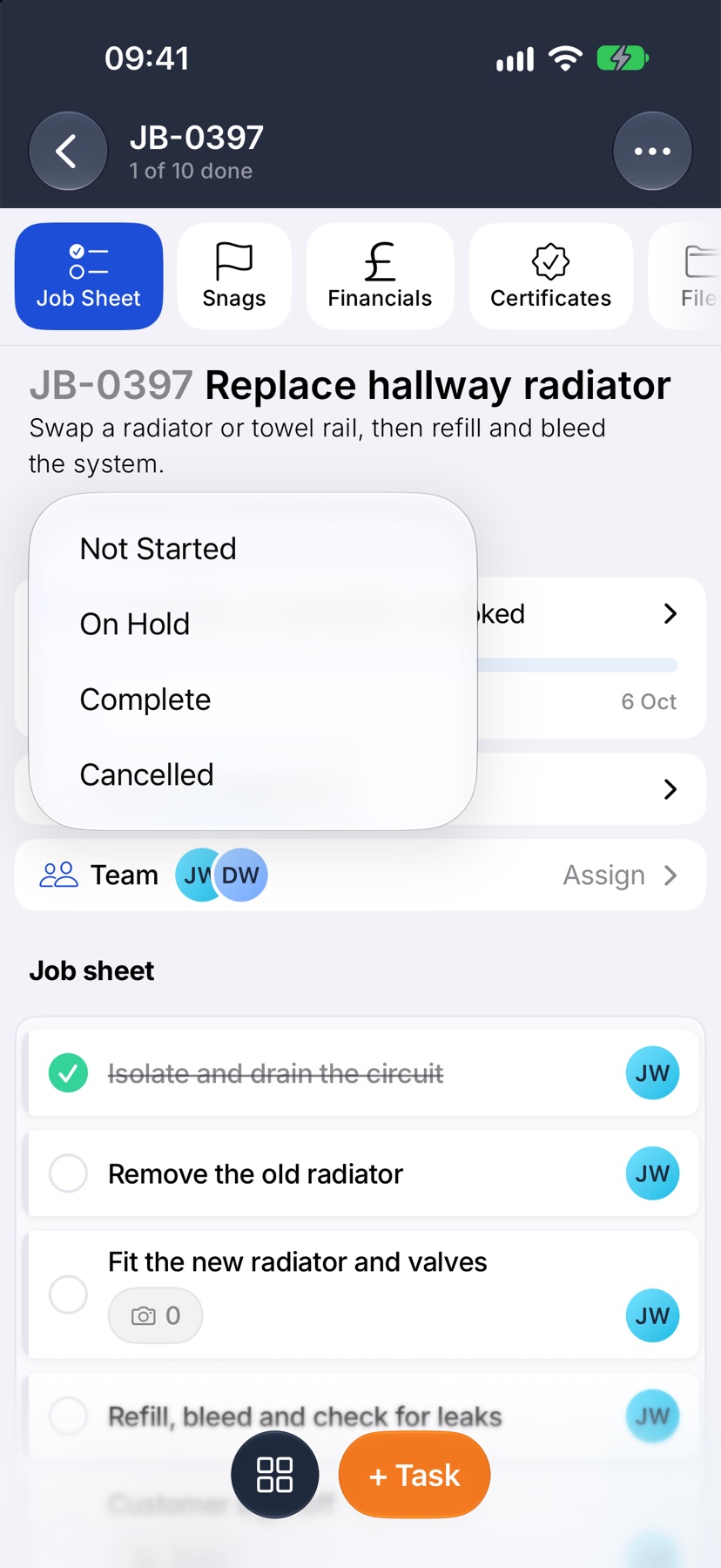
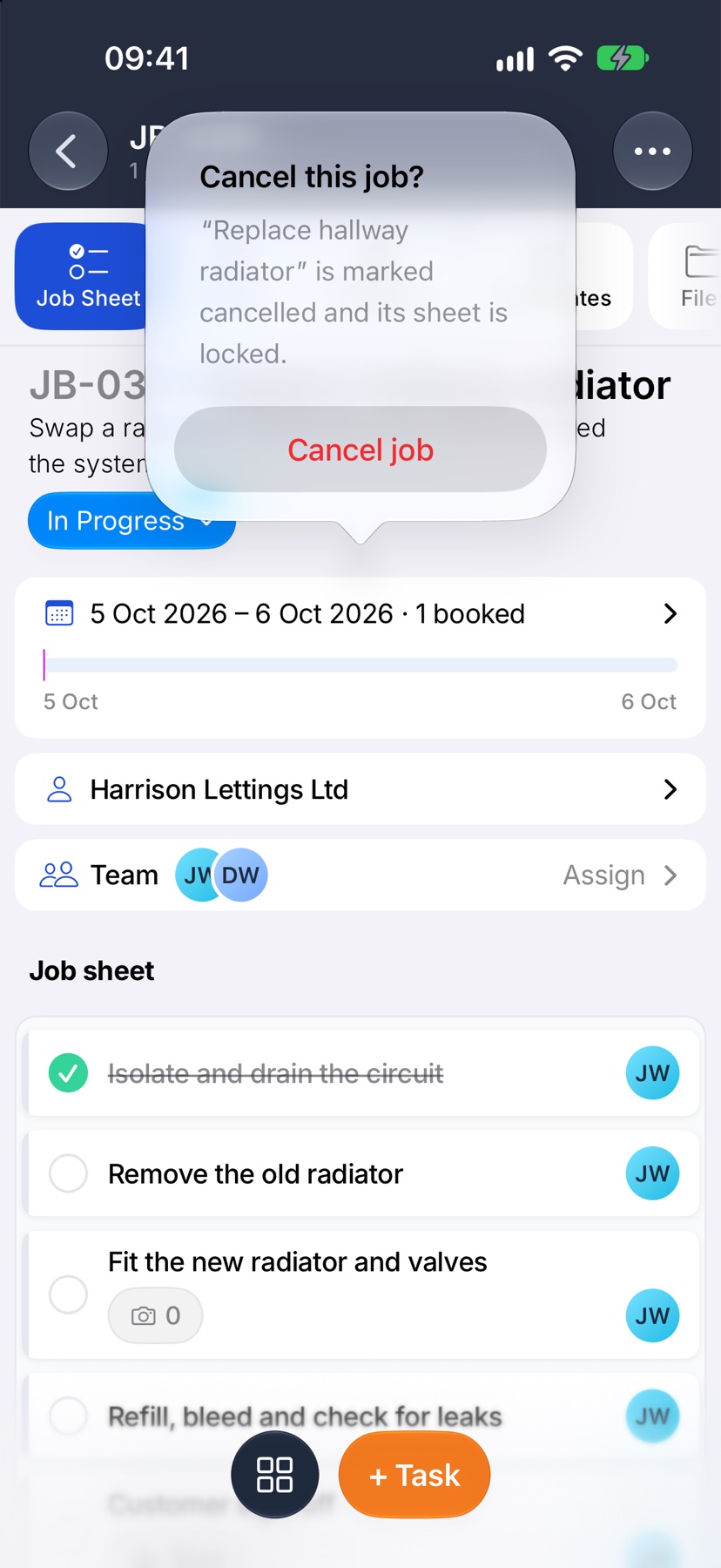
Tap the status capsule under the job's name and tap Cancelled. The app asks Cancel this job? Tap Cancel job, or tap away from the message to leave the job as it is.
Reopen a completed or cancelled job
Tap the status capsule and choose In Progress, or Not Started if no work was done. The sheet unlocks and + Task works again.
While a job is complete, + Task is dimmed. Tapping it tells you the job is complete, which is your prompt to reopen it first.
Delete a job
Tap the three dots at the top right and tap Delete job. Read the warning and tap Delete. The job, its job sheet, photos, costs, draft purchase orders and sub-jobs are removed and cannot be brought back. Draft quotes and invoices are kept, without the link to the job.
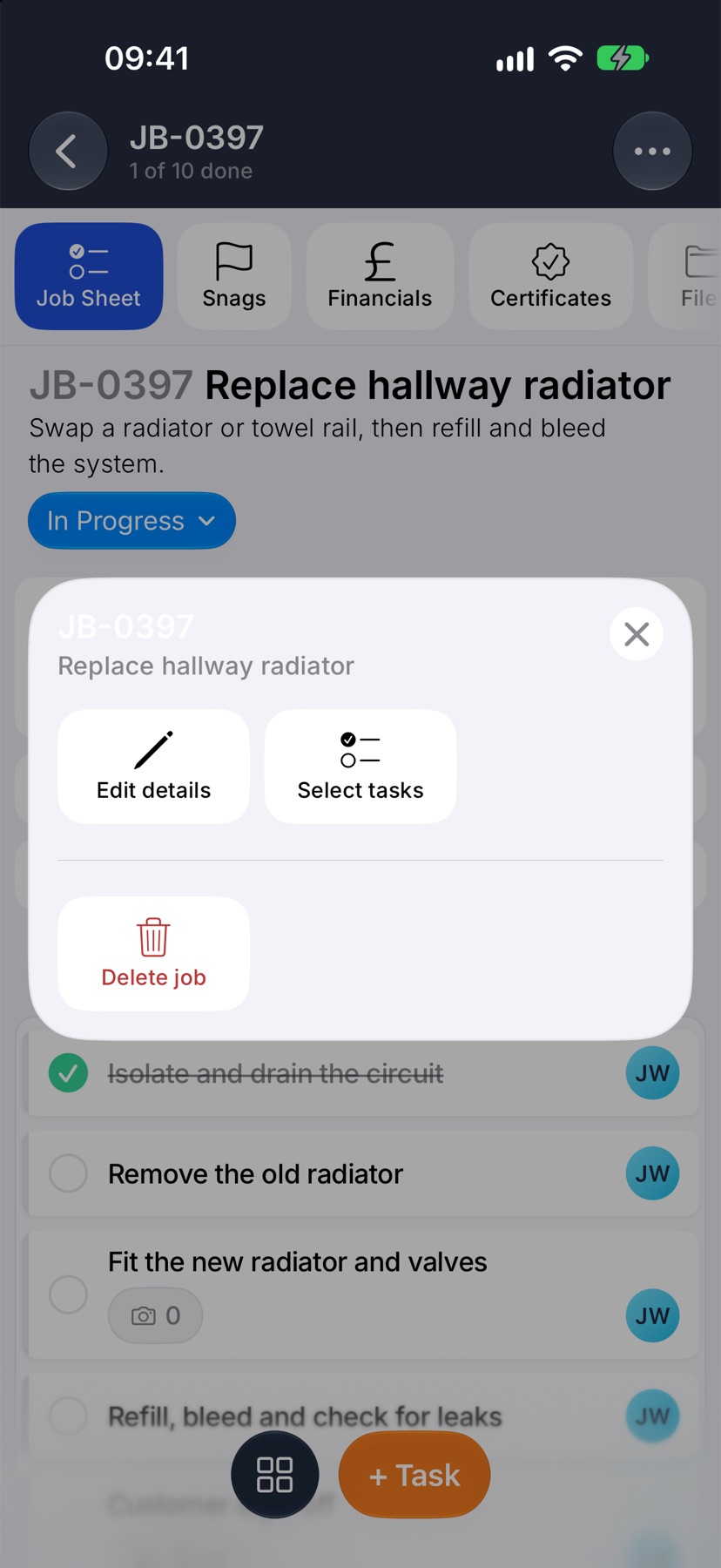
Some jobs cannot be deleted, and the app tells you why. A job where work has started has to be set back to Not Started first. A job with a quote or invoice already sent to the customer needs that document voided or deleted first.
More in Jobs →
- Create a jobStart a job: the customer, the dates, the job sheet and any compliance it needs.
- The job pageHow one job page tracks the work, the photos and the money in one place.
- The job sheetBuild the tasks your team works through on site, and ask for photo evidence where it matters.
- Complete tasks and add evidenceComplete a task with the photos, notes or signature it asks for — and what to do when it won't tick.
Still stuck? Email support@jobivo.co.uk and we'll get back to you.