Change many jobs at once
Select several jobs and assign them, date them, change their status or move them into a project in one go.
What changing many jobs at once does
Some changes apply to a batch of jobs: putting next week's jobs on one person, moving a run of jobs to new dates, or gathering jobs into a project. Selecting them together saves opening each one.
Four things can be done to a selection: assign people, set dates, change status, and add to a project. Each asks you to confirm with the number of jobs before anything changes.
Where to start
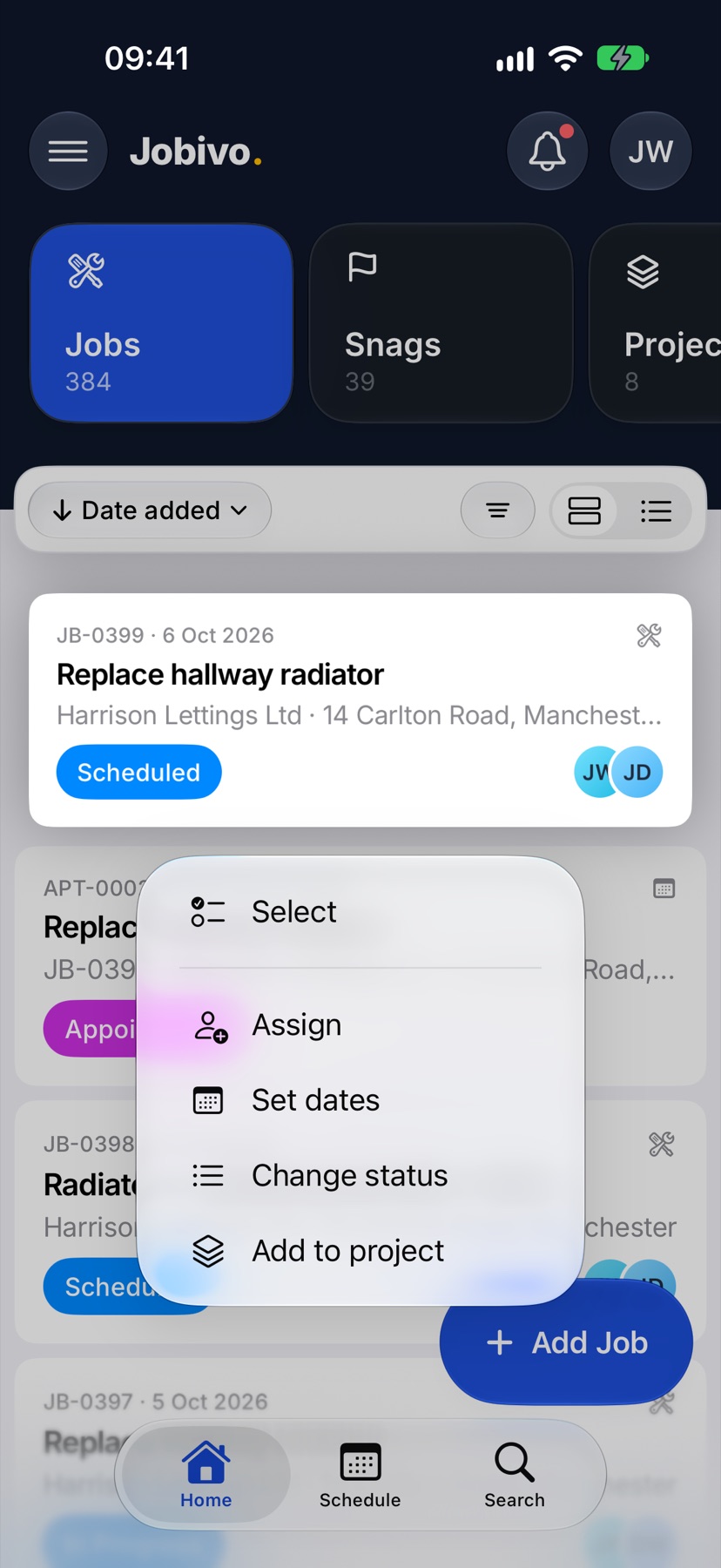
Open Jobivo on Home with Jobs selected at the top. Tap and hold a job in the list. A menu opens with Select, Assign, Set dates, Change status and Add to project.
Select the jobs
Tap Select. The job you held is ticked, and every job in the list now has a circle. Tap the others you want.
The line above the list says how many jobs match the filter you are on. Tap Select all beside it to tick every one of them, including those further down the list.
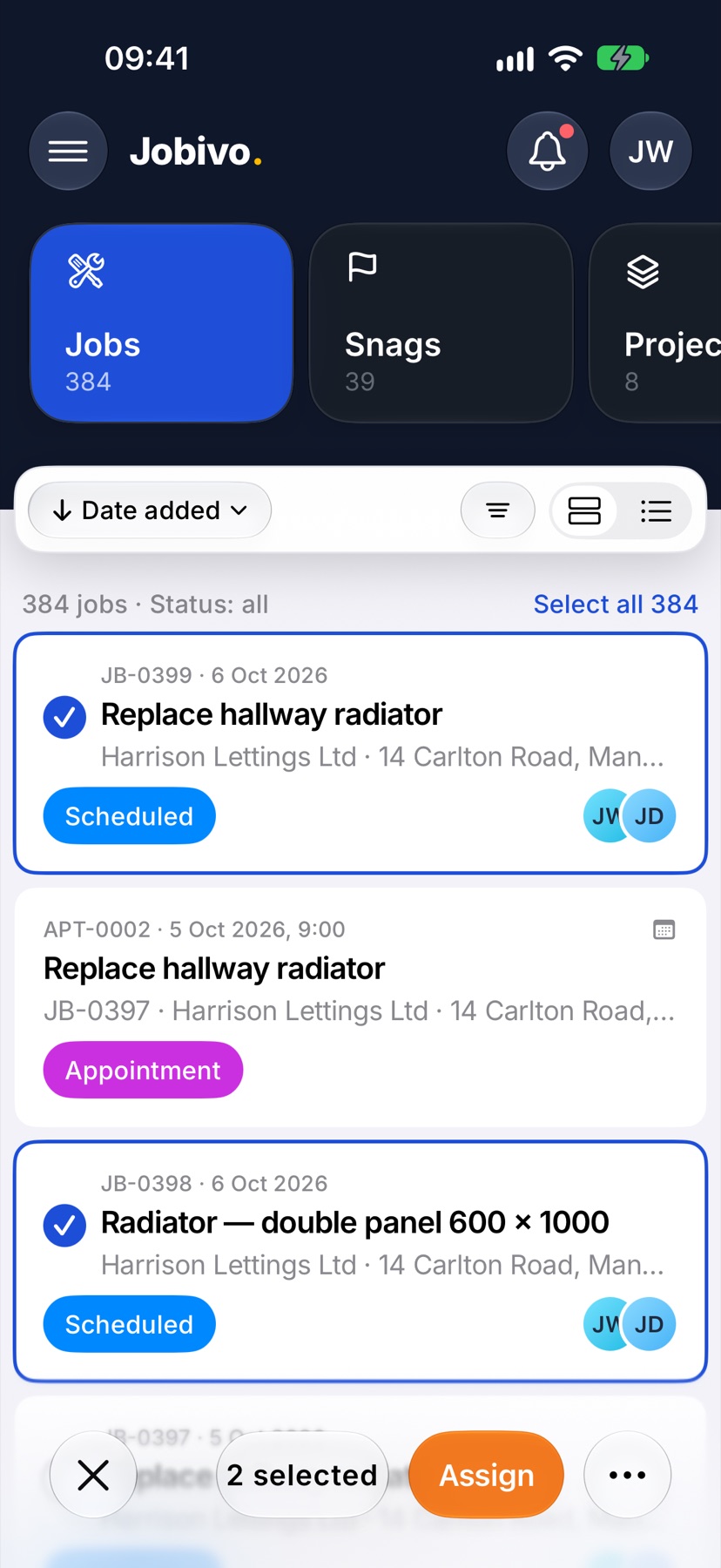
The bottom bar shows how many are selected. Tap the cross on its left to leave selection without changing anything.
Assign the selected jobs
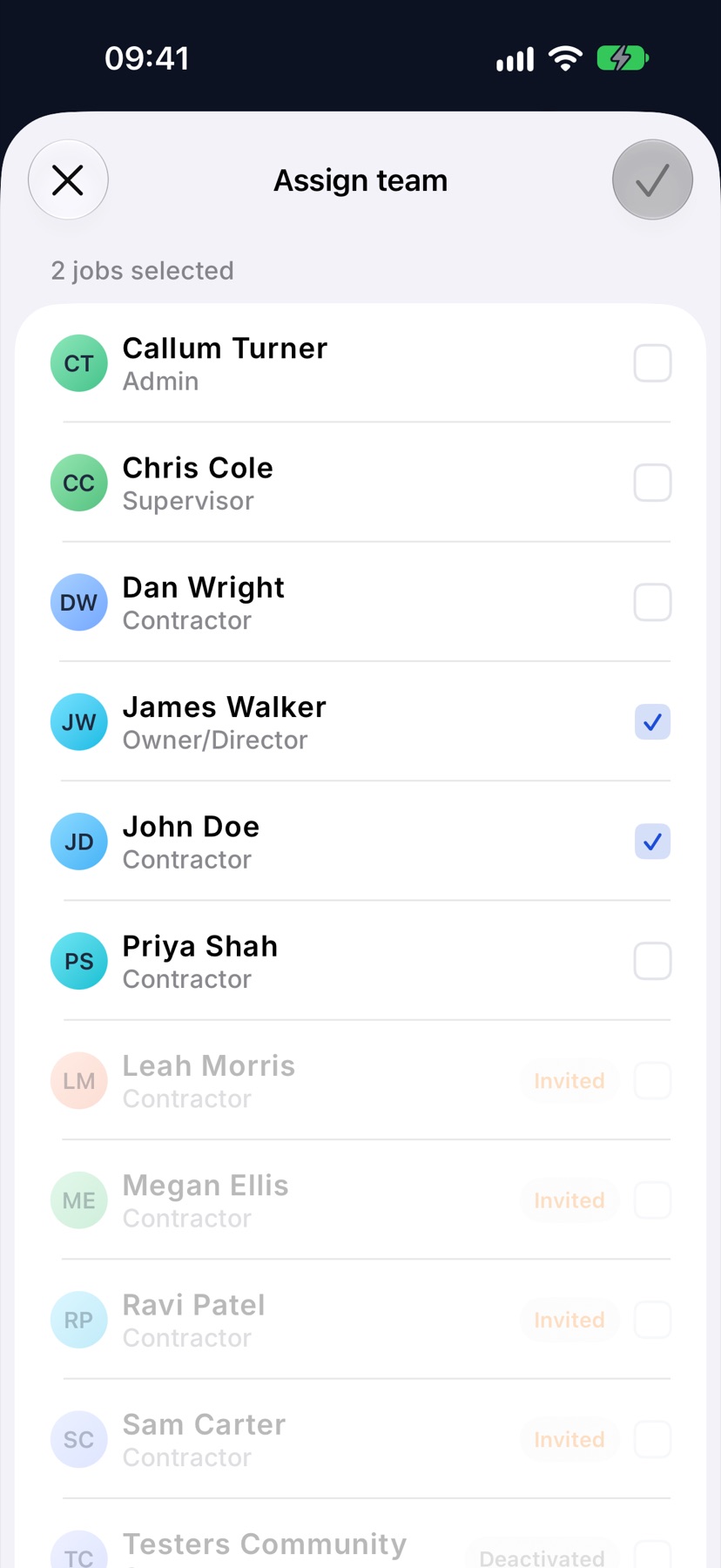
Tap Assign in the bottom bar. Assign team opens. Tick a person to put them on every selected job, and untick to take them off. A person already on some of the jobs shows how many.
Tap the tick at the top right to apply.
Set dates
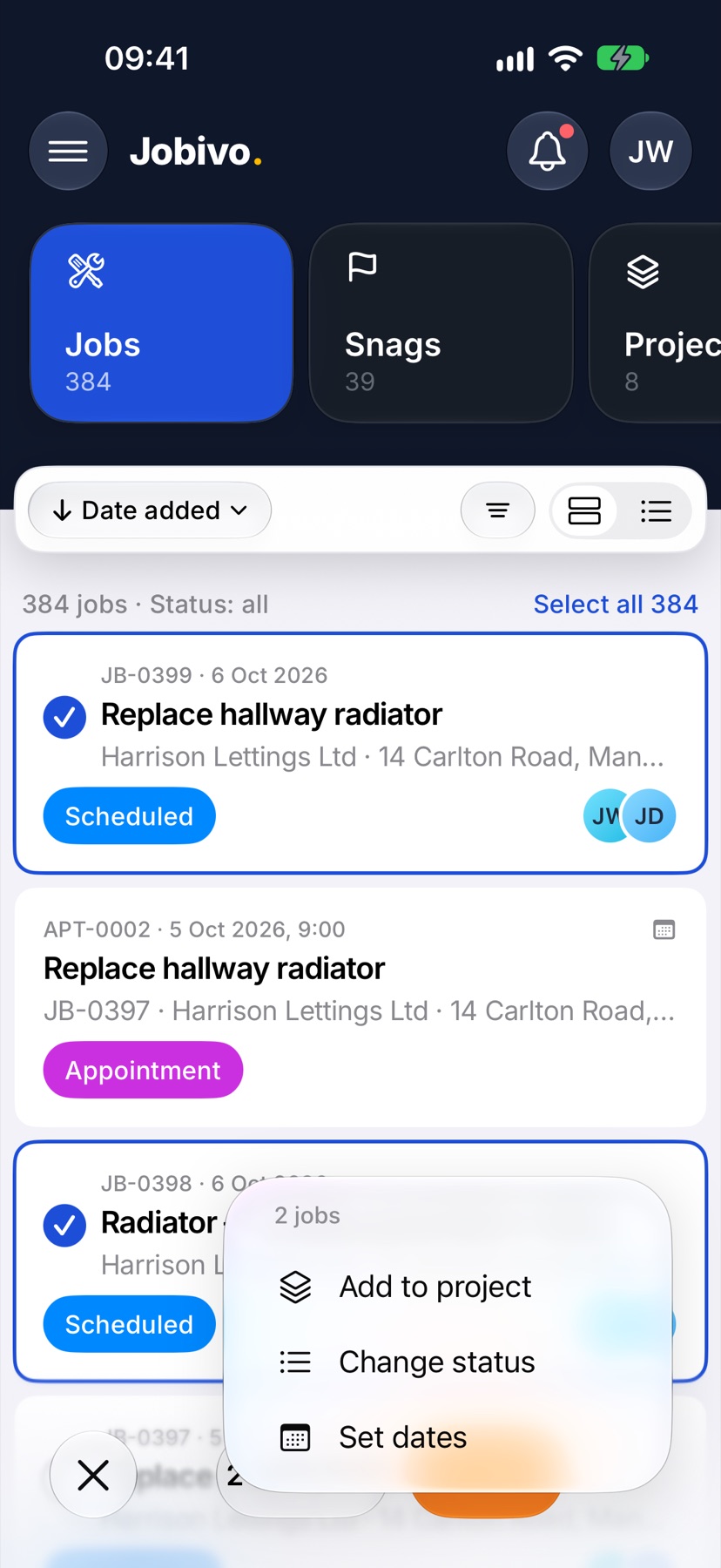
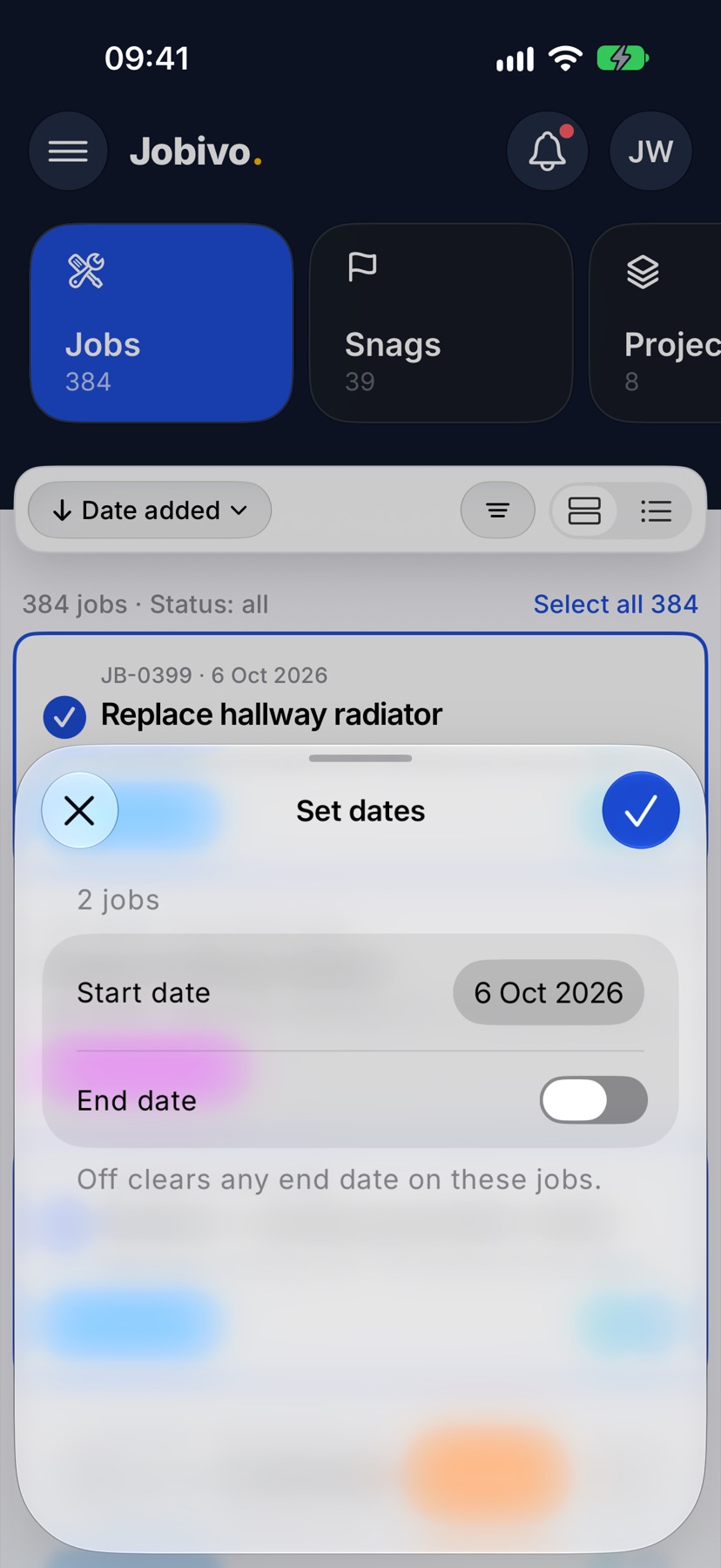
Tap the three dots in the bottom bar and tap Set dates. Choose a Start date. Turn on End date to give the jobs an end date too. Leaving it off clears any end date they have.
Tap the tick at the top right, then Set dates to confirm.
Change status
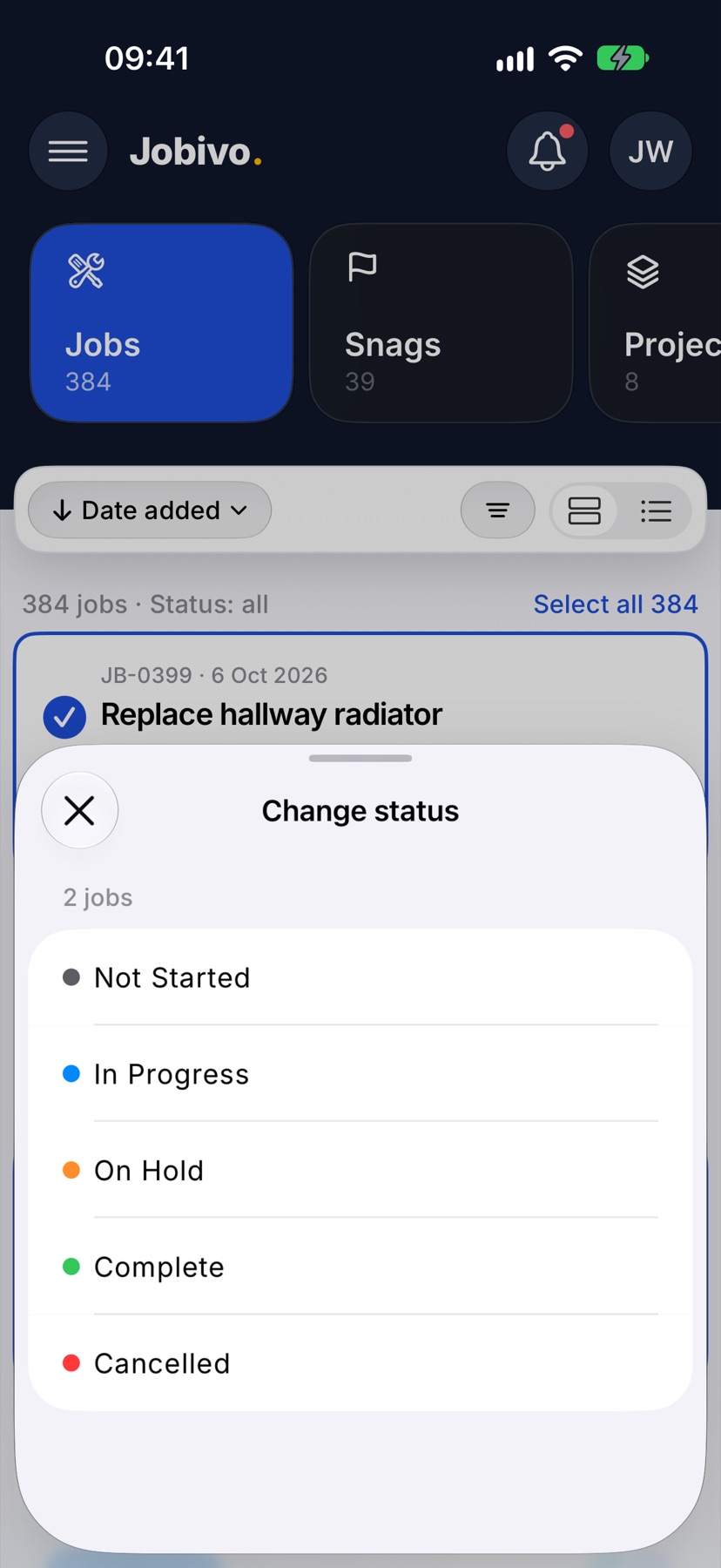
Tap the three dots and tap Change status. Tap the status you want: Not Started, In Progress, On Hold, Complete or Cancelled. Confirm with Change status.
A job with open snags cannot be completed this way. It stays Open until its snags are closed.
Add to a project
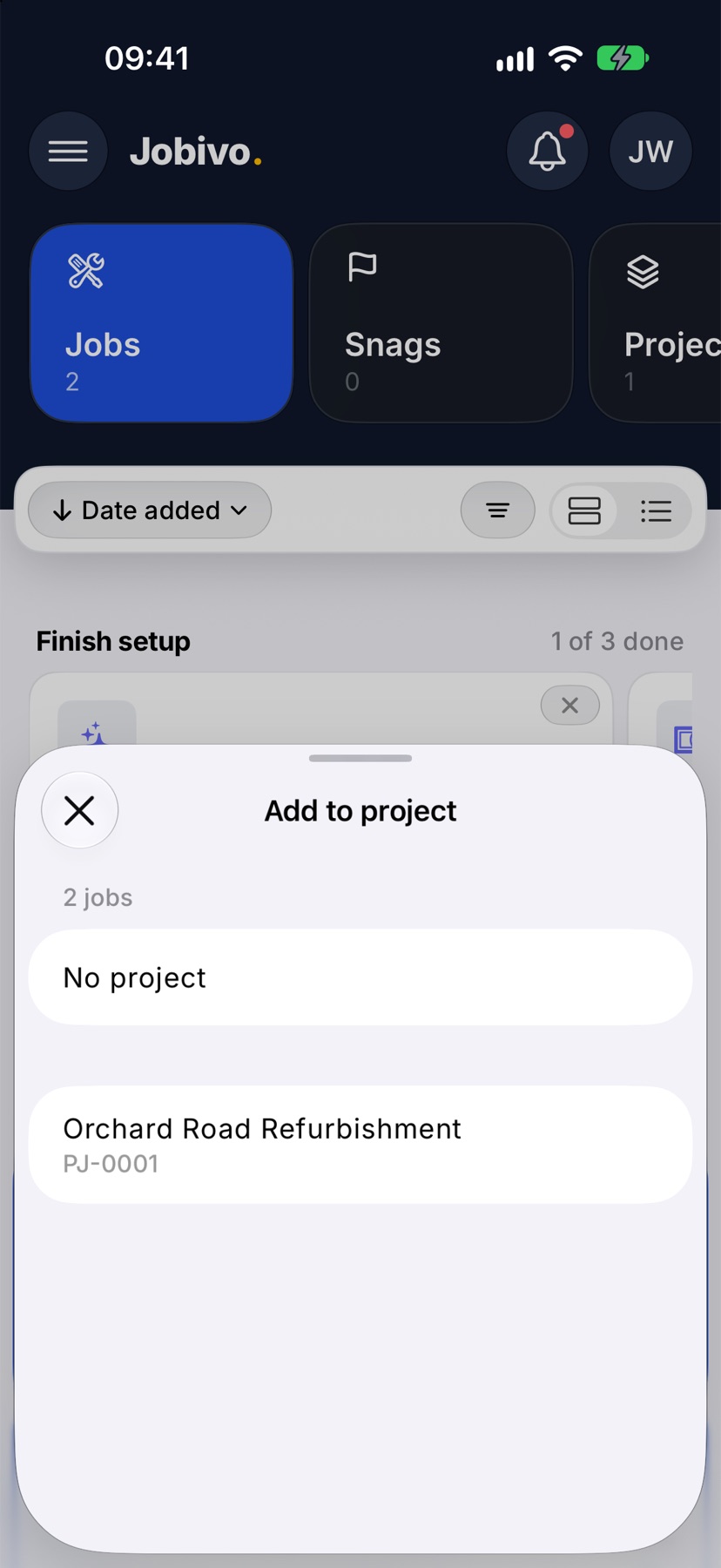
Tap the three dots and tap Add to project. Tap the project, then Move. Jobs already in another project leave it. Tap No project instead to take the selected jobs out of their projects.
After the change
A message confirms how many jobs were changed. If some could not be changed, the app says how many were done and why the rest were not, and leaves those ones selected so you can deal with them.
More in Jobs →
- Create a jobStart a job: the customer, the dates, the job sheet and any compliance it needs.
- The job pageHow one job page tracks the work, the photos and the money in one place.
- The job sheetBuild the tasks your team works through on site, and ask for photo evidence where it matters.
- Complete tasks and add evidenceComplete a task with the photos, notes or signature it asks for — and what to do when it won't tick.
Still stuck? Email support@jobivo.co.uk and we'll get back to you.