Complete tasks and add evidence
Tick tasks off as the work is done, with the photos, sub-tasks and signature that go with them.
What completing a task does
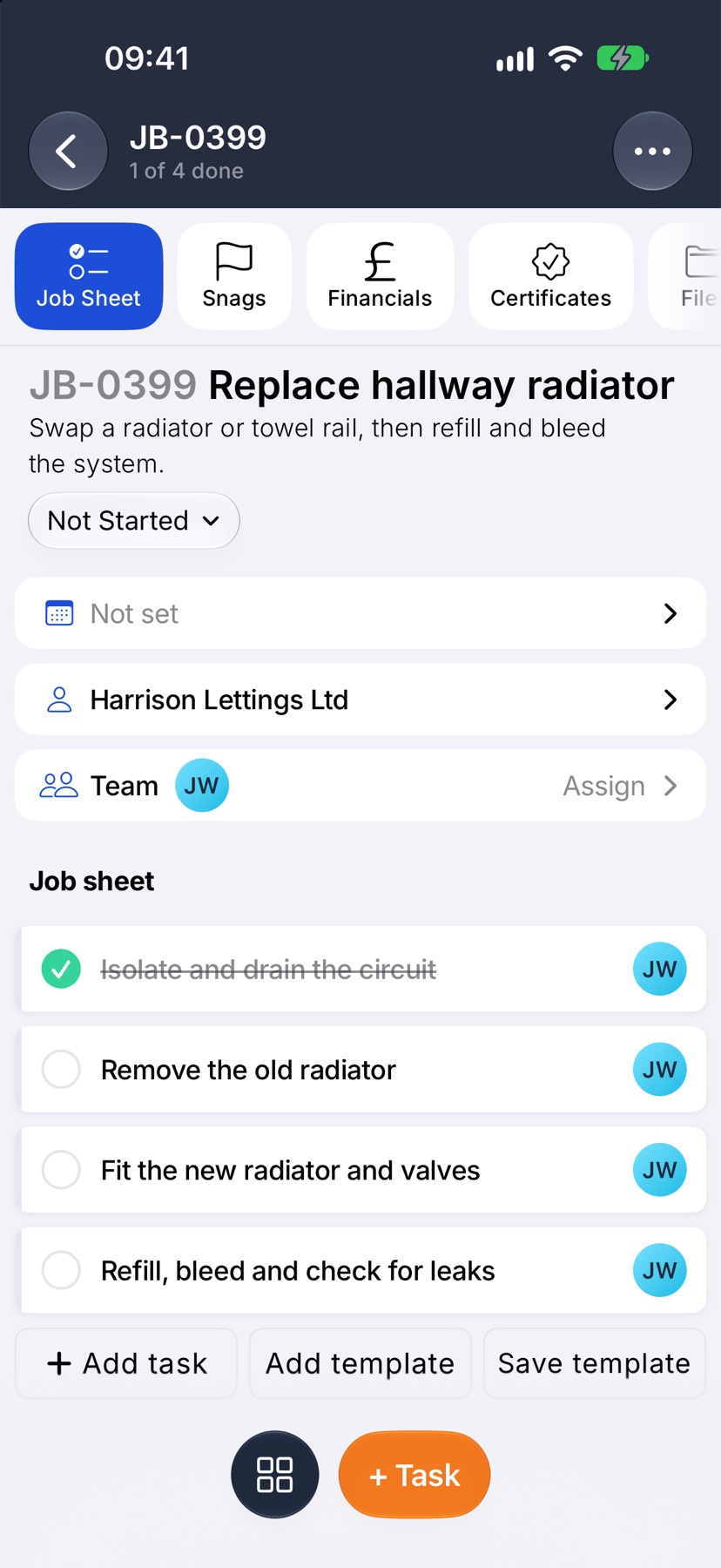
Each task on a job sheet has a circle beside it. Ticking the circle marks the task done, records who did it and when, and moves the job's count on: 2 of 7 done, then 3 of 7.
A task can carry more than a tick. It can hold photos of the work, a list of sub-tasks, and on some tasks a signature. These are the record of what was done, kept on the job for later.
When the first task is ticked the job moves to In Progress. When the last one is ticked the job can be completed.
Where to start
Open the job from Home. It opens on Job Sheet, with the tasks listed in the order they are done.
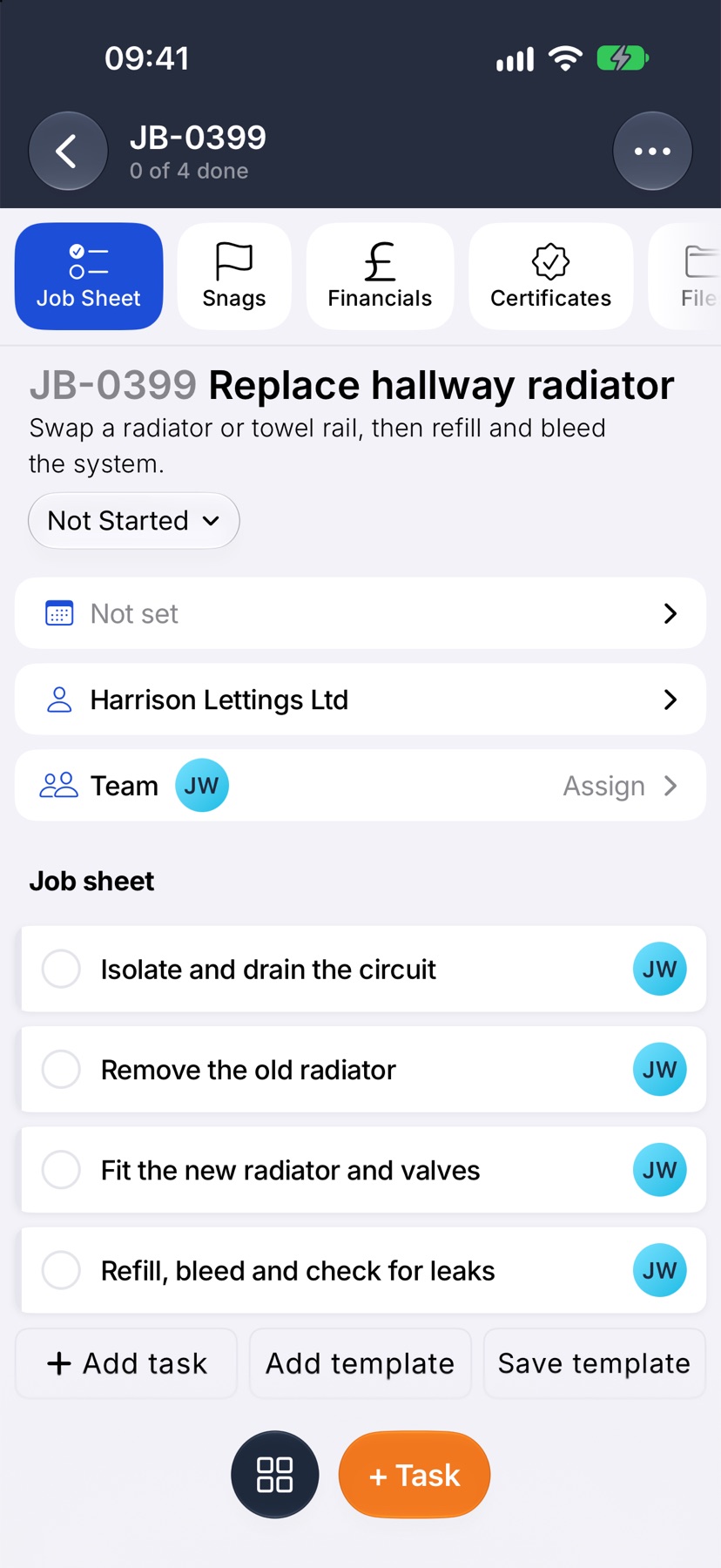
Tick a task
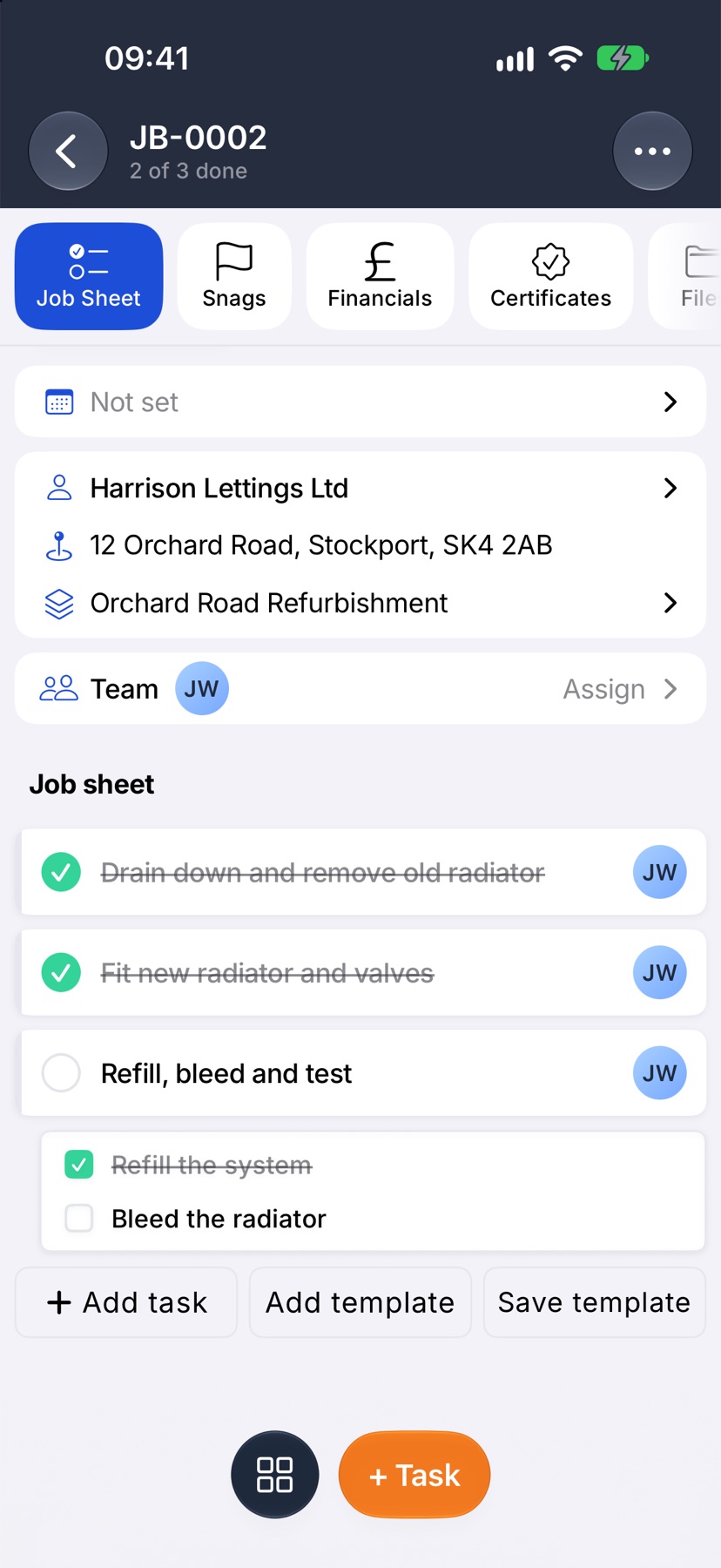
Tap the circle beside the task. It turns green with a tick, and the task's name is struck through. The count at the top of the sheet goes up.
Tap the green tick again to mark the task not done.
Add photos to a task
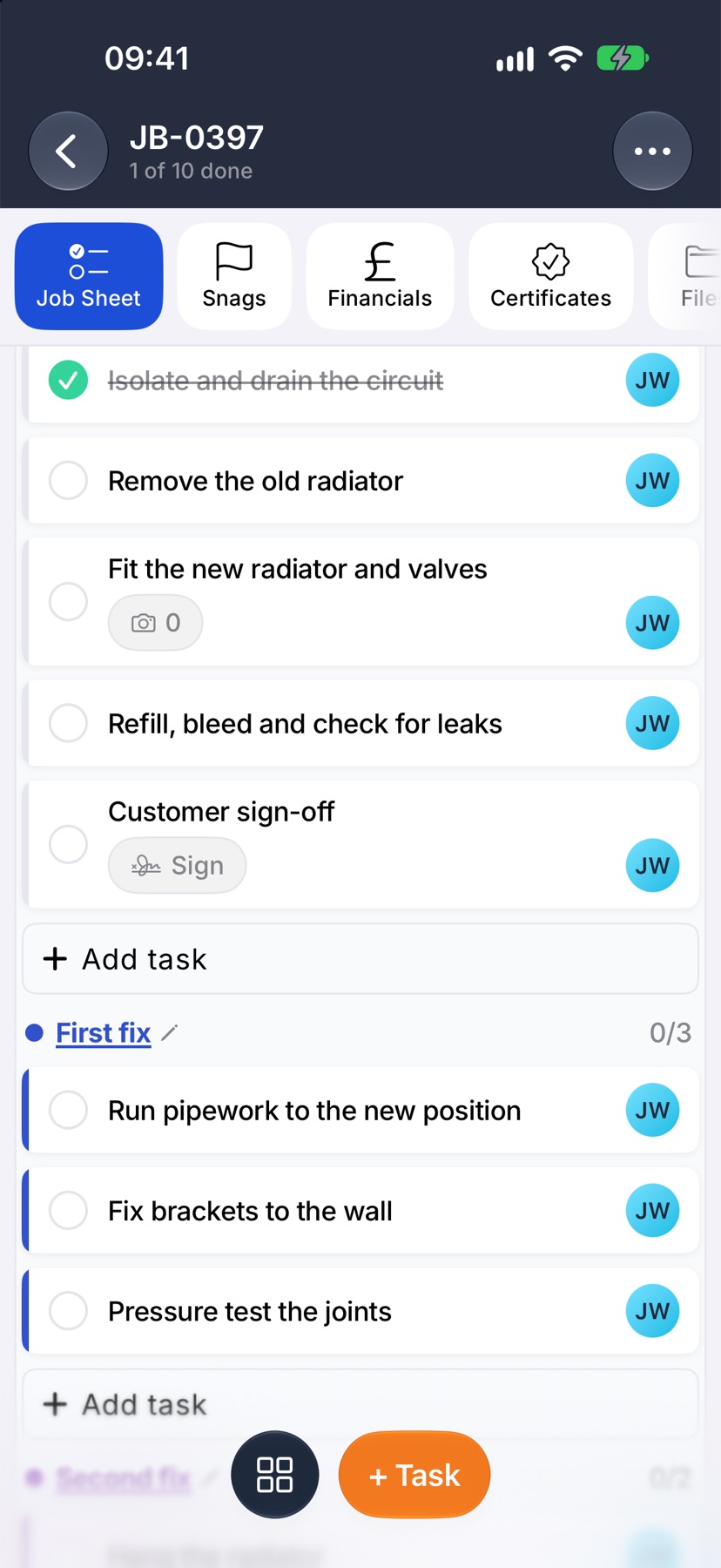
A task that takes photos shows a camera capsule with a number on its card. Tap the capsule, then choose Take photos or Choose photos. The number goes up and the capsule turns green once a photo is on the task.
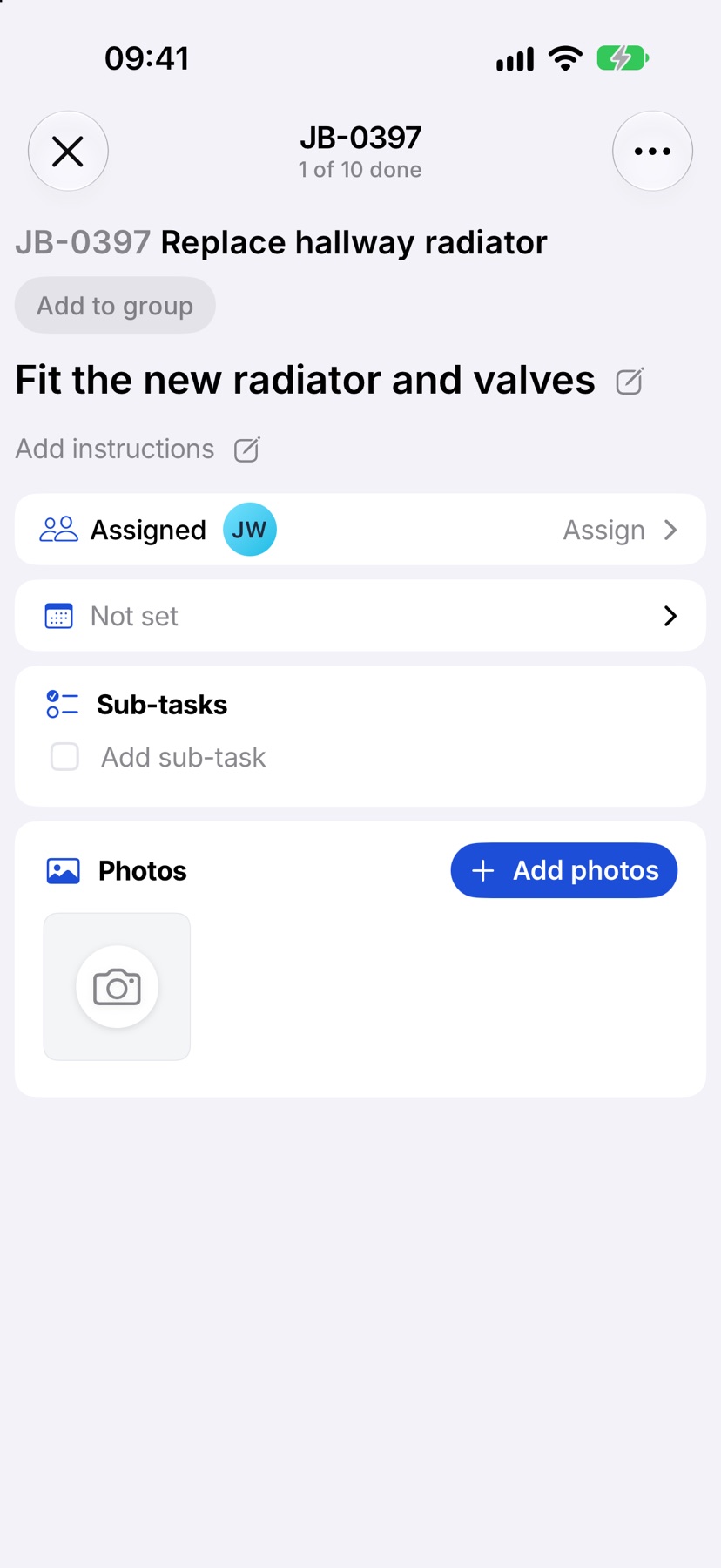
You can also tap the task to open it and tap Add photos under Photos.
Work through sub-tasks
A task's sub-tasks are listed under its card on the job sheet, set in slightly from the task. Tap each one as you do it. It is ticked and struck through. You do not need to open the task first.
To add another, if you manage the job, tap the task to open it and type in Add sub-task under Sub-tasks.
Capture a signature
A signature task shows a Sign capsule on its card. Tap it to open the task, then tap the Signature box and have the person sign on the screen. Signing ticks the task for you, and the card now reads Signed.
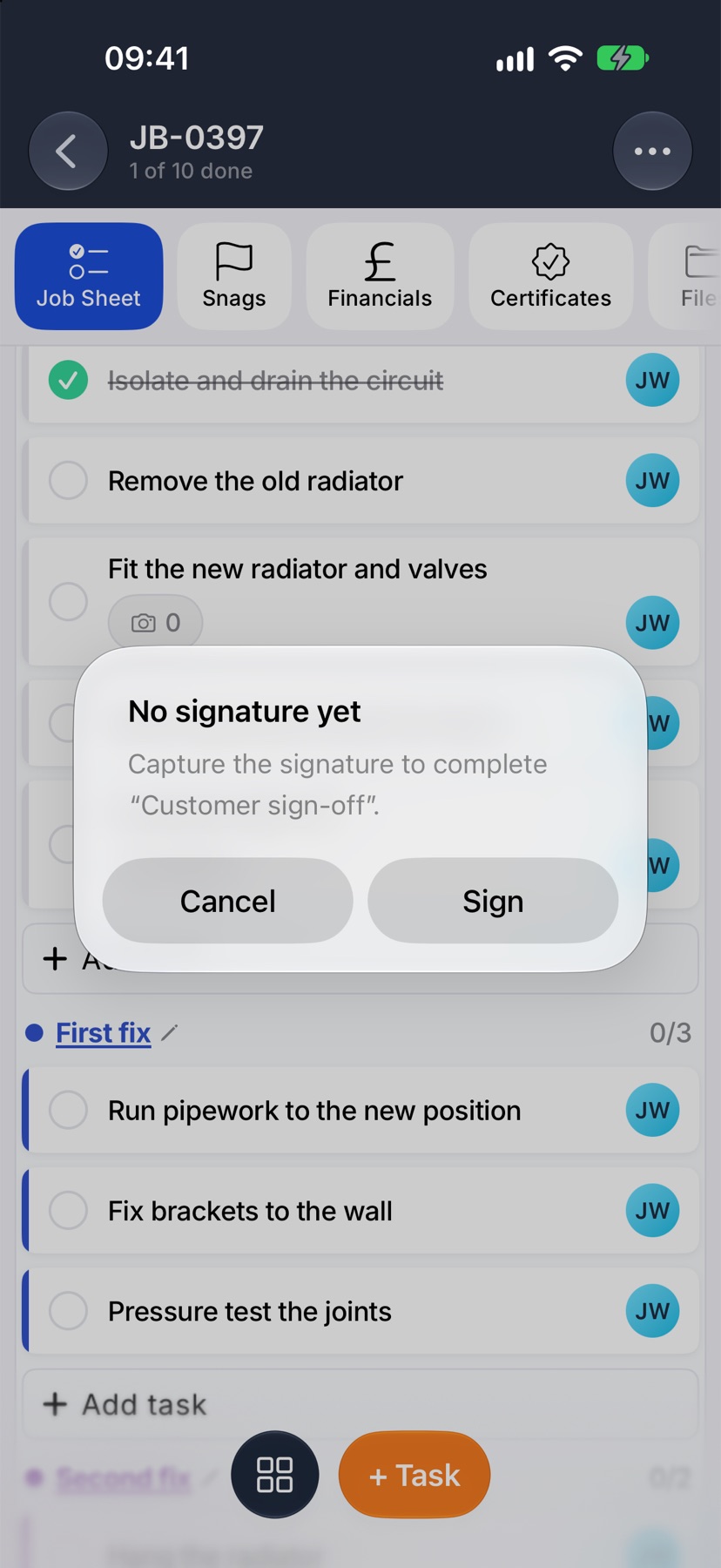
If you tick a signature task before it is signed, the app tells you No signature yet. Tap Sign to go straight to the task.
Complete or reopen several tasks at once
Tap the three dots at the top right of the job and tap Select tasks. Tick the tasks you want. The box on a group's heading ticks every task in that group.
Tap Complete in the bottom bar. It shows how many of the ticked tasks it will complete. To undo, tap More and then Reopen. More also has Select all.
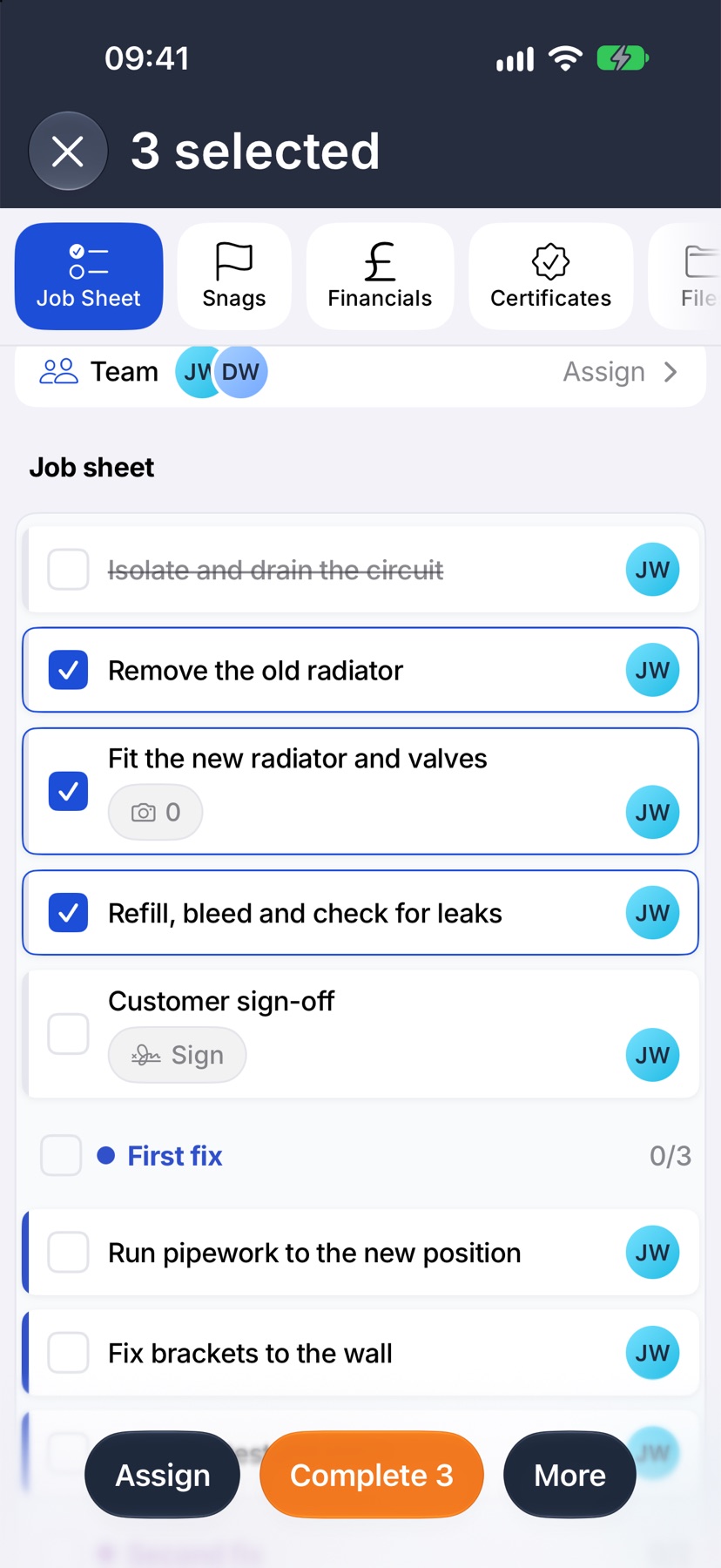
Tap the cross at the top left to leave selection.
After the last task
When every task is ticked and no snag is open, Complete appears in the bottom bar of the job sheet. Tap it, then Complete job, to close the job.
More in Jobs →
- Create a jobStart a job: the customer, the dates, the job sheet and any compliance it needs.
- The job pageHow one job page tracks the work, the photos and the money in one place.
- The job sheetBuild the tasks your team works through on site, and ask for photo evidence where it matters.
- Take and mark up photosUse the Jobivo camera, draw on a photo before it saves, and see where every shot was taken.
Still stuck? Email support@jobivo.co.uk and we'll get back to you.