Job statuses
A job's status is mostly worked out for you. Rather than asking your team to keep a dropdown up to date — which never happens — Jobivo reads what has actually been done and shows the honest answer.
Not started, and Scheduled#
A new job is Not started. Give it a start date and it reads Scheduled— same job, but now it's in the diary and shows on the calendar. Nothing to set: the date is the status.
In progress happens by itself#
The first time someone completes a task or uploads a photo, the job flips to In progress. Nobody has to remember to change it — which is exactly why you can trust it.
On hold is the one you set#
Waiting on a part, or the customer's gone quiet? Put the job On holdyourself. It's the deliberate pause — visibly different from a job that's simply not been touched yet.
Rework and Awaiting come from snags#
Raise a snag on a job and it reads Rework— red, because something was rejected and is outstanding. When the team says they've fixed it, it becomes Awaiting: resubmitted and sitting with you to check. Both clear the moment the snag is verified.
Complete, and what it doesn't do#
Complete means the work is done. It is a marker, not a lock — tasks stay editable, photos can still be added, and you can still invoice. Nothing gets sealed off, so finishing a job never traps you. Cancelledis the other ending: work that isn't happening.
Tip — if a status looks wrong, look at the job rather than the dropdown — an unexpected In progress almost always means a photo landed, and an unexpected Reworkmeans there's an open snag.
Read a job's status at a glance, and know which ones are worked out for you and which you set.
What a job's status is
Every job shows one status, as a coloured capsule under its name and on its card in the jobs list. It tells you where the job has got to without opening it.
Most statuses are worked out from what has happened on the job: whether it has a date, whether any task is ticked, whether a snag is open. Nobody has to remember to change them, which is why they can be trusted.
Three are set by a person: putting a job on hold, completing it and cancelling it.
Where to start
Open Jobivo on Home with Jobs selected. Each job card shows its status. Tap a job to open it: the same status is the capsule under the job's name.
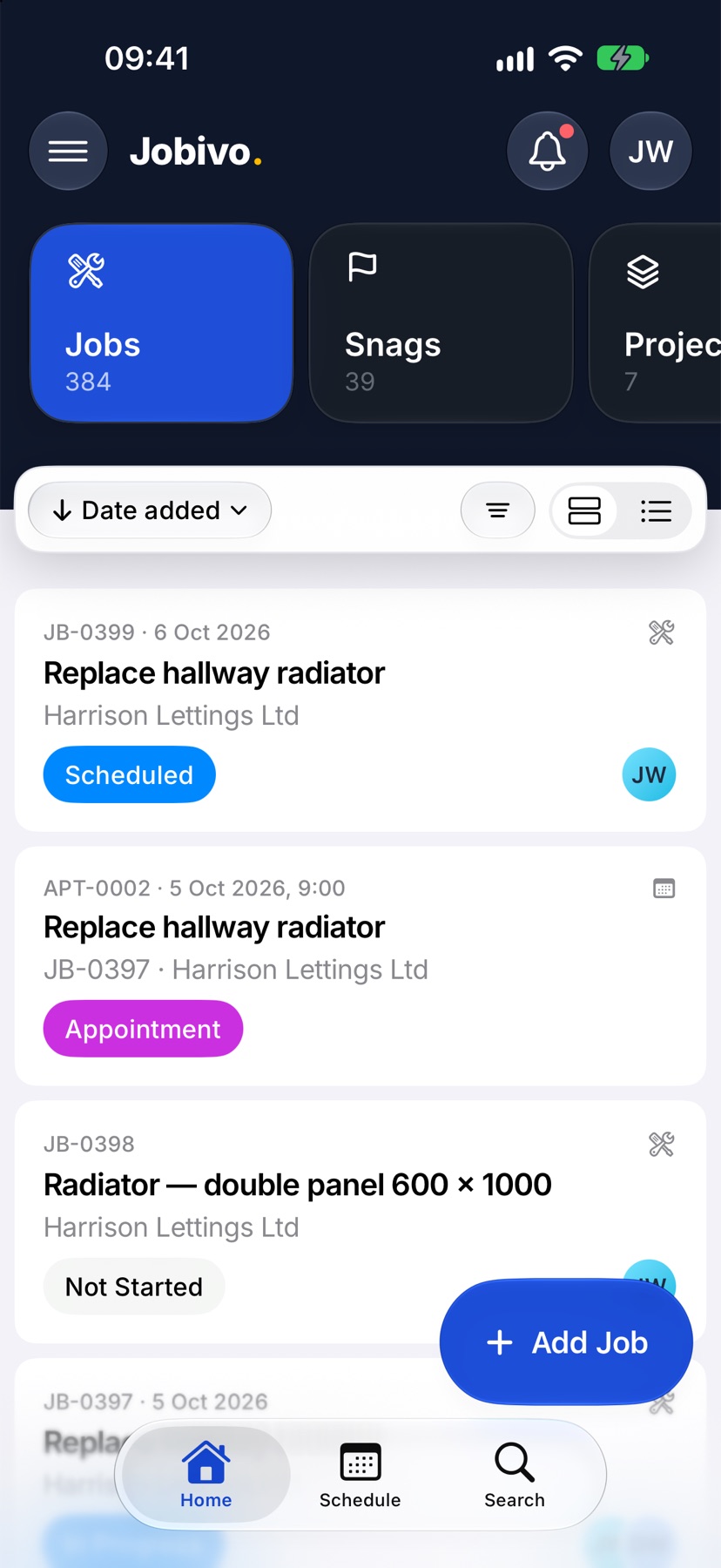
Not Started and Scheduled
A new job is Not Started. Give it a start date and it reads Scheduled. It is the same job, now in the diary. You do not set this: the date does.
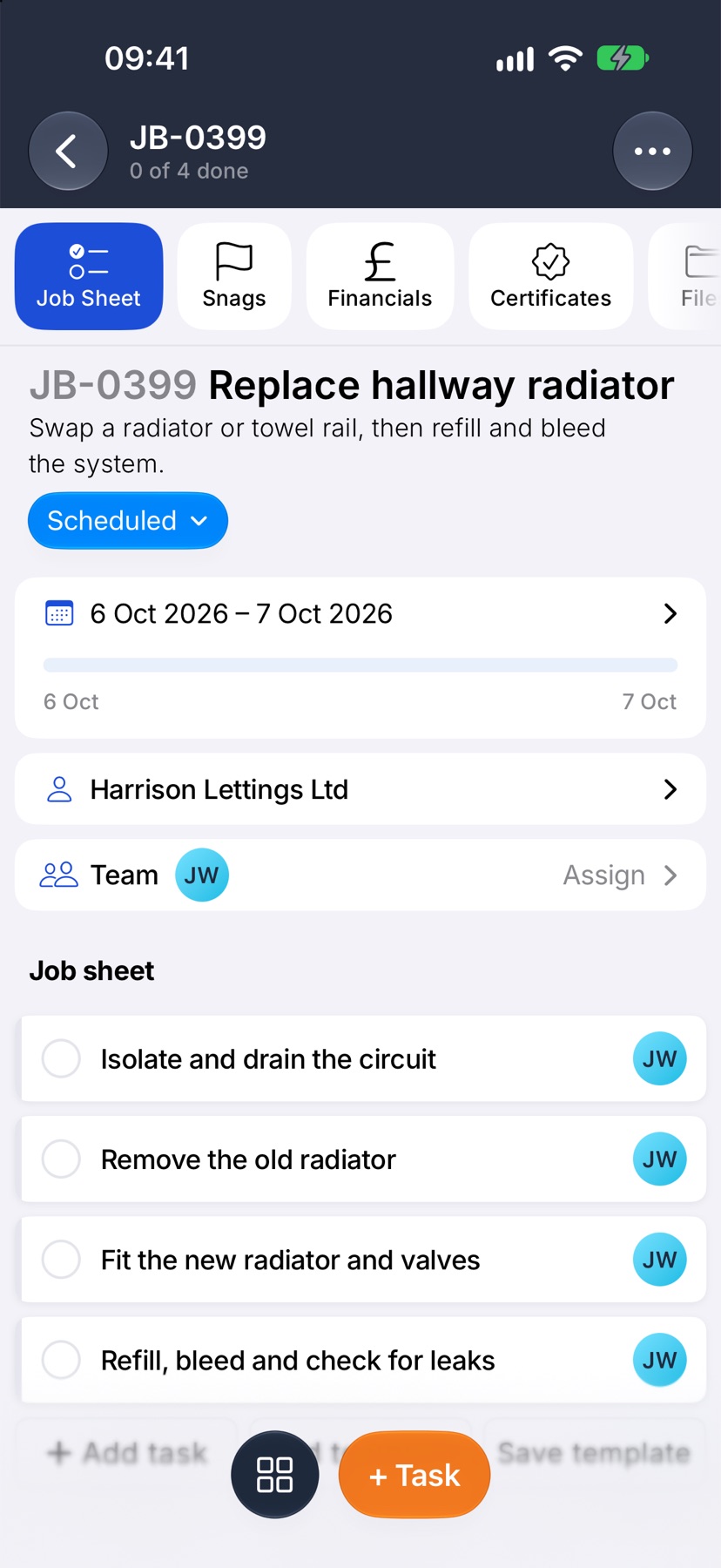
In Progress
When the first task is ticked, the job reads In Progress. Nobody has to change it.
On Hold
On Hold is the pause you set yourself, for a job waiting on a part or on the customer. It marks the job as stopped on purpose, which is different from a job nobody has touched.
Open and Awaiting
A job that is under way or complete and has an open snag reads Open, in red. Something on it needs putting right, and the job cannot be completed until it is.
When a finished job's snag has been marked fixed and is waiting to be checked, the job reads Awaiting. Both clear once the snag is verified or dismissed.
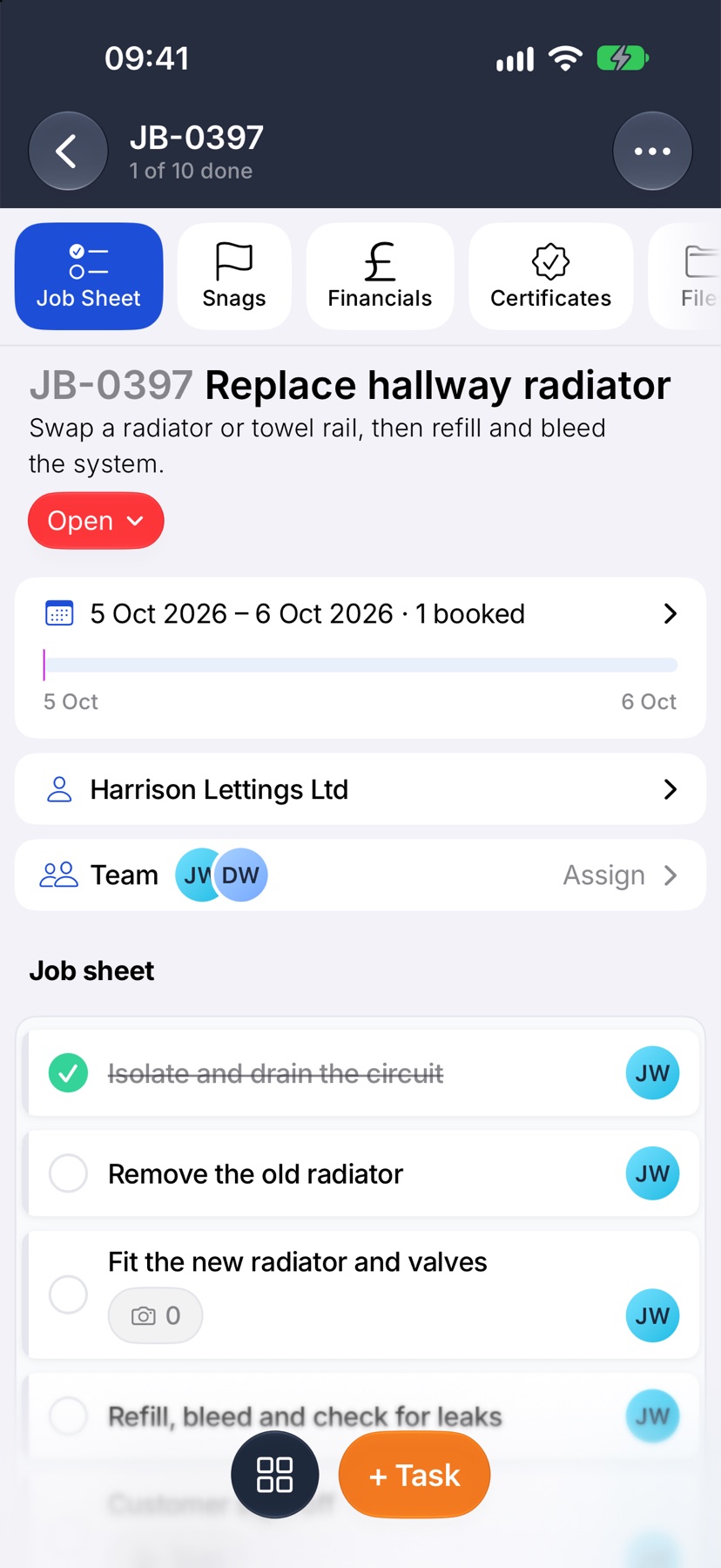
Complete and Cancelled
Complete means the work is done. Cancelled means the work is not happening. Both lock the job sheet, so tasks can no longer be added to it. Everything already on the job is kept.
Change a status yourself
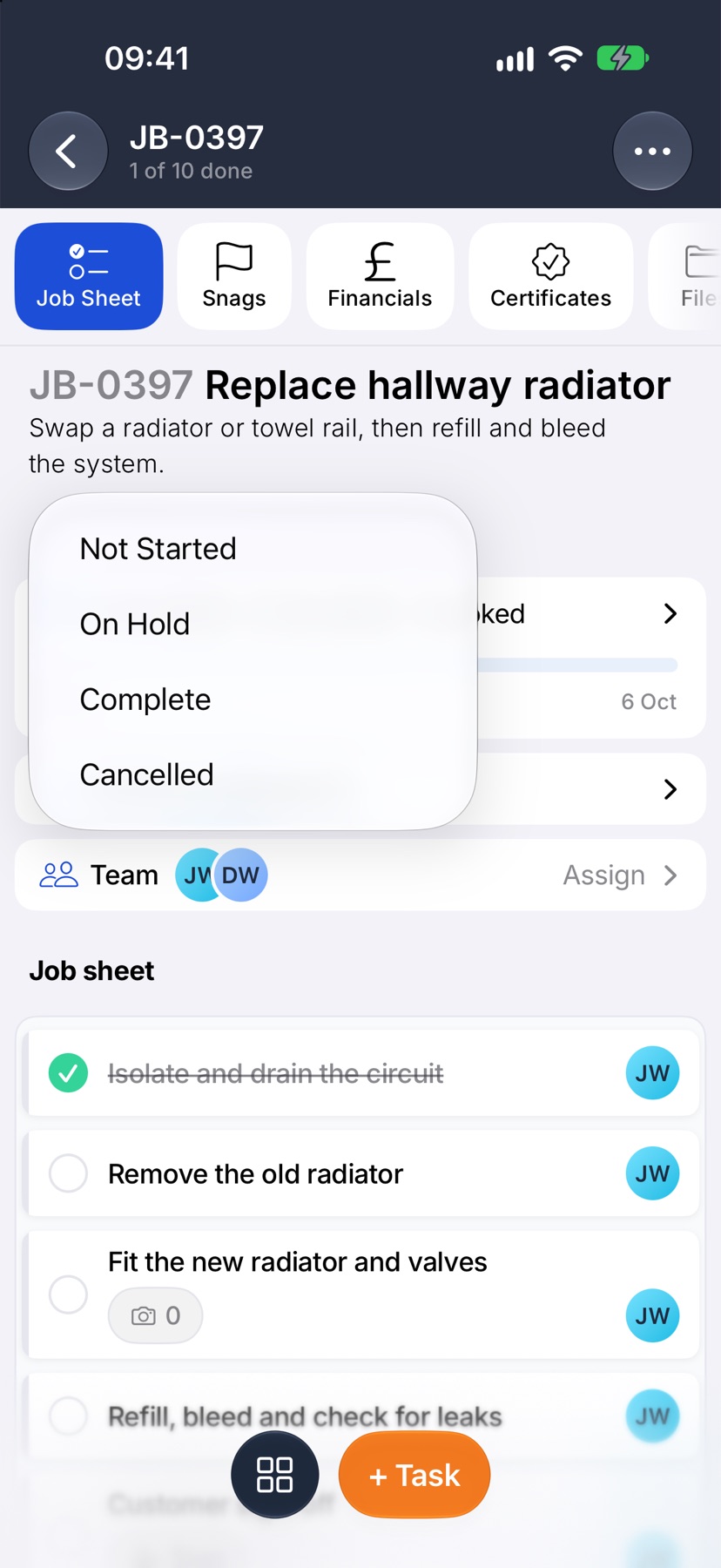
Open the job and tap the status capsule under its name. Pick from Not Started, In Progress, On Hold, Complete and Cancelled. The one the job is already on is left out.
Most choices apply straight away. Complete and Cancelled ask you to confirm first, because they lock the sheet.
If a status looks wrong
Look at the job, not the capsule. An unexpected In Progress means a task was ticked. An unexpected Open means there is an open snag on the job's Snags tab.
More in Jobs →
- Create a jobStart a job: the customer, the dates, the job sheet and any compliance it needs.
- The job pageHow one job page tracks the work, the photos and the money in one place.
- The job sheetBuild the tasks your team works through on site, and ask for photo evidence where it matters.
- Complete tasks and add evidenceComplete a task with the photos, notes or signature it asks for — and what to do when it won't tick.
See what else Job sheets can do. Still stuck? Email support@jobivo.co.uk and we'll get back to you.