Sketches and files on a job
Keep drawings, documents and quick sketches on the job they belong to.
What files on a job are
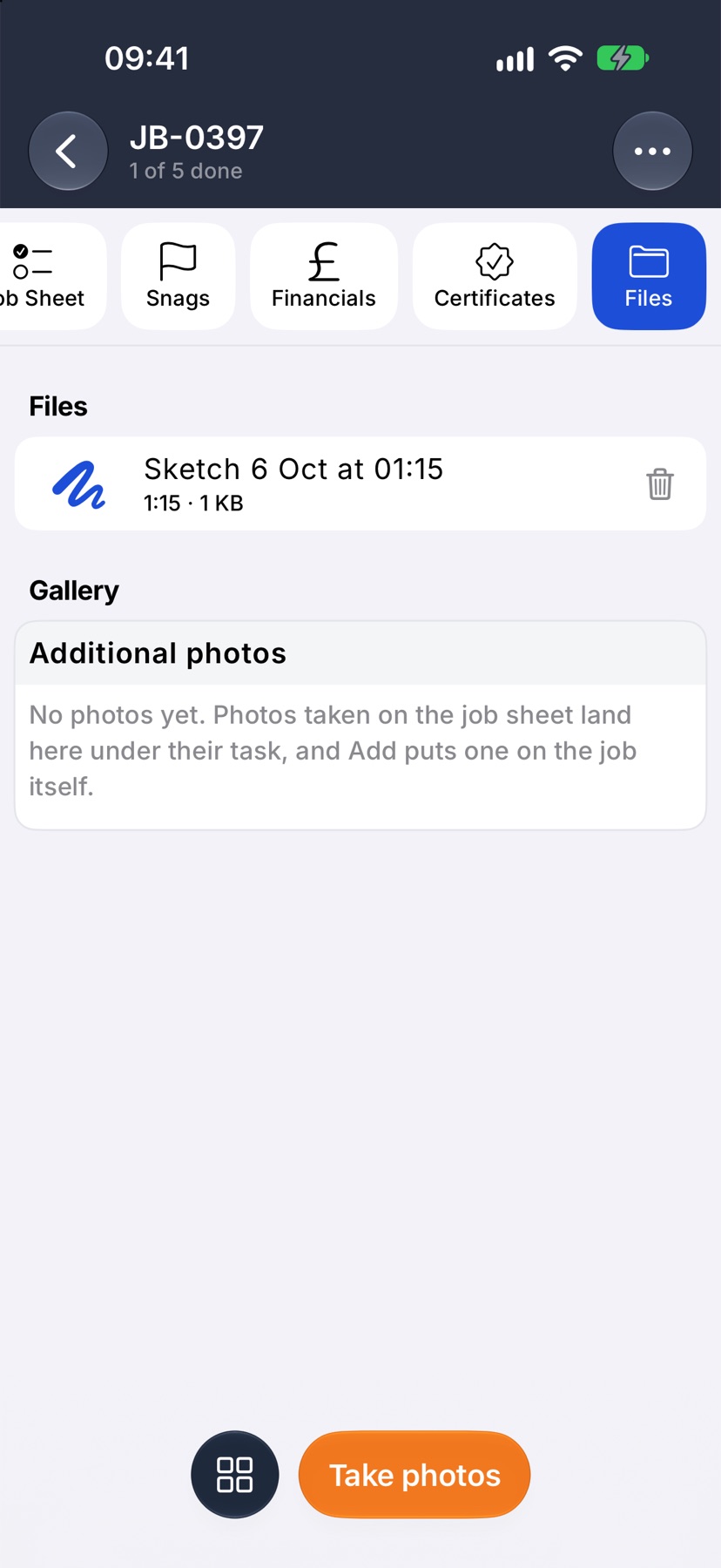
Every job has a Files tab. It holds the documents that go with the work: drawings, PDFs, receipts and anything else you would otherwise keep in an email or a folder.
A sketch is a drawing you make on the phone, such as a room layout with a pipe run marked on it. It is saved to the job as a file, and you can open it again to change it.
Files on a job are seen by the people who can open that job. Nothing has to be sent round separately.
Where to start
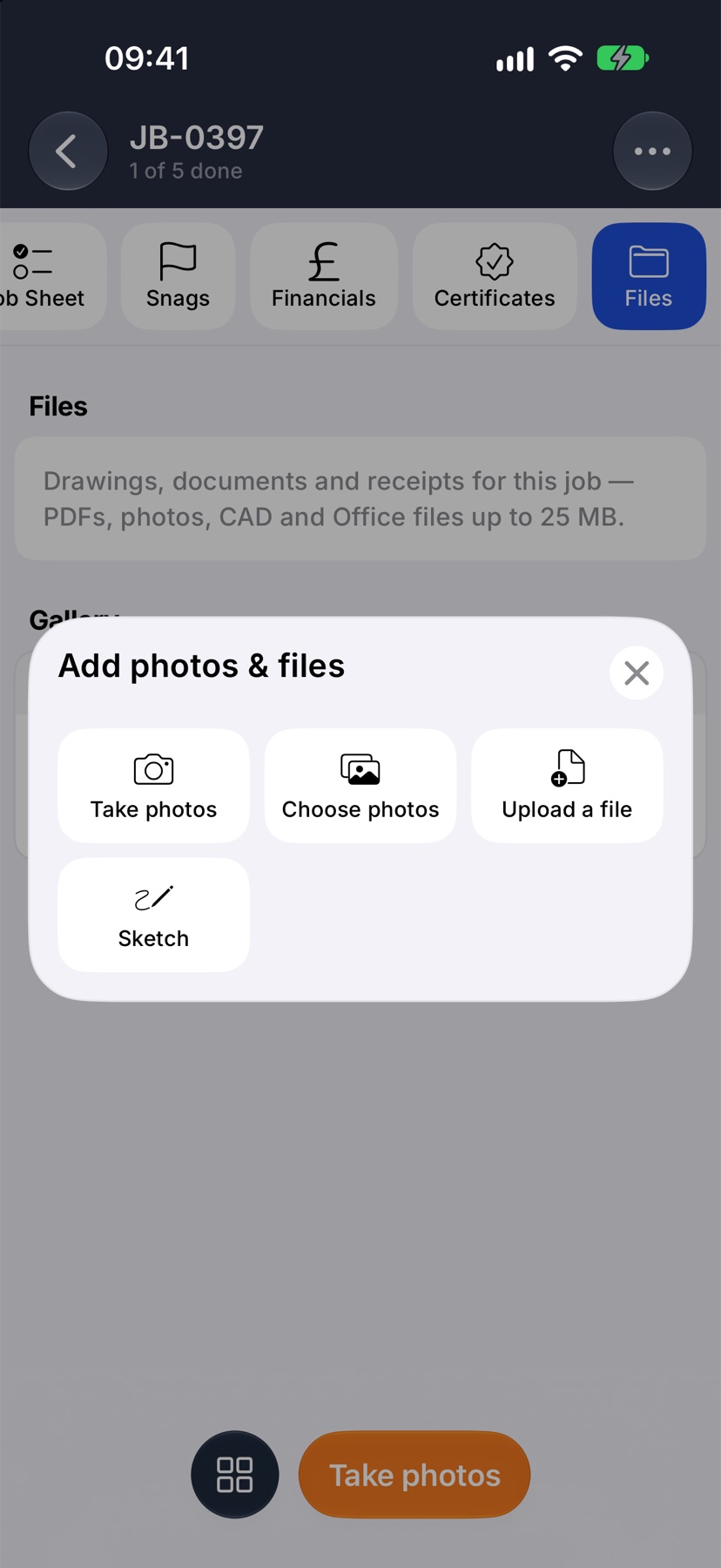
Open the job and tap Files in the tabs across the top. Tap the round grid button at the bottom of the screen. Add photos & files opens.
Upload a file or drawing
Tap Upload a file. Your phone's file browser opens. Find the file and tap it. It uploads and appears at the top of the Files list on the job.
Files can be PDFs, photos, CAD and Office files, up to 25 MB each.
Tap a file in the list to open it.
Draw a sketch
Tap the grid button again and tap Sketch. A blank drawing opens. Draw with your finger, using the tools on the screen. The arrows at the top undo and redo, and the slider button beside them opens Drawing options, where you can Show grid and keep lines at Straight angles.
Tap the tick at the top right to save. The sketch joins the Files list on the job.
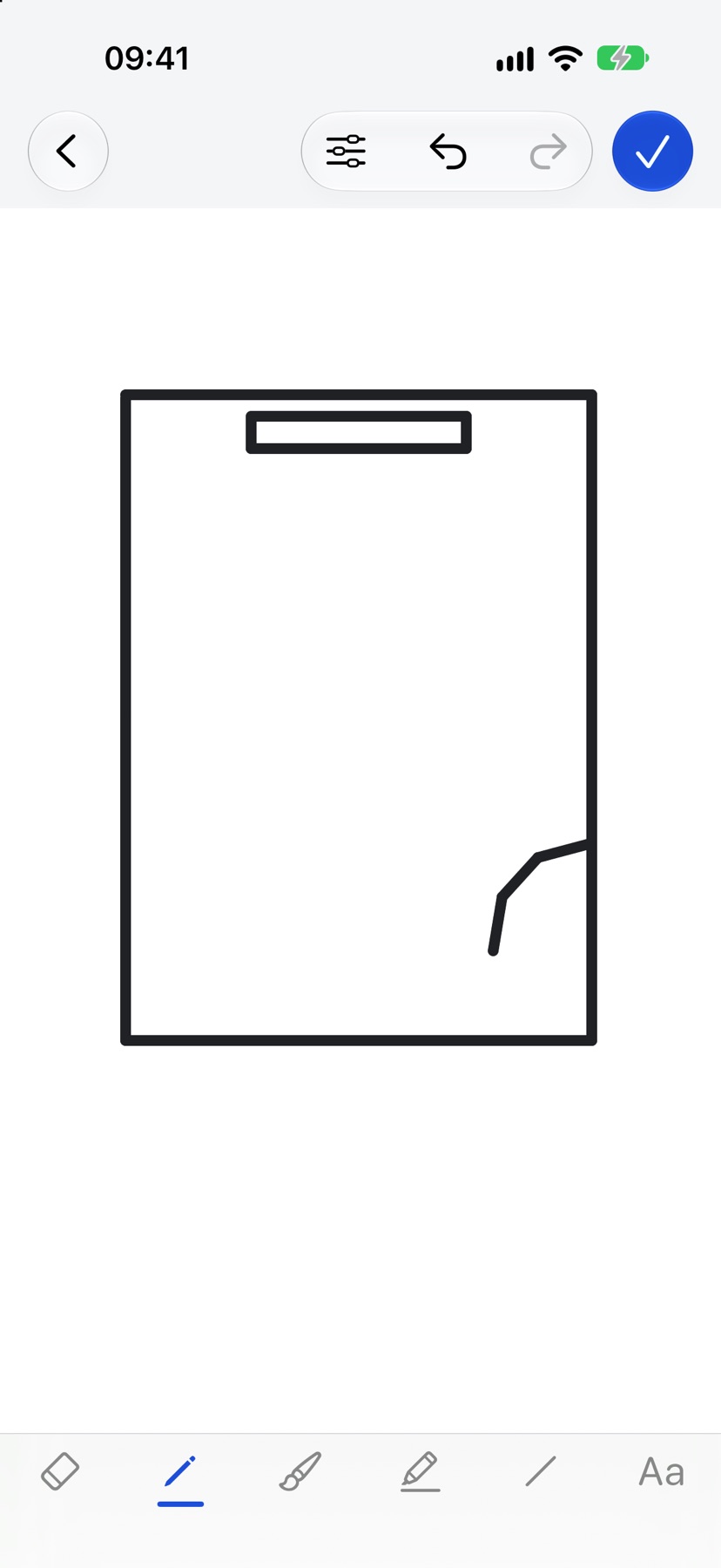
If you go back without saving, the app asks Discard sketch? Tap Keep drawing to carry on.
Open a sketch again
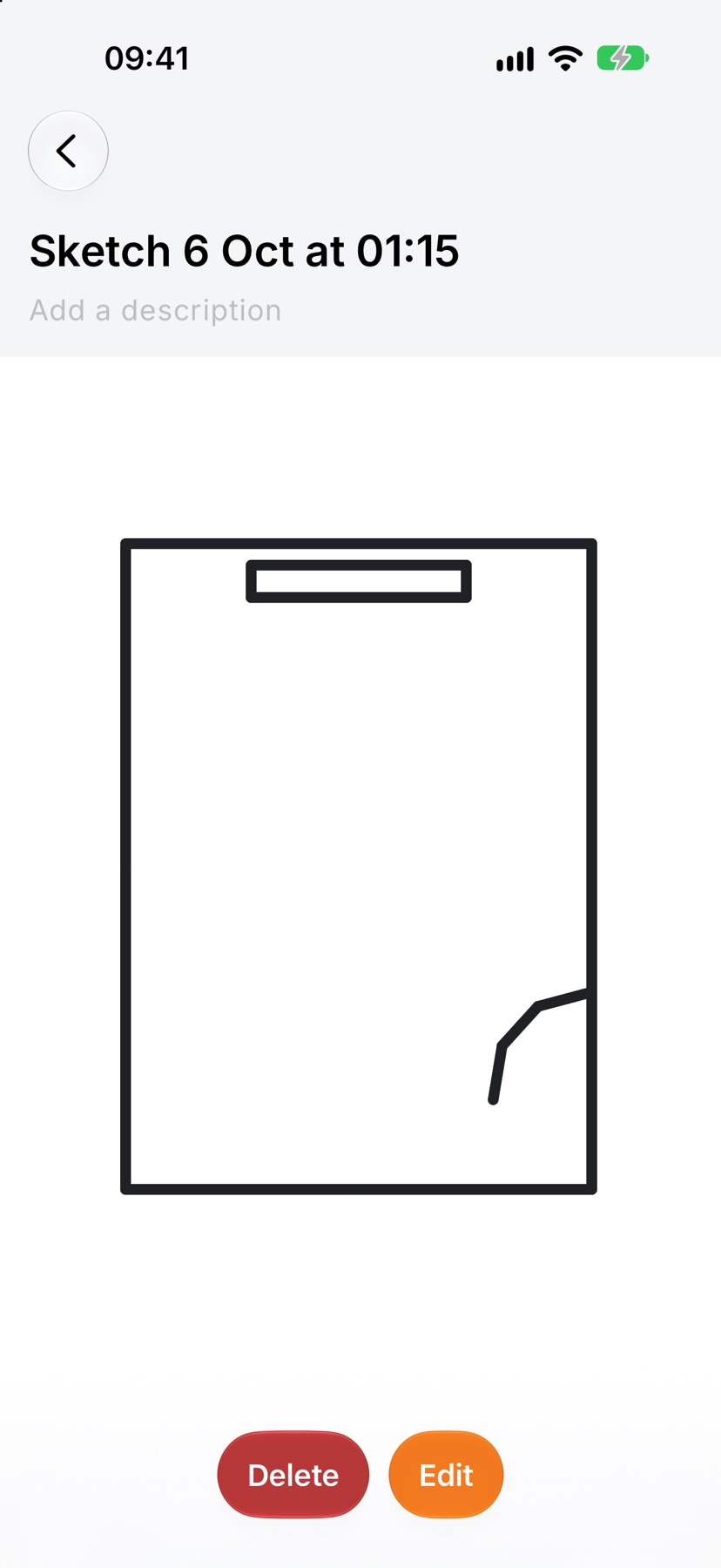
Tap the sketch in the Files list. It opens as a preview, where you can Add a description. Tap Edit at the bottom to change the drawing, or Delete to remove it for everyone.
Remove a file
Tap the bin at the right of the file's row in the Files list. The app asks you to confirm, then removes the file from the job for everyone.
Find files across all your jobs
Open the menu from Home and tap Files. Recent shows the files added lately. Folders lists your jobs and projects: tap one to open it in place and see its files and photos. The search box at the top looks through projects, jobs and files.
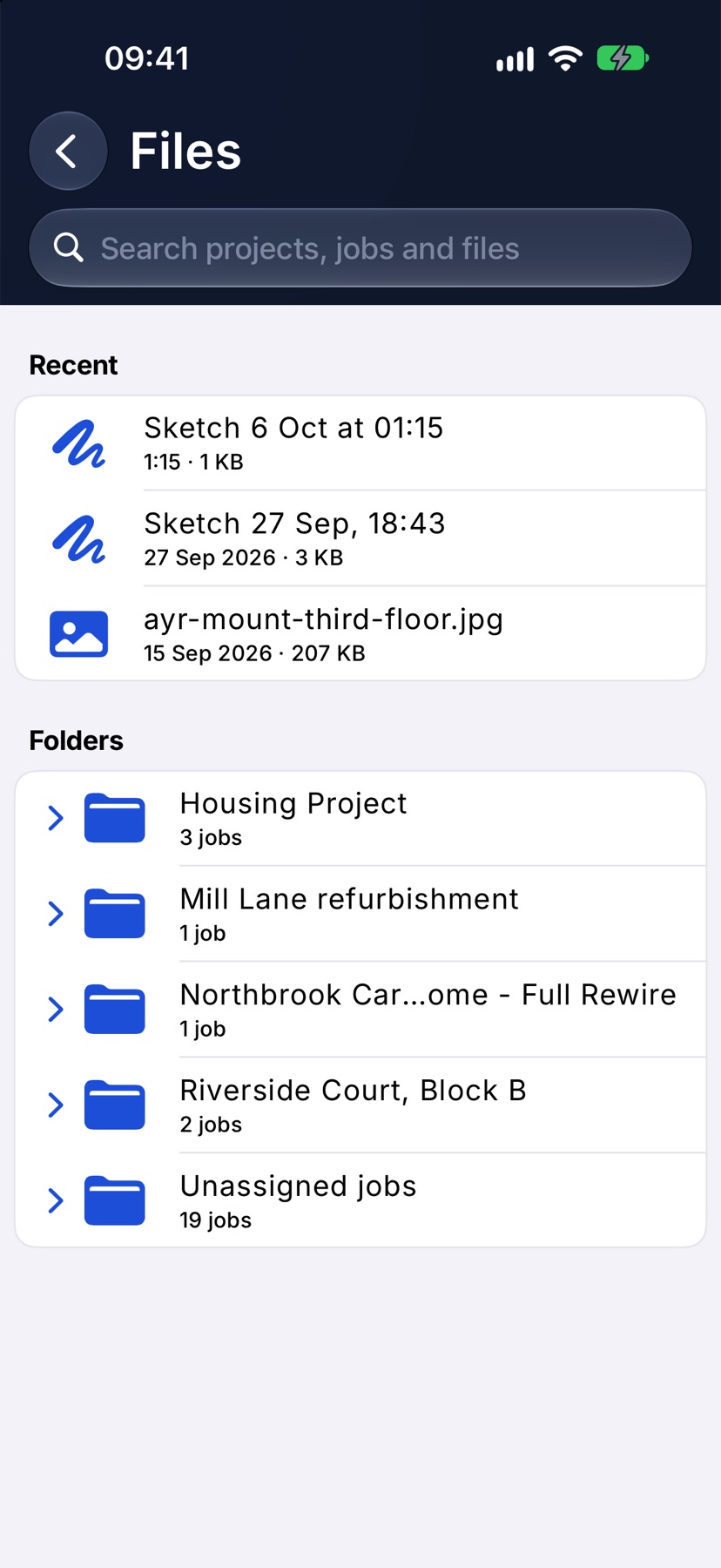
Storage is not shown while you have room. When your company is close to its limit a storage card appears at the top of this screen with how much is used and how much is left.
More in Jobs →
- Create a jobStart a job: the customer, the dates, the job sheet and any compliance it needs.
- The job pageHow one job page tracks the work, the photos and the money in one place.
- The job sheetBuild the tasks your team works through on site, and ask for photo evidence where it matters.
- Complete tasks and add evidenceComplete a task with the photos, notes or signature it asks for — and what to do when it won't tick.
Still stuck? Email support@jobivo.co.uk and we'll get back to you.